1
Notice
© 2000 Compaq Computer Corporation
COMPAQ and the Compaq logo Registered in U.S. Patent and Trademark Office. Microsoft and Windows
are trademarks of Microsoft Corporation.
All other product names mentioned herein may be trademarks or registered trademarks of their respective
companies.
Compaq shall not be liable for technical or editorial errors or omissions contained herein. The information in
this document is subject to change without notice.
The information in this publication is subject to change without notice and is provided "AS IS" WITHOUT
WARRANTY OF ANY KIND. THE ENTIRE RISK ARISING OUT OF THE USE OF THIS INFORMATION
REMAINS WITH RECIPIENT. IN NO EVENT SHALL COMPAQ BE LIABLE FOR ANY DIRECT,
CONSEQUENTIAL, INCIDENTAL, SPECIAL, PUNITIVE OR OTHER DAMAGES WHATSOEVER
(INCLUDING WITHOUT LIMITATION, DAMAGES FOR LOSS OF BUSINESS PROFITS, BUSINESS
INTERRUPTION OR LOSS OF BUSINESS INFORMATION), EVEN IF COMPAQ HAS BEEN ADVISED
OF THE POSSIBILITY OF SUCH DAMAGES. THE FOREGOING SHALL APPLY REGARDLESS OF THE
NEGLIGENCE OR OTHER FAULT OF EITHER PARTY AND REGARDLESS OF WHETHER SUCH
LIABILITY SOUNDS IN CONTRACT, NEGLIGENCE, TORT, OR ANY OTHER THEORY OF LEGAL
LIABILITY, AND NOTWITHSTANDING ANY FAILURE OF ESSENTIAL PURPOSE OF ANY LIMITED
REMEDY.
The limited warranties for Compaq products are exclusively set forth in the documentation accompanying
such products. Nothing herein should be construed as constituting a further or additional warranty.
Compaq Presario
First Edition (Sep. 2000)
Part Number 209058-373
European Notice
Equipment with CE marking complies with the EMC Directive (89/336/EEC) and the Low Voltage Directive
(73/23/EEC) issued by the European Community, and if this product has telecommunication functionality,
the R&TTE Directive (1999/5/EC).
Compliance with these directives implies conformity to the following European Norms or Regulations (in
parentheses are the equivalent international standards and regulations):
→ EN 55022 (CISPR 22) – Electromagnetic Interference
→ EN 50082-1 (IEC 802-2. IEC 801-3, IEC 802-4) – Electromagnetic Immunity
→ EN 60950 (IEC 60950) – Product Safety
Modem Statements
Safety is important when you are operating your computer. Follow the guidelines in this section to enjoy
your computing experience.
• Never install telephone wiring during a lightning storm.
• Never install telephone jacks in wet locations unless the jack is specifically designed for wet locations.
• Never touch uninsulated telephone wires or terminals unless the telephone line has been disconnected
at the network interface.
• Use caution when installing or modifying telephone lines.
• Avoid using the telephone function during an electrical storm. There may be a remote risk of electric
shock from lightning.
• Do not use the telephone function to report a gas leak in the vicinity of the leak.
For users in America:
• To reduce the risk of fire, use only No. 26 AWG or larger telecommunication line cord.
For users in Australia:
• Unit shall be connected to Telecommunication Network through a line cord which meets the
requirements of Australian Communications Authority (ACA) Technical Standard TS008.
As an alternative to viewing the approval information on your product, country approval information may
also be found on the Compaq Web site. To view this approval information, visit www.compaq.com and
perform a site search for the words, “telecom network approvals.” If a selection is available for your product,
you may view and print the approval information.
About the Battery
Attention:
The product that you have purchased contains a rechargeable battery. The battery is recyclable. At the end
of its useful life, under various state and local laws, it may be illegal to dispose of this battery into the
municipal waste stream. Check with your local solid waste officials for details in your area for recycling
options or proper disposal.
Caution Texts Concerning Lithium Batteries
DANISH
ADVARSEL!
Lithiumbatteri - Eksplosionsfare ved fejlagtig håndtering. Udskiftning må kun ske med batteri af samme
fabrikat og type. Levér det brugte batteri tilbage til leverandøren.
NORWEGIAN
ADVARSEL:
Eksplosjonsfare ved feilaktig skifte av batteri. Benytt samme batteritype eller en tilsvarende type anbefalt av
apparatfabrikanten. Brukte batterier kasseres i henhold til fabrikantens instruksjoner.
SWEDISH
VARNING:
Explosionsfara vid felaktigt batteribyte. Använd samma batterityp eller en ekvivalent typ som
rekommenderas av apparattillverkaren. Kassera använt batteri enligt fabrikantens instruktion.
FINNISH
VAROITUS:
Paristo voi räjähtää, jos se on virheellisesti asennettu. Vaihda paristo ainoastaan valmistajan
suosittelemaan tyyppiin. Hävitä käytetty paristo valmistajan ohjeiden mukaisesti.
ENGLISH
CAUTION:
Danger of explosion if battery is incorrectly replaced. Replace only with the same or equivalent type
recommended by the equipment manufacturer. Discard used batteries according to manufacturer's
instructions.
DEUTSCH
VORSICHT:
Explosionsgefahr bei unsachgemäßem Austausch der Batterie. Ersatz nur durch denselben oder einen
vom Hersteller empfohlenen gleich-wertigen Typ. Entsorgung gebrauchter Batterien nach Angaben des
Herstellers.
FRENCH
ATTENTION:
II y a danger d’explosion s’il y a remplacement incorrect de la batterie. Remplacer uniquement avec une
batterie du même type ou d’un type équivalent recommandé par le constructeur. Mettre au rebut les
batteries usagées conformément aux instructions du fabricant.
Table of Contents
Preface
vi
Chapter 1 Getting Started.......................................................................................1-1
Features............................................................................................................................ 1-1
Taking a Look at the Notebook ......................................................................................... 1-2
Right-Side View ........................................................................................................... 1-2
Left-Side View.............................................................................................................. 1-3
Rear View .................................................................................................................... 1-3
Front View.................................................................................................................... 1-4
Top-Open View............................................................................................................ 1-4
Getting the Notebook Running.......................................................................................... 1-6
Connecting to AC Power.............................................................................................. 1-6
Using Battery Power .................................................................................................... 1-7
Starting Up ................................................................................................................... 1-7
Turning Off the Notebook ............................................................................................ 1-7
Warranty Certificate .......................................................................................................... 1-8
Safety and Comfort ........................................................................................................... 1-8
Chapter 2 Using the Notebook ...............................................................................2-1
Floppy Disk Drive .............................................................................................................. 2-1
Connecting the External Floppy Drive ......................................................................... 2-1
Inserting and Ejecting Diskettes .................................................................................. 2-2
Hard Disk Drive................................................................................................................. 2-2
CD/DVD/CD-RW Drive ..................................................................................................... 2-3
Connecting the External CD/DVD/CD-RW Drive......................................................... 2-3
Inserting/Removing a CD............................................................................................. 2-3
Manually Releasing a CD ............................................................................................ 2-4
Keyboard........................................................................................................................... 2-4
Fn Key.......................................................................................................................... 2-4
Typewriter Keys ........................................................................................................... 2-4
Function Keys .............................................................................................................. 2-4
Cursor-Control Keys .................................................................................................... 2-5
Numeric Keypad .......................................................................................................... 2-5
Windows Keys ............................................................................................................. 2-5
Hot Keys ...................................................................................................................... 2-6
Easy Access Buttons ................................................................................................... 2-6
i
Touchpad ..........................................................................................................................2-7
Using the Touchpad.....................................................................................................2-7
Changing the Configuration .........................................................................................2-8
Scroll Button.................................................................................................................2-8
Introducing Power Management .......................................................................................2-8
Automatic Power Management....................................................................................2-9
Manual Power Management ........................................................................................2-9
Suspend-to-File............................................................................................................2-9
Taking Care of Your Notebook .......................................................................................2-10
Maintenance...............................................................................................................2-10
Traveling ....................................................................................................................2-10
Chapter 3 Caring for Your Battery ......................................................................... 3-1
AC Adapter........................................................................................................................3-1
Battery Pack ......................................................................................................................3-1
Recharging the Battery Pack .......................................................................................3-1
Replacing the Battery Pack..........................................................................................3-1
Important Notes on Using Battery Pack .......................................................................3-2
Low Battery Signals and Actions.......................................................................................3-3
Maximizing Battery Operating Time ..................................................................................3-4
Chapter 4 System Expansion.................................................................................. 4-1
External Connections ........................................................................................................4-1
Connecting an External Monitor...................................................................................4-1
Connecting an IR Device .............................................................................................4-1
Connecting an USB Device..........................................................................................4-2
Connecting an IEEE 1394 Device................................................................................4-2
Internal Installation ............................................................................................................4-2
Installing a PC Card .....................................................................................................4-2
Memory Upgrade .........................................................................................................4-3
Chapter 5 Setup Configuration Utility ................................................................... 5-1
Introduction .......................................................................................................................5-1
Starting SCU ................................................................................................................5-1
Moving Around and Making Selections........................................................................5-2
Main Menu.........................................................................................................................5-3
Date and Time .............................................................................................................5-3
IDE Settings .................................................................................................................5-3
Fast Boot......................................................................................................................5-4
ii
Boot Sequence ............................................................................................................ 5-4
Advanced Menu ................................................................................................................ 5-4
Ir Mode......................................................................................................................... 5-5
SaveToFile Warning Message .................................................................................... 5-5
Keyboard Numlock ...................................................................................................... 5-5
Pointing Device ............................................................................................................ 5-5
Resolution Expansion .................................................................................................. 5-6
Security Menu ................................................................................................................... 5-6
System Password ........................................................................................................ 5-6
Power Menu ...................................................................................................................... 5-7
Enable Power Management......................................................................................... 5-7
Max Performance/Balanced Power Saving/Max Power Saving/Customize ................ 5-7
Customizing Power Management Features................................................................. 5-8
Intel® SpeedStep™ Tech .......................................................................................... 5-10
Exit Menu ........................................................................................................................ 5-11
Chapter 6 Preventive Maintenance ........................................................................6-1
What is Preventive Maintenance ...................................................................................... 6-1
Backing Up Your Files ...................................................................................................... 6-1
Using Microsoft Backup ............................................................................................... 6-1
Deleting Unwanted Files ................................................................................................... 6-2
Taking Inventory of Your Hard Disk ............................................................................. 6-2
Emptying the Recycle Bin ............................................................................................ 6-2
Deleting Unwanted Mail ............................................................................................... 6-2
Deleting Temporary Internet Files ............................................................................... 6-2
Increasing Temporary Internet File Space................................................................... 6-2
Deleting the Internet history File .................................................................................. 6-3
Optimizing the Computer Hard Disk ................................................................................. 6-3
Using ScanDisk ........................................................................................................... 6-3
Using Disk Defragmenter ............................................................................................ 6-3
iii
Appendix A Specifications .....................................................................................A-1
CPU, Memory, and Main Components ............................................................................ A-1
Interfaces and Controllers ................................................................................................ A-2
Power Source................................................................................................................... A-2
Environmental Specifications ........................................................................................... A-2
Appendix B Troubleshooting ................................................................................ B-1
Troubleshooting Approach ............................................................................................... B-1
Common Problems .......................................................................................................... B-1
Glossary
Index
iv
List of Figures
Figure 1-1.
Figure 1-2.
Figure 1-3.
Figure 1-4.
Figure 1-5.
Figure 1-6.
Figure 1-7.
Figure 2-1.
Figure 2-2.
Figure 2-3.
Figure 2-4.
Figure 2-5.
Figure 2-6.
Figure 2-7.
Figure 3-1.
Figure 3-2.
Figure 4-1.
Figure 5-1.
Right-Side View ............................................................................................... 1-2
Left-Side View.................................................................................................. 1-3
Rear View ........................................................................................................ 1-3
Front View........................................................................................................ 1-4
Opening the Cover .......................................................................................... 1-4
Top-Open View................................................................................................ 1-5
Connecting the AC Adapter ............................................................................. 1-6
3.5-inch Diskette.............................................................................................. 2-1
Inserting a Diskette.......................................................................................... 2-2
Using the External CD-ROM Drive .................................................................. 2-3
Cursor-Control Keys ........................................................................................ 2-5
Numeric Keypad .............................................................................................. 2-5
The Touchpad ................................................................................................. 2-7
Scroll Button .................................................................................................... 2-8
Unlocking the Battery Pack ............................................................................. 3-2
Removing the Battery Pack ............................................................................. 3-2
Installing a PC Card......................................................................................... 4-3
Main SCU Screen............................................................................................ 5-1
v
Preface
This manual is divided into chapters and appendices. The chapters contain all elemental information for
operating your notebook. The appendices are for your further reference. Besides, a detailed Index is also
included.
•
Chapter 1, Getting Started, gives an overview of your notebook, introducing the features and
components of the system. It also provides step-by-step instructions on how to set up your notebook,
including connecting to power and booting up.
•
Chapter 2, Using the Notebook, tells you how to use the notebook’s components such as the floppy
disk drive, hard disk drive, keyboard, and touchpad. It also briefly describes the features that your
notebook has to offer and gives you tips in care and maintenance.
•
Chapter 3, Caring for Your Battery, provides information on using battery power.
•
Chapter 4, System Expansion, provides information on using optional devices.
•
Chapter 5, Setup Configuration Utility, provides information on the Setup Configuration Utility (SCU)
that configures your notebook BIOS features.
•
Chapter 6, Preventive Maintenance, provides information on the methods to keep your computer in
peak operating condition.
•
Appendix A, Specifications, gives brief specifications for your notebook.
•
Appendix B, Troubleshooting, gives solutions to common problems you may encounter when using
the notebook.
•
Glossary and Index.
vi
1
Getting Started
In this Chapter
Features, 1-1
Taking a Look at the
Notebook, 1-2
Getting the Notebook
Running, 1-6
Warranty Certificate, 1-8
Safety and Comfort, 1-8
Registration, 1-8
NOTE: For the latest information
on the motherboard and CPU
installed in your notebook,
please contact with your dealer
for details.
* Only available on selected
model.
My Presario – Getting Started
Congratulations! As the owner of a new Presario Notebook computer,
you have joined the world-wide community of mobile computer users.
Once your Notebook is setup and connected to the Internet, you can
explore vast regions of information, entertainment, and services
online.
This Setup Guide is designed to help you understand the features of
Presario 800, the ultra-slim and light Notebook, and to get the
Notebook up and running as quickly as possible.
Features
• Intel Mobile Pentium III series microprocessor
One of the most advanced central processor units with excellent
performance.
• Built-in PCI audio system
Experience fantastic 3D audio sensations and realistic acoustic
effects with the build-in stereo audio system.
• PCMCIA Slot with CardBus and ZV port support
CardBus and ZV port standards satisfy the need for high-speed
data transmission, such as required by full-motion video, video
capture, and networking.
• IR Port support
With the IR port, wireless communications are possible between
the Notebook and other devices with IR port.
• USB Port support
The Universal Serial Bus standard provides the benefits of having
one single interface for multiple interfaces for low-to-medium
speed peripherals.
• IEEE 1394 Port support*
The IEEE 1394 standard defines serial bus with advanced
communication protocol, which provides high speed data
transmission and universal I/O interconnection.
• Power Management
Conserve power, with various Power Management profiles that is
set as default, or could be adjusted manually to suit your usage.
• Modem Card
The Fax/Modem/Voice function allows your notebook to transmit
data over the phone lines.
Getting Started 1-1
• LAN Card
The LAN function allows your notebook to be connected to a
network environment.
* 4X-6X DVD-ROM / CD-RW
drive as an option.
Other basic components of your notebook system are:
• External 3.5-inch, 1.44MB (Megabytes) floppy disk drive with USB
connection and hot plug supported
• ATA3 IDE hard disk drive, Ultra DMA/33 supported
• External 24X CD-ROM drive*
• 128MB SDRAM on board, one SO-DIMM socket supported to
provide up to 256MB SDRAM upgrade capability
• 256KB on-die L2 cache memory
• 4MB SGRAM video memory
• TFT LCD (Liquid Crystal Display) with VGA/SVGA/XGA resolution
• Notebook keyboard
• Touchpad device
• Microphone and stereo speaker set
• I/O connectors for external expansion
• AC adapter
• Li-ion rechargeable battery pack
Taking a Look at the Notebook
Right-Side View
Tips: Before you begin, you’ll
want to become familiar with the
components of your Compaq
Presario.
2
1
Figure 1-1.
3
Right-Side View
1. Hard Disk Drive
Inside is the hard disk drive of your notebook, often referred as
drive C. (See “Hard Disk Drive” in Chapter 2 for more information.)
2. IR Port (
)
This infrared port complies with IrDA 1.1 (FIR, up to 4 Mbit/s) and
ASK standards, which allow your notebook to connect to an IR
device wirelessly. (See “Connecting an IR Device” in Chapter 4 for
important notes.)
3. Power Connector (
)
This is for connecting the AC adapter.
Getting Started 1-2
My Presario – Getting Started
Left-Side View
1
2
3
Figure 1-2.
NOTE: When connecting the
LAN cable, make sure that you
attach the ferrite core* to the
cable. Follow the steps below:
1. Open the ferrite core.
2. Wind your LAN cable around
the core for one circle and close
the core, leaving 3 ~ 5 cm
between the core and the
connector end.
3. Plug the connector end with
the core to the notebook.
3~ 5 c m
4
5
6
1
Left-Side View
1. USB Port (
)
The 4-pin Universal Serial Bus port is for connecting an USB
device. (See “Connecting an USB Device” in Chapter 4 for more
information.)
2. CD/DVD/CD-RW Drive Port (
)
This port is for connecting the external CD/DVD/CD-RW drive.
)
3. PC Card Slot (
Your notebook supports one PC Card. (See “Installing a PC Card”
in Chapter 4 for more information.)
)
4. RJ-45 Connector (
With the RJ-45 connector, the type 1 STP or category 5 UTP cable
can be connected to your notebook.
5. RJ-11 Connector (
)
With the RJ-11 connector, the normal telephone line can be
connected to your notebook.
6. IEEE 1394 Port (Only available on selected model)
This port is for connecting an IEEE 1394 device.
Rear View
* Specification of the core
1.Case dimension: (L×W×H mm)
33.0±0.5 × 23.5±0.5 × 23.5±0.5
2.Typical impedance:
125 ohm min. @ 25 MHz
230 ohm min. @ 100 MHz
2
1
Figure 1-3.
NOTE: While connecting the
modem cable, plug the
connector end with the core to
the notebook.
My Presario – Getting Started
3
Rear View
1. VGA Port
This 15-pin analog port is for connecting an external monitor.
2. Battery Pack
The battery pack supplies power to your notebook when external
power is not connected. (See Chapter 3 for more information.)
Getting Started 1-3
3. Kensington Lock Anchor (
)
This rectangular hole can be used as an anchor point for a
Kensington-type security cable. You can use this cable to lock your
notebook to an appropriate location for security.
Front View
1
2 3
4
Figure 1-4.
Front View
1. Volume Control (-,+)
This controls the volume of the sound coming from the notebook.
Press the minus (-) button to decrease the volume. Press the
plus (+) button to increase the volume.
2. Microphone Connector (
)
This can be connected to an external microphone for use in place
of the notebook's built-in microphone.
3. Audio Output Connector (
)
This can be connected to a set of headphones, external speakers
with amplifier or an audio recording device.
4. Top Cover Latch
This cover latch keeps the top cover firmly closed.
Top-Open View
Tips: To open the cover, press
the cover latch toward the right
(Figure 1-5 n), and then lift the
cover (Figure 1-5 o).
CAUTION: Do not place heavy
objects on top of the notebook
when it is closed as this could
cause damage to the LCD
display.
n
Figure 1-5.
Getting Started 1-4
Opening the Cover
My Presario – Getting Started
1
2
3
4
5
6
8
9
7
6
Figure 1-6.
Top-Open View
1. LCD Display
This is the liquid crystal display of your notebook.
2. Easy Access Buttons
These one-touch buttons allow you to launch specific application
fast.
(See “Keyboard” in Chapter 2 for more information.)
)
3. Power Button (
Press this button to turn the notebook power ON or OFF.
4. Keyboard
This keyboard provides all the functions of a full-size 101/102-key
keyboard. (See “Keyboard” in Chapter 2 for more information.)
5. Touchpad
This is the pointing device of your notebook. (See “Touchpad” in
Chapter 2 for information.)
6. Stereo Speaker Set
This is the built-in speaker set of your notebook.
7. Power Status Indicators
AC/Battery Power Indicator
• Glows green when the notebook is using AC/Battery power.
• Blinks when the notebook, using AC/battery power, is in
Suspend-to-RAM mode. (See “Introducing Power
Management” in Chapter 2 for information on Suspend-toRAM mode.)
Battery Status Indicator
• Stays off when the battery is fully charged.
• Blinks red when the battery is lower than 10% capacity.
• With AC adapter connected, the indicator glows orange while
the battery is being charged, or glows green while it is fully
charged.
My Presario – Getting Started
Getting Started 1-5
8. Device Status Indicator
LAN In-use Indicator glows when the notebook is
connected to network.
CD-ROM Drive/Hard Disk Drive In-use Indicator glows
when the notebook is accessing the CD-ROM drive/hard disk
drive.
Num Lock Indicator glows when the Num Lock function is
activated.
Caps Lock Indicator glows when the Caps Lock function is
activated.
Scroll Lock Indicator glows when the Scroll Lock function is
activated.
9. Microphone (
)
This is the built-in microphone of your notebook.
Getting the Notebook Running
Connecting to AC Power
CAUTION: Whenever you
disconnect the AC adapter,
always unplug from the electrical
outlet first before you unplug
from the notebook. A reverse
procedure may damage the AC
adapter or notebook.
1. Plug the DC cord of the AC adapter to the power connector on the
right of the notebook.
2. Plug the female end of the AC cord to the AC adapter and the
male end an electrical outlet.
NOTE: When the AC adapter is
connected, the indicator on the
AC adapter lights up, indicating
that power is being supplied from
the electrical outlet to the AC
Figure 1-7. Connecting the AC Adapter
adapter and onto your notebook.
When the Battery Status Indicator 3. To fully charge the battery, leave the notebook power off, and wait
( ) on the notebook glows
until the Battery Status Indicator ( ) glows green.
orange, it means that the AC
When the AC adapter is not connected, you can operate the
adapter is charging the battery.
notebook using battery power only.
Getting Started 1-6
My Presario – Getting Started
Using Battery Power
When the AC adapter is not connected, you can use battery power.
To assure optimum battery life, fully charge and discharge the battery
at least once and then fully charge the battery before you first use
battery power. (See Chapter 3 for more information on using battery
power.)
Starting Up
Tips: You can also adjust the
brightness of the display to attain
display clarity. To adjust
brightness, press [Fn]+[F7] or
[Fn]+[F8].
NOTE: The SCU program allows
you to enter the configuration
information and store it in CMOS
RAM. The configuration
information is needed by the
notebook to identify the installed
devices. Under SCU, you can
also activate certain features
such as Power Saving and
Security.
A computer starts up with an operating system existing on the hard
disk, a CD, or a diskette. The computer will automatically load the
operating system after you turn it on. This process is called booting.
The notebook comes to you ready for use. This means the hard disk
is pre-formatted and contains the files necessary for booting.
1. Open the top cover by sliding the cover latch toward the right and
lifting up the cover.
2. Turn on the notebook by pressing the Power Switch (Figure 1-6
#3).
3. Tilt the cover forward or backward to a comfortable viewing
position.
4. Each time the notebook is turned on, it performs a Power-On Self
Test (POST). This checks the status of major computer devices
including the system board, memory, video, keyboard, and disk
drive. Some status messages from POST will appear on the
screen. If the POST has detected a mismatch between the actual
hardware configuration and the configuration information stored in
CMOS RAM, you will see error message(s) telling you to run the
SCU program. (See Chapter 5 for instructions on running SCU.)
5. When POST successfully completes its check, the notebook first
tries to boot from drive A, C, or CD-ROM depending on the “Boot
Sequence” setting in the SCU program.
Turning Off the Notebook
CAUTION: Never turn off the
notebook when the Disk Drive
In-use Indicator is on. You may
lose your data by doing so.
1. If you are using a program, save your data and exit the program.
2. First make sure all disk drive in-use indicators are off, then remove
any diskette or CD from the drive.
3. Click the Start button on the Windows desktop, select Shut Down,
then Shut Down, and then click OK and the computer will turn off
automatically. Otherwise, turn off the notebook by pressing the
Power Button.
4. To close the top cover, tilt down the cover until the cover latch
clicks into place.
5. To disconnect the AC adapter, unplug from the electrical outlet
first; then unplug from the notebook.
CAUTION: If you have to turn
My Presario – Getting Started
Getting Started 1-7
the notebook on again
immediately after turning it off,
wait for at least five seconds.
Turning the notebook off and on
rapidly may damage the system
circuit.
Warranty Certificate
The warranty details Compaq’s commitment to repair or replace parts
during the warranty period and lists important Compaq telephone
numbers. In the event of a mechanical problem, contact Compaq
not the retailer who sold you the computer.
Keep the warranty in a safe place for future reference.
Safety and Comfort
NOTE: Your computer is an
electrical device. Treat it with
care to avoid personal injury and
damage to the equipment.
Getting Started 1-8
The Presario—Safety and Comfort Guide contains safety and
comfort information about how to:
• Set up your work area for maximum comfort
• Practice good posture, hand position, work habits, and health
habits while using your notebook
• Use a grounding plug to prevent electrical shorts, shocks, or fires
• Use a surge protector to regulate the flow of electricity to the
notebook, modem, and all peripherals — such as a printer,
speakers, and monitor.
My Presario – Getting Started
2
Using the Notebook
In this Chapter
Floppy Disk Drive, 2-1
Hard Disk Drive, 2-2
CD/DVD/CD-RW Drive, 2-3
Keyboard, 2-4
Touchpad, 2-7
Introducing Power
Management, 2-8
This chapter provides basic information on the notebook components
such as the floppy disk drive, hard disk drive, CD-ROM drive,
keyboard, and touchpad. It also explains Power Management
features and recommends tips in Caring and Maintenance of the
notebook.
Floppy Disk Drive
Your notebook comes with an external floppy disk drive designated
as drive A. The external floppy disk drive allows you to load new
programs into your notebook, or to store data on a removable
diskette so you can transfer data from one computer to another.
Taking Care of Your Notebook,
2-10
Figure 2-1.
3.5-inch Diskette
This disk drive is compatible with either double- density (2DD) 720KB
diskettes or high-density (2HD) 1.44MB diskettes. Notice that both
types of diskettes have an arrow imprinted on the front upper left
corner, and a slidable write-protect tab on the bottom left corner, as
illustrated above. When slid downward, the write-protect tab prevents
data from being written to, or erased from, the diskette.
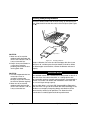
Connecting the External Floppy Drive
To use the floppy disk drive, connect the data cable of the drive to
any one of the USB port on the left side of your notebook (See Figure
2-2 n). Since USB connections allow hot-swapping, you can directly
connect and disconnect the drive without turning off your notebook.
My Presario – Getting Started
Using the Notebook 2-1
Inserting and Ejecting Diskettes
To insert a diskette, hold it with the arrow facing up and towards the
drive. Slide the disk into the drive until it clicks into place (See Figure
2-2 o).
1
E ject B u tto n
CAUTION:
1. Never turn off or reset the
notebook while the floppy disk
drive in-use indicator is ON, as
it may cause data loss.
2. Always store your diskettes in
a safe, clean container,
protecting them from the dust
and magnetic fields.
CAUTION:
1. To avoid unexpected data loss
caused by viruses or
accidents, please make
backups of your files from the
hard disk to diskettes regularly.
2. Never turn off or reset the
notebook while the hard disk
drive in-use indicator is ON, as
it may cause data loss.
Using the Notebook 2-2
2
Figure 2-2.
Inserting a Diskette
To eject a diskette, first make sure that the floppy disk drive in-use
indicator is off, and then press the eject button on the drive. When
the diskette pops out of the drive, remove the diskette and store it
properly.
Hard Disk Drive
Your notebook comes with a hard disk drive designated as drive C. A
hard disk drive, also called a fixed disk, is a storage device with
non-removable, rotating, magnetic storage platters. Compared with a
diskette, a hard disk can retrieve and record data much faster and
has a much larger storage capacity.
Your hard disk drive is a 2.5-inch IDE (Integrated Drive Electronics)
hard disk drive. This type of drive utilizes the latest technology in fast,
reliable mass storage by integrating directly onto the drive all the
control circuitry necessary for operation. This allows the drive
manufacturer to carefully optimize the drive performance.
My Presario – Getting Started
CD/DVD/CD-RW Drive
NOTE:
1. The Compact Disc (CD) and
Digital Versatile Disc (DVD)
are the most common way to
store information, and the
DVDs hold more data than the
CDs. However, in this manual
they are both referred as CDs
for the sake of convenience.
2. A DVD-ROM drive could read
both DVDs and CDs; while a
CD-ROM drive could only read
CDs.
3. If your notebook is equipped
with CD-RW drive (optional),
you could create your own
CDs by two types of media:
CD-R and CD-RW disks. A
CD-R media could be written
once only; a CD-RW is
reusable because it could be
erased and rewritten for
numerous times. CD-R media
could be played on most of the
newer CD players, CD-ROM
and DVD-ROM drives.
NOTE: DO NOT disconnect the
CD/DVD/CD-RW drive when the
notebook power is ON, this may
cause the notebook to
malfunction.
CAUTION:
1. When inserting a CD, do not
push the CD- ROM drive
harshly.
2. Make sure the CD is correctly
inserted into the tray, then
close the tray.
3. Do not leave the CD tray open.
Moreover, avoid touching the
lens in the tray with your hand.
If the lens becomes dirty, the
CD- ROM may malfunction.
My Presario – Getting Started
Your notebook comes with an external CD-ROM, DVD-ROM or
CD-RW drive. The external CD/DVD/CD-RW drive utilizes removable
5.25-inch compact disks, which look like standard music CDs. The
compact disk is an ideal medium for data storage or multimedia
program because of its huge amount of data capacity.
Connecting the External CD/DVD/CD-RW Drive
To connect the external CD/DVD/CD-RW drive, follow these steps:
1
2
Eje ct Bu tton
M a n u al Eje ct H o le
Eject Button
Manual Eject Hole
Figure 2-3.
Using the External CD-ROM Drive
1. Make sure the notebook is not turned on or connected to AC
power.
2. Pull out the data cable from its storage slot on the
CD/DVD/CD-RW drive.
Firmly connect the data cable to the CD/DVD/CD-RW port on the left
side of the notebook (Figure 2-3 n).
Inserting/Removing a CD
To insert or remove a CD, follow these steps:
1. Turn on the computer.
2. Push the eject button and the CD tray will slide out. If the tray only
slides out partially, gently pull it until fully extended.
3. To insert a CD, place the CD in the tray with its label facing up. To
remove a CD, hold the CD by its outer edge and lift it up from the
tray (Figure 2-3 o).
4. Slide the tray back into the drive bay.
Using the Notebook 2-3
4. Do not wipe the lens with
rough surfaced materials (such
as paper towel). Instead, use a
cotton swab to wipe the lens
gently.
FDA regulations require the
following statement for all
equipments with Laser devices
build-in:
“Caution, Use of controls or
adjustments or performance of
procedures other than those
specified herein may result in
hazardous radiation exposure.”
Manually Releasing a CD
In the unlikely event that you are unable to release the CD tray by
pressing the eject button, you can manually release the CD as
follows:
1. Turn off the system.
2. Insert a small rod into the manual eject hole (see Figure 2-3) and
push firmly to release the tray.
3. Pull the tray out until the tray is fully extended, then remove the
CD.
Keyboard
Your notebook keyboard has all the functions of a standard
AT-enhanced keyboard plus some keys specific to your notebook.
Fn Key
The [Fn] key, at the lower left corner of the keyboard, is used with
another key to perform the alternative function of a key. The letter
“Fn” and the alternative functions are identified by the color of blue
on the keytops. To perform a desired function, press and hold [Fn],
then press the other key.
Typewriter Keys
Typewriter keys are similar to the keys on a typewriter. Several keys
are added such as the [Ctrl], [Alt], [Esc], and lock keys for special
purposes. When the lock keys are pressed, their corresponding
indicators will light up.
• [Num Lock]
Pressing this key toggles the Num Lock on and off. When on, the
Num Lock activates the numeric keys.
• [Scroll Lock]
Pressing this key toggles Scroll Lock on and off. The Scroll Lock is
defined by individual programs.
• [Caps Lock]
Pressing this key toggles the Caps Lock on and off. When on, the
Caps Lock keeps the letter keys in uppercase.
Function Keys
On the top row of the keyboard are the function keys: [F1] to [F12].
Function keys are multi-purpose keys that perform functions defined
by individual programs.
Hot key functions are assigned to [Fn]+[F3] through [Fn]+[F12] by
your notebook. (See “Hot Keys” later in this chapter for more
information.)
Using the Notebook 2-4
My Presario – Getting Started
Cursor-Control Keys
At the lower right corner of the keyboard are four
cursor/screen-control keys.
The [↑], [↓], [←], and [→] cursor-control keys, also called arrow keys,
control cursor movement.
When used with [Fn] key pressed, these keys become [Home],
[PgUp], [PgDn], and [End] keys.
P gU p
Ho m e
Figure 2-4.
P gD n
End
Cursor-Control Keys
The [Ins] and [Del] keys are located at the upper right of the
keyboard, which are used for editing purpose.
Numeric Keypad
NOTE:
1. When the numeric keypad is
activated and you need to type
the English letter, you could
either turn Num Lock off or
hold down [Fn] and press the
key without turning Num Lock
off.
2. If the “Keyboard Numlock” item
in the SCU program is set to
Disabled, you could not use
the numeric keypad on the
notebook keyboard even if
Num Lock is on. To use the
numeric keypad in this case,
you need to hold the [Fn] key
and then press on the numeric
keypad.
A 15-key numeric keypad is embedded in the typewriter keys as
shown below:
Figure 2-5.
Numeric Keypad
Numeric keys facilitate entering of numbers and calculations. When
Num Lock is on, the numeric keys are activated, meaning you can
use these keys to enter numerals.
Windows Keys
On the Windows keyboard, you can find one Windows Logo key ( á )
). The two keys are used with
and one Application Logo key (
other keys to perform software-specific functions. (See your Windows
manual.)
My Presario – Getting Started
Using the Notebook 2-5
Hot Keys
Hot keys refer to a combination of keys that can be pressed at any
time to activate special functions. Most hot keys operate in a cyclic
way. Each time a hot key is pressed, it shifts the corresponding
function to the other or next choice.
The functions of hot keys are described below.
F1
User defined.
F2
User defined.
F3
Toggle between video display output to the LCD
screen, external CRT monitor, and simultaneous.
Force the notebook into Suspend-to-RAM or
Suspend-to-File mode (depending on the BIOS setup).
Audio on/off.
F4
F5
F6
Toggle panel on/off.
F7
Decrease LCD brightness.
F8
Increase LCD brightness.
F9
Play/Pause.
F10
Stop.
Reverse.
Forward.
Easy Access Buttons
With these one-touch buttons, you can get on the Internet fast, read
your e-mail, or check out the latest entertainment.
NOTE: Button functions may
vary by model and by region.
Functions of these buttons are described below.
Instant Digital Audio The quick and easy way to manage and
play Internet music wherever you go.
Instant Internet provides your daily start point to the Internet. It
connects you to a Web page filled with local weather, news, sports
and financial information.
My Presario is your instant connection to Compaq for getting
the most out of your computer and the Internet. Learn about the top
Internet Zones or adventure into your favorite Activity Centers to get
creative using the Web.
Using the Notebook 2-6
My Presario – Getting Started
Retail Central provides an instant connection to your
computer store and a variety of leading consumer companies.
E-mail provides one-touch access for sending and reading
your e-mail.
Touchpad
Your notebook integrates a touchpad pointing device, compatible with
the Microsoft Mouse and IBM PS/2 mouse, which allows you to take
advantage of software that requires or recognizes a pointing device.
Figure 2-6.
The Touchpad
Using the Touchpad
NOTE: If you swap the left and
right buttons, “tapping” on the
touch- pad as an alternative
method of pressing the left
button will no longer be valid.
Placing and Moving the Finger
To use the touchpad, place your thumb or forefinger on the touchpad.
The rectangular pad acts like a miniature duplicate of your display. As
you slide your fingertip across the pad, the pointer, or cursor, on the
screen moves in the same direction across the screen as your
fingertip moves across the pad.
Point and Click
When you have placed the cursor over the icon, menu item or
command that you wish to execute, you can press the left button
once or twice to execute the command. This procedure is called
“Point and click” or “point and double-click”. On the touchpad, you
can execute point and clicking even more rapidly. Instead of clicking
by pressing the left button, you can just tap gently anywhere on the
rectangular pad of the touchpad. Tap twice rapidly to execute a
double-click. Unlike a traditionally pointing device, the whole pad acts
as if it were a left button and each tap on the pad is equivalent to
pressing the left button.
My Presario – Getting Started
Drag and Drop
You can execute commands or move files by using “drag and drop”.
In drag and drop, you activate a file by pointing to it and clicking.
However, when you click the button, you do not release the button
Using the Notebook 2-7
but instead hold it down. You can then drag the active file around the
screen by moving your finger around the pad. When you have placed
the file where you want it, for example in a new directory, release the
left button. The file will drop into the new location. You can also do
drag and drop operations using the touchpad as a large left button.
Position the cursor over the item that you want to drag. Gently tap
twice on the pad. On the second tap, keep your finger in contact with
the pad. You can then drag the selected object around the screen by
moving your fingertip across the pad. When you lift your fingertip
from the pad, the selected object will drop into place.
Changing the Configuration
You may want to customize the mouse. For example, if you are a
left-handed user, you can swap the buttons over so that you can use
the right button to generate events that are normally generated by
the left button. You can also change the size of the on-screen pointer,
the speed of the pointer and so on.
If you are using Windows, double-click the “Mouse” icon in the
Windows Control Panel. The Mouse Properties window allows you to
change various configurations. Instead of Windows, you can also use
the touchpad software supplied with your notebook to change the
configuration.
Scroll Button
In addition to the standard left and right buttons, there is a scroll
button. You can scroll the window up by pressing , the upper half
of the button, and down by pressing , the lower half.
S croll B utton
Figure 2-7.
Scroll Button
Introducing Power Management
The Power Management feature of your notebook helps conserve
power. The followings briefly describe the features. To establish
Power Management, run the SCU program. (See “Power Menu” in
Chapter 5 for instructions.)
Using the Notebook 2-8
My Presario – Getting Started
Automatic Power Management
Local Power Management
Local Power Management controls notebook subsystems. When a
subsystem is inactive for a period of time, called “time-out,” it is
automatically shut down or slowed down to reduce power
consumption. The subsystem will be active again when next
accessed.
The subsystems under power management are:
• Hard Disk Drive
• Floppy Disk Drive
• CD-ROM/DVD-ROM/CD-RW Drive
The above components will power down after the pre-set timing.
Global Power Management
Global Power Management automatically puts the notebook into
suspend mode when the notebook is inactive for a period of time,
called “time-out.” The notebook will wake up whenever an activity is
detected (e.g. pressing a key).
The time-out settings for suspend mode can be set up in the SCU
program. The notebook suspends to RAM or disk depending on the
“Suspend Data to” setting in the SCU program.
Manual Power Management
You can manually initiate Suspend mode at any time in one of these
ways:
• By pressing the hot key [Fn]+[F4].
• By closing the top cover.
Note that this works only if the “Cover Close” item is set to
Suspend in the SCU program.
For information on Suspend-to-File mode, see the following section.
Suspend-to-File
When suspend-to-file function is activated by pressing [Fn]+[F4], the
most current system status is being saved as a file on the hard disk
before the notebook is being turned off. Upon waking up from
suspend-to-file, the notebook would recover to exactly the same
state prior to the suspend-to-file activity.
My Presario – Getting Started
Using the Notebook 2-9
Taking Care of Your Notebook
Maintenance
• Avoid placing the notebook in locations with high humidity, extreme
temperatures, mechanical vibration, direct sunlight, or heavy dust.
• Do not place heavy objects on top of the notebook when it is
closed, as this may damage the LCD.
• To assure smooth operation of the touchpad, occasionally clean
the pad by using adhesive tape to remove the dust and grease on
its surface.
• Occasionally clean the notebook with a soft cloth moistened with
water. Do not use soap or liquid cleaners on the display.
• Take care of the battery pack by following the instructions
described in “Important Notes on Using Battery Pack” in Chapter 3.
Traveling
• Make sure the battery pack is fully charged.
• Make sure the notebook is turned off and the top cover is firmly
closed.
• Disconnect the AC adapter from the notebook and take it with you.
Use the AC adapter as the power source and as a
battery-recharger.
• Allow extra time for airport security. Many airports inspect
electronic devices carefully.
• Hand-carry the notebook. Do not check it in as luggage.
• If you plan to travel abroad with your notebook, consult your dealer
for the appropriate AC power cord fitting the electricity standard of
your destination.
Using the Notebook 2-10
My Presario – Getting Started
Caring for Your Battery
In this Chapter
AC Adapter, 3-1
Battery Pack, 3-1
Low Battery Signals and
Actions, 3-3
Maximizing Battery Operating
Time, 3-4
CAUTION:
1. The AC adapter (model
LE-9702B-01+, or model
PPP03SD ) is designed for
use with your notebook only.
Connecting the AC adapter to
another device could damage
the adapter.
2. The AC power cord supplied
with your notebook is for use
in the country where you
purchased your notebook. If
you plan to go overseas with
the notebook, consult your
dealer for the appropriate
power cord.
NOTE: To ensure best
performance of the battery, it is
advised that you fully discharge
and then recharge the battery
before you use it for the first
time.
3
This chapter shows you how to maintain and recharge your battery
properly, and provides suggestions to increase the length time you
are able to operate the notebook under battery power.
AC Adapter
The AC adapter serves as a converter from AC (Alternating Current)
to DC (Direct Current) power because your notebook runs on DC
power, but an electrical outlet usually provides AC power. It operates
in the range of 100∼240V AC.
The battery pack automatically recharges while your notebook is
connected to AC power.
Battery Pack
The battery pack supplies power to your notebook when external
power is not available. It is rechargeable using the AC adapter.
Recharging the Battery Pack
To recharge the battery pack, connect the AC adapter to the
notebook and an electrical outlet. It takes approximately 90 minutes
to charge the battery pack to 80% capacity and one or two more
hours to fully charge the battery pack.
During recharging, the Battery Status Indicator ( ) on the notebook
glows orange. You are advised to keep the notebook power off while
the battery is being recharged. The battery is fully recharged when
the Battery Status Indicator glows green.
Replacing the Battery Pack
If you often use the battery power for a long period of time while
traveling, you may consider the purchase of an additional battery
pack from your dealer, and keep it with you in fully charged state as a
backup.
To replace the battery pack, follow these steps:
1. Make sure the notebook is not turned on or connected to AC
power.
My Presario – Getting Started
Battery Operations 3-1
2. Carefully put the notebook upside down.
Slide the battery lock outward to the "unlock" (
) position.
B atteryLock
S topper
Battery
Lever
Figure 3-1. Unlocking the Battery Pack
3. Slide the battery release latch outward to the "unlock" (
)
position, and, while holding it in the unlock position, remove the
battery pack out of its compartment.
CAUTION: There is danger of
explosion if the battery is
incorrectly replaced. Replace the
battery only with the notebook
manufacturer’s optional battery
packs. Discard used batteries
according to the dealer’s
instructions.
B atte ry R eleas e Le ver
Figure 3-2. Removing the Battery Pack
4. Fit the new battery pack into the compartment. The battery release
latch should click into the locked place.
5. Slide the battery lock inward to the "lock" (
) position to secure
the battery pack in place.
Important Notes on Using Battery Pack
Recharging and Discharging
• Recharging will not start if the battery’s temperature is below 0°C
(32°F) or above 40°C (104°F). Also, during recharging, the
recharging will stop if the battery’s temperature gets above 60°C
(140°F). To avoid problems caused by temperatures, make sure
the battery is not too hot before you begin to recharge the battery.
• During recharging, do not disconnect the AC adapter before the
battery has been fully charged; otherwise you will get a
prematurely charged battery.
• After the notebook has been fully recharged, do not immediately
disconnect and reconnect the AC adapter to charge it again. Doing
so may damage the battery.
• Do not leave the battery completely discharged for too long as this
may affect the battery’s performance.
Battery Operations 3-2
My Presario – Getting Started
Operating and Handling
• Never remove the battery pack while it is in use. If you need to
replace the battery pack, make sure you have turned off the
notebook power.
• Leave the battery pack in place unless you will replace it. If you
remove the battery pack, keep it away from conductors such as
metals and water. In case the battery’s pins get into touch with
conductors, the battery may become unusable as a result of
short-circuit.
• When you disconnect the AC adapter, disconnect from the
electrical outlet first and then from the notebook.
• To prevent data loss that may be caused by low battery, develop
the habit of frequently saving your data to the hard disk or a
diskette.
• Do not attempt to disassemble the battery pack.
Maintaining
• When you install a new battery, fully charge and discharge the
battery at least once and then fully charge the battery before you
begin to use the battery power for the first time.
• Protect your notebook from extremes in temperature. (See
“Environmental Specifications” in Appendix A for temperature
range.)
CAUTION:
1. If the “Low Battery Warning
Beep” item is disabled in the
SCU program, the notebook
will not beep.
2. If the suspend-to-file partition
does not exist or the “Suspend
-to-File” item is not set in the
SCU, the notebook will not be
able to suspend to disk. It will
keep on beeping until you take
actions or until the battery runs
out of charge.
3. If you are using a flash PC
card, do not access the card
upon low battery warning. The
battery may run out of charge
before the action is completed,
thus making the access
unsuccessful.
4. If you fail to save your data
before the battery completely
runs out of charge, then you
lose your data.
My Presario – Getting Started
Low Battery Signals and Actions
Low Battery occurs when the battery has approximately 10% of its
charge remaining. The notebook gives warning beeps and the
Battery Status Indicator ( ) blinks red to alert you to take actions.
Immediately save your data upon the Low Battery warning. The
remaining operating time depends on how you are using the
notebook: if you are using the audio subsystem, PC card, hard or
floppy disk drives, the battery might run out of charge very quickly.
Always respond to the Low Battery warning by suspending your
notebook to disk, turning off the notebook, or connecting the AC
adapter.
If you do not take any action, after two minutes the notebook will
automatically suspend to disk and turn off.
Battery Operations 3-3
Maximizing Battery Operating Time
The battery operating time depends on your power management
settings. Your notebook components and the applications that you
use also affect the operating time. This section of “Caring for Your
Battery” shows you how to increase the length of time you are able to
operate under battery power.
The display, processor, CD/DVD drive, and hard drive use the most
battery power. To maximize the battery operating time, perform one
or more of the following actions:
• Reduce display brightness and select a short wait for you screen
saver.
• Select a screen saver that does not generate a lot of graphics or
motion.
• Reduce audio volume or use headphones.
• Exit modem programs when you are not using them.
• Remove PC Cards when you are not using them.
• Remove CDs or DVDs when you are not using them.
• Use Sleep or Hibernation mode to turn off your Notebook when
you are not using it.
Battery Operations 3-4
My Presario – Getting Started
4
System Expansion
In this Chapter
External Connections, 4-1
Internal Installation, 4-2
This chapter introduces the optional devices for your notebook and to
install some of the devices.
External Connections
I/O connectors on the notebook’s rear and side panels allow you to
connect external devices to your notebook. See the figures in
Chapter 1 for connector locations and the descriptions that follow.
This section provides notes on connecting some peripheral devices.
Connecting an External Monitor
If you want the benefits of a larger color display screen, you could
connect an external VGA- compatible CRT monitor to your notebook.
Follow these steps to connect a monitor to your notebook:
1. Make sure that your monitor is configured for analog operation
and that the voltage setting corresponds to that of the electrical
outlet. Consult the monitor’s manual for instructions.
2. Make sure the notebook is not turned on or connected to AC
power.
3. Remove the VGA port cover on the rear of the notebook and plug
in the monitor’s D-type signal connector.
4. Plug one end of the monitor's power cord into the power socket on
the monitor and the other end to an electrical outlet.
5. To use the monitor, turn on the monitor before turning on the
notebook.
6. The monitor should respond by default. If not, you can switch the
display to the monitor by pressing [Fn]+[F3].
Supplied with your notebook are several video utilities and drivers
which offer extended video modes.
Connecting an IR Device
The IR port on the right side of the notebook allows you to take
advantage of wireless communications with another device with IR
port.
In addition to following the instructions supplied with the device, take
note of the following:
• The IR device must face the IR port of the notebook within the
effective range, i.e. within ±15-degrees angle and 70 cm distance.
My Presario – Getting Started
System Expansion 4-1
• Make sure the “Ir Mode” items are set properly in the SCU
program. By default, Ir mode is set to IrDA 1.1. (See “Advanced
Menu” in Chapter 5 for information.)
• To take advantage of the IR communications, you need third party
software.
Connecting an USB Device
There are two USB ports marked as
on the left side of the
notebook, allowing you to connect USB devices.
USB is specified to be an industry standard extension to the PC
architecture. It features wide range of applications such as multiple
connections and compound devices (i.e., mouse, keyboard, printer,
modem, etc.).
Follow the instructions supplied with the device to make connection.
Connecting an IEEE 1394 Device (for selected model
only)
Tips: For the connection of IEEE
1394 devices, please follow the
instructions supplied with the
devices.
There is an IEEE 1394 port marked as
on the left side of the
notebook, allowing you to connect 1394 devices.
IEEE 1394 is the next-generation serial bus standard, featuring
high-speed data transfer, multi-channel communication link, and "Hot
Plug" connectivity. It allows connections of up to 63 devices. The
applications include not only computer peripheral devices such as
scanner, printer and high-quality CCD, but also consumer electronic
equipments such as DVCAM and VCR.
Internal Installation
Installing a PC Card
Tips: See the documentation
supplied with your PC card for
further instructions.
PC cards, available in the market, provide various functions.
Examples are memory cards, fax/modem cards, and LAN cards.
PC cards that conform to the PCMCIA 2.1 standard can be used with
your notebook. The PC card slot also supports two advanced
interfaces: CardBus and ZV (Zoomed Video) port.
CardBus provides compatibility with 16-bit PC cards and extends
performance and functionality by adding 32-bit data transfers, and by
employing PCI (Peripheral Component Interconnect) concepts.
Typical PC cards that utilize CardBus are graphic video, full-motion
video, SCSI host bus, and high speed network cards. Typical PC
cards that utilize the ZV port are MPEG and Video Capture cards.
System Expansion 4-2
My Presario – Getting Started
CAUTION: Keep the protection
card in the slot when no PC card
is installed.
Follow these steps to insert a PC card:
1. Install the PCMCIA software.
2. Locate the PC card slot on the left side of the notebook.
3. A protection card is installed inside the PC card slot to serve as a
cover for the slot. This cover protects the slot against foreign
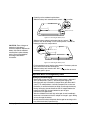
matters such as the dust and water. Before using a PC card, press
the eject button to remove the protection card.
4. Slide the PC card with its label facing up into the slot until the
eject button pops out.
5. To remove a PC card, press the eject button.
Ej Button
B
Eject
Figure 4-1.
Note: Do not make any
hardware change by yourself.
* Only available on specific
models.
My Presario – Getting Started
Installing a PC Card
Memory Upgrade
You could upgrade your notebook memory to a maximum of
192/256MB* by installing the Compaq approved memory module.
Please refer to your dealer for assistance to get the proper Compaq
memory module for upgrading.
System Expansion 4-3
Setup
Configuration Utility
In this Chapter
This chapter tells you how to configure your system using the SCU
(Setup Configuration Utility).
Introduction, 5-1
Introduction
Main Menu, 5-3
Advanced Menu, 5-4
Security Menu, 5-6
Power Menu, 5-7
Exit Menu, 5-11
5
SCU allows you to configure the BIOS settings. Those settings are
vital for your notebook to identify the types of installed devices as
well as to utilize special features. Typical menu items include Date
and Time, the types of disk drives, and the amount of memory.
Special features include Power Saving and Security.
The settings information is stored in the CMOS (Complementary
Metal Oxide Semiconductor) RAM, which is powered by a RTC
backup battery.
You may need to run SCU when:
• You see an error message on the screen requesting you to run
SCU.
• You want to restore the factory default settings.
• You want to modify some specific settings.
Starting SCU
NOTE:
1. The SCU screen shots shown
in this chapter are for your
reference only. The actual
items on your notebook may
differ.
2. The SCU program may have
been updated after the
publication of this manual.
SCU is built into the system board. To run SCU, press [F10] during
system startup. The main SCU screen appears as shown in Figure
5-1.
Main Advanced Security Power Exit
Peripheral and Memory
Item Specific Help
Floppy Drive A = Disabled
Hard Drive 0
= 4112 MB
Hard Drive 1
= 1277 MB
Configure Startup
Conditions. (Date
and Time, Display,
Boot conditions,
etc.)
Base
Extended
Total RAM
= 640 KB
= 16368 KB
= 17392 KB
<Up/Down>
Select Item
<Left/Right> Select Menu
Figure 5-1.
My Presario – Getting Started
<Esc>
Cancel
<Enter> Toggle Value
Main SCU Screen
Setup Configuration Utility 5-1
The SCU screen can be divided into four areas:
• On the top line of the screen is the menu bar, which lists the titles
of the available menus. Each menu title contains a pull-down
menu, which displays items for settings.
• The left column on the screen displays current settings of the
system. If you open a pull-down menu and select an item that
provides multiple options, the left column will display a submenu
where you can make further selections.
• The right column on the screen provides details of the selected
item.
• The bottom part of the screen provides keyboard/mouse
instructions for moving around and making selections.
Moving Around and Making Selections
You must go through two or three levels to complete the setting for
an item. In most cases, there are three levels: menu title, pull-down
menu, and submenu.
To move around and make selections, you can use both the
touchpad/mouse and keyboard.
Using the Touchpad/Mouse
You are advised to use the touchpad or mouse. It is more
straightforward than using the keyboard.
For most items, simply move the pointer with the touchpad/mouse
and left-click on the intended item. To cancel your selection, click the
right button. For some items, you will need to select with the arrow
keys.
Using the Keyboard
Keyboard information can be found at the bottom of the screen. You
can also use the shortcut key, which is highlighted in a different color
on the screen.
Setup Configuration Utility 5-2
Described below is the general procedure to complete a setting by
use of the keyboard:
1. Select a menu title with the left/right arrow key and press [Enter] to
pull down the menu. You can directly pull down a menu by
pressing the shortcut key.
2. From the pull-down menu, select an item with the up/down arrow
key and press [Enter] to access the submenu. You can directly
access the submenu by pressing the shortcut key. The submenu
displays the options you can select. If no submenu appears,
simply press [Enter] to enable or disable the specific function.
3. For most menu items, pressing the [Tab] key will jump from one
item to another, thus allowing you to go through the items quickly.
To confirm the changes you make, press [Enter] or select the OK
button. To cancel the changes, press [Esc] or select the Cancel
My Presario – Getting Started
button. To cancel the changes, press [Esc] or select the Cancel
button.
Main Menu
The Main pull-down menu, as shown below, contains the basic
configuration settings of the system.
Main
Date and Time
IDE Settings
√ Fast Boot
Boot Sequence
The followings describe in sequence all the items of the Main menu.
Date and Time
The “Date and Time” item sets the system date and time.
When this item is selected, the submenu will display as shown below.
Date and Time
Hour
Minute
Second
17
18
54
Month
Day
Year
4
29
2000
IDE Settings
The “IDE Settings” item sets the type of the hard disk drive in your
system.
When this item is selected, the submenu will display as shown below.
Primary Channel
IDE Serrings
( )
( )
( )
(•• )
Standard
Fast PIO
Multiword DMA
Ultra DMA-33
The default setting is Ultra DMA-33.
My Presario – Getting Started
Setup Configuration Utility 5-3
Fast Boot
The “Fast Boot” item, when enabled, speeds up the booting
procedure by bypassing the memory test.
When this item is selected, no submenu will display. A check mark
( √ ) indicates Enabled; an underline ( _ ) indicates Disabled.
The default setting is Enabled.
Boot Sequence
The “Boot Sequence” item sets the sequence of booting.
When this item is selected, the submenu will display as shown below.
Boot Sequence
1st Boot Device
3rd Boot Device
( ) Hard Disk C
( ) CD-ROM Drive
(•• ) Diskette A
(•• ) Hard Disk C
( ) CD-ROM Drive
( ) Diskette A
2nd Boot Device
( ) Hard Disk C
(•• ) CD-ROM Drive
( ) Diskette A
NOTE: If you set all booting
options to the same device (say,
Hard Disk C), then the notebook
will try to boot from that device
only.
The default setting is Diskette A ¤ CD-ROM Drive ¤ Hard Disk C.
Advanced Menu
The Advanced pull-down menu, as shown below, contains the I/O
configuration settings of the system.
Advanced
Ir Mode
√ SaveToFile Warning Message
Keyboard Numlock
Pointing Device
√ Resolution Expansion
The followings describe in sequence all the items of the Advanced
menu.
Setup Configuration Utility 5-4
My Presario – Getting Started
Ir Mode
The “Ir Mode” item sets the communications compatibility mode for
the IR port.
When this item is selected, the submenu will display as shown below.
IR Mode
IR Mode Settings
( ) ASK
( ) IrDA 1.0
(•• ) IrDA 1.1
Select according to the type of device with which the notebook is to
communicate.
The default setting is IrDA1.1.
SaveToFile Warning Message
The “SaveToFile Warning Message” item sets if the warning
message will appear after system power on when there is no
Suspend-to-File partition on the hard disk.
When this item is selected, no submenu will display. A check mark
( √ ) indicates Enabled; an underline ( _ ) indicates Disabled.
The default setting is Enabled.
Keyboard Numlock
The “Keyboard Numlock” item sets if the numeric keypad will
function.
When this item is selected, no submenu will display. A check mark
( √ ) indicates Enabled; an underline ( _ ) indicates Disabled.
The default setting is Disabled.
Pointing Device
The “Pointing Device” item enables or disables the built-in touchpad
and track point.
When this item is selected, no submenu will display. A check mark
( √ ) indicates Enabled; an underline ( _ ) indicates Disabled. Disable
this option if you are using a serial mouse.
My Presario – Getting Started
Setup Configuration Utility 5-5
Resolution Expansion
The “Resolution Expansion” item, when enabled, enlarges the
display area on the LCD screen.
When this item is selected, no submenu will display. A check mark
( √ ) indicates Enabled; an underline ( _ ) indicates Disabled.
The default setting is Enabled.
Security Menu
NOTE: If you disable this option,
the numeric keypad on the
notebook keyboard will not
function even if the Num Lock
indicator is on. However, an
externally-connected keyboard is
not affected by this feature.
The Security pull-down menu, as shown below, contains the Security
settings that safeguard your system against unauthorized use.
Security
System Password
The followings describe in sequence all the items of the Security
menu.
System Password
The “System Password” item allows you to set the password for your
system. The password is required for starting up the system and
running the SCU program.
When the item is selected, the submenu will display as shown below.
When setting a password, first make sure that Num Lock is off, then
type your
password in the entry field and press [Enter]. Confirm your password
by typing it again and pressing [Enter].
For the password to take effect, enable the “Enable Password” item.
System Password
Enter old Power-On Password: ........
Enter new Power-On Password: ........
Verify new Power-On Password: ........
[ ] Enable Password
Setup Configuration Utility 5-6
My Presario – Getting Started
Power Menu
The Power pull-down menu, as shown below, contains the Power
Management settings which help save power.
Power
√ Enable Power Management
_
√
_
_
Max Performance
Balanced Power Saving
Max Power Saving
Customize
Intel(R) SpeedStep(TM) Tech
The followings describe in sequence all the items of the Power menu.
Enable Power Management
The “Enable Power Management” item is the master control for the
Power Management features.
When this item is selected, no submenu will display. A check mark
( √ ) indicates Enabled; an underline ( _ ) indicates Disabled.
The default setting is Enabled.
Max Performance / Balanced Power Saving / Max Power
Saving / Customize
These four items are mutually-exclusive options. You can select one
of them. A check mark ( √ ) indicates Enabled; an underline ( _ )
indicates Disabled.
Descriptions of the four options are:
Descriptions
Options
Max Performance
Select this option for the pre-defined
settings which allow maximum
performance but shortest battery life.
Balanced Power Saving Select this option for the pre-defined
settings which allow moderate
performance and moderate battery life.
Max Power Saving
Select this option for the pre-defined
settings which allow longest battery life
but minimum performance.
Select this option for setting up your own
Customize
preferences. When this option is selected,
a submenu will appear. See the following
subsection for information.
My Presario – Getting Started
Setup Configuration Utility 5-7
Customizing Power Management Features
To customize Power Management features, select “Customize” from
the Power pull-down menu. The submenu will display as shown
below.
Customize
Hard Disk Power Down After:
Standby After:
Suspend After:
Suspend Data to:
Cover Close:
Battery Low Warning Beep:
VGA Activity:
Resume On Time:
Hour
Minute
Second
Resume On Modem Ring:
20 Min
Disabled
Disabled
RAM
Suspend
Enabled
Enabled
Disabled
0
0
0
Disabled
The followings describe in sequence all the items of this submenu.
Hard Disk Power Down After
The “Hard Disk Power Down After” item sets the time-out period for
the hard disk to power down if it is not in use during the set period.
The hard disk will power up again when next accessed.
The available options are Disabled, 1 Min, 2 Min, 4 Min, 8 Min, 10
Min, 15 Min, and 20 Min.
Standby After
The “Standby After” item sets the time-out period for initiating
Standby mode. It works in conjunction with the previous item “Idle
Mode.” After the notebook enters Idle mode, the Power Saving starts
the time-out for the Standby mode. If the notebook remains in Idle
mode until the time-out period for Standby mode has been reached,
the notebook enters Standby mode.
NOTE: To know the pre-defined
settings for the above three
options, you can select the next
option to view the settings in the
submenu.
Setup Configuration Utility 5-8
If Standby mode is in effect, several system subsystems go into
standby or off mode so that system power will be reduced. The
system will wake up from Standby mode when system activity is
detected.
The available options are Disabled, 1 Min, 2 Min, 4 Min, 6 Min, 8 Min,
12 Min, and 16 Min.
Suspend After
The “Suspend After” item sets the time-out period for initiating
Suspend mode. It works in conjunction with the previous item
“Standby After.” After the notebook enters Standby mode, the Power
Saving starts the time-out for the Suspend mode. If the notebook
My Presario – Getting Started
Saving starts the time-out for the Suspend mode. If the notebook
remains in Standby mode until the time-out period for Suspend mode
has been reached, the notebook enters Suspend mode.
The Suspend mode is determined by the next item, “Suspend Data
to.” It can be either Suspend-to-RAM or Suspend-to-File.
When Suspend-to-RAM mode is initiated, several system
subsystems go into standby or off mode so that system power will be
reduced further. The system will wake up from Suspend-to-RAM
mode when a key is pressed. “Resume On Time” and “Resume On
Modem Ring”, if enabled in this submenu, can also wake up the
system from Suspend-to-RAM mode.
When Suspend-to-File mode is initiated, the system preserves all the
running application programs as a file in a “suspend-to-file partition”
on the hard disk and then turns off automatically.
The available options are Disabled, 1 Min, 2 Min, 5 Min, 10 Min, and
15 Min.
Suspend Data to
The “Suspend Data to” item defines the Suspend mode of your
system.
The available options are RAM and Disk.
Cover Close
The “Cover Close” item sets the notebook status when you close the
cover.
Descriptions of the available options are:
Options
Descriptions
Video Off
The LCD screen will be off when you close the
cover.
CRT Display The display output will switch to the external CRT
monitor.
Suspend
Either Suspend-to-RAM or Suspend-to-File is
initiated depending on the setting of the previous
item, “Suspend Data to”.
Battery Low Warning Beep
This item sets if the system will alert you upon low battery capacity.
The available options are Enabled and Disabled.
VGA Activity
The “VGA Activity” item sets if obvious video activities (such as
screen savers) will prevent Power Management modes.
My Presario – Getting Started
Setup Configuration Utility 5-9
Descriptions of the available options are:
Options
Enabled
Disabled
Descriptions
Power Management will not take effect if there are
VGA activities.
Power Management will ignore VGA activities.
Resume On Time
The “Resume On Time” item enables or disables the system’s
waking up from Suspend-to-RAM mode at a time specified by the
next three items.
The available options are Enabled and Disabled. If you select
Enabled, set the time for the next three items.
Hour/Minute/Second
The “Hour”, “Minute”, and “Second” items work in conjunction with
the previous item “Resume On Time.” It sets the alarm time for
waking up the system from Suspend-to-RAM mode.
Enter the value in each field by typing the number.
NOTE: When using a PCMCIA
modem card or internal modem,
you must keep a modem- related
program running to enable this
feature.
Resume On Modem Ring
The “Resume on Modem Ring” item enables or disables the system’s
waking up from Suspend-to- RAM mode when the modem receives
an incoming call.
The available options are Enabled and Disabled.
Intel® SpeedStep™ Tech.
NOTE: This menu item will not
appear if the CPU does not
support Geyserville feature.
This option takes advantage of Intel’s Geyserville technology, which
can reduce the power consumption of CPU.
When this item is selected, the submenu will display as shown below.
Intel(R) SpeedStep(TM) Tech.
Geyserville
(•• )
( )
( )
( )
Automatic
Maximum Performance
Battery Optimized
Disabled
The default setting is Automatic.
Setup Configuration Utility 5-10
My Presario – Getting Started
Exit Menu
The Exit pull-down menu, as shown below, displays ways of exiting
SCU. After finished with your settings, you must save and exit SCU
so that the settings can take effect.
Exit
Save Change and Exit
Discard Changes and Exit
Get Default Values
Load Previous Values
Descriptions of the Exit choices are:
Choices
Descriptions
Save Change and Exit
Save changes you have made and exit.
Discard Changes & Exit Exit without saving the changes you
have made.
Get Default Values
Load factory default values for all the
items.
Load Previous Values
Restore previous values for all the items.
My Presario – Getting Started
Setup Configuration Utility 5-11
Preventive
Maintenance
In this Chapter
What is Preventive
Maintenance?, 6-1
Backing Up Your Files, 6-1
Deleting Unwanted Files, 6-2
Optimizing the Computer Hard
Disk, 6-3
6
You turn on your computer and it won't start. You get an error
message that prevents you from getting your work done — and
there's no one around who knows what to do. Help!
Computer problems can happen, but regular preventive maintenance
will go a long way to help you avoid them.
In this chapter, you will learn how to keep your computer in peak
operating condition.
What is Preventive Maintenance?
Basic preventive maintenance procedures include the following:
→ Creating backups of your files
Note: Information in this chapter
is specific to Microsoft Internet
Explorer, the standard Internet
browser included with your
computer.
Tips: You may want to backup
critical files more frequently.
→ Deleting unwanted files
→ Maximizing your hard disk
→ Running VirusScan
Perform these preventive maintenance tasks at the intervals
recommended below, or more often if you use your computer a great
deal.
Procedure
Frequency
Backup Files (see note below)
Monthly
Delete Unwanted Files
As Needed
Maximize Your Hard Disk
Monthly
Run Virus Scan
As Needed
Backing Up Your Files
Tips: It is a good idea to run
Microsoft Backup before deleting
files from the hard disk. If you
accidentally delete an important
file, it can be retrieved from the
back- up file.
My Presario – Getting Started
Using Microsoft Backup
You can use Microsoft Backup to back up files to the hard disk,
diskettes, a Zip disk, CD-RW, or another computer on your network.
If your original files are damaged or lost, you can restore them from
the backup.
1. Close all open programs.
2. From the Windows taskbar, click the Start button, then point to
Programs, then Accessories, then System Tools, and then click
Backup. The Microsoft Backup window is displayed.
Preventive Maintenance 6-1
3. Select the drive you want to backup.
4. Click the Start button to begin the backup.
Deleting Unwanted Files
Taking Inventory of Your Hard Disk
Caution: When deleting files,
make sure you don’t delete any
files that are necessary for
system or program operation,
including the following file
extensions: .exe, .dll, or .ini.
1. Double-click the My Computer icon on the Windows desktop. The
My Computer window is displayed.
2. Right-click the disk on which you need to free space, and click
Properties on the pop-up menu.
3. On the General tab, click Disk Cleanup.
4. Click the files you want to delete.
5. Click OK.
Emptying the Recycle Bin
Caution: Files that are emptied
from the Recycle Bin cannot be
retrieved.
Tips: When you delete mail in
Microsoft Outlook, the mail is
stored in the Deleted Items folder
on the hard disk. You will want to
delete this mail periodically from
the hard disk.
1. Double-click the Recycle Bin icon on the Windows desktop.
Or you can:
1. Click individual files and press Delete. Or click the File menu, and
then click Empty Recycle Bin to remove all files.
2. Click Yes to confirm the deletion.
Deleting Unwanted Mail
1. Right-click the Deleted Items icon on the Outlook toolbar.
2. Select Empty “Deleted Items” Folder.
3. Click Yes.
Deleting Temporary Internet Files
1. Double-click the Microsoft Internet Explorer icon on the Windows
desktop.
2. From the Tools menu in Internet Explorer, click Internet Options.
3. Click Delete Files.
4. Click OK.
Increasing Temporary Internet File Space
1. Double-click the Microsoft Internet Explorer icon on the Windows
desktop.
2. From the Tools menu, click Internet Options.
3. Click Settings.
4. To increase the amount of space to store pages in, click the slider
and move it to the right.
5. Click OK to verify the new setting.
Preventive Maintenance 6-2
My Presario – Getting Started
6. Click OK to apply the setting.
Deleting the Internet History File
Note: The History area allows
you to designate the number of
days that the History list keeps
track of your pages.
1. Double-click the Microsoft Internet Explorer icon on the Windows
desktop.
2. On the Tools menu in Internet Explorer, click Internet Options.
3. Click the General tab.
4. Click Clear History.
5. Click OK to clear the Internet History file.
Optimizing the Computer Hard Disk
Using ScanDisk
1. Close all open programs in the system tray, such as Compaq
Service Connection, and printer. (The system tray is located at the
far left of the Windows taskbar at the bottom of the screen.)
2. From the Windows taskbar, click the Start button, then point to
Programs, then Accessories, then System Tools, and then click
Scan Disk.
3. Select the drive you want to scan.
4. Click Start to begin scanning.
Using Disk Defragmenter
Note: If you haven’t
defragmented the hard disk for a
while, the operation may take an
hour or longer.
My Presario – Getting Started
1. Close all open programs..
2. From the Windows taskbar, click the Start button, then point to
Programs, then Accessories, then System Tools, and then click
Disk Defragmenter.
3. Select the drive you want to defragment.
4. Click OK to begin defragmenting.
Preventive Maintenance 6-3
Appendix A
Specifications
NOTE: The specifications are subject to change without notice.
CPU, Memory, and Main Components
•
CPU
Intel Mobile Pentium III series CPU
Note: For the latest information on the CPU supported by your notebook, please ask your dealer.
•
RAM
128MB SDRAM on-board, expandable to 256MB with one 3.3V 144pin-DIMM of SDRAM module
•
Cache Memory
256KB on-die L2 cache memory
•
ROM BIOS
256KB Flash EEPROM, supporting boot block, video, security, setup, and power management
•
LCD Display
12.1 inch TFT VGA/SVGA/XGA (resolution up to 1024 x 768) color LCD, integrated power conservation
mode
•
Notebook Keyboard
Windows keyboard, numeric keypad, 12 function keys, a special [Fn] (Function) key
•
Floppy Disk Drive
External USB-interface 3.5-inch, 135TPI, double sided, total formatted capacity 1.44MB, with 3-mode
1.2MB support
•
Hard Disk Drive
Enhanced-IDE, 2.5-inch, 10GB/20GB or other capacity when available
•
CD-ROM/DVD-ROM Drive
ATAPI IDE 24X CD-ROM (or 4X/6X DVD-ROM/CD-RW drive as an option)
•
Touchpad
Compatible with PS/2 mouse
•
Real-Time Clock/Calendar
128 Bytes, providing system clock, calendar, and configuration information, stored in CMOS RAM, with
battery backup
My Presario – Getting Started
Appendix A-1
Interfaces and Controllers
•
VGA Controller
High performance flat panel CRT/LCD VGA controller, supports TFT/DSTN LCD panel; resolution up to
1280 x 1024 on an external CRT monitor
•
PC Card Slot
Compliant with PCMCIA 2.1/JEIDA 4.1 specifications along with ExCA extension and PC CARD
standard, one PC card slot for type II application, supporting CardBus and Zoomed Video port
•
Audio Subsystem
Supports 3D sound and wavetable capacity, fully compatible with MS Windows Sound System
Power Source
•
AC Adapter
Switched power supply with a separate AC power cord; full range voltage between 100V∼240V;
frequency 50/60Hz
Output voltage: DC 19V, 3.16A, with overcurrent and overcharging protection
•
Battery Pack
Li-ion, 4 cells, 3.7V per cell (12-cell Li-ion battery pack for option).
Environmental Specifications
Temperature Range
Relative Humidity
Operating
10o C (50o F) to 35o C (95o F)
20% to 80% non-condensing
Storage
0oC (32oF) to 60oC (140o F)
10% to 90% non-condensing
Appendix A-2
My Presario – Getting Started
Appendix B
Troubleshooting
This appendix is designed to help you find and solve minor problems that you may encounter using the
notebook.
Troubleshooting Approach
The problems that you might encounter can be divided into two basic categories: hardware and software.
Hardware problems can be further divided into being of an electrical or a mechanical nature. You will know
you have a hardware problem if, for example, the screen is blank, the notebook cannot recognize the disk
drives, or you get an error message during the Power-On Self Test (POST).
Software problems can occur at several levels. Both your operating system and your software application
programs are capable of generating errors and error messages. If you encounter a software error, try to
determine if the error message is from your operating system or from an application program, and refer to
the appropriate manual for possible remedies.
If you still have a problem after trying all the suggested remedies in this appendix, contact your dealer.
Common Problems
When you encounter a problem, begin by performing a careful visual inspection. Check the exterior of the
notebook first. If no indicators are on, check the battery charge or electrical outlet, the plug and power cord,
and any power switches that may affect your notebook. If the notebook has been connected to any
peripheral devices, look for loose or disconnected cables.
A few common problems and suggested solutions are presented in the examples which follow.
Problem: The power button does not function.
•
The power button does not respond to a light touch. Press the button firmly.
•
If you are using battery power, the battery may be discharged. Connect the AC adapter.
Problem: The screen is blank.
•
Press the Spacebar to see if any power management feature has blanked the screen to save power.
•
If the AC Power Indicator is not on, check the electrical outlet, the plugs and power cords.
•
If you are using a battery pack, make sure it has a charge remaining, and that it is installed correctly.
•
Check the brightness and contrast controls for your display.
•
Reset the notebook by pressing the [Ctrl]+[Alt]+[Delete] keys.
•
Turn the notebook off, wait a few seconds, and then turn the notebook back on.
My Presario – Getting Started
Appendix B-1
Problem: The floppy disk drive cannot read or write a diskette.
•
The diskette is not yet formatted, or could be corrupted.
•
If you can’t write to a diskette, the diskette may be write-protected. Check to ensure that the
write-protect tab covers the detection hole.
•
If you can’t write to a diskette, the diskette may be full. Use another diskette.
Problem: The message “non-system disk” or “disk error” appears on the
screen after you turn on the system.
•
You may have inserted a non-bootable diskette in the floppy disk drive. Remove the diskette.
•
Check the SCU program to ensure that the drive types are correctly identified.
•
If this message is issued when you attempt to boot from your hard disk drive, insert a bootable diskette
and check the integrity of your hard disk drive.
Problem: The date and/or time is incorrect.
•
Correct the date and time using the SCU program or your operating system.
•
If the date and time are still incorrect, it can be that the RTC battery is discharged after the notebook
has not been used for a very long time. If so, connect the AC adapter to charge the RTC battery for 8
hours and then keep the notebook power off for one hour. Then run the SCU program to reconfigure the
system.
Problem: The battery cannot be fully recharged.
•
For safety reasons, several factors can stop the recharging, e.g., when the battery's temperature gets
above 40°C (104°F) or the recharging time exceeds 4 hours. To avoid problems caused by the
temperature factor, make sure the battery does not get too hot. To avoid problems caused by the time
factor, you are advised to keep the notebook power off during recharging. If you use the notebook
during recharging for more than 4 hours, the recharging will stop no matter whether the battery has
been fully recharged or not. If this happens, you can disconnect and then reconnect the AC adapter to
start the recharging again.
Problem: The battery cannot be recharged.
•
Recharging will not start if the battery's temperature is below 0°C (32°F) or above 40°C (104°F). Make
sure the battery's temperature is within the range.
Problem: No sound is produced.
•
Confirm the audio driver is installed.
•
Check if software-dependent volume control is set too low.
Problem: Distorted sound is produced.
•
Ensure the volume control is not set too high or too low. In most cases, high settings can cause the
audio electronics to distort the sound.
Appendix B-2
My Presario – Getting Started
Problem: Bad pixels on the LCD screen.
•
The following is a table of LCD pixel inspection standard, which can offer you the necessary information
to examine the LCD screen. Any condition that does not violate the standard is considered to be
normal.
Term definitions:
Bright dots: When the LCD screen is lighted, dots appear bright at dark area. Red/green/blue bright
dots also count.
Dark dots: When the LCD screen is lighted, dots appear black at bright area.
Distance between defective dots: The minimum distance between two defective dots.
Adjacent defective dots: Defective dots within a radius of 10mm.
Defective dots
Distance between
defective dots
Bright
Dark
Bright
Dark
Two adjacent defective Three or more adjacent
dots
defective dots
Total
Bright
Dark
Bright
Dark
12.1" SVGA
N<5
N<5
<15mm
<15mm
<2 Pairs
<2 Pairs
Not allow
Not allow
N<8
13.3" XGA
N<5
N<7
<15mm
<15mm
<2 Pairs
<2 Pairs
Not allow
Not allow
N<9
14.1" XGA
N<5
N<7
<15mm
<15mm
<2 Pairs
<2 Pairs
Not allow
Not allow
N<9
15" XGA
N<8
N<8
<15mm
<15mm
<2 Pairs
<2 Pairs
Not allow
Not allow
N<10
18" XGA
N<9
N<15
<5mm
<20mm
<3 Pairs
<5 Pairs
Not allow
Not allow
N<20
LCD Type
My Presario – Getting Started
Appendix B-3
Glossary
This Glossary defines commonly used terms to help new users understand computer concepts.
computer on the Internet.
1394 port A new type of connector for
plugging in peripherals with extremely fast
data transfer rates, such as video cameras.
B
back up To copy files in case the original files
are lost or damaged.
drive A device that reads and sometimes
writes to storage media. Examples are
CD-ROM, CD-R, CD-RW, DVD-ROM, Zip,
diskette, and hard drives.
drop-down menu A list of options that
displays when you click a menu, on the menu
bar, or on the down arrow of a dialog box.
browser Software that searches for, displays,
and downloads text, graphics, sound, and
video from the Web.
E
C
e-mail (electronic mail) Messages sent over
the Internet.
click (left click) To press and quickly release
the left mouse button to select an item.
F
Ctrl+Alt+Delete Pressing and holding down
the Ctrl key, then the Alt key, then the Delete
key, and then releasing all three keys, to close
a program that is locked (not responding).
fax modem A modem that allows your
computer to transmit and receive faxes.
cursor The blinking vertical line on the screen
that indicates where the next character
appears when you type.
file extension A period and three characters
after a file name that indicate the program in
which the file was created. For example,
filename.doc. The .doc extension indicates
that the file was created in Microsoft Word.
D
H
dialog box A small window that requests
information from the user before a command
can be completed.
hard disk Internal storage media for
permanent storage of system files, program
files, utility files, and data files.
double-click To press and quickly release the
left mouse button two times in rapid
succession to open an item.
hardware The physical components of a
computer — the parts you can physically
touch.
download To receive files from another
HTML (hypertext markup language) The
My Presario – Getting Started
Glossary-1
standard language for documents designed
for viewing on the Web with a browser. They
are easily identified by the file extension .htm
or .html. See file extension.
hyperlink An embedded link to another
document or Web site. When you position the
cursor over a hyperlink (colored text or image),
a small hand is displayed. When you click the
hyperlink, your browser displays the new
document or Web site.
icon A small picture that represents a menu
command, file, program, tool, or peripheral.
Internet A worldwide collection of computer
networks that are interconnected so that users
can share electronic information.
ISP (Internet service provider) A company
that provides access to the Internet. To use the
service, you need the ISP software, a user
name, a password, and access phone
number(s).
M
maximize To enlarge the screen (or maximize
the window) in a Windows-based program by
clicking the Maximize button—the button with
an open square in the upper-right corner of a
window that has not been maximized.
minimize To shrink a running program
window into a button on the Windows taskbar
by clicking the Minimize button—the button
with the minus sign in the upper-right corner of
a window. Click the button on the taskbar to
view the window again.
modem A device inside the computer that
converts data from digital format to analog
format so that it can be transferred through a
standard telephone line to another computer.
The modem in the receiving computer
converts the data back to digital format.
Glossary-2
N
navigate To move through a Web site or
online document by clicking the hyperlinks
embedded in the text or images.
network Two or more computers linked
together to share resources, such as programs,
files, and printers.
O
OS (operating system) The interface that
permits a person and a computer to “talk” to
one another.
P
peripheral An external device connected to a
computer. Examples are a monitor, keyboard,
mouse, joystick, scanner, printer, and digital
camera.
pop-up menu A list of options that pops up
when you right-click an icon on the desktop or
taskbar, the vacant part of the desktop, a
selection in a document, or a file in Windows
Explorer. See right-click.
program A set of instructions, written in
invisible code, that tells the hardware what
tasks to perform. See software.
N
RAM (random access memory) The main
memory of the computer.
right-click To press and quickly release the
right mouse button to display a menu of
options. See pop-up menu.
S
My Presario – Getting Started
scroll To gradually move information across
the screen when a document or Web page is
too long or too wide to view all at once.
search engine A program, accessed on the
Internet, that allows you to search large
databases for information, using keywords or
phrases.
server A computer with a large hard disk that
serves (provides information to) other
computers connected to it by a network. The
Internet is a network of servers. When you
send or receive e-mail, it travels from the
sender’s computer to the receiver’s computer
through a number of servers.
shortcut An icon on the Windows desktop
that you double-click to launch a program.
software A program that you can install on a
computer from a diskette, CD, DVD, Zip disk,
or the Internet. See program.
surf To jump from place to place on the
Internet, searching for topics of interest, by
clicking hyperlinks. See hyperlink.
surge protector A device that regulates the
flow of electricity to the computer and prevents
high-voltage surges from damaging the
equipment.
connectors and cables.
V
virus A set of software instructions written to
harm computers.
W
window A screen that displays on the
Windows desktop after you select an item or
open a program.
Windows desktop The main screen you see
when your computer completes startup.
Windows taskbar The gray bar across the
bottom of the screen when your computer
completes startup.
World Wide Web A system of Internet
servers that support documents formatted in
HTML. See HTML.
Z
zipped file A file that has been compressed to
a smaller size by compression software, such
as WinZip. It can be identified by the file
extension .zip. See file extension.
U
upload To send information to another
computer on the Internet.
URL (uniform resource locator) The
address of a Web site, such as
www.compaq.com.
USB port (universal serial bus port) A
connector for plugging in multiple,
ultra-high-speed peripherals. USB ports are
gradually replacing serial ports and parallel
ports and eliminating the need for so many
My Presario – Getting Started
Glossary-3
Index
A
D
AC adapter, 3-1, A-2
Connecting to the AC power, 1-6
Arrow keys, 2-5
ASK, 1-2, 5-5
Audio output connector, 1-4
Audio subsystem, A-2
Troubleshooting, B-2
Date, 5-3
Diskette, 2-1
Formatting, 2-2
Inserting and ejecting, 2-2
Write-protect tab, 2-1
Drag and drop, touchpad, 2-7
Drive A, See Floppy disk drive
Drive C, See Hard disk drive
DVD-ROM drive, 1-2, 2-3
B
Battery, See Battery pack
Battery Low, See Low battery
Battery pack, 1-3, 3-1, A-2
Low Battery signals and actions, 3-3
Important notes, 3-2
Indicator, 1-5
Recharging, 3-1
Replacing the battery pack, 3-1
Troubleshooting, B-1
Booting, 1-7
Sequence, 5-4
Troubleshooting, B-2
Brightness control, 2-6
E
C
G
Cache, A-1
Caps Lock, 2-4
Indicator, 1-6
CardBus, 1-1, 4-2
CD-ROM drive, 1-2
Inserting/Removing a CD, 2-3
Manually releasing a CD, 2-4
Click, touchpad, 2-7
CMOS RAM, 5-1
CPU, A-1
Cursor-control keys, 2-5
Getting started, 1-1
Global Power Management, 2-9
My Presario – Getting Started
Environmental specifications, A-2
F
Fax/Modem/Voice Card, 1-2
Telephone line connector, 1-4
Features of the notebook, 1-1
Floppy disk drive, 2-1, A-1
Troubleshooting, B-2
Fn key, 2-4
Function keys, 2-4
H
Hard disk drive, 1-2, 2-2, A-1
IDE settings, 5-3
Indicator, 1-6
Power Management setting, 5-7
Hot keys, 2-6
Enabling/disabling beep, 5-9
Index-1
I
P
IDE, 2-3, 5-3
Infrared, See IR port
IR port, 1-3
Selecting the mode, 5-5
IrDA, 1-2, 5-5
Password, 5-6
PC card, A-2
Inserting, 4-3
Slot, 1-3
Telephone line connector, 1-3
Point, touchpad, 2-7
POST, 1-7
Power button, 1-5
Troubleshooting, B-1
Power connector, 1-2
Power Management, 2-8
Setting, 5-7
K
Keyboard, 1-5, 2-4, A-1
External keyboard, 4-1
L
LCD display, 1-5, A-1
On and Off, 2-6
Troubleshooting, B-1
Li-ion battery, See Battery pack
Local Power Management, 2-9
Low Battery, 3-3
Enabling/disabling beep, 5-8
Signals and actions, 3-3
M
Maintenance, 2-10
Memory, 4-3, A-1
Microphone, 1-6
Microphone connector, 1-4
Monitor, 4-1
Mouse, 4-2
N
Num Lock, 2-5
Enabling and disabling on boot, 5-4
Indicator, 1-6
Numeric keypad, 2-5
O
Opening the notebook cover, 1-5
Operating system, 1-7
Optional devices, 4-1
Index-2
R
RAM, A-1
Expanding, 4-3
Real-time clock/calendar, A-1
Recharging, 3-1
Notes, 3-2
Troubleshooting, B-2
Resolution Expansion, 5-4
ROM BIOS, A-1
S
Scroll Lock, 2-4
Indicator, 1-6
SCU, 5-1
Advanced menu, 5-4
Exit menu, 5-11
Main menu, 5-3
Power menu, 5-7
Security menu, 5-6
Simultaneous display, 2-6
Specifications, A-1
Starting up, 1-7
Stereo speaker set, 1-5
Suspend-to-File mode, 2-9
Hot keys, 2-6
Manually initiating, 2-9
Setting Timeout, 5-11
Suspend-to-RAM mode
Hot keys, 2-7
Indicator, 1-5
My Presario – Getting Started
Manually initiating, 2-9
Setting resume on modem ring, 5-10
Setting resume on time, 5-11
Status, 5-11
System expansion, 4-1
T
Taking care of your notebook, 2-10
Temperature, A-2
Time, 5-3
Touchpad, 1-5, A-1
Using, 2-7
Traveling with your notebook, 2-10
Troubleshooting, B-1
Turning off the notebook, 1-7
Typewriter keys, 2-4
U
USB port, 1-3
Notes, 4-2
Using the notebook, 2-1
V
VGA controller, A-2
VGA port, 1-3
Volume control, 1-4
W
Windows Keys, 2-5
Z
ZV port, 1-1, 4-2
My Presario – Getting Started
Index-3