1
Excel 97 with JAWS For Windows 3.2
Lesson Seven: Preparing a Workbook for Printing
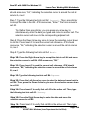
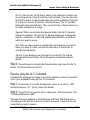
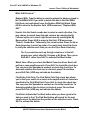
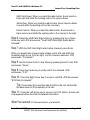
Step 4: Press Tab to move to the Top field. JFW announces, "Top: Edit 1,"
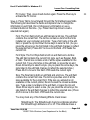
indicating the top margin is set to 1 inch. Type
and one-half inches.
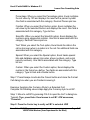
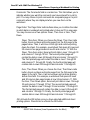
1 . 5 to
set the top margin to one
Tip: To verify your setting, press Insert-Up Arrow. JFW announces,
"Top: Edit 1 Point 5."
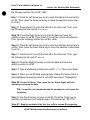
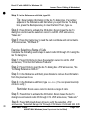
Step 5: Press Tab to move to the Bottom field. JFW announces, "Bottom: Edit
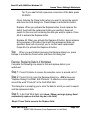
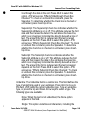
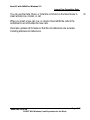
1," indicating the bottom margin is set to 1 inch. Type
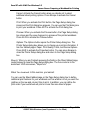
margin to one and one-quarter inches.
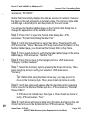
1 . 2 5 to
set the bottom
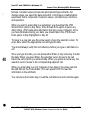
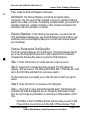
Step 6: Press Tab to move to the Left: field. JFW announces, "Left: Edit Zero
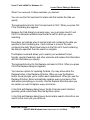
Point 5," indicating the left margin is set to one-half inch. Type 1 to set the left
margin to one inch.
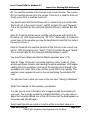
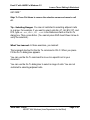
Step 7: Press Tab to move to the Right field. JFW announces, "Right: Edit
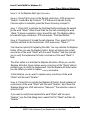
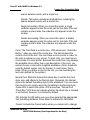
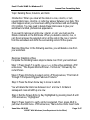
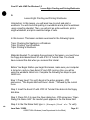
Zero Point 5," indicating the right margin is set to one-half inch. Type
the right margin to one inch.
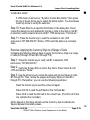
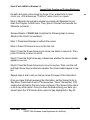
1 to
set
Step 8: Press Tab to move to the OK button. Then, press Enter to activate the
button and accept the changes. When the dialog box closes, the focus returns
to the worksheet. JFW announces, "Report.xls."
Exercise: Verifying Margin Settings
You must open the Page Setup dialog box and review the information in the
margin fields in order to verify the margin settings. Complete the following four
steps to verify the margins for your document.
Step 1: Press Alt-F to pull down the File menu. JFW announces, "Menu Active
New Dot Dot Dot Ctrl+N."
Step 2: Press U to select and execute the Page Setup command. The Page
Setup dialog box appears. (If necessary, press Ctrl-Tab until JFW announces,
"Margins" or the current setting for the Top field.)
•
Step 3: Press Tab to move through the fields. JFW reads the settings in each
Issue Date: 10/9/98
ASSIST With Windows (Iowa Department for the Blind)
Page: 7-19