1
Page 10
Overview of ESP
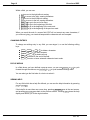
Within a field, you can use:
→
to move to the right without erasing.
to move to the right, erasing characters.
← to move to the left without erasing.
RUBOUT to move to the left, erasing characters.
SHIFT / → to go to the end of an entry.
SHIFT / ← to go to the beginning of the field.
NEXT WORD to go to the beginning of the next word.
PREV WORD to go to the beginning of the previous word.
SPACE
When you reach the end of a screen field, ESP will not accept any more characters; if
you continue typing, your terminal beeps and the characters are not accepted.
CHANGING ENTRIES
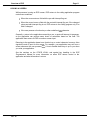
To change an existing entry in any field, you can retype it, or use the following editing
keys:
CHAR DEL , or CTRL / D to delete a character.
or CTRL / F to insert a space.
WORD DEL or CTRL / V to delete a word.
CTRL / V to delete to the end of the field.
CTRL / Y to enter or leave automatic character insert mode.
RUBOUT
,
CHAR INS
POP-UP MENUS
In a field where you have defined a pop-up menu, you can use NEXT WORD or → to cycle
forward through the choices, and PREV WORD or ← to cycle backward through them.
You can also type the first letter of a choice to select it.
VIEWING HELP
For any field which has a help file defined, you can see the help information by pressing
HELP or ESCAPE ? .
If the help file is more than one screen long, pressing NEXT SCREEN goes to the next screen,
and pressing PREV SCREEN goes back to the previous screen. Pressing MENU clears the help
display and returns you to the original screen.
Rev. 00