1
The Loan Handler
TM
TRAINING MANUAL SUPPLEMENT
(USER)
This supplement has been created by Mindy Paltridge of Mortgage Tech, Inc. and Jeff Seshun of Seshco
Enterprises and is provided to you as a courtesy. It will prove to be very helpful, as it will provide step-by-step
instructions for many of the tasks that you will perform in your day-to-day use of The Loan Handler.
IMPORTANT REMINDERS
For Loan Originators who will use this program: Don't be afraid to work on the program in front of borrower's, most
will appreciate the use of technology and like seeing their name and loan data on the screen. They’ll even feel as if
they are receiving special attention; especially if their last Application was taken on the back of a bar napkin or an
envelope.
Do NOT erase borrower files. They are ‘electronic assets’ of your company and you will need all borrower files for
the two (2) government reports: the HMDA Report and the LAR Register. Everyone originating mortgage loans may
need these Government requirements (tracking the closed, rejected and withdrawn applications). Furthermore,
management will want all these borrower files for many other reports that they will generate. The Loan Tracker can
generate these reports.
Table of Contents
GENERAL INFORAMTION _________________________________________________________ 3
Ellie Mae Software, Other Products and Services:_________________________________ 3
Computer Technology __________________________________________________________ 5
Three Primary Menus To Work With _____________________________________________
The Processing Forms Menu ___________________________________________________
The Print Menu _______________________________________________________________
The ePASS Business Center ___________________________________________________
12
13
14
15
Moving Around The Program ___________________________________________________
Menu Bar/Shortcut Keys _______________________________________________________
Toolbar/Shortcut Keys _________________________________________________________
Cursor Movement Keys________________________________________________________
16
16
19
20
Borrower File Directory ________________________________________________________ 21
Create a Borrower File ________________________________________________________ 22
Save and Name a Borrower File ________________________________________________ 22
How To Use Vendor Databases _________________________________________________ 23
PROCESSING INFORMATION SHEETS ____________________________________________ 27
Miscellaneous Data Entry Topics _______________________________________________ 27
GFE Short Cut _______________________________________________________________ 42
FHA Loan Amount Worksheet (Refinance Loans Only) ___________________________ 48
FHA Loan Amount Worksheet (Refinance Loans Only) ___________________________ 49
How To Combine Borrower Files (Co-Mortgagor Sets)____________________________ 51
Using The HUD 1ES Form: The Aggregate Analysis Worksheet ___________________ 53
Section 32 Disclosure: High Cost Mortgages ____________________________________ 55
Answers To The Most Frequently Asked Truth-in-Lending Questions______________ 56
Guide To Regulation Z (Truth-in-Lending) ________________________________________ 57
Regulation Z and ARM Loans __________________________________________________ 59
Tracking Information___________________________________________________________ 60
Using The Conditions Database ________________________________________________ 61
Custom Letters Master List_____________________________________________________ 68
Update Borrower Files _________________________________________________________ 79
The ePASS Home Page ________________________________________________________ 80
Accessing Service Providers ___________________________________________________ 81
Credit Reports________________________________________________________________ 82
MISCELLANEOUS OPTIONS ______________________________________________________ 85
Transfer Borrower Files ________________________________________________________ 85
Word Data Merge Export (formerly Word Link) ___________________________________ 88
The Imaging Option ____________________________________________________________ 95
TRAINING REVIEW ______________________________________________________________ 99
HANDLER POST TRAINING CHECK LIST _________________________________________ 105
The Loan Handler 5.2 Training Manual Supplement (User)
2
05/2002 Courtesy of Mortgage Tech & Seshco Enterprises
GENERAL INFORAMTION
Ellie Mae Software, Other Products and Services:
The Most Complete Line of Mortgage Banking Software in the Industry
Ellie Mae Consulting Service
- On-Site Consultation with Ellie Mae Corporate staff (including general industry topics)
Ellie Mae Docs Plus
- Doc Prep Service; per Doc Set Pricing; No Charge for the software or Re-Draws (30 days)
Ellie Mae Docs Express
- Doc Prep Service, per Doc Set Pricing, Docs Local on System, Immediate Printing
Ellie Mae Web Sites
- Complete Internet/WWW Home Page design, hosting and monitoring services
Ellie Mae Training Service - On-Site Training with your Local Ellie Mae Technology Consultants
Fannie Mae's DU Interface
- Interface to Fannie Mae's Automated Underwriting System
Freddie Mac's LP Interface
- Loan Prospector Interface to Freddie Mac's Automated Underwriting System
The Import/Export Option
- Automatic Database Linking between programs using ODBC technology
The Imaging Option
- Ability to attach Image Files to the borrower files in TLH; The Paperless Loan
The Loan Closer
- On-Site Closing Document software
The Fax/E-Mail Reporter
- Fax/E-Mail Broadcasting software; Status Info, Product Info, Special Announcements, etc.
The Loan Handler
- Complete Mortgage Processing software (including ePASS)
The Mortgage Banker
- Back Office Software; Secondary Marketing, Post Closing, Risk Analysis, etc.
The Loan Servicer
- Complete PC Loan Servicing software with Gov’t Reporting capabilities
The Loan Tracker
- Complete Pipeline Reporting software; 30+ built-in reports included
The Reg Finder
- Computerized Regulation Manuals (Fannie/Freddie/VA/FHA/etc); Allregs
The Trak-It
- PC Based Loan Servicing (without Gov’t Reporting capabilities)
ePASS
- Internet/WWW interfacing to Industry Partners (Credit, Appraisal, MI, Lenders, etc.)
While these programs are integrated, most can be used independently and can either supplement or replace your existing software
program(s). Call us today for more details (800)CON-TOUR (266-8687) or, log on to www.contoursoft.com for more details.
The Loan Handler 5.2 Training Manual Supplement (User)
3
05/2002 Courtesy of Mortgage Tech & Seshco Enterprises
The Mortgage Information Superhighway
Ellie Mae ePASS
The future of the industry is paved with a variety of communications options. Here, Scott Cooley*
provides a model of how the mortgage industry could ideally function.
Automated
Fraud
Valuation
Detection
Model
System
Mortgage
Insurance
Co.
Wholes
Title
Automated
Underwriting
Fannie Mae
Freddie Mac
Closing
Agent
Lead
Source
ePASS Business Center
Mortgage
Credit
Software
Reports
Vendor
H
U
D
Appraisal
Co.
Flood
Inspection
Reporting
Services
Co.
This chart represents your use of Contour Software with its numerous ePASS Partners
Internet (or EMail)
VAN
Direct Dial
* Scott Cooley is the
Founder of Contour Software, Inc.
The Loan Handler 5.2 Training Manual Supplement (User)
4
05/2002 Courtesy of Mortgage Tech & Seshco Enterprises
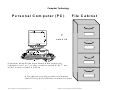
Computer Technology
P e rs o n a l C o m p u te r (P C )
F ile C a b in e t
=
sam e as
C o m p u t e r H a r d D r iv e s h a v e la b e ls & a r e c o m m o n ly
r e f e r r e d t o a s C o r F ; o r t h e y c o u ld b e c a lle d H , M , T , e t c .
A ll P C ’s h a v e a t le a s t a C d r iv e .
A f ile c a b in e t is r e a lly ju s t lik e a c o m p u t e r
( H a r d D r iv e ) ; b o t h h o ld f ile s & f o ld e r s o f d a t a .
The Loan Handler 5.2 Training Manual Supplement (User)
5
05/2002 Courtesy of Mortgage Tech & Seshco Enterprises
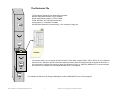
The Electronic File
The file cabinet represents your stand alone computer.
drawers represent directories in your computer.
drawer represents a program (i.e. ESP, Finder,
Closer, Windows, etc.). Most directories have
each program (i.e. Closed98, Closed99,
sub-directories within the Loans directory). Your computer is really just
ESP
Cl
os
er
2000
2002
2001
The borrower files in your computer are like file folders. Each folder contains 1003’s, VOE’s, GFE’s, etc. for a separate
borrower’s loan. Electronic borrower files have labels just like the paper file folder has a tab to identify the borrower. In
this environment, computer file names are eight (8) characters or less (i.e. JONES or WASHINGT), so some computer
file names are not identical to the complete borrower name. Our programs
Ha
ndl
er
Tra
cke
r
For example, the above file for George Washington would be WASHINGT.G in a Contour program.
The Loan Handler 5.2 Training Manual Supplement (User)
6
05/2002 Courtesy of Mortgage Tech & Seshco Enterprises
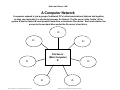
Dedicated Server LAN
A Computer Network
A computer network is just a group of individual PC's (called work stations) that are tied together,
so they can share data (i.e. electronic borrower file folders). The file server is the ‘brains’ of the
system & has the fastest & most powerful hard drive or electronic file cabinet. Each work station has
access to its own hard drive and/or the file server’s hard drive.
C:
C:
C:
File Server
(Main Computer)
X:
C:
C:
The Loan Handler 5.2 Training Manual Supplement (User)
C:
C:
7
05/2002 Courtesy of Mortgage Tech & Seshco Enterprises
Non-Dedicated Server LAN
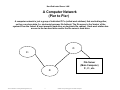
A Computer Network
(Pier to Pier)
A computer network is just a group of individual PC’s (called work stations) that are tied together,
so they can share data (i.e. electronic borrower file folders). The file server is the ‘brains’ of the
system & has the fastest & most powerful hard drive or electronic file cabinet. Each work station has
access to its own hard drive and/or the file server’s hard drive.
C:
C:
File Server
(Main Computer)
F:, C:, etc.
C:
The Loan Handler 5.2 Training Manual Supplement (User)
8
05/2002 Courtesy of Mortgage Tech & Seshco Enterprises
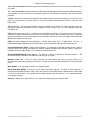
Computer Terminology
Automated Underwriting System (AUS) - The term used to describe computer programs that ‘test’ borrower files
for accuracy and compliance. They match up borrower information (data) and guidelines (rules) and interpret them
as a means of making underwriting decisions with computers.
Calculated Field - A field that is automatically ‘calculated’ (i.e. the math is automatic) by the program.
DOS / Disk Operating System - The PC based software program that some computers use to operate all the
other software programs loaded onto the computer including Ellie Mae Software.
DOS (Command) Prompt - The most common beginning point on a computer using DOS (seen as C:\> on a PC,
on a network it is usually seen as F:\> also known as the Root Directory Prompt).
C Prompt - The most common beginning point on a stand alone PC using DOS (seen as C:\>), it could
be D, E, etc.; also known as the PC's Root Directory Prompt.
F Prompt - The most common beginning point on a network system using DOS (seen as F:\>), it could
be G, H, Z, etc.; also known as the Network's Root Directory Prompt.
Default - A computer term that simply means the software provides an answer for that field; one that was preanswered; in Handler you are always able to overwrite a defaulted field on a borrower by borrower basis.
Dialog Box - A Box or Mini-Window that appears with questions, choices or messages as you make selections
and navigate through software programs that run in the Windows environment.
Downloading - Transferring information from one computer system to another (i.e. receiving information from the
Internet on your computer).
Dumb Terminal - A user site on a Main Frame Computer System, Terminal Server or Citrix environment; it
consists of just a keyboard and a monitor, no Hard Drive
Electronic Commerce (e-commerce) - The exchange of borrower data between a computer at one company
(i.e. Mortgage Company) and another company (i.e. Credit Bureau, MI Company or Lender) via the Internet or
World Wide Web. The ability to quickly and accurately transfer information without having to Fax or re-type data.
E-Mail - A method of electronic communication whereby people can receive, read, print, return or send messages
(i.e. mail) to other people or other mail boxes via the Internet.
ePASS – The Ellie Mae system which allows the exchange of borrower data between a computer at one
company (i.e. Mortgage Company) and another company (i.e. Credit Bureau, MI Company or Lender). The ability
to quickly and accurately transfer information without having to Fax or re-type data.
ePASS Partner - A company that uses software that can import/export information between itself and Handler
users
File Server - The central (main) computer or processing unit of a network computer system (i.e. the ‘brains’ of the
system where most of the data is normally stored).
Home Page - An address on the World Wide Web. A site or location that contains information and ‘links’ to other
sources of information that people can access from many other sites. A Master Menu on the WWW.
Icon - A small picture or graphic display of a software program or application in Windows. In Windows you
activate programs or applications by pointing your mouse (your cursor) on an icon or command and clicking your
mouse buttons.
In-File Credit Report - The brief credit report that gives you a quick look at a borrower's credit history; a prequal
report.
The Loan Handler 5.2 Training Manual Supplement (User)
9
05/2002 Courtesy of Mortgage Tech & Seshco Enterprises
- Computer Terminology page 2 Internet (Information Super Highway) - A network of many computers (Servers) that provides access to many,
many other computers (Servers) and sources of information. A non-centralized system of computers (Servers).
Link - The ability of two (2) different computer software programs to ‘talk’ or communicate with each other for the
purposes of sharing or transferring data or borrower information.
Login - To log onto and gain access to a network computer system, e-mail system or Web Page.
Logout - To log off of a system, recommended before you turn off your work station on a network.
Main Frame Computer\Terminal Server - A large computer system that can have a number of terminals or
users yet it is different from either a PC or a PC based Network Computer System. It consists of the Main Frame
Processing Unit itself and a number of dumb terminals all connected by cabling, phone or data lines.
Main Screen - The menu or screen that you see each time you start working in a software program; the
beginning point or central area of a software program.
Menu Bar - The area at the top of The Loan Handler (and other Windows programs) containing headings for pulldown menu choices.
Modem - A piece of computer hardware that lets you use a telephone line and transmit data between different
computers; they can be Internal or External Modems.
Network - A group of PC's (computers) that are all tied together and share the same programs and data, there
are at least 2 computers on a network but it could many more.
Node - A work station on a network or terminal on a Main Frame Network.
Notebook Computer - A smaller Personal Computer (PC) - a stand alone unit - that is portable (it may be able to
connect to the network system); formerly called Laptops.
Novell/NT - The network operating system used to operate network software programs.
Palm Top – A even smaller version of a Notebook Computer.
PC / Personal Computer - A desk top computer, a stand alone unit that is a separate computer (it may or may
not be part of a network system).
Root Directory - The main directory of your computer (usually C:\> on PC's and F:\> on networks).
Scroll Bar - The bars on the right side and bottom of windows or dialog boxes that let you move vertically or
horizontally through a form by clicking the scroll arrows or dragging the scroll bar to different positions.
Search Engine – Special Web Sites/Programs that provide the service of finding URL’s (Web Site Locations) that
contain a key word or topic that you are interesting in (i.e. Yahoo, Excite, Alta Vista, etc.).
Splash Screen - Segments of the ePASS menu where the ePASS partners connectivity can be activated. The
colorful, graphical screens that give you electronic access to a ePASS partner’s Web Site.
Status Bar - The line at the bottom of a form or document window that shows information in The Loan Handler it
shows such as the borrower name, type of loan, ratios of loan and the current field number (where cursor is
located).
Tape Back Up - A method of backing up your electronic data (i.e. borrower files); uses tapes instead of diskettes.
Task Bar - The special Status Bar on Windows 95/98 (and newer) PC’s that includes the [START] button.
Usually, it’s at the bottom of you screen and it shows you what programs and/or folders are open on your
desktop.
TLC - The Loan Closer software program from Ellie Mae that Closers/Underwriters use to create closing
documents for various loan programs.
The Loan Handler 5.2 Training Manual Supplement (User)
10
05/2002 Courtesy of Mortgage Tech & Seshco Enterprises
- Computer Terminology page 3 TLH - The Loan Handler software program from Ellie Mae that Processors use to process and transfer data for
your loans.
TLT - The Loan Tracker software program from Ellie Mae that Management and Processors (although others in
your operation can use it as well) use to generate reports on any information contained in the other Ellie Mae
programs.
Toolbar - Another bar underneath the Menu Bar that contains buttons representing features you use often. If you
place your mouse pointer over each button, a tiny label will appear indicating what feature or task that each
button will do.
TRF (ALLREGS) - The Reg Finder software program that allows you to access the various regulation manuals;
government guidelines accessible from your computer; Fannie, Freddie, FHA, VA, HUD Special Projects, MI
Companies, etc.
URL (Uniform Resource Locator) - A identifier which describes the location of a particular piece of information,
document or data including the protocol used to find and/or retrieve that information from other computers
systems or networks (e.g. http://www.mtgloan.com is Ellie Mae’s Internet Services Home Page on the World Wide
Web that has samples of their work).
URLA (Universal Residential Loan Application) - Fannie Mae’s 1003 Form. Freddie Mac’s 65 Form.
Residential Mortgage Application as it is referred to by most in the industry and within Ellie Mae programs.
A
Value Added Network (VAN) - Industry specific software. A re-packager of data that enables various parties to
exchange data even though the parties use different software programs with different software ‘languages.’
Examples are Fannie Mae DO/DU, Loan Prospector, Credit Bureaus, etc.
Windows95/98/ME/2000/XP (and newer) - The different versions of Microsoft’s Windows products.
recommend having a Windows consultant handy to keep you up to date.
We
Windows ‘Desk Top’ - The term used to describe the initial screen that comes up when working in a
Windows95/98 (and newer) operating environment. It shows you what folders and shortcuts are easily accessible
to you.
Work Station - A PC (personal computer) on a network system.
World Wide Web (WWW) - Also known as the Super Information Highway. A system of many networks of
computers that provides access to many, many other sources of information with the added benefit of being able
to link all over the world (i.e. like a spider web of multiple network computer systems). A non-centralized system
of computers (Servers).
Zip Drive – Similar to the Tape Back Up. It’s a method of saving/storing your computer data.
The Loan Handler 5.2 Training Manual Supplement (User)
11
05/2002 Courtesy of Mortgage Tech & Seshco Enterprises
Three Primary Menus To Work With
While The Loan Handler is one of the most sophisticated and feature rich processing modules in the industry and
there are many options available to our users (i.e. loan officers and processors), most will spend the majority of
their time with the following three (3) menus:
1. The Processing Forms Menu (Also Top Left Menu)
This menu gives you access to the various Forms available in the program. Simply choose the appropriate Form
name from the list and enter the borrower data as needed. Notice that the list includes Forms for specific
companies in addition to normal Government Agency Forms or Handler Forms; Forms from Lenders/Investors, MI
Companies, Appraisers, etc.
2. The Print Menu (the Box Menu)
This menu gives you the ability to print the Forms that you have filled out from the Processing Forms Menu
3. The ePASS Menu (Bottom Left Corner)
This menu gives you access to the two hundred plus ePASS Partners via the Internet.
The next three pages show screen captures of these three menus and are an example of what these menus look
like.
The Loan Handler 5.2 Training Manual Supplement (User)
12
05/2002 Courtesy of Mortgage Tech & Seshco Enterprises
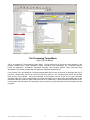
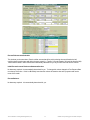
The Processing Forms Menu
(Also Top Left Menu)
This is an example of The Processing Forms Menu. The list shows you all the current forms available in the
program; Handler Forms: Prelim Information, Vendor Information, Loan Submission, etc.; Government Agency
Forms: the Application, Verifications, Transmittal Summary; and Company Specific Forms: Bay Banc Mtg.
Submission Form; United Guaranty Mtg. Ins Application, MGIC MI Application, etc.
If you envision The Loan Handler as a computerized typewriter then it’s easy to see how our program helps you fill
out forms. Simply select one form at a time from this menu, place it in our computer screen and fill out the data
fields as they are presented. One huge advantage of the program however is that as you type information
(borrower data) onto a form it automatically carries that information over to other forms and enables many of the
calculations that are required in order to submit a loan file to underwriting. Handler has always provided a ‘formson-the-screen’ look that makes TLH extremely easy to use since you type data onto forms you already know and
recognize.
.
The Loan Handler 5.2 Training Manual Supplement (User)
13
05/2002 Courtesy of Mortgage Tech & Seshco Enterprises
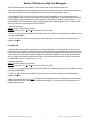
The Print Menu
(Print Box)
This is an example of The Print Menu. The list shows you all the current forms available for printing in the program;
Handler Forms: Recap Sheets, Loan Submission, Custom Letters, etc.; Government Agency Forms: the
Application, Verifications, Transmittal Summary; etc. and Company Specific Forms.
If you envision The Loan Handler as a computerized typewriter then it’s easy to see how our program helps you fill
out forms and, once filled out, enables you print them. Simply select the desired forms from the list, <CLICK> on
[Print], have them signed, and submit them to underwriting.
.
The Loan Handler 5.2 Training Manual Supplement (User)
14
05/2002 Courtesy of Mortgage Tech & Seshco Enterprises
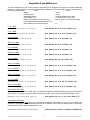
The ePASS Business Center
(Quick Liinks on Bottom Left Corner)
This is an example of The ePASS Business Center. The list shows you all the current ePass categories available
in the program; Lenders, Mortgage Insurance, Credit Bureau, Flood Certification, Appraisal, Automated
Underwriting etc. All ePass partners use the Internet or World Wide Web.
If you envision The Loan Handler as a computerized typewriter then it’s easy to see how our program helps you fill
out forms with the important added benefit of allowing the electronic transfer of data between other vendors
involved with the loan. Simply <CLICK> on the ePASS Icon and select the appropriate item, then let your
computer do the rest. Even Faster is to click on your hotlink at the bottom left side of the main screen.
These lists will continue to grow as more and more vendors involved in residential lending markets climb on board
the ePASS Bandwagon. If your current vendors don’t offer you this important capability have them call our ePASS
Managers at 1-800-CONTOUR (266-8687) for details on how they can catch up to their competitors.
The Loan Handler 5.2 Training Manual Supplement (User)
15
05/2002 Courtesy of Mortgage Tech & Seshco Enterprises
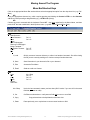
Moving Around The Program
Menu Bar/Shortcut Keys
Click on the appropriate Menu Bar word and then select the appropriate option from the drop down list. (e.g. File /
Save)
OR
Press the appropriate shortcut key, which requires pressing and holding the Control <CTRL> or the Alternate
<ALT> key while pressing a designated key (e.g. <CTRL><S> (Save)).
OR
Choose any menu command with the keyboard. Press ALT + the letter underlined in the Menu Name, and then
press JUST the letter underlined in the drop-down menu (e.g. ALT + F for File and S for Save)
File
New Borrower…
Open Borrower…
Save
Close
Add Co-Mortgagor
Remove Co-Mortgagor
Merge Template...
Send Mail to Contact
Print…
Exit
Ctrl + L
Ctrl + S
Ctrl + E
Ctrl + P
L, Load
Quickly access a borrower directory to either load another borrower's file while closing
the file you are currently working on or look at a recap of another borrower.
S, Save
Save information in your borrower’s file on your demand
P, Print
Access the Print Menu
E, Email
Send an email to a Contact.
Edit
Undo
Cut
Copy
Paste
Delete…
Select All…
Alt + Bksp
Ctrl + X
Ctrl + C
Ctrl + V
Alt + Bksp
Undo the last command; restore previous data (ONLY works if you are still in the same
field that you want to undo)
X, Cut
Cut/Remove selected text - easily erase a field and move on to next field
C, Copy
V, Paste
Copy selected text to be duplicated some where else
Paste previously cut or copied text to current cursor location or field
The Loan Handler 5.2 Training Manual Supplement (User)
16
05/2002 Courtesy of Mortgage Tech & Seshco Enterprises
- Menu Bar/Shortcut Keys page 2 -
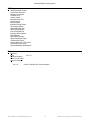
View
Next Form
Forms List
Doc List
Previous Form
Calculator Window
Calendar Window
User Options
Ctrl + A
Ctrl + W
Ctrl + Y
Ctrl + B
A, Ahead
Bring you forward one screen
W, Where
Brings up the forms menu
Y, You Add
Brings up the Document List to manually add docs to current loan
B, Back
Brings you back one screen
Field
Freeze Field
Lock Field
Go to Field
Zoom Database
Ctrl + F
Ctrl + K
Ctrl + G
Ctrl + Z
F, Freeze
Override a calculated field; to freeze in your own answer or value; it also changes the
field color as a reminder that the field was frozen
K, Lock
Control access and editing capability to specific fields (i.e. Locks a field so it can’t be
changed later on by someone without the authority to do so)
G, Go To
Advance to a specific field in the program; it advances to the very next place in the
program where that field is located; continue advancing to each place to check them all
Z, Zoom
Access and/or create a listing of available choices in a database (i.e. Zooms into a list
of Originators, Appraisers, Depositories, Branches, Print Menu Choices, etc.)
Tracking
Current Date
Current Time
Needed
Ordered
Reordered
Filed
Missing Information
Ctrl + D
Ctrl + T
Ctrl + N
Ctrl + O
Ctrl + R
Ctrl + I
Ctrl + M
D, Date
Places ‘today's date’ into the field where cursor is located
T, Time
Places an Current Time into the field where the cursor is located
N, Needed
Places an ‘N’ for Needed and the date in the appropriate field
O, Ordered
Places an ‘O’ for Ordered and the date in the appropriate field
R, Reordered
Places an ‘R’ for Reordered and the date in the appropriate field
I, In File
Places an ‘F’ for Filed and the date in the appropriate field
M, Missing
Brings up the Missing Information Report
The Loan Handler 5.2 Training Manual Supplement (User)
17
05/2002 Courtesy of Mortgage Tech & Seshco Enterprises
- Menu Bar/Shortcut Keys page 3 -
Utilities
ePASS Business Center
Amortization Schedule
Borrower Comments
Conditions List
Custom Letters
Ellie Mae Docs Plus
IMX Exchange
Liability Import
Borrower Recap Report
The Imaging Option
Update Borrower File
Direct Word Interface
Print All Verifications
Borrower Quick Update
Web Reporter
Batch Word Interface
Word Data Merge Export
CIS Borrower Import
Fannie Mae DU 3.0 File Import
Transfer Borrower Utility
Zipcode Database Maintenance
Help
Contents…
Field
Technical Support
Contour on the Web
About the Program
Ctrl + H
Ctrl + H
Access ‘Field Specific’ Help Information
The Loan Handler 5.2 Training Manual Supplement (User)
18
05/2002 Courtesy of Mortgage Tech & Seshco Enterprises
Toolbar/Shortcut Keys
1
2
3
4
Button Label
5
6
7
8
9
10
Shortcut Key(s)
11
12
Description
(from left to right)
1
Move to Next page
Ctrl A (Ahead)
Move to the Next Form
2
Move to Previous Page
Ctrl B (Back)
Move to the Previous Form
3
Copy
Ctrl C (Copy)
Copies Selected Data
4
Email
Ctrl E (Email)
Send an Email to a Contact
5
Freeze
Ctrl F (Freeze)
Overwrites a Field
6
Create New Borrower
Alt F (File) / N (New…)
Create a New Borrower File Folder (EMF)
7
Go To
Ctrl G (Go TO)
Brings you to a Specific Field
8
Help
Ctrl H (Help)
Field Specific Help
9
In File or Filed
Ctrl I (In File)
Puts a Filed date into a Field
10
Locks/Unlocks
Ctrl K
Locks/Unlocks a Field
11
Open Existing Borrower
Ctrl L (Load Borrower)
Display Current Borrower Directory/List
12
Missing Information Report
Ctrl M (Missing)
Brings up the Missing Information Box
13
Item is Needed
Ctrl N (Needed)
Puts a N into a Field
14
Ordered Date
Ctrl O (Ordered)
Puts a Ordered date into a Field
15
Print Borrower Forms
Ctrl P (Print Borrower Forms)
Display Print Menu
16
Re-ordered Date
Ctrl R (re-ordered)
Puts a Re-ordered Date into a Field
17
Save Borrower Data
Ctrl S (Save Borrower File)
Save Borrower File (keeping File Open)
18
Time
Ctrl T (Time)
Puts the Current Time into a Field
19
ePASS Business Center
Alt U (Utilities) <Enter>
Access our ePASS Partners
20
Paste
Ctrl V
Pastes Copied Data
21
Select Forms
Ctrl W (Where)
Select from the List of Forms
22
Cut
Ctrl X
Cuts selected data out and puts it on the clipboard
23
Doc List
Ctrl Y
Access Your Document list to add screens on the fly.
24
Zoom to a Database
Ctrl Z (Zoom) / <Double Click>
Zoom Into a Database/List of Choices
The Loan Handler 5.2 Training Manual Supplement (User)
19
05/2002 Courtesy of Mortgage Tech & Seshco Enterprises
Cursor Movement Keys
(Moving the Insertion Point around)
The Insertion Point is the blinking line that represents the Cursor’s position within Windows programs. Most of these
keys are fairly self-explanatory and are real time savers. They help you move from one place to another within the
program quickly and easily. Many of these keystrokes will be familiar to you from other software programs like Word
Perfect, Microsoft Word, Lotus 123, Microsoft Excel, etc.
Within a FORM:
- <ENTER>: move forward one (1) field at a time
- <SHIFT>+<ENTER>: move backward one (1) field at a time
- <PAGE UP> / <PAGE DOWN>: move forward/backward approx twenty (20) fields at a time
- <TAB> / <SHIFT>+<TAB>: move quickly forward/backward to the next major section or from group to group
- <CTRL>+<HOME> / <CTRL>+<END>: move to the first/last field on a form
Within a FIELD:
- <LEFT ARROW> / <RIGHT ARROW>: move left/right one (1) character at a time
- <CTRL>+<LEFT ARROW> / <CTRL>+<RIGHT ARROW>: move left/right one (1) word at a time
- <BACK SPACE>: move to the left AND erase one (1) character at a time while pulling over all characters to the
right
- <DEL>: deletes one (1) character at a time AND pulls over all characters to the right
- <ESC>: will Restore the data in a field if you have typed over or erased something by accident. CAUTION: this
ONLY works if you have not advanced past the field that you want to restore (i.e. once you move on to the next field
the system can NO LONGER restore the previously erased item; it accepts the field as is and moves on).
Miscellaneous:
- Windows programs can be operated with a Mouse. Simply move the Pointer (Insertion Point) to the desired place
or field and <CLICK> the appropriate Mouse Button to move to that spot or activate a selection or feature
- <SPACEBAR>: selects or tags an item; marks it for inclusion in your task (i.e. as in tagging a form for printing); to
unselect or untag an item simply press <SPACEBAR> again
- <?>: Question Marks in any field that you need (or think you need) but don't currently have; a Custom Letter
(1missing.ltr), the Missing Information Form, or Missing Information Report in TLT can provide a list of these
Question Marks AND what these fields are known as or used for; to view a complete list, see Utilities / Missing
Information Report
- <ESC>: will close a secondary window or dialog box and return you to your previous task or location
- Scroll Bars show you where the cursor is positioned in relation to the choices available for that feature (sometimes
referred to as elevators and/or escalators). They remind you that there are more options than can be seen from your
present position and can be moved by using the mouse. Some move Vertically and some move Horizontally
- Handler formats Dollar Numeric data fields for you, so typing “.00” throughout the file is not necessary and a typical
borrower’s file has hundreds of Dollar Numeric data fields; it can literally save you hundreds of keystrokes per file!
The Loan Handler 5.2 Training Manual Supplement (User)
20
05/2002 Courtesy of Mortgage Tech & Seshco Enterprises
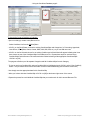
Borrower File Directory
Here’s where you manage the Files created within TLH. Note in the left corner it notes this directory is holding 24
files. The Last Name box reflects what you have typed. For instance, if you want to find the File for Andy Example listed as: Example, Andy - simply start typing the last name (i.e. EXA is enough to find the Example files) and
<CLICK> [Find Now] button. The Search String box shows EXA as it has found and highlighted the first EXA match.
To reset the Search String erase what was in the box and <CLICK>[Find Now] button. Please MOVE your ‘Dead’
Files (Closed, Denied, Rejected, Withdrawn, etc.) to an appropriate folder or directory at least once every month!
The [Open] button will open up the borrower file you have selected. You can also open a borrower file by selecting
and double clicking or selecting and pressing the [Enter] key on your keyboard.
The [Create] button will create a new borrower file in the selected directory.
The [Duplicate] button allows you to make a copy of an existing loan. This is great for First and Second Mortgages
(i.e. EXAMPLE.1 and EXAMPLE.2) and/or for Refinances of previous loans (i.e. EXAMPLE2.A or EXAMPLE3.A).
The [Delete] button will delete and selected file. There is NO RECOVERY of the file once you have deleted it.
The [Recap] button will bring up a recap report on any file selected. This can be done while you have another file
open.
The [Templates] button gives you access to the Special Files or Template Files where you can Pre-Set or PreAnswer Fields of data throughout the various forms in the program (i.e. Fees and Charges on GFE’s) (see the
sheets entitled Creating and/or Editing Template Files).
The [Web Apps] button allows you to download borrowers applications from your Ellie Mae Website.
The [Close] button closes this window. Pressing [Esc] on your keyboard will also close this window.
The Loan Handler 5.2 Training Manual Supplement (User)
21
05/2002 Courtesy of Mortgage Tech & Seshco Enterprises
CREATING A BORROWER FILE
The value entered in F1172, Type of Loan, determines which input and output forms are used to
create the loan package. When you create a new loan package, the first thing that you do is select a
template. The Loan Handler comes with templates for basic Conventional, FHA, and VA loans. These
templates already contain the "standard answers" for fields applicable to the loan type. You can use
these templates as the base from which to create your own custom templates.
Create a Borrower File
1. Open The Loan Handler.
2. Click on the New button on the toolbar or select File|New Borrower from the menu bar.
3. Select the appropriate template. The file will open to the Preliminary Information Screen.
4. Click Save at any time to save the file. Otherwise, you will be prompted to save the file upon
exit.
Save and Name a Borrower File
1. Click Save at any time, or
2. Click on File|Close Loan.
3. The Save Borrower window will open. Select the appropriate file path to the folder in which you
want the file to be stored.
4. Enter a filename consisting of up to eight characters with a one-character extension, e.g.
SMITH.J or MARTINEZ.R.
5. Click OK to save the file.
Additional Tips:
- When you have borrowers with similar names then we suggest the following approach. Consider the Auto
Numbering feature (see the TLH Manual) or try the following: if the file for Bob Smith has the File Name SMITH.B
and you tried to create another SMITH.B, the system will alert you to the fact that the file already exists and it won't
let you create two files using the same computer File Name. Since the directory already has one SMITH.B, any
additional SMITH.B’s would need to appear as SMITH2.B, SMITH3.B, SMITH4.B, etc.
- This only comes into play when the first initial happens to match an existing file with same first initial and the same
last name. For the SMITH example, if the new file is SMITH.B and there was no file already called SMITH.B then the
program would not give you an Error Message. Normally you will have multiple files named SMITH (i.e. SMITH.A,
SMITH.B, SMITH.C, SMITH.D, SMITH.E, etc.) but only a few that are exact duplicates.
- Be sure to use the [Duplicate] button when creating exact copies of existing files (i.e. for a 2nd mortgage or a Refi).
* Auto Numbering (see the TLH Manual) may be the recommended method for those companies with multiple
branches and/or off site Originators since it helps eliminate the possibility of duplicate computer File Names and/or
overwriting files when transferring files (i.e. to/from diskette and/or different directories), if so step 2 above is slightly
different.
The Loan Handler 5.2 Training Manual Supplement (User)
22
05/2002 Courtesy of Mortgage Tech & Seshco Enterprises
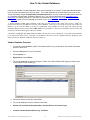
How To Use Vendor Databases
Use the Loan Handler's Vendor Database to store contact information for vendors, so that redundant information
does not need to be entered over and over again. The vendor database can be accessed from any field on the
Vendor Information Screen (Forms|Vendor Information Screen) or from any vendor field within the borrower file
(e.g. Schedule of Real Estate, Schedule of Deposit, etc.). Your Vendor Data Base can be exported to other
applications for viewing, printing, etc. See below for instructions on selecting, searching for, adding, updating,
and exporting vendors; and for changing the location of your vendor database.
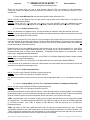
1. Always remember to First search a database for the entry you want, and if it exists, simply select it. Press <CTRL><Z>
(Zoom) or the [Zoom In] Tool Button to access the various databases. If the entry is one you do not want to create within your
database (e.g. an out-of-state Bank or an uncle as Landlord that you'll probably never need again) then simply type that
information directly into the borrower file and DO NOT access your database. That way the information will only exist in this
one borrower file and will not appear within your database.
2. Remember to only type THE FIRST FEW LETTERS of the entry that you are searching for. The system will automatically
try to find an exact match for you. This applies to all databases: Borrowers, Escrow Companies/Attorneys, Employers, Loan
Officers, Processors, Branches, Landlords, Sources of Leads, etc.
Vendor Database Overview
1. To open the vendor database, position the insertion point in any vendor field on the Vendor Information
Screen or other form:
•
Press the Zoom button on the TLH toolbar.
•
Press <Ctrl+Z>, or
•
Right-click and select Zoom
2. The vendor database will open for the type of vendor in the active field and will display the most recent
search results for that vendor type:
3. Press New Search to clear the search fields.
4. The vendor database screen is divided into two tabs:
•
General Info includes the Company Name, Contact Person, and Vendor Type.
•
Location includes Street Address, City, and State.
The Loan Handler 5.2 Training Manual Supplement (User)
23
05/2002 Courtesy of Mortgage Tech & Seshco Enterprises
5. Vendors are categorized according to type. Click on the Vendor Type drop-down list to view the entire list
of categories.
Search for all vendors of a specific vendor type
1. Select the Vendor Type from the drop-down box.
2. Press Find Now.
3. A list of all vendors in the specified category will display:
Use search criteria to narrow your search
1. To narrow your search parameters, use the Company Name, Contact Person, Street Address, City, and
State fields as search criteria. For example, to find all Builders/Brokers in "Sample City":
2. Click on the Location tab and type "Sample City: in the city field.
3. Press Find Now. All vendors in "Sample City" are listed:
Select Vendor
To auto-populate the vendor information screen or a verif with the data for a vendor in the vendor database:
1. Position the insertion point on any vendor information field for the vendor type.
2. Zoom-in to the Vendor Database by pressing <Ctrl+Z> or other method.
3. Search to find the vendor that you want to use, highlight the vendor, and press Select.
4. You will return to the borrower file and the vendor information for the selected vendor will be filled in.
Add a new record to the vendor database
There are two ways to add a new record to the vendor database, Auto Update and Add Vendor.
Auto Update
Every time you enter a new vendor in any of the vendor information fields on the Vendor Information Screen or
any of the verifs, the following message will appear:
The Loan Handler 5.2 Training Manual Supplement (User)
24
05/2002 Courtesy of Mortgage Tech & Seshco Enterprises
2. Press Add to add the (new or) modified vendor to the vendor database.
3. Select a matching vendor and press Update to update the matching vendor with the modified vendor
information.
4. If you do not want this screen to appear again for this loan, click on view, user options and under the Data
Entry tab, uncheck the box.
Add Vendor
To add a new vendor to the vendor database from the vendor database screen:
1. Go to any vendor field on the Vendor Information Screen or any verif, and Zoom-in to the Vendor
Database by pressing <Ctrl+Z> or other method.
2. Select the Vendor Type from the drop down list.
3. Press Add. The Add Vendor screen will display:
4. Enter the appropriate information. Press Add. The vendor is now included in the Vendor Database.
The Loan Handler 5.2 Training Manual Supplement (User)
25
05/2002 Courtesy of Mortgage Tech & Seshco Enterprises
Edit Vendor
There are two ways to edit an existing record in he vendor database, Auto Update and Add Vendor.
Auto Update
Any time you enter information for a vendor whose company name matches that of an existing record the
message will appear:
Note that the address for the modified vendor differs from the address for the matching vendor.
•
To update the existing record to the address shown for the modified vendor, press Update.
•
To Add the modified vendor as another record to the Vendor database, press Add.
To turn off the Auto Update feature, check the box at the bottom of the Add Vendor Screen. (circled in the
example above)
Edit Vendor
To edit an existing vendor record from the Vendor Database screen:
1. Go to any vendor field on the Vendor Information Screen or any verif, and Zoom-in to the Vendor
Database by pressing <Ctrl+Z> or other method.
2. Select the Vendor Type from the drop down list.
3. Search to locate the specific vendor record.
4. Highlight the vendor record and press Edit.
5. The Edit Vendor screen will display:
6. Enter the updated information, press Update:
7. The updated record is now listed in the vendor database:
The Loan Handler 5.2 Training Manual Supplement (User)
26
05/2002 Courtesy of Mortgage Tech & Seshco Enterprises
PROCESSING INFORMATION SHEETS
Miscellaneous Data Entry Topics
This topic cover things that you just need to know and may not be available in your other notes so please keep it
handy for your day to day use of the program. If you just can’t understand how something works check these pages
to see if your subject might be one of the ones listed below:
Taxes & Insurance Table / Impound Account Settings:
If you use the section of the Prelim Information Form that is called Taxes & Insurance Table / Impound Account
Settings (near the top middle of the form), then consider whether you want to use the Annual Factors column (the
first column in this section which calculates estimates based on percentages). The Factor Column takes a factor (i.e.
.35 for Hazard Insurance) and multiplies it by the Loan Amount (i.e. 100000) and it produces a Yearly Total which
when divided by 12 (months) equals a monthly amount and when you enter the Number of Months (i.e. 2) then
equals the amount of your Impound or Escrow for that item. These estimated figures then also appear on the 2nd
Page URLA, GFE, Second Page REG Z, etc.
Verification of Liabilities (VOL’s):
Better than using these forms yourself, we recommend using an ePASS interface with your Credit Report Provider,
but when working with VOL’s follow these guidelines. A VOL must have at least a Liability Name, a Balance and a
Payment. If there is no Balance or Payment on the account, DO put a 0 (Zero) in these fields.
Verification of Mortgage (Real Estate) (VOM’s):
A VOM must have at least a Mortgage Holder Name, but it won’t necessarily have a Balance and a Payment (i.e.
some properties are owned outright or were inherited and if so, use the words ‘FREE AND CLEAR’). If there is no
Balance or Payment DO NOT put a 0 (Zero) in these fields. If the Property is owned outright, enter the words FREE
AND CLEAR as the Mortgage Holder Name; in fact, that should be an entry in your Mortgage Holder database so it
can be used over and over again. Better yet, when you create that entry place a space in front of the words FREE
AND CLEAR so that it appears at the top of your list making it easier to find each time it is needed. If a borrower has
already Sold and Closed on their existing property, do not include it as a VOM. The proceeds from the sale of the
home will already be listed as an asset and would then be duplicated if the property is included as a current VOM.
Zooming into Databases:
When creating a new entry in a Vendor Database, use the mouse to advance through the fields or use the <TAB>
and/or <SHIFT><TAB> keys
PMI:
On the Prelim Information Form, there is a field for PMI/VA Funding/FHA MIP factor (F1107). Use the specific factor
for the type of loan you are using (i.e. FHA= .50, VA= N/A and Conventional = the chart from the MI Company you
use for the specific LTV and MI program). If Conventional PMI is needed, then be sure to go to the First Page REG
Z and fill in the section for PMI (near the bottom on the right). See the notes called Guide to REG Z (Truth-inLending) for more details.
HMDA/LARS Information:
There’s Form that is called HMDA-LAR-Home Mortgage Disclosure Act which is worth using even if you don’t have
to report HMDA info. This is especially true if you have and use The Loan Tracker (the Reporting Program) since
two of these fields: Type of Action Taken (F1393) and Purpose (F384) are used by the Tracker for many of its
reports.
Loan Income & Costs:
This is another Form called Loan Income and Costs that is tied to The Loan Tracker and will generate Net Income
information based on entries to this section. Data entered in this section does NOT affect the GFE or the TIL since
the figures may be different and therefore, may be used differently for commissions, overrides and bonuses.
The Loan Handler 5.2 Training Manual Supplement (User)
27
05/2002 Courtesy of Mortgage Tech & Seshco Enterprises
- Miscellaneous Data Entry Topics page 2 Deposit Information 2nd Page URLA:
This information comes directly from the VOD’s (see the notes entitled Order of Data Entry) and aren’t shown on this
page. Enter as many VOD’s and accounts as needed for your files since there is no limit to the number of VOD’s,
VOE’s, VOM’s, VOL’s, VOR’s and Comment Pages. You can have as many as needed even though there is only
room for four (4) Depositories on the 2nd Page URLA. Any more than four (4) will automatically appear on the
Continuation Page(s). REMEMBER: Please use the <CTRL><Z> (Zoom) feature when describing the Account
Type(s) since these are the acceptable terms used by Freddie and Fannie for their Automating Underwriting system
and special codes are associated with these selections.
Schedule of Real Estate 3rd Page URLA:
This information is also governed by a question on the top of page 3 of the 1003 by a General Questions:
Automatically Transfer Information From The VOM’s to the URLA? If the question is answered ‘N’ or left blank, you
will be able to type directly on the 3rd Page URLA. We suggest using ‘Y’ since it’s quicker to create as many VOM’s
as are needed with <CTRL><A> (Ahead) and keep on going since the number is unlimited even though there is only
room for three (3) properties on the 3rd Page URLA. If there are more than three (3) properties listed, a message
will appear saying 'See Schedule of RE’ and you will the grand total. In fact, one Processor in NC once created a
loan file with sixty-four (64) VOM’s.
The Loan Handler 5.2 Training Manual Supplement (User)
28
05/2002 Courtesy of Mortgage Tech & Seshco Enterprises
Important
*** ORDER OF DATA ENTRY ***
Shortcut Method
(Conforming/Non-Conforming Loans)
These next few pages show you how to enter borrower data into The Loan Handler for Conventional/NonConforming Loans in the fastest and most productive way possible so that you can make the best use of your
valuable time
1. Create a New Borrower File (see the sheet entitled Creating a Borrower File)
Mouse: <CLICK> on the [New] (a Piece of Paper with the top left hand corner folded down) or the [Open] Tool
Button (an opening Manila Folder)
Keyboard: Press <ALT><F> File and then <N> New or just press <ENTER> with New highlighted or press
<CTRL><L> (Load Borrower) and search for the name First, if it doesn’t already exist, press <ALT><C> [Create]
2. Fill out the Prelim Information Form
Mouse: Use the Mouse to navigate this form. Use the Scroll Bars as needed to reach other sections of the form
Keyboard: Use the various Keys (see the sheet entitled Cursor Movement Keys) to advance through the form and fill
out as much as is appropriate for this borrower
Remember, you can place ?'s in any field (on any form throughout the program) that you know you'll need but don't
currently have data for; the Missing Info Report or Custom Letter entitled 1Missing.ltr (Print Menu) and/or a Report in
The Loan Tracker: Missing Information Report can provide a list of where these question marks are located and
provide a description of the data is missing
Databases (lists of info) are available throughout the program so be sure to use them anywhere (i.e. Loan Officer
Name, Lead Came From, Branch Name/Id Number, etc.) possible (see the sheet entitled How to Use Vendor
Databases and/or How to Create Custom Databases). A Magnifying Glass appears on the Status Bar - at the
bottom right - designating fields with databases
Mouse: While on an appropriate field <CLICK> on the [Zoom In] Tool Button (Magnifying Glass) to access existing
databases (or to create a new database)
Keyboard: Press <CTRL><Z> (Zoom) while on an appropriate field or on some press <DOWN ARROW>
** Fill in as much as is possible since much of the data entered on this form affects the rest of the borrower's file and
the other forms needed for processing the loan
3. Fill out the Vendor Information Form
Mouse: <CLICK> on the [Forward] Tool Button (right pointing arrow)
Keyboard: Press <CTRL><A> (Ahead) to access the next form
Use the same techniques as above and fill in this form with the appropriate data - or ?’s - and advance to the next
form
4. Fill out the 1st Page URLA (essentially fills out Residence Schedule and Employment Schedule)
Mouse: <CLICK> on the [Forward] Tool Button (right pointing arrow)
Keyboard: Press <CTRL><A> (Ahead) to access the next form
Use the same techniques as above and fill in this form. Notice the Odd and Even numbering pattern on the following
printed sample pages. Items for the Borrower (left side) are Odd numbers and items for the Co-Borrower (right side)
are Even numbers (envision how forms are printed, like we read a book - top to bottom, left to right)
VOR’s: If separate Rent Verifs are needed - meaning you’ll print them and send them out - then simply fill in the data
as it appears here. This data automatically transfers to your VOR forms and you can fill in any remaining data later
in our shortcut method. Use <TAB> to advance to each Borrower VOR spot and then on to the Borrower
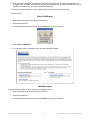
Employment Section
VOE’s: Like VOR’s, if VOE’s are needed and will be sent out, simply fill out these sections on the App. This data
automatically transfers to your VOE forms and you can fill in any remaining data later in our shortcut method. Use
<TAB> to advance to each Borrower VOE spot and then on to the Co-Borrower side of the App where you can follow
the same approach for this side of the from (if these items are even needed)
The Loan Handler 5.2 Training Manual Supplement (User)
29
05/2002 Courtesy of Mortgage Tech & Seshco Enterprises
- Order of Data Entry page 2 Note: later on, don’t be alarmed if you see an empty line in your list of VOR’s or VOE’s (i.e. if the spot for the
Borrower’s third and fifth residence (#3 and #5) aren’t needed but all three spots for the Co-Borrower (VOR’s #2, 4 &
6) are needed, line numbers three and five for VOR #3 and #5 will be empty simply because they don’t exist; we
didn’t type any data in them)
5. Fill in any missing data in the Employment Schedule
Mouse: <CLICK> on the [Forms] Tool Button and then <DOUBLE CLICK> on Employment Schedule
Keyboard: Press <CTRL><W> (Where) and press <E> Employment Schedule and <ENTER> to access these forms
and <ENTER> again to access the first VOE
A good deal of this information was entered while you were on the 1st Page URLA, but here you can make any
changes and/or add any new information as needed (use the Zoom feature to access your list of Employers and use
your preferred method of advancing to the next form, in order, one form at a time, keeping in mind our Odd/Even
numbering pattern and that there’s no limit to the # of VOE’s that you create)
6. Fill in any missing data in the Residence Schedule
Mouse: <CLICK> on the [Forms] Tool Button and then <DOUBLE CLICK> on Residence Schedule
Keyboard: Press <CTRL><W> (Where) and press <R> to highlight the Residence Schedule and <ENTER> to
access these forms and <ENTER> again to access the first VOR
A good deal of this information was entered while you were on the 1st Page URLA, but here you can make any
changes and/or add any new information as needed (use the Zoom feature to access your list of Landlords and use
your preferred method of advancing to the next form in order one form at a time keeping in mind our Odd/Even
numbering pattern and that there’s no limit to the # of VOR’s that you create)
7. Access the ePASS feature
Mouse: <CLICK> on the [ePASS] Tool Button
This section of the program gives you ‘electronic access’ to Credit Bureaus, Appraisers, Statistical Property
Evaluations, MI Insurance, Flood Certificates, Title Reports, etc. the Internet/WWW. This benefits the other Vendors
involved with this loan since they can electronically transfer information directly into or out of your borrower forms (i.e.
URLA) without having to re-key the data. See the instructions provided by the particular Vendor(s) that you deal with
since the procedures for each will vary from Vendor to Vendor then exit this section of the program. In some
mortgage operations, these tasks may have already been done for you (or will be done later in the process) by other
personnel
Mouse: <CLICK> on the ePASS button again and you are brought back to your borrower file
8. Fill out the Deposit Schedule
Mouse: <CLICK> on the [Forms] Tool Button and then <DOUBLE CLICK> on Deposit Schedule
Keyboard: Press <CTRL><W> (Where) and press <D> Deposit Schedule and <ENTER> to access these forms and
<ENTER> again to access the first VOD
When finished communicating with your initial ePASS Partners continue to the Deposit Schedule. Access your
Depository database and fill out each verif needed by advancing to the next one (there’s no limit to the # of VOD's)
9. Fill out the R.E. Owned Schedule
Mouse: <CLICK> on the [Forms] Tool Button and then <DOUBLE CLICK> on R.E. Owned Schedule
Keyboard: Press <CTRL><W> (Where) and press <R> R.E. Owned Schedule and <ENTER> to access these forms
and <ENTER> again to access the first VOM. Select First or Subordinate Mortgage Type (position) as prompted
Use the same techniques as above to fill out as many VOM's as you need. Remember to access your Mortgage
Holder database. Fill out each verification needed by advancing to the next VOM (there’s no limit to the # of VOM's)
The Loan Handler 5.2 Training Manual Supplement (User)
30
05/2002 Courtesy of Mortgage Tech & Seshco Enterprises
- Order of Data Entry page 3 10 Fill out the Liabilities Schedule (Use your ePASS Partners; it’s much faster and less or no typing for
you)
Mouse: <CLICK> on the [Forms] Tool Button and then <DOUBLE CLICK> on Liabilities Schedule
Keyboard: Press <CTRL><W> (Where) and press <L> Liabilities Schedule and <ENTER> to access these forms
and <ENTER> again to access the first VOL
Use the same techniques as above to fill out as many VOL's as you need. Remember to access your Creditor
database; keep in mind, that you do not need to fill in every detail about a creditor, a list with VISA, Master Card,
American Express, etc. will suffice in many cases. Fill out each verif needed by advancing to the next one (there’s
no limit to the # of VOL's)
* Most people will have used the automatic posting capability provided by ePASS partners as discussed in step # 5
since your goal should be to type information only one time. All of the data that you enter on these verifications will
be transferred BACK to your mortgage application. These steps eliminate the need to fill out BOTH the application
AND the verifications AND it eliminates the need to enter any information at all on the Continuation Page (4th Page
URLA) since the program knows what fits on the first three pages and anything that doesn't is automatically
transferred for you. (Notice that 4th Page URLA is not even listed as a form on our Processing Forms Menu; but, of
course, can be printed even if it is blank)
11. (Optional) Fill out the Aggregate Analysis if desired for disclosure on your Good Faith Estimate (see the
sheets entitled Using the HUD 1ES Form: Aggregate Analysis Worksheet)
Mouse: <CLICK> on the [Forms] Tool Button and then <DOUBLE CLICK> on HUD1ES
Keyboard: Press <CTRL><W> (Where) and press <H> Hud1ES <ENTER> to access this form
This form is not normally used at the time of application since it is needed mainly as a closing requirement. The
program does make it available however, since information created on it can be shown on the GFE
12. Fill out the Good Faith Estimate (or Second Page REG Z; they’re almost identical)
Mouse: <CLICK> on the [Forms] Tool Button and then <DOUBLE CLICK> on Good Faith Estimate
Keyboard: Press <CTRL><W> (Where) and press <G> Good Faith Estimate and <ENTER> to access this form
Filling out the Good Faith Estimate helps fill out the First Page REG Z (the Truth-in-Lending) Form since the
numbers entered on the GFE create the Amount Financed field which in turn is then used on the First Page REG Z
which generates an APR. Furthermore, since the fields available on the GFE are in essence the same as that on the
Second Page REG Z (Itemization Page: detailing the fees and charges that affect the APR calculation and can
simply be printed if needed). This step also helps fill out a portion of the Details of Transaction section on the 3rd
Page URLA
13. Fill out the First Page REG Z (the Truth-in-Lending Form)
Mouse: <CLICK> on the [Forms] Tool Button and then <DOUBLE CLICK> on REG Z – Page 1
Keyboard: Press <CTRL><W> (Where) and press <R> REG Z – Page 1 and <ENTER> to access this form
Be sure to enter the First Payment Due Date in the correct format (MM/DD/YY); the A.P.R. won't be calculated
properly without it. If necessary, you are able to ‘back date’ the TIL (use the [Calendar] Tool Button) and doing so
affects the date printed on all the forms in the borrower file
14. Fill out 2nd Page URLA
Mouse: <CLICK> on the [Forms] Tool Button and then <DOUBLE CLICK> on URLA Page 2
Keyboard: Press <CTRL><W> (Where) and press <U> URLA Page 2 and <ENTER> to access this form
Verify that the fields carried over to this form (Proposed, Deposits, Liabilities) are filled out properly while adding any
data that was not automatically filled in by using the short cut method (i.e. Monthly Income information, Child Support
and Alimony, Stock & Bonds, Personal Property, etc.)
The Loan Handler 5.2 Training Manual Supplement (User)
31
05/2002 Courtesy of Mortgage Tech & Seshco Enterprises
- Order of Data Entry page 4 15. Fill out 3rd Page URLA
Mouse: <CLICK> on the [Forms] Tool Button and then <DOUBLE CLICK> on URLA page 3
Keyboard: Press <CTRL><W> (Where) and press <U> URLA page 3 and <ENTER> to access this form
Verify that the fields carried over to this form (Mortgage data, Details of Transaction) are filled out properly while
adding any data that was not automatically filled in by using the short cut method (i.e. Additional Names under
which..., Refinance Amount, Declarations, etc.)
16. Fill out the many other forms available to you: Comments, Loan Submission, Transmittal Summary,
Conditions List, Tracking Information, Custom Fields, Agency Forms, Lender/Investor Forms, MI
Forms, Appraisal Forms, Environmental Report Forms, Title Forms, Flood Forms,...etc.
Mouse: <CLICK> on the [Comments] Tool Button
If the Vendors you currently deal with are not yet ready for full ePASS you can still fill out, print and/or fax these
needed documents since many of them are now within our program right next to all the above listed forms from
Handler, Fannie, Freddie, FHA, VA. When you are finished filling in all the forms needed for this loan scenario the
next step is to print them
17. Print your documents
Mouse: <CLICK> on the [Print] Tool Button (printer)
Keyboard: Press <CTRL><P> (Print) to access this section of the program
Select the various forms you want to print from the appropriate category: URLA, Verifications, Schedule of Real
Estate, First Page REG Z (TIL), Recap Sheets, GFE, etc. Also print any of the Custom Letters that you want
(Welcome Letter, Gift Letter, Good Faith Estimate Cover Letter, TIL Cover Letter, ECOA Letter, Right to Receive a
Copy of the Appraisal Letter, Status Letter, etc.)
If you want all items within a category simply <CLICK> on the name of that category and the program will print all of
the possible items (i.e. all VOD’s regardless of how many exist). If you don’t want all items in a category then use
the Zoom In feature to access the individual items
Mouse: While on an appropriate category <CLICK> on [+] to access the list for that category, then <CLICK> on the
individual items that you want to select for printing, use the Scroll Bar if necessary
Keyboard: Press <right arrow> to expand the list. Then press the <Tab> button to access the individual items.
Press <SPACEBAR> on the individual items that you want to select for printing
Once you’ve finished making your individual selections for a category <CLICK> [-] and move on to the next category.
When you’re done with all categories and you have a printer able to provide the appropriate paper size you’re ready
to print all items needed for the Borrower (if your printer can’t print both legal and letter then it might be better to print
all legal docs, switch paper trays and go back and select all your letter size docs or if your printer lets you, print
everything on legal size paper)
Mouse: <CLICK> on the Print Button when you are finished selecting your forms
Keyboard: Press <ALT><F> <P> <ENTER> when you are finished selecting your forms
The Loan Handler 5.2 Training Manual Supplement (User)
32
05/2002 Courtesy of Mortgage Tech & Seshco Enterprises
*** ORDER OF DATA ENTRY – Conventional/Non-Conforming Loans ***
(Condensed List)
1. Create a New Borrower File <CTRL><L>(Load)
2. Fill out the Prelim Information Form <CTRL><A> (Ahead)
3. Fill out the Vendor Information Form <CTRL><A> (Ahead)
4. Fill out the 1st Page URLA (does Residence Schedule & Employment Schedule) <CTRL><W> (Where)
5. Fill out the remaining data in the Employment Schedule <CTRL><W> (Where)
6. Fill out the remaining data in the Residence Schedule <CLICK> on the [ePASS] Tool Button
7. Access ePASS <CLICK>on the [Exit] icon and then <CTRL><W> (Where). To access your ePass interfaces to
Credit Bureaus, MI Companies, Appraisers, Flood, Title, etc.
8. Fill out the Deposit Schedule <CTRL><W> (Where)
9. Fill out the R.E. Owned Schedule <CTRL><W> (Where)
10. Fill out the Liabilities Schedule (use your ePASS for this task) <CTRL><W> (Where)
11. Fill out the Aggregate Analysis Form (Optional) <CTRL><W> (Where)
12. Fill out the Good Faith Estimate or the Second Page REG Z <CTRL><W> (Where)
13. Fill out the First Page REG Z (Truth-in-Lending) <CTRL><W> (Where)
14. Fill out the 2nd Page URLA <CTRL><A> (Ahead)
15. Fill out the 3rd Page URLA <CTRL><W> (Where)
16. Fill out Comments, Loan Submission, Transmittal Summary, Conditions List, Tracking Information Form,
Custom Fields, Agency Forms, Lender/Investor Forms, MI Forms, Appraisal Forms, Environmental
Report Forms, Title Forms, Flood Forms...etc. <CTRL><P> (Print)
17. Print your documents
The Loan Handler 5.2 Training Manual Supplement (User)
33
05/2002 Courtesy of Mortgage Tech & Seshco Enterprises
*** ORDER OF DATA ENTRY – FHA Purchase Loans ***
(Condensed List)
1. Create a New Borrower File <CTRL><L>(Load)
2. Fill out the Prelim Information Form <CTRL><A> (Ahead)
3. Fill out the Vendor Information Form <CTRL><A> (Ahead)
4. Fill out the 1st Page URLA (does Residence Schedule & Employment Schedule) <CTRL><W> (Where)
5. Fill out the Good Faith Estimate or the Second Page REG Z <CTRL><W> (Where)
6. Fill out the First Page REG Z (Truth-in-Lending) <CTRL><W> (Where)
7. Fill out the Mortgage Credit Analysis Worksheet–Purchase Loan <CTRL><W> (Where) (For 203(k) loans, do
the MCAW Worksheet for 203(k) Loans and Maximum Worksheet before this form)
8. Fill out the remaining data in the Employment Schedule <CTRL><W> (Where)
9. Fill out the remaining data in the Residence Schedule <CLICK> on the [ePASS] Tool Button
10. Access ePASS <CLICK>on the [Exit] icon and then <CTRL><W> (Where) To access your ePASS interfaces to
Credit Bureaus, MI Companies, Appraisers, Flood, Title, etc.
11. Fill out the Deposit Schedule <CTRL><W> (Where)
12. Fill out the R.E. Owned Schedule <CTRL><W> (Where)
13. Fill out the Liabilities Schedule (use your ePASS for this task) <CTRL><W> (Where)
14. Fill out the Aggregate Analysis Form (Optional) <CTRL><W> (Where)
15. Fill out the 2nd Page URLA <CTRL><A> (Ahead)
16. Fill out the 3rd Page URLA <CTRL><A> (Ahead)
17. Fill out the Addendum URLA <CTRL><A> (Ahead)
18. Fill out the Government Appraisal <CTRL><W> (Where)
19. Fill out the Insurance Endorsement (Optional) <CTRL><W> (Where)
20. Fill out the Conditional Commitment (Optional) <CTRL><A> (Ahead)
21. Fill out Comments, Loan Submission, Transmittal Summary, Conditions List, Tracking Information Form,
Custom Fields, Agency Forms, Lender/Investor Forms, MI Forms, Appraisal Forms, Environmental
Report Forms, Title Forms, Flood Forms...etc. <CTRL><P> (Print)
22. Print your documents
The Loan Handler 5.2 Training Manual Supplement (User)
34
05/2002 Courtesy of Mortgage Tech & Seshco Enterprises
*** ORDER OF DATA ENTRY – FHA Refinance Loans ***
(Condensed List)
1. Create a New Borrower File <CTRL><L>(Load)
2. Fill out the Prelim Information Form <CTRL><A> (Ahead)
3. Fill out the Vendor Information Form <CTRL><A> (Ahead)
4. Fill out the 1st Page URLA (does Residence Schedule & Employment Schedule) <CTRL><W> (Where)
5. Fill out the Good Faith Estimate or the Second Page REG Z <CTRL><W> (Where)
6. Fill out the First Page REG Z (Truth-in-Lending) <CTRL><W> (Where)
7. Fill out the FHA Loan Amount Worksheet (Not needed for 203(k) loans) <CTRL><W> (Where)
8. Fill out Mortgage Credit Analysis Worksheet–Refinance Loan (MCAW - Refi) <CTRL><W> (Where) (For
203(k), do the MCAW Worksheet for 203(k) and Maximum Worksheet before this form)
9. Fill out the remaining data in the Employment Schedule <CTRL><W> (Where)
10. Fill out the remaining data in the Residence Schedule <CLICK> on the [ePASS] Tool Button
11. Access ePASS <CLICK>on the [Exit] icon and then <CTRL><W> (Where) To access your ePASS interfaces to
Credit Bureaus, MI Companies, Appraisers, Flood, Title, etc.
12. Fill out the Deposit Schedule <CTRL><W> (Where)
13. Fill out the R.E. Owned Schedule <CTRL><W> (Where)
14. Fill out the Liabilities Schedule (use your ePASS for this task) <CTRL><W> (Where)
15. Fill out the Aggregate Analysis Form (Optional) <CTRL><W> (Where)
16. Fill out the 2nd Page URLA <CTRL><A> (Ahead)
17. Fill out the 3rd Page URLA <CTRL><A> (Ahead)
18. Fill out the Addendum URLA <CTRL><A> (Ahead)
19. Fill out the Government Appraisal <CTRL><W> (Where)
20. Fill out the Insurance Endorsement (Optional) <CTRL><W> (Where)
21. Fill out the Conditional Commitment (Optional) <CTRL><A> (Ahead)
22. Fill out Comments, Loan Submission, Transmittal Summary, Conditions List, Tracking Information Form,
Custom Fields, Agency Forms, Lender/Investor Forms, MI Forms, Appraisal Forms, Environmental
Report Forms, Title Forms, Flood Forms...etc. <CTRL><P> (Print)
23. Print your documents
The Loan Handler 5.2 Training Manual Supplement (User)
35
05/2002 Courtesy of Mortgage Tech & Seshco Enterprises
*** ORDER OF DATA ENTRY – VA Loans ***
(Condensed List)
1. Create a New Borrower File <CTRL><L>(Load)
2. Fill out the Prelim Information Form <CTRL><A> (Ahead)
3. Fill out the Vendor Information Form <CTRL><A> (Ahead)
4. Fill out the 1st Page URLA (does Residence Schedule & Employment Schedule) <CTRL><W> (Where)
5. Fill out the Good Faith Estimate or the Second Page REG Z <CTRL><W> (Where)
6. Fill out the First Page REG Z (Truth-in-Lending) <CTRL><W> (Where)
7. Fill out the VA Loan Analysis <CTRL><W> (Where) (On Refinance Loans: Fill out the VA Rate Reduction)
8. Fill out VA Elig Det / VA Elig Spouse / VA Verif Benefit / Req Verif Benefits <CTRL><W> (Where)
9. Fill out the remaining data in the Employment Schedule <CTRL><W> (Where)
10. Fill out the remaining data in the Residence Schedule <CLICK> on the [ePASS] Tool Button
11. Access ePASS <CLICK>on the [Exit] icon and then <CTRL><W> (Where) To access your ePASS interfaces to
Credit Bureaus, MI Companies, Appraisers, Flood, Title, etc.
12. Fill out the Deposit Schedule <CTRL><W> (Where)
13. Fill out the R.E. Owned Schedule <CTRL><W> (Where)
14. Fill out the Liabilities Schedule (use your ePASS for this task) <CTRL><W> (Where)
15. Fill out the Aggregate Analysis Form (Optional) <CTRL><W> (Where)
16. Fill out the 2nd Page URLA <CTRL><A> (Ahead)
17. Fill out the 3rd Page URLA <CTRL><A> (Ahead)
18. Fill out the Addendum URLA <CTRL><A> (Ahead)
19. Fill out the Government Appraisal <CTRL><W> (Where)
20. Fill out Comments, Loan Submission, Transmittal Summary, Conditions List, Tracking Information Form,
Custom Fields, Agency Forms, Lender/Investor Forms, MI Forms, Appraisal Forms, Environmental
Report Forms, Title Forms, Flood Forms...etc. <CTRL><P> (Print)
21. Print your documents
22. VA Loan Summary (completed after the loan has closed)
The Loan Handler 5.2 Training Manual Supplement (User)
36
05/2002 Courtesy of Mortgage Tech & Seshco Enterprises
The Loan Handler 5.2 Training Manual Supplement (User)
37
05/2002 Courtesy of Mortgage Tech & Seshco Enterprises
The Loan Handler 5.2 Training Manual Supplement (User)
38
05/2002 Courtesy of Mortgage Tech & Seshco Enterprises
The Loan Handler 5.2 Training Manual Supplement (User)
39
05/2002 Courtesy of Mortgage Tech & Seshco Enterprises
The Loan Handler 5.2 Training Manual Supplement (User)
40
05/2002 Courtesy of Mortgage Tech & Seshco Enterprises
GFE SHORT CUT
This is how to use TLH when you just want a Good Faith Estimate and/or TIL for Prospects or obvious Rate
Shoppers:
1. Create a New Borrower File in a directory for just Leads (see the sheet entitled Creating a Borrower File
and Borrower File Directory). If it later becomes an Active loan then the file can be moved to a directory for Active
loans
Mouse: <CLICK> on the [Open] Tool Button (a File Folder)
Keyboard: At the Master Menu select <ALT><F> File and then <O> Open or just press <ENTER> with Open
highlighted or press <CTRL><L> (Load Borrower) and <ALT><C> [Create]
OR
1. Access an existing generic GFE Template File in your Leads directory (see the sheet entitled Borrower
File Directory). We like the idea of a file with the name of 1GFE.1 (computer file name) since that will appear at or
near the top of the File Name Column. Remember, blanks appear before numbers and numbers appear before
letters in directories
Better yet, once you have created the GFE Template File (1GFE.1) enter that file and instead of entering a
Borrower’s Last Name in Field Number 37 (F37) type in the words 1GFE Template and then press <CTRL><S>
(Save) to save your template name. This places the GFE Template File at or near the top of your Borrower Name
Column in the Borrower Directory so it’s easy to find and work with; use it over and over again since you won’t be
saving the file. (See the sheet entitled Creating and/or Editing Default Files for details on how to pre-set standard
entries like GFE Fees and Charges, Percentages, Employee Names, Branch Location, Vendors and anything else
that makes sense to pre-answer).
Mouse: <CLICK> on the [Open] Tool Button (a File Folder) and <CLICK> on the existing File: 1GFE Template in the
Borrower Name column of the Borrower Directory or 1GFE.1 in the File Name Column
Keyboard: At the Master Menu select <ALT><F> File and then <O> Open or just press <ENTER> with Open
highlighted or press <CTRL><L> (Load Borrower) and select the existing File 1GFE Template in the Borrower
Name column or 1GFE.1 in the File Name Column
2. Fill out the Good Faith Estimate (or Second Page REG Z)
Mouse: <CLICK> on the [Forms] Tool Button and then <DOUBLE CLICK> on Good Faith Estimate
Keyboard: Press <CTRL><W> (Where) and press <G> Good Faith Estimate and <ENTER> to access the form
or
Mouse: <CLICK> on the [Forms] Tool Button and then <DOUBLE CLICK> on Second Page REG Z
Keyboard: Press <CTRL><W> (Where) and press <G> GFE/Itemization of Amount Financed and <ENTER> to
access the form
Enter the Fees and Charges for the Loan Product you’re quoting and keep in mind that the items at the top of the
Second Page REG Z form are the items that will affect the APR. Don’t add any Fees to this section that should not
affect the APR; use the extra fields in the other sections for that purpose. If desired, specify Seller Paid Costs; some
Originators like to specify a single lump sum amount for Total Seller Paid Costs. If so, use GFE Extra Line HUD
#1308 for this entry (F55) which then carries down to the Total: Seller Paid and is correctly displayed on the 3rd Page
URLA in the Details of Transaction section
3. If a TIL is desired then also fill out the First Page REG Z
Mouse: <CLICK> on the [Forms] Tool Button and then <DOUBLE CLICK> on Reg Z – Page 1
Keyboard: Press <CTRL><A> (Ahead) or <CTRL><W> (Where) and press <R> Reg Z – Page 1 and <ENTER> to
access the form
At the top of this form you can confirm the Prospect’s Name(s) and Address, near the bottom you can confirm the
Purpose of the Loan, the Amortization Type and the appropriate lines as needed for an ARM, Balloon, Construction,
etc. (see the sheets dealing with Regulation Z), PMI if needed and at the very bottom confirm the Loan Amount,
Interest Rate and Term (note that P&I is automatically calculated for you). If you want the Property Value listed on
the GFE then enter it as well; note that this field needs to be Frozen (the program uses this field for other
calculations). We suggest you set the field as Frozen in your GFE Template file (its a different color when Frozen)
since this file is used just for GFE’s with this method of our Short Cut. Remember that we aren’t saving the file
The Loan Handler 5.2 Training Manual Supplement (User)
41
05/2002 Courtesy of Mortgage Tech & Seshco Enterprises
- GFE Order of Data Entry page 2 -
4. Print your Documents
Mouse: <CLICK> on the [Print] Tool Button (printer)
Keyboard: Press <CTRL><P> (Print) to access this section of the program
Select the desired GFE by Zooming In to the GFE list [+] since we provide different styles. You may also want to
print some Custom Letters (Welcome Letter, GFE Cover Letter, TIL Cover Letter, ECOA Letter, Credit Authorization,
etc.). Use the [+] button to access the individual items within each category
Mouse: While on an appropriate category <CLICK> on [+] to access the list for that category, then <CLICK> on the
individual items that you want to select for printing, use the Scroll Bar if necessary
Keyboard: Press (+) while on an appropriate listing to access that listing, then press <Tab> and <SPACEBAR> on
the individual items that you want to select for printing
* Please review the GFE before you Hand, Fax or Mail it out; this Template File is almost always a little different for
every Lead or Prospect so be sure it is correct before distribution
** Or, make multiple GFE Template Files (i.e. 1GFEARM.1, 1GFEFIX.1, 1GFEREFI.1, 1GFEFHA.1, 1GFEPURC.1,
1GFEB.1, 1GFEC.1, 1GFED.1, etc) and thereby, have more choices when you deal with Prospects
*** We recommend having a directory structure of something along the lines of:
C:HANDLER\ACTIVE (to hold loans that are current and are actively being processed)
C:HANDLER\PROSPECTS (to hold rate shoppers, prospects etc.& files that aren’t being processed)
C:HANDLER\CLOSED99 (to hold files that were processed and Closed, Denied, Withdrawn, Rejected, etc.)
C:HANDLER\CLOSED00 (to hold files that were processed and Closed, Denied, Withdrawn, Rejected, etc.)
C:HANDLER\CLOSED01 (to hold files that were processed and Closed, Denied, Withdrawn, Rejected, etc.)
By using F1393 from the HMDA-LAR Screen and the Tracking Information form the loans in your CLOSEDXX
directories will properly reflect their actual status in reports generated by The Loan Tracker. This will in turn help
keep your Borrower Files better organized and will improve the speed of reports run in TLT.
GFE Short Cut
(Condensed List)
1.
Create a New Borrower File <CTRL><L> (Load) using the correct directory (i.e. LEADS)
OR
1.
Access a GFE Template File (1GFE Template or 1GFE.1)<CTRL><L> (Load)
2.
Fill out the Good Faith Estimate (or Second Page REG Z) <CTRL><A> (Ahead)
3.
Fill out part of First Page REG Z <CTRL><P> (Print)
4.
Print your Documents <ALT><Z> [+] and <ALT><P> [Print] when you’re ready
The Loan Handler 5.2 Training Manual Supplement (User)
42
05/2002 Courtesy of Mortgage Tech & Seshco Enterprises
The Loan Handler 5.2 Training Manual Supplement (User)
43
05/2002 Courtesy of Mortgage Tech & Seshco Enterprises
The Loan Handler 5.2 Training Manual Supplement (User)
44
05/2002 Courtesy of Mortgage Tech & Seshco Enterprises
The Loan Handler 5.2 Training Manual Supplement (User)
45
05/2002 Courtesy of Mortgage Tech & Seshco Enterprises
The Loan Handler 5.2 Training Manual Supplement (User)
46
05/2002 Courtesy of Mortgage Tech & Seshco Enterprises
The Loan Handler 5.2 Training Manual Supplement (User)
47
05/2002 Courtesy of Mortgage Tech & Seshco Enterprises
FHA Purchase Money MCAW
Tips and Tricks for using the new MCAW (now called HUD-92900-PUR as per Mortgagee Letter 98-31.
Field X4
You must type in
Y or N (based on
the state’s
classification).
Field F386
Allowable Closing
Costs is an area of
contention so we
provide the ability to
edit the Fees and
Charges that affect this
amount; you can edit
the Screen labeled
APRSET-APR/FHA
Settings found in the
Forms Directory. Fees
and Charges that are
NOT currently included
are: Tax Service,
Commitment Fee,
Application Fee,
Upfront MIP, and
Origination Fee due
Broker.
Field F269 Answering Y in this field
will force THE LOAN HANDLER to
calculate the maximum FHA Loan
Amount, and everything that
depends on the Loan Amount such
as Origination and Discount Fees,
LTVs and Qualifying Ratios. The
Loan Amount and all its dependent
values will re-calculate every time
one of its own factors such as
property value changes. Answer N
to allow entry of your choice for the
Loan Amount fields and to suppress
recalculation.
The Loan Handler 5.2 Training Manual Supplement (User)
48
05/2002 Courtesy of Mortgage Tech & Seshco Enterprises
FHA Loan Amount Worksheet (Refinance Loans Only)
Based on changes made on FHA loans The Loan Handler now has a new form called the FHA Loan Amount
Worksheet which has replaced the former Streamline Refinance Worksheet.
A Streamline Refinance:
This new form calculates the MIP Refund (as long as original loan information is filled in properly). It also handles the
financing of closing costs for Streamlines a little bit differently than a Standard Refinance. Streamline Refinances
cannot include Credit Report or Appraisal Fees as financed items.
Cash Out Refinances:
Previously, the ‘Costs of Repairs’ Field was a switch for using the 85% Rule for Cash Out Loan Scenarios. This was
replaced with the question ‘Cash Out Y/N?’ to allow for the handling of these situations without repairs as well as
cases that may require repairs but were not necessarily Cash Out Refinance Loans.
Handling Discount Points:
Previously, you were not able to include the Discount Amount in the Mortgage Basis Calculation (line 14e.) on the
Mortgage Credit Analysis Worksheet (MCAW). Many users would FREEZE (<CTRL><F>) the Discount Fees in the
box for HUD Allowable Closing Costs on the MCAW (line 8a.) now however, the calculations will add the Discount to
the Mortgage Basis:
A. - When the questions ‘Streamline Refinance Y/N?’ and ‘Closing Costs Financed Y/N?’ are both answered Y (Yes)
or
B. - When the questions ‘Streamline Refinance Y/N?’ and ‘Cash Out Y/N?’ are both answered N (No)
For Regular Refinance with Cash Out and for Streamlines where Closing Costs are NOT financed, the Mortgage
Basis still excludes the Discount Fees. Line c. on the FHA Loan Amount Worksheet is the same Field and
calculations as line 14e. on the MCAW.
For Example, on a Regular Refinance with no Upfront MIP Refund and no Cash Out the new Loan Amount calculation
will require all Allowable HUD Closing Costs on the FHA Refinance Worksheet or on the Good Faith Estimate/Second
Page REG Z. In order for Origination and Discount Points to calculate as Fees you will need to enter a ‘Guestimate’
for New Base Loan Amount.
The Loan Handler 5.2 Training Manual Supplement (User)
49
05/2002 Courtesy of Mortgage Tech & Seshco Enterprises
- FHA Loan Amount Worksheet (Refinance Loans Only) page 2 -
A portion of the FHA LOAN AMOUNT WORKSHEET:
Details of the New Loan Calculation:
a. Unpaid Balance of Current Mortgage (will transfer to item d. on Details of Transaction, 3rd Page URLA)
b. Preliminary Streamline w/o Appraisal Equal to Unpaid Balance minus MIP Refund
c. Mortgage Basis or Streamline w/Financing Equal to Unpaid Balance plus Closing Costs minus MIP Refund
d. Preliminary Loan Amount by Cost Method, Equal to Appraised Value plus Closing Costs, then 97% of first
$25,000, plus 95% of the next $100,000, plus 90% of $125,000
e. Preliminary Loan Amount by Value Method, Equal to 97.75 % of Appraised Value or 98.75% of Appraised
Value if
$50,000 or less
The Loan Handler 5.2 Training Manual Supplement (User)
50
05/2002 Courtesy of Mortgage Tech & Seshco Enterprises
How To Combine Borrower Files (Co-Mortgagor Sets)
Adding Co-mortgagors
The Loan Handler allows you to add up to four (4) co-mortgagors to every borrower file. You can either link an
existing borrower file as a co-mortgagor to the primary borrower file, or you can create a new file for the comortgagor. Fields that are shared among all co-mortgagors will be copied from the primary borrower file to the comortgagors every time the primary borrower file is saved. Whenever any file of a combined loan number is open
for modification, all the files in the collection must be locked, because they are all subject to modification as well.
It is very easy to add, remove, and switch between co-mortgagor files using The Loan Handler.
Add a co-mortgagor to the primary borrower file
To add a co-mortgagor to the primary borrower file:
1. Open or Create and Save the primary borrower file.
2. Select File|Add Co-mortgagor.
•
Select Add a New Co-mortgagor to create a new co-mortgagor file, then press Add. A new borrower file
opens. Enter the borrower's first and last names on the Preliminary Information Screen of the comortgagor file. The co-mortgagors name now appears below the primary borrower's name in the
Borrowers Window.
•
Select Link an Existing Borrower if you wish to add an existing primary borrower file as the co-mortgagor
to the active borrower file. Enter the filename for the file to link, or click Browse to locate the file. Click
Add to add the file as a co-mortgagor to the primary borrower file.
IMPORTANT: If you are linking an existing borrower file as a co-mortgagor to the primary borrower file, the linked
file must be located under the same file path as the primary borrower, e.g. C:\Contour\Loans\User1. If the file is
not located under this path, use Transfer Borrower Files to move the file, and then link the file to the primary
borrower.
3. Repeat step 2 to Add up to four (4) co-mortgagors.
4. All co-mortgagors are now listed in the Borrowers drop-down. To switch between co-mortgagor files, click
on the drop-down arrow to select a different file.
The Loan Handler 5.2 Training Manual Supplement (User)
51
05/2002 Courtesy of Mortgage Tech & Seshco Enterprises
5. Remember that whenever any file of a co-mortgagor loan is open for modification, the shared fields for all
files files in the co-mortgagor set are subject to modification as well. Therefore, when you Save any one
co-mortgagor file, any modifications made to shared fields will automatically be made and saved to each
file.
•
To save your modifications, select File|Save Loan.
•
To save your modifications and close the entire loan, select File|Close Loan.
Removing Co-mortgagors
When you remove a co-mortgagor file from a loan, you are given the option to delete the file permanently from
your system or to convert the co-mortgagor into a primary borrower file. To remove a co-mortgagor file from a
loan:
1. Open any file from the co-mortgagor set.
2. Select the Borrower(s) you would like to remove from the menu bar.
3. Select File|Remove Co-mortgagor from the main menu.
4. The Remove Co-mortgagor screen appears with the file you selected.
•
Press YES if you wish to delete this file permanently from your system
•
Press NO if you wish to convert the co-mortgagor file to a primary borrower file.
Switching Between Co-mortgagers within a Co-Mortgagor Set
To switch between co-mortgagers within a co-mortgager set:
1. Open any borrower file from the co-mortgager set.
2. To switch to another co-mortgager, click once on the co-mortgager name in the Borrowers Window. The
selected co-mortgagor file will open.
All results of the CO-Mortgagors are reported to the Preliminary Screen of the Primary Borrower. There is no need
to enter information here.
The Loan Handler 5.2 Training Manual Supplement (User)
52
05/2002 Courtesy of Mortgage Tech & Seshco Enterprises
Using The HUD 1ES Form: The Aggregate Analysis Worksheet
The Aggregate Method is another Regulation X requirement and is an accounting method used in making Escrow
Account computations that consider balances ‘as a whole’. Previously, Escrow Accounts were figured separately as
‘single-items’.
Lenders/Servicers that establish Escrow Accounts at the time of settlement, regardless of whether the account is
required by the Lender or voluntarily established by the borrower, the servicer (or servicer’s representative) must
provide the borrower with an initial Escrow Account Statement which is a forward-looking projection of anticipated
activity in the account’s first year. The output form is an Aggregate Analysis in The Loan Handler or HUD1-ES in The
Loan Closer. This disclosure shall be given to the borrower either at settlement or WITHIN 45 calendar days of
settlement.
Before concerning yourself with the limitations/allowances contained in this final rule regarding Escrow Account
management, a Lender/Servicer must first examine the mortgage loan documents to determine the controlling Escrow
Limits when preparing an initial Escrow Account Statement.
To fill out the Aggregate Analysis:
Mouse: <CLICK> on the [Forms] Tool Button and then <DOUBLE CLICK> on HUD1ES
Keyboard: Press <CTRL><W> (Where) and press <H> HUD1ES and <ENTER> to access this form
The Name and Address, P&I and First Payment Date info should already be filled out for you since the Preliminary
Information, Application and REG Z should have already been filled out. Answer Y or N for the Bi-Weekly question
and fill in whether a Cushion is Required. The Maximum Cushion amount allowed is one sixth of the estimated total of
annual payments (2 months) or twice the figured calculated in the field for monthly payment to the Escrow Account (it’s
four times the figure if it’s a Bi-Weekly loan). If the Cushion entered is larger than allowed for this loan scenario the
program will automatically adjust this figure to the maximum for you. To have it calculate the Maximum Cushion for
you, enter an obliviously high amount (i.e. $9999) and it will return the maximum. If no Cushion is entered then the
Escrow Account Balance is automatically calculated to reflect a Zero (0) balance at the lowest point during the year;
you’ll see a Zero (0) in the right hand column during one of the months calculated by the schedule. The cushion
cannot be entered until after ALL disbursements are entered. On FHA loans, even if they will not be collecting any
impounds up front they need to enter a monthly MI amount in Field F232 (Monthly MMI Payment on the Prelim
Screen, Taxes and Insurance Section) in order for the cushion to calculate correctly.
The Loan Handler 5.2 Training Manual Supplement (User)
53
05/2002 Courtesy of Mortgage Tech & Seshco Enterprises
Escrow Disbursement Schedule:
This is where you do enter data. Enter the dollar amount that will be paid out during the month listed to the left;
combine those items that are paid during the same month (i.e. Taxes of 150 and Hazard of 50 would be listed as 200).
Notice that the totals in other columns are automatically calculated for you as you enter amounts into this column.
Initial Escrow Account Disclosure Statement Section:
No data entry required. It is automatically determined for you. To change this column change the First Payment Date
near the top of the form. If this is a Bi-Weekly loan then this column will show the date of the payment and not the
name of the month.
Escrow Balance:
No data entry required. It is automatically determined for you.
The Loan Handler 5.2 Training Manual Supplement (User)
54
05/2002 Courtesy of Mortgage Tech & Seshco Enterprises
Section 32 Disclosure: High Cost Mortgages
Section 32 loan scenarios are normally B, C and D Credit Loans, but this is not always the case
- Select the appropriate borrower file from the Borrower Directory and fill in the necessary documents as needed (at a
minimum fill out the GFE or Second Page REG Z, the First Page REG Z and the Section 32 Test)
- On the Section 32 Test Form Field X1 (Treasury Security Yield) is obtainable from your Lender/Investor and is
usually adjusted monthly. Field X48 (Total amount of Points and Fees applicable…) is auto calculated for your based
on the Y/N fields in the right hand column for each possible Fee and Charge. X50 (Enter minimum figure for …) is
also obtainable from the Lender/Investor and is usually adjusted yearly; in 2000 the amount is $451. Fields X2, X49
and F51 will also auto calculate based on the other entries
- Access the Print Menu
Mouse: <CLICK> on the [Print] Tool Button
Keyboard: Press <ALT><F> File and Print or press <CTRL><P> (Print)
- <CLICK> on [+] and select First Page REG Z and the Section 32 TIL Disclosure for printing by <CLICKING> on them
or pressing <SPACEBAR>
- <CLICK> on [Print] (or continue selecting any other documents that you may want at this time and print them all
together as a group)
For ARM Loans:
- Follow the above steps for data entry and be sure to enter the ARM data on the First Page REG Z. Be sure Field
F608 is filled in properly with ‘3’ for ARM, then enter the appropriate figures into the ARM Section at the bottom of this
form (see the sheets entitled Guide to Regulation Z (Truth-in-Lending) and Regulation Z and ARM Loans) be sure that
‘Lifetime Rate Cap - as point above initial rate’ Field F247 is also filled in properly (e.g. if the maximum that the Rate
can go up (worst case scenario) with this Loan Product is 16% and the Start Rate was 10% then the correct answer
for Lifetime Rate Cap is ‘6’; calculated as 16 - 10 = 6)
- Access the Print Menu
Mouse: <CLICK> on the [Print] Tool Button
Keyboard: Press <ALT><F> File and Print or press <CTRL><P> (Print)
- <CLICK> on [+] and select First Page REG Z and the Section 32 TIL Disclosure for printing by <CLICKING> on them
or pressing <SPACEBAR>
- <CLICK> on [Print] (or continue selecting any other documents that you may want at this time and print them all
together as a group)
* Note: The First Page REG Z (TIL) must be printed before you print the Section 32 Disclosure since the calculations
needed for this Disclosure are based on the calculations for the REG Z. If you change your GFE figures be sure to
repeat the above process
The Loan Handler 5.2 Training Manual Supplement (User)
55
05/2002 Courtesy of Mortgage Tech & Seshco Enterprises
Answers To The Most Frequently Asked Truth-in-Lending Questions
FBBB Item # 2
Annual Percentage
Rate
The cost of your credit
at a yearly rate.
Finance Charge
Amount Financed
Total of Payments
The dollar amount the
credit will cost you.
The amount of credit
provided to you or on
your behalf.
B
C
The amount you will
have paid after you
have made all of your
scheduled payments.
D
A
Q.
A.
WHAT IS A ‘TRUTH-IN-LENDING DISCLOSURE’ AND WHY DO I RECEIVE THIS DOCUMENT?
The Truth-In-Lending Disclosure is designed to give information about the costs of your loan. You may then compare
these costs with those of other loan programs or lenders.
Q.
A.
WHAT IS THE ‘ANNUAL PERCENTAGE RATE?’ (Box ‘A’ above).
The Annual Percentage Rate (A.P.R.) is the cost of your credit expressed as a annual rate. You may be paying loan
discount ‘points’ and other ‘prepaid’ finance charges at closing. Therefore, the A.P.R. disclosed is often higher than the
interest rate on your loan. This A.P.R. can be compared to the A.P.R. on other loan programs. This will give you a
consistent means of comparing rates and programs.
Q.
A.
WHY IS THE ‘ANNUAL PERCENTAGE RATE’ DIFFERENT FROM THE INTEREST RATE FOR WHICH I APPLIED?
The A.P.R. is computed from the Amount Financed. It is based on what your proposed payments will be on the actual
loan amount credited to you at settlement. For example, on a $50,000 loan with $2000 Prepaid Finance Charges, a 30
year term, and a fixed interest rate of 12%, the payment would be $514.31 (principal and interest). Since the A.P.R. is
based on the Amount Financed ($48,000), while the payment is based on the loan amount given ($50,000), the A.P.R.
(12.553%) is higher than the interest rate.
Q.
A.
WHAT IS THE ‘FINANCE CHARGE’? (Box ‘B’ above)
The Finance Charge is the cost of credit expressed in dollars. It is the total amount of interest calculated at the interest
rate over the life of the loan. It includes Prepaid Finance Charges and the total amount of any required Mortgage
Insurance charged over the life of the loan.
Q.
A.
WHAT IS THE ‘AMOUNT FINANCED?’ (Box ‘C’ above)
The Amount Financed is the loan amount applied for, minus the Prepaid Finance Charges. Prepaid Finance Charges
include liens paid at or before settlement. Examples would be loan origination, commitment or discount fees (‘points’),
adjusted Interest, and initial Mortgage Insurance Premiums. The Amount Financed is lower than the amount you applied
for because it represents a NET figure. If you applied for $50,000 and the Prepaid Finance Charges total $2,000, the
Amount Financed would be $48,000.
Q.
A.
DOES THIS MEAN I WILL GET A SMALLER LOAN THAN I APPLIED FOR?
No. If your loan is approved in the amount requested, you will receive credit toward your home (purchased or refinanced)
for the full amount in which you applied. In the example above, you would therefore receive a loan for $50,000 and not for
$48,000.
Q.
A.
WHAT IS THE TOTAL OF PAYMENTS? (Box ‘D’ above)
This figure represents the total amount you will have paid if you make the minimum required payments for the entire term
of the loan. This includes principal, interest and mortgage insurance premiums, but does not include payments for real
estate taxes or property insurance premiums.
Q.
MY DISCLOSURES SAY THAT IF I PAY THE LOAN OFF EARLY, I WILL NOT BE ENTITLED TO A REFUND OF
PART OF THE FINANCE CHARGE. IS THIS TRUE?
Yes. You will be charged interest for the period of time in which you used the money loaned to you. Your prepaid finance
charges are generally not refundable, nor is any interest which has already been paid.
A.
The Loan Handler 5.2 Training Manual Supplement (User)
56
05/2002 Courtesy of Mortgage Tech & Seshco Enterprises
Guide To Regulation Z (Truth-in-Lending)
FBBB Item # 25
The following REG-Z guide will assist you in filling out the Truth-In-Lending form of TLH and TLC
First Page REG-Z:
- Verify that LOAN AMOUNT, INTEREST RATE, and TERM are correctly filled out
- Fill in ‘FIRST PAYMENT DATE’ (type MONTH / DAY / YEAR in standard computer date format XX/XX/XX and be
sure to use zeros in front of single digits: 06/01/96). Use the Calendar Tool Bar Button for quick and accurate
date posting!
- Fill in the rest of the First Page based upon the appropriate loan requirements
- If using PMI, fill in PMI SECTION (near the middle of the form):
- Fill in Lines 1-3. Total number of years should be equal to the term of the loan (i.e. ‘30’ if it's a 30 year
loan)
- For flat rate/level payment PMI enter ‘30’ years and its factor
- For stepped payment PMI the typical answer is ‘10’ years at one factor and ‘20’ years at a lower factor
- DECLINING BALANCE (‘N’ for CA and most other states except TX)
- LTV CUT OFF (as above leave blank for most states). If used enter the LTV in which PMI is no longer
required, usually ‘80’ and now mandatory at ‘78’; PROPERTY VALUE must be entered at the top of the
form.
- MONTHS OF PMI PREMIUMS PREPAID, normally ‘2’ (two months)
Verify that the field entitled LOAN TYPE is accurate and fill out the corresponding fields in the section below:
1. FIXED RATE PROGRAMS:
NORMAL FIXED RATE PROGRAMS (Fill in nothing else)
FIXED RATE BUYDOWN PROGRAMS (if equal):
- Under the Buy downs Section fill in lines 1, 2, 3, 7, and 9 (Other lines optional)
- IS A 3RD PARTY PAYING BUYDOWNS?, ‘N’ means the borrower pays
2. GPM PROGRAMS:
- Under the Graduated Payment Section fill in lines 1 and 2 (e.g. 12 Months at 7.5 percent)
3. ARM PROGRAMS (Two types: NO-NEGATIVE AMORTIZATION and NEGATIVE AMORTIZATION):
- Under the ARM Section all ARM loans: Fill in lines 1,2 and 3. Field 1 and 3 are simply added together to
create the fully indexed rate (i.e. the rate that the payments will top out at)
- NO-NEGATIVE ARM LOANS: Also fill in lines 8 and 9 (line 10 and 11 are optional). Line 8 is how often
adjustments are made usually this is 6 or 12. Line 9 is the maximum change for each adjustment usually 1
or 2
- NEGATIVE ARM LOANS: Also fill in lines 4, 5, 8 and 9 (lines 6, 7, 10 and 11 are optional). Same as for
NO- NEGATIVE above but for line 4 enter the number of months which is usually 12. Also enter line 5 for
the percentage that the payment can change for each adjustment. This is usually 7.5 or 15
- LIFETIME RATE CAP- as points....: fill in line 13. This is usually 5 or 6
- CALCULATE WORST CASE PAYMENT STREAM (Y/N): This is usually Y
- NOTE: The Fully Indexed Rate is equal to line 1 and line 3. The addition of these two will be rounded up to
the nearest eighth if you have so selected in Line 2.
4. OTHER PROGRAMS:
Fill in MANUAL INPUT OF YEARS USED (all lines optional). This is a last resort way of completing the
REG Z for loan types that Handler does not support. It allows you to enter the payments for each year. The
last payment entered will continue for the life of the loan
5. BI-WEEKLY PROGRAMS:
Fill in nothing else, but when payments are calculated, it will show BI-WEEKLY schedule
The Loan Handler 5.2 Training Manual Supplement (User)
57
05/2002 Courtesy of Mortgage Tech & Seshco Enterprises
- Guide to Regulation Z (Truth-in-Lending) page 2 -
6. BI-WEEKLY ARMS PROGRAMS:
Fill in as per a normal ARM except use number of WEEKS instead of months. Note that the Bi-Weekly
payments will not effect the P&I calculation on the forms other than the REG Z printout
7. INTEREST ONLY PROGRAMS:
- Fill in TERM and leave BALLOON DUE IN field blank
- The BALLOON DUE IN field is only used for Balloon Payment loans. The PROPERTY VALUE is only
required with DECLINING BALANCE PMI with an LTV CUTOFF
8. CONSTRUCTION LOANS PROGRAMS:
These types of loans can vary depending on a number of different factors.
Second Page of REG-Z or Good Faith Estimate (they have basically the same data fields):
- Fill in the fields on this page as they apply to this loan. Note that all sections on the Second Page of REG Z either
have a “A” next to them or not. An ‘A” represents it will directly affect the APR calculation. The other items have no
effect on the APR. This form does not replace the need for a Good Faith Estimate even though they are basically
the same fees and charges. Print your Good Faith Estimate from the Print Menu
- For PREPAID INTEREST, USE 360 DAYS (Y/N)? (‘N’ will use 365 days). Answer ‘N’ for No on FHA/VA
loans and ‘Y’ for Yes for most Conventional loans
- Government loans should have MIP FEE added to the first section
- The second section is for fees to third parties
- At the bottom of the form, enter an E for ESTIMATE if you would like an E placed next to all of the figures.
Leave blank otherwise. Answer Yes to ALL DATES AND NUMERICAL DISCLOSURES ARE
ESTIMATES. These two questions work together. If left blank it will print a final GFE
These are some of items that may need to be adjusted to reflect the requirements of your particular lender/investor.
1. Round APR 3 Places (Y/N)? – ‘N’ means 2 Places
2. Use Prepaid Interest in APR (Y/N)? - Include Prepaid Interest Amount in the APR calculations.
3. Odd Final Payment (Y/N)? - Shown on payment schedule of the REG Z printout; The last payment will be the
actual last payment paid when the loan is fully amortized over the full term of the loan; either is legal
Always be sure to verify that the methods and procedures used when creating your Truth-in-Lending and Good Faith
Estimate are correct and acceptable to your Regulatory Agency and/or Lender/Investor. These notes are intended
to be general guidelines and we in no way guarantee their compliance with all possible regulations
The Loan Handler 5.2 Training Manual Supplement (User)
58
05/2002 Courtesy of Mortgage Tech & Seshco Enterprises
Regulation Z and ARM Loans
This sheet explains how to use TLH to produce a proper REG Z/TIL Disclosure for a number of common ARM loan
products. For more details see the sheets entitled Guide to Regulation Z (Truth-in-Lending). Here is sample data for
the examples listed below:
Index:
6.25 %
Margin:
2.50 %
Per Adjustment:
2.00 %
Adjustment Periods:
12/24/36/48/60/84/120 months
Lifetime Rate Cap:
6.0 % (say 12.65 - 6.25 = 6.0)
Maximum Payment for Section 32 Loans:
$500 (1/2 of the P & I Payment $1000)
Calculate Worst Case Payment Stream Y/N:
Y
Does ARM have a Conversion Option:
N
2 / 28 - ARM:
Use lines 1, 2, 3, 8, 9, 10, 11, 13, 14, 15, 16
(6.25, Nearest, 2.5, 12, 2, 24, 2, 6.0, $500, Y, N)
3 / 27 - ARM:
Use lines 1, 2, 3, 8, 9, 10,11, 13, 14, 15, 16
(6.25, Nearest, 2.5, 12, 2, 36, 2, 6.0, $500, Y, N)
One Year ARM:
Use lines 1, 2, 3, 8, 9, 13, 14, 15, 16
(6.25, Nearest, 2.5, 12, 2, 6.0, $500, Y, N)
Three Year ARM:
Use lines 1, 2, 3, 8, 9, 13, 14, 15, 16
(6.25, Nearest, 2.5, 36, 2, 6.0, $500, Y, N)
Five Year ARM:
Use lines 1, 2, 3, 8, 9, 13, 14, 15, 16
(6.25, Nearest, 2.5, 60, 2, 6.0, $500, Y, N)
Seven Year ARM:
Use lines 1, 2, 3, 8, 9, 13, 14, 15, 16
(6.25, Nearest, 2.5, 84, 2, 6.0, $500, Y, N)
Ten Year ARM:
Use lines 1, 2, 3, 8, 9, 13, 14, 15, 16
(6.25, Nearest, 2.5, 120, 2, 6.0, $500, Y, N)
Three - One ARM:
Use lines 1, 2, 3, 8, 9, 10, 11, 13, 14, 15, 16
(6.25, Nearest, 2.5, 12, 2, 36, 2, 6.0, $500, Y, N)
Five - One ARM:
Use lines 1, 2, 3, 8, 9, 10, 11, 13, 14, 15, 16
(6.25, Nearest, 2.5, 12, 2, 60, 2, 6.0, $500, Y, N)
Seven - One ARM:
Use lines 1, 2, 3, 8, 9, 10, 11, 13, 14, 15, 16
(6.25, Nearest, 2.5, 12, 2, 84, 2, 6.0, $500, Y, N)
Ten - One ARM:
Use lines 1, 2, 3, 8, 9, 10, 11, 13, 14, 15, 16
(6.25, Nearest, 2.5, 12, 2, 120, 2, 6.0, $500, Y, N)
Three - Three ARM:
Use lines 1, 2, 3, 8, 9, 10, 11, 13, 14, 15, 16
(6.25, Nearest, 2.5, 36, 2, 36, 2, 6.0, $500, Y, N)
Three Month COFI ARM:
With a Negative Amortization cut off at 110%, a monthly rate adjustment (that always reflects the fully-indexed rate in
this scenario; here it is 99), a payment change every three months, and a maximum payment adjustment of 7.5%
Use lines 1, 2, 3, 4, 5, 8, 9, 12, 13, 14, 15, 16
(6.25, Nearest, 2.5, 3, 7.5, 1, 99, 110, 6.0, $500, Y, N)
Three Month COFI ARM:
With an Initial Fixed Rate and Payment for Six Months, a Negative Amortization cut off at 110%, a monthly rate
adjustment (that always reflects the fully-indexed rate in this scenario; here it is 99), a payment change every three
months, and a maximum payment adjustment of 7.5%
Use lines 1,2,3,4,5,6,7,8,9,10,11,12,13,14,15,16
The Loan Handler 5.2 Training Manual Supplement (User)
(6.25,Nearest,2.5,3,7.5,6,7.5,1,99,6,99,110,6.0,$500,Y,N)
59
05/2002 Courtesy of Mortgage Tech & Seshco Enterprises
Tracking Information
(Required Items Checklist/Stip List)
This Form is a great tool for keeping track of all the miscellaneous items needed in order to submit a loan to
underwriting, think of it as your Borrower Checklist or Stip List (i.e. for many of us the Front Cover of your Loan File).
The top section helps track the key dates associated with the loan and is important for those clients currently using
or planning to get The Loan Tracker. These dates and Field F1393 from the Prelim Screen – the HMDA section
determine the status of a loan when viewing a report from TLT; these date fields convert to words in reports (i.e.
Closed, Denied, Withdrawn, etc.).
The bottom section helps you track the numerous items needed for your loans. For example, a Credit Report, W-2’s,
1040’s, Gift Letter, Appraisal, Title Report, Survey, etc. There’s room for over Eighty (80) items and plenty of room
available for any Company or Lender/Investor specific items that may be required. The data from this Form will
show up on Reports in The Loan Tracker, the Recap Sheets that can be viewed or printed and in Custom Letters
(see the sheets entitled Sample Custom Letters: 1missing.ltr, 1status1.ltr, 1status2.ltr, 1status3.ltr and others).
If you would like to add/change items to the existing list (i.e. the left hand side of the form) please refer to the
Administrator’s Handbook.
The Loan Handler 5.2 Training Manual Supplement (User)
60
05/2002 Courtesy of Mortgage Tech & Seshco Enterprises
Using The Conditions Database
The Conditions Database (or Stip List) is a feature that lets users track important loan conditions/stips and maintains
a listing of their details. It is similar to the current Tracking Information form, but it does serve a slightly different
purpose. Users can define the categories and each condition is tracked by individual responsibility and not just by a
‘Have/Don’t Have’ status. Here’s an example of how a Mortgage Company might use this feature.
Before going to an Underwriter, check for the following:
1.
2.
3.
A signed, dated and typed/computer generated URLA
A satisfactory Credit Rating with any and all appropriate credit explanations
Completed VOE’s for Borrower and Co-Borrower
Before going to Title, check for the following:
1.
2.
Completed VOM’s
Completed VOD’s for Reserves
Before going to Closing, check for the following:
1.
2.
Completed Demand of the Payoff
A copy of their Green Card (Resident Alien Card): Front and Back
Here’s how it looks in The Loan Handler:
Note the [Print] Button at the bottom left of the screen, this lets you print the Conditions/Stip List as the loan
progresses through the pipeline. There are two types of print outs available: a Comprehensive Conditions Report or
a Conditions Events Report (see attached samples)
If you <CLICK> on [View Condition] with a Condition highlighted (outlined with dashes) it will show an Event Status
screen (e.g. Condition: 3) which allows you to assign its current Status, the Responsibility and any additional
Comments as is appropriate
The Loan Handler 5.2 Training Manual Supplement (User)
61
05/2002 Courtesy of Mortgage Tech & Seshco Enterprises
- Using the Conditions Database page 2 -
To Use and/or Create a Condition or Category:
- Open an existing (or create a new) Borrower File
- Select Conditions List from the [Utilities] Menu
- <CLICK> on the [New] Button to show the existing Conditions/Stips and Categories (i.e. Processing, Appraisals,
Loan Officer, Countrywide, Chase, Crestar, WMC, A90, B90, C90, etc.) or you can add new ones
- <CLICK> on the far left hand column for an existing Condition and a Check Mark will appear indicating that it has
been chosen as part of the Conditions/Stips for that Borrower File. Repeat these steps for each and every
Condition/Stip that this Borrower File needs and when finished selecting all the appropriate Conditions/Stips
<CLICK> on [OK]
The program will allow up to 99 separate Categories and 99 Conditions/Stips for each Category
- To view or work on a Condition/Stip, select a Condition/Stip by highlighting it and <CLICK> on the [View Condition]
Button. This provides access to the Event Status screen for that Condition/Stip (see the above screen shot)
- Now simply enter the appropriate data for this Condition/Stip
- When you’re done with that Condition/Stip <CLICK> on [OK] at the bottom right corner of the screen
- Repeat the process for each individual Condition/Stip that you need to track for this Loan and Borrower File
The Loan Handler 5.2 Training Manual Supplement (User)
62
05/2002 Courtesy of Mortgage Tech & Seshco Enterprises
- Using the Conditions Database page 3 Sample Categories and Sample Conditions/Stips within in them:
Processing
Appraisals
Underwriting
A signed, dated and typed/
Computer Generated URLA
Appointment set with
All verifications in file
borrower
A satisfactory Credit Rating
with Credit Explanation
Preliminary Range/Estimate
of Values
Satisfactory Credit Report
Completed VOE’s for Borrower
and Co-Borrower
Condition of Property
Satisfactory Appraisal
All documents signed by Borrower
and Co-Borrower
Basic Property Information
i.e. Lot Size, Property Size,
Title Report in file
Estimate of Square Footage
Completed VOM’s in file or copy
of document sent
Loan Number assigned
Appraisal Ordered
or
Countrywide Fixed 90%
Chase Refi B 80%
WMC 2/28
A signed & dated URLA
A signed & dated URLA
A signed & dated URLA
Adequate Credit Score
Adequate Credit Score
Adequate Credit Score
Completed VOE’s
Completed VOE’s
Completed VOE’s
All Disclosures signed
All Disclosures signed
All Disclosures signed
Completed VOM’s
Completed VOM’s
Completed VOM’s
Loan Number assigned
Loan Number assigned
Loan Number assigned
Full Appraisal
Full Appraisal
Full Appraisal
Create as many Conditions/Stips as needed for each Category; each Category can support up to 99
Conditions/Stips
* The Conditions/Stips List can be printed from the Main Menu of the Conditions/Stips feature and there are two
report types available: a Comprehensive Conditions Report and a Conditions Events Report. Notice the print button
in the bottom left handle corner of the screen.
The Loan Handler 5.2 Training Manual Supplement (User)
63
05/2002 Courtesy of Mortgage Tech & Seshco Enterprises
The Loan Handler 5.2 Training Manual Supplement (User)
64
05/2002 Courtesy of Mortgage Tech & Seshco Enterprises
The Loan Handler 5.2 Training Manual Supplement (User)
65
05/2002 Courtesy of Mortgage Tech & Seshco Enterprises
The Loan Handler 5.2 Training Manual Supplement (User)
66
05/2002 Courtesy of Mortgage Tech & Seshco Enterprises
Printing Blank Forms
Another money saving aspect about The Loan Handler is its ability to print your own blank forms. This effectively
eliminates the need of purchasing pre-printed forms since the program can generate clean blank forms on its own.
- Access The Loan Handler
- Keep in mind that the procedures used with this feature is no different than how you would normally access the
Print Menu so it doesn't matter which borrower file you happen to have open. The feature will not be printing ANY
borrower information
- Access the Print Menu, <CTRL><P> Print or the [Print] Tool Button
- Select the desired document(s) as is normal by highlighting that choice with your cursor and <CLICK> to ‘Tag’ your
selection(s); remember to use [+] if you only want certain documents from within a group of forms (i.e. just the 1st of
URLA or just one style of a GFE). Select as many documents as you want
- CLICK on File and choose PRINT a second time. This feature includes the ability to print multiple copies of your
forms, Collating, Choose a Different Printer and Choose to Print the Form only.
- To print your selection(s) <CLICK> on [Print]
* Reminder: Even though the highlight bar may list the name of a particular borrower's file this feature enables you
to designate whether or not any of that borrower's information appears on the forms that you print
The Loan Handler 5.2 Training Manual Supplement (User)
67
05/2002 Courtesy of Mortgage Tech & Seshco Enterprises
Custom Letters Master List
The Loan Handler comes to you with a number of Custom Letters ready to use. Listed below are the eight (8) letter
computer file names and brief descriptions for some of the most commonly used letters that you'll find in your copy of
TLH, but there are many others that are not listed here. Please review your own list for the ones that apply to your
operation. Handler’s Custom Letter feature has an unlimited capacity, so feel free to add to this list as you deem
appropriate (see the sheets entitled Creating and/or Editing Custom Letters). Be sure to Print the Custom Letter
entitled CUSTLIST which is a Handler provided list of all the letters included with the program.
11SAMPLE
- An sample of Custom Letter tricks/tips
MBACLOSE
- Closing your Mortgage Loan
1COMMENT
- A list of all Comments in a loan file
MBADEDUC
- Deducting Mortgage Interest under the Tax Code
1CUSFIEL
- A list of a borrower(s) answers to your Custom Fields
MBAESCRO
- Why Mortgage Escrow Accounts?
1MISSING
- A list of Missing Loan Information (?'s)
MBAGLS1
- A Consumer's Glossary of Mortgage Terms Sect I
1STATUS1
- A Status List for a loan; Complete List
MBAGLS2
- A Consumer's Glossary of Mortgage Terms Sect II
1STATUS2
- A partial Status List for a loan; Pending Items
MBALCK1
- A Consumer's Guide for Mortgage Lock-Ins Sect I
1STATUS3
- Another partial Status List for a loan; Needed Items
MBALCK2
- A Consumer's Guide for Mortgage Lock-Ins Sect II
AMOINV
- Acknowledgment of receipt of Amortization Schedule
MBAOBLIG
- Managing your Mortgage Obligations
APPRCOPY
- Statement of right to receive copy of Appraisal
MBAPRC1
- Understanding the Loan Application Process Sect I
APPREQ
- Appraisal Request (detailed)
MBAPRC2
- Understanding the Loan Application Process Sect II
APPORDR
- Appraisal Request Form
MBAREFI
- A Consumer's Guide to Refinancing your Mortgage
APPROVAL
- Approval Form for the borrower's loan
MBAREJ
- If your Mortgage Loan Application is Rejected
APPROVE2
- Detail of borrower's Liabilities
MBASAVE
- How to save Half on Mortgage Interest
BORINTRO
- Introductory Letter to borrower
MBASETTL
- A Consumer's Guide to Mortgage Settlement Costs
CHECK1
- Checklist for Missing documents
MBATRANS
- Request for Mortgage Insurance
COMPLI
- Compliance Agreement
MESSFEE
- Borrower Agreement to Pay any Messenger Fees
CONTRACC
- Contract Certification
MORTINS
- Request for Mortgage Insurance
CREDIT
- Order Form for Credit Report
NETCHECK
- Funding Check: Breakdown of Fees
CREDAUTH
- Credit Authorization Release Form
OCCUPANC
- Statement of Occupancy
OCCUPY
- Notice of Intent to Occupy Subject Property
RATEDISCL
- Interest Rate Disclosure
RECEDE
- Recession Notice to Escrow/Attorney and Title Co's.
REFERRAL
- Referral Letter
REGISTER
- Verification of Registration/Holding of Loan
STATUS
- A general Status Letter
STATUS2
- A detailed Status Letter
STATUS3
- A brief description of Loan Status
TAXPFS
- Tax Service Certification
TILCOVER
- Cover Letter for Truth-in-Lending Disclosure
TITLELET
- Title Insurance Notification
VAOPTION
- VA Option Clause
VARELEASE
- VA Release of Liability
WELCOME
- Borrower Welcome Letter
*
CUSTLIST
- A List of these Custom Letters
ECOA
- Equal Credit Opportunity Act Notice
ENERGY
- Info on Water Heaters, Installation of Ducts & Pipes
EXAMPLE
- An example of Custom Letter IF/THEN Statements
FAIRLEND
- Fair Lending Notice
FHAMENCL
- FHA Mandatory Clause
FLOOD
- Flood Insurance Coverage
FNMA1097
- Borrower's Certificate & Authorization
FOLLOWUP
- Request Form for Additional Info from borrower
GIFTLET
- Gift Letter
HAZINFOR
- Hazard Insurance information
HUDDISCL
- Disclosure on Points & Interest borrower may pay
LDFEES
- Borrower Agreement for Paying Long Distance Calls
LEADPOIS
- Lead Poisoning Notification
LOOKOVER
- Cover Letter for Good Faith Estimate
MBAAPLY1
- What happens after you Apply for a Mortgage Sect I
MBAAPLY2
- What happens after you Apply for a Mortgage Sect II
The Loan Handler 5.2 Training Manual Supplement (User)
68
05/2002 Courtesy of Mortgage Tech & Seshco Enterprises
1missing.ltr
BORROWER FILE MISSING INFORMATION LIST
Borrower's Name:
JIM EXAMPLE
Co-Borrower Name: JANE EXAMPLE
Property Address:
123 ANY STREET
CHARLOTTE, NC 28201
Loan Originator:
BOB JONES
Printing Date:
06/30/99
The following is a listing of all the fields that are needed for proper submission of this
borrower's file, but are missing data (i.e. where your ?’s were found) as of the above
date. This is the date that this missing information sheet(s) was printed. Keep in mind
that some of this information may have since been entered into the borrower's computer
file. Both the field and its description are listed.
F18
PROPERTY YEAR BUILT
F65
BORROWER’S SOCIAL SECURITY NUMBER
F97
CO-BORROWER’S SOCIAL SECURITY NUMBER
F364 LOAN NUMBER
F387 ATTORNEY/ESCROW COMPANY FEE
F610 ATTORNEY/ESCROW COMPANY NAME
F617 APPRAISAL COMPANY NAME
F984 UNDERWRITER NAME
F1173 LEAD SOURCE
F1188 BORROWER’S FAX NUMBER
FE0204 CO-BORROWER’S EMPLOYER’S MAILING ADDRESS VOE # 2
The Loan Handler 5.2 Training Manual Supplement (User)
69
05/2002 Courtesy of Mortgage Tech & Seshco Enterprises
1status1.ltr
BORROWER STATUS LIST (Complete List)
Borrower's Name: JIM EXAMPLE
Co-Borrower Name: JANE EXAMPLE
Property Address: 123 ANY STREET
CHARLOTTE, NC 28201
Loan Originator:
BOB JONES
Printing Date:
06/26/99
The following is a complete listing of all items needed for this borrower as of the above date.
This is the date that this status sheet(s) was printed, so keep in mind that the status of some
items may have changed since this sheet(s) was printed.
Key:
N = Needed (the item is needed for this type of loan)
O = Ordered (the item was ordered from the appropriate source)
R = Re-Ordered (the item had to be ordered two or more times from the source)
F = Filed (the item was received, reviewed and filed away)
Credit Report
F 06/12
Current Paystubs
R 06/19
Last Two (2) Years of W-2's
F 06/21
Last Two (2) Years of 1040 Tax Returns F 06/24
Gift Letter/Source of Funds
N
Last Three (3) Months Bank Statements R 06/19
Rental Agreement for Rental Property N
Purchase Agreement/Sales Contract
R 06/19
Amendment to Contract
R 06/19
Termite Report/Clearance
N
Divorce Certification Papers
F 06/21
Bankruptcy Certification Papers
R 06/19
Bankruptcy Certification Schedules
R 06/19
Homeowners Insurance Policy
N
VOE 1: E. CAROLINA UNIVERSITY
O 06/12
VOE 2: DUKE POWER AND LIGHT
F 06/16
VOE 3: CENTRAL HOSPITAL
R 06/19
VOD 1: FIRST NATIONAL BANK
O 06/12
VOD 2: FEDERAL SAVINGS & LOAN R 06/19
VOD 3: EAST BAY BANK & TRUST
N
VOM 1: HOMEOWNERS MORTGAGE R 06/19
VOM 2: COUNTRYWIDE FUNDING
F 06/21
VOM 3: CHASE MORTGAGE
F 06/24
The Loan Handler 5.2 Training Manual Supplement (User)
70
O 06/12
R 06/19 O 06/12
R 06/19 O 06/12
O 06/12
O 06/12
O 06/12
R 06/19 O 06/12
O 06/12
O 06/12
O 06/12
O 06/12
O 06/12
O 06/12
O 06/12
R 06/19 O 06/12
05/2002 Courtesy of Mortgage Tech & Seshco Enterprises
1status2.ltr
BORROWER STATUS LIST (Excludes Filed Items)
Borrower's Name: JIM EXAMPLE
Co-Borrower Name: JANE EXAMPLE
Property Address: 123 ANY STREET
CHARLOTTE, NC 28201
Loan Originator:
BOB JONES
Printing Date:
06/26/99
The following is a partial listing of all items needed for this borrower as of the above date. This
is the date that this status sheet(s) was printed, so keep in mind that the status of some items
may have changed since this sheet(s) was printed.
Key:
N = Needed (the item is needed for this type of loan)
O = Ordered (the item was ordered from the appropriate source)
R = Re-Ordered (the item had to be ordered two or more times from the source)
F = Filed (the item was received, reviewed and filed away)
Current Paystubs
R 06/19
Gift Letter/Source of Funds
N
Last Three (3) Months Bank Statements R 06/19
Rental Agreement for Rental Property N
Purchase Agreement/Sales Contract
R 06/19
Amendment to Contract
R 06/19
Termite Report/Clearance
N
Bankruptcy Certification Papers
R 06/19
Bankruptcy Certification Schedules
R 06/19
Homeowners Insurance Policy
N
VOE 1: E. CAROLINA UNIVERSITY
O 06/12
VOE 3: CENTRAL HOSPITAL
R 06/19
VOD 1: FIRST NATIONAL BANK
O 06/12
VOD 2: FEDERAL SAVINGS & LOAN R 06/19
VOD 3: EAST BAY BANK & TRUST
N
VOM 1: HOMEOWNERS MORTGAGE R 06/19
VOM 4: MONUMENT MORTGAGE
N
The Loan Handler 5.2 Training Manual Supplement (User)
71
O 06/12
O 06/12
O 06/12
O 06/12
O 06/12
O 06/12
* Only lists Pending Items
O 06/12
O 06/12
O 06/12
05/2002 Courtesy of Mortgage Tech & Seshco Enterprises
1status3.ltr
BORROWER STATUS LIST (Only Items That Are Needed)
Borrower's Name: JIM EXAMPLE
Co-Borrower Name: JANE EXAMPLE
Property Address: 123 ANY STREET
CHARLOTTE, NC 28201
Loan Originator:
BOB JONES
Printing Date:
06/26/99
The following is a partial listing of all items needed for this borrower as of the above date. This
is the date that this status sheet(s) was printed, so keep in mind that the status of some items
may have changed since this sheet(s) was printed.
Key:
N = Needed (the item is needed for this type of loan)
O = Ordered (the item was ordered from the appropriate source)
R = Re-Ordered (the item had to be ordered two or more times from the source)
F = Filed (the item was received, reviewed and filed away)
Gift Letter/Source of Funds
Rental Agreement for Rental Property
Termite Report/Clearance
Homeowners Insurance Policy
VOD 3: EAST BAY BANK & TRUST
VOM 4: MONUMENT MORTGAGE
The Loan Handler 5.2 Training Manual Supplement (User)
N
N
N
N
N
N
72
05/2002 Courtesy of Mortgage Tech & Seshco Enterprises
1comment.ltr
BORROWER COMMENTS LOG
Borrower's Name: JIM EXAMPLE
Co-Borrower Name: JANE EXAMPLE
Property Address: 123 ANY STREET
CHARLOTTE, NC 28201
Loan Originator:
BOB JONES
Printing Date:
06/26/99
The following is a listing of the comments entered into the borrower’s file as of the above date.
This is the date that this comment sheet(s) was printed, so keep in mind that there may be
more comments in the borrower’s computer file that are not listed on these sheet(s).
* Comments from The Loan Finder Page 1:
WIFE’S NAME IS JANE AND THEY HAVE TWO KIDS: JOHNNY & BOBBY
JIM IS WAITING TO HEAR ABOUT A PROMOTION AND MAY MOVE IF HE GETS IT
GOOD PROSPECT; SHOULD BE AN EASY APPROVAL
* Borrower Conversation Log Page 1:
06/12/99 10:52AM SUE:
EXPLAINED ITEMS NEEDED FOR PROCESSING (W-2’S 1040’S, ETC.)
06/14/99 2:34 PM SUE:
CALLED UNDERWRITER CONCERNING NUMBER OF PROPERTIES OWNED, SHE SAID
OK, KEEP PROCESSING, WILL CLASSIFY LOAN AS ‘SPECIAL CASE’
06/18/99 5:38PM SUE:
CALLED BORROWER; LEFT MESSAGE; STILL NEED W-2’S, 1040 & SCHEDULES, ETC.
* Borrower Conversation Log Page 2:
* Borrower Conversation Log Page 3:
* Update Comments (automatically placed here by the program):
PRINTED: ECOA.LTR @ 12:46 PM on 06/12/99
PRINTED: TILCOVER.LTR @ 12:46 on 06/12/99
PRINTED: 1MISSING.LTR @ 12:47 PM on 06/12/99
F 06/16 VOE 2 - Actual Income LESS than stated.
Old: 5500.00 New: 5300 T/B Ratios: 21.26/31.76
F 06/24 VOM4 - Actual Balance GREATER than stated.
Old: 25500.00 New: 29500 T/B Ratios: 22.64/33.63
PRINTED: 1STATUS3.LTR @ 9:08 AM on 06/25/99
PRINTED: 1COMMENT.LTR @ 9:09 AM on 06/25/99
The Loan Handler 5.2 Training Manual Supplement (User)
73
05/2002 Courtesy of Mortgage Tech & Seshco Enterprises
1custfiel.ltr
CUSTOM FIELDS ANSWER LIST
Borrower Name:
Co-Borrower Name:
Property Address:
JIM EXAMPLE
JANE EXAMPLE
123 ANY STREET
CHARLOTTE, NC 28201
Loan Originator:
BOB JONES
Printing Date:
06/30/99
The following is a listing of the ANSWERS to your Custom Fields (Questions). Custom Fields
is a form listed on your Processing Forms Menu within The Loan Handler. The date listed
above is the date that this sheet(s) was printed so keep in mind that there may additional
answers in the loan's computer file that are not listed here.
Borrower Car Phone Number
803-234-0987
Borrower Pager Number
800-234-5678 Pin #: 12345
Co-Borrower Car Phone Number
803-234-5847
Co-Borrower Pager Number
800-234-5678
* Be sure to edit this letter and use your questions; these are
just our example questions. The answers/data will appear
here by themselves (see the sheets entitled Creating Custom
Questions)
Borrower Shoe Size
12 1/2 DD
Specific Source of Lead (must have for tracking advertising)
CABLE TV: THE WEATHER CHANNEL AND ESPN
Borrower Date of Birth
02/11/62
Co-Borrower Date of Birth
03/18/59
Custom Field Question # 9
__________________________
Custom Field Question # 10
__________________________
1deniala.ltr
The Loan Handler 5.2 Training Manual Supplement (User)
74
05/2002 Courtesy of Mortgage Tech & Seshco Enterprises
NOTICE TO CONSUMER
STATEMENT OF CREDIT DENIAL, TERMINATION OR CHANGE
MR. TEST DENIAL LETTER and MRS. TEST DENIAL LETTER
123 MAIN STREET
YOUR CITY, ST 99999
Thank you for your credit application for $120000.00 dated 06/12/99 which has been given careful consideration,
and __ has been denied __ has been approved __ has been approved with the following changes:
WE WILL NEED TO PLACE A LIEN ON YOUR SECOND HOME AS ADEQUATE COLLATERAL
Part I - Principal Reason(s) for Credit Denial, Termination, or Other Action Taken Concerning
Credit. This section must be completed in all instances
__ Credit application incomplete
__ Length of residence
__ Insufficient number of credit references provided
__ Temporary residence
__ Unacceptable type of credit references provided
__ Unable to verify residence
__ Unable to verify credit references
__ No credit file
__ Temporary or irregular employment
__ Limited credit experience
__ Unable to verify employment
__ Poor credit performance with us
__ Length of employment
__ Delinquent past or present credit obligations with others
__ Income insufficient for amount of credit requested
__ Garnishment, attachment, foreclosure, repossession, collection action or judgment
__ Excessive obligations in relation to income
__ Bankruptcy
__ Unable to verify income
__ Value or type of collateral not sufficient
__ Other (specify): WE DO NOT LOAN FUNDS TO PEOPLE IN YOUR LINE OF WORK; HIGH RISK OCCUPATION
Part II - Disclosure of Use of Information Obtained From an Outside Source.
This section should be completed if the credit decision was based in whole or in part on information that has been
obtained from an outside source
__ Our credit decision was based in whole or in part on information obtained in a report from the consumer reporting agency listed below. You
have a right under the Fair Credit Reporting Act to know the information contained in your credit file at the consumer reporting agency. The
reporting agency played no part in our decision and is unable to supply specific reasons why we denied the credit to you
Name:
Address:
City/State/Zip:
Telephone:
EXAMPLE CREDIT BUREAU
5300 DEVINE STREET
COLUMBIA, SC 29025
803/256-9000
__ Our credit decision was based in whole or in part on information obtained from an outside source other than a credit reporting agency.
Under the Fair Credit Reporting Act, you have a right to make a written request, no later than 60 days after you receive this notice, for
disclosure of the nature of this information. If you have any questions regarding this notice, you should contact:
Creditor's Name:
Creditor's Address:
Creditor's Telephone:
JC PENNY’S
100 FORT WORTH BLVD. DALLAS, TX 24004
214/250-0900
The Federal Equal Credit Opportunity Act prohibits creditors from discriminating against credit applicants on the
basis of race, color, religion, national origin, sex, marital status, age (provided that the applicant has the capacity
to Enter into a binding contract); because all or part of the applicant's income derives from any public assistance
program; or because the applicant has in good faith exercised any right under the Consumer Credit Protection
Act. The Federal Agency that administers compliance with this law concerning this creditor is: The Federal
Deposit Insurance Corporation, Suite 1600, One Atlantic Center, 1201 West Peachtree St. NE, Atlanta, GA
30309-3449, (404) 817-1300.
* If you are not governed by the FDIC be sure to change the above name and address as necessary in the
Custom Letter itself
By _____________________________
Authorized Signature
The Loan Handler 5.2 Training Manual Supplement (User)
75
05/2002 Courtesy of Mortgage Tech & Seshco Enterprises
COMMENT FORM TEMPLATE FOR CUSTOM DENIAL LETTER A
Comments: 6
Date (optional)
DESCRIPTION AND COMMENTS
* Adverse Action Comments (For use ONLY with Custom Letter: 1deniala.ltr):
--------------------------------------------------------------------------------------------------------------------------Fields on this Form correspond with lines on the above mentioned Denial Letter
use the Field directly below the statement that applies to your scenario; use
only one Field for each statement; their are 79 characters available per Field
--------------------------------------------------------------------------------------------------------------------------Has been approved, with the following changes: DESCRIBE BELOW; USE 1 FIELD
___________________________________________________________________________
Other, Specify: DESCRIBE BELOW; USE 1 FIELD
___________________________________________________________________________
--------------------------------------------------------------------------------------------------------------------------The rest of the information required for 1DENIALA.LTR will merge from the rest
of your borrower file; you can print this Denial Letter from the Print Menu
___________________________________________________________________________
___________________________________________________________________________
___________________________________________________________________________
The information above is actually a Print Screen from The Loan Handler's Comment Form Page 6. It is designed to
work in conjunction with a Custom Letter entitled 1deniala.ltr. Many loan applications are denied for different
reasons based on each borrower's individual situation and this Custom Letter provides you with a means for
explaining each denial scenario.
The above Print Screen should be used as a template for your system's Comment Forms. Access EACH Default
File in The Loan Handler (see the sheet entitled Creating and/or Editing Default Files) and replicate the template as it
shown above. You should have at least three (3) Default Files (CONV.%, FHA.% and FVA.%) but some of you will
have more depending on how much customization has been done with your system. Regardless of the number of
Default Files you have, each one should reflect the same Comment Form template so that each denial situation will
work with the same Denial Letter.
Note that we have specified the use of COMMENT FORM #6 since this leaves the first five (5) Comment Forms
open for your own use. We urge you to copy the above template word for word since it carefully explains how to
create a valid Denial Letter. Be careful to follow the exact pattern shown line by line since certain lines corresponds
with a specific spot within the Custom Letter.
As an option, this same idea can be created using Custom Fields (see the sheets entitled Creating Custom Fields)
The Loan Handler 5.2 Training Manual Supplement (User)
76
05/2002 Courtesy of Mortgage Tech & Seshco Enterprises
1denialb.ltr
NOTIFICATION AND STATEMENT OF REASON(S) FOR
CREDIT DENIAL, TERMINATION OR CHANGE
Applicant Name(s):
Applicant Address:
ANDY EXAMPLE and ANN EXAMPLE
432 BAY STREET
YOUR CITY, ST 99009
I. DESCRIPTION OF ACCOUNT, TRANSFER, OR REQUESTED CREDIT
__ Application for new credit
__ Application for new credit line
__ Request for credit on retail installment contract
__ Increase on existing credit line
II. DESCRIPTION OF ADVERSE ACTION TAKEN
__ We regret that we cannot approve your application at this time
__ We regret that we cannot increase the amount of your credit line at this time
__ It was necessary to modify your loan request for:
__ Amount
$95000.00
__ Terms FIXED PAYMENT; $125 PER MONTH; SIMPLE INTEREST
__ We regret that we must terminate the line of credit on Account Number: 00123456789
__ Other: WE DO NOT LOAN FUNDS WITH THE SPECIFIC TERMS YOU HAVE REQUESTED; I.E. WITH NO INTEREST
III. PRINCIPAL REASONS FOR ADVERSE ACTION CONCERNING THIS CREDIT
__ Credit application incomplete
__ No credit file in consumer reporting agency
__ Insufficient credit references
__ Insufficient credit file
__ Unable to verify credit references
__ Slow, delinquent repayment history
__ Temporary or irregular employment
__ Inadequate collateral
__ Unable to verify employment
__ Too short a period of residence
__ Insufficient length of employment
__ Temporary residence
__ Insufficient Income
__ Unable to verify residence
__ Excessive obligations
__ Bankruptcy
__ Unable to verify income
__ Garnishment, attachment, foreclosure or suit
__ We do not grant credit to any applicant on the terms and conditions that you have requested
__ Other: WE DO NOT LOAN FUNDS TO PEOPLE IN YOUR LINE OF WORK; HIGH RISK OCCUPATION
IV. DISCLOSURE OF USE OF INFORMATION OBTAINED FROM AN OUTSIDE SOURCE
__ Disclosure inapplicable
__ Information obtained in a report from the following consumer reporting agency. Under the Fair Credit Reporting Act, you have the right to make a
written request (within 60 days of receipt of this notice) for disclosure of that adverse information. Contact:
Company:
Address:
City/State/Zip:
Telephone:
TRW CREDIT RESOURCES
843 10TH STREET
YOUR CITY, ST, US 99989
800-325-4654
__ Information obtained from an outside source other than a consumer reporting agency:
Company:
Address:
City/State/Zip:
Telephone:
SEARS
100 MICHIGAN AVENUE
CHICAGO, IL 60060
312-344-1000
V. ECOA NOTICE
The Federal Equal Credit Opportunity Act prohibits creditors from discriminating against credit applicants on the basis of race, color, religion, national
origin, sex, marital status, age (provided that the applicant has the capacity to enter into a binding contract), because all or part of the applicant's income
derives from any public assistance program; or because the applicant has in good faith exercised any right under the Consumer Credit Protection Act. The
Federal Agency administering compliance with this law concerning this type of lender is: The Federal Depository Insurance Corporation
* If you are not governed by the FDIC be sure to change the name as necessary in the Custom Letter itself
The Loan Handler 5.2 Training Manual Supplement (User)
77
05/2002 Courtesy of Mortgage Tech & Seshco Enterprises
COMMENT FORM TEMPLATE FOR CUSTOM DENIAL LETTER B
Comments: 6
Date (optional)
DESCRIPTION AND COMMENTS
* Adverse Action Comments (For use ONLY with Custom Letter: 1denialb.ltr):
--------------------------------------------------------------------------------------------------------------------------SECT. II List terms involving this adverse action; USE 1 LINE FOR EACH
____________________________________________________________________________________
List Account # involving this adverse action
____________________________________________________________________________________
Describe adverse action taken that would be ‘other’
____________________________________________________________________________________
SECT. III Describe principle reason for action taken that would be ‘other’
____________________________________________________________________________________
SECT. IV If another outside source besides a Credit Reporting Agency was involved, list: (company,
address, city/state/zip, phone); USE 4 LINES, ONE FOR EACH ITEM
____________________________________________________________________________________
____________________________________________________________________________________
____________________________________________________________________________________
The information above is actually a Print Screen from The Loan Handler's Comment Form Page 6. It is designed to work in
conjunction with a Custom Letter entitled 1denialb.ltr. Many loan applications are denied for different reasons based on each
borrower's individual situation and this Custom Letter provides you with a means for explaining each denial scenario.
The above Print Screen should be used as a template for your system's Comment Forms. Access EACH Default File in The
Loan Handler (see the sheet entitled Creating and/or Editing Default Files) and replicate the template as it shown above. You
should have at least three (3) Default Files (CONV.%, FHA.% and VA.%) but some of you will have more depending on how
much customization has been done with your system. Regardless of the number of Default Files you have, each one should
reflect the same Comment Form template so that each denial situation will work with the same Denial Letter.
Note that we have specified the use of COMMENT FORM #6 since this leaves the first five (5) Comment Forms open for your
own use. We urge you to copy the above template word for word since it carefully explains how to create a valid Denial Letter.
Be careful to follow the exact pattern shown line by line since certain lines corresponds with a specific spot within the Custom
Letter.
As an option, this same idea can be created using Custom Fields (see the sheets entitled Creating Custom Fields)
The Loan Handler 5.2 Training Manual Supplement (User)
78
05/2002 Courtesy of Mortgage Tech & Seshco Enterprises
CREATING AND/OR EDITING CUSTOM LETTERS
Please refer to the Administrators guide or ask your system Administrator.
Update Borrower Files
The Update Borrower Files feature could have been called ‘Posting the Mail’. Once the borrower file has been
created and items requested and/or printed the waiting game begins. The Appraisal, Child Support & Alimony
papers, Verifications, Purchase Contracts, W-2's, 1040's, Pay Stubs, Payoff Letters, Credit Explanation Letters,
Termite Letters, Gift Letters, Divorce Statements and a host of other items need to be gathered before the file can be
submitted to underwriting. This TLH feature helps to make this daily task a little bit easier.
For example, the Processor receives a VOD for borrower JONES, enters the Update Borrower Files feature, selects
the Deposit Tab, chooses the appropriate VOD and <CLICKS> on the appropriate field that needs to be verified (i.e.
Dollar Amount of the First Account at that Depository or Banking Institution). Either a change is made to the amount
or it is left as it is. The next advantage of this feature is that whenever a verification is selected its status is
automatically updated for you (i.e. F 08/11); N means Needed, O means Ordered, R means Re-Ordered and F
means Filed; plus that day’s date.
For items other than verifications, the status can be updated by <RIGHT BUTTON CLICKING> on the field and
making selections from this additional menu.
- Access TLH, press <CTRL><L> (Load Borrower) or <CLICK> on the [Open] Tool Button to select a borrower for
updating, then Utilities / Update Borrower File.
- Choose the appropriate Folder for your first piece of mail by <CLICKING> on it, select Verifications on the left and
then the Credit Folder for Liability information. Then, select Tracking at the left and then Dates or Documents for
those items and so on.
- Another key aspect of this feature is the ability to easily work with the borrower's Liabilities (Credit Report). This is
the same data that appears on pages 2 and 4 (or more) of the Application but here, they are all listed together as
one complete list which makes them a little easier to deal with. Simply <CLICK> on the Scroll Bar to reach all the
liabilities.
The Loan Handler 5.2 Training Manual Supplement (User)
79
05/2002 Courtesy of Mortgage Tech & Seshco Enterprises
Using the ePASS Business Center
ePASS Business Center is the most complete online business solution for mortgage professionals, providing all
the tools needed to seamlessly submit loan information to a growing number of ePASS lenders, vendors and
GSEs directly from within the loan file in The Loan Handler LOS. With My ePASS, you now have the ability to
customize your ePASS Business Center page to display links to the Vendors and Lenders that you access most
frequently. More features are also in the works to allow you to further customize and personalize your ePASS
Business Center to make working with ePASS as easy as possible for you.
The ePASS Home Page
IMPORTANT: You must be connected to the Internet to use ePASS.
To access the ePASS Home Page, click on the ePASS button from the TLH toolbar at the top of the screen.
The ePASS Toolbar
Toggle
Press this button to import a web application from your Ellie Mae website
from the Message List into The Loan Handler as a borrower file.
View
Press this button to organize your Message List. Select No Grouping to
view the message list by the most recent activity; select Group by Case to
view the list of messages by case, or file name.
Previous/Next
Press the previous arrow to go back one page; press the next arrow to go
forward one page.
Stop
Press this button to stop a page from loading.
The Loan Handler 5.2 Training Manual Supplement (User)
80
05/2002 Courtesy of Mortgage Tech & Seshco Enterprises
Refresh
Press this button to reload the current page. This will update the page or
message list with current information.
Home
Press this button to go to the ePASS home page.
Print
Press this button to print the current page.
Change Password Press this button to change your ePASS password.
Press this button to populate the current form with information from the
borrower file.
Populate Form
Accessing Service Providers
IMPORTANT: You must be connected to the Internet to use ePASS.
To access a Service Provider, click on the Service Provider or category name from the list of links on the left side
of the ePASS Home Page.
Sign up with a Service Provider
Depending on the service provider, the hyperlink above will take you to the company's own web site or
to a web form created by Ellie Mae. The procedures for sign-up varies for each service provider. Follow
the instructions provided at each service provider screen.
The Loan Handler 5.2 Training Manual Supplement (User)
81
05/2002 Courtesy of Mortgage Tech & Seshco Enterprises
Credit Reports
IMPORTANT: You must be connected to the Internet to use ePASS.
Sign up with a credit reporting service
In order to use the ePASS credit-reporting interface, you must have an established account with a credit reporting
service. Sometimes you will need to set up a new account for ePASS transactions. For more information on
specific vendor requirements:
1. Open/Create a borrower file.
2. Complete the borrower/co-borrower first name, last name, address, and social security number fields on
the Preliminary Information Screen.
3. Press the drop-down arrow to the left of the Credit button on the TLH toolbar.
4. Select Order Credit Report. This will open the ePASS Credit Reporting Screen.
5. Double-click on the credit reporting service that you wish to use, e.g Factual Data. The service provider
credit interface will display. This screen is the same for all credit reporting services.
6. Follow the service provider's instructions for setting up an account. These instructions will vary for each
service provider.
The Loan Handler 5.2 Training Manual Supplement (User)
82
05/2002 Courtesy of Mortgage Tech & Seshco Enterprises
Request a Credit Report
Before you can request a credit report you must have an account established with the credit service provider.
1. 1. Open/Create a borrower file in The Loan Handler.
2. Complete the borrower/co-borrower first name, last name, address, and social security number fields on
the Preliminary Information Screen.
3. Press the drop-down arrow to the left of the Credit button on the TLH toolbar.
4. Select Order Credit Report. This will open the ePASS Credit Reporting Screen.
5. Double-click on the service provider from which you wish to request a credit report.
6. The service provider interface will display:
7. Click on the Request Credit Report link. Every time you press this button, a 2MB file will download. This
is normal. After the file has downloaded, the Credit Report Request screen will display:
The Loan Handler 5.2 Training Manual Supplement (User)
83
05/2002 Courtesy of Mortgage Tech & Seshco Enterprises
8. Enter your login information, as supplied by the credit reporting service. The above example asks for
company code, username, and password. This will vary according to the provider. Sometimes you will be
asked for a password only, or a username and password only.
9. Select the Credit Bureau(s) to use by checking the box next to the credit bureau name.
10. Press Finish.
View Credit Report
1. Request a credit report for the borrower/co-borrower.
2. Open the borrower file.
3. Press the drop-down arrow to the left of the Credit button on the TLH toolbar.
4. Select View Credit Report.
5. You can also view the credit report from the service provider interface:
Liabilities Import
To import information from the credit report into the liabilities section:
1. Request a credit report for the borrower/co-borrower.
2. Open the borrower file.
3. Press the drop-down arrow to the left of the Credit button on the TLH toolbar.
The Loan Handler 5.2 Training Manual Supplement (User)
84
05/2002 Courtesy of Mortgage Tech & Seshco Enterprises
4. Select Import Liability.
MISCELLANEOUS OPTIONS
Transfer Borrower Files
Transfer Borrower Files is used to synchronize the contents of the \Loans folder with the list of files that appears
on the Open Borrower screen. If you move files in or out of the \Loans folder or between sub-folders of the \Loans
folder, using any method other that Transfer Borrower Files, these changes will not be reflected on the Open
Borrower screen until you perform a Database Rebuild.
Transfer Borrower Files
1. Open a The Loan Handler application.
2. Select Utilities|Transfer Borrower Utility from the menu bar.
3. The Transfer Borrower screen will display:
5. Select the folder where the borrower files that you wish to transfer are located from the Look in dropdown box (e.g Samples, above).
6. Select the files to transfer by holding down the <Shift> key and clicking on sequential files, or by holding
down the <Ctrl> key and clicking on non-sequential files.
The Loan Handler 5.2 Training Manual Supplement (User)
85
05/2002 Courtesy of Mortgage Tech & Seshco Enterprises
Export Borrower Files
Use EXPORT to copy borrower files from the \Loans folder or a \Loans subfolder to any directory (inside or
outside of the \Loans folder). A copy of each exported file will then be stored in both the source folder and the
destination folder.
1. Press Export to copy borrower files from the selected \loans folder to another folder. The Copy to screen
will display:
8. Select the folder to copy the selected borrower files to, e.g. CREDIT above.
9. Press Export to copy the files from C:\Contour\TLHdata\Loans\Samples to
C:\Contour\TLHdata\Loans\Credit. A copy of the file is now stored in each location.
Move borrower files
Use MOVE to move borrower files from one \Loans sub-folder to another \Loans sub-folder. The file(s) are then
stored in the destination folder only.
1. Press Move to move borrower files from the selected folder (e.g. C:\Contour\TLHdata\Loans\Samples
above) to a new location. The Move to screen will display:
3. Select the folder to move the selected borrower files to, e.g. C:\Contour\TLHdata\Loans\Closed02.
4. Press OK to move the borrower files. The selected files are now stored in the User 1 folder only.
The Loan Handler 5.2 Training Manual Supplement (User)
86
05/2002 Courtesy of Mortgage Tech & Seshco Enterprises
Import Borrower Files
Use IMPORT to move borrower files from a location outside the \Loans folder to the \Loans folder or a \Loans
sub-folder.
1. Press Import to import borrower files from a folder outside your \Loans folder to the selected folder (e.g.
C:\Contour\TLHdata\Loans\Samples above). The Import Borrowers screen will display:
2. Under Directories, select the folder to import the files from (e.g. C:\Contour\TLH52 above).
3. Under Files, select the files to import. Hold down the Shift key to select sequential files; hold down the
Ctrl key to select non-sequential files.
4. Press Import. The files have now been imported from the C:\Handler directory to the selected folder (e.g.
C:\Contour\TLHdata\Loans\Samples above).
Delete borrower files
1. Press Delete to delete the selected borrower files.
2. Press OK to confirm that you wish to delete the selected borrower files.
The Loan Handler 5.2 Training Manual Supplement (User)
87
05/2002 Courtesy of Mortgage Tech & Seshco Enterprises
Word Data Merge Export (formerly Word Link)
Handler's Word Data Merge Import (formerly Word Link) utility creates Data Source Files from selected borrower
fields which become merge fields in Microsoft Word's Mail Merge utility.
Build Query
The Build Query engine is used by several Handler utilities to sort borrower files for processing. When you open
any of the utilities that use the build query engine, the build query screen is the first thing to display. A query
consists of one or more terms. A term is a field to which a condition is applied. The Build Query utility builds
queries that are applied to the borrower database to sort files for processing by the active utility. Queries can also
be saved for future use.
Build a Query
1. Open a borrower file in Handler.
2. Select Word Data Merge Import from the Utilities menu.
3. The Build Query screen will open. To build a query, specify one or more terms, which are then added to
the query.
4. Select an Operator (N/A for single-term queries) - Select AND to locate borrower files where all specified
conditions are met. Select OR to locate borrower files where any specified condition is met.
5. Select the Field ID to which the condtion will be applied.
6. Select Logic - The logic compares the condition to the field value. The options are greater than, less
than, greater than or equal to, equal to, differers from, begins with, or ends with.
7. Condition - Enter the condition that the field value is to be compared against. In the following examples,
loan amount equals $200,000, Property City equals San Jose, $200,00 and San Jose are the condtions.
8. Press Add to add the term to the query.
9. Repeat Steps 5-9 above for each term to add to the query.
10. Select a term from the list and press Remove to remove that term from the query.
11. Press Save to save the query for future use.
12. Press Process to process the query and obtain the results.
13. Press Open to open a saved query.
The Loan Handler 5.2 Training Manual Supplement (User)
88
05/2002 Courtesy of Mortgage Tech & Seshco Enterprises
Sample Query
The following sample query would be used with the Batch Word Interface to send a custom letter to all clients with a fixedrate mortgage with an interest rate of 7.75 or greater advising them that it may be a good time to refinance their loan.
This query will consist of two terms. The selected operator is AND because you want to find all loans where the amortization
type is Fixed AND the interest rate is 7.75 or higher.
1.
Open The Loan Handler
2.
Open any borrower file.
3.
Select Utilities|Batch Word Interface from the menu bar.
4.
The build query engine opens. Define the first term (Amortization type = Fixed):
•
Select AND as the Operator.
•
Select F608 - Amortization Type (1-4) as the Field ID.
•
Select Equals as the Logic.
•
Enter Fixed as the Condition.
5.
Press Add to add the term to the query.
6.
Define the second term (Interest Rate > 7.75):
•
Select AND as the Operator.
•
Select F608 - Amortization Type (1-4) as the Field ID.
•
Select Is Greater Than as the Logic.
•
Enter 7.75 as the Condition.
7.
Press Add to add the second term to the query.
8.
Your query is now complete and the Build Query screen should look like the illustration below:
The Loan Handler 5.2 Training Manual Supplement (User)
89
05/2002 Courtesy of Mortgage Tech & Seshco Enterprises
9. Press Process to obtain a list of borrower files matching your criteria.
10. Press OK to proceed with the Batch Word Interface.
Using Word Link, you can merge a Main Document created in Word with borrower field data from a single
borrower file or from multiple borrower files.
To create a Data Source file using Word Link:
1. Open a Handler application.
2. Select Utilities|Word Data Merge Export from the menu bar.
3. The Build Query screen appears. Select the borrowers to process using the build query engine, or press
Process to process all files in your borrower database.
4. When the list of borrower files appears, press OK.
5. The Word Link <New File> screen appears:
6. To select the borrower fields to merge, press Add a Field. The Borrower Field Screen appears:
The Loan Handler 5.2 Training Manual Supplement (User)
90
05/2002 Courtesy of Mortgage Tech & Seshco Enterprises
7. Enter the field number or click Browse to open the Find Field screen:
8. Click Find Now to get a list of all available fields:
9. Click once on the field that you wish to select (e.g F2) and press Select.
10. The Borrower Field Screen now shows that F2 has been selected. Press OK.
11. F2 is now listed on the Word Link <new file> screen.
The Loan Handler 5.2 Training Manual Supplement (User)
91
05/2002 Courtesy of Mortgage Tech & Seshco Enterprises
12. Repeat steps 6-10 above to complete your field list.
13. To change a field number, highlight the field and press Edit a Field. Enter the new field number, or
Browse to locate the new field number and press OK to change the field number.
14. To remove a field from the list, highlight the field and press Remove a Field.
15. When your field list is complete, press Generate DAT.
16. The following screen will appear:
•
Use the buttons at the top of the screen to locate/create a destination folder. Enter the filename for the
field set (e.g. Field Set 1.tlh) under Filename. Press Save to save the field set.
16. When you save the actual data file, the following screen will appear:
•
Use the buttons at the top of the screen to locate/create a destination folder. Enter the filename for the
DAT file (e.g. Word Link Data File 1.dat) under Filename. Press Save to save the field set.
The Loan Handler 5.2 Training Manual Supplement (User)
92
05/2002 Courtesy of Mortgage Tech & Seshco Enterprises
17. When the data file has been successfully generated, the following screen will appear. Press OK to exit
Word Link.
Open MS Word and the document you want to work with (or create a new document as is appropriate)
- Select [Tools] from the Menu Bar and choose [Mail Merge...]
- Select [Create] and choose [Form Letters]
- At the message: To create the form letters, you can use the active document window LETTER1.DOC or a new
document window. Choose [Active Window]. Note that LETTER1.DOC is our example name of the MS Word
document that we will work with and your document name(s) will be different
- Next, <CLICK> on [Get Data] and choose [Open Data Source]
- In the bottom left hand corner of the ‘Open Data Source’ Dialog Box type in the name of your Word Link Data File
(e.g. TLHword1.dat) and <CLICK> on [Open]
- At the message: Word found no merge fields in your main document. Choose the Edit Main Document button to
insert merge fields into your main document. <CLICK> on [Edit Main Document] which places you in your
document. Note that there is a new Tool Bar that has been added to the MS Word work area that allows for Inserting
Merge Fields, etc.
The Loan Handler 5.2 Training Manual Supplement (User)
93
05/2002 Courtesy of Mortgage Tech & Seshco Enterprises
- With your mouse, <CLICK> on the first place in your document that you want to merge Borrower Data. This
anchors the insertion point (the cursor) where MS Word will place the merged data. Then <CLICK> on the newly
visible Tool Bar button [Insert Merge Field]. This produces a list of the available Field Numbers that were placed on
your Word Link Screen/List #1 in The Loan Handler. Select the appropriate Field Number from the list (e.g. F2 Loan Amount) and «F2» will appear at the anchored insertion point. Do the same for each piece of merged data
that you want. Here’s an example of the results of a sample merge document as it was created:
Loan Amount:
Interest Rate:
Term:
P & I:
$«F2»
«F3»%
«F4»
$«F5»
And here’s what it would look like this when previewed or printed:
Loan Amount:
Interest Rate:
Term:
P & I:
$100000
8.125%
360
$750.25
- When you are finished entering the Field Numbers where you want them to appear <CLICK> on [File], then choose
[Save As...] and confirm the name that you want to give this document (e.g. LETTER1.DOC)
- If you want to view the results of a merge <CLICK> on the [View Merge Data] Tool Button
which shows you
the merged data within the text of your document. When you’re done viewing the results <CLICK> on the tool button
again to ‘un-view’ it and then exit MS Word
The Loan Handler 5.2 Training Manual Supplement (User)
94
05/2002 Courtesy of Mortgage Tech & Seshco Enterprises
The Imaging Option
This feature is an Image Storage and Retrieval function that can reduce paper document filing. Storing and
retrieving paper documents as computer images will help to eliminate paper during loan processing. You can use
this feature to store any document image such as a Rider, copies of an Id, an Affidavit, W-2’s, Pay Stubs or even
pictures of the property.
The Imaging Option captures document images in one of two ways: you can use a Scanner to scan paper
documents and store them as Image Files or you can import images that are already in a standard image file
format. In either case, the scanned image(s) are attached to the Handler Borrower File. Images can be viewed,
magnified to various sizes, printed on standard printers that support MS Windows programs or exported.
Image Files are stored in Tagged Image File Format (TIF) which is an industry standard. It provides the capability
to serve as a container of multiple pages of images and supports the highest degree of file compression. TLH
also allows you to Import and Export image files to/from other applications. Those applications may or may not
support TIF, so in order to avoid file compatibility issues we’ve incorporated both Import and Export functions in
The Imaging Option with nine different image file formats. These formats are: BMP, DCX, GIF, IMG, JPG, PCX,
TIF, WMF and WPG.
Most scanners with a TWAIN driver will work however, TWAIN is relatively a new standard and some scanners
may not implement all the functionally properly. The following Scanners have been tested with the software used
to design The Image Option and seemed to work properly: Hewlett Packard Scanjet Plus, Hewlett Packard
Scanjet IIC, IIP, IICX, Logitech ScanMan 256, Logitech Fotoman, Microtek Scanmaker IIXE, Ficus Leoscan 610,
Ficus Leoscan 1210 and a Plusteck Pagereader 800.
Scanning multiple pages or multi-page support means that you can have more then one page in an image file.
The image file is really a container of images. Each image is considered a separate page. The current version of
The Imaging Option provides support for maximum 9 pages per image file and you can have up to 30 image files.
This means that up to 270 images can be stored for each borrower. Image files can be organized as folders
and/or images according to your needs.
This tool is able to support most ADF based scanners. When you enter the number of pages to scan as a value
greater than 1, the [Use ADF] Check Box becomes enabled. If you want to use ADF, enable this check box. You
must stack all the pages at once and then click the [Scan] button on the Scan window. The manufacturer
suggests Hewlett - Packard DeskScan software version 2.0 or greater should you want to implement the ADF
feature.
You can find The Image Option in the Utilities menu, then select The Image Option
The Loan Handler 5.2 Training Manual Supplement (User)
95
05/2002 Courtesy of Mortgage Tech & Seshco Enterprises
HOW TO PRESENT SUGGESTIONS TO ELLIE MAE SOFTWARE
Thank you in advance for taking the time to make suggestions on improving our software. As you know
from previous discussions, creating software is an ongoing process of constant evolution and this is
especially true of industry specific software. In fact, the mortgage industry is even more susceptible due to
the involvement of numerous government agencies.
*** Please Note: In some case we receive suggestions from Ellie Mae users that are already part of the
software program. In order to ensure that your time is spent wisely please call Tech Support before you
take the time to write down your suggestion. In some instances, Tech Support will be able to show you a
way to accomplish what you desire since the various Ellie Mae programs are very robust, versatile and
flexible. However, even if Tech Support can show you a trick or shortcut, you may still have a better way of
accomplishing the same result. In this case we would then encourage you to describe the idea and fax or email it in to us for review.
Some of the products you currently use are well over ten years old and are quite different from their earlier
versions. The Government has mandated many of the changes, but many more are due to the creative
input of the thousands of users of our products. If you feel that you have a suggestion worth looking into
please feel free to give a brief but concise description of your idea on the attached pages. If example print
outs (or print screens) would aid in describing your idea please attach them as well. If your idea is
technically possible and is something that makes sense for many users you just might see your ideas in your
future product updates. A special e-mail address has been set aside for dealing with nothing but
suggestions: [email protected] please feel free to send suggestions as often as you like.
Please keep the original copies of any of ideas and materials that you fax or e-mail to us since it may be necessary to
discuss the idea in further detail with a Ellie Mae representative. Fax the material to (800)777-9810.
THANK YOU AGAIN FOR YOUR TIME AND EFFORT!
The Loan Handler 5.2 Training Manual Supplement (User)
96
05/2002 Courtesy of Mortgage Tech & Seshco Enterprises
SUGGESTION MEMO TO ELLIE MAE
Date:
______________
(Client #):
CL # ________
From: (Company Name):________________________________________________________________
To:
(Company City):
__________________________________
(User's Name):
__________________________________
Ellie Mae Software - Suggestions Department
Suggestion Subject: _____________________________________________________________________
_____________________________________________________________________________________
_
_____________________________________________________________________________________
_
_____________________________________________________________________________________
_
_____________________________________________________________________________________
_
_____________________________________________________________________________________
_
_____________________________________________________________________________________
_
_____________________________________________________________________________________
_
_____________________________________________________________________________________
_
_____________________________________________________________________________________
_
_____________________________________________________________________________________
_
_____________________________________________________________________________________
_
_____________________________________________________________________________________
_
_____________________________________________________________________________________
_
_____________________________________________________________________________________
_
_____________________________________________________________________________________
_
The Loan Handler 5.2 Training Manual Supplement (User)
97
05/2002 Courtesy of Mortgage Tech & Seshco Enterprises
_____________________________________________________________________________________
_
_____________________________________________________________________________________
_
_____________________________________________________________________________________
_
_____________________________________________________________________________________
_
_____________________________________________________________________________________
_
The Loan Handler 5.2 Training Manual Supplement (User)
98
05/2002 Courtesy of Mortgage Tech & Seshco Enterprises
TRAINING REVIEW
Congratulations! You are now a privileged and licensed user of Contour Software, the Mortgage Software used by
more mortgage companies than any other. The following is a short Homework Assignment; consider it an ‘Open
Book Quiz’. Its purpose, and our Primary Training Goal, is to help make each Contour User self-reliant and selfsufficient in the use of these products. Use the tips/tricks & shortcuts provided by this Supplement and you are on
your way towards this achievement.
This Training Review is the first step in that process. Use the Training Manual Supplement to answer the questions
below since the answers are provided within its pages. Some questions can be answered without using the
Supplement, but please do refer to it for confirmation of your answers. The idea is to make you as familiar with this
Manual as possible since this Training Tool will provide the answers to most of your day-to-day questions about The
Loan Handler. Good Luck and have Fun!
When you have completed the Training Review sheets please turn them in to your supervisor
Employee's
Name:
_________________________________
_____________________________
Company/Branch:
-----------------------------------------------------------------------------------------------------------------------------------------------------1 How do you run a credit report?
_________________________________________________________________________________________
_
2
How do you import a credit report you have pulled?
_________________________________________________________________________________________
_
3
How can you move Ahead/Back in the program one Form at a time in sequence?
Mouse:
___________________________________________________________________________________
Keyboard:
_________________________________________________________________________________
4
How can you move some Where else in the program from one Form to another out of sequence?
Mouse:
___________________________________________________________________________________
Keyboard:
_________________________________________________________________________________
5
How can you Load a different borrower file even when you are in the middle of someone else's borrower file?
Mouse:
___________________________________________________________________________________
Keyboard:
_________________________________________________________________________________
6
How can you Save your data as you work on a borrower's file?
Mouse:
___________________________________________________________________________________
Keyboard:
_________________________________________________________________________________
7
How can you access Support or Help Information that can be read ‘on-screen’?
The Loan Handler 5.2 Training Manual Supplement (User)
99
05/2002 Courtesy of Mortgage Tech & Seshco Enterprises
_________________________________________________________________________________________
_
8
How can you access the Print menu from just about anywhere in the program?
Mouse:
___________________________________________________________________________________
Keyboard:
_________________________________________________________________________________
9
Which Keystroke ‘Tags’ a selection for Printing?
_________________________________________________________________________________________
_
10 What Keystroke(s) are used to Tag (select) and Print JUST the 2nd Page 1003 so you don’t waste paper?
Mouse:
___________________________________________________________________________________
Keyboard:
_________________________________________________________________________________
11 What sheets in this Training Supplement details the Shortcut Method for Data Entry in this program?
_________________________________________________________________________________________
12 Which keystroke allows you to Restore a field that you have erased by accident provided you notice it right
then?
_________________________________________________________________________________________
13 How can you access the various Databases within the program?
Mouse:
___________________________________________________________________________________
Keyboard:
_________________________________________________________________________________
14 What does Handler call our Word Processor Forms (i.e. simple or generic letters that can be edited)?
_________________________________________________________________________________________
_
15 Where do you go to enter notes in a borrower file?
_________________________________________________________________________________________
_
16 What keystroke(s) allow you to move to the very Top or Bottom of a Form?
Mouse:
___________________________________________________________________________________
Keyboard:
_________________________________________________________________________________
17 What are the 4 commands to put a Needed, Ordered, Re-ordered or Filed Date in the Tracking Screen?
The Loan Handler 5.2 Training Manual Supplement (User)
100
05/2002 Courtesy of Mortgage Tech & Seshco Enterprises
_________________________________________________________________________________________
_
18 How can you send an email to a contact within the Loan Handler?
_________________________________________________________________________________________
_
19 What keystroke(s) let you move Forward/Backward from Section - Section (or group - group) in order within a
Form?
_________________________________________________________________________________________
_
20 What Handler Form on the Processing Forms Menu (the Vertical Menu) allows you to Track supporting
documentation and key dates for the borrower and the loan’s requirements?
_________________________________________________________________________________________
_
21 What fields do you SKIP OVER because one piece of data can provide these skipped fields when entering an
Address?
_________________________________________________________________________________________
_
22 How many Characters will a computer allow you to use when creating Computer File Names (which is the
reason why the computer File Name and full Borrower Name do not exactly match)?
_________________________________________________________________________________________
_
The Loan Handler 5.2 Training Manual Supplement (User)
101
05/2002 Courtesy of Mortgage Tech & Seshco Enterprises
23 What Handler Form can be viewed and/or printed that gives you a fairly complete Recap of the entire borrower's
file?
_________________________________________________________________________________________
_
24 What one Character, when typed into any field throughout the system, will help you keep track of Missing info?
_________________________________________________________________________________________
_
25 For short breaks (5 - 15 minutes) during data entry, what do you do to force the program to Save your data?
_________________________________________________________________________________________
_
26 When searching Databases, how can you easily find a match for your desired listing?
_________________________________________________________________________________________
_
27 What sheets describe the various data entry requirements that help you to correctly Calculate the APR for the
various loan programs offered?
_________________________________________________________________________________________
_
28 Since all Mortgage Companies may eventually be required to submit HMDA/LARS Reports, should you Delete
any borrower files?
_________________________________________________________________________________________
_
29 What sheets provide Definitions for computer terms that will help you understand computer tech talk?
_________________________________________________________________________________________
_
30 How do you print Blank Forms?
_________________________________________________________________________________________
_
31 What Utility allows you to move Borrower Files from one directory to another?
_________________________________________________________________________________________
_
32 Do you need to type .00 in any of the dollar numeric fields throughout the borrower's file?
_________________________________________________________________________________________
_
33 What keystroke lets you Override a calculation or estimate made by the program?
Mouse:
___________________________________________________________________________________
Keyboard:
_________________________________________________________________________________
34 What’s the name of the method used to link our users to our Ellie Mae partners?
The Loan Handler 5.2 Training Manual Supplement (User)
102
05/2002 Courtesy of Mortgage Tech & Seshco Enterprises
_________________________________________________________________________________________
35 Is it True that TLH provides a number of standard databases; can you create ‘your own databases’ just about
anywhere?
_________________________________________________________________________________________
_
36 What keystroke lets you place Today's Date into your borrower file without having to type it in yourself?
_________________________________________________________________________________________
_
37 How can you view and/or paste into the borrower’s file many different Dates (i.e. not just today's date)?
_________________________________________________________________________________________
_
38 How do you enter data on 1003 Page 4
_________________________________________________________________________________________
_
39 If, while creating a new borrower file (say Bob Smith), you get an error message saying ‘file name already
exists’, how can you create your new Bob Smith file using the same last name but with an extra character in the
last name?
_________________________________________________________________________________________
_
40 Which Form from the Processing Forms Menu (the Vertical Menu) lets you answer Custom Questions that your
company has added to TLH?
_________________________________________________________________________________________
_
41 What command lets you Go To directly to a specific field anywhere throughout the program?
_________________________________________________________________________________________
_
42 What do you do to pull a Missing Information Report?
_________________________________________________________________________________________
_
43 If you want to Transfer files between Directories which Supplement sheets explains how to do it and what two
words describe the location(s) of your files?
_________________________________________________________________________________________
_
44 What command lets you use an ‘on-screen’ Calculator and paste your calculations into the borrower file?
_________________________________________________________________________________________
_
45 How can you access ePASS Partners from within the program so you can transfer borrower data to and from
other vendors associated with this loan?
The Loan Handler 5.2 Training Manual Supplement (User)
103
05/2002 Courtesy of Mortgage Tech & Seshco Enterprises
_________________________________________________________________________________________
46 To properly calculate a standard 1 Year ARM, what lines do you fill in on the bottom section of REG Z?
_________________________________________________________________________________________
_
47 Where do you go to add a Co-Mortgagor?
_________________________________________________________________________________________
_
48 What button can you push to toggle back and forth between the borrower file and the ePASS Business Center?
_________________________________________________________________________________________
_
49 If a vendor that you deal with doesn’t already have the ability to access your borrower information
electronically whom can they contact at Ellie Mae that will send them any information?
_________________________________________________________________________________________
_
50 Who is your Ellie Mae Representative and what is their phone number?
_________________________________________________________________________________________
_
The Loan Handler 5.2 Training Manual Supplement (User)
104
05/2002 Courtesy of Mortgage Tech & Seshco Enterprises
HANDLER POST TRAINING CHECK LIST
Please review the list below to ensure that you and your staff are utilizing all of the features available to you in the
Handler System. The more features you take advantage of the more productive you will be. As you know, many
aspects about the program were discussed during your initial training session(s) so it is not uncommon to forget or
overlook some of the features and tips that were covered, especially when the everyday goal is ‘get the loan closed’.
Many mortgage professionals are so concerned with completing the Application and doing the basics that they don't
use many of the advanced features designed to make their jobs easier. Here are reminders of items we know you'll
want to use every day.
From the sheets entitled Cursor Movement Keys:
- <TAB> / <SHIFT><TAB> move quickly forward/backward to the next major section or group to group
- <CTRL><HOME> / <CTRL><END> move to the first/last field on a form
- <CTRL><PAGE UP> / <CTRL><PAGE DOWN> move forward/backward approx. ten (10) fields at a time as
opposed to twenty (20) fields at a time by just using <PAGE UP> / <PAGE DOWN> by itself
- <ESC> (Escape) allows you to restore data erased accidentally PROVIDED the cursor has NOT moved from that
field
- <ESC> (Escape) lets you exit or move backwards in the program WITHOUT enacting a change in the file, feature
or tool. Can be used in a number of circumstances (i.e. when you only want to view an entry in a database, when
you only want to view a date from the calendar, when you only want view an answer from the calculator, etc.)
From the sheets entitled Menu Bar/Shortcut Keys:
- <CTRL><A> (Ahead) / <CTRL><B> (Back) move ahead/back one form at a time in sequence
- <CTRL><Z> (Zoom) access various databases and program options. REMEMBER, only type the first letters of the
entry you are searching for since the program will try and find a match for you
- <CTRL><L> (Load) from almost anywhere in the program lets you change borrower files quickly and easily even
when you're in the middle of another borrower's file. You do NOT have to return to the Master Menu in order to
change borrower files; only type the first few letters of the name you are searching for; the program will try and find
you a match
- <CTRL><G> (GoTo) lets you move the cursor to a specific field; great for updating ?'s throughout the file when you
finally receive information that was missing (see below for more on the use of ?'s)
- <CTRL><K> (Lock) allows you to Lock data in a field so that it can not be changed without the proper authority
- <CTRL><S> (Save) lets you Save your work at any time as you work on file; remember also, that as you maneuver
through the program various tasks and changes will prompt you for a ‘Save Changes to ...’ [Yes] [No] [Cancel] etc.
The Tracking Menu allows you to quickly and easily update an item’s status and or place dates into the program as
needed; use<CTRL><D> (Date) to paste Today's Date in a proper computer format into various fields throughout
the program; great for posting notes in Comments and for designating the initial payment date on the of REG Z
From the sheets dealing with Custom Letters:
- Use Handler's Custom Letters! These ‘shell’ letters will merge borrower information, already typed onto the
various forms within a borrower's file, into the numerous letters and documents that you create while processing a
mortgage application. Thank You Letters, Simple Disclosures, Status Reports, Denial Letters, etc.; if the letter you
need doesn't already exist have the appropriate person in your operation create it for you. Less typing means faster
processing
- Do not use spaces (i.e. my letter.ltr, wel come.ltr, thank you.ltr, etc.) or funny characters (%letter.ltr, &welcome.ltr,
*thankyou.ltr, etc.) when creating Custom Letter computer file names
The Loan Handler 5.2 Training Manual Supplement (User)
105
05/2002 Courtesy of Mortgage Tech & Seshco Enterprises
- Handler Post Training Check List page 2 Miscellaneous:
- Use the Zip Code Database. SKIP OVER the city, county and state wherever they appear throughout the system.
Only type the zip code since the program will fill in the rest of the data for you; be sure that the data provided is
accurate as 9 out of 10 times it will be. This database comes from the USPS so it won't always provide the correct
city or county; if not, simply type over the incorrect data with the desired data. Works with Zip + 4 Zip Codes too
- Handler allows multiple Borrower Directories so that you can better organize your borrower files (i.e. by branch,
by year, by quarter, or even a combination of these). For more details (see the sheets entitled How to Transfer Files)
Also, if using multiple Borrower Directories to transfer borrower files between locations, be sure to check the current
Directory settings BEFORE you make the transfer to ensure that they go to the proper directory AND that you don't
overwrite any existing files with the same file name
- Please learn to use the shortcut method for data entry (see the sheets entitled Order of Data Entry); it's the
quickest and most efficient way to process a loan in The Loan Handler
- Do not use spaces (i.e. SMI TH, JON ES, BE LL, etc.) or funny characters (%SMITH, &JONES, *BELL, etc.) when
creating computer file names for your borrowers
- Place ?'s in any field throughout a borrower's file any time you are missing information that you know you'll need
for a complete submission package. The Handler system can provide a list of where these question marks appear
(see Utilities / Missing Information for a viewable list) or provide a printed list of the missing pieces of data. This can
be done either through a Custom Letter (1Missing.ltr) or through the Missing Information Report in The Loan Tracker
- DO NOT type .00 in dollar numeric fields since the program will automatically format your entries to two (2) decimal
places for you. As an example, if the desired entry is two hundred and sixty-seven dollars then type <267> and the
program will print 267.00 for you; if the desired entry is two hundred and sixty-seven dollars and fifty cents then type
<267.5> and the program will print 267.50 for you
- EPASS crucial in today’s Mortgage Arena and Ellie Mae is leading the way. If you deal with Lenders, MI
Companies, Appraisers, Flood Companies, etc. that are not yet communicating electronically using your Handler
Borrower File data then take a proactive stance and tell them to call Ellie Mae ePASS Managers at 800-CONTOUR
(266-8687). We’ll provide them with all the necessary details for creating an interface to this important capability.
Don’t let their complacency hold you and your company back
- Statistical Property Evaluations are now available for a fraction of the cost of a full blown appraisal for Handler
clients so be sure to discuss this with your Local TSA. These are not full appraisals and as such do not (yet) replace
the need for one, but are a great tool for Marketing, Quality Control and as an Added Value Service to Realtors and
Builders
- Title One loans and 203(k) loans are gaining more popularity as more and more Mortgage Companies are looking
for new ways to increase their volume and Ellie Mae has included the necessary documents as Add On Forms to
The Loan Handler.
- If your printer supports both Legal and Letter size paper at the same time, don’t forget to select (tag) all the
Documents you want from each print category by <CLICKING> on [Zoom-In] and THEN <CLICK> on [Print]. That
way you print all your Borrower’s docs at one time regardless of the paper size
- Also included is The Imaging Option. This allows TLH users to scan images into the program as attachments to
your Borrower Files (i.e. W-2’s, Credit Reports, Gift Letters, Tax Forms, etc
- NO MORE hand written GFE’s and Apps! Start using the program for your up front origination docs and use
ePASS Partners for electronic transfer of borrower data. This is quicker for everyone as it helps to streamline the
entire process of loan origination
- Borrower File Updates are easy if you use our ‘Update Borrower Files’ feature (see the sheet entitled Update
Borrower Files)
The Loan Handler 5.2 Training Manual Supplement (User)
106
05/2002 Courtesy of Mortgage Tech & Seshco Enterprises
TRAINING REVIEW (Answers List)
1
<CLICK> on the ePASS button at the top of the Screen, <CLICK> Credit Report to the left, <CLICK> on
the Credit Company used, <CLICK> Request Credit. Or <CLICK> on the Credit Company in the
Shortcut box and <CLICK> Request Credit.
2
Once the credit report has been run, <CLICK> on the Credit Icon located on the tool bar and <CLICK>
import liabilities from the drop down.
3
Mouse: <CLICK> on the [Forward] or [Back] Arrow Tool Button
Keyboard: <ALT><V> Edit, <A> Ahead or <B> Back; <CTRL A> (Ahead) / <CTRL B> (Back)
4
Mouse: <CLICK> on the [Forms] Tool Button
Keyboard: <ALT><V> Edit, <W> Where; or <CTRL><W> (Where)
5
Mouse: <CLICK> on the [Open] Tool Button
Keyboard: <ALT><F> File, <O> Open or <CTRL><L> (Load)
6
Mouse: <CLICK> on the [Save] Tool Button
Keyboard: <ALT><F> File, <S> Save or<CTRL><S> (Save)
7
Mouse: <CLICK> on the [Help] Tool Button or<CTRL><H>
Keyboard: <ALT><H> Help, and make your selection
8
Mouse: <CLICK> on the [Print] Tool Button
Keyboard: <ALT><F> File, <P> Print or <CTRL><P> (Print)
9
<SPACEBAR>
10 Mouse: <CLICK> on the [Print] Tool Button, with URLA highlighted <CLICK> on [+] and
<CLICK> on 2nd Page URLA and then <CLICK> on [Print] to print just the one item
Keyboard: <ALT><F> File, <P> Print or <CTRL><P> (Print), with the Doc Set highlighted press
[t], Press the tab key and arrow down to the URLA Page 2.and press <SPACEBAR> and then
<ALT><F> [File] <P>[Print] and then <ENTER>
11 Order of Data Entry (and Order of Data Entry: Condensed List)
12 <ALT><BACKSPACE> or <ESCAPE>
13 Mouse: <CLICK> on the [Zoom-In] Tool Button
Keyboard: <ALT><d> Field, <Z> Zoom Database or <CTRL><Z> (Zoom)
14 Custom Letters; great for simple letters and disclosures that you can create and edit as you wish
15 Comments
16 Mouse: <CLICK> on the Scroll Bar at the right side of the Form (sometimes called elevators)
Keyboard: <CTRL><HOME> / <CTRL><END>
17 <CTRL><N> Needed, <CTRL><O> Ordered, <CTRL><R> Re-ordered, <CTRL><I> Filed
18 <CLICK> on File and choose “Send Mail to Contact
19 <TAB> / <SHIFT><TAB>
20 Tracking Information
21 City and State (and County on the 1st Page URLA); this works anywhere there is an Zip Code Field
22 Eight (8); plus an extension of one (1) to three (eg. SMITH.B for borrower files)
The Loan Handler 5.2 Training Manual Supplement (User)
107
05/2002 Courtesy of Mortgage Tech & Seshco Enterprises
23 Recap Sheet(s)
24 Question Marks ?; is also great when you’re not sure if something is needed or accurate
--Training Review (Answers List) page 2 –
25 Mouse: <CLICK> on the [Save] Tool Button
Keyboard: <ALT><F> File; <S> Save or <CTRL><S> (Save)
It’s Important, get in the habit of saving as you go; this is good for any program that you may use.
26 Type just the First Character of the entry you want; eg. <S> for SMITH.B press <Find Now>
27 Guide to Regulation Z (Truth-in-Lending)
28 NO! They are also Electronic Assets of your company
29 Computer Terminology
30 Go to the Print Box, choose what you want to print, then go to File, then Print and in the drop down
choose “Form Only”
31 Transfer Borrower Files
32 NO; the program automatically formats Dollar Numeric Fields for you; can save you about 300
keystrokes
throughout a typical borrower file
33 Mouse: <CLICK> on [Fiels] and choose Freeze Field form the drop down menu
Keyboard: <ALT><F> Field; <F> Freeze or <CTRL><F> (Freeze)
34 ePASS (Web Integrated Transactions)
35 Yes
36 <CLICK> on [View] on the menu bar; <CLICK> [Calendar] and press and double click on Today
37 <CLICK> on [View] on the menu bar; <CLICK> [Calendar]; <DOUBLE CLICK> on a desired date
38 Click on the [Comments] icon on the tool bar and choose the Folder “URLA Page 4”
39 Add a number to the end of the File Name (i.e. SMITH2, SMITH3, etc) see the sheet entitled Creating a
Borrower File for more details of how to keep your borrower files organized
40 Custom Fields; great for further customizing the program with company specific items (i.e. for marketing)
41 <ALT><d> Field; <G> Go To or <CTRL><G> (Go To)
42 Go to Tracking on the Menu Bar and choose “Missing Information Report” or <CTRL> + <M>
43 How to Transfer Files; Source and Destination
44 <CLICK> on [View] on the menu bar; <CLICK> [Calculator] once you have your figure press <Paste>
45 Either the shortcut on the bottom left corner or press the <ePASS> icon on the shortcut bar
46 Lines: 1, 2,3, 8, 9, 13, 14, 15 and 16; see the sheet entitled Regulation Z and ARM Loans
47 Go to File and choose Add Co-Mortgagor
48 ePASS button on the Shortcut Bar
49 800-CONTOUR (266-8687); our Ellie Mae ePASS department; there is No Charge for this information
The Loan Handler 5.2 Training Manual Supplement (User)
108
05/2002 Courtesy of Mortgage Tech & Seshco Enterprises
50 Ellie Mae Sales Representative Information
The Loan Handler 5.2 Training Manual Supplement (User)
109
05/2002 Courtesy of Mortgage Tech & Seshco Enterprises
REFERRALS
As any successful mortgage professional knows, referrals are an important aspect of lead generation. The same can
be said for software sales and consulting and we greatly appreciate your referrals. In fact, we prefer to Thank
You in advance for your referrals. Over the years our greatest source of new business has definitely come from
referrals from existing clients like you and for that we are grateful.
If you have someone that would like information on the 30+ products and services offered by Ellie Mae Software, Inc.
feel free to have them contact us via any of the following means:
Corporate Home Office:
Phone:
Fax:
Web Site:
E-mail:
800-CONTOUR (266-8687)
800-777-8720
www.contoursoft.com
[email protected]
Local Regional Office:
Address:
___________________________________________________________________________________
__
Phone:
__________________________
Fax:
__________________________
Web Site:
__________________________
E-mail:
__________________________
Once again, Thank You for referring your friends and associates to us!
The Loan Handler 5.2 Training Manual Supplement (User)
110
05/2002 Courtesy of Mortgage Tech & Seshco Enterprises