1
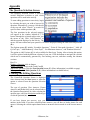
Step 2: If the version is older than EduGame 5.0 run the EduGame. You will need to select the subject
then go to the “Options” down arrow, then “Receiver/Wands Setup”, and then “Auto Detect”. Once
Auto Detect is running press any button on any remote and see if you receive a message “Receiver
successfully detected”. If you have version 5.0 or later the Auto Detect will show up. Otherwise
continue to Step 3.
Step 3: Look at the connector going from the receiver to the computer. You will need to find out if you
have a serial receiver or a USB receiver. If you have a USB receiver go to Step 4. If you have a serial
receiver are you using a serial to USB converter? If you are using a converter make sure you have
installed the drivers for the converter to function correctly (a CD should come with the converter you
purchased). If this isn’t the problem go to Step 5.
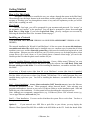
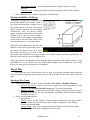
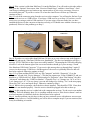
A serial receiver will have a grey connector
at the end as shown below.
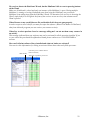
A USB receiver will have a smaller
connector.
Step 4: If you have a version older than EduGame 5.0 have go to www.eduware.com under Support ->
Downloads and run the “EduGame USB Receiver Installation.” The Receiver Installation will give a
message “FTDI CDM Drivers have been successfully installed.” Then unplug the USB cable and plug
it back in. Look at the bottom right of the screen and windows should give you a message “Found
New Hardware USB Serial Converter.” If you receive this message have go through Step 2 again. If
you receive the message “USB Device Not Recognized” the receiver is probably defective and will
need to be replaced. Otherwise continue to Step 5.
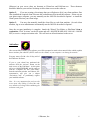
Step 5: Go to Start and then RIGHT click on “My Computer” and click “Properties”. Go to the
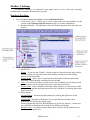
“Hardware” tab and click “Device Manager”. Click the plus sign next to “Ports (COM&LPT) and you
should see a “USB Serial Port”. Right click this and go to “Properties”, then “Port Settings” tab, then
“Advanced” and change the “COM Port Number”. Generally if its 1 or 3 change it to 2 or 4, or if it is
2 or 4 change it to 1 or 3. If it says (in use) you can still change it by clicking “Yes” to the next popup.
Then click “OK” twice and repeat Step 2. Otherwise continue to Step 6.
Step 6: While in device manager, check the driver that is installed. This should be FTDI. If not, then
the driver is not installed properly. Note the receiver should be plugged in for this to show up.
Step 7: At this point the receiver is either bad or the computer has an issue. Try the receiver on another
computer. This will definitely show if it is a problem with the receiver. If the receiver doesn’t work on
a second computer it is definitely defective and will need to be replaced.
Step 8: Another problem you may have is that you have restricted access with whatever user account
you are using, however, it will be unlikely you will be able to complete step 6 if you are restricted, but
it may be something to consider.
©Eduware, Inc.
21