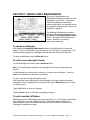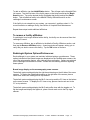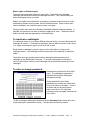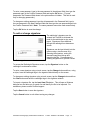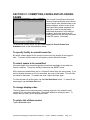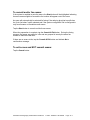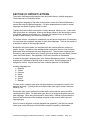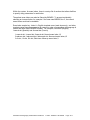
1
PenRad 16305 - 36th Ave. N., Suite 100, Plymouth, MN 55446 USA Phone: 763.475.3388 Fax: 763.475.2815 www.penrad.com Mammography Administrative Handbook Table of Contents SECTION 1 : PENRAD MAIN SCREEN ................................................................................................... 1-1 SECTION 2 : LOGGING INTO OR OUT OF PENRAD............................................................................. 2-1 TO LOG INTO P ENRAD: ............................................................................................................................ 2-1 TO LOG OUT OF P ENRAD: ........................................................................................................................ 2-2 AUTO LOG OUT AND PASSCODES: ............................................................................................................. 2-2 SECTION 3 : ADMINISTRATION SCREEN ............................................................................................. 3-1 SECTION 4 : PATIENT MAINTENANCE.................................................................................................. 4-1 TO SEARCH BY PATIENT'S LAST NAME: ...................................................................................................... 4-1 TO SEARCH BY PATIENT’S ID: ................................................................................................................... 4-1 TO SEARCH BY PATIENT’S DOB:............................................................................................................... 4-1 TO SEARCH BY PATIENT SSN NUMBER :..................................................................................................... 4-2 TO ADD A NEW PATIENT: .......................................................................................................................... 4-2 TO SPECIFY PREFERRED PATIENT CORRESPONDENCE LANGUAGE: ............................................................. 4-3 PATIENT OWNERSHIP: .............................................................................................................................. 4-3 TO EDIT LAST / N EXT EXAM RECALL DATES : .............................................................................................. 4-4 TO INDICATE DEATH: ................................................................................................................................ 4-5 TO INDICATE PATIENT AWAITING PATHOLOGY: ........................................................................................... 4-7 INSURANCE INFO BUTTON :........................................................................................................................ 4-7 TO ENTER PATIENT ADDRESS: .................................................................................................................. 4-7 TO ASSOCIATE PHYSICIANS TO A PATIENT : ................................................................................................ 4-8 LABEL GENERATION: ................................................................................................................................ 4-9 TO ENTER APPOINTMENT NOTES :.............................................................................................................. 4-9 TO REVIEW, REPRINT OR DELETE PREVIOUS EXAMS :................................................................................ 4-10 TO AMEND PRIOR EXAMS: ....................................................................................................................... 4-11 TO RESOLVE A PRIOR EXAM:................................................................................................................... 4-12 TO RE- EDIT A PRIOR EXAM: .................................................................................................................... 4-12 TO VIEW OR ADD PATIENT NOTES AND/OR RESOLVE A COMPLAINT NOTE : .................................................. 4-12 TO EDIT A PATIENT’S NOTE: ............................................................................................................... 4-14 TO DELETE A PATIENT’S N OTE: .......................................................................................................... 4-14 TO CLONE AN EXISTING N OTE: ........................................................................................................... 4-14 TO VIEW THE NOTE : .......................................................................................................................... 4-14 TO RESOLVE A COMPLAINT:................................................................................................................ 4-14 TO PRINT A N OTE: ............................................................................................................................. 4-14 TO VIEW THE FAX LOG : ..................................................................................................................... 4-14 TO PRINT THE PATIENT ’S HISTORY SHEET :............................................................................................... 4-15 TO ADD PATHOLOGY RESULTS: ............................................................................................................... 4-15 APPOINTMENT SYSTEM INFORMATION: .................................................................................................... 4-15 TO CAPTURE INFORMATION IN ADVANCE OF AN EXAM, OR TO REVIEW /PRINT A HISTORY SHEET: ................. 4-15 TO REVIEW PREVIOUS EXAMS : ........................................................................................................... 4-15 TO WRITE A CUSTOM LETTER:................................................................................................................. 4-16 CREATE A NEW CUSTOM LETTER : ....................................................................................................... 4-16 PRINTING A CUSTOM LETTER:............................................................................................................. 4-17 EDIT EXISTING CUSTOM LETTER: ........................................................................................................ 4-17 TO PRINT A LABEL FOR A CUSTOM LETTER: ......................................................................................... 4-17 SPECIAL FORMATTING COMMANDS :......................................................................................................... 4-18 SECTION 5 : DOCTOR MAINTENANCE ................................................................................................. 5-1 TO LOCATE A D OCTOR:............................................................................................................................ 5-1 ADDING OR EDITING A DOCTOR (REFERRING PHYSICIAN):........................................................................... 5-1 TO ADD AN AFFILIATION:........................................................................................................................... 5-2 TO REMOVE OR CHANGE AN AFFILIATION :.................................................................................................. 5-2 TO TRANSFER PATIENTS: ......................................................................................................................... 5-3 UNKNOWN AFFILIATION BUTTON : .............................................................................................................. 5-3 TO SPECIFY DOCTOR'S ID NUMBER: .......................................................................................................... 5-3 TO SPECIFY DOCTOR'S PERSONAL FAX NUMBER: ....................................................................................... 5-3 INACTIVATING A DOCTOR ( REFERRING PHYSICIAN):.................................................................................... 5-4 SECTION 6 : HOSPITAL/CLINIC MAINTENANCE .................................................................................. 6-1 TO LOCATE A FACILITY: ............................................................................................................................ 6-1 TO ADD A FACILITY :.................................................................................................................................. 6-1 TO EDIT AN EXISTING FACILITY: ................................................................................................................. 6-2 TO INACTIVATE A FACILITY:....................................................................................................................... 6-2 TO ADD OR EDIT A PRIVATE PRACTICE :...................................................................................................... 6-2 SECTION 7 : RADIOLOGIST MAINTENANCE ........................................................................................ 7-1 TO LOCATE A RADIOLOGIST: ..................................................................................................................... 7-1 TO ADD A NEW RADIOLOGIST RECORD: ..................................................................................................... 7-1 TO ADD A MEDICAL AFFILIATION: ............................................................................................................... 7-1 TO REMOVE A FACILITY AFFILIATION:......................................................................................................... 7-2 RADIOLOGIST S YSTEM OPTIONS/PREFERENCES: ...................................................................................... 7-2 BREAST IMAGE DISPLAY ON THE MAMMOGRAPHY EXAM SCREE NS: ......................................................... 7-2 MASTER RIGHTS OR RESIDENT RIGHTS :................................................................................................ 7-3 TO INACTIVATE A RADIOLOGIST : ............................................................................................................... 7-3 TO ENTER OR CHANGE PASSWORD : .......................................................................................................... 7-3 TO ADD OR CHANGE SIGNATURE: .............................................................................................................. 7-4 DOUBLE READS ....................................................................................................................................... 7-5 RADIOLOGIST S TATISTICS ........................................................................................................................ 7-5 TRACKING ONLY S CREENS ...................................................................................................................... 7-6 TO SPECIFY AN ABNORMALITY: ................................................................................................................. 7-6 TO SELECT TISSUE DENSITY: .................................................................................................................... 7-6 TO SPECIFY RECALL TYPE:....................................................................................................................... 7-6 TO SPECIFY RECALL INTERVAL: ................................................................................................................ 7-6 TO SELECT PATIENT LETTER:.................................................................................................................... 7-7 TO INDICATE ASSESSMENT: ...................................................................................................................... 7-7 TO ASSIGN OR VIEW CPT/ICD9 CODING: .................................................................................................. 7-7 TO CHANGE THE EXAM DATE :.................................................................................................................... 7-7 TO CHANGE THE EXAM VISIT NUMBER:....................................................................................................... 7-7 TO APPROVE THE TRACKING EXAM:........................................................................................................... 7-7 TO APPROVE THE TRACKING EXAM, PRINT PATIENT LETTER AND COMMIT SIMULTANEOUSLY: ........................ 7-7 RADIOLOGIST’S OPTIONS ......................................................................................................................... 7-8 SECTION 8 : ADD TEXT SCREENS........................................................................................................ 8-1 TO SELECT A PHRASE TO ADD TO THE REPORT : ......................................................................................... 8-1 TO ADD A PHRASE: .................................................................................................................................. 8-1 TO SPECIFY THE SORT ORDER OF PHRASES IN CATEGORIES: ..................................................................... 8-1 TO EDIT AN EXISTING PHRASE : ................................................................................................................. 8-2 TO TRANSFER EXISTING PHRASE FROM ALL USERS ( SYSTEM LIBRARY) TO AN INDIVIDUAL USER:................... 8-2 TO TRANSFER EXISTING PHRASE FROM A USER LIBRARY TO THE SYSTEM LIBRARY: ..................................... 8-2 TO DELETE A PHRASE: ............................................................................................................................. 8-2 CLINICAL T EXT ........................................................................................................................................ 8-3 SECTION 9 : SPEECH AND VOICE OPTIONS ........................................................................................ 9-1 PENS PEAK .............................................................................................................................................. 9-1 POWERS CRIBE CONNECTIVITY MODULE ................................................................................................... 9-2 PENV OICE ............................................................................................................................................... 9-3 SECTION 10 : TECHNOLOGIST MAINTENANCE ................................................................................ 10-1 TO LOCATE AN EMPLOYEE: ..................................................................................................................... 10-1 TO ADD A NEW EMPLOYEE RECORD : ....................................................................................................... 10-1 TO ADD A MEDICAL AFFILIATION: ............................................................................................................. 10-2 TO CHANGE PASSWORDS :...................................................................................................................... 10-2 TO INACTIVATE TECHNOLOGIST: ............................................................................................................. 10-3 TO SPECIFY USER RIGHTS: ..................................................................................................................... 10-3 SECTION 11 : CPT & ICD9 CODES....................................................................................................... 11-1 TO SELECT AN EXISTING CPT OR ICD9 CODE: ........................................................................................ 11-1 TO ADD A NEW CPT OR ICD9 CODE: ...................................................................................................... 11-1 TO SPECIFY THE SORT ORDER OF PHRASES IN CATEGORIES: ................................................................... 11-2 TO SORT THE CATEGORIES:.................................................................................................................... 11-2 SECTION 12 : OWNERSHIP AND VIEWING RIGHTS .......................................................................... 12-1 SECTION 13 : FILM TRACKING ............................................................................................................ 13-1 TO REQUEST OUTSIDE FILMS: ................................................................................................................. 13-1 TO CANCEL A REQUEST FOR OUTSIDE FILMS:........................................................................................... 13-2 TO CHECK IN OUTSIDE FILMS : ................................................................................................................. 13-2 TO RETURN OUTSIDE FILMS: ................................................................................................................... 13-3 TO CHECK OUT YOUR FACILITY ’S FILMS: .................................................................................................. 13-3 TO REQUEST FILMS THAT ARE PAST DUE: ................................................................................................ 13-4 TO CHECK YOUR FACILITY’ S FILMS BACK IN:............................................................................................. 13-4 SECTION 14 : PATIENT MERGE ........................................................................................................... 14-1 SECTION 15 : INSURANCE ................................................................................................................... 15-1 TO CAPTURE PATIENT’S INSURANCE INFORMATION: ................................................................................. 15-1 TO S ELECT AN INSURANCE PROVIDER : ................................................................................................... 15-1 TO E DIT AN EXISTING INSURANCE PROVIDER :......................................................................................... 15-2 TO A DD AN INSURER:............................................................................................................................. 15-2 TO INACTIVATE AN INSURANCE P ROVIDER: ............................................................................................. 15-2 SECTION 16 : TRANSCRIBING DICTATED REPORTS ....................................................................... 16-1 TO SUSPEND TRANSCRIPTION:................................................................................................................ 16-2 TO INDICATE EXAM TRANSCRIBED EXTERNALLY: ...................................................................................... 16-2 EDITING SHORT CUTS :............................................................................................................................ 16-2 SECTION 17 : APPOINTMENT SYSTEM MAINTENANCE................................................................... 17-1 APPOINTMENT S CREENS ........................................................................................................................ 17-1 MAKING A PPOINTMENTS ........................................................................................................................ 17-6 SECTION 18 : APPOINTMENT LETTERS............................................................................................. 18-1 BATCH PRINTING PATIENT HISTORY SHEETS : ........................................................................................... 18-2 BATCH PRINTING PATIENT LABELS : ......................................................................................................... 18-2 SECTION 19 : ADMINISTRATIVE REPORTS........................................................................................ 19-1 TO SELECT A REPORT TO PREVIEW, PRINT OR EXPORT : ........................................................................... 19-1 TO SELECT DATE RANGE FOR REPORT : ................................................................................................... 19-1 TO SPECIFY PERSONNEL AND/OR AND LOCATION: .................................................................................... 19-1 TO SPECIFY A PARTICULAR DATA OR SORT DATA FOR A REPORT :.............................................................. 19-2 TO PRINT, VIEW OR EXPORT THE REPORT AFTER SELECTION IS COMPLETE: .............................................. 19-2 TO CHANGE THE VIEW OF A REPORT: ...................................................................................................... 19-2 TO EXPORT A REPORT:........................................................................................................................... 19-3 TO CLOSE THE VIEW REPORT SCREEN : ................................................................................................... 19-3 GENERAL ADMINISTRATIVE REPORT GUIDELINES: .................................................................................... 19-3 SET REPORT S ECURITY ......................................................................................................................... 19-4 SECTION 20 : PRINTING EXAMS.......................................................................................................... 20-1 TO SPECIFY LOCATIONS TO PRINT EXAMS FOR:........................................................................................ 20-1 TO SPECIFY PRINTING ORDER:................................................................................................................ 20-2 TO PRINT A LIST OF EXAMS ELIGIBLE FOR PRINTING: ................................................................................ 20-2 TO SELECT EXAMS TO BE PRINTED:......................................................................................................... 20-2 TO FILTER LIST FOR “SCREENING EXAMS” ONLY: ...................................................................................... 20-2 TO START PRINTING: .............................................................................................................................. 20-2 TO STOP THE PRINTING PROCESS:.......................................................................................................... 20-2 TO PAUSE AND RESUME PRINTING: ......................................................................................................... 20-2 TO REPRINT AN EXAM:............................................................................................................................ 20-3 TO COMMIT EXAMS AS BEING PRINTED: ................................................................................................... 20-3 AUTOCOMMIT :....................................................................................................................................... 20-3 TO NOT COMMIT EXAMS AFTER PRINTING: ............................................................................................... 20-3 TO REPRINT AN EXAM NO LONGER ON SCHEDULED PATIENT LIST OR PRINT LIST:....................................... 20-3 TO ACCESS A PATIENT’ S RECORD FROM THE BATCH PRINT SCREEN : ......................................................... 20-4 LABEL PRINTING OPTION: ....................................................................................................................... 20-4 SECTION 21 : COMMITTING, FAXING AND UPLOADING EXAMS..................................................... 21-1 TO SPECIFY FACILITY TO COMMIT EXAMS FOR:......................................................................................... 21-1 TO SELECT EXAMS TO BE COMMITTED: .................................................................................................... 21-1 TO CHANGE DISPLAY ORDER: ................................................................................................................. 21-1 TO PRINT A LIST OF THESE EXAMS: ......................................................................................................... 21-1 TO COMMIT AND /OR FAX EXAMS:............................................................................................................. 21-2 TO EXIT SCREEN AND NOT COMMIT EXAMS: ............................................................................................ 21-2 SECTION 22 : PATIENT LETTERS........................................................................................................ 22-1 SECTION 23 : RECALL & REMINDER LETTERS................................................................................. 23-1 TO SPECIFY A FACILITY TO PRINT RECALL LET TERS FOR: .......................................................................... 23-1 TO NOT PRINT RECALL LETTERS TO PATIENTS WITH PENDING APPOINTMENTS:......................................... 23-2 TO INITIATE AUTO-SELECT MODE : ........................................................................................................... 23-2 TO LOAD PATIENTS FOR LETTER PRINTIN G: ............................................................................................. 23-3 TO SPECIFY PATIENT OWNER FOR PRINTING: ........................................................................................... 23-3 TO PRINT A LIST OF THE PATIENTS LOADED FOR PRINTING:....................................................................... 23-3 TO SELECT PATIENTS FOR LETTER PRINTING: .......................................................................................... 23-4 TO START PRINTING RECALL LETTERS AFTER PATIENTS HAVE BEEN SELECTED:......................................... 23-4 TO PAUSE AND RESUME PRINTING: ......................................................................................................... 23-4 IF PRINTING SHOULD STOP BEFORE COMPLETED:..................................................................................... 23-4 TO REPRINT A LETTER:........................................................................................................................... 23-4 TO COMMIT RECALL LETTERS AFTER PRINTING IS COMPLETED: ................................................................. 23-4 TO AUTOMATICALLY COMMIT AFTER PRINTING: ........................................................................................ 23-4 RECALL LETTER CONFIGURATION:........................................................................................................... 23-5 SECTION 24 : RESOLVING EXAMS & RESOLUTION LETTERS........................................................ 24-1 TO SPECIFY THE FACILITY TO REVIEW OR PROCESS UNRESOLVED EXAMS :................................................ 24-2 TO VIEW, EDIT AND LOAD EXAMS TO RESOLVE WITHOUT PRINTING: ....................................................... 24-2 TO VIEW AND LOAD EXAMS TO PRINT UNRESOLVE D OR RESOLVED LETTERS: ............................................. 24-2 TO PAUSE AND RESUME PRINTING: ......................................................................................................... 24-2 TO PREVIEW SELECTED UNRESOLVED EXAM OR VIEW ALL PATIENTS ’ EXAMS: ............................................ 24-3 TO SELECT ALL OR DESELECT ALL EXAMS:............................................................................................... 24-3 TO AUTOMATICALLY COMMIT LETTERS: ................................................................................................... 24-3 TO STOP THE LOADING OF EXAMS TO RESOLVE: ...................................................................................... 24-3 TO EXIT THE SCREEN WITHOUT UPDATING EXAM STATUS: ........................................................................ 24-3 SECTION 25 : PAST DUE FILM LETTERS ........................................................................................... 25-1 TO SHOW ALL LOCATIONS: ..................................................................................................................... 25-1 TO PRINT A LIST OF THE PAST DUE FILM STUDIES :.................................................................................... 25-1 TO SELECT PATIENTS FOR LETTER PRINTING: .......................................................................................... 25-1 TO START PRINTING PAST DUE LETTERS AFTER PATIENTS HAVE BEEN SELECTED: ..................................... 25-1 TO PAUSE AND RESUME PRINTING: ......................................................................................................... 25-1 IF PRINTING SHOULD STOP BEFORE COMPLETION: ................................................................................... 25-1 TO REPRINT A LETTER:........................................................................................................................... 25-2 TO COMMIT FILM PAST DUE LETTERS AFTER PRINTING IS COMPLETED: ...................................................... 25-2 TO AUTOMATICALLY COMMIT AFTER PRINTING: ........................................................................................ 25-2 SECTION 26 : PATIENT LETTER EDITOR - USER DEFINED ............................................................. 26-1 SECTION 27 : CUSTOM LABELS.......................................................................................................... 27-1 TO CREATE A LABEL:.............................................................................................................................. 27-1 TO CREATE A NEW LABEL: ...................................................................................................................... 27-1 TO EDIT A LABEL:................................................................................................................................... 27-2 TO DELETE A LABEL: .............................................................................................................................. 27-2 SECTION 28 : CLEAR SCHEDULE & REPORTS BUSY STATUS ....................................................... 28-1 SECTION 29 : CHANGE DOCTORS...................................................................................................... 29-1 SECTION 30 : CHANGE SPECIAL MASTER USER PASSWORD ....................................................... 30-1 SECTION 31 : CHANGE EXAM STATUS .............................................................................................. 31-1 SECTION 32 : FLASHER CONNECTION .............................................................................................. 32-1 SECTION 33 : REPLICATION (MOBILE VANS).................................................................................... 33-1 SECTION 34 : SECURITY ...................................................................................................................... 34-1 AUTO LOGOUT AND PASSCODES: ............................................................................................................ 34-1 ACCESSING SYSTEM : ............................................................................................................................. 34-1 ASSIGNMENT OF MASTER RIGHTS : .......................................................................................................... 34-1 ADDING USERS AND EDITING USER RECORDS: ......................................................................................... 34-1 AMENDING EXAMS:................................................................................................................................. 34-1 ACCESSING INTERPRETATION SCREENS :................................................................................................. 34-2 2ND READS :........................................................................................................................................... 34-2 MASTER USERS: .................................................................................................................................... 34-2 TECHNOLOGIST/E MPLOYEE (NON-MASTER ):............................................................................................ 34-2 DELETING EXAMS:.................................................................................................................................. 34-2 RESOLVING EXAMS: ............................................................................................................................... 34-2 ACCESSING EXAM: ................................................................................................................................. 34-2 CHANGING EXAM STATUS: ...................................................................................................................... 34-2 PRINTING RIGHTS : ................................................................................................................................. 34-3 Appendix A: Bookmarks SECTION 1: PENRAD MAIN SCREEN This screen allows access to the program. The program is generally accessed from a “shortcut” on the user’s desktop to the main program on the facility’s server. When the connection to the server is not available, an error message appears. As the program is loading into the computer’s memory, the main “splash” screen will appear. When loading is completed, the main screen will appear with a blinking vertical bar in the “Enter Pass-Code” window. You will note that the buttons on the right side of the screen are inactive (grayed out). Once the user logs into the system, the buttons on the right side of the screen will become active. Based on site configuration, the buttons available on the main screen can vary. Two additional buttons appear on the screen; one for the Appointment package, if purchased, and one for RIS Procedure Work List, if there is an interface. In addition, after the user has logged in to the main screen, various other programs can load sequentially in the background based on the user type. (Example: CAD and speech recognition programs for the radiologist.) Training Mode: The system also has a separate training database (independent from the production system) that allows new users to become acquainted with the program. Pass code and user selection information are available via the Help button. About button: The About button reflects the software version and the name of the computer for technical support. For each workstation (computer), there is a separate configuration file that is used to enable or disable features per workstation. (Example: CAD interface, filtering work lists by facility, label printing, etc.) When requesting configuration changes, the PenRad support staff might ask you to provide the version number or the workstation name for which you are requesting the changes. PenRad™ Mammography Administrative Handbook © 1995 - 2006 Rev. 04/14/2006 Page 1-1 This page intentionally left blank. PenRad™ Mammography Administrative Handbook © 1995 - 2006 Rev. 04/14/2006 Page 1-2 SECTION 2: LOGGING INTO OR OUT OF PENRAD PenRad provides several options for logging into the system. For data entry personnel (receptionist, secretary, etc.), there is a Data Entry Only Logon button. For administrators, managers, technologists and nurses, there is a Logon as Technologist button. For the radiologists, there is the Logon as Radiologist button. Using separate logon buttons separates staff in larger facilities into more meaningful and shorter lists from which to select names. Logging in as Data Entry Only would only display staff that is entered into the system as data entry staff. To log into PenRad: Tap the appropriate Logon button. Select your name and tap the Select button. If your facility is associated with more than one hospital/clinic, and your name appears with more than one location, select the one with the correct location. Note: As a technologist, it is VERY important to log on to the correct location. This automatically correlates statistics for the technologist and facility. In addition, it creates a statistical link for the radiologists. There are several ways to select your name: 1) Tap on your name (highlights the entire line) then tap the Select button. You might have to scroll down the list to find your name. 2) Double click on your name. This will automatically select your name and bring you back to the Main screen to enter your passcode. 3) Tap on the first letter of your last name using either your keyboard, or the virtual keyboard on the PenRad screen, select your name and then tap the Select button. Once you have selected your name and have been returned to the main screen, enter your passcode into the Enter Pass-Code field using either the virtual keyboard on the PenRad screen or your computer’s keyboard and tap the Enter button or use the Enter key on your keyboard. PenRad™ Mammography Administrative Handbook © 1995 - 2006 Rev. 03/09/2006 Page 2-1 Note: If a technologist is associated with multiple locations, the technologist can have a different passcode for each location. If your system displays the Welcome screen, tap the OK button to continue. Once you have entered your passcode, the Exams, Patients and Administrative buttons on the right side of the main screen become active. To log out of PenRad: Return to the Main screen and tap the Log Out button. This prevents unauthorized use of the system. Auto log out and passcodes: In order to comply with HIPAA guidelines, if the program does not have activity for a period of time, the work screen is covered and the user will be required to enter their passcode to resume. If the user was on either the main screen or the exam schedule, the user is automatically logged out of the system after a period of inactivity. The system default is 30 minutes, but this can be modified as required by your facility. In addition, the inactivity timer for each workstation can be configured individually as desired. Passcodes are required to log into the system. In addition, some administrative functions require the entry of a passcode to access or complete that function. Passcodes for logging into the system are set to expire, by default, every 90 days. The number of days that a passcode is valid can be adjusted to meet your facility’s requirements. A reminder message will start to appear 9 days before the expiration of a passcode during initial logon to remind the user that their passcode is about to expire. To change your passcode prior to the passcode expiring, enter the current password into the Password field, type a new password into the New Password field, and then reenter the new password once again into the Confirm Password field. Tap the OK button to save the new password. Passcodes can be changed at any time. The same passcode cannot be repeated consecutively. If your passcode has expired, contact your facility’s PenRad administrator. PenRad™ Mammography Administrative Handbook © 1995 - 2006 Rev. 04/14/2006 Page 2-2 SECTION 3: ADMINISTRATION SCREEN The Administration screen allows access to many of the administrative functions within the system. To access the Administration screen, tap the Administration button on the Main screen. Access to the various PenRad functions are limited based on the administrative security given to individual users. Based on configuration options, specific functions can be restricted to users with master user rights. Short summaries of the individual functions are presented below. More detailed information on each function is presented in the related sections of this handbook. Patient Maintenance - The Patient Maintenance screen provides the ability to maintain the patient’s electronic record. Doctor Maintenance - The Doctor Maintenance screens provides the ability to maintain the referring physician’s electronic record. Hospital/Clinic Maintenance - Besides your own facility, all outside facilities (hospitals, clinics, private practices, etc.) that your facility might interact with for patient care should be entered into PenRad. Information for each facility is maintained in that facility’s Hospital/Clinic Maintenance screen. Radiologist Maintenance - Records are maintained on the Radiologist Maintenance screen for each radiologist in your facility. This screen stores the radiologist’s information, system preferences, and provides access to change the password and maintains the radiologist’s signature. Technologist Maintenance - Records are maintained on the Technologist Maintenance screen for each employee (administrator, technologist, nurse, receptionist, etc.) that uses PenRad in your facility. Insurer Maintenance - The Insurance Provider Maintenance screens provides the ability to maintain the insurance provider’s electronic record. Transcribe Dictated Reports - The system provides the ability to transcribe dictated reports directly into PenRad via the Transcribe Dictated Reports button. PenRad™ Mammography Administrative Handbook © 1995 - 2006 Rev. 03/09/2006 Page 3-1 Appt. System Maintenance - Provides access for PenRad support staff to maintain the appointment system. Appointment Letters - Provides appointment reminder and “no-show” letters. This function also allows you to batch print history sheets. This function is only available with the Appointment Package module. Administrative Reports - Provides statistical reports for administrative purposes. Set Report Security - Allows you to set security on specific reports to limit access. Print Exams - This function provides the ability to batch print exams and patient exam letters. Commit and Fax Printed Exams from Schedule - This function provides fax capabilities, updates the patient’s record, removes the exam from the Scheduled Patients list and, if applicable, sends the report to the HIS/RIS. Print Recall / Past Due Letters - Provides recall and past due letters for a patient’s future exams. Print Exam Resolution Letters - This function provides a list of “unresolved” exams and provides the ability to follow-up with the referring physician and patient regarding the status of the patient. Print Film Past Due Letters - Provides the ability to send letters to facilities regarding past due films. Clear Schedule & Reports Busy Status - If a file inadvertently becomes “locked”, this provides the ability to unlock that record. Substitute Doctors - Provides the ability to transfer the patients from one referring physician (i.e. retired, deceased, etc.) to another referring physician. Merge Patients - Provides the ability to merge duplicate patient records. Change Special Master User Password - Provides the ability for a master user to change the master user system password. Create Labels - Provides the ability to create custom labels. Patient Letter Editor - Provides the ability to create and edit custom patient letters. PenRad™ Mammography Administrative Handbook © 1995 - 2006 Rev. 04/14/2006 Page 3-2 SECTION 4: PATIENT MAINTENANCE This section describes how to locate, add or edit patient demographic information and associate physicians to a patient. To access a patient, tap the Patients button on the Main screen or the Administration screen. Patient information can also be accessed from the Exam screens by tapping the Edit Patient button. Note: If you are interfaced to a HIS/RIS system, the majority of the patient demographic information can automatically be maintained by the HIS/RIS system. To search by patient's last name: Tap or type consecutive letters of the patient’s last name and tap the Begin Search button or press the Enter key on your keyboard. Entering more consecutive letters narrows the search. To further narrow the search, enter the complete last name, a comma, and the first initial or more of first name. Note: When the search criteria is set to “Last,(First Name)”, the system will also allow you to search by the patient’s ID. If the search criteria is set to “Patient ID”, searches can only be made by patient’s ID. To search by patient’s ID: Type in the patient’s medical record number (primary or alternate) and tap the Begin Search button or press the Enter key on your keyboard. If you enter only the first several numbers of the medical record number, the system will return a list of all patients that start with those numbers. To search by patient’s DOB: Enter either a 6-digit DOB (07/24/44) or an 8-digit DOB (07/24/1944) and tap the Begin Search button or press the Enter key on your keyboard. This will return all patients with that date of birth. Note: For Canadian facilities, the format is dd/mm/yyyy. You can also select the Date of Birth selector in the Search by window and enter the 8digit DOB and tap the Begin Search button or press the Enter key on your keyboard. PenRad™ Mammography Administrative Handbook © 1995 - 2006 Rev. 03/09/2006 Page 4-1 To search by patient SSN number: Type the patient’s SSN number without any dashes and tap the Begin Search button or press the Enter key on your keyboard. Note: In order to search by SSN, you must have the SSN option turned on. The SSN option allows you to either require or not require dashes in the SSN field. Call PenRad support to assist you with enabling this feature. To add a new patient: Tap the Patients button from the Main screen or the Patient Maintenance button on the Administration screen. Tap the Add New button on the Patient List screen. This displays the Patient Maintenance screen. Note: If the Add New button is not available, your system can not be configured for this feature. A minimum of a patient’s name, DOB and PID (medical record number) are necessary to create a valid patient record. Note: For Canadian facilities, the date fields and SIN (SSN) field will reflect the proper format for Canada. Enter data by using the keyboard and the Tab key to advance to the next field. Use the Shift and Tab keys on the keyboard simultaneously to return to the prior field. Use the arrows for any drop down fields to select automated information. On some of the drop down fields, you can tap the first letter of an item or use the down arrow key on the keyboard to select that item. The various fields are noted below in bold italics (-- * Name Fields) with information pertaining to that field following each field title. Field titles with an asterisk in front (in the user’s manual) indicate required fields. Note: Occasionally, a subsection heading has been inserted before a field to provide a quicker reference in the Table of Contents. -- * Name Fields: The last name and first name are required fields. The middle initial or name is optional. The names will appear on any patient correspondence exactly as they are entered. If you enter the names in ALL CAPS, the name will appear in all caps on the correspondence. -- Race: Use the drop down arrow to make a selection, or type directly in the field. This is an optional field. -- Last Title: This field indicates the professional title of the patient. (Ph.D., R.N., M.D., etc.) This field will appear on any correspondence with the patient. Use the drop down arrow to make a selection, or type directly in the field. This is an optional field. PenRad™ Mammography Administrative Handbook © 1995 - 2006 Rev. 04/14/2006 Page 4-2 -- First Title: This field indicates courtesy titles that are used when addressing individuals. (Mr., Mrs., Rev., Sister, Archbishop, etc.) This field will appear on any correspondence with the patient. Use the drop down arrow to make a selection, or type directly in the field. This is an optional field. -- Office and Home Ph: Enter the telephone numbers for the office and home, if known. These are optional fields. To specify preferred patient correspondence language: -- Language: This is an optional feature and must be enabled for your facility to use. To indicate the preferred language, use the drop down arrow to make the selection. Once the drop down menu is visible, simply type the first letter of the language to select, or tap on the desired language. Based on your facility’s configuration, many of the correspondences can be in the specified language. Patient ownership: The combination ownership and viewing rights allows multiple facilities to share the same database and take on their own identity in a network or enterprise system. This is an optional feature and can be enabled based on your facility’s needs. -- ‘Owner’ loc: To indicate or change the location responsible for a patient, select the location from the drop down window. Once the drop down menu is visible, tapping the first letter of the location will select that location, or tap directly on the location. Whenever a new exam is created and the imaging and current ownership are dissimilar, the option will exist to assume ownership of the patient at the imaging facility. The ownership feature filters scheduled exams, resolution of exams, printing of exams, recall letters and contact information for each site. It also facilitates individual site printing and control, and provides independent statistics for each site. Filtering can be overridden by tapping the Show All Locations selector on the Scheduled Patients screen and also on the printing and resolution screens. Patient ownership can be manually overridden on the Patient Maintenance screen by selecting a different facility in the ‘Owner’ Loc window. That patient recall information will be transferred to the specified owner. -- Next Exam #: This field allows you to enter specific exam numbers for each patient. To enter a new number, type the number directly into the field. This is an optional field. Note: If PenRad is interfaced to your hospital or radiology information system, this field will populate automatically and should not be edited. -- * DOB: This field allows you to specify the patient’s date of birth. The calculated age is displayed directly to the left of this field. To enter the date of birth, tap the ? button next to the field and select the date of birth from the Date Select Calendar. You can also type the date of birth directly into the field. This is a required field. PenRad™ Mammography Administrative Handbook © 1995 - 2006 Rev. 04/14/2006 Page 4-3 --* PID: The PID (patient ID) field indicates the patient’s medical record number (MRN). To enter the PID, type directly in the field. If the PID is not known, enter a question mark in the field and update the field when the information is obtained. This is a required field. Note: If the question mark is not replaced with a PID, the exam will not print or commit. -- SSN: Enter the social security number of the patient directly into the field. The system will automatically place the dashes in the correct locations. For Canadian facilities, the correct format will be displayed. This is an optional field. -- Acct #: This field provides the option to maintain a separate account number, other than the MRN for each patient, if desired. To enter a number, type directly into the field. This is an optional field. -- Chart #: This field provides the option to maintain a separate chart number, for each patient. To enter a number, type directly into the field. This is an optional field. To edit Last / Next exam recall dates: -- Last Exam: The last exam field is automatically maintained by the system, depending on the last exam completely processed by the system (the system does not update until the exam is committed). To change the last exam date, tap the ? button next to that field and select the date from the Date Select Calendar or manually type the date in the date field (must use 8-digit date format). To clear the field entirely, tap the Clear button next to that field. -- Next Exam: The next exam date (automatically maintained) is the recommended date for the patient to return for their next exam and is determined by the recall interval selected by the radiologist on the patient’s last exam committed for breast related exams only. Bone density exams are not included in the automatic update. To change the last exam date, tap the ? button next to that field and select the date from the Date Select Calendar or manually type the date in the date field. To clear the field entirely, tap the Clear button next to that field. Note: Without a next exam date, the patient will not receive any future automatic recall letters. -- Next Type: The system automatically maintains the next type of exam based on the next recall type selected by the radiologist on the last exam committed for breast related exams. To change the next type of exam, tap on the field to show the drop down menu and select the desired procedure. Selections include mammogram, ultrasound, MRI, biopsy follow-up, unspecified or other. PenRad™ Mammography Administrative Handbook © 1995 - 2006 Rev. 04/14/2006 Page 4-4 -- Nxt recall interval: The system automatically maintains the next recall interval based on the recall interval selected by the radiologist on the last exam committed. The recall interval categorizes the patient into the screening, follow-up or biopsy follow-up recall groups and also determines which recall letter list the patient will appear on when printing recall letters. To change the next recall interval, tap on the field to show the drop down menu and select the desired recall interval. If the patient’s recall interval is “screening”, the patient will only appear on the screening letter recall list. If the recall interval is “follow-up”, the patient will only appear on the follow-up recall list. If the recall type is “biopsy follow-up”, the patient will only appear on the biopsy follow-up letter recall list. To change the next recall interval, tap on the field to show the drop down menu and select the desired recall interval. Note: Patients with the next exam date equal to the last exam date (immediate recalls) will not appear on any recall list until the next exam date is greater than the last exam date. Typically, these patients are tracked through the unresolved list located on the Administrative screen under the Print Exam Resolutions button. Patients will not appear on the recall lists if no recall is specified. Patients without a next recall date will not be processed for any future recall letters. To indicate death: -- Died: To indicate that a patient has died, you can enter the date of death in the Died window on the Patient Maintenance screen. If the reason of death is known (breast cancer, cancer, or other), the reason can be indicated in the adjacent field. The next exam date will clear on its own once a date is put in the Died field. Indicating the date of death will prevent the system from automatically generating any future correspondence for this patient. -- Gender: The gender of the patient can be indicated, if desired. To enter or change the gender, tap on the Gender field and select the gender from the drop down menu. This is an optional field. Note: For male patients, this field needs to be changed to male. The system will then adjust the patient salutation on the patient letters accordingly. -- Marital St: The marital status of the patient can be indicated, if desired. To enter or change the marital status, tap on the Marital St field and select the marital status from the drop down menu. This is an optional field. -- Alt PID: This field provides a means to maintain a second patient ID number. Example: A patient has a mammogram done by a mobile unit, but the mobile unit does not have access to the facility’s medical record numbers. The mobile unit generates a unique patient ID that is entered into the Alt PID field, and later is cross-referenced with the main facility’s medical record number. This is an optional field. PenRad™ Mammography Administrative Handbook © 1995 - 2006 Rev. 04/14/2006 Page 4-5 Alt Group PID’s button: Some larger health systems have multiple hospitals and clinics under one corporate umbrella. Patients can be seen at any of the facilities, but each facility maintains its own medical record number for that patient. Tapping the Alt Group PID’s button will display the Patient ID Numbers for Hospital Groups screen which will list all the medical record numbers for this patient. -- E-mail: This field allows you to maintain the patient’s e-mail address. This is an optional field. Use e-mail check box: This selector is currently non-functional and is reserved for future use. Send copy of report check box. This selector is used to print a copy of the exam report addressed to the patient during the original print process of the exam or when an exam is reprinted, until deactivated. This is an optional field. -- Last rc let: This field indicates the date of the last recall letter sent to the patient. The date is automatically maintained by the system when a recall letter is generated and then committed to the database. -- Type: This field indicates the name of the recall letter that was last sent to the patient, i.e. recall reminder, past due and final letters for screenings, follow-ups and biopsies. The type of letter is automatically maintained by the system when a recall letter is generated and then committed to the database. Note: The Appointments Package is an optional module and must be activated for your facility to activate the appointment related fields. When activated, the Appointments Package automatically maintains the appointment related fields on the Patient Maintenance Screen. Refer to Section 17 for further information. -- Next Appt: This field indicates the date of the next appointment for this patient. -- Appt Type: Indicates the type of exam for the next appointment for this patient. Please see the Appointment Package note above. -- Appt Room: Indicates the room that the patient’s next appointment is scheduled in. Please see the Appointment Package note above. -- Appt Letter Sent: Indicates the date the last appointment letter was sent to the patient. Please see the Appointment Package note above. -- Appt Confirm: Indicates the confirm message selected from the appointment for the patient. Please see the Appointment Package note above. PenRad™ Mammography Administrative Handbook © 1995 - 2006 Rev. 04/14/2006 Page 4-6 To indicate patient awaiting pathology: If a check mark is placed in the Awaiting Pathology check box, the patient will appear on the Patients Awaiting Pathology administration reports 4J and 4K. This check box is selected when the radiologist approves the exam as a secondary way to indicate the patient is awaiting pathology results. This is a good tool to use for keeping track of the patients who need to have the pathological statistical information added to PenRad. Insurance Info button: Tapping this button opens the Patient Insurance Information screen. For more information, see the Mammography Administrative Handbook. To enter patient address: -- Address button and field: The Address field displays the address of the patient. To enter or edit the address, tap the Address button to open the Address screen. Use the drop down menus to select the City, State, County and Country fields or type directly into the appropriate field. These drop down fields can be prepopulated. Note: If your system is interfaced to a HIS/RIS system, the patient’s address information can be maintained and updated by the HIS/RIS. Note: Enter data by using the keyboard and the Tab key to advance to the next field. Use the Shift and Tab keys on the keyboard simultaneously to return to the prior field. Use the arrows for any drop down fields to select automated information. On some of the drop down fields, you can tap the first letter of an item or use the down arrow key on the keyboard to select that item. Tap the OK button to save, or tap the Cancel button to exit without saving any changes and return to the Patient Maintenance screen. PenRad™ Mammography Administrative Handbook © 1995 - 2006 Rev. 04/14/2006 Page 4-7 To associate physicians to a patient: The system allows you to indicate a primary (point of contact) physician for each patient and also indicate up to four additional physicians that this patient might be seeing. Indicated physicians will receive copies of current and future exam reports. To indicate or change the primary physician or additional physicians, tap the Primary button or the Addl 1 or Addl 2 buttons on the Patient Maintenance Screen. All three buttons open the Associate Doctors with Patient screen. To indicate a physician, tap the Select Primary Doctor button or any of the Select Addl Doctor buttons to open the Doctor List screen. Note: If your system is interfaced to a HIS/RIS system, the patient’s physician information might be maintained by the HIS/RIS. To display a list of the referring physicians on the Doctor List screen, type in the last name of the physician, or tap on one or more of the letter keys and tap the Begin Search button or hit Enter on your keyboard. (The more letters you enter, the narrower the search will be, providing a smaller list.) You can use either your computer keyboard or the virtual keyboard displayed on the screen. Tap on the desired physician and then tap the Select button, or double tap on the physician’s name. The selected physician will be displayed in the corresponding field on the Associate Doctors with Patient screen. Note: Only the primary physician and the first two additional physicians will be displayed on the Patient Maintenance screen. To view all the physicians associated with this patient, tap the Primary button. Tap the OK button to save the data and return to the Patient Maintenance screen. Tap the Cancel button to exit without saving any changes. PenRad™ Mammography Administrative Handbook © 1995 - 2006 Rev. 04/14/2006 Page 4-8 Label generation: To print address and/or patient labels, tap the applicable label button located on the lower right side of the Patient Maintenance screen. To print an x-ray jacket label, if the option is activated, tap the Colorflex label button. The system provides the ability to create custom labels, if required. These are created on the Administration screen under the Create Labels button. See the Administrative Handbook, for more information on labels. To print a custom label, tap the Custom button in the Labels section. To print a doctor address label, tap the Write Letter button. Select Physician in the Letter to: window (lower left corner) and then tap the Print Label button (lower right corner). To enter appointment notes: Notes pertaining to the patient can be entered and displayed on the lower part of the Patient Maintenance screen. Note: The PenRad Appointment System is not required to utilize the appointment notes field. To enter a note, type directly into the note field, or select a commonly used note that has been saved and tap the Edit button. (For example: Requires wheel chair, large woman, etc.) This note will remain on the Patient Maintenance screen until changed or deleted. For further information on adding and saving patient notes, see the To View or Add Patients Notes paragraph later in this section. PenRad™ Mammography Administrative Handbook © 1995 - 2006 Rev. 04/14/2006 Page 4-9 To review, reprint or delete previous exams: Previous exams are maintained on the Comparisons and Prior Exams screen. To access this screen, tap the Previous Exams button. (This button is available on various screens throughout the system.) To review, reprint or delete a completed exam, select the exam from the Select Exam Report for Review window. To review the full report, tap the View Full button. This view will bring up the report in Microsoft Word and will include the breast images showing any abnormalities that might have been plotted. To review a short (text only) version of the report, tap the View Short button. To reprint the report, tap the Print button after selecting the exam. This will also print the patient letter selected for the exam. To only print a copy of the exam, tap the View Full button and tap on the printer icon at the top of the screen. If it is necessary to delete an exam and the corresponding imaging date (listed in the Prior Imaging Dates window), first select the exam and then tap the Delete Exam button. (For example: Incorrect patient selected for the exam and a new exam was then created with the correct patient.) Deleting an exam requires master user rights. Note: A deleted exam can not be recovered. A Security window will pop up that requires a master user passcode to continue. Prior imaging dates listed in the Prior Imaging Dates window (upper window) can be deleted only if there is no exam associated with that image date (typically non-PenRad exams entered manually). To delete a prior imaging date, select the date from the Prior Imaging Dates window and tap the Remove button. If there is a PenRad exam associated with the prior imaging date, it cannot be removed and a message will appear indicating that you must delete the exam. PenRad™ Mammography Administrative Handbook © 1995 - 2006 Rev. 04/14/2006 Page 4-10 To amend prior exams: Exams can be amended using the Comparison and Prior Exams screen. Amending an exam requires radiologist or master user rights. However, a master user technologist does have the ability to send an amendment to the Scheduled Patients list for the convenience of the radiologist to complete the amendment. The Comparison and Prior Exams screen can be accessed from: Patient Maintenance screen = Previous Exams button Ultrasound Examination screen = Comparisons button Mammography Examination screen (detailed) = Compare button Approve Normal Mammogram Exam screen (negative) = Compared to: button PreExam = Comparison Films button or Penrad Exams button To send an amendment to the Scheduled Patients list, select the exam from the Select Exam Report for Review window, and then tap the Amend button. This will open the Amend Exam screen. Tap on the Finish Later button. This will put the exam on the Scheduled Patients Screen in an Amnd/Held status. The radiologist can then tap on the PreExam button and enter text for the amendment. See the Radiologist Mammography System Handbook for further information. To add a comparison date into the text, tap the Show Films button. Place the cursor in the Text for Amendment window where you want the comparison date to be entered and left click the mouse. An insertion bar will be displayed at that point. Tap on the desired comparison date to insert that date into the text window. To return to the phrases window, tap the Phrases button. Approved amended exams appear on the Scheduled Patients screen with a status of amended. The exam is then ready to be printed with the next batch of printing. Note: All amendments are free text and have no automated data tracking elements. It is important when amending an exam, to manually specify the Recall Interval Type and Next Exam Date to update the patient’s maintenance screen. PenRad™ Mammography Administrative Handbook © 1995 - 2006 Rev. 04/14/2006 Page 4-11 To resolve a prior exam: To resolve an exam (status unresolved), select the exam and tap the Resolve button (requires master user rights). This will remove the exam from the unresolved list. When resolving an exam, remember to update the recall date (next exam date), exam type and recall interval on the Patient Maintenance screen. To re-edit a prior exam: If an exam requires re-editing, tap the Edit button to transfer the exam back to the schedule for modification. Only a master user can perform this feature. A security window will appear requiring a master user passcode. After entering the passcode, a second window will appear asking whether you wish to continue. To continue, tap the Yes button. The exam will be posted on the schedule and be listed as a printed stat us. To view or add patient notes and/or resolve a complaint note: (Patient Notes screen) Various notes can be maintained for each patient. Notes are categorized into specific types and include: Diagnostic, Administrative, Previous history sheet, Complaints, Resolved Complaints, Imaging, Indicated problem, Medical risk, Breast history and Letters sent. Tap the Notes button to add, view, or print notes. To select or view a particular category, select the category from the list in the lower left corner of the screen. To view all notes for this patient, select All. To add a note, first select the note category from the lower left portion of the Patient Notes screen, and then tap the Add Note button. (Notes cannot be added to H - Prev history sheet and R - Resolved complaints.) The Add Text for Enter Patient Notes screen will appear. (Add Text for Enter Patient Notes screen) If the note you wish to add has previously been entered into the system as a stored phrase, tap on the phrase to add it to the upper Findings window. Additional phrases can be added to create paragraphs. PenRad™ Mammography Administrative Handbook © 1995 - 2006 Rev. 04/14/2006 Page 4-12 Free text can be added anywhere in the Findings window. To add free text, place the mouse cursor (pointer will change to a flashing I bar) where you want to insert the text and left click the mouse. A flashing vertical bar will appear at that point. Begin typing text into the box as desired. Buttons are provided at the lower right corner of the screen to add spaces, commas, and periods and check spelling, if this feature is enabled. If you have added a phrase, and wish to erase all the text, tap the Find button (bottom center of the screen). The Findings screen will be cleared and you can insert phrases or text as desired. To delete a phrase, select the phrase to be deleted and tap the Delete button. If there is only one phrase in a category, deleting that phrase will also delete the category from the Phrase Categories list. To create a phrase and save it for future use, select the appropriate category from the Phrase Categories list and tap the Add button (lower left corner). The Save/Edit Stored Phrases window will appear. Type in the new phrase and tap the OK button. (Save/Edit Stored Phrases screen) To edit a phrase, select the phrase and tap the Edit button. The Save/Edit Stored Phrases screen will appear. Make the desired change(s) and tap the OK button to save the changes. Tap the Cancel button to exit without saving any changes. To create a new category, edit the Category window (lower right corner) prior to tapping the OK button. To erase all the text when editing a phrase, tap the Finding button (lower left corner). This will erase any text that has been entered and allow you to start with a fresh screen. Note: The Phrase Categories list can be sorted by placing a number prior to the category name when creating that category. The default sort is alphabetical by category. Note: Editing the spelling of a category name will actually create a new category. It does not update the old category name. To change a category name, highlight the category to change, tap on the first phrase in the list and tap the Edit button. Change the category name and tap OK. The new category will be created. Go back to the old category and repeat until all phrases in the category are gone. With the last phrase edited in the old category the name of the old phrase category will disappear. PenRad™ Mammography Administrative Handbook © 1995 - 2006 Rev. 04/14/2006 Page 4-13 Note: The Delete button is not to be used to remove any text that you might have selected. You MUST use the appropriate Clear Text button. The Delete button WILL delete the highlighted phrase in the Categories Specific Phrases for Rapid Insertion window. To edit a patient’s Note: Select the desired note from the Patient Notes screen and tap the Edit Note button. Make any desired changes and tap the OK button to save the changes. To delete a patient’s Note: Select the desired note from the Patient Notes screen and tap the Delete button. A pop-up window will appear to verify that you wish to delete this note. Tap the OK button to continue. Note: Some facilities require master user rights to delete notes. Requiring master user rights to delete notes is an optional feature. To clone an existing Note: Select the note that you wish to copy from a previous date and tap the Clone button. The system creates a duplicate note and puts you into the Add Text and Enter Patient Notes screen where you can add more detail if needed. Tap OK to save and exit. To view the Note: Tap the View Full button. To resolve a complaint: Complaints can be entered into the system using the Complaints category on the Patients Notes screen. To indicate that a complaint has been resolved, select the complaint note and tap the Resolve Complaint button. An “R” will be placed in the Type column for that note indicating that the complaint has been resolved. To print a Note: Tap the Print button to print the selected note. Tap the Print All button to print all the patient’s notes. (This prints all the notes within the selected category.) To view the Fax Log: To view the fax log, tap the Fax Log button. This shows a record of this patient’s reports that have been faxed successfully, and also fax attempts that have failed. If you scroll to the right, an explanation detailing the error is provided when a fax fails to transmit. This information is also available through administrative report 1Q. PenRad™ Mammography Administrative Handbook © 1995 - 2006 Rev. 04/14/2006 Page 4-14 To print the patient’s history sheet: The history sheet reflects the current patient information. To print the history sheet, tap the Print Pre-Exam button. The system can print a patient history sheet template, populated with known patient data, for review or change. (For example: patient demographics, doctors, indicated problems, breast history, risk factors and last exam.) To add pathology results: Tap the Add Pathology button to document pathology findings. Whenever pathology results are added, the recall interval, recall type and next recall date need to be manually updated. For more information, see either the Technologist Mammography System Handbook or the Radiologist Mammography System Handbook. Appointment system information: If activated, the next scheduled appointment date, time and relevant appointment information are displayed along the right side of the Patient Maintenance screen. To access the appointment system to make, view or change an appointment, tap the To Appointments button. This allows scheduling of the patient’s next appointment and/or locating any outstanding appointments. See the Appointment System Users Guide for additional information. To capture information in advance of an exam, or to review/print a history sheet: To capture or review the patient’s history prior to the exam, tap the Med & Risk Hist, Breast Hist, or Indicated Prob buttons. This information can also be added or reviewed while using the appointment module. To print the history sheet for the radiologist or the file jacket, tap the Print History button. To review previous exams: To review previous exams done within the PenRad system, or add exams done outside your facility to the patient’s record, tap the Previous Exams button. PenRad™ Mammography Administrative Handbook © 1995 - 2006 Rev. 04/14/2006 Page 4-15 To write a custom letter: The Write Letter feature provides the ability to create custom letter templates for individual patients, and for physicians and hospitals that pertain to a patient. This feature is accessed through the Write Letter button on the Patient Maintenance screen. When a letter is printed, a special note can be automatically added to the patient note field documenting the correspondence. Buttons are provided at the bottom of the Write Letter screen to add or edit letters, clear text, view the letter in MS Word, add punctuation, check spelling and print the letter. Create a new custom letter: To create a new letter, select the letter type (patient, physician or hospital). If the letter type is “Physician”, the Physician field will appear displaying the name of the physician associated with this patient. If more than one physician is associated with the patient, the additional physicians can be viewed by tapping the drop down arrow adjacent to this field. and type the letter text in the Letter Body Text window. If the letter type is “Hospital”, the Select Hospital button will appear. Tap the Select Hospital button to open the Hospital List screen. Search for and select the appropriate facility. The selected facility will appear in the field next to the Select Hospital button. Type the text for the new letter in the Letter body text window. Note: The visible window used for entering the letter text might not accurately reflect the margins of your printed letter, depending on your printer configuration. If necessary, shorten the length of each line so that when the letter is printed it fits neatly on the paper. PenRad™ Mammography Administrative Handbook © 1995 - 2006 Rev. 04/14/2006 Page 4-16 Bookmarks can help you add information to your letter by pulling data from the database already entered. For example: today’s date, patient name, last exam date, next exam date, etc. To add a bookmark, place the cursor at the location where you wish to insert the bookmark in the Letter Body text window. You can type the bookmark in, making sure to use the exact format or use the bookmark drop down menu to select and insert the bookmark. Once you have selected the bookmark from the drop down menu, it will be inserted into the letter at the location of the cursor. Example: [TODAY] To check the letter, any bookmark(s) and formatting, tap the View button. The letter will open in Microsoft Word. If the bookmark doesn’t populate (area left blank), the information relating to that bookmark might not have been entered in the patient’s record, or that bookmark might not be available for this letter type. Please see the Appendix A of the Mammography Administrative Handbook for more information on adding bookmarks and availability of the bookmarks. When you have finished previewing the letter, you can close Word. For each letter, a note can automatically be inserted in the patient’s record regarding the custom letter. To enter a note, type the note in the Patient Record Note field before saving the letter. Example note: Benign biopsy letter sent. After you have entered the text for this letter, enter a letter name into the LetterName field and then save the letter by tapping the Save button located in the lower left hand corner of the screen. The new letter will appear in the Letter Name window. Printing a custom letter: To print a letter, select the letter and tap the Print w/Note button. This will print the letter and insert the letter note (if entered) and date into the patient’s notes letter category, documenting the correspondence. Note: If the Print button is tapped and there is a note entered in the notes field, the note will not populate in the patient’s record. To update the patient’s record to reflect the note, you must tap the Print w/Note button. The Print button is generally used for testing new letter templates. It is recommended that the Print w/Note button is always used to print the actual letter. Edit existing custom letter: To edit an existing letter template, select the letter from the Letter Name window. The body of the letter will appear in the Letter Body Text window. Make any changes as necessary. Tap the Save button to save any changes. To verify the changes, select the letter once again from the Letter Name window. This will refresh the letter template. To print a label for a custom letter: Tap the Print Label button to print a label addressed to the selected individual, physician or facility. PenRad™ Mammography Administrative Handbook © 1995 - 2006 Rev. 04/14/2006 Page 4-17 Special formatting commands: Custom commands are available to bold, capitalize, etc. parts of the letter. Commands are documented in the Help file on the Write Letter screen. Sample letter: Dear [PATIENT_SALUTATION], |BOLD+|CERTIFIED LETTER [TODAY] |BOLD-| Your biopsy results indicated the area of concern is cancerous. We have already contacted [REFER_NAME]. We highly recommend that you call [REFER_NAME1] at [REFER_SITE_PHONE] for a consultation. If we can be of any assistance please contact the mammography department at [SITE_NAME_ONLY] at [SITE_PHONE]. Sincerely, Sample note for letter above: “Certified positive biopsy letter sent.” PenRad™ Mammography Administrative Handbook © 1995 - 2006 Rev. 04/14/2006 Page 4-18 SECTION 5: DOCTOR MAINTENANCE Doctor’s (referring physicians) records are maintained separately in the system. Doctor’s records are accessed through the Doctor List screen. To open the Doctor List screen, tap on the Doctor Maintenance button on the Administration screen. The Doctor List screen allows you to search for a doctor by name or ID number. To locate a Doctor: Tap first letter of last name on letter bar or keyboard (tap in additional letters to refine search), tap the Begin Search button or Enter key on keyboard, tap on name to select. Adding or editing a doctor (referring physician): The Doctor List screen is accessed from the Administration screen by tapping the Hospital/Clinic Maintenance button, or by tapping the Primary button on the Patient Maintenance screen. Note: You should always search for the doctor first, in case it has already been entered into the system. To search for a doctor, enter the first couple letters of the doctor’s last name into the Search field and tap the Begin Search button or use the Enter key on your keyboard. (The more letters you enter, the more refined the search.) You can refine the search even more by entering the entire last name followed by a comma, a space and part or all of the first name. If the doctor is not found, tap the Add New button on the Doctor List screen. PenRad™ Mammography Administrative Handbook © 1995 - 2006 Rev. 03/09/2006 Page 5-1 Never delete a doctor’s record or type over the information to create a new doctor. The doctor’s record is required to be maintained for statistical audits. To edit an existing doctor’s record, tap the Edit/View button. A minimum of the doctor’s name and a facility affiliation are required for a valid doctor record. Enter area codes if they are different from your facility’s area code. If the doctor has a “personal” fax number other than the medical affiliation fax number, enter the fax number, as needed, to dial directly without any dashes (97774687). If the Auto fax letters box is selected, this fax number will override the facility’s fax number (if the fax option is activated). To add an affiliation: Tap the Add Affiliation button. This will open up the Hospital List screen. Tap the first letter of the affiliation's name on the letter bar (tap in additional letters to refine search) or use your keyboard to enter the letters and then tap the Begin Search button. From the list of facilities, tap on name to highlight, and then tap the Select button. If the desired facility is not listed, it must be entered into the system. See Section 6: Hospital/Clinic Maintenance for more information on entering a new facility. Before entering a new facility, make sure that you have the correct name and have not misspelled the name to avoid creating a duplicate record. To add additional affiliations to the doctor’s record, repeat the above steps. If you wish to review the information for an affiliation, select the facility from the Medical Facility Affiliations window and tap the See Details button. This will open the maintenance screen for that particular facility. To remove or change an affiliation: Occasionally, a referring physician might change practices or a facility might go out of business or merge with another facility. The system provides a mechanism to remove affiliation from a doctor’s record or to transfer his affiliation from one facility to another. To remove an affiliation, select the desired facility from the Medical Facility Affiliation window and tap the Remove Affiliation button. Simply removing an affiliation can leave some patient records with an invalid referring physician affiliation. A warning window will appear asking you to consider using the Move Affiliation function instead. To continue removing the affiliation, tap the OK button. PenRad™ Mammography Administrative Handbook © 1995 - 2006 Rev. 04/14/2006 Page 5-2 Before you transfer or move patients from one facility to another, make sure that both the old facility (patients moving from) and the new facility (patients moving to) are listed in the Medical Facility Affiliations window. If the new facility is not on the list, it must first be added before you can continue. To transfer patients: Select the old facility, and then tap the Move Affiliation button. The Select Affiliation to Move TO screen will appear. The old facility will appear in the upper portion of the screen in the Affiliation to move FROM section. Select the new facility from the Select affiliation to move TO section and tap the Select for ‘Move To’ button. This affiliation will then replace the old affiliation on the patient recall letters. A warning window will appear indicating that you are about to remove the old affiliation. Note: To transfer the patients from the old facility to the new facility, you must use the Substitute Doctor function on the Administrative screen. See Section 30: Change Doctors for more information on transferring patients. Tap the OK button to continue. Note: Moving or removing an affiliation still retains the statistics for previous exams. Unknown Affiliation button: The Unknown Affiliation button provides a shortcut to a pre-selected “unknown” facility for associating the physician to. Physicians with the unknown facilities have no address or facility information displayed and are not printed on reports. To specify doctor's ID number: This is used to automatically select the doctor for an exam and return the doctor’s ID # when connected to a radiology information system. This number should not be altered to ensure correct data transfer between systems. To specify doctor's personal fax number: If the doctor has a “personal” fax number other than the medical affiliation fax number, enter the fax number, as needed, to dial directly without any dashes (97774687). If the Auto fax letters box is selected, this fax number will override the facility’s fax number if the fax option is activated. PenRad™ Mammography Administrative Handbook © 1995 - 2006 Rev. 04/14/2006 Page 5-3 Inactivating a doctor (referring physician): If a referring physician retires or is no longer affiliated with your facility, you can indicate that the doctor is inactive. To inactivate a physician, place a check mark next to the Check if no longer active selector (upper left corner of the screen). Never delete a doctor’s record or type over the information to create a new doctor. The doctor’s record is required to be maintained for statistical audits. PenRad™ Mammography Administrative Handbook © 1995 - 2006 Rev. 04/14/2006 Page 5-4 SECTION 6: HOSPITAL/CLINIC MAINTENANCE Besides your own facility, all outside facilities (hospitals, clinics, private practices, etc.) should be entered into PenRad. Any facility, referring physician or patient that you might request patient films and/or patient records, addresses of referring physicians or facilities that your patients can be referred to should be entered into the system. Information for each facility is maintained in that facility’s Hospital/Clinic Maintenance screen, which is accessed from the Hospital List screen. The Hospital List screen can be accessed indirectly from the Administration, Radiologist, Technologist, and Doctor Maintenance screens. To locate a facility: On the Hospital List screen, tap the first letter of the facility's name on the letter bar or keyboard (add additional characters of the name to narrow the search), tap the Begin Search button, and then tap on the name to select from the list. To add a facility: From the Administration screen, tap the Hospital/Clinic Maintenance button to open the Hospital List screen. To enter a new facility, tap the Add New button. (Note: You should always search for the facility first in case the facility has already been entered.) Never type over or replace the information of an old facility to create a new facility. The old facility is required to be maintained for statistical audits. All the facility information is entered and maintained in the Hospital/Clinic Maintenance screen. Name and address are required for a valid facility record. Any additional information that might be entered is determined by your facility. Enter area codes if they are different from your facility’s area code. Fax numbers, if used, should be entered without any dashes (7774576). To indicate if a facility is to be faxed, select the Auto-fax selector. If your facility is faxing from PenRad, additional setup is required. Please contact PenRad support for assistance. PenRad™ Mammography Administrative Handbook © 1995 - 2006 Rev. 03/09/2006 Page 6-1 A Comments field is provided to add any additional comments pertaining to the hospital/clinic. Three letter notes fields are provided to add additional comments or sentences to the patient letters. If the facility is part of your hospital network, place a checkmark in the box next to Check if part of hospital network. (The hospital network is the list of your imaging centers that are locations your technologists and radiologists are associated to.) This will allow you to filter the Hospital List to display only your imaging centers. To edit an existing facility: To locate an existing facility, open the Hospital List screen, enter the first several letters of the facility name (enter more letters to narrow the search) and tap the Begin Search button or tap the Enter key on your keyboard. To show network only, place a check mark in the box next to Show Network Only. To include inactive facilities in your search, place a check mark in the box next to Include Inactive. Once you have selected the desired facility to edit, tap the Edit/View button. Make any changes as necessary in the Hospital/Clinic Maintenance screen and tap the OK button to save the changes. To inactivate a facility: Some facilities might in time become inactive, i.e. go out of business, are bought out, merge with another facility, etc. Never delete a facility or type over the information to create a new facility. The facility is required to be maintained for statistical audits. To indicate that a facility is no loner active, place a checkmark in the box next to Check if no longer active. This is located in the upper left corner of the Hospital/Clinic Maintenance screen. To add or edit a private practice: Some doctors are in a private practice and do not have a name for their facility. In this situation, create an affiliation with their name and place a dollar symbol after name to stop (hide) printing this line on the report. For example: For James Larson, MD, who has a private practice, the fields on the Hospital/Clinic Maintenance screen would be filled in as follows: Hospital Name = Larson, James MD $ Address = 123 Oak Street City = Plymouth State/Province = MN Zip/Postal Code = 55447 The correspondence will be addressed as: Dr. James Larson 123 Oak Street Plymouth MN 55447 PenRad™ Mammography Administrative Handbook © 1995 - 2006 Rev. 04/14/2006 Page 6-2 SECTION 7: RADIOLOGIST MAINTENANCE Records are maintained on the Radiologist Maintenance screen for each radiologist in your facility. This screen stores the radiologist’s information, system preferences, and provides access to change the password and maintain the radiologist’s signature. The Radiologist Maintenance screen is accessed from the Administration screen by tapping the Radiologist Maintenance button. This opens the Radiologist List screen. Search for an existing radiologist, or by tapping the Add New button, enter a new radiologist. To locate a radiologist: After tapping the Radiologist Maintenance button, the Radiologist List screen will appear. Tap on the first letter of the last name on the letter bar or your keyboard. This will automatically display any radiologists with last names that start with that letter. To show all radiologists, tap the Show All button. To add a new radiologist record: On the Radiologist List screen, tap the Add New button. Note: You should always search for the radiologist first to avoid creating duplicate records. A valid radiologist record requires a minimum of a name and an affiliation. Enter any additional information as required by your facility. To edit or view an existing radiologist’s record: After searching for the radiologist on the Radiologist List screen, tap on the desired radiologist’s record (highlights that record) and then tap the Edit/View button to review or edit the record. Tap the OK button to save any changes. Tap the Cancel button to exit without saving any changes. To add a medical affiliation: Radiologists can be affiliated with more than one facility (i.e. if your facility is associated with a hospital or you have satellite facilities). Each facility that the radiologist is associated with needs to be added to the Medical Facility Affiliations section on the radiologist’s maintenance screen. PenRad™ Mammography Administrative Handbook © 1995 - 2006 Rev. 03/09/2006 Page 7-1 To add an affiliation, tap the Add Affiliation button. This will open up the Hospital/Clinic List screen. Tap the first letter of the facility name on the letter bar and tap the Begin Search button. Tap on the desired facility (highlights that facility) and tap the Select button. This will add that facility to the Medical Facility Affiliations section on the radiologist’s maintenance screen. If the facility is not entered into your system, you can enter it, and then select it. For more information on adding a facility, see Section 4: Hospital/Clinic Maintenance. Repeat these steps to add additional affiliations. To remove a facility affiliation: If a radiologist is no longer affiliated with a facility, the facility can be removed from that radiologist’s record. To remove an affiliation, tap on affiliation in the Medical Facility Affiliations section, and then tap the Remove Affiliation button. A warning window will appear, asking you to verify that you wish to remove this facility. Tap the OK button to continue. Radiologist System Options/Preferences: Each radiologist in your system can maintain individual options or preferences. These options include how the breast images are displayed on the PenRad exam screens, the use of the auto negative feature, user rights and an e-mail option. Options are selected on the radiologist’s maintenance screen. Please see the following sections regarding these options. Breast image display on the mammography exam screens: The default system settings display the right breast drawing on the left side of the exam screens. To display the right breast drawing on the right side of the screen, place a check mark next to the Left/Right brst disp selector. The default system settings display the MLO view on top and the CC view on the bottom on the exam screens. To display the CC view on top, place a check mark next to the CC on top selector. The default system settings display the MLO and profile views with the nipples out. To flip the images and display the nipples in, place a check mark next to the Flip nipple selector. PenRad™ Mammography Administrative Handbook © 1995 - 2006 Rev. 04/14/2006 Page 7-2 Master rights or Resident rights: There are three radiologist settings for user rights. The default is the standard radiologist that allows the user all the radiologist functions. This is automatically set when a radiologist record is created. Master user rights can be granted to anyone that is required to have access to all the maintenance screens for the system and all PenRad functions. Place a check mark next to the Master user selector to grant master user rights. Placing a check mark next to the Resident radiologist indicates radiology residents. If selected, the system will not allow a resident to approve an exam. The exam must be held for second read and approved by a staff radiologist. To inactivate a radiologist: If a radiologist retires or is no longer affiliated with your facility, you can indicate that the radiologist is inactive. To inactivate a radiologist, place a check mark next to the Check if no longer active selector (upper left corner of the screen). Never delete a radiologist’s record or type over the information to create a new radiologist record. The radiologist’s record is required to be maintained for statistical audits. The system does not normally show inactive radiologists when searching for a radiologist on the Radiologist List screen. To access a radiologist’s record that is inactive, select Show inactive on the Radiologist List screen before searching for that radiologist. To enter or change password: Passwords are required for all PenRad users. The radiologist’s password is maintained through the radiologist’s maintenance screen. Unless specified by your facility, passwords can contain any combination of up to ten letters or numbers. There is an option that can be configured to require a minimum of 6 characters, including at least one alpha character and one numeric. To add or change a radiologist’s password, tap the Password button (lower left corner of the radiologist’s maintenance screen). This will open the Security window. PenRad™ Mammography Administrative Handbook © 1995 - 2006 Rev. 04/14/2006 Page 7-3 To enter a new password, type in the new password in the adjacent field, then type the password again in the Confirm Password field and tap the OK button. (For new passwords, the Password field shown in the picture above is hidden. This field is used only for changing passwords.) To change an existing password, type the old password in the Password field, type in the new password in the New Password field and then type the new password again into the Confirm Password field. Note: The same password cannot be used consecutively. Tap the OK button to save the change. To add or change signature: The radiologist’s signature can be entered into PenRad to eliminate the need for the radiologist to sign every report. Signatures are maintained through the radiologist’s maintenance screen. PenRad support. Signatures can be input directly into the system using a touch screen or by scanning the signature, saving the scanned image as a bitmap and importing that file. For assistance in creating a signature file, please contact To access the Radiologist Signature screen, tap the Signature button on the radiologist’s maintenance screen. To enter a new signature using a touch screen, tap the Change button and then, using a stylus, have the radiologist sign in the signature block directly on the screen. To change an existing signature using a touch screen, tap the Change button and then the Clear button and have the radiologist sign in the signature window. To import a signature file, tap the Load from File button. This will open a Windows dialogue box and allow you to search for and identify the file to be imported. For assistance, please contact PenRad support. Tap the Save button to save the signature. Tap the Cancel button to exit without saving any changes. PenRad™ Mammography Administrative Handbook © 1995 - 2006 Rev. 04/14/2006 Page 7-4 Double Reads Two radiologists can be associated with an exam (double reading). Based on the radiologist type (staff, resident, and/or master user rights), different combinations will allow approval of an exam. Any staff radiologist can approve a 2nd read and can agree or disagree with a report for nd further resolution. A resident can approve a 2 read only if a staff radiologist initially reads the exam. When a resident is the first reader of a study, a statement reflecting that a resident read this exam is automatically added in the impression for clarification and also for reimbursement of an exam or procedure. The exception is when an exam is modified and dictated, and the 2nd reader is a resident. The chart depicts combinations and functions for double reads User type code: RR= Resident Radiologist MRR= Master Resident Radiologist R= Radiologist MR= Master Radiologist. nd 1 = Can approve an exam in any status (2 read, suspend, etc.) 2 = Can approve in a status of unspecified (suspend), 2nd read, await film, and await pathology. 3 = Can agree or disagree with an exam. Disagreeing radiologist will replace the original reader. st 4 = Can agree or disagree with an exam. Exception: If 1 reader is a resident, can only preview the exam if 1st read by a resident. 5 = No access to exam unless they are the original reader. Can approve for 2 nd read. 6 = Enter exam with disagree status as the disagreeing radiologist, original readers name is removed and disagreeing radiologist’s name is inserted as primary reader. Exam approval status 1st read nd 2 read Disagree RR 2 4 5 MRR 2 4 5 R 1 3 6 MR 1 3 6 Radiologist Statistics The individual radiologist statistics are automatically associated to the imaging facility where the imaging was performed, eliminating the need to change affiliations when reading for multiple facilities. PenRad™ Mammography Administrative Handbook © 1995 - 2006 Rev. 04/14/2006 Page 7-5 Tracking Only Screens This screen allows the radiologist to generate a “tracking only report” that facilitates tracking extremely complicated exams when the exam is going to be transcribed rather than detailed on the PenRad screens. The exam can be either transcribed directly into the PenRad system or transcribed externally to PenRad where only the patient letter is processed. Note: If the procedure is entered as a right or left exam, the windows on the screen pertaining to the other breast will be grayed out and not available. This prevents data from being entered for the wrong side in unilateral exams. Individual tracking screens are provided for Mammography, Ultrasound and MRI. Tapping on the Track Only button located on the Pre-Exam screen accesses these screens. The Track Only button on the Pre-Exam screen will actually reflect the type of procedure for that patient, i.e. Track Only Mammogram, Track Only Ultrasound or Track Only MRI. It is imperative to specify BIRADS code, recall interval, and patient letter to “track” the exam. To specify an abnormality: For mammography tracking, select the key abnormality type (M for mass, C for calcifications), along with associated BIRADS code and recommendation, for each breast. This feature is not available for the ultrasound and MRI tracking screens. To select tissue density: Select from the Breast Tissue Density window (upper right corner next to the BIRADS window), if applicable. This feature is not available for the ultrasound and MRI tracking screens. To specify recall Type: Select the desired recall from the Recall Type window. To specify recall interval: Select the desired recall interval from the Recall Interval window. PenRad™ Mammography Administrative Handbook © 1995 - 2006 Rev. 04/14/2006 Page 7-6 To select patient letter: Tap on the desired letter from Patient Letter window. To indicate assessment: To indicate if the assessment is complete or incomplete, select the assessment status from the Assessment window. To assign or view CPT/ICD9 coding: CPT and ICD9 codes can be associated with each exam. To enter or edit either code, tap the Proc/Diag Codes button. For more information, see Section 11: CPT & ICD9 Codes. To change the exam date: Tap the ? button next to the Exam Date window and select the date from Date Calendar. To change the exam visit number: Type the new exam number into the Exam# field (lower right corner of the screen). To approve the tracking exam: Tap the Approve Tracking Info Transcribed Externally button to approve the exam. The selected patient letter will be batch printed. The exam must be committed to the database at a later date. See the Mammography Administrative Handbook for more information. To approve the tracking exam, print patient letter and commit simultaneously: Tap the Approve Tracking Commit & Print Patient Letter Now button. This action prints the patient letter and commits the exam to the database in one step. PenRad™ Mammography Administrative Handbook © 1995 - 2006 Rev. 04/14/2006 Page 7-7 Radiologist’s Options The PenRad system provides a variety of options to allow each individual radiologist to set personal preferences to optimize their use of the system. These options are set in the Radiologist Maintenance screen which is accessed through the Administration screen. The options are global for each radiologist, so no matter which computer they log onto, their preferences will be inherited. To enable an option, place a check mark in the box next to that option. Enabling or disabling these options require master user rights. The options include: Left/right brst disp. - When enabled, the images on the detailed mammography screen only will be displayed left on left and right on right. The default display is the anatomical position. Auto negatives - If the preliminary exam has no indicated problems or high risk indicators, the system will automatically put you into the negative mammogram screen when you tap the PreExam button or scan the bar code (by-passing the Pre-Exam screen). If you scan the bar code label one additional time, the system will approve the exam automatically. Note: If there are no comparisons listed for the exam, the note prompting you to add comparisons will pop up before entering the negative exam screen. Ignore warnings - When enabled, the system will ignore all the pop up warning messages except the comparison reminder and the BIRADS 4 & 5 call referring physician reminder messages. CC on top - When enabled, the CC breast images on the detailed mammography screen will be displayed on the top of the screen with the MLO images displayed below. The default display is MLO on top and CC on the bottom. Resident radiologist - Indicates that this is a resident radiologist. There is also a configuration option for a global setting for all radiologists to require preview for the negative exam screen or the detailed exams, ultrasound, MRI and procedures. PenRad™ Mammography Administrative Handbook © 1995 - 2006 Rev. 04/14/2006 Page 7-8 SECTION 8: ADD TEXT SCREENS Within the system there are multiple Add Text screens that allow additional text or phrases to be added to the report. These phrases can be stored, sorted and organized into categories for reuse. In addition, each screen can have individual user phrases or access to all phrases from all users for each screen. There is an Add Text screen associated with each of the detailing screens to allow the added text to be associated to a specific abnormality, subject, etc. Phrases from a single category or multiple categories can be selected to join phrases together. Some screens support combined findings and recommendation categories. Tapping the Add Text button accesses the Add Text screens. To select a phrase to add to the report: Select a category (left side), select an item from the lower list (rapid insertion) by tapping on the phrase. Phrases selected will appear in the upper windows. Multiple phrases can be selected from the same or different categories. Phrases in the upper windows can be edited using the keyboard and typing directly into the window. To add a phrase: Phrases appearing in the upper windows can be added directly, saved, and reused for future exams by tapping the Add button and specifying the category. If the upper windows are empty, you can tap the Add button and type in the complete phrase(s) and specify the category name in the category window. To specify the sort order of phrases in categories: To sort the order of phrases within a category, add a two-digit number in the sort column within the Category Specific Phrases Available for Rapid Insertion window. To sort the Phrase Categories insert the number in front of the category name in the “Phrase Category” box (Example: 01 - Calcifications and 02 - Fibrocystic). The phrases and phrase categories will then be sorted in numerical sequence. PenRad™ Mammography Administrative Handbook © 1995 - 2006 Rev. 03/09/2006 Page 8-1 To edit an existing phrase: Select the category, then the phrase, and tap the Edit button. Make changes and save. To transfer existing phrase from all users (system library) to an individual user: First, you need to be in the system library. Make sure that there isn’t a check mark in the User lib selector (bottom center of screen). Select the phrase to be imported and tap the Export button. A message box will pop up indicating that the phrase has been exported to the user library. Note: This does not require master user rights. To transfer existing phrase from a user library to the system library: First, you need to be in the user’s library. Make sure that there is a check mark in the User lib selector (bottom center of screen). Select the phrase to be imported and tap the Export button. A message box will pop up indicating that the phrase has been exported to the system library. Note: This requires master user rights. To delete a phrase: Select the phrase to be deleted and tap the Delete button. A pop up warning will appear asking you to proceed with deleting the phrase or allow you to change your mind and cancel the deletion. Note: Deleting phrases from the system library requires master user rights. Deleting phrases from the individual user library does not require master user rights. Note: Add Text is free text for which no data points are available - for example: if you type into the add text that you recommend a biopsy. Anything put into PenRad as add text cannot be automatically tracked. PenRad™ Mammography Administrative Handbook © 1995 - 2006 Rev. 04/14/2006 Page 8-2 Clinical Text The Add Text for Pre-Exam screen allows you to indicate a clinical reason for the exam to assist with medical billing and auditing. This text will then be inserted into the exam report. This screen can be accessed from the Preliminary Exam or the Pre-exam screens. To add or view the clinical text, tap the Clinical Text button. Enter new text with your keyboard or tap the Import Clinical button (lower right corner) to reuse previous clinical text for this patient. Select the text by tapping on the phrase and then tapping the Select button. To select clinical text from a common list, select the category, and then select the phrase from the Category Specific Phrases Available for Rapid Insertion window. Multiple phrases can be selected to create a paragraph. To add new clinical text items to the clinical list, first select the category, then tap the Add button and enter the text. To create a new category, tap the Add button. The Save/Edit Stored Phrases window will pop up. Enter the new text in the Clinical Text window, and enter a name in the Category field (lower right corner). Tap the OK button to save this new phrase. To indicate the order in which the phrases appear on the list for each category, enter a 2-digit number before the category name when creating the category (i.e. 01 – Pain, 02 – Problems, etc.). PenRad™ Mammography Administrative Handbook © 1995 - 2006 Rev. 04/14/2006 Page 8-3 This page intentionally left blank. PenRad™ Mammography Administrative Handbook © 1995 - 2006 Rev. 04/14/2006 Page 8-4 SECTION 9: SPEECH AND VOICE OPTIONS PenRad currently has three different options that involve Speech Recording, Speech Navigation, or connectivity to PowerScribe’s Speech Recognition. PenSpeak is speech recording, like dictation to tape that is later transcribed. PenVoice is speech navigation, speaking keywords that are used to move through screens. The PowerScribe Connectivity Module is a connection to PowerScribe’s voice recognition software allowing radiologists to transfer speech to text within PenRad’s many Add Text screens. PenSpeak PenSpeak is an available option within PenRad that would allow radiologists to dictate their reports and send the dictation to Transcription, to be approved later, with a few differences. This option is used in detailed exams that the radiologists might find difficult to create using PenRad’s macros. PenSpeak requires the installation of a microphone at the radiologist’s workstation, and a workstation in Transcription with an optional headset and/or foot pedal. When the radiologist comes across a difficult exam to report, they can choose to click on the Tracking Only button on the PreExam Screen and enter just some basic tracking information. The tracking information PenRad needs for MQSA tracking is: BIRADS value, Abnormality Type(s), Breast(s) Affected, Recall Interval, and Patient Letter. After the tracking information is entered, the radiologist can dictate their narrative report into the microphone and click on the Approve Tracking Transcribe Internal button. The exam will then be in a ‘Dictated’ status on the Scheduled Patients List. Transcriptionists logged into PenRad will then choose the Transcribe Dictated Reports button from the Administration Screen, where they will see a list of all reports that were sent to transcription by the radiologists. The transcriptionist will select the appropriate exam and click the Transcribe button, then with either the optional foot pedal or through the keyboard, playback the dictated report and transcribe the report into the Findings and Impression sections of the report. Upon completion of the transcription, the transcriptionist will click on the Complete Await Approval button. This will remove the exam from the Exams Requiring Transcription and update the status on the Scheduled Patient List to ‘Transcribed’. The radiologist can sort the Scheduled Patients List by status to group all the transcribed reports together. When the radiologist opens the exam, they will see a preview of the transcribed report nd where they will have the ability to Approve, Await 2 Read, Coding, Edit Exam, View PreExam, Close, or Re-dictate. Note: A radiologist can only open the reports that he/she sent to Transcription. PenRad™ Mammography Administrative Handbook © 1995 - 2006 Rev. 03/09/2006 Page 9-1 Approve sets the status to ‘Trans/Comp’ and the narrative report is ready for printing and distribution. nd Await 2 Read sets the status to ‘Trans/2ndRead’ and requires an additional radiologist to approve the report. Coding allows the radiologist to enter or edit the CPT & ICD9 Codes attached to the report. Edit Exam allows the radiologist to make simple edits themselves. View PreExam allows the radiologist to review the patient’s PreExam history. Close backs the radiologist out of the exam without changing the status. Re-dictate sends the exam back to Transcription to transcribe again. PowerScribe Connectivity Module With the optional PowerScribe Connectivity Module, you can use PowerScribe’s Voice Recognition User Account that you can use in other radiology modalities to assist in creating the narrative reports within PenRad. When the PowerScribe Connectivity Module is activated, radiologists are paired to their PowerScribe User Accounts by entering their PowerScribe Username and Password in PenRad’s Radiologist Maintenance screens. As a radiologist logs on to PenRad, their PowerScribe Account is activated as well, allowing them to convert voice to text within any of the PenRad Add Text screens. Please be aware that any text added within an Add Text screen in PenRad is NOT tracked as an MQSA tracking item. Typical use of the PowerScribe Connectivity Module is: Radiologist selects an exam from the Scheduled Patients List, reviews the PreExam screen and selects Detailed Mammogram or Track Only Mammo. The radiologist selects the appropriate PenRad items to track and create a narrative report, then on the Approve screen, the radiologist clicks on the Modify & Dictate button and deletes the PenRad generated text and uses PowerScribe to create the narrative report. Saying “Impression colon” during your dictation tells when to place the dictated text into the Impression window. While in the Modify & Dictate screen, the radiologist can make minor edits to the PowerScribe created narrative report, clicking Approve will present a preview of the report for the radiologist to agree for approval, or disagree for additional editing. To use the PowerScribe Connectivity Module, both PenRad and PowerScribe need to be installed on the same PC. Results can vary based on PowerScribe training for PowerScribe to recognize each radiologist’s voice accurately. PenRad™ Mammography Administrative Handbook © 1995 - 2006 Rev. 04/14/2006 Page 9-2 PenVoice With PenVoice, the radiologist can create Negative Mammogram reports without looking at the screen or touching the keyboard, allowing the radiologists to keep their eyes on the mammography images. From the Scheduled Patients List, when the radiologist selects and enters an exam, PenVoice, if enabled, can read the Patient’s Name, ID, Birth Date, Clinical Text, Indicated Problems, and Risk Factors so the radiologist does not need to review the PenRad PreExam Screen. The radiologist can then simply say the words: Negative, Negative Mammo, or Negative Mammogram and PenRad will open the Approve Normal Mammogram Exam screen. Within the Approve Normal Mammogram Exam screen. PenVoice will read off the preselected items, as well as repeat back any of the items the radiologist selects. List box items can be selected verbally or by using the mouse or touch screen. For example, if the radiologist wanted to mention that there are benign vascular calcifications on the right breast and there are no other significant changes, and patient should return in one year for their annual screening mammogram, the radiologist would simply say: “Negative” on the PreExam screen then say “Right, Vascular Calcs, Approve.” PenRad will have selected the Breast Tissue Density by the patient’s age or last exam within PenRad. It would have selected No Significant Changes, a One Year Screening recall interval, BIRADS 1, and the default Normal Exam patient letter. By saying “Right Vascular Calcs”, PenRad selects Vascular Calcifications on the right breast and changes the BIRADS 1 to a BIRADS 2. The spoken command “Approve” approves the report and brings the radiologist back to the Scheduled Patients List, where the exam is updated to a “Complete” status. PenVoice uses the Microsoft Windows Speech Recognition and Text to Speech components available on workstations that run Microsoft Windows 2000 or Microsoft Windows XP operating systems, and any attached microphone and speakers. PenRad recommends that for the best results, you use a USB Microphone Headset. For PenVoice to learn each radiologist’s voice, each radiologist must create a Recognition Profile within Microsoft’s Speech Properties (an application in the Windows Control Panel) on each PC that PenVoice is activated. The Recognition Profile is then matched to the radiologist in the PenRad Radiologist Maintenance screens. Creating a Recognition Profile requires the radiologist to train their profile by reading a series of paragraphs about Speech Recognition (takes about 10 minutes.) Once a Recognition Profile is created, it will continue to learn the radiologist’s voice as it is used through PenVoice. For further training, there are additional training sessions available within the Windows Speech Properties. PenRad™ Mammography Administrative Handbook © 1995 - 2006 Rev. 04/14/2006 Page 9-3 PenVoice Aliases & Hidden Command Words: PreExam Screen Button RIS Proc List Comparison Films Negative Mammogram Alias RIS list Compare Negative nd 2 Alias RIS procedure list rd 3 Alias Negative mammo Approve Normal Mammogram Exam Screen Button Summary Text Approve for 2nd Read To PreExam Dictate/Modify Predominantly Fatty Scattered Fibroglandular Heterogeneously Dense No Significant Changes Six Month Screening One Year Screening Two Year Screening Calcification Calcifications Scattered calcifications Vascular calcifications Post op findings # Films Used (for no films) Letters Alias Summary Second read PreExam Dictate Fatty Scattered Dense No Changes Six month One year Two year Calc Calcs Scattered calcs Vascular calcs Post op 1 film, etc. No films Letter 1 nd 2 Alias rd 3 Alias Modify Fibro Heterogeneous Film used 1, etc. Film used none Letter 2, etc. Fibroglandular Ignore Hidden Commands for both PreExam and Approve Normal Mammogram Exam Screens: Stop – stops audio playback Replay – starts audio playback PenRad™ Mammography Administrative Handbook © 1995 - 2006 Rev. 04/14/2006 Page 9-4 SECTION 10: TECHNOLOGIST MAINTENANCE Records are maintained on the Technologist Maintenance screen for each employee (administrator, technologist, nurse, receptionist, etc.) that uses PenRad in your facility. This screen stores the employee’s information, system preferences, and provides access as a master user. The Technologist Maintenance screen is accessed from the Administration screen by tapping the Technologist Maintenance button. This opens the Technologist List screen for an existing employee or by tapping the Add New button to enter a new employee. To locate an employee: After tapping the Technologist Maintenance button, the Technologist List screen will appear. Tap on the first letter of the last name on the letter bar or your keyboard. This will automatically display any employees with last names that start with that letter. To show all employees (excluding radiologists), tap the Show All button. To add a new employee record: On the Technologist List screen, tap the Add New button. Note: You should always search for the employee first to avoid creating duplicate records. A valid employee record requires a minimum of a name and an affiliation. Enter any additional information as required by your facility. To edit or view an existing employee’s record: After searching for the employee on the Technologist List screen, tap on the desired employee’s record (highlights that record) and then tap the Edit/View button to review or edit the record. PenRad™ Mammography Administrative Handbook © 1995 - 2006 Rev. 03/09/2006 Page 10-1 Tap the OK button to save any changes. Tap the Cancel button to exit without saving any changes. To add a medical affiliation: If your facility has more than one location (satellite clinics, etc.), an employee can be associated with multiple locations within the PenRad system. To indicate an affiliation, tap the Change button on the Technologist Maintenance screen. This will open the Hospital/Clinic List screen. Tap the first letter of the facility name on the letter bar and tap the Begin Search button. Tap on the desired facility (highlights that facility) and tap the Select button. This facility will now be displayed in the center of the Technologist Maintenance screen. If an employee is to be associated to more than one location, create a new employee with the same name and a different location. The Pass-code can be the same, if desired. When this employee logs on, attention should be given to the affiliation selection because records/studies produced are automatically referenced to the imaging location for statistics and tracking. To change passwords: Passwords are required for all PenRad users. The employee’s password is maintained through the employee’s maintenance screen. Unless specified by your facility, passwords can contain any combination of up to ten letters or numbers. There is an option that can be configured to require a minimum of 6 characters, including at least one alpha character and one numeric. To add or change an employee’s password, tap the Change Pass-Code button on the employee’s maintenance screen. This will open the Security window. To enter a new password, type in the new password in the adjacent field, then type the password again in the Confirm Password field and tap the OK button. (For new passwords, the Password field shown in the picture above is hidden. This field is used only for changing passwords.) To change an existing password, type the old password in the Password field, type in the new password in the New Password field and then type the new password again into the Confirm Password field. Note: The same password cannot be used consecutively. Tap the OK button to save the change. Tap the Cancel button to exit without saving any changes. PenRad™ Mammography Administrative Handbook © 1995 - 2006 Rev. 04/14/2006 Page 10-2 To inactivate technologist: If an employee retires, is no longer employed at your facility or no longer uses the PenRad system, you can inactivate that employee in PenRad. To inactivate an employee, place a check mark next to the Check if no longer active selector. That name will no longer be displayed on the Technologist List screen unless you check the Include Inactive selector on that screen before you begin your search. Never delete an employee’s record or type over the information to create a new employee record. The employee’s record is required to maintain for reporting purposes. To re-activate an employee, remove the check mark from the Check if no longer active selector. To specify user rights: There are four settings for employee user rights. The default is the general employee setting that allows the employee access to all functions except: resolving, deleting exams, radiologist or technologist maintenance and the exam interpretation screens. This is automatically set when an employee record is created. Master user rights – can be granted to anyone that is required to have access to all the maintenance screens for the system and all PenRad functions. Place a check mark next to the Master user selector to grant master user rights. Allow only transcription – provides access to the transcription screen. Allow data entry only – provides access to the data entry screens for tracking only. This requires that the data entry configuration option be enabled. To enable the data entry option, contact PenRad support. PenRad™ Mammography Administrative Handbook © 1995 - 2006 Rev. 04/14/2006 Page 10-3 This page intentionally left blank. PenRad™ Mammography Administrative Handbook © 1995 - 2006 Rev. 04/14/2006 Page 10-4 SECTION 11: CPT & ICD9 CODES To select an existing CPT or ICD9 code: To select CPT and ICD9 codes associated with an exam, tap the Coding button. To select a CPT code, select CPT Procedure Codes from the View & Select Type window (upper left corner). Select the category, (lower left) and select the desired code from the Category Specific Codes window (lower right). To select ICD9 codes, select ICD9 Diagnostic Codes from the View & Select Type window. Select the category, (lower left) and select the desired code from the Category Specific Codes window (lower right). Repeat for other categories or codes. This adds the codes to the exam report. To add a new CPT or ICD9 code: Codes can be added directly, saved, and reused for future exams. To create a new code: 1) Select either CPT or ICD9 from the View & Select window. 2) If the code is to be added to an existing category, select the appropriate category. If a new category is required, you can create the new category when you enter the information for the new code. 3) Tap the Add button. 4) The Save/Edit Stored Phrases window will appear. Type the code number in the CPT code window. 5) Enter a description in the Description window. 6) If a new category is being created, enter the new category name in the Category window. 7) Tap the OK button to save the new code. PenRad™ Mammography Administrative Handbook © 1995 - 2006 Rev. 03/09/2006 Page 11-1 To specify the sort order of phrases in categories: To sort the order of codes within a category, add a two-digit number in the sort column within the “Category Specific Codes” box. To sort the categories: To sort the categories, insert the number in front of the category name in the “Category” box (Example: 01 - Female Breast CA and 02 - Male Breast CA) when creating the category name. PenRad™ Mammography Administrative Handbook © 1995 - 2006 Rev. 04/14/2006 Page 11-2 SECTION 12: OWNERSHIP AND VIEWING RIGHTS The combination ownership and viewing rights allows multiple facilities to share the same database and take on their own identity in a network or enterprise system. Responsibility or ownership for each patient is automatically assigned to the last imaging facility. If during imaging, the owner is different than the current imager, the user is prompted to transfer ownership. This feature provides filtering for scheduled exams, resolution of exams, and printing of exams and recall letters for each site. It facilitates individual site printing and control, and provides independent statistics for each site. Filtering can be overridden by placing a check mark next to the Show All Locations selector that is available on the reading schedule, printing, and resolution screens. Radiologists automatically view all exams, while technologists only view patients on exam schedule and printing screens where the patient ownership is the same as their logged in facility. On the Patient Maintenance screen, the patient ownership can be manually overridden by selecting a different facility. PenRad™ Mammography Administrative Handbook © 1995 - 2006 Rev. 03/09/2006 Page 12-1 This page intentionally left blank. PenRad™ Mammography Administrative Handbook © 1995 - 2006 Rev. 04/14/2006 Page 12-2 SECTION 13: FILM TRACKING PenRad provides the ability to track internal films when sending those films to a patient or another facility and external films when receiving them from another facility. The Check Film IN or OUT film tracking screen can be accessed through the Patient Maintenance screen by tapping the Previous Exams button to open the Comparisons and Prior Exams screen. To open the Check Film IN or OUT screen, tap the Check In/Out button. This screen can also be accessed through the Pre-Exam screen using the Comparison Films button. To request outside films: To request outside films, you first need to enter the film date and location on the Comparisons and Prior Exams screen using the Add Generic Imaging Date section. Note: The Comparisons and Prior Exams screen can look different, depending on which screen you access them from. To enter the location, tap the Change Location button. This will open the Hospital List screen. Select the facility from the hospital list and tap the Select button. The selected hospital will be displayed in the Location field. If the facility you are receiving films from is not listed in the hospital list, you must enter that facility in the hospital list prior to checking in the films. For more information on entering facilities, see Section 4: Adding or Editing a Medical Facility. After selecting the facility, enter the date of the films by typing the date in the date field or by tapping the ? button next to the date field to display the Date Select Calendar window. If you are not sure of the exact date, it is recommended that you enter the first day of the month that the study was done. Indicate the type of exam by selecting the appropriate exam from the Exam/Film Type menu. To record this study in the system, tap the Add to History button. This will display the study in the Prior Imaging Dates window as a “non-system” study. If the Prior Imaging Dates window has multiple studies listed, the new study will be displayed in the correct chronological order. PenRad™ Mammography Administrative Handbook © 1995 - 2006 Rev. 03/09/2006 Page 13-1 Once the study has been entered and is displayed in the Prior Imaging Dates window, select that study and tap the Check In/Out button to open the Check Film IN or OUT window. To indicate that you have requested an outside film, select the Outside film requested operation on the right upper quadrant of the screen. A pop-up window will appear that indicates that the patient’s record will be updated to reflect the request. (Film tracking notes can be found in the patient’s Administrative notes.) To continue, tap the OK button. To exit without requesting any films, tap the Cancel button. When you have completed the films requested operation, a ‘REQ’ status will be inserted before the date of that study on the Prior Imaging Dates window. The Print Mailing Label button and the Film Request Letter button will become active to allow you to print the mailing label and generate a film requested letter that can be sent to the facility from which you are requesting films. To save this operation, tap the OK button. Tap the Cancel button to exit without saving any changes. To cancel a request for outside films: If you wish to cancel a request previously made for outside films, select the study from the Prior Imaging Dates and tap the Check Film IN/OUT button. Select the Film request canceled operation. A pop-up window will appear indicating that the patient’s record will be updated with a note reflecting that the request for external films has been canceled. (Film tracking notes can be found in the patient’s Administrative notes.) The ‘REQ’ status will be removed from that study in the Prior Imaging Dates window. To check in outside films: Once the requested films have been received, you can check them into the PenRad system. To check in the films, select the study from the Comparisons and Prior Exams screen and tap the Check In/Out button. On the Check Film IN or OUT screen, select the Outside film received operation. A popup window will appear indicating that the patient record is about to be updated. To continue, tap the OK button. To exit without saving changes, tap the Cancel button. After tapping the OK button on the pop-up window, tap the OK button on the Check Film IN or OUT screen. (Film tracking notes can be found in the patient’s Administrative notes.) When you have completed the check in operation, the ‘REQ’ status for that study will be changed to 'RCV' to indicate that the films have been received. PenRad™ Mammography Administrative Handbook © 1995 - 2006 Rev. 04/14/2006 Page 13-2 To return outside films: To return the outside films, select the study from the Comparisons and Prior Exams Screen and tap the Check IN/OUT button. If you wish to send a film returned letter, you must print that letter prior to indicating in the system that the films have been returned. Tap the Film Return Letter button to generate the film return letter that can be sent to the original facility. A pop-up window will appear indicating that the patient’s record is updated that the film letter was generated. To update the record, tap the Yes button. If you do not wish to update the record, tap the NO button. (Film returned notes are found in the patient’s Letters sent notes.) If you wish to print a label for the films returned letter, tap the Print Mailing Label button. To indicate that the films have been returned, tap the Returned or not requested operation. (Note: This operation only becomes available if the study is a non-system study; otherwise that operation reads “Film checked in”.) A pop-up window will appear indicating that the patient’s record will be updated with a note reflecting that the films have been returned. To update the record, tap the OK button. The ‘RCV’ status will be removed from that study on the Prior Imaging Dates window. To cancel the operation, tap the Cancel button. To check out your facility’s films: Your facility films can be checked out either to the patient or to another facility through the PenRad system. To check the films out, select the study from the Prior Imaging Dates window and tap the Check In/Out button. On the Check Film IN or OUT screen, select the Checked out to facility operation. This will automatically open the Hospital List screen. Search for, and select the appropriate facility. If the facility is not listed, you will need to enter the facility into the system. For more information on entering facilities, see Section 4: Hospital/Clinic Maintenance. After you have selected the facility, a pop-up window will appear indicating that the patient’s record is about to be updated with a note that the films have been sent out. To update the record, tap the OK button. (Film tracking notes can be found in the patient’s Administrative notes.) Tap the OK button on the Check Film IN or OUT screen to continue. An ‘OUT’ status will be indicated prior to that studies date on the Prior Imaging Dates window. To change the "due back day", tap the ? button next to the Due Date selector and select the appropriate date. If the films are to be removed indefinitely, tap the Clear button. If you wish to change the facility that the films are checked out to, tap the Select Checkout Facility button. This will allow you to select a different facility. PenRad™ Mammography Administrative Handbook © 1995 - 2006 Rev. 04/14/2006 Page 13-3 To print a mailing label, tap the Print Mailing Label button. To print a Checkout Form, tap the Print Checkout Form button. To exit without checking out the films, tap the Cancel button. To request films that are past due: If films are past due to be returned, you can print out a “past due” letter from the Check Film IN or OUT screen. To print out the letter, select the study from the Prior Imaging Dates window and tap the Check In/Out button. On the Check Film IN our OUT screen, tap the Print Past Due Letter button. A pop-up window will appear indicating that the patient’s record is about to be updated with a note reflecting that a past due letter was generated. (Past due notes can be found in the patient’s Letters sent notes.) Tap the OK button to update the record. If you do not wish to update the record, tap the Cancel button. To check your facility’s films back in: When your films have been returned, select the study from the Prior Imaging Dates window and tap the Check In/Out button. Select the Film checked in operation on the Check Film IN or OUT screen. A pop-up window will appear indicating that the patient’s record is about to be updated with a note reflecting that the films have been checked in. (Film tracking notes can be found in the patient’s Administrative notes.) The “OUT” status will be removed from the study in the Prior Imaging Dates window. PenRad™ Mammography Administrative Handbook © 1995 - 2006 Rev. 04/14/2006 Page 13-4 SECTION 14: PATIENT MERGE The system offers a way to join two patients together (merge) when a duplicate record has been generated. Patient merge requires master user rights. THERE IS NO UNDO FUNCTION. To access this feature, tap the Merge Patients button on the Administration screen. Tap the Select Patient button on the Patient To Merge FROM window (left side). This will open the Patient List window. Search for and select the patient’s record that is being merged into the other record. That patient’s information will be imported into the Patient To Merge FROM window. Next, tap the Select Patient button on the Patient To Merge TO window (right side). This will again open the Patient List window. Once again, search for and select the patient’s record that the merge will take place to. That information will be imported into the Patient To Merge TO window. All data from the replaced patient’s record will be transferred into the receiving record except patient demographics, medical and risk factors, breast history, and indicated problems. For assistance in searching for patient records, see Section 4: Patient Maintenance. PenRad™ Mammography Administrative Handbook © 1995 - 2006 Rev. 03/09/2006 Page 14-1 This page intentionally left blank. PenRad™ Mammography Administrative Handbook © 1995 - 2006 Rev. 04/14/2006 Page 14-2 SECTION 15: INSURANCE To capture patient’s insurance information: Tap the Insurance Info button on the Patient Maintenance screen. The top half of the Patient Insurance Information screen provides information regarding the insurance provider. To enter this information, tap the Select Provider button for either the primary insurance provider or the secondary insurance provider, which will then open the Insurer List screen. On the Insurer List screen, search for the desired provider by typing in the provider name and taping the Begin Search button, or tap the Enter key on your keyboard. Tap on the desired provider and then tap the Select button. The provider information will automatically be imported into the provider fields on the Patient Insurance Information screen. If the provider is not listed, you will need to enter the provider into the system. For more information on entering a provider, see the To Add, Edit or Select Insurer section below. To capture insurance providers for the patient, tap the INSURANCE button on the patient maintenance screen. After selecting the provider, enter the policy and group numbers. To Select an Insurance Provider: Insurance providers are maintained in the system through the Insurer List screen. To access this screen, tap the Insurer Maintenance button on the Administration screen or the Insurance Info button on the Patient Maintenance screen. To locate an existing provider, enter the provider name (enter more letters to narrow the search) or ID# and tap the Begin Search button or use the Enter key on your keyboard. Once the list of providers is displayed, tap on the desired provider and then tap the Select button. If a provider is not listed, it must be added to the system. See the To Add an Insurer section below for more information on adding an insurer. PenRad™ Mammography Administrative Handbook © 1995 - 2006 Rev. 03/09/2006 Page 15-1 To Edit an Existing Insurance Provider: To edit an existing provider, select the desired provider as indicated above. Once you have highlighted the desired provider, tap the Edit/View button to bring up the Insurance Provider Maintenance screen. Make any changes as necessary and tap the OK button to save the changes. Tap the Cancel button to exit without saving any changes. To Add an Insurer: If the desired provider is not found, you must enter the provider name and information into the system. To add a new provider, tap the Add New button. Enter the provider information into the applicable fields. A Comments field is provided to make any additional comments about the provider. Three Letter Notes fields are provided to add additional notes to the patient letters. These letters are created from the Write Letter screen. To Inactivate an Insurance Provider: If an insurance provider becomes inactive or is no longer to be used, it should be inactivated in the system. You should never delete a provider or type over the provider information with a new provider. To inactivate a provider, open the Insurance Provider Maintenance screen (see the To Edit an Existing Provider section above) and place a check mark next to the Check if no longer active statement at the upper left corner of the screen. This will inactivate the provider, but will maintain it for record purposes. PenRad™ Mammography Administrative Handbook © 1995 - 2006 Rev. 04/14/2006 Page 15-2 SECTION 16: TRANSCRIBING DICTATED REPORTS It might be necessary to have an exam or an amendment transcribed based on severe complications. There are two separate functions located on the Transcribe Dictated Reports screen which allows the exam to be transcribed and completely processed within the system. Another option is to have the exam transcribed outside of the system and only tracked. Exams are tracked based on the items specified by the radiologist during the exam. For example: the abnormality, type, recommendation, and the recall interval. An exam appears on Exams Requiring Transcription list when it has been specified to be dictated on the Approve screen or the Previous Exam screen. When an exam is selected for transcription, it appears on the exam schedule with a status indicator of "Dictated". When the exam is transcribed, its status is upgraded to "Transcribed" and then awaits approval by the dictating radiologist. When approved, the status of the exam is then upgraded to "Trans/comp" and awaits printing and distribution. If an exam is specified as transcribed externally, only the patient exam letter is eligible for printing and the exam status is upgraded to "External". A non-batch printable report has a highly visible message phrase inserted as follows: ******************************************************************************************* ******************************************************************************************* NOTICE: THIS REPORT IS FOR INTERNAL AUTOMATED TRACKING PURPOSES ONLY AND IS NOT TO BE DISTRIBUTED. THE RADIOLOGIST HAS REQUESTED THE ACTUAL REPORT BE DICTATED AND TRANSCRIBED EXTERNALLY. ******************************************************************************************* ******************************************************************************************* Transcribed external exams will not be auto-faxed. If transcribing using the PenRad system: To access this screen tap the Transcribe Dictated Reports button on the Administration screen. Select the exam and tap the Transcribe button. Make additions or alterations by selecting the findings and/or the impression area of the report using keyboard and/or stored phrases. PenRad™ Mammography Administrative Handbook © 1995 - 2006 Rev. 03/09/2006 Page 16-1 To use stored phrases, first select where the phrase is to be entered and tap the Phrases button. Select the phrase from category list and tap on the phrase to insert. The Radiologist, Exam Type, Date, Assessment, or Impression can not be modified (used for tracking and statistics). If any of these are incorrect, they must be changed in the exam. When editing is complete, enter transcriber's initials in the Initial window to be displayed in the report. To preview report tap the Preview button. To indicate transcription is completed: Tap the Complete/Await Approve button. This will upgrade the exam status to "Transcribed". To suspend transcription: Tap the Save But Exit button. This will not change the status of the exam, however it will save any editing that has been done. To exit without saving: Tap the Exit button. To indicate exam transcribed externally: Tap the Transcribed Externally button. Exam status will be upgraded to external. Editing short cuts: If a word or sentence is to be deleted, highlight it by dragging the cursor over it while holding down the left mouse button, then tap the Delete button on your keyboard. To move things around, (copy & paste) highlight desired word(s), press control (Ctrl) and the ‘C’ key together to ‘copy’ it, then press Ctrl and the ‘X’ key to delete it. To paste the copy, place cursor on screen where you want to paste and press the Ctrl and the ‘V’ key together. PenRad™ Mammography Administrative Handbook © 1995 - 2006 Rev. 04/14/2006 Page 16-2 SECTION 17: APPOINTMENT SYSTEM MAINTENANCE Appointment Screens Mammo / Calendar Screen Tab Access to the appointment package can be made from the PenRad Main screen by tapping the Appointments button, or through the Patient List and Patient Maintenance screens by tapping the To Appointments button. The appointment access buttons are only available if your facility has the Appointments Package. The Mammo / Calendar screen appears when accessing the Appointments Package. This screen displays an overview of the number of available appointment slots for each month and room, by morning (top row), afternoon (middle row) and evening (bottom row). If there are greater than 10 slots open, the system will show a + sign. Each vertical column, correlates with the room name tab (Example: column 1 = MAMM1, column 2 = MAMM2, etc.). A system can have up to 4 calendar tabs with up to five rooms each. The sample screen shows one calendar (Mammo tab) and four rooms (MAMM1 - MAMM4 tabs). Calendar tabs can be used to maintain calendars for the main site and separate tabs for remote sites. To view a different month or year, tap on the calendar tab, then the desired month or year. To view additional information on a particular day, tap on that day to display the quick view screen, and a recap of each room. Tap on a room time slot to automatically access the appointment screen for that time slot, to facilitate a new appointment, view, reschedule or alter an existing appointment. Tap on the room tab to view a brief or detailed view of the room schedule and printing options for the room. To find, make or alter an appointment, tap the Find Patient Appts button. This can be used to see if a patient has any future or prior appointments. After tapping the Find Patients Appts button, the Patient List screen will appear. Tap or type consecutive letters of the patient’s last name and tap the Begin Search button or press the Enter key on your keyboard. Entering more consecutive letters narrows the search. Select the desired patient and tap the Select button on the Patient List screen. PenRad™ Mammography Administrative Handbook © 1995 - 2006 Rev. 4/13/2006 Page 17-1 The Select Patient Appointment window will appear. To show prior appointments, place a check the Show prior appointments selector. If there are no future appointments for this patient, the screen will indicate that no future appointments were found. Tap the New Appointment button to create a new appointment for this patient. To select a different patient, tap the Change Patient button. Reschedule Screen Tab This screen displays appointments that are no longer valid. Examples: Changing hours of operation, patient bumped by other exam, no-shows, etc. To view no-shows, select the No-Show filter in the Select Reschedule or List Types to Display section. To only view patients that need rescheduling, select the Awaiting Reschedule selector. To change the sort order, select the name, referring physician or date/time. A printed list is available by tapping the Print List button. To update the no-show list to include and convert appointments if they were not kept, tap the Update No-Shows button. To view patients with a “call on opening” status, select the Call on Opening selector. For example: Patients that want to be called when an opening appears can be selected from this screen and scheduled automatically. To reschedule an exam, tap on the appointment to select, tap the Select For Reschedule button, select the new desired time from the calendar by tapping on the day, room and time, and then tap the Insert Rescheduled button. Make changes to the exam type and duration, if required. To delete the patient’s appointment, tap on the appointment to select and then tap the Delete button. To refresh the list when multiple users are using the appointment system, tap the Refresh Data button. PenRad™ Mammography Administrative Handbook © 1995 - 2006 Rev. 04/14/2006 Page 17-2 Quick View Screen Tab This screen appears whenever the Quick view tab is tapped or a day is tapped on the calendar screen for a particular day to display the status of each time slot for each room. Each room has a morning (left column), afternoon and evening column. Time slots available are not occupied by a letter or color. Tap on the time slot to make, view or reschedule an appointment. Key for occupied slots (can be site specific): P = patient M = maintenance B = lunch/ break T = Training/Administrative C = closed * = Continuation of appointment Tap the <Day button to go back a day, tap the Day> button to advance a day. Tap the Today button to select today. Tap the CALENDAR (Mammo in the example screen) tab to review or select a different day or month. Tap the RESCHED tab to select patient that still requires rescheduling or canceling. Tap the ROOM tabs (user definable titles) to view expanded details of the selected room and time slot selection. To view a detailed format, tap the View Detail button for an itemized listing for each appointment. To view the patient names for each room, tap the Names button. To return to the previous screen, tap the Brief button. Each appointment will reflect the time, the patient’s name and the type of exam (example: SCRN). To reschedule or view more detailed information for an appointment, tap on the appointment. Breaks (lunch, meetings, etc.) will be displayed in the appropriate time slots. Available slots are empty. An appointment can be added by tapping on the available slot. Appointments that span multiple time slots are indicated by a “V” in the adjoining time slot(s). Use the up or down arrows to scroll through the list, if necessary. Tap the Exit Appt System button to exit appointment system. PenRad™ Mammography Administrative Handbook © 1995 - 2006 Rev. 04/14/2006 Page 17-3 Appointment Type Screen Tab The appointment type screen automatically appears whenever a time slot is tapped. This screen displays an overview of patient, time and duration of appointment, room & exam type, and confirmation status of an existing appointment. It also allows for the selection of patient and exam type for a new appointment for the time slot selected. To profile a new appointment, select the appointment type and then specify the patient by tapping the Select Patient button. To alter the exam type, tap on the desired type and/or side, if applicable. Based on the appointment type, an exam message appears with instructions for the patient. To add or edit an appointment note pertaining to this appointment only (lump left breast, etc.), tap on the Appt Note’s Edit Note button. To add or edit a general appointment note pertaining to all of this patient’s appointments, tap on the Pt. Appt Note’s Edit Note button (example: will need help changing, wheelchair, etc.). To change the scheduler’s name, tap the Change button. To specify confirmation status, tap on the appropriate indicator. Note: “Call on open” (center of screen) provides the ability to allow a patient who is scheduled for an exam at a later date to come in earlier if an opening occurs. When an opening occurs, patients that are willing to come in earlier will be listed on the Resched tab if the Call on Opening selector is selected on that tab. To specify ‘arrived’ status, tap the Arrive button. To alter the appointment duration (wheelchair, diagnostic in screening room, etc.), change the duration time by tapping on the up or down arrow to expand the time. To reschedule an appointment, tap the Reschedule button, tap on the new desired time within the calendar/room screen, and then tap the Insert Rescheduled button. To view or edit patient demographic information, tap the View/Edit patient button. This will open the Patient Maintenance screen. To begin entering exam information and start the exam, tap the To PreExam button. This will open the Preliminary Exam screen to allow specification of the exam type, exam date, and enter patient’s medical and breast history, etc. PenRad™ Mammography Administrative Handbook © 1995 - 2006 Rev. 04/14/2006 Page 17-4 The appointment type, room, time and duration, along with the date that the appointment letter was sent is recorded and displayed on the patient’s maintenance screen. Tap the Save button to save changes and to save the appointment. The Save & Keep Patient button provides quick scheduling of multiple exams (mammo, U.S., etc.) for the same patient, eliminating the need to search for the patient and reenter the same data for each appointment. Tap the Exit Appt System button to return to main screen. Room Screen Tabs This screen displays the room schedule in a brief or detailed format, allows you to print a detailed list, facilitates a new appointment or existing appointment to be rescheduled or reviewed, and provides controls to adjust the room hours. The room is divided into morning, afternoon and evening columns. Available time slots are blank. To view and/or print a detailed room format, tap the View Detail button for an itemized listing for each appointment. Tap on the patient’s name to the display the appointment screen to facilitate indication of arrival and/or confirmation status. Tap on the phone number to alter the confirmation status. Tap next to the time to check and indicate that the patient arrived. This will disable the no-show tracking feature. To display and include in a print out all known prior imaging studies, check the box next to the Show Prior Imaging selector. Tap again to turn off. To make, review or reschedule an existing appointment, tap on the desired time slot. To print the schedule for a room, tap the Print button. Tap the Exit Appt System button to exit the appointment system. PenRad™ Mammography Administrative Handbook © 1995 - 2006 Rev. 04/14/2006 Page 17-5 Making Appointments To make an appointment: 1) Select patient 2) Click To Appointments 3) Click Find Patient Appts 4) Click on calendar with available slots 5) Click on available slot 6) Select exam type (change duration, if needed) 7) Save appointment PenRad™ Mammography Administrative Handbook © 1995 - 2006 Rev. 04/14/2006 Page 17-6 SECTION 18: APPOINTMENT LETTERS Appointment Letters Screen This screen is accessed by the Appointment Letter button on the Administration screen. This screen facilitates the generation of appointment reminder letters, no-show letters and a film jacket pull list. Letters can automatically include exam type, room name and exam type note. To view or print appointment reminder letters or no-show letters: 1) Select the letter type. 2) Select the begin (how far in advance) and end date range by entering the date or by tapping the ? button and selecting the date. 3) Tap the Load Patients button. 4) To select all the patients for printing, tap the Select All button. To select individual patients, tap the desired patient. The status will change to “Selected”. To deselect, tap again. 5) Tap the Start button to begin printing the reminder or no-show letters. Filters are available to provide a “pick list” or a schedule by the day or the room by selecting the location, room name and/or dates. Tap the drop down arrow for the respective filter to select the desired location or room. To specify search dates, enter the desired date into the appropriate field or tap the ? button and select the date from the Date Select calendar. Multiple sort options are available in the Sort By section. Options include sorting by patient name; referring physician; grouping by referring physician facilities, then by referring physician; patient ID; zip code; date/room/time; terminal digit (last 2-3 digits of the patient ID depending on system configuration); and time/room. In addition, each column can be sorted by tapping on the column title. For example, to print in descending time order, tap the “Time” column heading. Tap again to resort in the opposite direction (i.e. A-Z or Z-A). Tap the Print List button to obtain a printed list of the patients. To reprint a letter, tap on the desired patient and then tap the Start button. Tap the Commit & Exit button after printing is complete to update the letter sent list and the patient’s record. Select the Auto-Commit selector prior to printing to automate the commit process after printing has completed. PenRad™ Mammography Administrative Handbook © 1995 - 2006 Rev. 4/13/2006 Page 18-1 Note: Once a reminder letter or no-show letter has been printed the corresponding appointment will not appear on the list again. Batch printing patient history sheets: Patient history sheets can be batch printed in advance through the Print Appointment Reminder Letters screen. To batch print the history sheets: 1) 2) 3) 4) 5) 6) 7) Select “Pick list only” from the Letter Select options Modify the from/thru date(s), if necessary Select sort option (i.e. Time/Rm or Date/Rm/Time) from the Sort By options Set location and/or rooms as desired Tap the Load Patients button Tap the Select All button Tap the Start button to begin the print process To abort the print process, tap the Abort button. To pause printing, tap the Pause button. Tap the Resume button to continue printing. Batch printing patient labels: Jacket labels or patient ID labels can be batch printed from the Print Appointment Reminder Letters screen. To batch print labels: 1) 2) 3) 4) 5) 6) 7) Select “Pick list only” from the Letter Select options Modify the from/thru date(s), if necessary Select sort option (i.e. Time/Rm or Date/Rm/Time) from the Sort By options Set location and/or rooms as desired Tap the Load Patients button Tap the Select All button Tap the Print Labels button to begin printing the labels PenRad™ Mammography Administrative Handbook © 1995 - 2006 Rev. 04/14/2006 Page 18-2 SECTION 19: ADMINISTRATIVE REPORTS The Report Printing screen generates and prints administrative reports for personnel, patients, statistics, tracking, and marketing purposes for data captured during the exam process. Reports are grouped by categories that have multiple specialized reports to select. The majority of the reports can be customized for dates, personnel, locations, format, and data sorting. In addition, these reports can be exported as different file types for further processing. To access this screen, tap the Administrative Reports button on the Administration screen. To select a report to preview, print or export: Select a category and a report type from their appropriate windows. Many reports offer the option of specifying a beginning and ending date range for the report, as well as selection of personnel and/or location, formatting, and data selection choices. For detailed examples see the Administrative Reports Manual. To select date range for report: Tap the ? button next to date field to select the beginning date range or type the date in. Repeat for the ending date. You can select pre-populated date ranges (last quarter, 1st quarter, last month, etc.) by tapping the Beg date End date button. To return to the individual date fields, select Cancel on the begin date end date drop down menu. To specify personnel and/or and location: Reports can be filtered for a specific individual or individuals (radiologist, doctor, and technologist) at one or all locations for which there is an affiliation. To select an individual, tap the Show Person & Location Selectors button. This will display previously hidden selection fields where the individual report list was displayed. Depending on the nature of the report, there might be fields to select the radiologist, technologist, location, referring physician and the referring physician’s location. If you wish to return to the display of the individual reports within the category, tap the Show report list button or tap on the report category. PenRad™ Mammography Administrative Handbook © 1995 - 2006 Rev. 4/13/2006 Page 19-1 To select all of the individuals or locations for a report, tap the All button next to the corresponding selection field. To select a single individual or location, tap the Select button next to the appropriate selection field. This will bring up the corresponding list screen (Radiologist List, Technologist List, Doctor List or Hospital List). Search for and select the desired individual or location. The selected individual or location will be displayed next to that field on the Report Printing screen. To specify a particular data or sort data for a report: Based on the options available in a report, data can be filtered to include or exclude certain data. When applicable, select options from search criteria windows that are displayed under the date range fields. The search criteria windows will change depending on the report. To print, view or export the report after selection is complete: Tap the Preview button to view the report prior to printing. Note: A large report can take several minutes to format before it is displayed. While previewing a report, it can be printed and/or exported to multiple file types for further data processing on the report preview screen. The report preview screen has a printer icon located at the top of the screen to print the report directly from that screen. Tap the Print button on the Report Printing screen to print the report directly without previewing the report. If you have not run the report before, it is recommended that you preview it first to make sure it is correct for content and date range. To change the view of a report: A complete report can be multiple pages long. The system provides several icon buttons at the top of the report preview screen to allow you to navigate through the report or zoom the report in or out. To move forward and backwards through multiple pages, tap the arrow buttons. The outer arrow buttons with a vertical bar move directly to the beginning or end of a report. To change the viewing size of the report, tap the resize icon button (far right - looks like 3 pages). The changes are rotated, so tap once to decrease the size, tap again to decrease once more, and tap a third time to return to the original size. PenRad™ Mammography Administrative Handbook © 1995 - 2006 Rev. 04/14/2006 Page 19-2 To export a report: Reports can be exported in a variety of formats to a local drive, a file on the network or e-mailed. To select a format, tap on the drop down arrow for the format field. To select a destination, tap on the drop down arrow for the destination field. Tap the OK button to continue. Depending on the combination of formatting and destination choices, additional pop-up windows will appear to allow you to provide the information necessary for each option (actual file locations, connection passwords, etc.) Available formats include: Character-separated values Comma-separated values (CSV) Crystal Reports (RPT) Data Interchange format (DIF) Multiple Excel versions (XLS) Multiple Lotus 1-2-3 versions (WK1, WK3 & WKS) Multiple ODBC options Paginated Text Record style (columns of values) Report Definition Rich Text Format Tab-separated text Tab-separated values Text Word for Windows document To close the view report screen: Tap the Exit button. General administrative report guidelines: Administrative reports cannot be run on multiple workstations simultaneously because the data elements are shared temporarily to create the reports. It is recommended that reports be previewed prior to printing unless familiar with the report or it could consume a lot of unnecessary paper. Large reports should only be run during non peak production time because the server resources are shared among other workstations. PenRad™ Mammography Administrative Handbook © 1995 - 2006 Rev. 04/14/2006 Page 19-3 Set Report Security Report security provides the ability to restrict access to individual administrative reports by requiring a password. (Example: Status sensitive reports or individual employee statistics.) To password protect a report: 1) Tap the Set Report Security button. Enter either the master user password or the pre-set administrative reports password. 2) Select the report category. 3) Select the report(s) to be restricted. 4) Tap the Close button. The next time you run a restricted report, the Restricted Admin Reports Password window will appear. Enter the password and tap the OK button to review or print the report. PenRad™ Mammography Administrative Handbook © 1995 - 2006 Rev. 04/14/2006 Page 19-4 SECTION 20: PRINTING EXAMS The Batch Print Completed Exams screen facilitates batch printing of completed, amended and final exams, along with the corresponding patient letter selected during the exam process, using Microsoft Word templates. Facility logos can be inserted onto both the patient letter and the exam report. Based on system set-up, the site logo used for patient letters and reports is the logo of the facility where the exam was imaged. Other options allow exams to be printed to separate printers and/or use separate paper trays for special paper. There is also an option to not print the exam reports, but print only the patient letter. A configuration option allows the insertion of a distribution message (medical records, file room, billing, etc) at the bottom of the printed copy when multiple copies are printed from this screen. To access this screen, tap the Print Exams button on the Administration screen. This screen displays exams that are ready to be printed. For example: preliminary approved exams, completed exams and amended exams. During the printing process, the number of internally specified copies of each exam type, a copy of the exam for each "cc" doctor associated with the exam and the patient letter, if applicable, are printed. The main copy of the report can be duplicated multiple times for multiple distribution. For example, extra copies that need to go to the film jacket, billing and medical records. Contact PenRad support to assist you in setting this up. Patient letters can be printed in the specified patient language as indicated on the patient’s maintenance screen. If a language is specified, but the letter template for that language is not available, the system will default to English. Language templates that are available are: English, Spanish, French, German, Italian, Hmong, Polish and Russian. The printing order for each exam set is: patient letter, specified number of copies of the exam, and then an exam copy for any applicable "cc" doctors. Each of the "cc" copies of the exam report have that doctor's address inserted into the address window with the primary doctor’s name then indicated in the lower half of the report. To specify locations to print exams for: By default, exams appear on the print list for the location of the logged in user. To print exams for all locations, select Show All Owners. PenRad™ Mammography Administrative Handbook © 1995 - 2006 Rev. 4/13/2006 Page 20-1 To specify printing order: Select the appropriate sort order selector or tap on a column to specify the sorting order. Example: Print the reports by site or referring doctors for easier distribution by placing all reports in the same inner office distribution envelope. To print a list of exams eligible for printing: Tap the Print List button. This will print a list of all the exams listed on the screen. To select exams to be printed: To print all the exams, tap the Select All button (lower right corner of screen.) Note that after tapping the button, all the exams are highlighted. The status of each exam should change to “Selected”. To select individual exams for printing, tap on each individual exam (highlights that exam). The status of each exam selected should change to “Selected”. To de-select, tap on the exam again (removes highlight) and changes the status to blank. If some of the exams show a status of “printed”, and you wish to print all the unprinted exams, tap the Select Unprinted button. To de-select all the exams, tap the Clear Selections button. To filter list for “screening exams” only: If you wish to display only screening mammograms, select the Screen Mammos selector in the Show section (lower left corner). The system will automatically refresh the list with only screening mammogram exams. To display all the exams again, select the All selector. To start printing: Once you have selected the desired exams to be printed, tap Start button to print the selected exams. Once the exam has been printed, and the commit process has been done, the status of that exam on the exam list will change to “Printed”. See To commit exams as being printed section for more information. To stop the printing process: Tap the Abort button. To pause and resume printing: Tap the Pause button to temporarily stop the printing process. Tap the Continue button to resume printing. PenRad™ Mammography Administrative Handbook © 1995 - 2006 Rev. 04/14/2006 Page 20-2 To reprint an exam: If an exam has already been committed but there was a problem printing (the printer was unplugged or had wrong paper), you must return to the Scheduled Patient screen and toggle the status of the exam back to “complete” in order to reprint in batch mode. If you wish to reprint an exam prior to the exam being committed, tap on the exam to toggle the status to “Selected” and then tap the Start button to reprint. To commit exams as being printed: After the exams have been printed, the exams have to be “committed”. This updates the patient record to a printed status and puts them in the cue to commit and fax (if faxing is enabled. See also the “AutoCommit” section below. To commit the printed exams and exit the batch print screen, tap the Commit & Exit button. It is recommended that the first exam and the last exam be checked to verify that the printing was completed before you commit the exams. AutoCommit: The AutoCommit option allows the system to automatically update the status of the exam to “printed” when the system has printed the last exam. To activate the AutoCommit option, place a check mark in the Auto-Commit selector box. To not commit exams after printing: To not commit the exams after printing, tap the CANCEL button. This will not update the exam status to printed and will bring them back into the print exam list the next time printing occurs. Note: If this is done in error, each exam will have to manually be changed to printed in order for them to become part of the commit and fax list. To reprint an exam no longer on Scheduled Patient list or print list: To reprint an exam no longer on the Scheduled Patients list or the print list, you must access the patient's record. To access the patient’s record, select the desired patient from the patient list and then tap the Edit Patient button to open that patient’s maintenance screen. On the Patient Maintenance screen, tap the Previous Exams button to open the Comparisons and Prior Exams screen. On the Comparisons and Prior Exams screen, select the exam to be printed from the list of exams in the Select Exam Report for Review section (bottom portion of screen) and then tap the Print button. This will print a single copy of the exam and the corresponding patient letter. PenRad™ Mammography Administrative Handbook © 1995 - 2006 Rev. 04/14/2006 Page 20-3 To access a patient’s record from the batch print screen: Select the exam and tap the Edit Patient button to view patient information. Label printing option: The PenRad system provides the ability to batch print address labels for the patient, primary doctor and “cc” doctors. (Example: When windowed envelopes are not utilized or if the common physician correspondences are distributed as a single packet.) Note: To print labels, a label printer must be connected and configured properly. To initiate label printing, first select the desired label combination by choosing either Patient or Doctors in the “Labels to Print” window. If you choose “Doctors”, you can then indicate “1 label per doctor” and/or “All cc doctors”. One patient address label is produced for each selected exam if “Patient” is selected, one primary doctor address label is produced for each selected exam incident if “Doctor” is selected, and one “cc doctor” address label is produced for each selected exam if “All cc Doctors” is selected. If “1 per doctor” is selected (for batch distribution), only one label is produced per doctor. Tap the Print Labels button to begin printing. The labels will be printed in order of the selected exams as displayed on the screen list. PenRad™ Mammography Administrative Handbook © 1995 - 2006 Rev. 04/14/2006 Page 20-4 SECTION 21: COMMITTING, FAXING AND UPLOADING EXAMS The Commit Printed Examinations and Fax any Required Reports screen allows you to commit each selected exam to the patient database, archive a copy of the report and history sheet, prepare a fax copy file for each of the requesting associated physicians (if auto-faxing is enabled), remove the exam from the reading schedule list and send the results to the RIS system, if activated. To access the commit screen, tap the Commit and Fax Printed Exams from Schedule button on the Administration screen. To specify facility to commit exams for: By default, exams appear on the commit and fax list for the location of the logged in user. To commit and fax exams for all locations, tap the Show All Owners. To select exams to be committed: All exams eligible to be committed appear pre-selected and begin to load when the screen is entered. To stop the loading of exams tap the ABORT button. All the exams are automatically set to a “Selected” status when the screen loads. If you wish to deselect an exam so it is not committed, tap once on that exam. This will clear the status for that exam. To reselect the exam, tap on the exam again. To clear the status of all the exams, tap the Clear Selections button. To select all the exams again, tap the Select All button. To change display order: The list of exams can be sorted by name, referring physician, site, medical record number (PID), zip code or exam date. The system defaults to sorting by name. To change the sort order, tap the appropriate sorter. To print a list of these exams: Tap the Print List button. PenRad™ Mammography Administrative Handbook © 1995 - 2006 Rev. 4/13/2006 Page 21-1 To commit and/or fax exams: If the system is enabled to auto-fax exams, the Start button will be highlighted indicating there are exams eligible to fax and the fax number will appear next to the exam. An exam will automatically be selected for faxing if the referring physician’s profile has the “Auto fax letters” option selected and if the system configuration file is configured to only fax all exams or immediate recall exams. Tap the Start button to commit and fax these exams. When fax preparation is complete, tap the Commit & Exit button. During the faxing process, the exams are printed to a file and are grouped in tens by the same fax number to reduce the dial time. If there are no exams to fax, tap the Commit & Exit button and indicate No to confirmation message. To exit screen and NOT commit exams: Tap the Cancel button. PenRad™ Mammography Administrative Handbook © 1995 - 2006 Rev. 04/14/2006 Page 21-2 SECTION 22: PATIENT LETTERS The system facilitates multiple patient exam and recall letters in multiple languages. These letters are in English by default. To change the language of the letter for the patient, access the Patient Maintenance screen and select the desired language. If a letter template does not exist in chosen language, the default (English) version is used. Typically there are multiple exam letters: normal, abnormal, follow-up, etc. In the recall letter group there is a screening, follow-up and biopsy follow-up set which might consist of reminder, past-due, final letters, etc. A patient is a member of one of the recall groups as determined by the recall interval and type. To facilitate a letter, a template is created with free text and a combination of bookmarks for each letter with a separate template for each letter language. The free text portion of a template is written in the language desired. Bookmarks are place holders in a template which are inserted with text, phrases or graphic images. In addition to the standard letter bookmarks, there is a set of custom bookmarks which correspond with each language text. These custom bookmarks are: Procedure_name (exam letters only), Recall_type (recall letters only) and Recall_interval (exam and recall letters). See Appendix A for more information on bookmarks. A patient is assigned a language type in the Patient Maintenance screen. A language template set is selected for printing recall or exam letters. Each language type is assigned a number. English does not have a number because it is the default. Available languages are: 1 = Spanish 2 = French 3 = German 4 = Italian 5 = Hmong 6 = Polish 7 = Russian For each exam, a patient exam letter can be selected to accompany the exam in the patient's language. Typically there are multiple exam letter types: normal, abnormal, follow-up, etc. Each exam letter type is assigned a number and is stored with the exam record for reprinting and/or audits. For each letter type, there is an assigned template name for each language. When the system prints an exam letter, it selects and populates the free text and bookmarks of that template assigned to that number (letter type and language type). When a common template is initially designed and organized, it can service multiple exam types, exam follow-up and recall letters using the versatility of bookmarks. PenRad™ Mammography Administrative Handbook © 1995 - 2006 Rev. 4/13/2006 Page 22-1 Within the system, for exam letters, there is a set-up file of sections that allows facilities to specify many parameters for each letter. The patient exam letters can also be filtered by BIRADS. To prevent accidentally selecting an incorrect letter, for example: if the exam was BIRADS 4 or 5, the normal exam letters would not be available. Exam letter sample key: Letter # = English template name (word document) ; and other template names language separated by comma in order corresponding with language #, screen and letter name; BIRADS number. For example, normal.dot (English), 1normal.dot (Spanish) and 2normal.dot (French). 1=normal.dot, 1normal.dot, 2normal.dot, Normal exam letter;1;2 2=abnorm.dot, 1adnormal.dot, 2adnormal.dot, Abnormal exam letter;4;5 3=fu.dot, 1fu.dot, 2fu.dot, Short-term follow-up exam letter;3 PenRad™ Mammography Administrative Handbook © 1995 - 2006 Rev. 04/14/2006 Page 22-2 SECTION 23: RECALL & REMINDER LETTERS The Print Recall and Past Due screen facilitates batch printing for screening and follow-up reminder letters to patients. Letters can be printed weekly to assist in a constant flow of appointments. To access this screen, tap the Print Recall/Past Due Letters button on the Administration screen. Letters are printed based on the next exam recall date and on the time range specified to print. There are three letter groups for which a patient can be a member of; screening, followup, or biopsy follow-up. Within the letter groups, multiple letters can be used, such as first reminder, past due, 2nd past due and a final notification. These letters are printed in sequential order. For example, the first letter is a reminder to schedule an exam, the second letter notifies the patient that they are past due for an exam, the third letter is another past due letter and the fourth letter is a final notification letter that can automatically (option) remove the patient recall date. Some facilities only send one screening recall letter that also serves as the final letter, and some facilities send the final letter certified for follow-up patients, removing the patient from recall. When a letter is printed, a note is automatically added to the patient’s record to provide an audit trail. The patient is then automatically positioned for the next recall letter in sequence. Recall letters are printed for a specific date range. A preset range can be set prior to go live to help expedite the process. For example, reminder letters for a date range 60 days prior to the recommended recall date, past due letters for patients 60 days late and final letters for patients 120 days late. The recall letter system offers two modes, manual and automatic. The manual mode is where the user individually selects the patient recall letter group, letter type to print, and date range and batch prints each letter type. The automatic mode automatically selects the letter type and date range for each recall group, according to a pre-determined day span. To specify a facility to print recall letters for: Patients appear on the list based on the logged in user's location for which the location has ownership of the patient. Ownership is based on the specified location in the Patient Maintenance screen. To print recall letters for all locations, tap the Show All Location selector (lower right corner of screen). PenRad™ Mammography Administrative Handbook © 1995 - 2006 Rev. 4/13/2006 Page 23-1 To NOT print recall letters to patients with pending appointments: Select the Ignore patients with appointments selector to not print a recall letter if they have a future appointment scheduled. The patient will receive an appointment reminder instead. NOTE: This feature is only available if the PenRad Appointment package is purchased. To initiate auto-select mode: Select Enable Auto-Select. The date range, recall letter group and letter type selectors are pre-determined through set up. The recall list loads automatically. Autoselect details: The auto select option incorporates all screening, follow-up and biopsy follow-up recall types into one list when the Load Patients button is tapped. The list can be sorted by tapping on the column name or by selecting one of the sort selectors in sort by window. Once the patients are loaded, the Print button will become active. Patients appear on the list automatically under the following rules: Patient selected if next exam date is 30-60 days from today’s date. This prints the first reminder letter. st Patient selected if 1 was printed 30-60 days ago and have not returned. This prints the past-due letter. Patient selected if 2nd reminder was printed 60-90 days ago and have not returned. This prints the final letter. The 30, 60, 90 date controls can be set for your needs. The system can also look backwards a set number of days to make sure every patient gets the initial reminder letter. These values are set in the configuration file. Note: Generally, the last letter type in the group is specified as a “final correspondence” letter for which the next exam date is automatically cleared. Once the specified “last letter” has been printed, the patient will not receive future recall letters because the next exam date would have been cleared. PenRad™ Mammography Administrative Handbook © 1995 - 2006 Rev. 04/14/2006 Page 23-2 To load patients for letter printing: If you have auto-select enabled, tap the Load Patients button. All patients that require recall and past due letters will automatically load. If you do not have auto-select enabled, you will need to manually enter the criteria necessary to load the patients. To load the patients: Select the patient letter group from the Show window - Screening, Follow-up, or Biopsy follow-up. Specify the letter type from the Select Letter & Load window. Tap on the ? button and specify both the beginning and ending date range. Tap the Load Patients button. A Select Patient to Show window will pop up. System defaults to option A, this automatically loads patients that have received the previous letter in this sequence. Select Option B if you wish to only load patients that have received a specific letter or letters. Tap the OK button to continue. The patients that meet the criteria set will be displayed on the screen. If no patients meet the criteria, the screen will not display any patients. At any time, you can abort the loading process by tapping the Abort button (lower left corner of the screen). To specify patient owner for printing: The system automatically filters patients to match the logged on user, if ownership matches. The printed letter return logo matches the logged on users location. If printing with one logo is desired, or if all patients from all locations are to be viewed or displayed, tap the Show All Locations selector. To print a list of the patients loaded for printing: Tap the Print List button. PenRad™ Mammography Administrative Handbook © 1995 - 2006 Rev. 04/14/2006 Page 23-3 To select patients for letter printing: To select individual patients, tap each patient. The status for that patient will change to “Selected”. To de-select that patient, tap on the patient again. The status for that patient will be cleared. To select all patients, tap the Select All button. The status for all the patients will change to “Selected”. To de-select all patients, tap the Clear Selections button. If the status of some of the patients is “Printed”, and you wish to print the remaining letters, tap the Selected Unprinted button. The system will only print the letters for those selected patients. To start printing recall letters after patients have been selected: Tap the Start button to begin printing. To pause and resume printing: If you wish to pause the printing, tap the Pause button. Tap the Continue button to resume printing. If printing should stop before completed: Tap the Pause button; clear the source of the problem (paper jam, out of paper, etc.), and then tap the Continue button. To reprint a letter: If you need to reprint a letter before the patient’s letter has been committed, tap on the patient to select. That patient’s status will change to “Selected”. Tap the Start button to print that letter. To commit recall letters after printing is completed: Once the letters have been printed, the letters need to be committed to update the notes fields in the patient records to indicate which letter was printed and the date that it was printed. Committing the letters also updates the database to accurately load the patients for any subsequent letters. To commit the letters, tap the Commit & Exit button. NOTE: It is highly recommended that you verify that the last patient letter on the list was printed prior to committing the letters. If printing is incomplete for any reason, patients must be reselected and reprinted. To automatically commit after printing: Letters can be automatically committed after printing by selecting the Auto-Commit selector. PenRad™ Mammography Administrative Handbook © 1995 - 2006 Rev. 04/14/2006 Page 23-4 Recall letter configuration: Recall letters are populated with data from the Patient Maintenance screen and are processed sequentially for each patient recall letter group. Examples: Screening recall: reminder as #1, past-due as #2 and final as #3 Follow-up recall: reminder as #11, past-due as #12 and final as #13 Biopsy follow-up recall: reminder as #21, past-due #22 and final as #23. Each recall letter has its own template. If multiple languages are used, then the sequential number is the same for the same letter type: English, Spanish, French, etc. reminder letter #1, English, Spanish, French, etc. past-due letter # 2, etc. When a recall letter is processed, its number and patient note message are recorded in the database for auditing. When recall letters are selected to print, only those patients whose next recall date is within the selected time range for their next eligible letter type will appear on list to be processed. When the system prints a recall letter, it populates the free text and bookmarks of the template assigned to that number and language (recall type, letter type and language type). When a final letter is processed, the next recall date is cleared so the patient will no longer appear for any other recall because there is no date to correlate. Within the system, for recall letters, there is a set-up file of sections that allows facilities to specify many parameters for each letter. Recall letters sample key: Letter # = letter group name ; screen displayed name ; default days start ; default days end ; final letter ; # of copies ; English template name (word document) ; and other language template names, separated by comma in the order corresponding with the language. For example: recall.dot (English), 1recall.dot (Spanish), and 2recall.dot (FrenchRecall). The letter notes number corresponds with letter number. 1=screen;Screening Recall;21;30;notfinal;1; recall.dot, 1recall.dot, 2recall.dot 2=screen;Screening Past-due; -30;-10;notfinal;1; pastdue.dot, 2pastdue.dot 11=followup;Follow-up Reminder;21;10;notfinal;1; fu_recall.dot, 1fu_recall.dot Note1=Screening recall letter sent. Note2=Screening past due letter sent. Note11=Follow-up recall letter sent. PenRad™ Mammography Administrative Handbook © 1995 - 2006 Rev. 04/14/2006 Page 23-5 This page intentionally left blank. PenRad™ Mammography Administrative Handbook © 1995 - 2006 Rev. 04/14/2006 Page 23-6 SECTION 24: RESOLVING EXAMS & RESOLUTION LETTERS This screen facilitates the display of unresolved exams, resolution of unresolved exams, and the printing of letters to the patient's primary doctor regarding an unresolved or resolved exam. To access this screen, tap the Print Exam Resolution Letters button on the Administration screen. An unresolved exam is an exam that has been given a 3, 6, 9 or immediate follow up recall interval. An exam remains "unresolved" until either the radiologist has manually resolved it during the exam or by a master user maintaining the unresolved list. Exams with an unresolved status are displayed on this screen in descending date sequence for each patient. Facilities should resolve sequential exams weekly and leave only the last unresolved exam, if applicable, for each patient. If an exam is resolved by mistake, you can put it back on the unresolved list by finding the exam in the previous exams screen, (located on the patient maintenance screen) and tapping the unresolved button. Unresolved exams default to an “All follow-ups” category. They can be separated into an “immediate” or “follow-up” status for convenience in resolving and auditing. The immediate group includes any exam with a recall interval of “immediate”. The follow-up group includes any exam with a follow-up interval recall. (12-month follow-up exams do not show on the unresolved list and are processed the same as a screening exam.) Unresolved/Resolved letters to primary doctors can be processed, indicating that the exam is unresolved/resolved. A copy of the report that put the patient on the unresolved/resolved list can be printed along with the unresolved/resolved letter. An exam can be resolved with or without a letter. When an exam is resolved and/or a letter is printed, a dated patient administrative note is generated for the patient’s record indicating who resolved the letter and the letter type to provide an audit trail. Exams can be resolved individually or in a batch process. To correctly resolve an exam, the prior and last exams should be reviewed to verify that the correct action has been taken prior to resolution. Access is provided to previous exams for the selected patient via the Edit Patient button on the Patient Maintenance and Previous Exam screens. Verification of recall type and interval should be audited. PenRad™ Mammography Administrative Handbook © 1995 - 2006 Rev. 4/13/2006 Page 24-1 To specify the facility to review or process unresolved exams: Unresolved exams appear by default on the list based on the logged in users location that has ownership of the patient. Ownership is based on specified location in the Patient Maintenance screen. To display all locations, tap the Show All Owner selector. To view, edit and load exams to resolve WITHOUT printing: Use this feature to edit sequential exams for the patients prior to printing resolved or unresolved letters. Resolving is not reversible. Select the Unresolved or Resolved selectors and tap the Load Exams button to load the list. Use Sort By and Show selectors to organize the list. Prior to resolving an exam, review the exam history by tapping the Edit Patient button to display the Patient Maintenance screen and access the Previous Exam screen. Review the exams to verify that correct action has been completed and verify the recall interval. To resolve the exam, select the exam and tap the Resolved One Highlighted Exam button. This will update the exam status to be "Resolved", remove the exam from the list, update the patient's record with a note that indicates the exam was resolved without a letter, and list who resolved the exam with the date it was resolved. To view and load exams to print unresolved or resolved letters: This feature is available for exams after they have been committed to produce a letter pertaining to the status of the exam. Select the Unresolved selector to print an unresolved letter and a copy of the exam or the Resolved selector to print a resolved letter and resolve the exam and tap the Load Exams button to lead the list. Use the Sort By and Show selectors to organize the list. Tap on the exams to select and tap the Start button. When printing is complete and you have verified that the letters have been printed, tap the Commit & Exit button to update the patient's record. If reprinting is necessary (paper jam, low toner, etc.), select the letters to reprint and tap the Start button. To pause and resume printing: Tap the Pause button. To resume printing, tap the Continue button. PenRad™ Mammography Administrative Handbook © 1995 - 2006 Rev. 04/14/2006 Page 24-2 To preview selected unresolved exam or view all patients’ exams: Tap the Preview Exam button for the selected exam. Tap the Edit Patient button to access the Patient Maintenance screen and to access the Previous Exam screen. To select all or deselect all exams: Tap the Select All button. To deselect selected exams, tap the Clear Selections button. To select unprinted exams, tap the Select Unprinted button. To automatically commit letters: Select the Auto-Commit selector. The system will automatically commit the letters that printed successfully without the need to manually commit the letters. To stop the loading of exams to resolve: Tap the Abort button. To exit the screen without updating exam status: Tap the Cancel button. PenRad™ Mammography Administrative Handbook © 1995 - 2006 Rev. 04/14/2006 Page 24-3 This page intentionally left blank. PenRad™ Mammography Administrative Handbook © 1995 - 2006 Rev. 04/14/2006 Page 24-4 SECTION 25: PAST DUE FILM LETTERS The Print Film Past Due Letters screen allows you to batch print past due film letters. To access this screen, tap on the Print Film Past Due Letters button located on the Administration screen. Only film studies that are past due appear on the screen list, along with data such as: the number of days past due and if a letter was previously printed. This list can be sorted by selecting one of the sorting option selectors. To show all locations: Select the Show All Location selector. To print a list of the past due film studies: Tap the Print List button (lower left corner of the screen). To select patients for letter printing: Tap each patient to select or tap the Select All or Select UnPrinted buttons. Tap the Clear Selections button to deselect all selected patients or tap each patient again to deselect only that patient. To start printing past due letters after patients have been selected: Tap the Start button to begin printing. To pause and resume printing: To temporarily pause the printing process, tap the Pause button. Tap the Continue button to resume the printing process. If printing should stop before completion: Tap the Pause button, correct the issue (paper jam, out of paper, etc.), and then tap the Continue button to resume the printing process. PenRad™ Mammography Administrative Handbook © 1995 - 2006 Rev. 4/13/2006 Page 25-1 To reprint a letter: If you need to reprint a letter before the patient’s letter has been committed, tap on the patient to select. That patient’s status will change to “Selected”. Tap the Start button to print that letter. To commit film past due letters after printing is completed: Once the letters have been printed, the letters need to be committed to update the notes fields in the patient records to indicate which letter was printed and the date that it was printed. Committing the letters also updates the database to accurately load the patients for any subsequent letters. To commit the letters, tap the Commit & Exit button. It is highly recommended that you verify that the last film past due letter on the list was printed prior to committing the letters. If printing is incomplete for any reason, patients must be reselected and reprinted. To automatically commit after printing: Letters can be automatically committed after printing by selecting the Auto-Commit selector. PenRad™ Mammography Administrative Handbook © 1995 - 2006 Rev. 04/14/2006 Page 25-2 SECTION 26: PATIENT LETTER EDITOR - USER DEFINED This Add Text for Patient Letter Editor screen allows the customer to modify letters for patient exams, patient recall and patient appointments, if applicable. In addition, unresolved and resolved letters can also be modified for referring physician notification letters. To access this screen, tap the Patient Letter Editor button on the Administration screen. Each letter type can contain "free-text" along with a series of bookmarks which will populate with phrases from the database pertaining to the patient or the exam. For example, [patient_last_name] would be the bookmark for the patient's last name. There is a set of bookmarks available for each letter set. Many bookmarks are common among each set - patient demographics for example. Exam letters (results) and resolution letters have exam information bookmarks available pertaining to an exam and appointment letters have bookmarks pertaining to an appointment. Short Cuts for editing or generating new letters: To save time, copy the bookmarks and formatting commands from the help screen and paste them into the letter. To copy text, select an area to copy, press the CTRL and C keys simultaneously. To paste copied text, click the spot in the letter to insert it and press the CTRL and V keys simultaneously. To create a new letter, select an existing letter, tap the Edit button, make changes and rename. The system automatically inserts the patient address [PATIENT_ADDRESS] for patient letters, primary doctor address [STD_SEND_TO] and patient information [STD_PATIENT_ADDRESSING] for doctor letters. Formatting commands can be used within free-text and with bookmarks. PenRad™ Mammography Administrative Handbook © 1995 - 2006 Rev. 4/13/2006 Page 26-1 This page intentionally left blank. PenRad™ Mammography Administrative Handbook © 1995 - 2006 Rev. 04/14/2006 Page 26-2 SECTION 27: CUSTOM LABELS PenRad offers the option to create “custom” labels verses the stock PenRad labels. These labels are available for printing on the Patient Maintenance screen via the Custom label button (Labels section, right hand side of screen). In addition, the print label buttons located on the various screens can have custom labels substituted for the default labels. To create a label: This screen allows the user to create a custom label. To access the custom label screen, tap the Create Labels button on the Administration screen. To create labels, the user can use a combination of free text and/or bookmarks that are populated with data from the database. When the labels are printed, the bookmarks will populate with the associated patient information. To create a new label: Select the label category – Patient, Exam or Appointment (lower left corner of the screen). A label can consist of up to 5 lines. Type in any free text in the “Label body text” window and/or insert a bookmark from the Bookmarks drop down menu. A combination of free text and bookmarks can be used. Example: age:[PATIENT.AGE], sex:[PATIENT.SEX] Name the label in the Label Name field (lower right corner of screen). Label names are limited to 20 characters in length. If you have multiple custom labels and you wish to arrange the order that the labels are listed, place a number in front of the name. Example: 1 – Patient Label, 2 – Exam Label or 1. Exam Label, 2. Patient Label Tap the Save button to save the label. The label name will appear in the Label Name column. Text can be formatted for large font, bold, italics and barcode. Formatting symbols are indicated on the lower portion of the screen. Example: @ = large font (valid only at the beginning of a line). PenRad™ Mammography Administrative Handbook © 1995 - 2006 Rev. 4/13/2006 Page 27-1 Punctuation buttons are provided in the lower right corner of the screen to assist with inserting punctuation. To edit a label: Select label from label name list. The text of the label will appear in the “Label body text” window. Make any changes and then tap the Save button. Note: You cannot edit a label name once it has been saved. If you need to change a label name, select the label to be changed, save it with the new name, this will create a new label on the list, then delete the old label from the list. To delete a label: Select the label to be deleted from the Label Name section and then tap the Delete button. PenRad™ Mammography Administrative Handbook © 1995 - 2006 Rev. 04/14/2006 Page 27-2 SECTION 28: CLEAR SCHEDULE & REPORTS BUSY STATUS If a patient’s record or exam is in use when trying to access that record or exam, an internal “busy flag” will be attached to that record or exam. (Example: entering data into patient’s maintenance screen, radiologist reading exam, etc.) In addition, if the system inadvertently goes down, or looses connection to the database when running administrative reports, an internal “busy flag” will be attached to that report. When trying to reenter the exam, a warning window will appear indicating that the exam is being edited by another user. If access to a patient’s maintenance screen is attempted while another user has access to the same screen, a Patient Record in Use window will appear. To remove this flag and allow reentry into the exam or report, tap the Clear Schedule & Reports Busy Status button on the Administration Screen. WARNING: YOU MUST MAKE SURE ALL USERS ARE LOGGED OUT PRIOR TO CLEARING THE BUSY STATUS. To clear the busy status, tap the OK button on the Warning window to continue. PenRad™ Mammography Administrative Handbook © 1995 - 2006 Rev. 4/13/2006 Page 28-1 This page intentionally left blank. PenRad™ Mammography Administrative Handbook © 1995 - 2006 Rev. 04/14/2006 Page 28-2 SECTION 29: CHANGE DOCTORS The Substitute Associated Doctors & Affiliation on All Patients screen allows you to change an old doctor affiliation to a new doctor affiliation. This might be necessary when a doctor retires and all the doctor’s patients are transferred to a new doctor, or when a doctor moves from one practice to another and the patients follow the doctor to the new practice. To access this screen, tap the Substitute Doctors button on the Administration screen. To substitute affiliations: 1) Tap the upper Select button (Doctor & Affiliation you wish to REPLACE). 2) This will open the Doctor List screen. Search for and select the doctor to be replaced. (For more information on searching for a doctor, see Section 5: Doctor Maintenance.) Reminder: A doctor can be listed more than once if that doctor has more than one affiliation. Make sure you select the correct affiliation. The selected doctor and affiliation will be displayed in the Doctor & Affiliation you wish to REPLACE section. 3) Tap the lower Select button (Doctor & Affiliation you wish to replace WITH). 4) This will open the Doctor List screen again. Search for and select the new doctor. Reminder: A doctor can be listed more than once if that doctor has more than one affiliation. Make sure you select the correct affiliation. The selected doctor and affiliation will be displayed in the Doctor & Affiliation you wish to replace WITH section. 5) Tap the Replace selected button. 6) A warning window will appear asking you to continue or cancel. Tap the OK button to continue. 7) A second warning window will appear indicating that this process can take some time. Tap the OK button to continue. 8) Once the substitution has been completed, the screen will return to the original blank state. If a doctor has more than one affiliation, you might need to repeat these steps several times if all the affiliations are affected. 9) Tap the Close button to exit the screen. PenRad™ Mammography Administrative Handbook © 1995 - 2006 Rev. 4/13/2006 Page 29-1 This page intentionally left blank. PenRad™ Mammography Administrative Handbook © 1995 - 2006 Rev. 04/14/2006 Page 29-2 SECTION 30: CHANGE SPECIAL MASTER USER PASSWORD The system provides the ability to maintain a master user password to set and change passwords for all users. It also provides the ability to access restricted areas, restricted reports, and delete exams. To set the master user password, tap the Change Special Master User Password button on the Administration Screen. Enter the current password, enter the new password and confirm the new password. Note: When setting the master user password for the first time, there are only two password fields, the new password field and the confirm password field. PenRad™ Mammography Administrative Handbook © 1995 - 2006 Rev. 4/13/2006 Page 30-1 This page intentionally left blank. PenRad™ Mammography Administrative Handbook © 1995 - 2006 Rev. 04/14/2006 Page 30-2 SECTION 31: CHANGE EXAM STATUS The status of a study automatically changes as an exam proceeds through completion. Security access to an exam and manually overriding an individual exam status is based on a combination of user type, exam status and group type. The chart is by user type, exam status, and exam status group. Within an exam group (i.e. group 1 or group 2, etc.), the individual status of an exam can be altered. The group number indicates which statuses are available within that group. The exam status groupings are indicated by 1,2,3 etc. where exam status can be changed within a status level (if printed can be returned to complete for example) and N/A = Not authorized, X = No change allowed. User type code: T= Technologist MT= Master Technologist RR= Resident Radiologist MRR= Master Resident Radiologist MR= Master Radiologist Exam status Blank Held FilmRqd No show Imaged Arrived Technical Complete Printed 2nd read Disagree Amend Amend/prtd Prelim Prelim/prtd Prelim/cmtd Final Final/prtd Dictated Transcribed Trans/2ndRd Tran/comp Trans/prtd External External/prtd Suspend Prev Film Path req Amend/Held Phone Dr Dict/Amnd Trans/Amnd T 1 1 1 1 1 1 1 N/A N/A N/A N/A N/A N/A N/A N/A N/A N/A N/A X N/A N/A N/A N/A N/A N/A N/A N/A N/A X N/A N/A N/A MT 1 1 1 1 1 1 1 3 3 X X 4 4 2 2 2 2 2 X 7 7 7 7 6 6 5 1 1 X 1 8 8 RR 1 1 1 1 1 1 1 N/A N/A X X N/A N/A N/A N/A N/A N/A N/A X N/A * * * N/A N/A N/A N/A N/A X N/A N/A N/A MRR 1 1 1 1 1 1 1 3 3 X X 4 4 2 2 2 2 2 X 7 7 7 7 6 6 5 1 1 X 1 8 8 R 1 1 1 1 1 1 1 N/A N/A X X 4 4 N/A N/A N/A N/A N/A X N/A * * * N/A N/A N/A N/A N/A X 1 * * MR 1 1 1 1 1 1 1 3 3 X X 4 4 2 2 2 2 2 X 7 7 7 7 6 6 5 1 1 X 1 8 8 Exam status description Ready to read Held waiting for films Pt needs films Scheduled and no-show Study imaged Pt arrived added to schedule Pt needs films repeated Interpreted and ready to print Study printed, ready to commit Study awaiting 2nd read 2nd reader disagree with1st (held) Amended, awaiting printing Amended, awaiting commit Prelim status, awaiting print Prelim status, printed, await approval Prelim status, committed, awaits final Prelim status, finalized await printing Prelim status, finalized and printed Study requires transcription Transcribed, review by Rad required Transcribed, held for 2 nd read Transcribed, reviewed, ready to print Transcribed, printed, ready to commit Transcribed externally, ready to print Transcribed externally, ready to commit Suspended, no specific reason Suspended, additional films required Study suspended, awaiting path Study amended by tech, held for rad approval Exam suspended, waiting to phone doctor Exam amendment awaiting transcription Exam amend. transcribed, waiting approval * Not applicable unless radiologist who did the amend, then 7 PenRad™ Mammography Administrative Handbook © 1995 - 2006 Rev. 4/13/2006 Page 31-1 This page intentionally left blank. PenRad™ Mammography Administrative Handbook © 1995 - 2006 Rev. 04/14/2006 Page 31-2 SECTION 32: FLASHER CONNECTION The PenRad system allows data to be transferred to a Livingston film flasher and the technical factors to be added to the patient imaging note field. These functions are limited based on the flasher manufacturers' capabilities. On the Breast Imaging Main screen, patient demographics can be directly sent to the flasher by tapping the Send Patient to Flasher button, or the information can be requested from the flasher by entering the patients ID number and/or scanning a barcode with the ID number from the flasher. The communication connections between the flasher and the PenRad system are typically a RS232 or a RS485 serial cable. PenRad™ Mammography Administrative Handbook © 1995 - 2006 Rev. 4/13/2006 Page 32-1 This page intentionally left blank. PenRad™ Mammography Administrative Handbook © 1995 - 2006 Rev. 04/14/2006 Page 32-2 SECTION 33: REPLICATION (MOBILE VANS) The ability exists as an option, to have a mobile workstation used in the field with the complete database installed that allows access to all existing information for review, additions, or changing. When the mobile workstation returns, the workstation is plugged into the network to allow connection to the main database. Data that was modified in the mobile workstation is transferred back to the main database and information added to the main database is transferred back to the mobile workstation allowing synchronization or replication of the databases. To initiate the synchronization of the workstation to the main database: Plug the mobile workstation into the network jack with the patch cable to provide a network connection to the main database. Tap the replication icon on the mobile workstation so the replication screen appears with both the upload and download selector pre-selected. Next, tap the Synchronize button. The lower display window will display messages as the replication process is processing. When the replication process is complete, a message will appear. To close the replication screen tap the Close button. If there are multiple mobile workstations, and it is desired that all the information be equally updated among them, they can be all plugged into the network simultaneously. To synchronize multiple workstations: Tap the Upload to Primary system button. Tap the Synchronize button for each workstation after the previous workstation has been completed. This transfers the new data to the main database only. After the last workstation has transferred its data to the main database, select the tap the Download To This System selector. Tap the Synchronize button for each workstation after each has completed the download process. This complete process transfers changes and additions to the main database from the workstations first and then transfers the combined changes from the workstations and the main database to each of the workstations. The replication service provides synchronization of the databases. If the same record has been modified by the main database and the mobile workstation between synchronizations, the main database modifications to this record prevail if, for example, the patient address was changed. PenRad™ Mammography Administrative Handbook © 1995 - 2006 Rev. 4/13/2006 Page 33-1 This page intentionally left blank. PenRad™ Mammography Administrative Handbook © 1995 - 2006 Rev. 04/14/2006 Page 33-2 SECTION 34: SECURITY The system security limits access to functions by employees, radiologists and master user rights for each function. Rights are assigned on each employee’s or radiologist’s maintenance screen. Auto logout and passcodes: In order to comply with HIPAA regulations, if the program does not have activity for a period of time, the current work screen is covered and requires the user to enter their passcode to resume. Also for compliance, the user’s passcode will expire after a facility specified period of time and will need to be “replaced”. A reminder message will start to appear nine days before expiration during initial logon. Passcodes can be changed at any time. The same passcode cannot be repeated consecutively. If the passcode has expired, contact your facility’s PenRad administrator. For more information on changing passcodes, see Section 7: Radiologist Maintenance or Section 10: Technologist Maintenance. The inactivity timer and number of days for passcode expiration are determined by your facility. These settings are set in the configuration file. For assistance in changing these settings, please contact PenRad support. Accessing system: Selecting a users name and entering a correct pass-code only grant access to the system. Assignment of master rights: A master user can only assign master rights. Master rights should be limited to a key technologist and radiologist to correct or override other user’s actions. Adding users and editing user records: Adding or editing user records is limited to master users. Amending exams: An exam can be selected for amendment and typed by any user. An amending radiologist or a master user must approve an amendment. PenRad™ Mammography Administrative Handbook © 1995 - 2006 Rev. 4/13/2006 Page 34-1 Accessing interpretation screens: The exam interpretation screens can only be accessed by a radiologist, a resident radiologist or a master user. If an exam has been approved, only the approving radiologist can re-access that exam. A resident radiologist can only hold an exam for second read, or approve a second read when a staff radiologist has held the exam for second read approval. 2nd reads: Any radiologist could approve an exam with a 2nd read status as long as either the first or second reader is a staff radiologist. Master users: Master users have access to all screens and all functions within the PenRad system. Master user rights are granted on the individual’s maintenance screen and can only be granted by a master user. Technologist/Employee (non-master): Access is granted to all functions except: resolving, deleting exams, radiologist or technologist maintenance and the exam interpretation screens. A non-master user is the default when an employee record is created. Deleting exams: Only a master user can delete exams. Resolving exams: Only a master user or radiologist can resolve exams. Accessing exam: All radiologists, resident radiologists and master user technologists/employees can access exams. A master user or a logged-on radiologist can only enter exams with 2nd read status on the schedule screen. This prevents alteration of the exam with an attached radiologist. Technologists/employees have access only to the Pre-exam screen to change or add preliminary exam information. Changing exam status: Changing the status of exams with a status of printed, complete, preliminary, suspended or disagree is only granted to master users or the radiologist associated with the exam. This prevents alteration of an exam that has already been approved. Any user can change all other exam statuses. PenRad™ Mammography Administrative Handbook © 1995 - 2006 Rev. 04/14/2006 Page 34-2 Printing rights: Printing functions can be limited based on the logged in user. The following table outlines the printing rights for each user type. Key: T= Technologist/Employee MT= Master Technologist/Master Employee RR= Resident Radiologist MRR= Master Resident Radiologist R= Radiologist MR= Master Radiologist. Printing activity Print labels Print history sheet Batch print exams Print recall letters Print resolved/unresolved letters Print administrative reports Print appointment letters Print completed exams on exam list Print exam list Print exams awaiting 2nd read Print preliminary exams Print suspended exams Print amended exams Print transcribed approved exams Print exams from compare screen Print film tracking letters T Yes Yes Yes Yes No Yes Yes Yes Yes No Yes No Yes Yes Yes Yes PenRad™ Mammography Administrative Handbook MT Yes Yes Yes Yes Yes Yes Yes Yes Yes No Yes No Yes Yes Yes Yes RR Yes Yes Yes Yes No Yes Yes Yes Yes No Yes No Yes Yes Yes Yes MRR Yes Yes Yes Yes Yes Yes Yes Yes Yes No Yes No Yes Yes Yes Yes © 1995 - 2006 Rev. 04/14/2006 R Yes Yes Yes Yes No Yes Yes Yes Yes No Yes No Yes Yes Yes Yes MR Yes Yes Yes Yes Yes Yes Yes Yes Yes No Yes No Yes Yes Yes Yes Page 34-3 ______________________________________________________________________ Notice: PenRad is a registered licensee of the BIRADS lexicon and is required to provide the following statement. This product incorporates the Breast Imaging Reporting and Data Systems (BI-RADS®) ATLAS of the American College of Radiology, Copyright © 1992, 1993, 1995, 1998, 2003. The developer of this product is independently owned and operated, and is not an affiliate of the American College of Radiology. The American College of Radiology is not responsible for the contents or operation of this product or its associated software, and expressly disclaims any and all warranties, expressed or implied, in connection therewith. ______________________________________________________________________ PN# 2765 Rev. A FOR MORE INFORMATION CONTACT: PenRad 16305 - 36th Ave. N., Suite 100 Plymouth, MN 55446 Telephone: 763.475.3388 Fax: 763.475.2815 Web: www.penrad.com …The mammography information specialists… keeping you in touch … PenRad™ Mammography Administrative Handbook © 1995 - 2006 Rev. 04/14/2006 Page 34-4