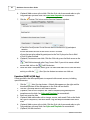
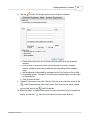
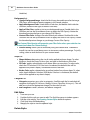
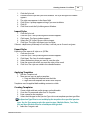
1
Copyright 2015
I
Qwizdom Connect User Guide
Table of Contents
Part I Introduction
3
Part II Getting Started
4
1 Notice
................................................................................................................................... 5
2 Installing Qwizdom
...................................................................................................................................
Connect
6
3 Installing Standards
................................................................................................................................... 7
4 Online Registration
................................................................................................................................... 9
5 Hardware Setup
................................................................................................................................... 10
6 Setting/Preferences
................................................................................................................................... 12
Part III Connect Overview
13
Part IV Remote Setup
15
1 Notice
................................................................................................................................... 18
2 Q2RF
................................................................................................................................... 19
3 Q4RF
................................................................................................................................... 20
4 Q5RF
................................................................................................................................... 22
5 Q6RF
................................................................................................................................... 25
Part V Q7RF Tablet
29
1 Using the Pen
................................................................................................................................... 32
2 Drawing and...................................................................................................................................
Editing Tools
33
3 Speaker Notes
................................................................................................................................... 35
Part VI Organizing Content
36
1 Search & Download
...................................................................................................................................
Content
37
2 Importing and
...................................................................................................................................
Exporting
38
3 Printing
................................................................................................................................... 39
4 Standards
................................................................................................................................... 41
Part VII Creating Content / Live Editor
42
1 Creating Slides
................................................................................................................................... 48
2 Adding Equations
................................................................................................................................... 57
3 Styles and Templates
................................................................................................................................... 58
4 Multimedia ................................................................................................................................... 62
Part VIII Creating Classes
65
Revised 2015
Contents
1 Groups
II
................................................................................................................................... 68
2 Seating Chart
................................................................................................................................... 69
Part IX Presentations
70
1 Presentation...................................................................................................................................
Setup
72
2 Presentation...................................................................................................................................
Features
79
3 Remote Login
................................................................................................................................... 82
4 Using Remotes
...................................................................................................................................
in Presentation
84
5 Presenting with
...................................................................................................................................
QVR
89
6 Presenting with
...................................................................................................................................
Collaboration
92
7 Response Graph
................................................................................................................................... 95
8 Games
................................................................................................................................... 101
9 Saving Results
................................................................................................................................... 104
Part X Results
105
1 Merging Results
................................................................................................................................... 108
Part XI Answer Key
109
Part XII Qwizdom Actionpoint
112
1 Create Questions
................................................................................................................................... 114
Part XIII Question Toolbar
115
Part XIV Survey Bar
117
Part XV Online District Reporting
119
1 Online Classes
................................................................................................................................... 120
2 Online Results
................................................................................................................................... 121
Part XVI Qwizdom Tools
123
Part XVII Hot-Key Editor
126
Part XVIII Troubleshoot
130
1 Installing USB
...................................................................................................................................
Drivers
130
2 Retrieving Error
...................................................................................................................................
Logs
132
3 Uninstalling...................................................................................................................................
Software and Hardware
134
Qwizdom Connect 2015
II
3
1
Qwizdom Connect User Guide
Introduction
This is a user guide for Qwizdom Connect. This guide provides information and tips on
using Qwizdom Connect.
If you need assistance, please contact Technical Support.
Website
www.qwizdom.com
Tech Support
(253) 845-7738
Email
[email protected]
Support Hours
6 a.m. to 4:30 p.m. PT
Address
Qwizdom, Inc.
12617 Meridian East
Puyallup, WA 98373
Qwizdom Connect 2015
Getting Started
2
4
Getting Started
Contents of Remote Set
Q2RF, Q4RF, or Q6RF Remotes*
1 HID (Black) Host/Receiver
1 Q6iRF Instructor Remote or 1 Q7RF Instructor Tablet*
1 Charger (Q7RF Instructor Tablet)*
1 Screwdriver
AA Batteries (Q4RF & Q6RF) or AAA Batteries (Q2RF)*
1 Carrying Case
*Remote types and accessories based on actual order. This device complies with part 15 of the FCC Rules. Operation is subject to
the following two conditions: (1) This device may not cause harmful interference, and (2) this device must accept any
interference received, including interference that may cause undesired operation.
Qwizdom Connect 2015
5
2.1
Qwizdom Connect User Guide
Notice
Notices of Compliance for Qwizdom's RF Response Devices
Note: This equipment has been tested and found to comply with the limits for a Class B
digital device, pursuant to part 15 of the FCC Rules. These limits are designed to provide
reasonable protection against harmful interference in a residential installation. This
equipment generates, uses, and can radiate radio frequency energy and, if not installed
and used in accordance with the instructions, may cause harmful interference to radio
communications. However, there is no guarantee that interference will not occur in a
particular installation. If this equipment does cause harmful interference to radio or
television reception, which can be determined by turning the equipment off and on, the
user is encouraged to try to correct the interference by one or more of the following
measures:
· Reorient or relocate the receiving antenna.
· Increase the separation between the equipment and receiver.
· Connect the equipment into an outlet on a circuit different from that to which the
receiver is connected.
· Consult the dealer or an experienced radio/TV technician for help.
Caution: Changes or modifications to Qwizdom's RF hardware that are not expressly
approved by Qwizdom could void the user's authority to operate the equipment.
This product is designed for the 2.4 Ghz WLAN network throughout the EC region and Switzerland with restrictions in France.
Qwizdom Connect 2015
Getting Started
2.2
6
Installing Qwizdom Connect
System Requirements
Windows XP Service Pack 2, Vista or later
1
Microsoft PowerPoint® 2003 or later (registered version)
Microsoft Excel® 2003 or later (registered version)
Microsoft .NET Framework 3.5 (included in installer)
Microsoft .NET Framework 3.5 SP1 (included in installer)
Intel Pentium 233-MHZ or faster processor (Pentium III recommended)
1G of RAM
5 GB of disk space
Open USB Port
Installing Qwizdom Connect
Before installing the software on a PC, make sure that all available Microsoft Windows and
Office updates have been installed on your computer. If you have an older version of
Qwizdom Connect on your computer, uninstall the program through the computer's
Control Panel. (If you have an older Red RF host, be sure to plug it into the USB port before
installing Qwizdom Connect. See Hardware Setup for details.)
1. Download the latest version of Qwizdom Connect Software at
http://qwizdom.com/support/qwizdom-connect/#Downloads
2. Open and run the downloaded ConnectSetup.exe file, then follow the prompts of
the Install Wizard.
3. Click Next. The Select Installation Folder section appears.
4. You have the option to select the location of where you would like Qwizdom
Connect, or use the default location.
5. Click Next to begin the installation. This will take a few moments.
6. Four icons will appear on your desktop, once installation is complete.
· Qwizdom Connect: present pre-made Qwizdom activities.
· Actionpoint: create interactive PowerPoint presentations.
· Survey Bar: survey your audience using an application of your choice.
· Answer Key: present and grade paper tests and activities.
Qwizdom Connect 2015
7
2.3
Qwizdom Connect User Guide
Installing Standards
To open Qwizdom Connect, double-click the shortcut icon on your
desktop.
1. From the Connect toolbar, click File, then Preferences.
2. Click the Standards tab.
Qwizdom Connect 2015
Getting Started
3.
4.
5.
6.
7.
From the Select State drop-down menu, highlight your state.
If desired, check Use Common Core standards if available.
Click Download State Standards.
Click Close when download is complete.
From the File drop-down menu, click Exit. It is recommended that you close and
reopen Qwizdom Connect after installing state standards.
Qwizdom Connect 2015
8
9
2.4
Qwizdom Connect User Guide
Online Registration
Registration must be completed in order to use any of Qwizdom Connect's online features
including Qwizdom ReadySet curriculum, free online curriculum packages, Qwizdom QVR
Response App, online classes and reporting.
1. Check if your email program has a Safe Senders List and add @qwizdom.com. If not,
after you register, check your Junk or Spam folder for emails sent by Qwizdom.
2. Double-click on the
Qwizdom Connect icon on the desktop. Qwizdom Connect will
open.
3. Go to the Qwizdom Online menu and select Login to Qwizdom Online.
4. Click the New User link. This will bring you to the Online Registration form. Fill out the
required fields, apply license key (for ReadySet, QVR, etc) or select Qwizdom Connect
Free Content if you would like to register for the free online resources and click Submit.
5. You will receive a confirmation email.
6. Re-open Qwizdom Connect, go to the Qwizdom Online menu and select Login to
Qwizdom Online. Login with your username and password.
Qwizdom Connect 2015
Getting Started
2.5
10
Hardware Setup
1. Q2 Remotes-place two AAA batteries and insert the screw (optional) into the back
of the remote.
2. Q4 Remotes-place two AA batteries and insert the screw (optional) into the back
of the remote.
3. Q5 Remotes-plug the Q5RF participant and instructor remotes into the multicharger and/or single charger for 24 hours
before first use.
5. Q6 Remotes-place two AA batteries and insert the screw (optional) into the back
of the remote.
6. Q7 Presenter Tablet-the tablet needs to be charged a full 24 hours for the first
time or after a long period of inactivity. The pen may take slightly longer to fully
charge. Generally, the tablet will only need to be charged about 6 hours to be fully
charged after the initial charge. To charge the pen and tablet, place the pen into
the pen tray located at the top of the Q7RF Tablet. Using the USB cable, plug the
tablet into the computer. The battery icon will be full when the tablet is fully
charged.
If your computer goes into power saving mode, the charging of the Q7RF Tablet
may be interrupted.
Installing the HID (Black) Host/Receiver
*This device complies with part 15 of the FCC Rules. Operation is subject to the following two conditions:
(1) This device may not cause harmful interference, and (2) this device must accept any interference
received, including interference that may cause undesired operation.
1. The HID Host is located in the back compartment of the Q7RF Tablet or in the front
pocket if remote bag.
2. Plug the HID Host into an open USB port on the computer.
3. The computer will automatically detect and configure the new hardware device.
Qwizdom Connect 2015
11
Qwizdom Connect User Guide
Installing the RF (Red) Host/Receiver
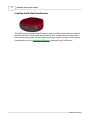
The USB Drivers are located in the Qwizdom Connect installer and should auto-install if it
detects the RF Host. Plug the USB cable into the RF Host and then plug the other end of
the USB cable into an open USB port before installing Qwizdom Connect. If drivers do not
automatically install, see Installing USB Drivers to manually install USB Drivers.
Qwizdom Connect 2015
Getting Started
2.6
12
Setting/Preferences
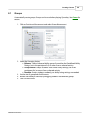
Go to the File menu and select Preferences. The Preferences window appears.
General Tab
· Auto-start Qwizdom Connect on system start up - checking this option will open
Qwizdom Connect when your computer starts up.
· Auto-login to Qwizdom Connect - automatically logs in with your username and
password when Qwizdom Connect is opened. When this option is checked, you will
be prompted to enter your username and password to store for the auto-login
process.
· Auto Group Results Files - Groups results files by classes in the Results tab.
· Auto uploads results to Qwizdom Connect - this automatically uploads results to
Qwizdom's Online Reporting if the user has a Qwizdom Connect Premium District
License.
· Software version number - helpful information to give support technicians when
requesting help.
Proxy Tab
· I do not have a proxy - this is used when you are not behind a proxy and/or your
proxy does not require authentication. This is currently the default
· Use my computer settings - this means use the proxy settings that are already
configured on my machine.
· Specify custom settings - this allows you to specify a custom proxy server and/or
credentials to authenticate with against the proxy server.
Standards Tab
· Select State - Select the State for which you would like to download Standards for.
Click Download State Standards once your State has been selected.
Qwizdom Connect 2015
13
3
Qwizdom Connect User Guide
Connect Overview
To open Qwizdom Connect, double-click the shortcut icon on your
desktop.
When you first open Qwizdom Connect, you will be brought to the Content tab.
File menu - set preferences, import and export activities, print activities, and download
state standards.
Qwizdom Online menu - login to access and download premade activities. To acquire
login information, see Online Registration.
Programs menu - displays the 4 programs within the software suite.
Remotes menu - select remote settings.
Help menu - provides access to user guide.
Qwizdom Connect 2015
Connect Overview
14
Content Tab - Store and organize all of your activities, including PowerPoint
presentations, Answer Key activities, and Qwizdom Connect activities. Double click an
activity to launch the appropriate application. See Organizing Content for details.
Participants Tab - Create and organize classes. See Creating Classes for details.
Results Tab - Store results from activities and generate reports. See Results for details.
Connect Online Tab - Search and download for free curriculum packages and ReadySet
curriculum packages (available with license). See Searching and Downloading Content for
details.
Qwizdom Connect 2015
15
4
Qwizdom Connect User Guide
Remote Setup
If setting up remotes for the first time we recommend the following steps. Note: You will
only have to do this once. Be sure the HID (black) host, or RF (red) host* is properly
installed and plugged in before proceeding see Hardware Setup for details.
* v.938 host or higher is required for Qwizdom Connect. If the host is not v.938 host or higher, please contact
Technical Support.
1.
Click
2.
3.
4.
Type in the number of remotes in your set(s).
Select only the remote types you are using.
Select your preferred configuration. Use Fixed Set unless the remotes are
participant-owned. See below for details.
Newer remotes, received in 2012 or later, already come with pre-assigned
numbers, matching their affixed stickers, so no further action is required. Click OK
to finish. If you have older Qwizdom Response hardware, received in 2011 or
earlier, click the Assign button. Read the dialog box, and click OK to start assigning
Remote ID numbers. (See Assign Remote IDs below for details. )
5.
Remote Configuration. The Configuration Settings window appears.
Other Settings & Explanations:
· Enable Backlight-activates the backlight on the Q5RF Participant and Q5RF
Instructor Remotes.
· Using Q4 Remotes older than version 1.34 - check this to assign Remotes ID
numbers to older Q4s. To check the version number, turn on a Q4 remote by
holding down the Menu key. The version number will appear on screen.
· Fixed Set-Remotes are configured to always look for a Fixed Session ID
Qwizdom Connect 2015
Remote Setup
16
(host/receiver number). Additionally each remote will store a Remote ID
number, so participants can simply turn on a remote to join a session.
· Roaming Set or Participant Owned-check this option if the participants own
the remotes. This mode is best-suited for Higher Ed/University settings.
Participants are typically required to enter a Session ID and User ID to join a
presentation.
Assign Remote IDs
Remotes received in 2011 or earlier need to be set up once, prior to use, with computerassigned ID numbers. Newer remotes, received in 2012 or later, already come with preassigned numbers, matching their affixed stickers, so no additional setup is required.
1.
2.
3.
4.
5.
6.
7.
8.
9.
Plug in your host.
In the Configuration Settings window, select Fixed Set and click the Assign button.
In the Remote Assignment window, check Auto-Increment Remote Number to
assign numbers in the order in which remotes are turned on.
Click Detect, then Start.
The Session ID field will automatically populate (if your host is plugged in). This is
your host's unique 6-digit identifier.
Begin turning on your remotes. When a remote connects with the host, its
assigned ID number will appear on the remote's LCD screen.
If your remotes do not connect, they are not configured with the correct Session
ID. Please see Changing Session IDs below for details.
Click Stop when all remotes have been assigned.
This process only needs done once—the assigned number will remain fixed with
that remote. If desired, use a marker, or affix a sticker, to designate the number
that has been assigned to that remote. Your remotes will turn off automatically.
Assign Remote IDs - Q4 Remotes with Firmware Older than Version 1.34
The following directions only apply for customers on a PC, using Q4 remotes older than
version 1.34. (The Q4 firmware number is displayed on the remote's screen when the
remote is first turned on.)
1.
2.
3.
4.
5.
6.
7.
8.
Insert host into the USB port of your computer.
Click on the Qwizdom Tools icon (in tray at the bottom of your computer screen).
In the Tools menu, click Utilities, then Configuration Settings.
In the Configuration Settings window, check the box for Using Q4 Remotes Older
Than Version 1.34.
Select Fixed Set, and click Assign.
Select your type of host from the drop-down.
When the Session ID field populates, click Start , then begin turning on your
remotes, beginning with the instructor device. When a remote connects with the
host, its assigned ID number will appear on the remote's LCD screen.
Click Stop when all remotes have been assigned.
Qwizdom Connect 2015
17
Qwizdom Connect User Guide
9.
This process only needs done once—the assigned number will remain fixed with
that remote. If desired, use a marker, or affix a sticker, to designate the number
that has been assigned to that remote. Your remotes will turn off automatically.
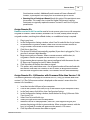
Changing Session IDs
If the RF remote displays No Net, Not Found, Not Active, or Inactive, it could be that the
Session ID is not correct.
· For Q2RF remotes: wait for the remote to time out and turn off. When you turn it
back on, press the Help (Hand)key. When you see --S on the display, it is prompting
you for the Session ID. Enter it and press the Join key ..
· For Q4RF remotes: press the Menu key, use the right arrow to scroll to Sess. ID., and
press the Send (double arrows) key to select the option. You will see the current
Session ID and will be asked if you want to change the Session ID. Press T (Yes) to
change. Enter the Session ID and press the Send key to send.
· For Q5RF remotes: wait for the remote to display No Net, Not Active, or Not Found.
Press the Menu key and select Enter Session ID by pressing the Send (double arrows)
key, enter the Session ID and press the Send key.
· For Q6RF remotes: press the Menu key, scroll to Enter Session ID, press the
Menu
Select key, re-enter the Session ID, and press the Search Again key.
· For Q7 Tablet: press the Menu key and use the Scroll button to scroll to Enter Session
ID. Press the Enter key to select, use the A button to delete the Session ID and then
re-enter the Session ID. Press the Enter key to confirm.
What is a Session ID?
Each host/receiver has a unique six-digit called a Session ID number. Session IDs "assign"
the remote to the host, allowing the remote to only communicate with that specific host.
The Session IDs can be found:
· For both HID and RF Host, the Session ID can be found in the Remote Assignments
window, the Device Settings tab in the Presentation Setup window, and the Login
tab of the Qwizdom Toolbar during a presentation. Session ID is also displayed at
the top of the Qwizdom Tools menu: click Qwizdom Tools, found in the lower righthand corner of the Windows Taskbar (next to the clock).
· For the RF (Red) Host, the Session ID is printed on a white sticker affixed to the
bottom of the device.
You can also create your own Session ID in the Presentation Setup window. Creating your
own Session ID does not change the host's default Session ID. See Presentation Setup for
details. The Session ID must be unique because if there are other hosts in the same
building, the remotes will become confused about the host with which they are to
communicate.
Qwizdom Connect 2015
Remote Setup
4.1
18
Notice
FCC 15.19:
(3) All other devices shall bear the following statement in a conspicuous location on the
device.
This device complies with Part 15 of the FCC Rules. Operation is subject to the following two
conditions: (1) this device may not cause harmful interference, and (2) this device must
accept any interference received, including interference that may cause undesired
operation.
FCC 15.21:
The user's manual or instruction manual for an intentional or unintentional radiator shall
caution the user that changes or modifications not expressly approved by the party
responsible for compliance could void the user's authority to operate the equipment. In
cases where the manual is provided only in a form other than paper, such as on a computer
disk or over the Internet, the information required by this section may be included in the
manual in that alternative form, provided the user can reasonably be expected to have the
capability to access information in that form.
FCC 15.105:
(b) For a Class B digital device or peripheral, the instructions furnished the user shall include
the following or similar statement, placed in a prominent location in the text of the manual:
NOTE: This equipment has been tested and found to comply with the limits for a Class B
digital device, pursuant to Part 15 of the FCC Rules. These limits are designed to provide
reasonable protection against harmful interference in a residential installation. This
equipment generates, uses and can radiate radio frequency energy and, if not installed and
used in accordance with the instructions, may cause harmful interference to radio
communications. However, there is not guarantee that interference will not occur in a
particular installation. If this equipment does cause harmful interference to radio or
television reception, which can be determined by turning the equipment off and on, the
user is encouraged to try to correct the interference by one or more of the following
measures:
-- Reorient or relocate the receiving antenna.
-- Increase the separation between the equipment and receiver.
-- Connect the equipment into an outlet on a circuit different from that to which the
receiver is connected.
-- Consult the dealer or an experienced radio/TV technician for help.
Qwizdom Connect 2015
19
4.2
Qwizdom Connect User Guide
Q2RF
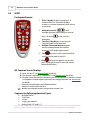
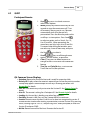
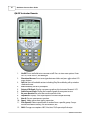
Participant Remote
1.
E inkä display-displays the remote's ID
number when it is turned off; displays
remote's ID number and battery icon when it
is turned on.
2.
Navigation arrows
- scroll
through questions when taking an Answer
3.
4.
5.
Key. Left arrow
is also used as a
backspace.
True/Yes, False/No keys-use to answer
True/False and Yes/No questions
Multiple Choice and Numeric keypadanswer multiple choice and numeric
questions (with single digit answers).
Join
key-press to turn remote on/off or
confirm Session and/or User IDs.
6. Help
key-press to request assistance or
press to change Session ID when the remote
cannot find the host.
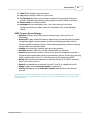
Q2 Common Screen Displays
_ _ S : Enter Session ID. See Remote Setup for details.
_ _U : The remote is asking for a Participant ID. See Remote Login for details.
_ _ A : Displays when the remote is requesting an Answer Key activity number. Prompt
only appears when Multiple Answer Keys are being presented. See Answer Key
for details.
- - - : Remote cannot find host and will power down.
- - : Remote is searching for the host.
: Battery icon indicates battery charge when remote is on.
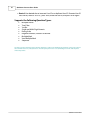
Supports the Following Question Types:
·
·
·
·
·
Multiple Choice
True/False
Yes/No
Single Digit Numeric
Rating Scale (1-5 ) and (1-7)
This device complies with part 15 of the FCC Rules. Operation is subject to the following two conditions: (1) This device may not cause harmful
interference, and (2) this device must accept any interference received, including interference that may cause undesired operation.
Qwizdom Connect 2015
Remote Setup
4.3
20
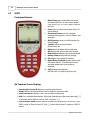
Q4RF
Participant Remote
1.
2.
Send
key-press to submit answer or
select menu options.
Menu [power] key-hold the Menu key for two
seconds to turn the remote on or off. Turn
off remotes if they are not in use. Remotes
automatically turn off at the end of a
presentation. Press the Menu key and use the
scroll keys to view options. Press Send
to select an option such as Search, Sess. ID,
User ID, and Exit. When presenting, the
menu items are Help, Login, User Id, and Exit.
To request help during presentation, press
the Menu key, scroll to select Help, and press
the Send
3.
4.
5.
key to select it.
Scroll
keys-scroll through menu
options, answer choices, or questions.
Clear [C] key-press to delete response or
change answers if instructor has enabled the
feature.
True/Yes and False/No keys--use to answer
True/False and Yes/No questions
Q4 Common Screen Displays
· Qwizdom: Remote has found the host and is ready for a question slide.
· Activity ID: Displays when the remote is requesting an Answer Key activity number.
Prompt only appears when Multiple Answer Keys are being presented. See
Answer Key for details.
· Sess. ID: Your remote may ask you to enter the Session ID. See Remote Setup for
details.
· User ID: The remote is asking for a Participant ID. See Remote Login for details.
· Loading: An Answer Key is loading; may take a few moments.
· Push Key: Remote is idle. Press any key, (except MENU) to reactivate.
· Inactive: Remote senses the host is not in use or does not recognize the session. If
remote remains inactive after starting a presentation, re-enter Session ID by pressing
MENU, scrolling right to "Sess.ID," and pressing SEND. When prompted, re-enter the
Session ID and press SEND.
· No Net: Remote cannot find the host. Re-enter the Session ID.
Qwizdom Connect 2015
21
Qwizdom Connect User Guide
· Denied: User denied due to incorrect User ID or a duplicate User ID. Re-enter User ID.
Press MENU, scroll to "User ID," press SEND, enter the User ID, and press SEND again.
Supports the Following Question Types:
·
·
·
·
·
·
·
·
·
Multiple Choice
True/False
Yes/No
Single and Multi-Digit Numeric
Rating Scale
Negative Number, Fractions & Decimal
Multiple Mark
Vote Multiple Mark
Sequence
This device complies with part 15 of the FCC Rules. Operation is subject to the following two conditions: (1) This device may not
cause harmful interference, and (2) this device must accept any interference received, including interference that may cause
undesired operation.
Qwizdom Connect 2015
Remote Setup
4.4
22
Q5RF
Participant Remote
1.
2.
Send
key-press to submit answer.
Clear [C] key-press to delete response or change an answer in a presentation (if
option to change responses is allowed).
Thumb pad-press to navigate between letters when keying in answer, press the
circle key in the middle to select a letter or to select menu options or to scroll
through question numbers during answer keys (paper-based tests).
Question [?] key-signals help to instructor during presentation.
Menu key-displays menu options Search Again, Enter Session ID, and Exit. Use the
3.
4.
5.
thumb pad to scroll through the menu options and the Send
key or circle key
to select an option.
True/Yes and False/No keys-use to answer True/False and Yes/No questions.
Power switch-turns remote on/off. The remotes do not automatically turn off.
Turn off remotes if they are not in use.
Backlight switch-turns Backlight on/off.
6.
7.
8.
Supports the Following Question Types:
·
·
·
·
·
·
Qwizdom Connect 2015
Multiple Choice
Yes/No
True/False
Numeric
Sequence
Multiple Mark
23
Qwizdom Connect User Guide
·
·
·
Vote Multiple Mark
Rating Scale
Text Input
Q5RF Instructor Remote
1. Send
key-press to submit command.
2. C [Clear] key-press to clear names from the Help Request list.
3. Thumb pad-press right/left to navigate between slide sets, up/down for menu
options, and "on-the-fly" question choices. Press the circle key (in the middle) to
4.
5.
7.
8.
select an option, play Microsoft PowerPoint® animations, advance slides, exit the
presentation, and show/hide correct responses on the response graph.
? [Help List] key-displays list of participants who requested help on the LCD
screen.
Menu key-view menu options such as entering Session ID and search again for
host.
New Q [-] key-press to pose an "on-the-fly" question.
Pick [.] key-press to display/hide a random participant's name on the computer
screen.
9. Private Graph
[0] key-displays the results of participant responses as a graph
on the LCD screen of the instructor's remote.
10. Public Graph
[/] key-displays the results of participant responses as a graph
on the computer (projector, television screen, etc.) screen for everyone to view.
Use the right/left controls on the thumb pad to scroll through the different graphs.
Use the circle key (in middle of thumb pad) to show/hide correct responses.
Qwizdom Connect 2015
Remote Setup
24
11. Show [7] key-displays game animations.
12. Play [8] key-will plays videos in Connect only.
13. Fn (Function) key-allows you to re-pose a question if you go back during to a
previous slide during presentation. Note: previous answers will be overwritten.
14. Power switch-turns remote on/off.
15. Backlight key-turns Backlight on/off. The "Enable Backlight" box in the
Configuration Settings window needs to be checked to turn on the Backlight
feature.
Q5RF Common Screen Displays
· Qwizdom: Displays when slides are non-question types, such as lessons or
information.
· Activity ID: Displays when the remote is requesting an Answer Key activity number.
Prompt only appears when multiple test versions are being presented. Activity
numbers should be noted on the test sheets before presenting; numbers cannot be
viewed while in presentation mode.
· Loading: An answer key is loading; may take a few moments.
· Push Key: Remote is idle. Press any key, (except MENU) to reactivate.
· Inactive: Remote senses the host is not in use or does not recognize the session. If
remote remains inactive after starting a presentation, re-enter Session ID by pressing
MENU, scrolling right to "Sess.ID," re-entering Session ID, and pressing SEND.
· No Net: Remote cannot find the host. re-enter the Session ID. If "No Net" continues,
enter User ID and Session ID.
· Denied: User denied due to incorrect Session ID, User ID, or a duplicate User ID.
· Ready: Displays on the instructor remote is ready to use.
· Last Key: Will appear on the instructor's remote showing the last key that was
pressed.
This device complies with part 15 of the FCC Rules. Operation is subject to the following two conditions: (1) This device may not
cause harmful interference, and (2) this device must accept any interference received, including interference that may cause
undesired operation.
Qwizdom Connect 2015
25
4.5
Qwizdom Connect User Guide
Q6RF
Participant Remote
1.
Menu/Power-press and hold on to power
remote on/off. Press to view menu options:
Help, Search, Sess. ID, User ID, Adjust Contrast,
and Exit.
2. Enter-press to submit commands from LCD
menu choices.
3. Directional Arrows-press to navigate
between menu options, answer choices, and
questions.
4. Multi-function-serves as multi-function for
Send/Change.
5. Symbols-select to enter fraction,
punctuation, etc.
6. Delete-press to delete the last character.
7. Q#-displays the current question number.
8. Help Request-indicates your requested help.
9. Battery Power-displays battery charge.
10. ID#-displays the remote ID number.
11. Right/Wrong Feedback-displays check mark
for correct answer, X for incorrect answer,
and both check mark/X for response
received.
12. Shift-changes case options:
ABC/Abc/abc/123/Superscript/Subscript.
Q6 Common Screen Displays
· Searching for Session ID: Remote is searching for the host.
· Ready: Remote has found the host and is ready for a question slide.
· Power Save Mode: Remote is idle. Click RESUME, to reactivate.
· Help: First available Menu option. With Help selected, press the menu select key
to privately ask for help or scroll to "EXIT" and press
.
· Session ID Not Found: Remote cannot find the host. Re-enter the "Session ID." Press
MENU, scroll to "Enter Session ID," click
AGAIN.
, enter the Session ID, and press SEARCH
Qwizdom Connect 2015
Remote Setup
26
Session ID Login Denied: User denied due to incorrect User ID, or a duplicate ID. Reenter User ID. Press MENU, scroll to "Enter User ID," click
, re-enter the User ID,
and press JOIN.
· Enter User ID: The remote is asking for a Participant ID. See Remote Login for details.
· Loading: Loading an Answer Key; may take a few moments.
· Enter Activity ID: Requesting an Answer Key activity number. Prompt only appears
when Multiple Answer Keys are being presented. See Answer Key for details.
To send question text to Q6RF remotes click on the Advanced Options
button and check Send Question Text to Remotes. See Creating Slides for
details.
Supports the Following Question Types:
·
·
·
·
·
·
·
·
·
·
·
·
Qwizdom Connect 2015
Multiple Choice
Yes/No
True/False
Numeric
Sequence
Multiple Mark
Vote Multiple Mark
Rating Scale
Text Input
Text Response
Text Edit
Equation
27
Qwizdom Connect User Guide
Q6i RF Instructor Remote
1.
2.
3.
4.
5.
6.
7.
8.
9.
10.
11.
12.
On/Off: Press and hold to turn remote on/off. Press to view men options: Enter
Sess. ID, Enter User ID, and Backlight.
Directional Arrows: Press to navigate between slides and press to select LCD
menu choices.
Full List: View all available actions including Play/Pause Media, pull up window
shade and more.
Pick: Randomly call on a participant.
Private LCD Graph: Display a response graph on the Instructor Remote's LCD.
Public Screen Graph: Display the response graph for everyone to view.
Re-pose Question: Re-pose the current question slide.
Help Menu: Displays a list of participants who have requested help.
New Q: Pose a spontaneous question.
Space: Add a space when typing a question.
Pick (Special): Select a participant at random from a specific group. Groups
include answered correctly, not answered on, etc.
Shift: Changes case options: ABC/ Abc/abc/123/Superscript/Subscript
Qwizdom Connect 2015
Remote Setup
13.
14.
28
Symbols: Press to enter fraction, punctuation, etc.
Delete: Press to delete the last character.
This device complies with part 15 of the FCC Rules. Operation is subject to the following two conditions: (1) This device may not
cause harmful interference, and (2) this device must accept any interference received, including interference that may cause
undesired operation.
Qwizdom Connect 2015
29
5
Qwizdom Connect User Guide
Q7RF Tablet
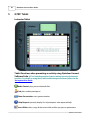
Instructor Tablet
Tablet Functions when presenting an activity using Qwizdom Connect
Software Suite. Q7 has limited annotation features when presenting Actionpoint
activities. For details on using the Q7 tablet with Actionpoint software please see the
Actionpoint User Guide.
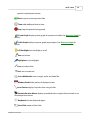
Media Control-play/ pause multimedia files
Pick-picks random participants
Show Presentation-starts game animation
Help Requests-privately displays list of participants who requested help
Insert Slide-makes a copy of the current slide and lets you pose a spontaneous
Qwizdom Connect 2015
Q7RF Tablet
30
question to participant remotes
Pose-re-poses current question slide
Timer-adds additional time to timer
Stop-stops the question being posed
Private Graph-displays private graph of responses on tablet (See Response Graph for
details.)
Public Graph-displays response graph to participants (see Response Graph for
details)
LCD Backlight-turns backlight on or off
Pen-use to draw
Highlighter-use to highlight
Line-use to draw lines
Text -use to create text
Insert Multimedia-inserts images, audio, and video files
Window Shade-hides portion of displayed screen
Laser Pointer-displays laser dot when using the Pen
Absolute Position Mouse-displays arrowhead when using the Pen and works as an
absolute position mouse
Keyboard-activates keyboard region
New Slide-creates a blank slide
Qwizdom Connect 2015
31
Qwizdom Connect User Guide
Copy-copies selected object(s)
Paste-pastes copied object(s)
Undo-undo last action(s)
Redo-redo previous action(s)
Delete-deletes selected object(s)
Volume Control
Quick Pose Controls Click an answer to spontaneously pose a numeric, multiple
choice, yes/no, or rating scale question.
For Numeric question types
For Multiple Choice question types
For Rating question types
For Yes/No or True/False question types
* Click Any to pose a survey question.
This device complies with part 15 of the FCC Rules. Operation is subject to the following two conditions:
(1) This device may not cause harmful interference, and (2) this device must accept any interference
received, including interference that may cause undesired operation.
Qwizdom Connect 2015
Q7RF Tablet
5.1
32
Using the Pen
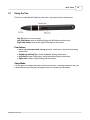
The Pen is used (with the Tablet) to write, draw, and control mouse movements.
Pen Tip-same as a mouse cursor.
Left-click button-same as double-clicking with left button on the mouse.
Right-click button-same as the right-click button on the mouse.
Pen Actions
· Press, Tap, Push Down with Pen Tip-activates Tablet icons, similar to left-clicking
with mouse.
· Double tap with Pen Tip-is similar to double-clicking with mouse.
· Left-click-activates Tablet icons, similar to double-clicking with mouse.
· Right-click-similar to right-clicking with the mouse.
Sleep Mode
The Pen goes into sleep mode after a minute of inactivity. Touching the pen to the Q7RF
Tablet surface or pressing the Left/Right buttons on the pen will reactivate it.
Qwizdom Connect 2015
33
5.2
Qwizdom Connect User Guide
Drawing and Editing Tools
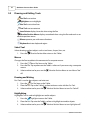
Pen Tool-use to draw
Highlighter-use to highlight
Line Tool-use to draw lines
Text Tool-use to create text
Laser Pointer-displays laser dot when using the Pen
Absolute Position Mouse-displays arrowhead when using the Pen and works as an
absolute position mouse
Mouse-operates pen with mouse functions
Keyboard-activates keyboard region
Select Tool
Selects drawing and text objects such as text boxes, shapes, lines, etc.
1.
Press the
Absolute Position Mouse icon on the Tablet.
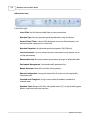
Mouse
Changes the Pen to replicate the movement of a computer mouse.
1.
2.
Press the
Mouse Tool icon on the Tablet.
Press the Pen Tip anywhere on the Tablet's surface as if you were using a computer
mouse.
3.
Select another tool or press on the
off.
Absolute Position Mouse to turn Mouse Tool
Drawing and Writing
Pen Tool is used to draw objects and write text.
1.
2.
Press the
Pen Tool icon on the Tablet.
Place the Pen Tip on the Tablet's surface to draw or write with the Pen Tool.
3.
Select another tool or press the
Absolute Position Mouse to turn Pen Tool off.
Highlighting
Highlighter Tool is used to highlight text and/or objects.
1.
2.
Press the
Highlighter icon on the Tablet.
Place the Pen Tip onto the Tablet's surface to highlight text and/or objects.
3.
Select another tool or press the
Absolute Position Mouse to turn Highlighter off.
Qwizdom Connect 2015
Q7RF Tablet
34
Entering Text
The combination of the Text Tool and Keyboard allows you to create text without the use of
the Tablet's keyboard.
1.
2.
Press the
Text Tool icon on the Tablet.
Use the Pen to create a text box on the computer screen by touching the Pen Tip
onto the Tablet surface and drawing out the text box.
3.
4.
Press the
Keyboard icon on the Tablet to activate the keyboard region.
Use the Pen Tip to enter the text into the text box using the keyboard on the
Tablet.
5.
Press the
Tablet.
Absolute Position Mouse to deactivate the keyboard region on the
Drawing Lines
Draws straight lines with or without arrowheads.
1.
2.
Press the
Line Tool icon on the Tablet.
Place the Pen Tip onto the Tablet's surface to draw a line.
3.
Select another tool or press the
Absolute Position Mouse to turn Line Tool off.
Laser Pointer
Changes the computer cursor into a laser pointer.
1.
2.
Press the
Laser icon on the Tablet.
Place the Pen Tip onto the Tablet's surface to activate the laser.
3.
Select another tool or press the
off.
Qwizdom Connect 2015
Absolute Position Mouse to turn Laser Pointer
35
5.3
Qwizdom Connect User Guide
Speaker Notes
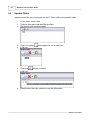
Speaker notes allow you to view notes on the Q7 Tablet while in presentation mode.
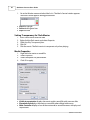
1.
2.
3.
In Live Editor, select a slide.
Go to the View menu and select Speaker Notes.
The Speaker Notes window appears.
4.
5.
Click Insert at Root
Enter text.
6.
7.
Click Insert
Enter text.
8.
When finished, close the window to save the information.
. Root appears for you to enter text.
to insert a subroot.
Qwizdom Connect 2015
Organizing Content
6
36
Organizing Content
Content Manager is where all created, download and imported activities can be stored and
organized. Click the Content tab; or click the Qwizdom Tools and select Content Manager to
open.
Create a New Folder
1.
2.
3.
4.
Click the
New Folder button.
Enter a name for the folder and click OK.
The folder appears in the Content Tree on the left.
Drag and drop folders to reorganize.
Create a New Activity
1.
2.
3.
4.
Click the
Add Live Editor Activity button.
Enter a name for the activity and click OK.
The activity appears in the Content Tree on the left.
Drag and drop the activity into the desire location.
5.
Select the newly created activity and click the
Edit button to launch Live
Editor. See Creating Slides for more information.
Create a New Answer Key
1.
2.
3.
4.
5.
Click the
Add Answer Key button.
Enter a name and click OK.
The answer key appears in the Content Tree on the left.
Drag and drop the activity into the desire location.
Double-click the answer key file to launch the Answer Key window. See Answer Key
for more information.
Qwizdom Connect 2015
37
6.1
Qwizdom Connect User Guide
Search & Download Content
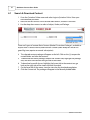
1. Go to the Qwizdom Online menu and select Login to Qwizdom Online. Enter your
username and password.
2. Next click on the Connect Online tab and select Browse, and then Collections.
3. Use the drop down menus to select a Subject, Grade, and Package.
There are 2 types of content: Basic Content (labeled 'Curriculum Packages'; available to
anyone with a Connect license) and Premium Content (titled 'ReadySet' and/or has
green flag icon; requires an annual subscription).
4. The selected content package will appear on the left. Click on the [+] to open the
nested folders and view the contents.
5. To download the entire package, collapse the content tree, highlight the package
title, and click Download on the right side of the screen.
6. To download a specific lesson, highlight the lesson title in the content tree, go
back to the right side of the screen and click Download.
7. On the lower left of the screen, view the status bar for download completion.
8. Click the Content tab. The package will appear in the Recently Added folder.
Qwizdom Connect 2015
Organizing Content
6.2
38
Importing and Exporting
Importing Activities (.QAP and .QZA)
1.
2.
Go to the File menu, select Import / Qwizdom Activity. The Open window appears.
Select the activity and click Open. The activity will import into the Content Tree.
You can also drag and drop activities (.QAP, .QZA, .QAK) into the Content Tree.
Importing External Documents
1.
2.
Go to the File menu and select Import / External Document. The Open window
appears.
Select the file you would like to import and click Open. The external document will
import into the Content Tree.
You can also drag and drop PowerPoint® and PDF activities into the Content Tree.
Exporting Activities
1.
2.
3.
Select the activity you wish to export.
Go to the File menu and select Export. The Save As window appears.
Choose the location to which to export your file and click OK.
Qwizdom Connect 2015
39
6.3
Qwizdom Connect User Guide
Printing
1.
Select a Qwizdom (Live Editor) activity.
2.
Click the
3.
Set print options, including number of slides per page, slide range, headers,
footers, etc.
· Print Type: Select Workspace to provide space for students to show their
work or write in an answer.
· Print Header/Footer: Provides a space for the students to write name, class
and date.
· Print Answer Slides: Creates a test key for quick grading.
· Add Instructions: Adds instructions to the top of the activity, for instance,
please circle the correct answer and show your work.
· Printer Settings: Select printer, number of copies, etc.
Click Print.
4.
Print button. This brings up the Print Activity window.
Qwizdom Connect 2015
Organizing Content
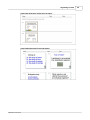
Sample with workspace, header and instructions.
Sample Default/ Normal Format with Header.
Qwizdom Connect 2015
40
41
6.4
Qwizdom Connect User Guide
Standards
Installing Standards
1.
2.
3.
4.
Go to the File menu and select Preferences.
Click the Standards tab.
Select your state standards in the Select State drop-down list.
Click Download State Standards to download your state standards into Qwizdom
Connect.
Applying Standards
You can apply standards to a single slide or activity.
Apply standards to whole activity.
1. Click on the Content tab.
2. Select an activity in the Content Tree.
3.
4.
5.
Click the
Standards button. The Standards window appears.
Select the standard at the appropriate level.
Click Add and then Done. The standards appear in the Standards tab at the bottom
of the Content Manager window.
Apply standards to individual slide/s.
1. Click on the Content tab.
2. Select an activity in the Content Tree. Click on a slide or slides in the Activity
Preview window.
3.
4.
5.
Click the
Standards button. The Standards window appears.
Select the standard at the level you want to apply to the slide(s).
Click Add and then Done. The standards appear in the Standards tab at the bottom
of the Content Manager window.
Qwizdom Connect 2015
Creating Content / Live Editor
7
Creating Content / Live Editor
Click on the Content tab, select an activity and click the
Editor.
Overview Live Editor Tools
Live Editor Window
Qwizdom Connect 2015
Edit button to launch Live
42
43
Qwizdom Connect User Guide
Editor Toolbar
Pen Tool
1.
2.
Click the
Pen tool drop-down arrow.
Select Customize . The Customize Pens window appears.
3.
Click
Add and choose thickness, color, and transparency.
Click Delete to delete a pen style.
4. Click OK to save the pen style(s).
Line Tool
1.
2.
Click the
Line tool drop-down arrow.
Select Customize . The Customize Line window appears.
3.
Click
Add and choose thickness, color, and transparency.
Click Delete to delete a line style.
4. Click OK to save the line style(s).
Shapes Tool
1.
2.
Click the
Shapes tool drop-down arrow.
Select Customize. The Customize Shapes window appears.
3.
Click
Add and choose thickness, color, and transparency.
Click Delete to delete a shape.
4. Click OK to save the custom shapes.
Qwizdom Connect 2015
Creating Content / Live Editor
44
Text Tool
1.
2.
Click the
Text tool drop-down arrow.
Select Customize . The Customize Text window appears.
3.
Click
Add and choose font type, size, and attributes.
Click Delete to delete the custom font.
4. Click OK to save the custom font.
Answer Toolbar - see Creating Slides for details
Question Types
Question options are made available, based on the Remote Type selected in the
Remote Configuration window. See Remote Setup for details.
· Information-non-question slide
· Multiple Choice-multiple choice question slide (up to six choices); Use with Q2RF,
Q4RF, Q5RF, Q6RF and QVR.
· Yes/No-yes/no question slide; use with Q2RF, Q4RF, Q5RF, Q6RF and QVR.
· True/False-true/false question slide; use with Q2RF, Q4RF, Q5RF, Q6RF and QVR.
· Numeric-numeric question slide; single digit numeric answer allowed for Q2RF; nine
digit numeric answer allowed for Q4RF; eight digit numeric answer allowed for
Q5RF; fourteen digit numeric answer allowed for Q6RF; over fourteen digit numeric
answer allowed for QVR.
· Sequence-place item choices in the specified order; use with Q4RF, Q5RF, Q6RF and
QVR.
· Multiple Mark-this question type enables two or more correct answers (up to six
choices); use with Q4RF, Q5RF, Q6RF and QVR.
· Rating Scale/Survey-rating/opinions/polling using scales from 1-5, 1-10, etc.; use
with Q2RF (single digit),Q4RF, Q5RF, Q6RF and QVR.
· Short Text Response-(Q5RF & Q6RF remotes and QVR App) best used for single word
Qwizdom Connect 2015
45
Qwizdom Connect User Guide
responses were capitalization does not matter.
· Text Response-(Q6RF remotes and QVR App) answer can be up to 102 characters.
Best used for short phrase responses, feature allows for punctuation, spacing, and
other advance grading options.
· Text Edit-(Q6RF remotes and QVR App) participants are given a sentence, phrase, or
item that they can correct on the Q6RF remote.
· Equation-(Q6RF remotes and QVR App) create questions that allows participants to
respond with numeric answers, including special characters.
Font Toolbar
To view Font toolbar either click an active text box or the
Text tool.
Slides Tab
Displays thumbnails of all slides in the activity.
Qwizdom Connect 2015
Creating Content / Live Editor
Qwizdom Connect 2015
46
47
Qwizdom Connect User Guide
Media Tab
Allows you to search and use images in the Qwizdom database.
Templates Tab
Displays slide templates.
Styles Tab
Displays slide styles.
Qwizdom Connect 2015
Creating Content / Live Editor
7.1
48
Creating Slides
Question options are made available, based on the Remote Type selected in the
Remote Configuration window. See Remote Setup for details.
Information
Non-question slide.
1.
2.
3.
4.
5.
6.
7.
Click the
New Question button. A blank slide appears on the right and the
thumbnail preview of the slide appears in the Slides tab on the left.
Click the Type drop-down list and select None.
(Optional) Click on the Templates tab. Select a template; drag and drop the
template onto the slide. See Styles and Templates for more details.
Enter text onto the slide.
(Optional) Add multimedia such as images, movies, and sound. Click on the Media
tab, type in a keyword/s, and click Search. Drag and drop multimedia items onto
slide.
(Optional) Add custom style to slide. Click the Styles tab, browse styles by category,
and select a style. Drag and drop style onto slide. See Styles and Templates for
more details.
When the slide is complete, either go to File menu and select Exit to save and close
activity; or click the
New Question button to create a new slide set.
Multiple Choice (Q2RF, Q4RF, Q5RF, Q6RF & QVR App)
Multiple choice question slide (up to six choices).
1.
2.
3.
4.
5.
6.
7.
8.
Click the
New Question button. A blank slide appears on the right and the
thumbnail preview of the slide appears in the Slides tab on the left.
Click the Type drop-down list and select Multiple Choice.
Select the correct answer in the Answer field.
(Optional) Set the time limit and number of points.
(Optional) Click on the Templates tab. Select a template; drag and drop the
template onto the slide. See Styles and Templates for more details.
Enter text onto the slide.
(Optional) Add multimedia such as images, movies, and sound. Click on the Media
tab, type in a keyword/s, and click Search. Drag and drop multimedia items onto
slide.
(Optional) Add custom style to slide. Click the Styles tab, browse styles by category,
and select a style. Drag and drop style onto slide. See Styles and Templates for
more details.
9.
(Optional) Click the
Advanced Options button to view advanced grading
options and/or to send question text to Q6RF remotes.
10. (Optional) Create an answer slide. Click the Slides tab, press the black arrow on the
Qwizdom Connect 2015
49
Qwizdom Connect User Guide
Add Slide button and select Copy Current Slide. If you wish to create a blank
answer slide, click on the
Add Slide button.
11. When the slide is complete, either go to File menu and select Exit to save and close
activity; or click the
New Question button to create a new slide set.
Yes/No & True/False Slides (Q2RF, Q4RF, Q5RF, Q6RF & QVR App)
1. Click the
New Question button. A blank slide appears on the right and the
thumbnail preview of the slide appears in the Slides tab on the left.
2. Select the type of slide you want to create.
3. Select the correct answer in the Answer field.
4. (Optional) Set the time limit and number of points.
5. (Optional) Click on the Templates tab. Select a template; drag and drop the
template onto the slide. See Styles and Templates for more details.
6. Enter text onto the slide.
7. (Optional) Add multimedia such as images, movies, and sound. Click on the Media
tab, type in a keyword/s, and click search. Drag and drop multimedia items onto
slide.
8. (Optional) Add custom style to slide. Click the Styles tab, browse styles by category,
and select a style. Drag and drop style onto slide. See Styles and Templates for
more details.
9. Click the
Advanced Options button to send question text to Q6 participant
remotes.
10. (Optional) Create an answer slide. Click the Slides tab, press the black arrow on the
Add Slide button and select Copy Current Slide. If you wish to create a blank
answer slide, click on the
Add Slide button.
11. When the slide is complete, either go to File menu and select Exit to save and close
activity; or click the
New Question button to create a new slide set.
Numeric (Q2RF, Q4RF, Q5RF, Q6RF & QVR App)
Numeric question slide. Single digit numeric answer allowed for Q2RF; eight digit numeric
answer allowed for Q4RF; ten digit numeric answer allowed for Q5RF; 14 digit numeric
answer allowed for Q6RF.
1. Click the
New Question button. A blank slide appears on the right and the
thumbnail preview of the slide appears in the Slides tab on the left.
2. Click the Type drop-down list and select Numeric.
3. Type numeric answer in Answer field.
Qwizdom Connect 2015
Creating Content / Live Editor
50
4. (Optional) Set the time limit.
5. (Optional) Click on the Templates tab. Select a template; drag and drop the
template onto the slide. See Styles and Templates for more details.
6. Enter text onto the slide.
7. (Optional) Add multimedia such as images, movies, and sound. Click on the Media
tab, type in a keyword/s, and click Search. Drag and drop multimedia items onto
slide.
8. (Optional) Add custom style to slide. Click the Styles tab, browse and select a style.
Drag and drop style onto slide. See Styles and Templates for more details.
9. (Optional) Set partial grading options. Click the
brings up the Question Properties window.
Advance Options button. This
· Check Send Question Text to Remotes to send text to Q6RF remotes.
· Select Numeric to add in standard numeric answer/s. (Optional) Enter in
multiple answers and point values to give students partial credit. (Optional)
Check the Convert fractions to numbers box to allow both fraction and
decimal answers to be counted as correct. If this box is unchecked only the
answer that is typed into the above field will be counted as correct.
· Select Numeric Range to add an answer for rounding, number set, algebraic
and other problems with a varying answer range. (Optional) Check the
Require Precision to box and select a place value from the drop-down menu.
· Sets a place value to which answer/s need to be rounded.
· Click OK to save and close.
10. (Optional) Create an answer slide. Click the Slides tab, press the black arrow on the
Qwizdom Connect 2015
51
Qwizdom Connect User Guide
Add Slide button and select Copy Current Slide. If you wish to create a blank
answer slide, click on the
Add Slide button.
11. When the slide is complete, either go to File menu and select Exit to save and close
activity; or click the
New Question button to create a new slide set.
Sequence (Q4RF, Q5RF, Q6RF & QVR App)
Place item choices in the specified order.
1. Click the New
Question button. A blank slide appears on the right and the
thumbnail preview of the slide appears in the Slides tab on the left.
2. Click the Type drop-down list; select Sequence and number of items.
3. Type numeric answer in Answer field and press the Enter key on the keyboard to
save it.
4. (Optional) Set the time limit.
6. (Optional) Click on the Templates tab. Select a template; drag and drop the
template onto the slide. See Styles and Templates for more details.
7. Enter text onto the slide.
8. (Optional) Add multimedia such as images, movies, and sound. Click on the Media
tab, type in a keyword/s, and click Search. Drag and drop multimedia items onto
slide.
9. (Optional) Add custom style to slide. Click the Styles tab, browse and select a style.
Drag and drop style onto slide. See Styles and Templates for more details.
10. (Optional) Click the
Advance Options button to set partial grading options
and/or send text to Q6 participant remotes.
11. (Optional) Create an answer slide. Click the Slides tab, press the black arrow on the
Add Slide button and select Copy Current Slide. If you wish to create a blank
answer slide, click on the
Add Slide button.
12. When the slide is complete, either go to File menu and select Exit to save and close
activity; or click the
New Question button to create a new slide set.
Multiple Mark (Q4R, Q5RF, Q6RF & QVR App)
This question type enables two or more correct answers (up to six choices).
1. Click the
New Question button. A blank slide appears on the right and the
thumbnail preview of the slide appears in the Slides tab on the left.
2. Click the Type drop-down list and select Multiple Mark.
3. Enter the correct answers in the Answer field and press the Enter key on the
keyboard to save it.
5. (Optional) Set the time limit.
Qwizdom Connect 2015
Creating Content / Live Editor
52
6. (Optional) Click on the Templates tab. Select a template; drag and drop the
template onto the slide. See Styles and Templates for more details.
7. Enter text onto the slide.
8. (Optional) Add multimedia such as images, movies, and sound. Click on the Media
tab, type in a keyword/s, and click Search. Drag and drop multimedia items onto
slide.
9. (Optional) Add custom style to slide. Click the Styles tab, browse and select a style.
Drag and drop style onto slide. See Styles and Templates for more details.
10. (Optional) Click the
Advance Options button to set partial grading options and
send text to Q6 participant remotes.
11. (Optional) Create an answer slide. Click the Slides tab, press the black arrow on the
Add Slide button and select Copy Current Slide. If you wish to create a blank
answer slide, click on the
Add Slide button.
12. When the slide is complete, either go to File menu and select Exit to save and close
activity; or click the
New Question button to create a new slide set.
Rating Scale / Survey (Q2RF, Q4RF, Q5RF, Q6RF & QVR App)
Rating scale question slide (i.e. rating/opinions/polling using scales from 1-5, 1-10, etc.).
1. Click the
New Question button. A blank slide appears on the right and the
thumbnail preview of the slide appears in the Slides tab on the left.
2. Click the Type drop-down list and select Rating Scale.
3. (Optional) Type in answer in the Answer field.
4. (Optional) Set the time limit and number of points.
5. (Optional) Click on the Templates tab. Select a template; drag and drop the
template onto the slide. See Styles and Templates for more details.
6. Enter text onto the slide.
7. (Optional) Add multimedia such as images, movies, and sound. Click on the Media
tab, type in a keyword/s, and click Search. Drag and drop multimedia items onto
slide.
8. (Optional) Add custom style to slide. Click the Styles tab, browse and select a style.
Drag and drop style onto slide. See Styles and Templates for more details.
9. Click the
Advanced Options button to send text to Q6 participant remotes.
10. (Optional) Create an answer slide. Click the Slides tab, press the black arrow on the
Add Slide button and select Copy Current Slide. If you wish to create a blank
answer slide click on the
Add Slide button.
11. When the slide is complete, either go to File menu and select Exit to save and close
activity; or click the
Qwizdom Connect 2015
New Question button to create a new slide set.
53
Qwizdom Connect User Guide
Short Text Response (Q5RF, Q6RF & QVR App)
Answer can be up to 32 characters long on the Q5RF remote. Best used for single word
responses were capitalization does not matter.
1. Click the
New Question button. A blank slide appears on the right and the
thumbnail preview of the slide appears in the Slides tab on the left.
2. Click the Type drop-down list and select Short Text Response.
3. Click the Answer field, type in answer, and press enter when finished.
4. (Optional) Set time limit and number of points.
5. (Optional) Click on the Templates tab. Select a template; drag and drop the
template onto the slide. See Styles and Templates for more details.
6. Enter text onto the slide.
7. (Optional) Add multimedia such as images, movies, and sound. Click on the Media
tab, type in a keyword/s, and click Search. Drag and drop multimedia items onto
slide.
8. (Optional) Add custom style to slide. Click the Styles tab, browse and select a style.
Drag and drop style onto slide. See Styles and Templates for more details.
9. Click the
Advanced Options button to send text to Q6 participant remotes.
10. (Optional) Create an answer slide. Click the Slides tab, press the black arrow on the
Add Slide button and select Copy Current Slide. If you wish to create a blank
answer slide, click on the
Add Slide button.
11. When the slide is complete, either go to File menu and select Exit to save and close
activity; or click the
New Question button to create a new slide set.
Text Response (Q6RF & QVR App)
Answers can be approximately 144 characters, including punctuation and spacing.
1. Click the
New Question button. A blank slide appears on the right and the
thumbnail preview of the slide appears in the Slides tab on the left.
2. Click the Type drop-down list and select Text Response.
3. (Optional) Click on the Templates tab. Select a template; drag and drop the
template onto the slide. See Styles and Templates for more details.
5. Enter text onto the slide.
6. (Optional) Add multimedia such as images, movies, and sound. Click on the Media
tab, type in a keyword/s, and click Search. Drag and drop multimedia items onto
slide.
7. (Optional) Add custom style to slide. Click the Styles tab, browse and select a style.
Drag and drop style onto slide. See Styles and Templates for more details.
8. (Optional) Set the time limit.
9. Click the
window.
Advanced Options button. This brings up the Question Properties
Qwizdom Connect 2015
Creating Content / Live Editor
54
Check the Send Question Text to Remotes box to send text to Q6 participant
remotes.
· Fill in answer/s in the Answer field. Enter the number of points. Multiple
answers and point values can be added for partial grading (whole numbers
only).
· Set grading options. Participant's answers will be marked right or wrong based
on these options.
· Click OK when finished.
10. (Optional) Create an answer slide. Click the Slides tab, press the black arrow on the
·
Add Slide button and select Copy Current Slide. If you wish to create a blank
answer slide, click on the
Add Slide button.
11. When the slide is complete, either go to File menu and select Exit to save and close
activity; or click the
New Question button to create a new slide set.
Text Edit (Q6RF & QVR App)
1. Click the
New Question button. A blank slide appears on the right and the
thumbnail preview of the slide appears in the Slides tab on the left.
2. Click the Type drop-down list and select Text Edit.
3. (Optional) Click on the Templates tab. Select a template; drag and drop the
template onto the slide. See Styles and Templates for more details.
4. Enter text onto the slide.
5. (Optional) Add multimedia such as images, movies, and sound. Click on the Media
tab, type in a keyword/s, and click search. Drag and drop multimedia items onto
slide.
Qwizdom Connect 2015
55
Qwizdom Connect User Guide
6. (Optional) Add custom style to slide. Click the Styles tab, browse and select a style.
Drag and drop style onto slide. See Styles and Templates for more details.
7. Click the
button. This brings up the Question Properties window.
· Check the Send Question Text to Remotes box to send text to Q6 participant
remotes .
· Enter the correct answer in the Correct Answer Text field.
· Enter the text to be edited by participant in the Text Displayed on Device field.
· Click OK when finished.
8. (Optional) Create an answer slide. Click the Slides tab, press the black arrow on the
Add Slide button and select Copy Current Slide. If you wish to create a blank
answer slide, click on the
Add Slide button.
9. When the slide is complete, either go to File menu and select Exit to save and close
activity; or click the
New Question button to create a new slide set.
Equation (Q6RF & QVR App)
Create questions that allow participants to respond with numeric answers, including
special characters.
1. Click the
New Question button. A blank slide appears on the right and the
thumbnail preview of the slide appears in the Slides tab on the left.
2. Click the Type drop-down list and select Equation.
3. (Optional) Click on the Templates tab. Select a template; drag and drop the
template onto the slide. See Styles and Templates for more details.
4. Enter text onto the slide.
5. (Optional) Add multimedia such as images, movies, and sound. Click on the Media
tab, type in a keyword/s, and click search. Drag and drop multimedia items onto
slide.
6. (Optional) Add custom style to slide. Click the Styles tab, browse and select a style.
Drag and drop style onto slide. See Styles and Templates for more details.
7. (Optional) Set the time limit.
Qwizdom Connect 2015
Creating Content / Live Editor
8. Click the
56
button. This brings up the Question Properties window.
· Check the Send Question Text to Remotes box to send text to Q6 participant
remotes.
· Fill in answer/s in the Answer field. Enter the number of points. Multiple
answers and point values can be added for partial grading (whole numbers
only).
· Add an equation to be edited by participant in the Text Display on Device field.
· Set grading options. Participant's answers will be marked right or wrong based
on these options.
· Click OK when finished.
9. (Optional) Create an answer slide. Click the Slides tab, press the black arrow on the
Add Slide button and select Copy Current Slide. If you wish to create a blank
answer slide, click on the
Add Slide button.
10. When the slide is complete, either go to File menu and select Exit to save and close
activity; or click the
Qwizdom Connect 2015
New Question button to create a new slide set.
57
7.2
Qwizdom Connect User Guide
Adding Equations
1.
2.
3.
4.
5.
6.
Click the
Equation button.
Click, hold and drag the curser to indicate the area in which the equation will
appear. The MathML window opens.
Enter an equation in the MathML window.
Click Close (red X) when finished.
The equation appears on the slide as an object.
You can resize the equation by stretching the handles (click and drag).
Qwizdom Connect 2015
Creating Content / Live Editor
7.3
58
Styles and Templates
Live Editor makes creating, editing, and applying styles and templates easy.
Applying Styles
1.
2.
3.
4.
5.
Create a slide with text.
Click each text box and set the text box type (Heading, Body 1, Body 2, Answer
Choices).
Click the Styles tab. Select a Category from the drop-down menu.
There are two ways to apply a style.
· Drag and drop the style to the slide (on the right) to apply.
· Right-click the style and select Apply to Slide, Apply to Question, or Apply to
Activity.
You are able to change the font style, size, and color after applying the style.
Creating Custom Styles
1.
2.
3.
4.
Click the Styles tab.
Click Edit Styles. This will bring up the Styles Management window.
Click New. The Input window appears.
Enter the name of your style, and click OK.
Create a unique name for each style to make it easier and more accurate for
importing, exporting, and applying styles.
5. Click each tab to customize text, background, shapes, and categories of your newly
created style.
6. Create as many styles as you like. Click Done when finished.
Text tab:
· Select Font Family, color, accent color (highlight), and style (Bold, Italic, and/or
Qwizdom Connect 2015
59
Qwizdom Connect User Guide
Underline)
Background tab:
· Apply a Background Image- check the Back Image box and browse for the image.
Click Open, and thumbnail preview appears in the Sample window.
· Apply a Background Color- check the Back Color box, and double-click inside the
Color box (located to the right of the Back Color box).
· Apply a Filter Color- applies a tint to your background image. Double-click in the
Color box and use the up and down arrows to apply the Filter Opacity. Notice the
thumbnail preview changes as you change Filter Opacity.
· Content Filter Color- changes the color behind your content. Double-click in the
Color box and use the up and down arrows to apply the Content Filter Opacity. Notice
the thumbnail preview changes as you change Content Filter Opacity.
The Content Filter Opacity will overwrite your Filter Color unless you scale the size
of content (see below for Content Scaling).
· Content Scaling- allows you to shrink and justify your content area. To decrease
overall size use the up and down arrows to increase or reduce percentage. To justify
scaling, select an icon that best fits your content needs.
Shape tab:
· Shape thickness-determines the size of stroke applied to drawn shapes. To select
thickness, check the Shape Thickness box, and type in the thickness of the line.
· Fill Color- applies selected color to all shapes drawn on an activity. To select color,
check the Fill Color box (if Fill Color box is unselected, the default color will be
applied to any drawn shapes), and double-click the Color box.
· Border Color-applies selected color to outline/stroke of any drawn shape. To select
color, check the Border Color box (if fill Border Color box is unselected, the default
color will be applied to any drawn shapes).
Categories tab:
· Categories-organizes your styles in categories. Scroll through the list and check all
categories that apply( All, Abstracts, Biology, Cultures, Education, History, etc.). This will
add your style to the appropriate category in the main Style tab.
· Edit Categories- creates, renames, and deletes categories.
Edit Styles
1.
2.
3.
4.
5.
Click the Styles tab.
Double-click the style you want to edit. The Style Management window appears.
Edit the style settings. See Creating Custom Styles above for options.
Click Done when finished editing.
Reapply the style to view the updated style.
Delete Styles
Qwizdom Connect 2015
Creating Content / Live Editor
1.
2.
3.
4.
5.
6.
60
Click the Styles tab.
Double-click the style that you want to delete. The Style Management window
appears.
The style name appears in the Name field.
Click Delete. A prompt appears asking if you want to delete.
Click OK.
Click Done to exit the Style Management Window.
Import Styles
1. Click the Styles tab.
2. Click Edit Styles. The Style Management window appears.
3. Click Import. The Open window appears.
4. Select the .QSP (styles) file you want to import.
5. Click Open. The styles will import into Live Editor.
If there is a duplicate style already in Live Editor, it will ask you to Overwrite or Ignore.
Export Styles
Exporting styles exports all styles as a .QSP file.
1. Click the Styles tab.
2. Click Edit Styles. The Style Management window appears.
3. Click Export. The Save As window appears.
4. Select the location where you want to save the styles.
5. Enter the name with which you want the styles to be saved.
6. Click Save. The styles are saved in the selected location.
Applying Templates
1. Click the Templates tab.
2. There are two ways to apply a template.
· Drag and drop the template onto the slide.
· Right-click the template and select Load Template.
Templates must be applied before adding content to a slide.
Creating Templates
1.
2.
3.
4.
Create a slide with text and/or images and multimedia.
Go to the File menu and select Save As Template.
Enter a name for the template.
Select the slide type in the Question Types tab to set template question type filter.
Use Question Type Filter to sort and display the templates for a specified question
type. Use the Type menu to select the question type, (Multiple Choice, True/False,
etc) and then check the Filter for selected question type box.
5. Select the Categories tab.
Qwizdom Connect 2015
61
Qwizdom Connect User Guide
6. Select a category and click Done.
Creating Categories for Templates
1. Click the Templates tab.
2. Click
Browse. The Categories Editor window appears.
3. Enter a category name.
4. Click OK when finished.
Qwizdom Connect 2015
Creating Content / Live Editor
7.4
62
Multimedia
Adding Images
There are two ways to add an image to a slide.
Inserting an Image From Your Computer
1.
2.
3.
4.
Click the
Add Image button in the toolbar. The Open window appears.
Select the image and click Open.
The image appears on the slide.
Grab and drag the handles of the image to resize to desired size.
Using Media Search
1. Click the Media tab.
2. Enter the keyword(s) in the Keywords field to search for an image.
3. Images matching the keyword(s) you entered appears in the Media tab.
4. Select an image by dragging and dropping it onto the slide (on the right).
Adding Movies
There are two ways to add a movie file.
Inserting a Movie From Your Computer
1.
2.
3.
4.
Click the
Add Media button in the toolbar. The Open window appears.
Select the movie and click Open.
The movie appears on the slide.
Double-click the movie to play or stop it; or set the media properties.
Using Media Search
1. Click the Media tab.
2. Enter the keyword flash in the Keywords field to search for a movie file (movie files
are Flash-based).
3. All available Flash files appear in the Media tab.
4. Select the desired Flash file and click, drag, and drop it onto the slide (on the right).
Adding Sound
1.
2.
3.
4.
Click the
Add Media button in the toolbar. The Open window appears.
Select the sound file and click Open.
The sound file appears on the slide.
Double-click the sound file to play or stop it; or set the media properties.
Media Control
Media Control is used for presentation when a Instructor Remote or Q7RF Tablet will not
be used.
Qwizdom Connect 2015
63
Qwizdom Connect User Guide
1. Go to the Window menu and select Media List. The Media Control window appears.
The Media Control appears during presentation.
· Play-blue triangle
· Pause-double green bars
· Stop-red circle
Setting Transparency for Flash Movies
1.
2.
3.
4.
5.
Insert a flash movie onto the slide.
Right-click the flash movie and select Properties.
Check the Play Transparently box.
Click OK.
Click the movie. The flash movie is transparent only when playing.
Media Properties
1.
2.
3.
4.
Right-click the movie or sound file.
Select Properties.
Select the options for presentation.
Click OK to apply.
· Visible in presentation-displays the movie and/or sound file with name on slide.
· Play when clicked-plays the movie or sound file when clicked with mouse.
· Show Controller-displays a box of the movie and/or sound file names with play and
stop buttons.
Qwizdom Connect 2015
Creating Content / Live Editor
64
· Repeat-repeats movie or sound file continuously when the slide is displayed.
· Close when finished-stops movie or sound file when finished.
· Play full screen-plays movie in full size; displays sound in colors (best used with only
the sound file on the slide).
· Play Transparently-applies to Flash movies; background becomes transparent
when movie is played.
· Play automatically-plays the movie or sound file upon slide display.
· Delay ---- seconds before playing-enter number of seconds to pause before the
movie or sound file plays.
Qwizdom Connect 2015
65
8
Qwizdom Connect User Guide
Creating Classes
Creating a Participant List
1.
Click the Participants tab.
2.
3.
4.
5.
Click the
Participant Wizard button. The Participant wizard opens.
Select Create New Participant List.
Enter a name for the participant list and click Next.
In the Template Selection, select the template you would like to use and then click
Next. Templates are commonly used fields to allow you to customize a participant
list. Select the different fields you would like to use and click Next. If you do not see
a field you would like in the participant list, you can create a customized field and
add it to your template.
6. Fill in the fields and click on Finish.
· Pick Chance: Adjust the number to increase a student's chance of being called
on when using the Pick participant feature, if desired. See
Presentation Features for details.
· Predefined Ability Rating: Allows you to group students based on ability on
the Group Management section, if desired. See Groups for details.
8. Click Next. The participant template will appear.
9. Fill in the fields and click Finish. The participant list will save into the Participants
Tree.
Importing a .CSV (Comma Delimited) File
You can import a .CSV (comma delimited) file and convert it into a Qwizdom participant list
(.QPL).
If you have a class list in Microsoft Excel® you would like to import, save them as
.CSV(comma delimited) file.
Qwizdom Connect 2015
Creating Classes
66
1. Click the
Participant Wizard button. The Participant Wizard will appear.
2. Select Import from a .CSV file.
3. Click
Browse, select the appropriate .CSV file and then click Next.
4. Match the fields to the appropriate item by clicking in the Maps to: column and
selecting the desired item from the drop-down list.
· Click Add Field to create a custom item to the list.
· Click First record is header, if your CSV file has column headers.
· Click OK to complete.
5. Click Finish and the Save As window will appear.
6. Type in the class name and click on Save. The participant list will save into the
Participants Tree.
Creating an Anonymous List
Before using an anonymous list, be sure you have the correct estimated number of
remotes set within the Remote Configuration window. For example, if you create an
anonymous list with a hundred participants but only have eighty as the estimated number
of remotes, then not all remotes will register.
1. In the Content tab, select an activity.
2.
3.
4.
Click the
Present button. The Presentation Setup window will appear.
Click the Participant List drop-down list and select Anonymous.
Click OK to begin presentation.
Creating a Self-Forming List
This option lets participants add themselves to list during a live presentation. Participants
are identified by an unique User ID number. We recommend using an assigned employee
or student ID number for easier tracking.
1. In the Content tab, select an activity.
2.
3.
4.
5.
6.
7.
Click the
Present button. The Presentation Setup window will appear.
Click the Participant List drop-down list and select Self-Forming List.
Select a location to save results and select desired presentation settings.
Click OK to begin presentation.
Users will be prompted to enter a User ID. They may be asked to enter it twice to
confirm. Participants will be identified by their User ID numbers throughout the
session.
You can view students' answers, post-session. Click on the Results tab, select the
results file and then the
Generate.
Qwizdom Connect 2015
Reporting Wizard. Select the Answer Report and click
67
Qwizdom Connect User Guide
Editing an Existing Participant List
1. Select a participant list.
2. Click the
Participant Wizard button. The Participant Wizard will appear.
3. Click Next.
4. Add new fields or remove existing fields. If you do not want to change anything,
skip to the next step.
5. Make the necessary changes.
· Delete Students: Select the row by clicking in the cell to the far left, use the
Options menu and select Delete.
· Renumber Remotes: Use the Options menu and select Autonumber Remotes.
6. Click Finish when done. The Save As window will appear.
7. Enter the name of the class and click Save.
Importing Class Lists from Qwizdom Interact
1.
2.
3.
4.
5.
Click the Participants tab.
Go to the File menu and select Import.
Select Import Classes from Interact. The Interact Import window opens.
Select the class(es) you want to import and click Import.
The classes will import into the Participants Tree.
Qwizdom Connect 2015
Creating Classes
8.1
68
Groups
Automatically create groups. Groups can be used when playing Quandary. See Games for
details.
1. Click on Participant Management and select Group Management.
2. Select the Grouping Action:
· Balance: Creates balanced ability groups from either the Predefined Ability
Ratings (set in the participant list) or scores from a selected activity.
· Group Similar: Groups students with similar Ability Ratings (set in the
participant list) or scores from a selected activity.
· Random: Groups students randomly, no ability rating settings are needed.
3. Set the size of group and click Generate.
4. Review and modify as desired, by dragging students into different groups.
5. Click OK when finish.
Qwizdom Connect 2015
69
8.2
Qwizdom Connect User Guide
Seating Chart
The seating chart is used to track student seating.
1. Select the participant list for which you want to set up the seating chart.
2.
3.
4.
5.
Click the
Seating Chart button. The Seating Chart window appears.
A list of the participant names will display in the column on the right.
Drag and drop the names of participants to place them onto the seating chart.
Click OK when finished.
Qwizdom Connect 2015
Presentations
9
Presentations
Presenting an Activity (with Remotes)
1. Click on the Content tab.
2. Select an activity to present.
3. Click the
Present button. The Presentation Setup window appears. (See
Presentation Setup for details. )
4. Select a Participant List.
5. Select how you would like to save the results. (Recommend) Save to Results
Manager.
6. Select the options you would like available during presentation.
7. Click OK to begin the presentation.
8. Have the participants turn on their remotes.
9. Participants enter their response.
10. Here are a few things you can do during presentation:
· Display the response chart
· Display the private graph on instructor device
· Randomly call upon a participant by pressing the Pick feature
Qwizdom Connect 2015
70
71
Qwizdom Connect User Guide
11. Go through the presentation until all the question slides are answered.
See Using Remotes in Presentation for description and troubleshooting of all the
remote LCD screen messages.
12. At the end of the presentation, click the
Utilities button and select Exit.
Presenting an Activity (without Remotes or QVR Response App)
1. Go to the Remotes menu and check the Do not use Qwizdom Remotes box.
2. Click on the Content tab.
3. Select an activity to present.
4. Click the
Present button. The Presentation Setup window appears. (See
Presentation Setup for details. )
5. Select a Participant List.
6. Click the Saved Results drop-down arrow and select Do Not Save.
7. Click OK to begin the presentation.
8. Go through the presentation until all the question slides are answered.
9. At the end of the presentation, click the
Utilities button and select Exit.
Qwizdom Connect 2015
Presentations
9.1
72
Presentation Setup
There are many options you can apply to your presentation. Not all options will be
applicable.
Presentation Settings tab:
1. Select the desired participant list.
· Browse to Participant List (.QPL file): Identifies students by name as defined
in Qwizdom class list (.qpl).
· Anonymous: Identifies users by a randomly assigned Participant ID number,
allowing responses to be anonymous.
· Self Forming (Requires User ID Login): Identifies user by an assigned
Participant ID number, for instance an employee or student number. Participant
remotes will prompt users to enter a User ID, often twice to confirm. Reports will
tally results based on the Participant ID numbers.
· Qwizdom Connect: All classes listed in the Participant tab will be found in the
Qwizdom Connect menu.
· Blackboard Participant List: See Quick Start Guide for details.
2. Select where you would like to save your results file.
Qwizdom Connect 2015
73
Qwizdom Connect User Guide
3. Select how you wish to present the activity.
· Normal Presentation: Present activity with interactive questions
· Game Modes: Select from four game options including Fast Track, Quandary,
Mission to Mars, and Baseball. See Games for details.
· Self-Paced: Participants work through an Answer Key activity at their own pace.
See Answer Key for details.
· Autopilot: Automatically cycles through presentation, adding a 15 second
timer to each slide.
4. Select Send Right/Wrong Feedback to Remotes after answering to notify participants
if they answered correctly (indicated by a check mark) or incorrectly (indicated by
an X). Remotes will receive both a check mark and X if feedback is turned off, to
indicate that the response has been received.
5. Select Allow participants to change answer if you would like participants to change
their answer during a presentation.
6. Select no timer, use the time set within the slides, or global timer by entering the
number of seconds for all slides in the presentation.
Login tab:
Qwizdom Connect 2015
Presentations
74
1. Check the Require Login by ID box if you would like students to login using their
Participant ID. Perfect for classrooms were students don't have assigned remotes.
2. Check Show Login Screen to monitor participants logging in. Tip: When using QVR, be
sure to write down QVR Session number on the board, as it is not displayed in the login
screen.
3. Check the Add & Allow Unregistered participants box to allow participants that are
not on selected participants list to join the session. This option must be checked
when using an Anonymous list.
4. The Deny Login After ... feature restricts participants from logging in after a set
amount of time.
Qwizdom Connect 2015
75
Qwizdom Connect User Guide
Chart tab:
1. Select the desired Results Graph layout that will be displayed during a
presentation.
2. Check the Automatically Show Correct Answer on Chart option to display the
percentage and number of correct answers. Click the
Correct Answers icon to
toggle feature on and off during a presentation.
3. Use the Background Filename option to select an image to display as the response
chart background.
Qwizdom Connect 2015
Presentations
76
Device Settings tab:
These settings determine how participants may join and interact during a session using a
personal device. Participants may collaborate, annotate, take notes, answer questions,
request help, and more, depending on the device, application, and license.
Consumer Devices refers to any Wi-Fi enabled device that participants may use to join a
session, including laptop, tablet, computer, or smart-phone. An additional license (by
presenter or participant) may be required in order to join a session.
Local Communication: allows users to connect to the session by IP address. All
users must be on the same network as the presenter, but no internet access is required.
(See Presenting with Collaboration)
Web-based Communication: allows users to connect to the session by a session
key. Users can join from anywhere in the world, but internet access is required for the
presenter and all participants. (See Presenting with QVR)
Qwizdom Hardware refers to dedicated RF handsets manufactured by Qwizdom. These
devices are simple, low cost, and reliable and may be used for polling, instant assessment,
and basic interaction by participants.
Qwizdom Connect 2015
77
Qwizdom Connect User Guide
Host Session: use the default Host Session ID, or type in a custom Session ID in the
User Session field.
(Custom Session ID numbers are a quick fix if you receive a replacement host and
haven't had time to reprogram your participant remotes.
Qwizdom Connect 2015
Presentations
78
Advance Settings link:
·
·
·
·
·
·
·
·
·
·
Ask for confirmation of User ID when not on list-the remote will prompt the
participant for the user ID again, if the participant is not in the participant list that
was loaded.
Audio Feedback-notifies users with a tonal indicator that a tool is active when
using the Q7 Tablet during a presentation.
Don't require "Send" on single key answers-the remote will automatically send
the answer once it has been entered.
Do not show what key was pressed on Q2's-does not show on the display which
key was pressed.
Turn off remotes on presentation end-automatically turns off the Q2RF, Q4RF
and Q6RF remotes when a presentation ends.
Show score on Remote in Self-Paced Mode-enables final score to display on
screen after completing an answer key.
Increase Q4 Sleep Time to up to 2 hours-prevents the Q4s going to power saving
mode for up to 2 hours.
Disable "Change Session ID" menu during login-hides the Session ID option
from the menu.
Disable "Change Session ID" menu during active Session-hides the Session ID
option from the menu during presentation.
Forget User ID in Roaming Mode-requires participants to login by Session ID and
User ID each time a new session is started when remotes are set to Roaming. See
Remote Setup for details.
Qwizdom Connect 2015
79
9.2
Qwizdom Connect User Guide
Presentation Features
Qwizdom Toolbar
There are many ways to customize your Qwizdom presentations. Right-click on the
Qwizdom Toolbar to view options menu.
Buzz-In Box/Participant Counter
The Buzz-In Box displays the percentage of participants who have answered.
During a presentation:
1. Right-click the Qwizdom Toolbar and go View/Buzz-in Box to display the percentage.
Timer
Timer displays the remaining time in which participants can submit responses. Add
additional time by clicking on the
+ Add icon.
You can add or remove the timer during a presentation.
1. Right-click the Qwizdom Toolbar and select Settings.
2. Under the Display tab, use the Timer drop-down menu to change the timer
settings.
3. Click OK to close and apply changes.
Answer Grid
The Answer Grid indicates participant response by corresponding remote ID numbers.
To Show/Hide the Answer Grid.
1. Right-click the Qwizdom Toolbar and go View/Answer Grid.
2. Right-click Answer Grid to change display settings, including size, number of
columns, placement, etc.
Qwizdom Connect 2015
Presentations
80
Presentation Tools
Use the
Re-Pose,
Response Graph,
activities using a desktop or laptop.
Pick, and
Game icons when presenting
Reposing a Question
Reposing is used to ask a question again and/or when you accidentally skip a slide that
needs to be answered. Reposing the question overwrites the previous responses if any
were recorded.
1. Click the
Repose button to pose the question slide again.
2. Click the
Repose button again to stop.
Response Graph
1.
2.
Click the
Response Graph button.
The Response Graph appears.
3.
Click the
Response Graph again to remove the graph.
Picking Participants
1.
2.
Click the
Pick button to randomly call upon a participant.
The participant's name or participant ID appears on screen.
3.
Click the
Pick button again to remove the name.
Game/Show
Shows game animation.
1. Click the
etc.
Qwizdom Connect 2015
Game button to view game windows, including scores, animations,
81
Qwizdom Connect User Guide
Display Session ID During a Presentation
1. Right-click the Qwizdom Toolbar and select the Login tab. The Session ID will
appear at the top of the window.
Automatically Show Correct Answer on Response Chart
Displays a fraction and percentage of correct answers. For example: Correct
Answer(s)10/12 83%. To activate this feature during a session, right-click the Qwizdom
Toolbar and select Settings. Under the Display tab, select Automatically Show Correct Answer
on Chart and then click OK.
Right/Wrong Feedback
This feature allows participants to see if their response is right or wrong. Feedback
appears on the LCD screen of the participant's remote during presentation. A check mark
will indicate a correct response, an X will indicate an incorrect response. If the feedback is
disabled, a check mark and X appears on the LCD screen indicating that a response was
received.
You can turn this feature on and off during a presentation by
1.
2.
Right-clicking the Qwizdom Toolbar and selecting Settings.
Under the General tab, click Send right/wrong feedback.
Qwizdom Connect 2015
Presentations
9.3
82
Remote Login
Logging in with IDs allows participants to use any remote. The participant is identified by a
unique ID number that is set in participant lists. (Go to Creating Classes for more
information).
· Participant IDs can only be numeric.
· IDs cannot be used for more than one participant (IDs cannot be duplicated).
· Maximum number of digits allowed for IDs is:
· 8 for Q2RF remotes.
· 9 for Q4RF remotes.
· 8 for Q5RF remotes.
· 14 for Q6RF remotes.
1.
2.
3.
4.
5.
6.
Click the
Present button. The Presentation Setup window will appear.
Select a participant list.
Click the Login tab.
Check the Require Login by ID option.
Checking the Show Login Screen, if desired.
Check the Add and Allow Unregistered Users to allow participants not on the list to
join the session.
7. Select all other preferred options and click OK to present. The presentation will
begin.
8. The Q4RF, Q5RF and Q6RF remotes will display User ID. The Q2RF remotes will
display --U.
9. Participants will enter their ID and press the Send key.
If Add and Allow Unregistered Users is checked, participants not on the class list
may be prompted to enter their User ID twice to confirm.
10. Once everyone has logged in, begin the presentation.
11. You can start the presentation as participants log in. Participants who are late can
log in later, if you have not set a timer to deny log in.
Login Timer
You can deny login after a certain amount of time by setting the time under the Login tab.
1. Check the Deny Login After --- Minutes option.
2. Enter the number of minutes that participants have to log in. For example, you have
selected to deny log in after 5 minutes. After 5 minutes have passed, participants
who try to log in will be denied.
Qwizdom Connect 2015
83
Qwizdom Connect User Guide
Troubleshooting
1. If the Q4RF remote displays Denied, or the Q5RF remote displays Access Denied, or
the Q6RF displays Session ID Login Denied, or the Q2RF remote displays --U, then the
Participant ID may have been entered incorrectly.
· For Q2RF remotes, press the Hand key, re-enter the Participant ID, and press
the Join key.
· For Q4RF remotes, press the Menu key, use the right arrow to scroll to User ID,
and press the Send (double arrows) key to select it. Re-enter the Participant
ID and press the Send (double arrows) key.
· For Q5RF remotes, press the C (clear) key, re-enter the Participant ID, and
press the Send (double arrows) key.
· For Q6RF, click the On/Off key select Enter User ID. Scroll to Enter Session ID,
press the
menu select key, re-enter the User ID, and press the Join key
· The Participant IDs will be remembered for the session until another
participant list is selected.
Qwizdom Connect 2015
Presentations
9.4
84
Using Remotes in Presentation
The following tips apply to presenting an activity in Qwizdom Connect. Remotes will
act differently when presenting in Actionpoint. For details on using remotes with
Actionpoint software please see the Actionpoint User Guide.
Q6iRF Instructor Remote Tips
·
The Q6iRF Instructor Remote will display a list of actions when ready.
·
Press the (3) key to display the public response graph. Press again to close.
·
Press the (2) key to display the graph on the instructor's LCD. Press again to close.
·
Press the (1) key to randomly call upon a participant during presentation. Press
again to close.
·
Press the (6) key to pose a spontaneous question. A list of question types will
appear on the LCD. Use the up/down arrows to navigate through the question
types. Press the Select key to choose the question type. Enter the correct answer
and press Send; if the answer is survey only, press the Send key without selecting an
answer.
·
Press the (5) key to display the list of participants who have requested help.
·
Press the (8) key to Play or Pause videos.*
·
Press the
·
Press the right arrow key to display game animations and then the appropriate
number button, listed on the LCD screen.*
Select key to show Answer Slide during a presentation.*
* Features only work in Qwizdom Connect Software.
Q5RF Instructor Remote Tips
·
The Q5RF Instructor Remote will display Ready or Last Key.
·
Since the Q5RF Instructor Remote is not applicable during answer keys, the LCD
screen will display Access Denied.
·
Press the (/) key on the Q5RF Instructor Remote to display the response graph. Press
again to close.
·
Press the (0) key on the Q5RF Instructor Remote to display the graph on the
Qwizdom Connect 2015
85
Qwizdom Connect User Guide
instructor's LCD. Press again to close.
·
Press the Pick (.) key on the Q5RF Instructor Remote to randomly call upon a
participant during presentation. Press again to close.
·
Press the 1 (A) key on the Q5RF Instructor Remote to bring up a window shade.
Press again to close.
·
Press the Show (7) key on the Q5RF Instructor Remote to show game animations. In
Fast Track and Mission to Mars, press the (1) key to move to the next question and
press the (3) key to display track.
·
Press the New Q (-) key to pose a spontaneous question. A list of question types
appear on the LCD. Use the up/down arrows on the thumb pad to navigate
through the question types. Press the Send key to select the question type. Select
the correct answer and press Send; if the answer is survey only, press the Send key
without selecting an answer.
·
Press the (?) key to display the list of participants who have requested help.
Q7 Presenter Tips
·
The Q7RF Presenter Tablet will display Ready when it has successfully connected to
the host.
·
Press
to display the public response graph. Press again to close.
·
Press
to display the graph on the instructor's LCD. Press again to close.
·
Press
close.
to randomly call upon a participant during presentation. Press again to
·
Press
to pose a spontaneous question. A list of question types will appear on
the LCD. Use the toggle to navigate through the question types. Press the Send key
to select the question type. Select the correct answer and press Send; if the answer
is survey only, press the Send key without selecting an answer.
·
Press
to display the list of participants who have requested help.
·
Press
Show to display game animations.
Qwizdom Connect 2015
Presentations
86
Participant Remote Tips
·
Remote displays will vary when they are ready to start an activity/presentation.
Qwizdom will be displayed on the Q4RF and Q5RF remotes when a lesson (nonquestion) slide is in view. The Q6RF remote will display Ready when a lesson (nonquestion) slide is in view.
·
Remote displays will vary during an activity/presentation.
For Q2RF remotes, participants will see a blank screen with a battery icon. For Q4RF
and Q5RF remotes, participants will either see answer choices or a blank screen
(depending on question type) on their remote during a question slide. For Q6RF
remotes, question text and/or answer choices will appear on the LCD screen
(display varies depending on question type). See Creating Slides for information
on setting up the different question types.
·
Request HelpFor Q2RF remotes, press the Help (Hand) key. To request help on the Q4RF and
Q5RF, press the Menu key to select Help and press Send. For the Q6RF, press the
Menu button and press the
·
menu select key.
Change Session IDTo change the Session ID on the Q2RF remote, when the remote is on, wait for the
remote to time out and turn off. When you turn it back on, press the Help key.
When you see --S on the display, enter the Session ID and press the Send key.
To change the Session ID on the Q4RF remote, press the Menu key and use the
right arrow to scroll through the menu options. When you see Sess. ID, press the
Send key to select it. An existing Session ID may appear and the remote will ask if
you want to change it. Press T for yes and enter the new Session ID. Press the Send
key to confirm.
To change the Session ID on the Q5RF remote, press the Menu key when the
remote displays No Host Found. Use the thumb pad to navigate through the menu
options and press the Send key to select Enter Session ID.
To change the Session ID on the Q6RF remote, press the Menu key, scroll to Enter
Session ID, press the
Search Again key.
·
menu select key, re-enter the Session ID, and press the
Troubleshooting TipsThe Q4 LCD screen on the participant remotes may read Push Key, Inactive, Not Active,
press the Send (double arrows) key to "wake up" the remote. If the remote still
Qwizdom Connect 2015
87
Qwizdom Connect User Guide
displays Not Active, re-enter the Session ID. Go to Changing Session IDs for more
information.
The Q6 LCD screen on the participant remotes may display Power Save Mode. This
indicates that the remote is idle. Click RESUME, to reactivate.
If the Q4RF displays No Net, or the Q5RF remote displays Host not found, or the Q6RF
displays Session ID Not Found, or the Q2RF remote displays - - - and turns off, re-enter
the Session ID. Go to Changing Session IDs for more information.
If the Q4RF remote displays Denied, or the Q5RF remote displays Access Denied, or
the Q6RF displays Session ID Login Denied, or the Q2RF remote displays --U, the
Participant ID is incorrect, or the Remote ID attempting to participate isn't in the
participant list that was loaded. Re-enter the Participant ID, and check to make sure
that Remote ID is in the participant list.
Below are the procedures on how to respond for each question type during
presentation for Q2RF remotes:
· True/False-press T or F key.
· Yes/No-press Yes or No key.
· Multiple Choice-press A, B, C, D, E, or F key.
· Single Digit Numeric-enter a single number key.
· Rating Scale (1-5) or (1-7)-enter a single number.
Below are the procedures on how to respond for each question type during
presentation for Q4RF and Q5RF remotes:
· True/False-press T or F key and then press the Send key.
Qwizdom Connect 2015
Presentations
88
· Yes/No-press Y or N key and than press the Send key.
· Multiple Choice-press A, B, C, D, E, or F and then press the Send key.
· Multiple Mark-select multiple letter choices and than press the Send key.
· Numeric-enter the numbers and than press the Send key.
· Sequence-enter the numbers in the correct order and press the Send key.
· Short Text Response- for Q5 remotes only. The alphabet menu will automatically
appear when this question type is displayed. Use the arrows on the thumb pad to
navigate through the letters, using the Circle key to select the letter(s). Press the
Send key to confirm your answer.
Below are the procedures on how to respond for each question type during
presentation for Q6RF remotes:
· True/False-use down arrow to scroll to T or F and then press the Send key.
· Yes/No-use down arrow to scroll to Y or N and then press the Send key.
· Multiple Choice-use down arrow to scroll to A, B, C, D, E, or F and then press the
Send key.
· Multiple Mark-use down arrow to scroll to answer choice, click the
key to select multiple answer choices, and then press the Send key.
Menu Select
· Numeric-enter the numeric answer and then press the Send key.
· Sequence-enter the numbers in the correct order and then press the Send key.
· Short Text Response-enter in the appropriate answer and then press the Send key.
· Text Response-enter in the sentence/s answer and then press the Send key.
· Text Edit-use directional arrows to scroll to the text that needs editing, press Delete
to remove incorrect character/s, enter correction, and press the Send key when
finished.
· Equation-enter the numeric answer (add special characters by pressing the Sym
button) and then press the Send key.
Qwizdom Connect 2015
89
9.5
Qwizdom Connect User Guide
Presenting with QVR
You will need to purchase a QVR Presenter license to use this feature. Email
[email protected] for pricing details.
To begin a QVR presentation follow the steps below:
1. Select an activity, then click
Present to begin setting up a presentation.
2. In the Presentation Setup window, select the presentation options (i.e. Participant
List, Save Results, and Present As). See Presentation Setup for details.
3. Click on Device Settings tab. Check Enable Internet-Based Communication. Click OK
to present.
4. Login with your credentials. (If you have not registered, click on the 'New User' link
at the bottom of the window.)
5. The Session ID will appear on the Qwizdom Toolbar. Click on the link to make the
QVR Session ID number large. It's helpful to create an instructional slide to help
users login in.
6. Instruct participants to login to the QVR session at qvr.qwizdom.com using a
browser of their choice; or download the Qwizdom QVR app from the Google Play
or Apple App store.
7. In the QVR window, instruct participants to login with the 6 digit QVR Session ID
number and then press Launch.
Qwizdom Connect 2015
Presentations
90
8. Participants may be asked to enter a User ID if you selected a class list in the
Presentation Setup window.
9. Participants will see the presentation via their personal web-enabled device. If the
show right/wrong feedback feature is turned on in the Presentation Settings
window a green check mark will appear if the participant answered correctly. If an
answer is incorrect, a red X will appear.
10. The instructor can display a chart showing the results of all other users currently in
the presentation.
Qwizdom Connect 2015
91
Qwizdom Connect User Guide
11. At the end of the presentation, this window will appear:
Qwizdom Connect 2015
Presentations
9.6
92
Presenting with Collaboration
Qwizdom Connect software includes 5 Qwizdom Notes+ licenses that allow for classroom
collaboration. (Additional licenses are available for a fee--email [email protected] for
pricing.)
Participants can view live lessons, respond, share annotations, take notes, and save
presentations for review, using any tablet or laptop on the same local network as the
presenter.
Start Presentation
1. Select an activity and click Start Presentation.
2. Select the Device Settings tab in Presentation Setup.
3. Check box to Enable local network communication.
(Local communication allows users to connect to the session by IP address. All users must
be on the same network as the presenter.)
4. Click OK to start the presentation.
Qwizdom Connect 2015
93
Qwizdom Connect User Guide
Participants Join Presentation
1. On tablets, participants open the Qwizdom Notes+ App (available from the Google Play,
Apple App, and Windows stores).
2. Tap File and choose Join Session.
3. Enter the local IP address of the presenter's computer--displayed on the feedback
response indicator (Q Bar) on the presentation screen (for example 192.168.1.120). [Do not
enter the port number (the 4 digits following the colon). For example if 192.168.1.120:8080
is displayed, do not type '8080'.]
4. Tap OK.
Alternatively, if participants do not have the Qwizdom Notes+ App, but have internetenabled computers, they can type the local IP address of the presenter's computer into a
web browser, on port 8080. For example 192.168.1.120:8080. (In this case, the port number
'8080' is needed in order to join the session.)
(Note: browser version does not contain the same feature set as the app, such as saving
and adding notes.)
Enable Collaboration
1. Presenter taps/clicks the Collaboration icon on the feedback response indicator (Q Bar).
2. Window appears in which individual participants can be selected or de-selected.
If participant (class) list is being used, names will be shown. Otherwise, device IDs display.
Qwizdom Connect 2015
Presentations
94
3. Check box to enable collaboration.
4. Participants selected by the presenter for collaboration then see a Share icon at the top
of their Qwizdom Notes+ screen.
5. Collaboration participant annotates or adds text or other objects to the screen, then taps
the share icon.
6. Shared additions are visible to presenter, and all other participants.
Participants Save Presentation
Once the presenter has stopped the presentation, the slides will appear on the right-hand
side of the participant's screen. At this point, the presentation--including all annotations
and added objects--can be saved on the participant's device for future review.
Please note: this feature is only available with the Qwizdom Notes+ App. It is not an option if
connected to the session via web browser.
1. Tap File.
2. Tap Save.
3. Type in a file name and tap OK.
Qwizdom Connect 2015
95
9.7
Qwizdom Connect User Guide
Response Graph
During presentation, you can display a response graph to see the results of the question.
There are two response graphs you can display: the public response graph and the private
graph.
Private Response Graph using the Q6iRF Instructor Remote
1. Press the (2) key on the Q6iRF instructor remote.
2. The response graph will display on the LCD screen. Click Details to view each
participant's response, response time and which students did not respond.
3. Press the (2) key again to close the response graph.
Public Response Graph using the Q6iRF Instructor Remote
1.
2.
3.
4.
Press the (3) on the Q6iRF Instructor Remote.
The response graph will appear on screen for the participants to view.
Press the right/left arrows to view a different graph of the results.
Press the (3) key again to remove the response graph.
If you have a graph displayed, either on the Q6iRF Instructor Remote or
computer, you must first remove that graph before displaying the private response
graph and/or move onto the next question.
Public Response Graph using the Q7RF Tablet
1.
2.
Press the
Public Graph icon on the Q7RF Tablet.
The response graph appears on the computer screen.
3.
Press the
graph.
Public Graph icon on the Q7RF Tablet again to close the response
If you have a graph displayed, either on the Q7RF Tablet or computer, you must
first remove that graph before displaying the private response graph and/or move
onto the next question.
Private Response Graph using the Q7RF Tablet
1. Press the
Private Graph icon on the Q7RF Tablet.
2. The response graph will display on the Q7RF Tablet's LCD.
3. Press the
graph.
Private Graph icon on the Q7RF Tablet again to close the response
Public Response Graph using the Q5RF Instructor Remote
1.
2.
3.
Press the (/) key on the Q5RF Instructor Remote.
The response graph appears on screen for the participants to view.
Press the right/left arrows to view a different graph of the results.
Qwizdom Connect 2015
Presentations
4.
96
Press the (/)key again to remove the response graph.
If you have a graph displayed, either on the Q5RF Instructor Remote or computer,
you must first remove that graph before displaying the private response graph
and/or move onto the next question.
Private Response Graph using the Q5RF Instructor Remote
1. Press the (0) key on the Q5RF Instructor Remote.
2. A bar chart showing the number of responses will display on the Q5RF Instructor
Remote's LCD screen.
3. Press the (0) key again to remove the graph.
Bar Chart
Displays results as a bar chart. Click or press the Bar Chart to change the bars from
horizontal to vertical.
Qwizdom Connect 2015
97
Qwizdom Connect User Guide
Pie Chart Displaying Correct Answer with Number of Responses
Displays results as a pie chart with numbers and the correct response. Click on actual pie
chart to show results as whole or in sections.
Pie Chart Displaying Correct Answer with Percentages
Displays results as a pie chart with percentages and the correct response. Click on actual
pie chart to show results as whole or in sections.
Pie Chart Displaying Number of Responses
Displays results as a pie chart with numbers. Click on actual pie chart to show results as
Qwizdom Connect 2015
Presentations
whole or in sections.
Qwizdom Connect 2015
98
99
Qwizdom Connect User Guide
Pie Chart Displaying Percentage of Responses
Displays results as a pie chart with percentages. Click on actual pie chart to show results as
whole or in sections.
List View Chart
Displays results in the order it was received by Remote ID, Participant ID, Participant Name,
their response, how long it took for the response to be received, and if their response was
correct.
Qwizdom Connect 2015
Presentations
100
Scores Chart
Displays results by Remote ID, Participant ID, Participant Name, points, and their current
percentage (which is accumulative) for the presentation.
Qwizdom Connect 2015
101
9.8
Qwizdom Connect User Guide
Games
To display the game animations during presentation a Qwizdom Connect presentation:
· Using computer mouse--click on the
Game icon on the Qwizdom Toolbar.
· Tablet--press the
Show icon.
· Q6i Instructor--press the right arrow key.*
· Q5RF Instructor--press the number (7) Show key.
* Features only work in Qwizdom Connect Software.
Baseball
Two teams are needed to play Baseball, which the program will automatically group by
remote numbers: odd number remotes vs. even number remotes. The outcome of the
game depends on the number of correct responses of each team for each question.
1.
2.
3.
4.
5.
6.
7.
8.
9.
10.
11.
12.
Click the
Present button.
The Presentation Setup window appears.
Select a Participant List.
Select how you would like to save the results.
Click the Presentation drop-down arrow and select Baseball.
Select the options you would like available during presentation.
Click OK to start the presentation.
The Baseball setup window will display the odd and even remote numbers in their
respective teams.
A batter appears for the team that is up; followed by a question slide.
Participants from both teams will send in their responses.
The outcome of each play is determined by the number of responses from each
team. The game will go in favor of the team with the most correct responses in the
least amount of time.
The winning team will be displayed when all questions have been answered or
when the game has ended.
Fast Track
Fast Track is a race car game in which points are rewarded based on the response time of
each remote.
1.
2.
3.
4.
5.
6.
7.
8.
Click the
Present button.
The Presentation Setup window appears.
Select a Participant List.
Select how you would like to save the results.
Click the Presentation drop-down arrow and select Fast Track.
Select the options you would like available during presentation.
Click OK to start the presentation.
A question slide appears.
Qwizdom Connect 2015
Presentations
102
9. Participants will send in their responses.
10. Points are awarded by correct responses sent in the least amount of time.
11. The winner will be displayed when all questions have been answered or when the
game has ended.
Mars Mission
Mars Mission is a space ship game in which points are rewarded based on the response
time of each remote.
1.
2.
3.
4.
5.
6.
7.
8.
9.
10.
11.
Click the
Present button.
The Presentation Setup window appears.
Select a Participant List.
Select how you would like to save the results.
Click the Presentation drop-down arrow and select Mars Mission.
Select the options you would like available during presentation.
Click OK to start the presentation.
A question slide appears.
Participants will send in their responses.
Points are awarded by correct responses sent in the least amount of time.
The winner will be displayed when all questions have been answered or when the
game has ended.
Quandary
Quandary is a Jeopardy-like game where users select various dollar amount questions from
a game board. 25 slides (questions) are recommended in order to fill the game board.
1.
2.
3.
4.
5.
6.
7.
Click the
Present button.
The Presentation Setup window appears.
Select a Participant List.
Select how you would like to save the results.
Click the Presentation drop-down arrow and select Quandary.
Select the options you would like available during presentation.
Click Settings. The Quandary Configuration window appears. Quandary
Configuration is where the game options are set up for presentation.
Qwizdom Connect 2015
103
Qwizdom Connect User Guide
· Enter the name of each topic. Each topic represents a category of questions.
· Enter the slide numbers related to the particular topic. Each slide represents a
different dollar amount in each category (starting from 100 to 500).
· Select the scoring option for the game.
· You can use pre-existing groups (created in the Participants tab) or have the
game create temporary groups (which the program will assign) for the current
presentation.
· Click OK. You will be taken back to the Presentation Setup window.
8.
9.
10.
11.
12.
13.
14.
Click OK to start the presentation.
The Team Members screen appears displaying remote numbers in each group.
Click Categories to start the game.
The game board will display with the categories and dollar amounts.
Select a dollar amount from a category. A question slide appears.
Participants will use the remotes to send in their responses.
Team points are based on the number of correct responses from each team
member. Individual scores are based on how fast the user was able to send in the
correct answer because the first remote to send in the correct answer receives all
the points for that question.
15. The winning team will be displayed when all questions have been answered or
when the game has ended. The individual winner can be determined in the Player
Scores screen.
Qwizdom Connect 2015
Presentations
9.9
104
Saving Results
All results are saved as a .QRX file but can be converted into a .CSV file.
Manual Save
1.
2.
3.
4.
Click the
Present button. The Presentation Setup window opens.
Select Save As.
Select a location and name the results file.
Click Save.
Auto-save
1. Click the
Present button. The Presentation Setup window opens.
2. Select Auto Save and select a location. The file name will contain the document
title, participant list, date, and time.
Auto-Save to Results Manager
1. Click the
Present button. The Presentation Setup window opens.
2. Select Auto Save to Results Manager.
3. The results will save in the Results tab when the presentation is complete.
Save Results as a PDF or CSV.
You can save most reports out as a pdf or csv file.
1. Click on the Results tab and select a results file.
2. Click on the
3. Click on the
Qwizdom Connect 2015
Report Wizard icon.
Save icon and select Excel or Adobe Acrobat.
105
10
Qwizdom Connect User Guide
Results
You can generate reports* using existing saved results.
*Registered version of Microsoft Excel® is required to generate reports.
1. Click the Results tab and select an activity.
2. Click the
Reports Wizard button. The Reporting Wizard window opens.
3. Select a report type and click Generate.
4. View, print, or save as a PDF or Excel document.
Report Features
· Answer Report--displays participant information, bar chart, question responses,
correct answer and score
· Answer Distribution Report--displays total percentage of responses for each
question with correct answer and bar chart
· Score Report--displays participant information with various point totals and scores
· Question Summary Report--displays bar chart next to each question
· Standards by Question--displays the standards that are linked to the questions
Qwizdom Connect 2015
Results
106
· Standards Mastery Report--displays percentage of performance in meeting each
standard in the activity
· Question Summary (with Answer)--Flash-based report displays each question slide
with response charts, marking the correct answer in green
· Question Summary (without Answer)--Flash-based report displays each question
slide with response charts
· Participant Detail Report--displays participant information
· Participant Group List Report--displays participant group information
· Attendance Report--displays participant information with their remote login time,
number of questions answered and total questions
· Participant Comparison Report--displays an individual participant's results of an
activity
· Participant Question Summary Report--displays an individual participant's results
with bar chart next to each question
· Student Standards Report--displays how the individual participant met each
standard in the activity
· Answer Report (Flash)--displays each question slide with the user's response and
the correct answer
Export:
· Convert to .CSV--convert .QRX file to .CSV.
· Gradespeed--saves .QRX file to .CSV displaying only Participant ID and points
· Moodle
· Blackboard
Options:
· Override the Point value of all slides to be --- points-overrides point value that
was awarded during presentation.
Update or Edit Results
1.
Click the Results tab and select an activity.
2.
Click on the
Qwizdom Connect 2015
Quick Mark icon.
107
Qwizdom Connect User Guide
3. Click in a cell or select a column to change answers.
4. Click OK when finished.
Qwizdom Connect 2015
Results
10.1
108
Merging Results
Two separate result files generated from the same activity and participant list can be
merged to create one results file.
1.
2.
3.
Click Qwizdom Tools, located in the bottom right-hand corner of the screen.
Select Utilities.
Select Results Merger. The Results Merger window appears.
4.
5.
6.
7.
8.
9.
10.
In the Files to Merge area, click Browse for File 1.
Select the .QRX results for File 1.
Then click Browse for File 2.
Select the .QRX results for File 2 you want to merge with File 1.
In the Save As area, click Browse. The Save As window appears.
Select a location for the results to save and enter a name.
Click Merge. The two files will merge into one and save in the location that was
selected with the new name. When it is done, a prompt will appear stating the
merge is complete.
11. Click Done to exit the Merge Results window.
Qwizdom Connect 2015
109
11
Qwizdom Connect User Guide
Answer Key
Grade existing class worksheets, paper-based tests, and textbook material in the Answer
Key Mode.
Creating an Answer Key
1.
Click on the Content tab.
2.
3.
Click the
New Answer Key button, name the Answer Key and click OK.
Double-click the newly created Answer Key file.
4.
5.
6.
7.
Click the
Insert a Question button and select the desired question type.
Click on the Answer field to set correct answer and advanced grading options (if
applicable).
Set the number of points.
Repeat steps 3-5.
8.
When the answer key is complete, go the File menu and select
Save.
If you delete a question or if the numbering is not in sequential order, go to the
Tools menu to select Renumber Questions to correct.
Presenting an Answer Key
1. In the Content tab, double-click an Answer Key file to open.
2.
3.
4.
5.
6.
7.
8.
9.
10.
11.
The Answer Key application will open. Click the
Start Session button.
The Presentation Setup window appears.
Select a Participant List .
Select how you would like to save the results. (Recommend) Save to Results
Manager.
Select the options you would like available during presentation.
Click OK to begin the presentation.
The answer key will load into the remote.
When all answer keys have been completed, click
End Session.
You will be taken back to the Answer Key Maker window.
The results will be saved in the location you selected.
Presenting Odd-Numbered Questions
1. Open an Answer Key.
2. Go to the Edit menu and select Select Odd. Only the odd-numbered questions will
be checked.
3. Click the
Start Session button.
Qwizdom Connect 2015
Answer Key
110
4. Participants will only answer the odd-numbered questions during their answer
key.
Presenting Even-Numbered Questions
1. Open an Answer Key.
2. Go to the Edit menu and select Select Even. Only the even-numbered questions will
be checked.
3. Click the
Start Session button.
4. Participants will only answer the even-numbered questions during their answer
key.
Presenting Selected Question Numbers
1. Open an Answer Key.
2. Check the question numbers you want to present.
3. Click the
Start Session button.
4. Participants will only answer the selected question numbers during their answer
key.
Presenting Multiple Answer Keys
1. In the Content tab, double-click an Answer Key file to open.
2. When the answer key opens, write down the test number (activity ID) located to
the right of the title. Participants will need to enter this number into their remotes
in order to join the session.
Qwizdom Connect 2015
111
Qwizdom Connect User Guide
3.
4.
5.
6.
7.
8.
9.
10.
11.
12.
13.
14.
15.
Open another answer key and do the same.
With both files open, click Advanced Session and select Present Multiple (All Open
Files).
The Presentation Setup window opens.
Select a Participant List.
Select how results will be saved.
Select your presentation settings.
Click OK to begin the presentation.
Activity ID appears on the participant's remote LCD screen.
Enter the test number (activity ID) of the answer key into the remote and press the
Send key.
The answer key will load into the remote.
When all answer keys have been completed, click End Session.
You will be taken back to the Answer Key Maker window.
The results will be saved in the location you selected.
Generating a Report for an Answer Key
1. Click the Results tab and select an activity.
2. Click the
Report Wizard button. The Reporting Wizard window opens.
3. Select a report type and click Generate. See Results for details.
Qwizdom Connect 2015
Qwizdom Actionpoint
12
112
Qwizdom Actionpoint
To open Actionpoint, double-click the shortcut icon on your desktop.
Microsoft PowerPoint® will open displaying the Qwizdom Actionpoint toolbar.
Office 2003-2007
From left to right:
Present Icon: starts a presentation
Insert Slide: creates a new slide
Question: displays slide type
Type: number of choices (applicable depending on question type)
Answer: correct answer or None for survey
Advanced Options: send text questions to Q6/QVR during a presentation or set
advanced grading/answer options
Points: number of points awarded for correct response
Timer: allows slide to be viewed in presentation for time that is set
Configuration Settings: remote setup
Participants: creates, modifies, imports participant lists
Reports: uploads saved presentation results to generate reports
Settings: additional options for Actionpoint
Standards: add standards to an activity
About: displays software version number and user guide
Qwizdom Connect 2015
113
Qwizdom Connect User Guide
Office 2010 or later
From left to right:
Insert Slide: Use this feature to add slides to your presentation.
Question Type: Set your question type and preferences using this feature.
Answer/Points/Timer: In these fields, designate an answer, allocate points, and
indicate whether a question has a time limit.
Question Properties: Set advanced question properties (Q6/QVR only).
Start Presentation: Click this button to access presentation setup options and to
run the presentation.
Advanced Session: Resume a previous presentation or begin in self-paced mode.
Participants Management: Create and modify participant lists.
Report Generator: Browse for and view existing reports.
Remote Configuration: Set up your remotes for first-time use (not required for
subsequent use).
Standards and Categories: Assign state or national academic standards to
selected slides.
Qwizdom Tools: Merge results files, edit speaker notes (Q7), set up Quandary game
options, and print a question overview.
Qwizdom Connect 2015
Qwizdom Actionpoint
12.1
114
Create Questions
1. Click on the Qwizdom Actionpoint tab.
2. Click on the slide after which a new slide will be added. Click
3. From the Insert Slide drop-down menu, select a Question Type.
4. The new slide includes a template for question/answer text. Complete these items.
5. Make selections from the Points and Timer drop-down menus.
6. Repeat the process for all questions to be added.
7. When complete, save the changes (Ctrl + S on the keyboard, or Save from the
drop-down menu).
8. Close the presentation or click
Start Presentation to start a session.
Some Instructor Device Features are disabled when using Actionpoint Software,
including the Play/Stop Media and Display Game Animations using Q6i. For more
information on Actionpoint Software, please see the complete
Actionpoint User Guide.
Qwizdom Connect 2015
115
13
Qwizdom Connect User Guide
Question Toolbar
Question Toolbar allows you to turn any activity into an interactive presentation. This
floating toolbar appears over any application (including web pages, written documents,
lessons, slide shows, etc.) allowing you to ask verbal questions or create content on-the-fly,
while students respond in using student remotes. You may choose to save results to
assess student understanding or simply save your presentations.
Question Tool Bar Overview
1. Open up any computer program, application, graphic, etc you wish to use in your
presentation.
2. Open Qwizdom Connect, go to the Programs menu and select Question Toolbar.
The Presentation Setup window appears.
3. Select a Participant List.
4. Select how you would like to save the results. (Recommend) Save to Results
Manager.
Qwizdom Connect 2015
Question Toolbar
116
5. Select the options you would like available during presentation. See
Presentation Setup for details.
6. Click OK to begin the presentation.
Sample:
8. Have the participants turn on their remotes.
9. Select a question type from the Type menu (Multiple Choice, True/False, Yes/No,
etc) and make desired annotations.
10. Ask verbal questions and pose questions to student remotes by clicking the
Pose button. A screen capture of your desktop will be made into a slide.
11. Once all participants have answered click the
Stop Pose button.
12. (Optional) Click the public graph button on the Qwizdom Toolbar, Q6iRF, Q5RF or
Q7RF Presenter Tablet to view results graph.
13. Click the right-arrow to pose another question.
14. When you are finished presenting, click the
Utilities button and select Exit.
15. A window appears prompting you to Rename, Delete, or Leave the activity name.
16. To save the activity, choose Rename and enter a name for the activity. The activity
will be save in the Content Manager.
Qwizdom Connect 2015
117
14
Qwizdom Connect User Guide
Survey Bar
Survey bar allows you to quickly poll your students to assess understanding. A simple and
easy-to-use bar appears over the top of any webpage or software application, allowing you
to ask verbal questions and collect student responses.
Sample:
Survey Bar (without Instructor Remote)
1.
2.
3.
4.
5.
6.
7.
8.
9.
Double-click on the Survey icon.
The Presentation Setup window appears.
Select a participant list.
Select how results will be saved.
Select presentation mode (Normal or Game).
Select Chart settings.
Click on OK to begin the presentation.
Turn on all remotes.
Reposition Survey Bar, as needed.
10. Click
to add a new question then select question type and answer. You may
need to expand the Survey Bar to see the question options.
11. Click
to pose the question.
12. To stop posing the question to the remotes, click the blue arrow to expand the
Survey Bar. Then, click
.
Qwizdom Connect 2015
Survey Bar
118
13. At the end of the session, click the Q and select Exit from the drop-down menu.
Survey Bar (with Instructor Remote)
1.
2.
3.
4.
5.
6.
7.
8.
9.
Double-click on the Survey icon.
The Presentation Setup window appears.
Select a participant list.
Select how results will be saved.
Select presentation mode (Normal or Game).
Select Chart settings.
Click on OK to begin the presentation.
Turn on all remotes.
The Survey Bar will appear at the top of the screen.
10. Press the New Q button on the Q5RF instructor, the (6) on the Q6iRF, or the
icon
on the Q7 tablet. A list of question types will appear on the LCD.
11. Scroll through the different question types and select desired question.
12. You can select the correct answer and press Send; or press Send without selecting a
correct answer (survey).
13. Participants will send their responses.
14. Display results to the group by clicking on the (/) button on the Q5RF, the (3) on the
Q6i, or the
on the Q7 Presenter Tablet.
15. At the end of the session, click the Q and select Exit from the drop-down menu.
Qwizdom Connect 2015
119
15
Qwizdom Connect User Guide
Online District Reporting
In order to use Qwizdom Online Reporting you must have a Qwizdom Connect Premium
District License. This allows you to automatically upload results to an online database that
can be accessed by district administrators. For details on setting up and managing district
reporting, please contact [email protected].
Overview District Reporting:
1. Click on Qwizdom Online and login with your username and password.
2. Create an online class. These can be created manually (see Online Classes) or
imported. For information on bulk imports, please contact [email protected].
3. Click on the Content tab and select an activity to present.
4. Click the
Present button. The Presentation Window appears.
5. Select an Online Class and Auto Save to Results manager.
6. Select the options you would like available during presentation. See
Presentation Setup for details.
7. Click OK to begin presentation.
8. Have students turn on remotes and submit answers.
9. At the end of the presentation, click the
Utilities button and select Exit.
10. Results will appear in the Results Manager tab and will automatically upload to
Qwizdom Online Reporting. See Online Results for details.
You can turn off automatic uploading by going to the File menu, selecting
Preferences, and unchecking Auto uploads results to Qwizdom Connect.
Qwizdom Connect 2015
Online District Reporting
15.1
120
Online Classes
Create an Online Class
1.
Click on the Participants tab.
2.
3.
4.
5.
6.
Click on
Online Classes.
Click Create Class and enter name, select grade range, and subjects.
Click Next and then click Add Student.
Enter in a student's District ID in the Student/User ID field. If student is already in
the system, select Use This Existing Student. If student is NOT already in the online
system, enter in First Name, Last Name, Username and Password.
Once all students have been added, click Finish to save.
7.
Click
to view all classes.
Updating an Online Class
1.
2.
Login with your username and password in the Qwizdom Online menu.
Click on the Participants tab.
3.
4.
5.
6.
7.
Select
Online Classes.
Click the Class that you want to edit.
Click Edit Class.
Make Changes.
Click Next.
8.
Click
to view all classes.
Deleting an Online Class
1. Login with your username and password in the Qwizdom Online menu.
2. Click on the Participants tab.
3.
4.
5.
6.
Select
Online Classes.
Click the class that you wish to delete.
Click Delete Class.
Click OK to confirm that you want to delete the selected class.
7.
Click
Qwizdom Connect 2015
to view all classes.
121
15.2
Qwizdom Connect User Guide
Online Results
Typically results are automatically uploaded to Qwizdom Online Reporting.
Indicates that the results are in the process of uploading.
Indicates that the results have been successfully uploaded.
Indicates that results have not uploaded and are in a pending state. You may need to
login or the automatic upload option is turned off. If you are logged in right-click and
select Upload to Qwizdom Online.
Indicates that the results have not uploaded or that there was an error. Right-click and
try uploading the results again. If problem persist, export file and email it to
[email protected]
Generate Reports from Online Results
1.
Click the Results tab and select an activity.
2.
3.
4.
Click the
Report Wizard button. The Reporting Wizard window opens.
Select a report type and click Generate.
View, print, or save as a PDF or Excel document.
View Online Reporting
1.
2.
Click the Results tab and select
Online Reporting.
A list of all online activities will be displayed along with the assignment type, due
date, total number of students who completed the activity, and the average class
score. A graph is displayed reflecting the results of all the various activities on that
page.
Qwizdom Connect 2015
Online District Reporting
3.
4.
5.
6.
122
Search for an activity or click on an activity to view data from that specific activity.
Click on the appropriate class name to display the results from that class.
· The students' names and activity scores will be displayed as well as a graph.
· Use View by menu to view additional reports including Overall Score, Answer
Distribution, or Standards.
· Click Export to transfer class data to Excel spreadsheet to save or print.
Click on the appropriate student name to access individual information.
· The View by can be changed from Default to Thumbnail View to Standards.
· Click Export to transfer student data to Excel spreadsheet to save or print.
Click Reports to view the Results Manager.
Qwizdom Connect 2015
123
16
Qwizdom Connect User Guide
Qwizdom Tools
Qwizdom Tools are located in the lower right-hand corner of the Windows Taskbar (next to
the clock). Qwizdom Tools is a tray application, set to launch automatically on system
startup. Qwizdom tools can be used to launch Qwizdom programs or set features on the
Tablet.
Customizing the Qwizdom Tools
1.
Click
Qwizdom Tools.
2.
Select Preferences.
3.
The Preferences window appears.
Qwizdom Connect 2015
Qwizdom Tools
124
4.
Select shortcuts you want displayed in the list and deselect shortcuts that you
want to remove from the list.
5.
Click OK when finished.
6.
Changes take effect immediately.
Qwizdom Connect 2015
125
Qwizdom Connect User Guide
Qwizdom Connect 2015
Hot-Key Editor
17
126
Hot-Key Editor
Hot-Key Editor allows you to program actions for a specific software application. The HotKey Editor controls the default commands for the soft-keys on the Tablet, allowing users to
customize some of the default commands and set up alternate commands.
1.
Click
Qwizdom Tools.
2.
Select Utilities.
3. Select Hot-Key Editor. Hot-Key Manager opens.
Qwizdom Connect 2015
127
Qwizdom Connect User Guide
List of Actions
These are the actions that can be set for the Hot Key Editor.
· None
· Open Application
· Open File
· Open Website
· Keystroke
· Keystroke: CTRL +
· Keystroke: ALT +
· Keystroke: CTRL + ALT +
· Keystroke: CTRL + SHIFT +
· Keystroke: ALT + SHIFT +
· Keystroke: CTRL + ALT + SHIFT +
Editing a Key
Soft-keys can be customized to perform specific commands.
1.
Click the List Hot-Keys for drop-down list and select the program you want to edit
the keys for:
· Default is Connect: keys 2-8, 19
· MS PowerPoint is Actionpoint: keys k-13, 16, 19
· Add New Application: when you add an application, it will be keys 2-13, 16, 19,
32-43, 46, 49
2.
Select a key number.
Qwizdom Connect 2015
Hot-Key Editor
128
3.
Click the Edit button. The Hot-Key Editor opens.
4.
Click the Action Type drop-down list and select the keystroke you want to associate
the Action Name (key) with.
5.
Then, enter in the character in the field below.
6.
Click OK to confirm the key assignment.
Exporting (Saving) a Hot-Key Configuration File
You can transfer the Hot-Key configuration file to another computer to save time from
reconfiguring the open soft-keys on the Tablet.
1.
Click the
2.
3.
Select the save location of the file.
Enter the name of the file.
4.
Click
Qwizdom Connect 2015
Save As button. The Save As window appears.
Save. The Hot-Key configuration file is saved as .QMP.
129
Qwizdom Connect User Guide
Importing a Hot-Key Configuration File
1.
2.
Click the
Import button. The Open window appears.
Select the Hot-Key configuration file you want to import.
3.
4.
Click
Open.
The configuration file appears, replacing the currently displayed configuration file
in the Hot-Key Manager window.
Qwizdom Connect 2015
Troubleshoot
18
Troubleshoot
18.1
Installing USB Drivers
130
Installing the USB Drivers on Windows 7 for the RF Red Host
You will need to do this procedure twice (because there are two drivers).
1. Download drivers from http://qwizdom.com/files/Drivers.zip and extract them
2. Plug in the host to your USB port.
3. Right-click on Computer and select properties.
4. Click on Device Manager on the left.
5. Qwizdom RF Host should be located under Universal Serial Bus Controllers, Ports
and Unknown or Other Devices.
6. Right-click on the driver and select update driver.
7. The installation wizard will appear.
8. Select Browse Computer for Software Driver and click Next.
9. Click on the Browse button. A window appears.
10. Browse your computer and select the USB Drivers Folder
11. Click OK and then Next.
12. When it's done installing, click on Close. Repeat the above steps once more for
USB Serial Port.
Installing the USB Drivers on Vista for the RF Red Host
You will need to do this procedure twice (because there are two drivers). You can download
the drivers from our http://qwizdom.com/files/Drivers.zip. Be sure to extract the files
before proceeding.
1. Insert the Qwizdom Connect disc into the computer and make sure the host is
plugged in properly.
2. From the Start menu, go to the Control Panel.
3. Click Hardware and Sound.
4. Click Device Manager.
5. Select View Devices by Type under the View menu.
6. Qwizdom RF Host should be located under Universal Serial Bus Controllers, Ports and
Unknown or Other Devices.
7. Right-click Qwizdom RF Host and select Update Driver. The installation wizard
opens.
8. Select Browse Computer for Software Driver and click Next.
9. Click Browse. The Open window appears.
10. Select the USB Drivers folder.
11. Click OK and then Next.
12. When it's done installing, click Close. Repeat the above steps once more and then
restart your computer.
Installing the USB Drivers on Windows XP for the RF Red Host
Qwizdom Connect 2015
131
Qwizdom Connect User Guide
You will need to do this procedure twice (because there are two drivers). You can download
the drivers from our http://qwizdom.com/files/Drivers.zip. Be sure to extract the files
before proceeding.
1. Insert the Qwizdom Connect disc into the computer and make sure the host is
plugged in properly.
2. From the Start menu, go to the Control Panel or go to Settings and then Control
Panel.
3. Double-click the System icon and click the Hardware tab.
4. Click Device Manager.
5. Select View Devices by Type under the View menu.
6. Qwizdom RF Host should be located under Universal Serial Bus Controllers, Ports and
Unknown or Other Devices.
7. Right-click the Qwizdom RF Host and select Update Driver. The installation wizard
opens.
8. Select Install from a list or specific location and click Next.
9. Select Include this location in search boxes.
10. Click Browse. The Open window appears.
11. Select the USB Drivers folder.
12. Click OK and then Next.
13. A prompt appears that says the drivers have not passed the Microsoft Windows
Update testing, click Continue Anyway and then Finish.
14. Repeat the above steps once more and then restart your computer.
Qwizdom Connect 2015
Troubleshoot
18.2
Retrieving Error Logs
1.
Click
Qwizdom Tools.
2.
Select Utilities.
3. Select View Log Files.
4. The location of the error logs will open.
5. Double-click the available folders (number and names of folder will vary).
Qwizdom Connect 2015
132
133
Qwizdom Connect User Guide
6. Error logs usually start with the number 6 and are text files. If and when Qwizdom
Technical Support request error logs, this is what needs to be emailed.
Qwizdom Connect 2015
Troubleshoot
18.3
134
Uninstalling Software and Hardware
Uninstalling Qwizdom Connect
1.
2.
3.
4.
Go to Add/Remove programs in the Control Panel.
Search for Qwizdom Connect and click Remove.
The Install Shield wizard opens; follow the instructions.
Restart your computer for the changes to take effect.
Uninstalling USB Drivers (RF Host)
If the host is still not initializing after manually installing drivers, then the hardware needs
to be completely removed and reinstalled. Follow the steps below.
1. Go to your Control Panel from either your Settings or Start menu.
2. Double-click System and click the Hardware tab or Device Manager tab. If you go to
the Hardware tab, click Device Manager key.
3. Search for the Qwizdom RF Host under Universal Serial Bus Controllers, Ports, and/or
Other or Unknown Devices.
4. Double-click the file and click the Driver tab.
5. Select Uninstall.
6. Unplug your host after it is uninstalled and go back to the Control Panel.
7. Double-click Add or Remove Programs and search for FTDI Universal Serial Converter
Drivers.
8. When you find it, remove the file.
Qwizdom Connect 2015