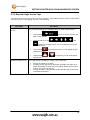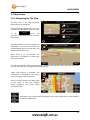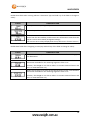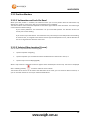
1
TABLE OF CONTENTS
Table of Contents
IMPORTANT NOTICES AND WARNINGS .......................................................... 5
This Documentation.......................................................................................................... 5
Global Positioning System................................................................................................. 5
Precautions ...................................................................................................................... 5
WHAT’S IN THE BOX ....................................................................................... 6
1. GETTING TO KNOW YOUR NAVIG8R GPS .................................................... 6
1.1 Warning ...................................................................................................................... 7
1.2 Before Using Your Navig8r GPS Unit ............................................................................ 7
1.3 Mounting the GPS Unit in Your Vehicle........................................................................ 8
1.4 Connecting the Car Charger ......................................................................................... 8
NAVIGATION .................................................................................................. 9
Before Using the Navig8r Please Read the Following ....................................................... 10
Key Features ................................................................................................................... 10
2. Getting Started With Your Navig8r GPS System ........................................................... 11
2.1 Start Up Screen: The Navigation Menu ...................................................................... 13
2.2 Buttons and Other Controls on the Screen ................................................................. 14
2.2.1 Using Keyboards ......................................................................................................... 15
2.2.2 Beyond Single Screen Taps ......................................................................................... 16
2.3 Map Screen ............................................................................................................... 17
2.3.1 Navigating On The Map .............................................................................................. 17
2.3.2 Position Markers......................................................................................................... 19
2.3.3 Objects on the Map .................................................................................................... 20
2.3.3.2 Turn Preview and Next Street ................................................................................. 20
2.3.4 Manipulating the Map ................................................................................................ 22
2.3.5 Quick Menu ................................................................................................................ 23
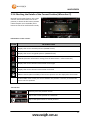
2.3.6 Checking the Details of the Current Position (Where Am I?)..................................... 27
1
TABLE OF CONTENTS
3. NAVIGATION ............................................................................................ 29
3.1 Selecting the Destination of A Route ......................................................................... 29
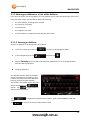
3.1.1 Entering an Address or a Part of the Address ............................................................ 30
3.1.2 Selecting the Destination from the Places of Interest ............................................... 37
3.1.3 Selecting a Map Location as the Destination ............................................................. 47
3.1.4 Selecting the Destination from your Favourites ........................................................ 48
3.1.5 Selecting One of the Most Likely Destinations (Smart History) ................................. 49
3.1.6 Selecting a Recent Destination From the History....................................................... 50
3.1.7 Building a Route from the List of Destinations (Create Route) .................................. 51
3.2 Viewing the Entire Route on the Map ........................................................................ 52
3.3 Checking route parameters and accessing route related functions ............................. 52
3.4 Modifying the Route ................................................................................................. 53
3.4.1 Selecting a New Destination When Already Having a Route: New Route, Waypoint or
Final Destination .................................................................................................................. 53
3.4.2 Setting a New Starting Position for the Route ........................................................... 54
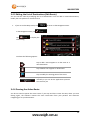
3.4.3 Editing the List of Destinations (Edit Route) .............................................................. 56
3.4.4 Pausing the Active Route ............................................................................................ 56
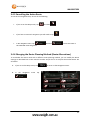
3.4.5 Cancelling the Active Route ........................................................................................ 57
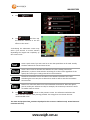
3.4.6 Changing the Route Planning Method (Route Alternatives) ...................................... 57
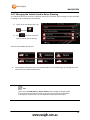
3.4.7 Changing the Vehicle Used in Route Planning ........................................................... 59
3.4.8 Changing the Road Types Used in Route Planning ..................................................... 60
3.5 Saving a Location as a Favourite Destination ............................................................. 61
3.6 Watching the Simulation of the Route ....................................................................... 62
4. REFERENCE GUIDE .................................................................................... 63
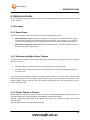
4.1 Concepts ................................................................................................................... 63
4.1.1 Smart Zoom ................................................................................................................ 63
4.1.2 Daytime and Night Colour Themes ............................................................................ 63
4.1.3 Colour Theme in Tunnels ............................................................................................ 63
4.1.4 Route Calculation and Recalculation .......................................................................... 64
4.1.5 Road Safety Cameras and Other Proximity Alert Points ............................................ 66
4.1.6 Speed Limit Warning .................................................................................................. 67
4.1.7 Battery and GPS Position Quality Indicators .............................................................. 67
4.2 'More' Menu ............................................................................................................. 69
4.3 Settings Menu ........................................................................................................... 70
4.3.1 Sound and Warnings................................................................................................... 72
4.3.2 Customise Quick Menu............................................................................................... 74
2
TABLE OF CONTENTS
4.3.3 Traffic Settings ............................................................................................................ 76
4.3.4 Route Settings............................................................................................................. 76
4.3.4.2 Route Planning Method Types ............................................................................. 79
4.3.5 Vehicle Profile ........................................................................................................ 79
4.3.6 Map Settings ............................................................................................................... 81
4.3.7 Visual Guidance Settings ............................................................................................ 82
4.3.8 Display Settings........................................................................................................... 83
4.3.9 Regional Settings ........................................................................................................ 83
4.3.10 Trip Monitor Settings................................................................................................ 84
4.3.11 Log Collection ........................................................................................................... 84
4.3.12 Start Configuration Wizard ....................................................................................... 84
4.3.13 Reset to Defaults ...................................................................................................... 84
5 UPDATING ................................................................................................. 85
6 GLOSSARY ................................................................................................. 86
2D/3D GPS reception ...................................................................................................... 86
Active Route ................................................................................................................... 86
City Centre...................................................................................................................... 86
Colour Theme ................................................................................................................. 86
GPS Accuracy .................................................................................................................. 86
Map................................................................................................................................ 87
North-Up Map Orientation ............................................................................................. 87
Road Safety Camera........................................................................................................ 87
Route ............................................................................................................................. 87
Track-Up Map Orientation .............................................................................................. 87
Vehimarker..................................................................................................................... 87
HARDWARE.................................................................................................. 88
6 MAIN SYSTEM MENU ................................................................................ 89
6.1 GPS ........................................................................................................................... 90
3
TABLE OF CONTENTS
6.2 SYSTEM ..................................................................................................................... 90
6.2.1 Language ..................................................................................................................... 91
6.2.2 Backlight ..................................................................................................................... 91
6.2.3 Power .......................................................................................................................... 91
6.2.4 Sound .......................................................................................................................... 92
6.2.5 Time ............................................................................................................................ 92
6.2.6 Sound .......................................................................................................................... 93
6.2.7 System ........................................................................................................................ 93
6.3 Tools ......................................................................................................................... 94
6.3.1 Calculator .................................................................................................................... 94
6.3.2 Picture Viewer ............................................................................................................ 94
6.4 GPS Test.................................................................................................................... 95
7 TECHNICAL SPECIFICATIONS ...................................................................... 96
T43B ............................................................................................................................... 96
T50B ............................................................................................................................... 96
8 FREQUENTLY ASKED QUESTIONS ............................................................... 97
9 END USER LICENCE AGREEMENT (EULA) .................................................. 102
10 COPYRIGHT NOTE .................................................................................. 106
4
IMPORTANT NOTICES AND WARNINGS
Important Notices and Warnings
This Documentation
Thank you for choosing our product as your navigator. Read the Quick Start Guide first and start
using your device right away. This document is the detailed description of the navigation software
and hardware. You can easily discover the software while you are using it; however, we still
recommend that you read this manual to fully understand the screens and features.
Global Positioning System
The Global Position System (GPS) is a satellite-based system that provides location and timing
information around the globe.
GPS is operated and controlled under the sole responsibility of the Government of the United States
of America, who are responsible for its availability and accuracy. Any changes in GPS availability and
accuracy or in environmental conditions, may affect the operation of your Navig8r. We cannot
accept any liability for the availability or accuracy of GPS.
Precautions
For your safety and the safety of other road users, do not operate the controls of this Navig8r while
driving. Use care when operating the Navig8r. This product is intended to be used only as an aid to
navigate. It is not intended for the precise measurement of direction, distance, or location
topography.
The Calculated routes are for reference only. It is the user’s responsibility to follow all local traffic
regulations and traffic signs when driving. Local conditions and regulations may change at short
notice and may not be included in the software/mapping data of this product.
When leaving your vehicle, do not leave the Navig8r on the dashboard of the car. It should be
removed and placed in a secure place along with the windscreen mount and power cable. Do not
leave the Navig8r in direct sunlight or in an enclosed vehicle when not in use. Overheating of the
battery may cause damage or cause the Navig8r to malfunction. Extreme overheating may cause
the battery to leak.
GPS satellite signals cannot pass through solid materials with the exception of glass. When travelling
through tunnels or inside buildings, such as parking stations, GPS positioning is not available. The
time taken for the Navig8r to re-acquire satellite signals when emerging from tunnels or buildings
may vary and will depend on atmospheric conditions and the environment.
A minimum of four GPS satellite signals is required to determine the Navig8rs current location. Signal
reception can be affected by atmospheric conditions such as; bad weather, thick clouds, solar
activity and dense overhead objects such as trees, tall buildings and large road signs. Wireless
devices can also interfere with satellite reception.
The use of devices with a GPS antenna is prohibited on most aircraft, hospitals and other locations
that contain sensitive equipment. The Navig8r should not be used in these environments.
5
WHAT’S IN THE BOX
What’s in the Box
Unpack the box and identify the contents. You should have the following items:
ITEM DESCRIPTION
1
3
5
The Navig8r GPS unit
Bracket/Windscreen Mount
USB Data Cable
ITEM
2
4
DESCRIPTION
GPS device holder
Car Charger (12v DC)
1. Getting To Know Your Navig8r GPS
ITEM
1
3
5
7
DESCRIPTION
Power Button
Micro SDHC Card Slot (Card not supplied)
Reset button
Speaker
ITEM DESCRIPTION
2
4
6
Face
3.5mm Stereo Earphone Jack
USB Connection Socket
Stylus
LCD Touch screen
6
WARNING
1.1 Warning
This Navig8r GPS should not be used in conditions of high temperature, high humidity or dusty
conditions. We recommend that the Navig8r is not left in direct sunlight for extended periods or left
fitted to the windscreen, dashboard or glove box.
Prolonged exposure to high temperatures may cause the Navig8r to malfunction and may even
cause permanent damage to the Navig8r.
There are no user serviceable parts in this device. Opening the device may cause harm and damage
the device. Any attempt to disassemble this device will void the warranty.
Images, screen shots and features shown in this manual may vary slightly from the actual product.
We reserve the right to make changes to this product without notice.
1.2 Before Using Your Navig8r GPS Unit
Please check the contents of the packaging and ensure that all equipment is located and identified.
The protective screen cover may be left on the device but may impede the viewing of the device in
normal operation.
Connect the Navig8r GPS unit to power source for a period of 24 hours in the first instance to charge
and condition the battery. It may take several charge/discharge cycles for the device to reach peak
endurance. The charging process will take longer if the device is turned on.
Subsequent charging should take less time to complete.
This GPS can only be charged from the PC USB port when the Navig8r is turned OFF.
Once the initial charge has been completed turn the GPS device on. The Navig8r should launch the
Navigation software.
To turn the device off for short periods simply remove the Navig8r from its power supply (or turn the
ignition off). If the navigation software is running the Navig8r will detect the power off and place
itself in sleep mode. When the power is turned back on again the Navig8r will start at the last screen
shown.
The GPS will continue to draw power from the battery in sleep mode and will go flat after 24 to 36
hours.
To turn the GPS off manually or if the device is not to be used for periods longer than two or three
days, simply press the power button for 3 seconds and then tap the shut down option or cancel to
return to the previous screen.
If no option is selected the Navig8r will turn off after 15 seconds.
Prior to using the GPS system for the first time, it is recommended that the touch screen be
calibrated. Please see the system setting instructions further on in this manual.
7
CONNECTING THE CAR CHARGER
1.3 Mounting the GPS Unit in Your Vehicle
Fit the windscreen mount to the holder which you have attached to the rear of the GPS unit and test
mount the GPS on the windscreen of the car. Choose a position that will not obstruct your vision
whilst driving but will also provide the GPS unit the best coverage of the sky through the windscreen.
Loosen the two knobs on the mount to allow movement of the pivot points.
The Navig8r should only be fitted on fixed windows.
Once the best location has been determined, remove the protective film from the suction cap of the
windscreen mount and, on clean glass, fit firmly against the windscreen. Push the tab located on the
top of the suction cup towards the windscreen until it locks in place. For best results it is
recommended that the suction cup be moistened before fitting.
In a normal driving position adjust the GPS to a position that will be in view whilst driving and does
not obstruct your view of the road. Once the correct position has been found tighten the two knobs
on the mount to prevent the GPS moving from vibration. Do not over tighten these knobs.
Changes in temperatures and condensation may cause the suction cup to become loose and should
be checked on a regular basis. To avoid damage or theft, the GPS should not be left on the
windscreen mount overnight.
To remove the mount from the windscreen, take hold of the mount in one hand and use the other to
pull the tab away from the mount. Locate the plastic tab on the side of the suction cup and gently
pull away from the windscreen to break the seal.
N.B: Tinted windows may impede the Navig8rs ability to detect the GPS satellites correctly.
1.4 Connecting the Car Charger
Caution: To protect the GPS against the possibility of damage caused by power surges when the
vehicle is started, the charger should not be connected to the GPS device when the vehicle is
started.
The car charger supplies power to the device when it is being used in the vehicle.
Connect the USB plug to the USB socket of the GPS and then fit the other end in to the
cigarette/power outlet of your vehicle once the vehicle has been started.
The charge light indicator on the GPS should glow when connected to power.
The GPS can now be started by pressing the power button on top of the device for about 3 seconds.
When starting the GPS in the vehicle it may take a short period of time for the system to acquire a
valid GPS signal. Please make sure that the GPS unit has a clear view of the sky and is not impeded
by trees, awnings, car ports or similar obstructions.
8
NAVIGATION
NAVIGATION
9
TABLE OF CONTENTS
Before Using the Navig8r Please Read the Following
Personal Navigation devices are designed to be an aid to navigation only. They are to be used in
conjunction with all local road rules, laws and regulations. It is the responsibility of the driver to
ensure that the vehicle is driven in a safe manner in compliance with these laws.
In most states it is illegal to operate a GPS system while driving a vehicle. When entering information
into the GPS, please pull over safely to the side of the road before using this device. It is better to set
the destination for the GPS before you start on your trip rather than trying to enter it on the move.
When positioning the GPS system on the windscreen of your vehicle, make sure that it is placed in a
position that provides a clear view of the road ahead and ensure the driver does not have to look
away from the road to check the screen.
Please read the hardware section to ensure that all accessories can be identified and you can
assemble the navig8r GPS. Also please read the section on “Mounting the GPS unit in your vehicle”
in the hardware section to ensure that the Navig8r is mounted safely and securely.
The first time the GPS unit is used, or it has not been used for some time, it may take some several
minutes for it to detect the GPS satellites. Restarting the system in the same location should acquire
the signals quickly.
Please read this section carefully.
Key Features
Spoken Street names (TTS)
Speed limits and over speed warnings.*
Driver Safety warnings including School Zone, Black Spots, Fixed location
infringement Cameras, railway crossing and others.**
Intuitive menus.
Huge array of POI (Points Of Interest) data
Simple to use.
*Data included in this software is for guidance only and is only provided as an indicator and does not
cover work works. Not all roads or areas are covered. It is the responsibility to drive with in the
posted speed limit.
**Warnings are provided as an aid to driving only. The data provided in the device may not cover all
points. Please drive according to the conditions and take note of any posted warning signs.
10
GETTING STARTED WITH YOUR NAVIG8R GPS SYSTEM
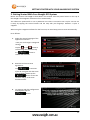
2. Getting Started With Your Navig8r GPS System
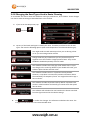
Mount and connect the Navig8r as described in this manual. Press the power button on the top of
the Navig8r. The Navigation software will run automatically.
The software is optimised for in-car or pedestrian use. There is no need to use a stylus. You can use
it easily by tapping the screen buttons and the map with your fingertips. However a stylus is
supplied.
When using the navigation software for the first time, an initial setup process starts automatically.
Do as follows:
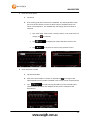
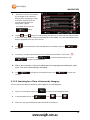
1.
Select the written language of the
application interface.
Later you can change it in Regional
settings.
Tap the
, or the
button to
scroll through the selection. Tap
the
button to
confirm the selection.
2.
Read the End User Licence
Agreement.
Tap
to continue.
If you do not agree with the terms
and conditions please tap the
button to exit the
software and go to the main
hardware menu.
3.
To continue with the configuration
wizard please tap the
button.
11
GETTING STARTED WITH YOUR NAVIG8R GPS SYSTEM
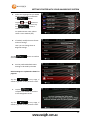
4.
Select the language that you would
like to hear the voice commands
in.
button.
Tap the
, or the
button to
scroll through the selection. Tap
the
button to
confirm the selection.
For Spoken Street name, please
select a voice marked (TTS).
5.
If needed, modify the time format
and unit settings.
Later you can change them in
Regional settings.
Tap the
and continue.
6.
button to confirm
Set the preferred default Route
Settings to be used by the GPS.
Route Settings are explained in detail on
page XX
Tap the
at any stage, if
shown to go back to the previous screen.
7.
Tap the
to
complete the wizard an continue
to the Navigation Screen
Tap the
at any stage, if
shown to go back to the previous screen.
12
GETTING STARTED WITH YOUR NAVIG8R GPS SYSTEM
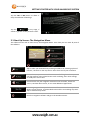
Tap the YES or NO button to allow or
deny the collection of GPS logs.
Tap the
at any stage, if
shown to go back to the previous screen.
2.1 Start Up Screen: The Navigation Menu
The software starts with its main menu, the Navigation Menu. From here you can reach all parts of
the Software
Tap to select your destination by entering an address or selecting a place of
interest, a location on the map and or select from one of your Favourites.
Shows the route parameters and the route in its full length on the map. You
can also perform route related actions such as editing, alter route settings,
or avoid parts of the route.
Customise the way the navigation software works and looks, watch the
Tutorial, simulate demo routes, or run some additional applications.
Start navigating on the map. The button itself is a miniature live map that
shows current position, recommended route and the surrounding map area.
Tap to show full map screen.
Exits the navigation software and go to the Hardware menu.
13
GETTING STARTED WITH YOUR NAVIG8R GPS SYSTEM
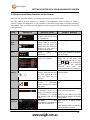
2.2 Buttons and Other Controls on the Screen
When you are using the software, you usually tap buttons on the touch screen.
You only need to confirm selections or changes if the application needs to restart, it needs to
perform a major reconfiguration, or you are about to lose some of your data or settings. Otherwise,
the software saves your selections and applies the new settings without confirmation as soon as you
use the controls.
TYPE
Button
Button
with
value
Icon
List
Radio
Button
Switch
Slider
Virtual
Keyboard
EXAMPLE
DESCRIPTION
Tap it to initiate a function,
to open a new screen, or to
set a parameter.
Some buttons display the
current value of a field or
setting. Tap the button to
change the value. After the
change, the new value is
shown on the button.
Shows
status
or
information.
HOW IT WORKS
Tap it once
Tap to change value.
Some icons function as buttons.
Tap to change
Displayed when Several List can be moved by sliding
options are available.
finger tip up and down the
screen until the list ends or using
the
&
to move between
pages. Tap on the required
selection
and
then
the
conformation button if required.
When there are only a few Tap one of the buttons to select
choices, radio buttons may the new value.
be used instead of lists.
Only one value can be
selected
When there are only two Tap it to turn the switch on or
choices,
a
checkmark off.
shows whether the feature
is enabled.
When a feature can be set Drag the handle to move the
to different values in a slider to its new position.
range, the software shows
an indicator on a gauge Tap the slider where you want
that displays and sets the the handle to appear; the thumb
value.
jumps there.
Alphabetic
and Each key is a touch screen
alphanumeric keyboards to button.
enter text and numbers.
Only available letters or numbers
will be available to touch
14
GETTING STARTED WITH YOUR NAVIG8R GPS SYSTEM
2.2.1 Using Keyboards
You only need to enter letters or numbers when you cannot avoid it. You can type with your
fingertips on the full-screen keyboards and you can switch between various keyboard layouts, for
example English, Greek or numerical.
TASK
Switching to another keyboard layout, for
example from an English keyboard to a
Greek keyboard
INSTRUCTION
Tap the
button and select the
new keyboard layout from the list.
Correcting your entry on the keyboard
Tap
to remove the unneeded character(s).
Tap and hold the button to delete several characters
or the entire input string.
Entering a space, for example between a
first name and a family name or in multiword street names
Tap the
screen.
button at the bottom centre of the
Entering numbers and symbols
Tap
to switch to a keyboard offering numeric
and symbol characters.
Finalising the keyboard entry (accepting the
suggested search result)
Finalising the keyboard entry (opening the
list of search results)
Finalising the keyboard entry (saving your
input)
Cancelling the keyboard entry (returning to
the previous screen)
Tap
Tap
Tap
Tap
15
GETTING STARTED WITH YOUR NAVIG8R GPS SYSTEM
2.2.2 Beyond Single Screen Taps
You usually need to tap the screen only once. However, some useful features can be accessed with
combined touch screen tapping. Those are the following:
ACTION
Tapping and holding the
screen
DETAILS
Tap and keep pressing the following buttons to reach extra functions:
•
Tap and hold
Map screen appears.
on list and menu screens: the
•
Tap and hold any of the
,
,
,
,
, and
buttons on the Map screen: you can rotate, tilt or scale the
map continuously.
Gestures (drag & drop)
•
Tap and hold
characters quickly.
on keyboard screens: you can delete several
•
Tap and hold
continuously.
or
in long lists: you can scroll pages
You need to drag and drop the screen only in cases like:
•
•
•
Moving the handle on a slider.
Scrolling the list: grab the list anywhere and slide your finger up or
down. Depending on the speed of the sliding, the list will scroll fast
or slow, only a bit or till the end.
Moving the map in map browsing mode: grab the map, and move it
in the desired direction.
16
MAP SCREEN
2.3 Map Screen
2.3.1 Navigating On The Map
The Map screen is the most frequently
used screen of the software.
A small live map is displayed on the startup screen, the Navigation menu, as a part
of the
button. Tap
anywhere in this area to show the Main
Map screen.
This map shows the current position (the
Vehimarker, a red arrow by default), the
recommended route (an orange line), and
the surrounding map area.
When there is no GPS position, the
Vehimarker is transparent. It shows your
last known position.
You see coloured dots circling around a satellite symbol in the top left corner. The more green dots
you see, the closer you are to get the valid GPS position.
When GPS position is available, the
Vehimarker is displayed in full colour,
now showing your current position.
There are screen buttons and data fields
on the screen to help you navigate.
During navigation, the screen shows
route information.
By default, only one data field is displayed in the bottom right corner. Tap this field to
see all route data fields.
17
MAP SCREEN
Default data fields when cruising without a destination (tap and hold any of the fields to change its
value):
FIELD
DESCRIPTION
Shows your current speed given by the GPS receiver.
Shows the speed limit of the current road if the map contains it.
Shows the current time corrected with time zone offset. The accurate time
comes from the GPS satellites, and the time zone information comes from the
map or it can be set manually in Regional settings.
(The current time is always displayed in the top left corner of menu screens.)
Default data fields when navigating a route (tap and hold any of the fields to change its value):
FIELD
DESCRIPTION
Shows the distance you need to travel on the route before reaching your
final destination.
Shows the time needed to reach the final destination of the route based on
information available for the remaining segments of the route.
However, the Navig8r is not able to take in to account external factors and
this is an estimated time only.
Shows the estimated arrival time at the final destination of the route based on
information available for the remaining segments of the route.
However, the Navig8r is not able to take in to account external factors and
this is an estimated time only.
18
MAP SCREEN
2.3.2 Position Markers
2.3.2.1 Vehimarker and Lock-On-Road
When your GPS position is available, the software marks your current position with the Vehimarker. By
default, this marker is a blue arrow, but you can change this icon in Settings.
The exact location of the Vehimarker depends on the vehicle type used for route calculation. The vehicle type
can be selected in Route settings.
If you choose pedestrian: The Vehimarker is at your exact GPS position. The direction of the icon
shows your current heading.
If you choose any of the vehicles: The Vehimarker may not show your exact GPS position and heading.
If roads are near, it is aligned to the nearest road to suppress GPS position errors, and the direction of
the icon is aligned to the direction of the road.
2.3.2.2 Selected Map Location (Cursor)
You can mark a map location in the following ways:
•
Tap the map when navigating,
•
Tap the map when you are asked to confirm the destination at the end of a search, or
•
Tap the map in Find on Map (page 47)
When a map location is selected, the Cursor appears at the selected point on the map. The Cursor is displayed
with a radiating red dot (
) to make it visible at all zoom levels.
The location of the Cursor can be used as the destination of the route, you can search for Places around it, or
you can save this location as one of your Favourite destinations.
19
MAP SCREEN
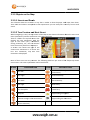
2.3.3 Objects on the
he Map
2.3.3.1 Streets and
nd Roads
The software shows the streets in a way that is similar to how the paper road maps show them.
Their width and colours correspond to their importance: you can easily tell a motorway from a small
street.
2.3.3.2 Turn Preview
review and Next Street
When navigating a route, the top section of the Map screen sshows
hows information about the next route
event (manoeuvre) and the next street or the next city/town
city/town.
There is a field in the top left corner that
displays the next manoeuvre. Both the
type of the event (turn, roundabout,
exiting motorway, etc.) and its dista
distance
from the current position are displayed.
A smaller icon shows the type of the
second next manoeuvre if it is near the
first one. Otherwise, only the next
manoeuvre is displayed.
Most of these icons are very intuitive. The following table lists just some of the frequently shown
route events. The same symbols are used in both fields:
ICON
DESCRIPTION
ICON
DESCRIPTION
Turn left.
Enter roundabout (second next
manoeuvre)
Turn right.
Enter motorway.
Turn back.
Exit motorway.
Bear right.
Board ferry.
Turn sharp left.
Leave ferry.
Keep left.
Approaching a waypoint.
Continue straight in the intersection.
Approaching the destination.
Go left on the roundabout, 3rd exit
(next manoeuvre).
20
MAP SCREEN
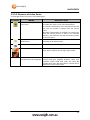
2.3.3.3 Elements of Active Route
Your Navig8r shows the route in the following way:
SYMBOL
NAME
DESCRIPTION
Current GPS position and Your current position displayed on the map.
Start point
In pedestrian mode it is the exact GPS position.
If a vehicle is selected for route calculation and roads
are near, the symbol is snapped onto the nearest
road.
Normally if GPS position is available, the route starts
from the current position. If there is no valid GPS
position, your software uses the last known position
as the start point.
Waypoint
(intermediate An intermediate destination of the route before
destination)
reaching the final destination.
Destination (end point)
The final destination of the route.
Route colour
The route always stands out with its colour on the
map, both in daytime and in night colour mode.
Streets and roads that are You can choose whether you want to use or avoid
excluded from the navigation certain road types (pageXX). However, when your
software cannot avoid such roads, the route will
include them and it will show them in a colour that is
different from the route colour.
21
MAP SCREEN
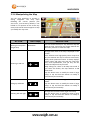
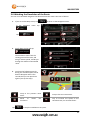
2.3.4 Manipulating the Map
Tap the map anywhere to browse it
during navigation. The map stops
following the current position (the
Vehimarker, a red arrow by default, is not
locked in a fix position on the screen any
more) and control buttons appear to help
you modify the map view.
ACTION
Moving the map with
drag & drop
BUTTON(S)
No buttons
Zooming in and out
Tilting up and down
Rotating left and right
,
DESCRIPTION
You can move the map in any direction: tap and
hold the map, and move your finger towards the
direction you want to move the map.
Changes how much of the map is displayed on the
screen.
Your software uses high-quality vector maps that
let you examine the map at various zoom levels,
always with optimised content. It always displays
street names and other text with the same font
size, never upside-down, and you only see the
streets and objects that you need.
Map scaling has a limit in 3D map view mode. If
you zoom out further, the map switches to 2D
view mode.
Tap the button once to modify the view in large
steps, or tap and hold the button to modify it
continuously and smoothly.
Changes the vertical view angle of the map in 3D
mode.
Tap the button once to modify the view in large
steps, or tap and hold the button to modify it
continuously and smoothly.
,
,
Changes the horizontal view angle of the map.
Tap the button once to modify the view in large
steps, or tap and hold the button to modify it
continuously and smoothly.
22
MAP SCREEN
2D or 3D view
,
Compass in 2D map
view mode
,
Compass in 3D map
view mode
,
Location information
Return to
navigation
normal
Additional options
Select destination
Tap this button to switch between the 3D
perspective and 2D top-down map view modes.
The direction of the compass shows North. Tap
the button to switch to North-up view, and then
tap again to rotate the map in the previous
direction.
The direction of the compass shows North. Tap
the button to switch to North-up view, and then
tap again to rotate the map in the previous
direction.
Tap this button to open a new screen with
information about the selected map point, the
Cursor.
Tap this button to move the map back to follow
the current GPS position. Automatic map rotation
is also re-enabled.
The map manipulation buttons disappear and
navigation continues.
Tap this button to open a list of additional
features like saving the Cursor as a Favourite
destination, or searching for Places around the
Cursor.
Tap this button to select the Cursor as a new
destination. The route is automatically calculated.
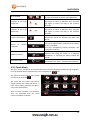
2.3.5 Quick Menu
The Quick menu is a selection of controls and functions that are frequently needed during navigation.
icon.
It can be opened directly from the Map screen by tapping the
The menu will close after a few seconds
of inactivity or if you tap
.
The menu will also close if you initiate
simple controls like muting the device. In
other cases tapping a button will open a
new screen with options.
Most of these functions are shortcuts.
They are accessible from the menu
system. See below for details.
23
MAP SCREEN
The buttons and their functions on this screen are the following:
BUTTON
Master Volume
slider
,
DESCRIPTION
SHORTCUT FOR
Tap this button to return to the Map screen.
n/a
Adjusts the sound volume of the device. All sounds of
the application are affected.
The loudness of your software is independent of your
device settings. When you exit navigation, the device
default settings return.
More / Settings / Sound
and Warnings / Volume
/ Master slider
Use the switch to mute all sounds of the device and then
to re-enable them again.
More / Settings / Sound
and Warnings / Volume
/ Master switch
Tap this button to search for a Place along your route or
around your current location if there is no route
calculated.
Find / Find Places /
Quick Search
Tap this button to select one of your Favourite
destinations.
Find / Favourite
Tap this button to select one of your previous
destinations in the History list.
Find / History
Tap this button to edit the route.
My Route / Edit Route
Tap this button to change route related settings.
More / Settings / Route
Settings
Tap this button to change map related settings.
More / Settings / Map
Settings
This button opens a special screen with information
about the current position and a button to search for
nearby emergency or roadside assistance.
n/a
Tap this button to cancel the route and stop navigating.
This button is available when only one destination is
given.
My Route / Cancel
Route
Tap this button to skip the next waypoint from the
route. This button replaces the previous one if more
destinations are given.
n/a
24
MAP SCREEN
In Settings, you can replace the buttons of the Quick menu to other functions. The following options
are available:
BUTTON
DESCRIPTION
SHORTCUT FOR
Displays a list of addresses that been
saved as favourites.
Find/Favourites
This function opens a 2D map scaled
and positioned to show the entire
route.
My Route / Overview
With this function you can search for
Places of Interest in various different
ways.
Find / Find Places
Change the way the map screen and
the type of information is displayed
More / Settings / Map
settings
This function opens the Visual
Guidance settings screen.
More / Settings / Visual
Guidance
This function lets you bypass parts of
the recommended route.
My Route / Avoidances
Cancel current route or remove a
waypoint from trip.
My Route / Cancel Route
This function opens the Trip Monitor
screen where you can manage your
previously saved trip logs and track
logs.
More / Trip Monitor
Displays information about current
location.
N/A
Create or Edit a route
My Route/Create Route
This function opens the list of
manoeuvres (the itinerary).
Tap the top of the Map
screen during navigation.
25
MAP SCREEN
Adjust the type of vehicle being
driven so routes are calculated
accordingly.
More / Settings / Route
Settings / Vehicle
Save the current route for later use.
More / My Route / More /
Save Route.
Load a saved route
More / My Route / More /
Load Route.
Displays the destination history
Find / History
Change the way the software
calculates the route
More / Settings ?route
Settings
With this function you can search for
Places of Interest in various different
ways.
Find / Find Places
This function opens the Map screen
and starts simulating the active
route.
My Route / More /
Simulate Navigation
This function opens the GPS
Information screen with satellite
position and signal strength
information.
Tap the top of the Map
screen when there is no
GPS reception
Set the time allowed commercial
drivers can drive so warnings can be
issued if exceeded.
More / Settings/ Driving
time management
When selecting the options to populate
the Quick Menu, those options that are
already used will be denoted with a tick.
Only one occurrence of each can be
displayed.
Please tap the
button to
return to the previous screen
26
MAP SCREEN
2.3.6 Checking the Details of the Current Position (Where Am I?)
Opened from the Quick menu, this screen
contains information about the current
position (or about the last known position
if GPS reception is not available) and a
button to search for useful Places nearby.
Information on this screen:
ICON
DESCRIPTION
Displays the current Latitude position (WGS84 format)
Displays the current Longitude position (WGS84 format)
Altitude (elevation information coming from the GPS receiver - often inaccurate)
Displays the current known house number on the right
Displays the current known house number on the left
Address details (when available) of the current position are also displayed at the bottom.
In the middle of the screen you can see whether the position is current, or the time left
since it was last updated.
You can also
Returns you to the previous screen
Tap to save current position as a Favourite
Tap to find Quick Search for nearby services.
27
MAP SCREEN
The following services can be searched around the current position or the last known position:
Tap to display the nearest car
repair centres
Tap to display the nearest
Medical and Emergency services
Tap to display the nearest police
stations
Tap to display the nearest fuel
filling stations.
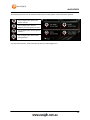
Tap any of the buttons, select a Place from the list, and navigate to it.
28
NAVIGATION
3. Navigation
You can set up your route in different ways:
•
If you need a route for immediate navigation, you can select the destination and start
navigating to it right away (normal navigation).
•
You can also plan a route independently of your current GPS position or even without GPS
reception (to achieve this, you need to turn off the GPS receiver and set a new starting point
in My Route / Edit Route by tapping the flag icon at the current position).
You can plan routes with multiple destinations. Select the first destination. Then select a second
destination ad add it to your route to create a multi-point route. You can add as many destinations
to your route as you like.
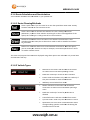
3.1 Selecting the Destination of A Route
The software offers you several ways of choosing your destination:
•
Enter a full address or a part of an address, for example a street name without a house
number or the names of two intersecting streets.
•
Enter an address with postal code. This way you do not need to select the name of the
settlement and the search for street names might be faster as well.
•
Use a built-in Place of Interest as your destination.
•
Select a location on the map with the Find on Map feature.
•
Use a previously saved Favourite destination.
•
Select a location from the History of previously used destinations.
•
Enter the coordinate of the destination.
•
Use the location where a photo was taken.
29
NAVIGATION
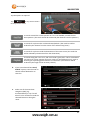
3.1.1 Entering an Address or a Part of the Address
If you know at least a part of the address, it is the quickest way to select the destination of the route.
Using the same screen, you can find an address by entering:
•
the exact address, including house number
•
the centre of a city/town
•
an intersection
•
the midpoint of a street
•
any of the above, starting the search with the postal code
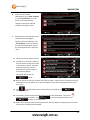
3.1.1.1 Entering an Address
To enter an address as the destination, do as follows
1.
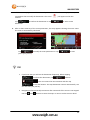
If you are in the map screen tap
to return to the Navigation Menu.
2.
In the Navigation menu tap
and then tap
3.
Tap the Country button to select the State your destination is in or to change between
Australia and New Zealand.
•
Using the Keyboard
.
The Key pad will only show the available
letters or numbers in any selection. The
number will reduce after each additional
letter or number has been typed in.
The number of available results (less than
300) is displayed on the
button. Tap
/ to toggle between
alpha/numeric keyboards.
Tap
others.
Tap
to display the keyboard layout options. Style included QWERTY, ABC and
at any time to return to the previous screen.
30
NAVIGATION
Tap the
, or the
button to scroll
through the selection.
Tap on the required county or state
Tap
at any time to return to
the previous screen.
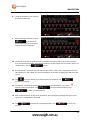
4.
Select the town or suburb
a. Tap the Town/Suburb button to enter the town or suburb of your destination. Your
current location or the last know GPS location is displayed by default.
b. Use the keyboard to enter the name of the suburb or town. As above only the
available letters are active on the keyboard. The available key will change after each
letter is selected.
If the correct suburb name is shown tap
Tap
Tap
to continue.
to display the results and select from the list.
at any time to return to the previous screen.
31
NAVIGATION
1. Enter the street Name.
a. Tap Street
b. Start entering the Street name on the keyboard. Use the keyboard to enter
the name of the suburb or town. As above only the available letters are
active on the keyboard. The available key will change after each letter is
selected.
•
The most likely street name is always shown in the input field. To
accept, tap
•
Tap
•
Tap
to continue.
to display the results and select from the list.
at any time to return to the previous screen.
2. Enter the house number
a. Tap Street Number
b. Enter the house number. If a letter is required tap
to change to the
alpha keyboard. Only numbers available in the chosen street can be entered.
c. Tap
to finish entering the address. (If the entered house
number cannot be found, the midpoint of the street is selected as the
destination.)
32
NAVIGATION
3. A full screen map appears with the selected point in the middle. If necessary, tap the map
somewhere else to modify the destination. The cursor (
location.
Tap
destination.
) will appear at the new
to confirm the destination or tap
to select a new
4. After a short summary of the route parameters, the map appears showing the entire route.
The route is automatically calculated
Tap
to modify the route parameters or tap
you’re your journey.
to start
TIP!
•
If you know that you will use the destination frequently, before tapping
to confirm the destination, tap
and then
. You can rename the new Favourite and then tap
to save the location. The map destination returns automatically. You
can now start your journey.
•
Navigation will automatically commence after 10 seconds if the screen is not tapped.
Use the
, and
buttons to zoom the map in or out to see the route in detail.
33
NAVIGATION
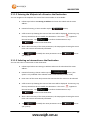
3.1.1.2 Entering the Midpoint of a Street as the Destination
You can navigate to the midpoint of a street if the house number is not available:
1. Follow steps laid out in Entering an Address and enter the suburb and the street
address.
2. Instead of entering a house number tap the
button,
3. A full screen map showing the centre of the street will be displayed. If necessary, tap
the map somewhere else to modify the destination. The cursor (
the new location. Tap
) appears at
to confirm the destination or tap
to select a new destination.
4. After a short summary of the route parameters, the map appears showing the entire
route. The route is automatically calculated.
5. Tap
your journey.
to modify the route parameters or tap
to start
3.1.1.3 Selecting an Intersection as the Destination
You can also enter an intersection as the destination:
1. Follow steps laid out in Entering an Address and enter the suburb and the street
address.
2. Instead of entering a house number tap the
button. (This
option is only available if the selected street is intersected by another road.)
3. Enter name of the street. Only streets that intersect the first street can be selected.
4. A full screen map showing the centre of the street will be displayed. If necessary, tap
the map somewhere else to modify the destination. The cursor (
the new location. Tap
) appears at
to confirm the destination or tap
to select a new destination.
5. After a short summary of the route parameters, the map appears showing the entire
route. The route is automatically calculated.
6. Tap
your journey.
to modify the route parameters or tap
to start
34
NAVIGATION
3.1.1.4 Selecting a City/Town Centre as the Destination
The centre of a town or suburb can also be selected:
1. Follow steps laid out in Entering an Address and enter the suburb.
2. Enter name of the Town or suburb to be used as the destination and tap
.
3. Instead of selecting a street address tap the
button. (This option will
not be available if a street has been selected as a destination.
4.
A full screen map showing the centre of the street will be displayed. If necessary,
tap the map somewhere else to modify the destination. The cursor (
at the new location. Tap
) appears
to confirm the destination or tap
to select a new destination.
5. After a short summary of the route parameters, the map appears showing the entire
route. The route is automatically calculated.
6. Tap
your journey.
to modify the route parameters or tap
to start
3.1.1.5 Entering an Address with a Postal Code
Postcodes can also be used as a search option
1. Follow steps laid out in 3.1.1.1 to enter the suburb.
2. Tap the button to change to the numeric keypad and enter the postcode of the
suburb or area.
•
The most likely postal code is always shown in the input field. To accept, tap
.
•
Tap the
after entering a number to display the list of the
remaining possible postcodes. Tap the
, or the
button to scroll
through the selection and tap on the correct postcode
3. Select the Street and house number as described earlier.
35
NAVIGATION
4.
A full screen map showing the centre of the street will be displayed. If necessary,
tap the map somewhere else to modify the destination. The cursor (
at the new location. Tap
) appears
to confirm the destination or tap
to select a new destination.
5. After a short summary of the route parameters, the map appears showing the entire
route. The route is automatically calculated.
6. Tap
your journey.
to modify the route parameters or tap
to start
3.1.1.6 Tips on Entering Addresses Quickly
•
When you are entering the name of a city/town or a street:
•
Only letters that are in possible search results are offered on the keyboard. All other
characters are greyed out.
•
As you are typing, the most likely result is always displayed in the input field. If the
guess is correct, tap
•
•
to select it.
After entering a couple of letters, tap
specified letters.
to list the items that contain the
You can speed up finding an intersection:
•
Search first for the street with a less common or less usual name; fewer letters are
enough to find it.
•
If one of the streets is shorter, search for that one first. The second street will be found
faster.
•
You can search for both the type and the name of a road. If the same word appears in several
names, for example in the name of streets, roads and avenues, you can obtain the result
faster if you enter the first letter of the street type: For example, enter 'PI [space] A' to obtain
Pine Avenue and skip all Pine Streets and Pickwick Roads.
•
You can also search in postal codes. As postal codes consist of only a few characters, this is
usually faster than entering the name of the city/town. Postcode searches also help in cases
of “Preferred Suburbs” and actual suburbs when looking for addresses.
36
NAVIGATION
3.1.2 Selecting the Destination from the Places of Interest
You can select your destination from the Places of Interest included with your software.
Using the same screen, you can find a Place in different ways:
•
with the Quick search feature, you can quickly find a nearby Place by its name
•
with the Preset search feature, you can find frequently searched types of Places with only a
few screen taps
•
you can search for a Place by its category
•
you can search for a Place by its name
In addition, you can search for special services from the 'Where Am I?' screen.
3.1.2.1 Quick Search for a Place of Interest
The Quick search feature lets you quickly find a Place by its name. The search is always carried out
•
Along the recommended route if it exists or
•
Around your current location if there is no destination given.
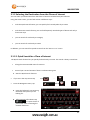
1. Start the Quick search function:
•
If you are in the map screen tap
•
From the Navigation menu, tap
and then tap
, then
. .
, and then
2. Using the keyboard, start entering
the name of the place you are
looking for.
3.
After entering a few letters tap
.
To open the list of
places with name containing the
entered characters.
37
NAVIGATION
4. The Places in the list are ordered
by the length of the necessary
detour (when navigating a route)
or by their distance from the
current position (when no
Destination is given).
To reorder the list tap the
button.
5. Tap the
, or the
button to scroll through the selection and then tap the required place.
A full screen map appears with the selected point in the middle. The name and address of the
Place is displayed at the top of the screen.
6. Tap
to see the details of the selected Place (if included). Tap
return to the map.
to
7. If necessary, tap the map somewhere else to modify the destination. The cursor (
appears at the new location. Tap
)
to confirm the destination or tap
to select a new destination.
8. After a short summary of the route parameters, the map appears showing the entire route.
The route is automatically calculated.
9. Tap
journey.
to modify the route parameters or tap
to start your
3.1.2.2 Searching for a Place of Interest Using Preset Categories
The Preset search feature lets you quickly find the most frequently selected types of Places.
1.
If you are on the Map screen, tap
to return to the Navigation menu.
2.
In the Navigation menu, tap
and then
.
38
NAVIGATION
3.
Preset search categories are
displayed.
Please select form the following.
• If an active route exists
• If there is no active route (destination is not selected), they are
searched around the current position
• If the current position is not available either (no GPS signal), they
are searched around the last known position
• If an active route exists
• If there is no active route (destination is not selected), they are
searched around the current position
• If the current position is not available either (no GPS signal), they
are searched around the last known position
• If an active route exists
• If there is no active route (destination is not selected), they are
searched around the current position
• If the current position is not available either (no GPS signal), they
are searched around the last known position
• If an active route exists
• If there is no active route (destination is not selected), they are
searched around the current position
• If the current position is not available either (no GPS signal), they
are searched around the last known position
39
NAVIGATION
4.
The Places in the list are ordered
by the length of the necessary
detour (when navigating a route)
or by their distance from the
current position (when no
Destination is given).
To reorder the list tap the
button.
5.
Tap the
, or the
button to scroll through the selection and then tap the required place.
A full screen map appears with the selected point in the middle. The name and address of the
Place is displayed at the top of the screen.
6.
Tap
the map.
7.
If necessary, tap the map somewhere else to modify the destination. The cursor (
to see the details of the selected Place (if included). Tap return
appears at the new location. Tap
to
)
to confirm the destination or tap
to select a new destination.
8.
After a short summary of the route parameters, the map appears showing the entire
route. The route is automatically calculated.
9.
Tap
journey.
to modify the route parameters or tap
to start your
3.1.2.3 Searching for a Place of Interest by Category
You can search for Places of Interest by their categories and subcategories.
1.
If you are on the Map screen, tap
to return to the Navigation menu.
2.
In the Navigation menu, tap
then
3.
Select the area around which the Place should be searched for:
and then
40
NAVIGATION
Tap the options as required.
Tap
at any time to return
to the previous screen
To search around the current position or if it is not available, around the last
know position. (The result list will be ordered by the distance from this position.)
To search for a place within a selected Town/Suburb. (The result list will be
ordered by the distance from the centre of the selected city/town.)
To search for a place around the destination of the active route. (The result list
will be ordered by the distance from the destination.)
To search along the active route, and not around a given point. This is useful when
you search for a later stopover that may result in a minimal detour only, such as
searching for upcoming petrol stations or restaurants. (The result list will be
ordered by the length of the necessary detour.)
4.
If you have selected “in a town/
Suburb” option, enter the town or
suburb as described earlier to
search in.
5.
Select one of the main Place
categories (POI) (e.g.
Accommodation) or tap “List All
Places” to list all Places around the
selected location or along the
route.
41
NAVIGATION
6.
Select one of the Place
subcategories (e.g. Hotel or Motel)
or tap “List All Places” to list all
Places in the selected main
category around the selected
location or along the route.
7.
Sometimes the list of brands in the
selected Place subcategory
appears. Select one brand or tap
“List All Places” to list all Places in
the selected subcategory around
the selected location or along the
route.
8. Finally, the results appear in a list.
9. The Places in the list are ordered
by their distance from the current
or last known position, from the
selected city/town, from the
destination or by the length of
the necessary detour.
To reorder the list tap the
button.
10. Browse the list if necessary and tap one of the list items. A full screen map appears with the
selected point in the middle. The name and address of the Place is displayed at the top of
the screen.
11. Tap
to see the details of the selected Place (if included). Tap
return to the map.
12. If necessary, tap the map somewhere else to modify the destination. The cursor (
appears at the new location. Tap
to
)
to confirm the destination or tap
to select a new destination.
13. After a short summary of the route parameters, the map appears showing the entire route.
The route is automatically calculated.
42
NAVIGATION
14. Tap
journey.
to modify the route parameters or tap
to start your
3.1.2.4 Searching for a Place of Interest by Name
You can search for Places of Interest by their names. You can search around different locations or
along your route in the whole Place database or in one Place category or subcategory only.
1.
If you are on the Map screen, tap
to return to the Navigation menu.
2.
In the Navigation menu, tap
then
3.
Select the area around which the Place should be searched for:
and then
Tap the options as required.
Tap
at any time to
return to the previous screen
To search around the current position or if it is not available, around the last
know position. (The result list will be ordered by the distance from this position.)
To search for a place within a selected Town/Suburb. (The result list will be
ordered by the distance from the centre of the selected city/town.)
To search for a place around the destination of the active route. (The result list
will be ordered by the distance from the destination.)
To search along the active route, and not around a given point. This is useful when
you search for a later stopover that may result in a minimal detour only, such as
searching for upcoming petrol stations or restaurants. (The result list will be
ordered by the length of the necessary detour.)
43
NAVIGATION
4.
If you have selected “in a town/
Suburb” option, enter the town or
suburb as described earlier to
search in.
5.
Tap the
button to
search in all Places, or select one of
the main place categories (e.g.
Accommodation) to search in.
6.
Tap the
button to
search in the selected Place
category or select one of the Place
subcategories (e.g. Hotel or Motel)
to search in.
7.
Tap
done it before
if you have not
44
NAVIGATION
8.
Using the keyboard, start entering
the name of the Place.
9.
After entering a few letters, tap to
open the list of
Places with names containing the
entered character sequence.
10. The Places in the list are ordered by their distance from the current or last known position,
from the selected city/town, from the destination or by the length of the necessary detour. To
reorder the list, tap the
button.
11. Browse the list if necessary and tap one of the list items. A full screen map appears with the
selected point in the middle. The name and address of the Place is displayed at the top of the
screen.
12. Tap
to see the details of the selected Place (if included). Tap
to return to the map.
13. If necessary, tap the map somewhere else to modify the destination. The cursor (
appears at the new location. Tap
)
to confirm the destination or tap
to select a new destination.
14. After a short summary of the route parameters, the map appears showing the entire route.
The route is automatically calculated.
15. Tap
journey.
to modify the route parameters or tap
to start your
45
NAVIGATION
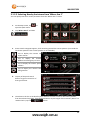
3.1.2.5 Selecting Nearby Assistance from 'Where Am I?'
You can quickly search for nearby assistance from the 'Where Am I?' screen.
1.
On the Map screen, tap
open the Quick menu.
2.
Tap “Where Am I?” and then
3.
Preset search categories appear, all for searching around the current position (or around the
last known position if the current position is not available):
to
Tap to display the nearest car
repair centres
Tap to display the nearest
Medical and Emergency services
Tap to display the nearest police
stations
Tap to display the nearest fuel
filling stations.
4.
Tap any of the quick search
buttons to get an instant list of
that type of Place.
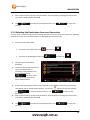
5.
The Places in the list are ordered by their distance from the current or last known position,
from the selected city/town, from the destination or by the length of the necessary detour. To
reorder the list, tap the
button.
46
NAVIGATION
6.
Browse the list if necessary and tap one of the list items. A full screen map appears with the
selected point in the middle. The name and address of the Place is displayed at the top of the
screen.
7.
Tap
to see the details of the selected Place (if included). Tap
to return to the map.
8.
If necessary, tap the map somewhere else to modify the destination. The cursor (
appears at the new location. Tap
)
to confirm the destination or tap
to select a new destination.
9.
After a short summary of the route parameters, the map appears showing the entire route.
The route is automatically calculated.
10. Tap
journey.
to modify the route parameters or tap
to start your
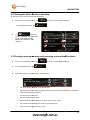
3.1.3 Selecting a Map Location as the Destination
1.
If you are on the Map screen, tap
to return to the Navigation menu.
2.
In the Navigation menu, tap
then
3.
The map is displayed showing your
or you last known location.
4.
Locate your destination on the
map: move and scale the map as
needed
5.
Tap the location that you want to select as your destination. The Cursor (
) appears. The
details in the top bar will automatically update to the selected location.
6.
Tap
to select the Cursor as the destination.
47
NAVIGATION
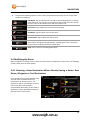
7.
After a short summary of the route parameters, the map appears showing the entire route.
The route is automatically calculated.
8.
Tap
journey.
to modify the route parameters or tap
to start your
3.1.4 Selecting the Destination from your Favourites
You can select a location that you have already saved as a Favourite to be your destination. Adding a
location to the list of Favourite destinations is described later in this manual.
1.
Access the list of Favourites:
•
If you are in the map screen, tap
•
If you are in the Navigation menu tap
2.
The list of Favourites will be
displayed.
3.
Tap the Favourite that you want to
set as your destination. If
necessary, browse down to see
more of the list or tap
and then tap
.
and then tap
.
and enter a few
letters from the name of the
Favourite destination.
4.
A full screen map appears with the selected point in the middle. If necessary, tap the map
somewhere else to modify the destination. The cursor (
Tap
destination.
to confirm the destination or tap
) appears at the new location.
to select a new
5.
After a short summary of the route parameters, the map appears showing the entire route.
The route is automatically calculated.
6.
Tap
journey.
to modify the route parameters or tap
to start your
48
NAVIGATION
3.1.5 Selecting One of the Most Likely Destinations (Smart History)
The destinations that you have set earlier appear in the History list. Two of those recent destinations
are shown in the Destination menu for easy access. Smart History offers these locations based on your
navigation habits, using parameters like the current time of day, the day of week, and the current
location. The more you use the navigation software, the better it can guess your desired destination.
1.
If you are on the Map screen, tap
2.
In the Navigation menu, tap
3.
Tap
or
destination in
the History field.
4.
A full screen map appears with the selected point in the middle. If necessary, tap the map
to return to the Navigation menu.
somewhere else to modify the destination. The cursor (
Tap
destination.
to confirm the destination or tap
) appears at the new location.
to select a new
5.
After a short summary of the route parameters, the map appears showing the entire route.
The route is automatically calculated.
6.
Tap
journey.
to modify the route parameters or tap
to start your
49
NAVIGATION
3.1.6 Selecting a Recent Destination From the History
The destinations that you have set earlier appear in the History.
1.
Access the History:
•
If you are in the map screen, tap
•
If you are in the Navigation menu tap
and then tap
.
and then tap
.
2.
The list of recent destinations
appears. Smart History promotes
three destinations to the first page
based on your previous routes
(most likely destinations). The rest
of the destinations are ordered by
time they were last selected. If
necessary, scroll the list to see
earlier destinations
3.
A full screen map appears with the selected point in the middle. If necessary, tap the map
somewhere else to modify the destination. The cursor (
Tap
destination.
to confirm the destination or tap
) appears at the new location.
to select a new
4.
After a short summary of the route parameters, the map appears showing the entire route.
The route is automatically calculated.
5.
Tap
journey.
to modify the route parameters or tap
to start your
50
NAVIGATION
3.1.7 Building a Route from the List of Destinations (Create Route)
You can also build your route destination by destination from the My Route menu.
1.
If you are on the Map screen, tap
2.
In the Navigation menu, tap
3.
Tap
4.
There is only one line in the list of
route points, the start point of the
route, normally the current GPS
position.
5.
Tap
6.
Destination menu appears and you
can select the destination of the
route the same way as described in
the previous sections.
7.
When the new destination is
selected, the list returns.
8.
To add more destinations, tap
to return to the Navigation menu.
.
.
to select the destination.
where you want to insert the
new route point in the list, and
repeat the above procedure.
51
NAVIGATION
3.2 Viewing the Entire R
Route on the Map
An overview of eth active route can be displayed:
1.
If you are on the Map screen
screen, tap
to return to the Navigation menu.
In the Navigation menu, tap
2.
.
Tap
, The active
route is displayed in its full length
on the map together with
additional information and
controls.
3.3 Checking route parameters and accessing route related functions
1.
If you are on the Map screen
screen, tap
2.
In the Navigation menu, tap
3.
The following pieces of information are displayed:
to return to the Navigation menu.
.
•
The name and/or
d/or address of the destination.
•
Warning icons (if any). They provide extra information about your route (e.g. unpaved
roads or toll roads to be taken).
•
The total time of the route.
•
The total length of the route.
•
Estimated delay calculated from traffic eve
events on your route.
•
The symbol of the vehicle type used in route calculation.
•
The route planning method (e.g. Fast).
52
NAVIGATION
4.
You have the following options on this screen (for detailed instructions on how to use them,
see the next chapter):
Edit Route: Tap to edit the route: to add or remove destinations or change
their sequence. You can also set a route start point other than your current
location. This can be useful to plan and save a future trip.
Overview: Tap to display the entire route on the map.
Avoidance: Tap to bypass a part of the route.
Cancel Route: Tap to delete the active route
More: Tap to open a list with more options like selecting from route
alternatives, changing route parameters, simulating the route, saving the
active route or loading a previously saved route
Back: Tap to return to the Navigation Menu
3.4 Modifying the Route
When navigation is already started, there are several ways to modify the active route. The following
sections show some of those options.
3.4.1 Selecting a New Destination When Already Having a Route: New
Route, Waypoint or Final Destination
If you already have a recommended route
and you select a new destination as
described in the above sections, the
application will ask you whether to start a
new route, add a new waypoint
(intermediate destination) to the route or
append the newly selected destination at
the end of the current route.
53
NAVIGATION
New Route: Tap to plan a new route to the newly selected location. The previous
destination and waypoint(s) are deleted.
Waypoint: Tap to add the newly selected location as an intermediate destination to
your route. The other destinations of the route remain intact. Note: the new
waypoint is placed among destinations to keep the route optimal. To decide where a
waypoint to appear, use the Edit Route feature.
Final Destination: Tap to append the newly selected destination at the end of the
route. The other destinations of the route remain intact. The previous final
destination is now the last waypoint.
3.4.2 Setting a New Starting Position for the Route
For normal navigation, all routes are planned from the current position. In order to check future
routes, simulate them or see their length in time and distance, you can turn off the GPS receiver.
Then you can set the starting point of the route to a different location than the current GPS position.
15. If you are on the Map screen, tap
to return to the Navigation menu.
In the Navigation menu, tap
If
you
already
have
.
a
route
tap
to display the route listing
If you are starting a new route tap
to create a new route.
54
NAVIGATION
The first line is the start of the
route, normally the current GPS
position. Tap
your action at
message.
and confirm
the warning
The Destination menu appears
and you can select the start point
of the route the same way you
select a destination.
When the new start point is set,
tap
.
The map returns with a
transparent Vehimarker (showing
that there is no GPS reception). If
an active route already existed, it
is now recalculated starting from
the selected location.
To return to normal navigation
tap
55
NAVIGATION
3.4.3 Editing the List of Destinations (Edit Route)
You can edit the route by modifying the list of destinations. You can add or remove destinations,
modify the start position or reorder the list.
1.
If you are on the Map screen, tap
In the Navigation menu, tap
Tap
route listing.
to return to the Navigation menu.
.
to display the
You have the following options.
Tap to add a new waypoint in to the route or a
new destination.
Tap to delete the waypoint or destination.
Tap to modify the starting point of the route.
Tap to reorder the list. You can reorder it
manually or you can let the application optimise
the route for you
3.4.4 Pausing the Active Route
You do not need to pause the active route: If you stop and then restart the GPS, when you start
driving again, the software restarts the voice instructions from your position and continues
navigating you to your destination.
56
NAVIGATION
3.4.5 Cancelling the Active Route
To cancel the navigated route, do one of the following:
•
If you are on the Map screen, tap
and then
•
If you have a route with waypoints you will need to tap
•
In the navigation menu, tap
and then
.
. The active route is
cancelled with all its waypoints.
3.4.6 Changing the Route Planning Method (Route Alternatives)
To recalculate the active route with a different route planning method, you can modify the Route
settings as described later in this manual. Another way for this is to compare these alternatives. Do
as follows:
1.
If you are on the Map screen, tap
2.
In
the
navigation
menu
to return to the Navigation menu.
tap
.
57
NAVIGATION
3.
Tap
4.
Tap
and then tap
the different methods to see the
affect on the route.*
*Calculating the alternative routes may
take a few seconds to several minutes
depending the length and complexity of
the current route.
Gives a quick route if you can travel at or near the speed limit on all roads. Usually
the best selection for fast and normal cars.
Gives a short route to minimise the distance to travel. Usually practical for
pedestrians, cyclists or slow vehicles. Searching for a short route regardless of the
speed, this route type is rarely practical for normal vehicles.
Combines the benefits of Fast and Short: The software calculates as if it was
calculating the Fast route, but it takes other roads as well to save fuel and reduce
CO2 emissions.
Results in a route with fewer turns and no difficult manoeuvres. With this option,
you can make your software to take, for example, the motorway instead of a series
of smaller roads or streets.
5.
Tap
to return to the previous screen. The software recalculates the
route with the selected route planning method. The orange line now shows the new
recommended route.
The times and projected CO2 emissions displayed in this screen are indicative only. Actual time and
emissions will vary.
58
NAVIGATION
3.4.7 Changing the Vehicle Used in Route Planning
To recalculate the active route for a different vehicle, do as follows. These changes can also be made
in Settings as described later in this manual.
1. If you are on the Map screen, tap
and then
2. Tap
.
and then select the
type of vehicle you are driving.
Some of the available options are:
3.
The software recalculates the route optimised for the new vehicle type. The orange line now
shows the new recommended route.
Note!
If you select the Pedestrian or Bicycle mode and you forget to change it back
to a vehicle later, the software warns you when you travel with a speed that
is too high for a pedestrian. You are allowed to switch back instantly to.
59
NAVIGATION
3.4.8 Changing the Road Types Used in Route Planning
To recalculate the active route with different road type preferences, do as follows. These changes
can also be made in Settings as described later in this manual
1. If you are on the Map screen, tap
and then
.
2. Tap any of the listed road types to modify the route. If needed, scroll the list for all road
types. You have the following options (their order depends on the selected vehicle type):
You might need to avoid motorways when you are driving a slow
car or you are towing another vehicle.
Charge roads are pay roads where you can purchase a pass or
vignette to use the road for a longer period of time. They can be
enabled or disabled separately from toll roads.
The software includes toll roads (pay roads where there is a peruse charge) in the routes by default. If you disable toll roads, your
software plans the best toll-free route.
The software includes ferries in a planned route by default.
However, a map does not necessarily contain information about
the accessibility of temporary ferries. You might also need to pay a
fare on ferries.
The software excludes unpaved roads by default: unpaved roads
can be in a bad condition and usually you cannot reach the speed
limit on them.
The software will calculate the rout based on the lowest CO2 level
from the figure entered in the vehicle settings.
3.
Tap
to confirm the changes. The software recalculates the route. The
orange line now shows the new recommended route.
60
NAVIGATION
3.5 Saving a Location as a Favourite Destination
You can add any location to Favourites, the list of frequently used destinations. Planning a route to
one of the Favourite destinations is described earlier in this manual.
1.
Select a destination as described before. It can be an address, a Place, any location on the
map, a previously used destination from History, a coordinate or a location where a photo
was taken.
2.
When the full screen map appears
with the selected location in the
middle, tap
.
3.
Tap
4.
(optional) Using the keyboard, you
can change the name offered for
the Favourite. Tap
numbers or symbols.
5.
Tap
to enter
to save the location as a new Favourite destination.
61
NAVIGATION
3.6 Watching the Simulation of the Route
You can run a simulated navigation that demonstrates the active route. Do as follows:
1.
If you are on the Map screen, tap
to return to the Navigation menu.
In the navigation menu tap
.
Tap
2.
Scroll down the list and tap
.
The simulation starts from the
starting point of the route, and
using a realistic speed, it leads you
through the whole recommended
route.
3.
Tap
You have the following controls
during the simulation (the control
buttons disappear after a few
seconds but you can open them
again if you tap the map):
Jump to the previous route
event.
Jump to the next route event.
Pause
or
simulation.
Tap to increase the speed of the
simulation to4, 8 or 16 times faster.
restart
the
to stop the simulation at any time.
62
REFERENCE GUIDE
4. Reference Guide
On the following pages you will find the description of the different concepts and menu screens used
in this software.
4.1 Concepts
4.1.1 Smart Zoom
Smart Zoom provides much more than just a usual automatic zoom feature:
•
While following a route: when approaching a turn, it will zoom in and raise the view angle to
let you easily recognise your manoeuvre at the next junction. If the next turn is at a distance,
it will zoom out and lower the view angle to be flat so you can see the road in front of you.
•
While driving without an active route: Smart Zoom will zoom in if you drive slowly and zoom
out when you drive at high speed.
4.1.2 Daytime and Night Colour Themes
The software uses different colour themes during the day and during the night for both the map and
the menu screens.
•
Daytime colours are similar to paper road maps, and the menus are bright.
•
The night colour themes use dark colours for large objects to keep the average brightness of
the screen low.
The software offers different daytime and night colour profiles. It can also switch automatically
between the daytime and the night schemes based on the current time and GPS position a few
minutes before sunrise, when the sky has already turned bright, and a few minutes after sunset,
before it becomes dark.
4.1.3 Colour Theme in Tunnels
When entering a tunnel, the colours of the map change. All buildings disappear, large objects (such
as surface waters or forests) and empty areas between roads become black.
However, roads and streets keep their original colours from the daytime or night colour theme
currently used.
After leaving the tunnel, the original colours return.
63
REFERENCE GUIDE
4.1.4 Route Calculation and Recalculation
Your software calculates the route based on your preferences:
4.1.4.1 Route Planning Methods
Gives a quick route if you can travel at or near the speed limit on all roads. Usually
the best selection for fast and normal cars.
Gives a short route to minimise the distance to travel. Usually practical for
pedestrians, cyclists or slow vehicles. Searching for a short route regardless of the
speed, this
his route type is rarely practical for normal vehicles.
Combines the benefits of Fast and Short: The software calculates as if it was
calculating the Fast route, but it takes other roads as well to save fuel and reduce
CO2 emissions.
Results in a route
ute with fewer turns and no difficult manoeuvres. With this option,
you can make your software to take, for example, the motorway instead of a series
of smaller roads or streets.
indicative
icative only. Actual time
The times and projected CO2 emissions displayed using these options are ind
and emissions will vary.
4.1.4.2 Vehicle Types
•
Manoeuvre restrictions and directional constraints
are taken into account when planning a route.
•
Roads are used only if access for cars is allowed.
•
Private roads and resident-onlyy roads are used only if
they are inevitable to reach the destination.
•
Walkways are excluded from routes.
•
Neither manoeuvre restrictions nor directional
constraints are taken into account when planning a
route.
•
Roads are used only if access for pedestrians
pedestri
is
allowed.
•
Controlled-access
access roads are excluded from routes.
•
A private road is used only if the destination is there.
•
Speed limits are not used in route calculation and an
average walking speed is used when calculating the
estimated time of arrival.
64
REFERENCE GUIDE
•
Manoeuvre restrictions and directional constraints (if
they are applied to bicycles in the map data) are
taken into account when planning a route.
•
Roads are used only if access for bicycles or
pedestrians is allowed.
•
Controlled-access roads
oads are excluded from routes.
•
A private road is used only if the destination is there.
•
Speed limits are not used in route calculation and an
average cycling speed is used when calculating the
estimated time of arrival.
•
All manoeuvres are available in intersections.
ntersections.
•
Directional constraints are taken into account the
way that opposite direction is allowed with a low
speed.
•
A private road is used only if the destination is there.
•
Walkways are excluded from routes.
•
Manoeuvre restrictions and directional constraints
are taken into account when planning a route.
•
Roads are used only if access for buses is allowed.
•
Private roads, resident-only
only roads and walkways are
excluded from routes.
•
Manoeuvre restrictions and directional constraints
are taken into account
count when planning a route.
•
Roads are used only if access for taxis is allowed.
•
Private roads, resident-only
only roads and walkways are
excluded from routes.
•
Manoeuvre restrictions and directional constraints
are taken into account when planning a route.
•
Roads are used only if access for Truck is allowed.
•
Private roads, resident-only
only roads and walkways are
excluded from routes.
65
REFERENCE GUIDE
4.1.4.3 Road Types Used or Avoided in Route Calculation
You might need to avoid motorways when you are driving a slow
car or you are towing another vehicle.
Charge roads are pay roads where you can purchase a pass or
vignette to use the road for a longer period of time. They can be
enabled or disabled separately from toll roads.
The software includes toll roads (pay roads where there is a peruse charge) in the routes by default. If you disable toll roads, your
software plans the best toll-free route.
The software includes ferries in a planned route by default.
However, a map does not necessarily contain information about
the accessibility of temporary ferries. You might also need to pay a
fare on ferries.
The software excludes unpaved roads by default: unpaved roads
can be in a bad condition and usually you cannot reach the speed
limit on them.
The software will calculate the rout based on the lowest CO2 level
from the figure entered in the vehicle settings.
Your software automatically recalculates the route if you deviate from the proposed itinerary or if a
newly received Traffic event concerns a part of the recommended route.
4.1.5 Road Safety Cameras and Other Proximity Alert Points
There is a special proximity warning for road safety cameras (like speed or red light cameras) and
other proximity alert points (like schools or railroad crossings). These alert points are preloaded in
the software. You can download more from www.naviextras.com or you can upload points in a
specific text file if needed.
The application can warn you when you approach road safety cameras like speed cameras or
dangerous areas like school zones or railroad crossings. You can set up the different alert types
individually in Sound and Warning settings (page 72).
The following alert types are available:
•
Audio warning: beeps or the name of the alert type can be played while you are approaching
the camera, or extra alert sounds if you exceed the speed limit while approaching one of
these cameras.
•
Visual warning: the type of the alert point, its distance and the related speed limit appear on
the Map screen while you are approaching one of these cameras. The distance from the
camera is also displayed.
66
REFERENCE GUIDE
For some of the alert points, the enforced or expected speed limit is available. For these points, the
audio alert can be different if you are below or above the given speed limit.
•
Only when speeding: The audio alert is only played when you exceed the given speed limit.
•
When approaching: The audio alert is always played. In order to draw your attention, the
alert can be different if you exceed the speed limit.
The warning for road safety cameras is disabled when GPS position is not available or if you are in
certain countries where road safety camera warning is prohibited.
4.1.6 Speed Limit Warning
Maps may contain information about the speed limits of the road segments. The software is able to
warn you if you exceed the current limit. This information may not be available for your region (ask
your local dealer), or may not be fully correct for all roads in the map. Speed warning can be finetuned in Sound and Warning settings (page 72).
You can set the relative speed above which the application initiates the warning.
The following alert types are available:
•
Audio warning: you receive a verbal warning when you exceed the speed limit with the given
percentage.
•
Visual warning: the current speed limit is shown on the map when you exceed it (for
example:
).
You can also choose to see the speed limit sign on the map all the time.
4.1.7 Battery and GPS Position Quality Indicators
You can find useful information in the top corners of menu screens.
The battery symbol in the top left corner, next to the current time shows information about the
rechargeable battery of the device.
Icon
Description
The battery is charging. The device runs on external power.
The battery is not charging but it is full.
The battery is not full but it still has enough capacity.
You need to recharge the battery.
67
REFERENCE GUIDE
In the top right corner, the GPS reception quality icon shows the current accuracy of the position
information.
Icon
Description
The software has no connection to the GPS receiver: GPS navigation is
not possible.
Devices with a built-in GPS receiver such as the Navig8r are
permanently connected. On such devices, the icon does not appear in
normal circumstances.
The software is connected to the GPS receiver, but the signal is too
weak and the receiver cannot determine the GPS position.
GPS navigation is not possible.
Only a few satellites are received. Position information is available, but
elevation (altitude) cannot be calculated.
GPS navigation is possible, but the position error may be significant.
Altitude information is available; the position is a 3D position.
GPS navigation is possible.
68
REFERENCE GUIDE
4.2 'More' Menu
The 'More' menu provides you with various options and additional applications.
Tap the following buttons:
Button
,
.
Description
You can configure the program settings, and modify the behaviour of the software.
Fine-tune route planning options, change the look of the Map screen, turn on or off
warnings, or restart the Configuration wizard, etc.
See the next chapter for details.
Visit www.naviextras.com to get additional content, such as new maps or 3D
landmarks and useful applications.
Access the Picture Viewer application. View the pictures stored on your device. If
coordinates are stored in your photos, you can start navigating to the place where the
selected photo was taken.
Access travel applications: the unit converter helps you convert between various
different international units for temperature, speed, area or pressure, etc.
Access travel applications: the clothing size converter helps you convert between
various different international size units for men's or women's cloth types and shoes.
The scientific calculator helps you in all your calculation needs. Tap the Mode button
for additional functions and use the memory to save your results.
The Fuel consumption monitor helps you keep track of the consumption of your car
even if you do not use navigation for all your journeys. Set the initial odometer value
and then record the distance taken and fuel filled in whenever you fill your car. You
can also set reminders for regular car maintenance.
Tap this button to see the sunlit and dark areas of the world. Your current location
and route points are marked on the map. Tap the Details button to see the exact
sunrise and sunset times for all your route points (your current location, all waypoints
and the final destination).
If you save your trip logs when you arrive at some of your destinations or let the
application automatically save the trip logs for you, those logs are all listed here. Tap
one of the trips to see the trip statistics, speed and altitude profile. If track log has
also been saved, you can display it on the map with the selected colour. Track logs
can be exported to GPX files for later use.
69
REFERENCE GUIDE
Select a country from the list and see useful driving information about the selected
country. Information may include speed limits on different road types, the maximum
blood alcohol level and any compulsory equipment you need to show when stopped
by the police.
Read the Tutorial to get instant understanding of the functions of your software, or run
the Demo to watch sample route simulations to see how navigation works.
The About section provides you with product information. Read the Software and
Database End User License Agreement, look up content licenses or check the unique
identifier of the software. You can also access program usage statistics.
4.3 Settings Menu
You can configure the program settings, and modify the behaviour of the software. Tap the following
buttons:
,
.&
.
The Settings menu has several options.
Tap
or scroll with your finger to see
the full list.
Button
Description
Adjust the sound volume, mute your device or change the voice
guidance language. In addition, you can enable and set up different
warnings and alerts.
The content of the Quick menu is fully customisable. Tap the button
you want to change, and select its new function from the list.
Configure Driver times when used in heavy vehicle and driving time
restrictions are in place.
70
REFERENCE GUIDE
The recommended route is not always the same between two
points. Offline statistical traffic information (historical traffic data or
traffic patterns) can be taken into account in the route calculation
based on the time of day and the day of week whenever suitable
data exists. This feature is not available on this model.
These settings determine how routes will be calculated. Select the
type of vehicle you are driving, the road types used in route
planning, and the route planning method.
You can fine-tune the appearance of the Map screen. Adjust the map
view to your needs, choose suitable colour themes from the list for
both daytime and night use, change the blue arrow to a 3D car
model, show or suppress 3D buildings, turn track logging on or off,
and manage you Place visibility sets (which Places to show on the
map).
Settings related to guidance on the map screen can be adjusted
here.
Display related settings include menu animations, separate skins for
daytime and night use and the brightness of the display.
These settings allow you to customise the application for your local
language, measurement units, time and date settings and formats,
as well as to choose the time zone.
Trip logs and track logs contain useful information about your trips.
Trip logs can be saved manually when you reach your destination or
you can turn on the automatic saving here.
Modify the basic software parameters set during the initial setup
process. For details, see page Error! Bookmark not defined..
Delete all saved data and reset all settings to their factory defaults.
71
REFERENCE GUIDE
4.3.1 Sound and Warnings
Adjust the sound volume, mute your device or change the voice guidance language. In addition, you
can enable and set up different warnings and alerts.
Button
Description
Tap this button to adjust the volume of the different sounds in the
application. A new screen shows the different sound types and
their controls. See below for details.
The loudness of your software is independent of your device
settings. When you exit the program, the device default settings
return.
This button shows the current voice guidance profile. By tapping
the button, you can select a new profile from the list of available
languages and speakers. Tap any of these to hear a sample voice
prompt. Just tap
spoken language.
when you have selected the new
Sets further options for the Text to Speech feature (TTS).
Tap to alter the Verbosity level of the TTS features. Tap to cycle
through the options Verbose : Minimal : Compact
Maps may contain information about the speed limits of the road
segments. The software is able to warn you if you exceed the
current limit. This information may not be available for your region
(ask your local dealer), or may not be fully correct for all roads in
the map. This setting lets you decide whether you wish to receive
visible and/or audible warnings.
Adjust the slider to set the relative speed above which the
application initiates the warning.
The following alert types are available:
•
•
Audio warning: you receive a verbal warning when you
exceed the speed limit with the given percentage.
Visual warning: the current speed limit is shown on the map
when you exceed it.
If you prefer to see the speed limit sign on the map all the time
(normally it is shown only if your speed exceeds it), you can set it
here.
Maps may contain driver alert information. Tap this button to turn
on or off these warnings and to set the distance from the hazard to
receive the warning at. These can be set individually for the
different warning types.
72
REFERENCE GUIDE
Turns the alert points warnings ON or OFF or you can adjust the
settings for individual warning types.
The application can warn you when you approach road safety
cameras like speed cameras or dangerous areas like school zones or
railroad crossings. Tap this button and set the different alert types
individually.
The following alert types are available:
•
Audio warning: beeps or the name of the alert type can be played while you are approaching
the camera, or extra alert sounds if you exceed the speed limit while approaching one of
these cameras.
•
Visual warning: the type of the alert point, its distance and the related speed limit appear on
the Map screen while you are approaching one of these cameras. The distance from the
camera is also displayed.
For some of the alert points, the enforced or expected speed limit is available. For these points, the
audio alert can be different if you are below or above the given speed limit.
•
Only when speeding: The audio alert is only played when you exceed the given speed limit.
•
When approaching: The audio alert is always played. In order to draw your attention, the
alert can be different if you exceed the speed limit.
Road safety cameras are not displayed in the list when GPS position is not available or if you are in
certain countries where road safety camera warning is prohibited.
Note!:
•
By default Safety camera warnings are turned off. Please enter Alert Point
Settings to turn these warnings on.
•
The speed zones and driver warnings are supplied as a guide only. These
may differ from actual driving conditions as they are subject to change by
the regulator authorities without warning.
•
Speed limits will only be displayed on major roads. No Speed limit
information will be displayed on minor or suburban roads,
•
It is the responsibility of the driver to ensure that the vehicle is driven
within the law and local driving conditions.
•
The information provided in this software does not replace any posted
warnings or speed limits.
73
REFERENCE GUIDE
You can control the volume of the following sound types:
Button
Description
This is the main volume control. These controls affect all below sounds. It
can also be accessed from the Quick menu.
This control affects the volume of the guidance sounds (verbal instructions).
This control affects the volume of the alert sounds (beeps).
This control affects the volume of the background music. (This feature is not
available on this model).
Key sounds provide audible confirmation of either pressing hardware
buttons or tapping the touch screen. This control affects key sounds.
Controls for each sound type:
Button
Volume Slider
or
Description
Adjusts the volume of the related sound.
Use the switch to mute the related sound. The slider becomes inactive. Tap
again to re-enable.
4.3.2 Customise Quick Menu
The content of the Quick menu is fully customisable. Tap the button you want to change, and select
its new function from the list.
BUTTON
DESCRIPTION
SHORTCUT FOR
Displays a list of addresses that been
saved as favourites.
Find/Favourites
This function opens a 2D map scaled
and positioned to show the entire
route.
My Route / Overview
With this function you can search for
Places of Interest in various different
ways.
Find / Find Places
Change the way the map screen and
the type of information is displayed
More / Settings / Map
settings
74
REFERENCE GUIDE
BUTTON
DESCRIPTION
SHORTCUT FOR
This function opens the Visual
Guidance settings screen.
More / Settings / Visual
Guidance
This function lets you bypass parts of
the recommended route.
My Route / Avoidances
Cancel current route or remove a
waypoint from trip.
My Route / Cancel Route
This function opens the Trip Monitor
screen where you can manage your
previously saved trip logs and track
logs.
More / Trip Monitor
Displays information about current
location.
N/A
Create or Edit a route
My Route/Create Route
This function opens the list of
manoeuvres (the itinerary).
Tap the top of the Map
screen during navigation.
Adjust the type of vehicle being
driven so routes are calculated
accordingly.
More / Settings / Route
Settings / Vehicle
Save the current route for later use.
More / My Route / More /
Save Route.
Load a saved route
More / My Route / More /
Load Route.
Displays the destination history
Find / History
Change the way the software
calculates the route
More / Settings ?route
Settings
75
REFERENCE GUIDE
BUTTON
DESCRIPTION
SHORTCUT FOR
With this function you can search for
Places of Interest in various different
ways.
Find / Find Places
This function opens the Map screen
and starts simulating the active
route.
My Route / More /
Simulate Navigation
This function opens the GPS
Information screen with satellite
position and signal strength
information.
Tap the top of the Map
screen when there is no
GPS reception
Set the time allowed commercial
drivers can drive so warnings can be
issued if exceeded.
More / Settings/ Driving
time management
4.3.3 Traffic Settings
This feature is not available on this model.
4.3.4 Route Settings
These settings determine how routes will be calculated.
Button
Description
You can set the type of vehicle you will use to navigate the route.
Based upon this setting, some of the road types can be excluded
from the route, or some of the restrictions may not be taken into
account in route calculation.
The route calculation can be optimised for different situations
and vehicle types by changing the planning method. See below
for details.
To let the route fit your needs, you can also set which road types are to be considered for or to be
excluded from the route if possible.
Excluding a road type is a preference. It does not necessarily mean total prohibition. If your
destination can only be accessed using some of the excluded road types, they will be used but only
as much as necessary. In this case a warning icon will be shown on the My Route screen, and the
part of the route not matching your preference will be displayed in a different colour on the map.
76
REFERENCE GUIDE
In the list of road types you can see in how many segments and what total length of the road type is
used in the current route.
Button
Description
You might need to avoid motorways when you are driving a slow
car or you are towing another vehicle.
Charge roads are pay roads where you can purchase a pass or
vignette to use the road for a longer period of time. They can be
enabled or disabled
sabled separately from toll roads.
The software includes toll roads (pay roads where there is a perper
use charge) in the routes by default. If you disable toll roads, your
software plans the best toll-free route.
The software includes ferries in a planned
ned route by default.
However, a map does not necessarily contain information about
the accessibility of temporary ferries. You might also need to pay
a fare on ferries.
The software excludes unpaved roads by default: unpaved roads
can be in a bad condition
tion and usually you cannot reach the speed
limit on them.
The software will calculate the rout based on the lowest CO2
level from the figure entered in the vehicle settings.
4.3.4.1 Vehicle Types
•
Manoeuvre restrictions and directional constraints
are
re taken into account when planning a route.
•
Roads are used only if access for cars is allowed.
•
Private roads and resident-only
only roads are used only if
they are inevitable to reach the destination.
•
Walkways are excluded from routes.
•
Neither manoeuvre restrictions
trictions nor directional
constraints are taken into account when planning a
route.
•
Roads are used only if access for pedestrians is
allowed.
•
Controlled-access
access roads are excluded from routes.
•
A private road is used only if the destination is there.
•
Speed limits
imits are not used in route calculation and an
average walking speed is used when calculating the
estimated time of arrival.
77
REFERENCE GUIDE
•
Manoeuvre restrictions and directional constraints (if
they are applied to bicycles in the map data) are
taken into account when planning a route.
•
Roads are used only if access for bicycles or
pedestrians is allowed.
•
Controlled-access
access roads are excluded from routes.
•
A private road is used only if the destination is there.
•
Speed limits are not used in route calculation
calcula
and an
average cycling speed is used when calculating the
estimated time of arrival.
•
All manoeuvres are available in intersections.
•
Directional constraints are taken into account the
way that opposite direction is allowed with a low
speed.
•
A private
e road is used only if the destination is there.
•
Walkways are excluded from routes.
•
Manoeuvre restrictions and directional constraints
are taken into account when planning a route.
•
Roads are used only if access for buses is allowed.
•
Private roads, resident-only
only roads and walkways are
excluded from routes.
•
Manoeuvre restrictions and directional constraints
are taken into account when planning a route.
•
Roads are used only if access for taxis is allowed.
•
Private roads, resident-only
only roads and walkways are
a
excluded from routes.
•
Manoeuvre restrictions and directional constraints
are taken into account when planning a route.
•
Roads are used only if access for Truck is allowed.
•
Private roads, resident-only
only roads and walkways are
excluded from routes.
78
REFERENCE GUIDE
4.3.4.2 Route Planning Method Types
Gives a quick route if you can travel at or near the speed limit on all roads. Usually
the best selection for fast and normal cars.
Gives a short route to minimise the distance to travel. Usually practical for
pedestrians, cyclists or slow vehicles. Searching for a short route regardless of the
speed, this route type is rarely practical for normal vehicles.
Combines the benefits of Fast and Short: The software calculates as if it was
calculating the Fast route, but it takes other roads as well to save fuel and reduce
CO2 emissions.
Results in a route with fewer turns and no difficult manoeuvres. With this option,
you can make your software to take, for example, the motorway instead of a series
of smaller roads or streets.
The times and projected CO2 emissions displayed using these options are indicative only. Actual
time and emissions will vary.
4.3.5 Vehicle Profile
You can enter the vehicle information to allow the software to calculate the most environmentally
friendly way to get to your destination. This information is used when calculating the route to offer
an alternative to the basic route setting.
Button
Description
Set the name of the vehicle profile. Several profiles can be set
using different names and settings.
Enter the average fuel consumption for your vehicle for city
driving.
Enter the average fuel consumption for your vehicle for highway
driving.
Select the type of engine in your vehicle. Choose from
• Petrol
• Diesel
• Hybrid Engine (Petrol)
Enter the price of fuel the last time you filled the vehicle.
Set the preferred maximum speed of the vehicle. This will alarm if
lower than the posted limit when exceeded.
Set vehicle options such as length, width, load type and alike.
79
REFERENCE GUIDE
Tap the
button to reset the default the vehicle.
Green Route information is displayed in
the Route Overview:
•
Approximate fuel cost of journey
•
Approximate fuel consumption
•
Approximate co2 emissions.
Note!:
•
Al calculations are approximates only and can vary between actual
results.
•
Please ensure that the variables such as petrol price, economy etc.
are correct at the time of route calculation.
•
Please check Route Alternatives to get the best balance of time,
distance, economy and emissions.
•
Variations in routes will depend on the availability in alternatives
between starting point and selected destination. In some cases all
route details may be the same as only one route may be available.
80
REFERENCE GUIDE
4.3.6 Map Settings
You can fine-tune the appearance of the Map screen. Adjust the map view to your needs, choose
suitable colour themes from the list for both daytime and night use, change the blue arrow to a 3D
car model, turn track logging on or off, and manage you Place visibility sets (which Places to show
on the map).
The map is always shown on the screen
so that you can see the effect when you
change a setting.
Tap
to display more options.
Tap
previous screen.
Button
to return to the
Description
Switch the map view between a 3D perspective view and a 2D top-down
view.
Adjust the basic zoom and tilt levels to your needs. Three levels are
available. Low – Normal - High
Automatic Overview, when navigating will display the overview of the
route to be taken if there are no driver instructions to be followed about 5
kilometres. Screen will return to normal view when close to instructions.
Switch between daytime and night colour modes or let the software switch
between the two modes automatically a few minutes before sunrise and a
few minutes after sunset.
Select the colour scheme used in daytime mode.
Select the colour scheme used in night mode.
Replace the default position marker to one of the 3D vehicle models. You
can select separate icons for different vehicle types selected for route
planning. Separate icons can be used for car, pedestrian and the other
vehicles.
This feature is not available on this model.
81
REFERENCE GUIDE
This feature is not available on this model.
Turn on or off track log saving, that is, saving the sequence of the locations
your journeys go through.
Select which Places to show on the map while navigating. Too many Places
make the map crowded so it is a good idea to keep as few of them on the
map as possible. For this, you have the possibility to save different Place
visibility sets. You have the following possibilities:
•
•
•
Tap the checkbox to show or hide the Place category.
Tap the name of the Place category to open the list of its
subcategories.
Tap
to save the current Place visibility set or to load
a previously saved one. Here you can also revert to the default
visibility settings.
4.3.7 Visual Guidance Settings
Settings related to guidance on the map screen can be adjusted here.
Button
Description
The data fields in the corner of the Map screen can be customised. Tap this
button and select the values you want to see. The values can be different
when you navigate a route from when you are just cruising without a given
destination. You can select general trip data like your current speed or the
altitude, or route data related to your final destination or the next waypoint
on your route.
When activates and travelling on Motorways, the Service icon will be
displayed. Tap to view details on upcoming exits and services.
Select the Facility Types to be displayed on the Motorway Services panel
(see above).
Whenever adequate information is available, lane information similar to the
real ones on road signs above the road is displayed at the top of the map.
You can turn this feature on or off.
This feature is not available on this model.
Turn on the route progress bar to see your route as a straight line on the
left side of the map. The blue arrow represents your current position and
moves up as you travel. Waypoints are also displayed on the line.
82
REFERENCE GUIDE
4.3.8 Display Settings
Display related settings include menu animations, separate skins for daytime and night use and the
brightness of the display.
Button
Description
When animation is turned on, buttons on menus and keyboard screens
appear in an animated way. Screen transitions are also animated.
Select the style and colours of the application used in daytime mode.
Select the style and colours of the application used in night mode.
Adjust the display backlight.
4.3.9 Regional Settings
These settings allow you to customise the application for your local language, measurement units,
time and date settings and formats, as well as to choose the time zone.
Button
Description
This button displays the current written language of the user interface. By
tapping the button, you can select a new language from the list of available
languages. The application will restart if you change this setting; you are
asked to confirm this.
You can set the distance units to be used by the program. Your software
may not support all the listed units in some voice guidance languages.
Select between 12 and 24 hours time display and the various international
date display formats.
By default, time zone is taken from the map information and adjusted by
your current location. Here you can set time zone and daylight saving
manually.
83
REFERENCE GUIDE
4.3.10 Trip Monitor Settings
Trip logs and track logs contain useful information about your trips. Trip logs can be saved manually
when you reach your destination or you can turn on the automatic saving here. You can access these
logs in the Trip monitor. Trip monitor is available from the More menu.
Button
Description
Trip monitor can record statistical data of your trips. If you need these logs
later, you can let the application save them automatically for you.
This is not a button. This line shows the current size of the trip database,
the sum of all trip and track logs saved.
Track logs, the sequence of the positions given by the GPS receiver, can be
saved together with trip logs. They can later be displayed on the map. You
can let the application save the track log whenever it saves a trip.
4.3.11 Log Collection
The navigation Software collects information on how the application is used. This information can be
used for improving the application. These logs are processed anonymously and no one will be able to
track any personal information.
This information is collected only when the Navig8r connected to the PC for updates through the
Naviextras website. No personal information is collected.
This feature can be disabled.
4.3.12 Start Configuration Wizard
This option allows the user to set all the language and voice type option as well as regional settings
while keeping the history, favourites and log data that may have been entered.
This feature is useful if the Nvaig8r is used overseas or by another person.
4.3.13 Reset to Defaults
This feature should be used with great care. When exercised the software is restarted and all saved
history, logs and favourites are cleared.
The Software will restart and all settings will be reset to default.
Data erased during this process cannot be recovered.
84
UDATING
5 Updating
This Navig8r is supplied with a 30 Day Map Guarantee.
If there is a later map available for the T series Navig8r within 30 days of first use it can be
downloaded and installed on your GPS free of charge.
The map must be claimed within the 30 days of first use or the claim may not be valid.
The update can only be completed on Windows based computers. The software is not MAC
compatible.
Registration of the Navig8r must be completed on the Naviextras webpage.
http://www.naviextras.com
1) After logging on to the website click on the link to create a user profile and then follow the
onscreen instructions.
2) Select Navig[8]r from the “Choose Manufacture” field
3) Then choose the model from the “Choose Type” field.
Click on the REGISTER button to register the device.
To complete the update you will need to download and install the Naviextras Toolbox software.
For more information about the Naviextras Toolbox software please see the Naviextras webpage.
85
GLOSSARY
6 Glossary
2D/3D GPS reception
The GPS receiver uses satellite signals to calculate its (your) position and needs at least four signals
to give a three-dimensional position, including elevation. Because the satellites are moving and
because objects can block the signals, your GPS device might not receive four signals. If three
satellites are available, the receiver can calculate the horizontal GPS position but the accuracy is
lower and the GPS device does not give you elevation data: only 2D reception is possible.
Active Route
The currently navigated route. Whenever the destination is set, the route is active until you delete it,
reach your destination or you quit the software. See also: Route.
City Centre
The city/town centre is not the geometric centre of the settlement but an arbitrary point the map
creators have chosen. In towns and villages, it is usually the most important intersection; in larger
cities, it is one of the important intersections.
Colour Theme
Your software comes with different colour themes for daytime or night use of the map and menu
screens. Themes are custom graphic settings and they can have different colours for streets, blocks
or surface waters in 2D and 3D modes, and they display shades or shadows in different ways in 3D
mode.
One daytime scheme and one night scheme is always selected for the map and for the menus. The
software uses them when it switches from day to night and back.
GPS Accuracy
Several factors have impact on the deviation between your real position and the one given by the
GPS device. For example, signal delay in the ionosphere or reflecting objects near the GPS device
have a different and varying impact on how accurately the GPS device can calculate your position.
86
GLOSSARY
Map
The software works with digital maps which are not simply the computerised versions of traditional
paper maps. Similarly to the paper road maps, the 2D mode of digital maps show you streets, roads,
and elevation is also shown by colours.
In 3D mode, you can see the altitude differences, for example valleys and mountains, elevated
roads, and in selected cities 3D landmarks and 3D buildings are also displayed.
You can use digital maps interactively: you can zoom in and out (increase or decrease the scale), you
can tilt them up and down, and rotate them left and right. In GPS-supported navigation, digital maps
facilitate route planning.
North-Up Map Orientation
In North-up mode the map is rotated so its top always faces North. This is the orientation for
example in Find on Map. See also: Track-up map orientation.
Road Safety Camera
Special alert points for speed, red light or bus lane cameras. Different data sources are available. You
can configure the software to warn you when you approach one of these cameras.
Detecting the location of Road Safety Cameras is prohibited in certain countries. It is the sole
responsibility of the driver to check whether this feature can be used during the trip.
Route
A sequence of route events, i.e. manoeuvres (for example, turns and roundabouts) to reach the
destination. The route contains one start point and one or more destinations. The start point is the
current (or last known) position by default. If you need to see a future route, the start point can be
replaced with any other given point.
Track-Up Map Orientation
In Track-up mode the map is rotated so its top always points in the current driving direction. This is
the default orientation in 3D map view mode. See also: North-up map orientation.
Vehimarker
The current position is shown with a blue arrow on the map by default. The direction of the blue
arrow shows the current heading. This position marker can be replaced with different vehicle and
pedestrian symbols. You can even specify different Vehimarkers for different route types (depending
on which vehicle type is selected for route calculation).
87
HARDWARE
Hardware
88
MAIN SYSTEM MENU
6 Main System Menu
To access the Navig8r Main System Menu tap on the Exit button in the Navigation software. The
software will shut down and the following screen will be displayed.
The Main menu allows you to set the defaults or tailor the device settings to best suite your needs.
In most cases “out of the box” settings will be more than adequate for most users some settings can
be changed to adjust the backlight, system menu language, retrieving system information or even
recalibrating the touch screen.
Tapping on each will access different sub menus and features.
Note: Prior to launching any features that may access the Micro SD card reader, please ensure that
the card is inserted correctly in the SD card slot on the side of the unit. If the Navig8r has been sitting
for a long period without use, please remove the card from the slot and reinsert the card in the slot.
Repeat two or three times to ensure that good contact is made.
While it is possible to transfer files to the internal memory we recommend that all multimedia files
are stored and accessed from Micro SD card
No SD card is required for the Navigation software to function.
89
MAIN SYSTEM MENU
6.1 GPS
The GPS icon launches the Please refer to the front section of this manual.
6.2 SYSTEM
Item
Title
Description
A
Home Button
Tap on any screen to return to the Main System Screen
B
Language
Enters the system language settings
C
Backlight
Enters the system backlight settings
D
Page title bar
Shows title of current menu
E
Power
Enters the system power settings
F
Sound
Enter the system sound settings
G
Back Button
Tap on any page to go back one screen.
H
Time
Enters the system time and region settings
I
System
Enters the System Information page
J
CO.adjust
Tap to recalibrate the Navig8r touch screen
90
MAIN SYSTEM MENU
6.2.1 Language
Use the
and the
buttons to scroll
through the options and then tap the required
language.
Tap the language to be displayed in the main
system menu.
Tap the
button to return to the previous
screen or the
Main System screen.
button to return to the
6.2.2 Backlight
Use the
and
buttons to decrease or
increase the backlight level.
Use the
and
buttons to set
s the time
the backlight will turn off.
Tap the
Disabled = ALWAYS ON
button to return to the previous
screen or the
Main System screen
button to return to the
6.2.3 Power
Gives and indication of the current charge level.
Use the
button
utton to select a time to for the
GPS to automatically sleep after last screen tap
Tap the
button to return to the previous
screen or the
Main System screen
button to return
ret
to the
NO = ALWAYS ON
91
MAIN SYSTEM MENU
6.2.4 Sound
Use the
and the
buttons to decrease or
increase the volume level for you GPS.
Tap the
sounds.
icon to disable or enable Screen tap
Tap the
button to return to the previous
screen or the
Main System screen.
button to return to the
6.2.5 Time
Use the
and the
buttons to set the
correct value for each field.
Fields are YYYY – MM – DD
HH - MM - SS
Then use the
button or the
correct time zone
to set the
The new Date Time and region information will be saved as soon as this menu is exited.
Tap the
button to return to the previous screen or the
System screen.
button to return to the Main
NOTE: The times settings made in this menu are valid for the system features only. The Navigation
software is set to automatically detect can calculate and display the correct Time and Date using the
Time & Date code in the GPS satellite signal and the actual location of the GPS.
The GPS navigation software can be set to accept the time, date and region information from the
hardware.
While not absolutely required we strongly recommend that the Time, Date and Region settings be
set.
92
MAIN SYSTEM MENU
6.2.6 Sound
Use the
and the
buttons to decrease or
increase the volume level for you GPS.
Tap the
sounds.
icon to disable or enable Screen tap
Tap the
button to return to the previous
screen or the
Main System screen.
button to return to the
6.2.7 System
Tap each TAB to display information about each
heading.
Tap the
button to return to the previous
screen or the
Main System screen.
TAB
VERSION
SN
SDRAM
FLASH
STORE MEM
Title
Application
Kernel Version
Serial Number
Total SDRAM
Usable SDRAM
Flash Space
NandFlash Used
Usable NandFlash
SD Capacity
SD Card Used
Store Memory
button to return to the
Description
Application version number
Kernel version number
Device Serial number
Displays total System Ram
Displays usable system ram
Total Space on device
Used space on device
Available space on device
SD card Capacity (if fitted)
Used SD card Capacity (if fitted)
Shows size of available memory
Open GPS Record: This feature allows for data to be collected direct from the GPS antenna and is
reserved for diagnostic and troubleshooting purposes. Data may be requested from this feature by
Navig8r Support.
93
MAIN SYSTEM MENU
6.3 Tools
6.3.1 Calculator
Use the numeric keypad and function key as
needed.
Use the AC button to clearr the whole display or
the button to remove the last digit only.
Tap the
button to return to the previous
screen or the
Main System screen.
button to return to the
6.3.2 Picture View
Viewer
If no images are displayed please press the
button to search for images.
buttons to scroll through the
Use the
or
list, tap the on the image to view then press the
button to view the image.
Display previous image
Display next image
Zoom In
Zoom out
Rotate image 90° clockwise
Start
rt Slideshow
(tap screen to end)
Display image in original size
Display in full screen
(tap screen to exit)
Return to file index screen
Tap the
button to return to the previous screen or the
System screen.
button to return to the Main
94
MAIN SYSTEM MENU
6.4 GPS Test
The GPS test page shows information about the
number of satellites detected and the quality of
the signal.
Tap the GPS Reset button to reset the GPS
antenna if reception difficulties are noticed.
Tap the
button to return to the previous
screen or the
Main System screen.
button to return to the
95
TECHNICAL SPECIFICATIONS
7 TECHNICAL SPECIFICATIONS
Dimensions
Weight
Display colour
Resolution
Screen
CPU
OS
RAM
Flash memory
Battery
Power Input
Expansion Slot
Speaker
USB
Hot Start
Warm Start
Cold Start
GPS frequency
GPS Module
Operation time
Audio out
Operation temperature
Storage temperature
T43B
T50B
120 mm X 74.9mm X 12mm,
130g
65K
480 X 272
4.3” touch panel (113MM) TFT
Centrality ATLAS-V (530-50MHz)
Win CE 6 (Core Version)
128MB
2GB
Li-polymer, 1000 mAH
DC 5V ( through USB port)
SDHC Micro SD
Inbuilt speaker
USB 2.0
3 seconds
29 seconds
38 seconds
1.5754GHZ
SRF GRF3i+
3.0 hours on battery (average)
3.5mm Stereo Audio jack
-20°C to + 60°C
-20°C to + 80°C
132mm X83mm X 13mm,
180g
65K
480 x 272
5.0” touch panel (126mm) TFT
Centrality ATLAS-V (530-550MHz)
Win CE 6 (Core Version)
128MB
2GB
Li-polymer, 1000 mAH
DC 5V ( through USB port)
SDHC Micro SD
Inbuilt speaker
USB 2.0
3 seconds
29 seconds
38 seconds
1.5754GHZ
SRF GRF3i+
2.5 hours on battery (average)
3.5mm Stereo Audio jack
-20°C to + 60°C
-20°C to + 80°C
Disclaimer:
LASER Corporation reserves the right to make any changes to the software
or hardware specifications with notice as deemed necessary. Information
and images provided in this manual may vary from actual product.
96
FREQUENTLY ASKED QUESTIONS
8 Frequently Asked Questions
Q: What is GPS?
A: GPS stands for Global Positioning System. Officially named NAVSTAR GPS, It is a satellite-based
radio navigation system developed and operated by the U.S. Dept of Defence. GPS is operated and
controlled by the Government of the United States of America, who are responsible for the
availability and accuracy of the system. The system is allowed to be used free of charge.
GPS signals are available to an unlimited number of users simultaneously, and allow users to find
their position on land, sea and in the air, the correct time, and velocity 24 hours a day anywhere on
earth. The first GPS satellite was launched in 1978 and the full constellation of 24 satellites was
achieved in 1994. A GPS satellite weighs in at about 900 kilograms and lasts about 10 years before it
is required to be replaced.
Q: How does GPS work?
A: The GPS Navigation system is made up of three segments
The Space Segment: This is currently made up of a network of 31 satellites orbiting the earth at an
altitude of approximately 19,000 kilometres and travels at about 11,000 kilometres per hour. They
orbit the earth twice per day along 6 circular orbital planes. They are positioned so that every inch of
the surface of the earth can receive signals from at least 6 of these satellites. GPS satellites transmit
signals constantly. These signals are aimed at earth based receivers such as GPS navigation systems.
Each satellite transmits data about its location and height of orbit and the time that the signal was
sent.
The Control Segment: Is the ground based tracking stations around the world that track and monitor
each satellite in the NAVSTAR system. The tracking information is monitored by the United States Air
Force 2d Space Operations Squadron (2SOPS) at the Schriever Air Force Base in Colorado Springs.
2SOPS regularly contact each satellite with navigational updates. These updates also synchronise the
automatic clock on each satellite to within one microsecond and update the orbital data.
The User Segment: is the GPS receiver. This is commonly referred to as a Satnav unit or simply a
GPS. The receiver will obtain information from at least three satellites and calculate the location and
the time it took to receive the signal from each satellite. The receiver then calculates latitude,
longitude, direction and velocity. In conjunction with the map software loaded on to the GPS unit, it
can calculate your exact location, heading, speed and correct time and overlay the results on a map
of the area. The software in the system can also calculate the best route to other locations and give
instructions to the driver on the best route giving fair warning of impending turns. These warnings
can be given visually or audibly depending on the model of the system.
97
FREQUENTLY ASKED QUESTIONS
GPS navigation systems require a clear line of sight to work effectively and will not work indoors.
Function may also be impeded in heavily wooded areas and city streets between high rise buildings
that may impede line of sight to satellites.
In conjunction with the map software loaded on to the GPS unit, the system can calculate your exact
location, heading, speed and correct time and overlay the results on a map of the area. The software
in the system can also calculate the best route to other locations and give instructions to the driver
on the best route giving fair warning of impending turns. These warnings can be given visually or
audibly depending on the model of the system. Different models can have a wide variety of
functions and features.
Q: How accurate are GPS systems?
A: In perfect conditions, GPS navigation systems are generally accurate to 3mtrs. Several factors can
impede the accuracy of the GPS unit. These include atmospheric conditions, signal reflection (or
multipath) and clock errors. Most of these errors are small and are usually only apparent when
stationary. Typically a personal GPS unit is accurate to within 15 meters.
The GPS system is only as accurate as the mapping software in the unit. If the map data is incorrect
the visual representation of you location may not be displayed correctly.
Map data is compiled from several sources and may not be 100% up to date. Councils and regulatory
authorities may change road signs, add or remove traffic lights and roundabouts and change the
direction of traffic along roads at any time and these changes may not have been made at the time
the mapping software was complied.
Q: Why does my Navig8r receiver show that I am moving when I am standing still?
A: Occasionally, GPS satellites may broadcast a signal error called Selective Availability (SA). This can
be displayed as up to 4KPH of movement on the GPS receiver.
Q: The GPS unit will not turn on after charging. What can I do to get it working again?
A: In most cases this problem is easy to resolve. Make sure that the GPS is charged or connected to
a power supply. Remove the Mount Cover form the rear of the device and locate the reset button.
Using the supplied stylus, press the reset button. The GPS unit should now start and load the main
menu. You will need to reset any settings such as the system time and date again.
If the above does not work and the system will not start, please contact the reseller or tech support
[email protected]
98
FREQUENTLY ASKED QUESTIONS
Q: What other factors will affect the accuracy of my Navig8r?
A: While GPS receivers can be quite accurate, there are several factors that can impede the
performance and accuracy of the system. GPS receivers require a clear line of sight to the satellites
to receive the signal.
Bad placement of the receiver in the car can reduce the reception of the signal. This is the most
common cause of poor reception.
Tall buildings in high rise areas such as city streets can impede the signal reception as well as
introducing “Phantom Signals” or Multi Path. These can reflected off buildings and other surfaces,
which make it hard for the GPS receiver to function correctly as it receiving two signals from the
same satellite. This is more apparent when the vehicle is travelling very slowly or at a stop.
Atmospheric conditions such as solar flares and heavily wooded or areas of dense foliage can also
affect the detection of satellite signals.
Q: Can I connect my Navig8r with a Macintosh?
A: The Navigator GPS is detected by computers as Mass Storage devices simular to USB drives. Macs
running OSX 10.2 or later should be able to access the GPS and SD Card Slot by connecting with the
supplied USB cable without the need for any software or drivers to be installed.
Q: My Navig8r is frozen or displays a blue screen, or will not turn on, how do I fix this?
A: Contact technical support.
Q: I cannot find an address!
A: Check the address that you are looking for. The street may be listed as in a different suburb than
your information. Some addresses are given in a “preferred” suburb rather than the actual listed
suburb.
Map data for the Laser Navig8r is sourced from PSMA Australia (formerly Public Sector Mapping
Agencies) and is as up to date as possible at the time of compilation
Q: I can find the street but not the house number.
A: If when entering a destination, the Navig8r cannot find a particular street number but can find the
correct street, try entering a number just above or just below on the same side of the road as the
address you are looking for. For example if you are looking 101 Smith St. but the Navig8r cannot find
it, try looking for 99 or 103 Smith St. House numbers can be spaced differently on one side of the
street to another; the number 100 may be a block or two in either direction.
99
FREQUENTLY ASKED QUESTIONS
Q: I have finger prints over the screen of my Navig8r, how do I clean it?
A: The Navig8r can be cleaned by using a soft damp to dry cloth. Lightly wipe the screen and the case
as required. Use another dry soft cloth to make sure that there is no moisture left on the Navig8r.
Do not use any cleaning products to clean the screen or case of the Navig8r as it may cause damage
to the screen of the finish on the case. Using only the supplied stylus will also help keep the screen
clean.
Q: Where should I position the Navig8r in my car?
A: There are several factors to consider when mounting the Navig8r in the car for use. The unit
should be positioned to give it the best possible view of the sky. This usually means at the base of
the windscreen just above the dashboard. Make sure that the brackets are secure and the unit is
fitted correctly so that the Navig8r doesn’t come loose while driving. It should also be placed so that
it does not hinder the driver’s vision through the windscreen. It also needs to be visible while in a
normal driving position without having to turn your head or take your eyes of the road while driving.
Q: I find it hard to enter an address while driving, what should I do?
A: The driver of a vehicle should not attempt to enter destinations or change the setting on the
Navg8r while the vehicle is in motion. It is very easy to get distracted. Pull over to the side of the
road when safe and enter the destination.
Q: I received my Navig8r as a gift, I need to send it for repairs. What should I do?
A: The Laser Navig8r is covered by a 12 month warranty from the date of purchase on the GPS unit
only. Accessories are not covered by warranty. Replacement accessories packs are available from
where the Navig8r is sold or online at the Navig8r website.
The Laser Navig8r is covered by a 14 day DOA (Dead on Arrival Period). During this period the
Navig8r should be returned to the place of purchase for a replacement.
After the DOA period, please contact technical support for the warranty process. Please remember a
proof of purchase will be required for any warranty claim.
Q: Why do I sometimes find map errors?
A: While all care is taken, there are a lot of roads out there, and traffic signals, detours etc
are constantly being made to roads. Sometimes the maps may not reflect the true status of
the route shown.
100
FREQUENTLY ASKED QUESTIONS
Q: I am having issues syncing with the satellite
A: Ensure that you have clear access to the sky. Turn the unit off and back on again. If the unit has
been turned off for a period of time it can take a few minute to sync with the satellites again.
Q: When I drive in a large CBD area, the GPS drops out or has trouble syncing
A: CBD areas can have a canyon affect on GPS systems. Not only can tall buildings hide the signal
from GPS satellites, it can also reflect the signals of the satellites that can be detected. This makes it
hard for the GPS unit to calculate the correct position. This is more noticeable at slower speeds. Try
moving to an area that gives a better view of the sky.
For further information about you Navig8r GPS please visit the Navig8r Website at
HTTP://WWW.NAVIG8R.COM.AU
For navigation software or map related issues please visit
HTTP://WWW.NAVIEXTRAS.COM
101
END USER LICENCE AGREEMENT
9 END USER LICENCE AGREEMENT (EULA)
1 The contracting parties
1.1 This Agreement has been entered into by and between Nav N Go Kft. (registered seat: 23 Bérc
utca, H-1016 Budapest, Hungary; Company reg.no.: 01-09-891838) as Licensor (hereinafter: Licensor)
and You as the User (hereinafter: User; the User and the Licensor jointly referred to as: Parties) in
subject of the use of the software product specified in this Agreement.
2 Conclusion of the Agreement
2.1 The Parties hereby acknowledge that this Agreement shall be concluded by implicit conduct of
the Parties without signing the Agreement.
2.2 The User hereby acknowledges that following the lawful acquisition of the software product
constituting the object of this Agreement (Section 4), any degree of use, installation into a computer
or other hardware, installation of such hardware into a vehicle, pressing of the “Accept” button
displayed by the software during installation or use (hereinafter referred to as Use) shall mean that
the User has accepted the terms and conditions of this Agreement as legally binding.
2.3 This Agreement shall by no means authorise use of the software product by those persons
having unlawfully acquired the software product or having unlawfully installed it on a computer or in
a vehicle.
3 Relevant laws and regulations
3.1 To all issues not regulated by this Agreement, the laws of the Republic of Hungary, with specific
reference to Act IV of 1959 on the Civil Code and to Act LXXVI of 1999 on Copyrights shall apply.
3.2 The original language version of this Agreement is the Hungarian version. This Agreement has
versions in other languages as well. In case of dispute the Hungarian version shall prevail.
4 Object of the Agreement
4.1 The object of this Agreement shall be the navigation guidance software product of Licensor
(hereinafter referred to as the Software Product).
4.2 The Software Product shall include the operating computer program, its complete
documentation, the map database pertaining thereto and any third-party content and services
accessible through the Software Product (hereinafter: Database).
4.3 Any form of display, storage, coding, including printed, electronic or graphic display, storage,
source or object code, or any other as yet undefined form of display, storage, or coding, or any
medium thereof shall be deemed parts of the Software Product.
4.4 Error corrections, additions, updates used by the User following the conclusion of this
Agreement shall also be deemed parts of the Software Product.
102
END USER LICENCE AGREEMENT
5 Rights under copyright
5.1 Unless otherwise provided by law or contractual provisions, the Licensor is the sole and exclusive
owner of all material copyrights vested in the Software Product.
5.2 Copyrights extend to the whole Software Product and to its parts separately as well.
5.3 The owner(s) of the copyrights of the Database forming part of the Software Product is (are) the
natural person(s) or corporate entity(ies) listed in the Appendix to this Agreement or in the “About”
menu item of the operating computer programme (hereinafter referred to as Database Owner). The
user's manual of the Software Product includes the name of the menu option where all the owners
of the Database items are listed. The Licensor hereby states that it has obtained sufficient usage and
representation rights from the Database owners in order to utilise the Database, to offer it for
utilisation and to transfer it for utilisation as set forth in this Agreement.
5.4 Pursuant to this Agreement, all rights vested in the Software Product shall remain in the
ownership of the Licensor, except for those to which the User is entitled under law or by virtue of
this Agreement.
6 Rights of the User
6.1 The User is entitled to install the Software Product into one hardware device (desktop, handheld,
portable computer, navigation device), and to run and use one copy of the Software Product or a
preinstalled copy of the Software Product thereon.
6.2 The User undertakes and accepts that the Software Product and/or its certain elements and/or
contents provided by third parties may require separate action (registration/activation) within the
time period specified in the Software product to achieve its partial or full functionality.
6.3 The User is entitled to make one backup copy of the Software Product. However, if the Software
Product operates after installation without the use of the original media copy, then the original
media copy shall be deemed to be a backup copy. In all other cases, the User is only entitled to use
the backup copy if the original media copy of the Software Product has been ascertainably and
unequivocally rendered unsuitable for its lawful and intended use.
7 Limitations of use
7.1 The User is not entitled
7.1.1 to duplicate the Software Product (to make a copy thereof);
7.1.2 to lease, rent or lend it or to transfer it to a third person for any reason;
7.1.3 to translate the Software Product (including translation (compilation) to other programming
languages);
7.1.4 to decompile the Software Product;
103
END USER LICENCE AGREEMENT
7.1.5 to evade the protection of the Software Product or to modify, circumvent or obviate such
protection through technological or by any other means;
7.1.6 to modify, extend, transform the Software Product (in whole or in part), to separate it into
parts, combine it with other products, install it in other products, utilise it in other products, not
even for the purpose of achieving interoperability with other devices;
7.1.7 apart from using the computer program, to obtain information from the Database as a part of
the Software Product, to decompile the Database, to use, copy, modify, extend, transform the
Database in whole or in part or the group of data stored therein, or to install it in other products or
otherwise, utilise it in other products or to transfer it, not even with the aim of achieving
interoperability with other products.
7.2 The User acknowledges that the Software Product may prohibit or block partly or completely the
use of the Software Product and/or its parts and/or third party contents if the separate action
(activation/registration) as specified in Section 6 is not met within the time defined in the Software
Product.
7.3 The User may only use the contents available through the Software Product and provided by
third parties and the data received through the services provided by third parties (including but not
limited to the traffic data received from the RDS TMC traffic information service) for his/her own
personal benefit and at his/her own risk. It is strictly prohibited to store, to transfer or to distribute
these data or contents or to disclose them in full or in part to the public in any format or to
download them from the product.
8 No warranty or limitation of responsibility
8.1 The Licensor hereby informs the User that although the greatest care was taken in producing the
Software Product, given the nature of the Software Product and its technical limitations, the Licensor
does not provide a warranty for the Software Product being completely error-free, and the Licensor
is not bound by any contractual obligation whereby the Software Product obtained by the User
should be completely error-free.
8.2 The Licensor does not warrant that the Software Product is suitable for any purpose defined
either by the Licensor or the User, and does not warrant that the Software Product is capable of
interoperating with any other system, device or product (e.g. software or hardware).
8.3 The Licensor does not assume any responsibility for damages incurred due to an error in the
Software Product (including errors of the computer program, the documentation and the Database).
8.4 The Licensor does not assume any responsibility for damages incurred due to the Software
Product not being applicable for any defined purpose, or due to the error or incompatibility of the
Software Product with any other system, device or product (e.g. software or hardware).
8.5 The Licensor also draws the attention of the User to the fact that, when using the Software
Product in any form of vehicle, observing the traffic regulations and rules (e.g. use of obligatory
and/or reasonable and suitable security measures, proper and generally expected care and attention
in the given situation, and special care and attention required due to the use of the Software
Product) is the exclusive responsibility of the User. The Licensor shall not assume any responsibility
for any damages occurred in relation to use of the Software Product in a motor vehicle.
104
END USER LICENCE AGREEMENT
8.6 By concluding the Agreement, the User shall, in particular, acknowledge the information stated
in Section 8 above.
9 Sanctions
9.1 The Licensor hereby informs the User that, if the Licensor finds its rights under the Copyright Act
to be breached, the Licensor may
9.1.1 seek judicial recognition of this breach;
9.1.2 demand that the breach cease and order the person in breach to refrain from continuing such
actions;
9.1.3 demand that the person under breach give proper compensation (even by way of publicity at
the expense of the person in breach);
9.1.4 claim the return of the increase of assets due to the breach;
9.1.5 demand the cease of the wrongful action and, demand restitution to its state before the
breach was committed at the expense of the person in breach, and may demand the destruction of
instruments and materials used to commit the breach as well as of the products created by the
breach;
9.1.6 claim for damages.
9.2 The Licensor hereby also informs the User that the breach of copyrights and related rights is a
crime under Act IV of 1978 on the Hungarian Criminal Code, which may be sentenced of two years in
prison in basic cases and up to eight years in prison in aggravated cases.
9.3 Contents and services provided by third parties
The Licensor hereby excludes any liability of its own for the Database in the Software Product and
for any content or service provided by a third party by using the Database. The Licensor does not
warrant the quality, suitability, accuracy, fitness for a specific purpose or territorial coverage of the
product or service or the availability of the service, and it specifically excludes any liability for the
suspension of the service, and any damage arising in relation to the service or for complete
cancellation of the service.
The relevant information and data in connection with the contents and services provided by third
parties are available at www.navngo.com. The User hereby acknowledges that the contents and
services provided by third parties may only be used at the risk of the User and for the personal
benefit of the User.
The relevant information and data in connection with the contents and services provided by third
parties are available at www.navngo.com. The User hereby acknowledges that the contents and
services provided by third parties may only be used at the risk of the User and for the personal
benefit of the User.
9.4 Contents and services provided by the Licensor or an agent of the Licensor
105
COPYRIGHT NOTICE
The Licensor or a contractual partner may offer various products and services to the User through
www.naviextras.com. The User may only use these services when the User has read and understood
the relevant end user licence agreement(s) at www.naviextras.com and the User is obliged to use
the services in line with the terms and conditions thereof.
9.5 The parties hereby agree that - depending on the nature of the dispute - either the Pest Central
District Court (Pesti Központi Kerületi Bíróság) or the Metropolitan Court of Budapest (Fővárosi
Bíróság) will have exclusive jurisdiction to rule on any disputes arising in connection with this
Agreement.
10 COPYRIGHT NOTE
The product and the information contained herein is subject to change without prior notification.
This manual may not, in whole or in part, be reproduced or transmitted in any form either
electronically or mechanically, including photocopying and recording, without the express written
consent of NNG Global Services Kft..
© 2010 - NNG Global Services Kft.
Data Source © 2006 Tele Atlas N.V.
Austria:
© BEV, GZ 1368/2003
Denmark:
© DAV
France:
© IGN France
Great Britain:
Ordnance Survey data with permission of Her Majesty’s Stationery Office © Crown
Copyright
Italy:
© Geonext/DeAgostini
Northern Ireland:
© Ordnance Survey of Northern Ireland
Norway:
© Norwegian Mapping Authority, Public Roads Administration / Mapsolutions
Switzerland:
© Swisstopo
The Netherlands:
Topografische ondergrond
Copyright © dienst voor het kadaster en de openbare registers, Apeldorn
All rights reserved.
106