1
REFERENCE GUIDE
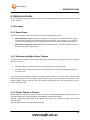
BUTTON
DESCRIPTION
SHORTCUT FOR
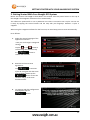
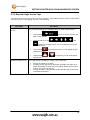
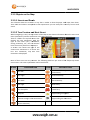
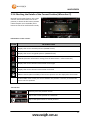
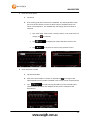
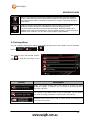
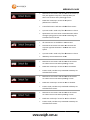
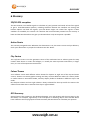
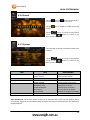
With this function you can search for
Places of Interest in various different
ways.
Find / Find Places
This function opens the Map screen
and starts simulating the active
route.
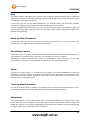
My Route / More /
Simulate Navigation
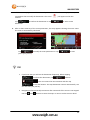
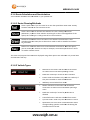
This function opens the GPS
Information screen with satellite
position and signal strength
information.
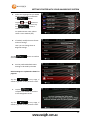
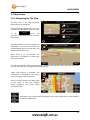
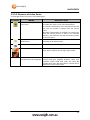
Tap the top of the Map
screen when there is no
GPS reception
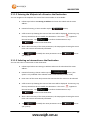
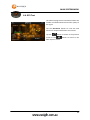
Set the time allowed commercial
drivers can drive so warnings can be
issued if exceeded.
More / Settings/ Driving
time management
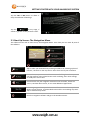
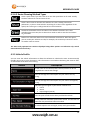
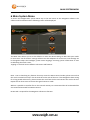
4.3.3 Traffic Settings
This feature is not available on this model.
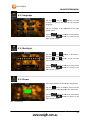
4.3.4 Route Settings
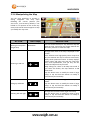
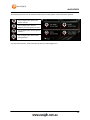
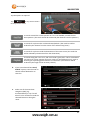
These settings determine how routes will be calculated.
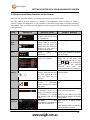
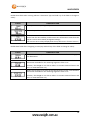
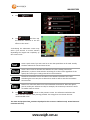
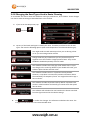
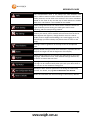
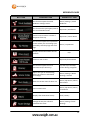
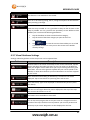
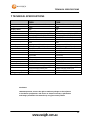
Button
Description
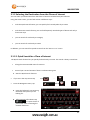
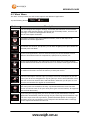
You can set the type of vehicle you will use to navigate the route.
Based upon this setting, some of the road types can be excluded
from the route, or some of the restrictions may not be taken into
account in route calculation.
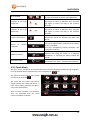
The route calculation can be optimised for different situations
and vehicle types by changing the planning method. See below
for details.
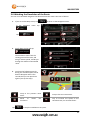
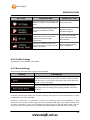
To let the route fit your needs, you can also set which road types are to be considered for or to be
excluded from the route if possible.
Excluding a road type is a preference. It does not necessarily mean total prohibition. If your
destination can only be accessed using some of the excluded road types, they will be used but only
as much as necessary. In this case a warning icon will be shown on the My Route screen, and the
part of the route not matching your preference will be displayed in a different colour on the map.
76