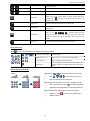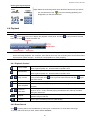
1
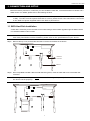
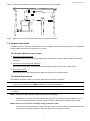
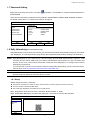
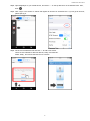
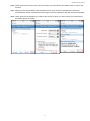
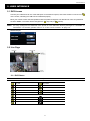
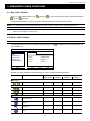
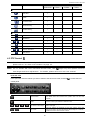
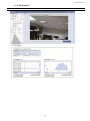
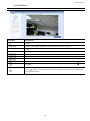
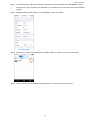
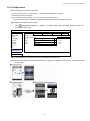
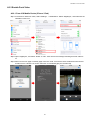
432Z HD CCTV DVR QUICK START 1080P Video Recording Please read instructions thoroughly before operation and retain it for future reference. For the actual display & operation, please refer to your DVR in hand. Complete user manual download: www.surveillance-download.com/user/t204.swf t204_g1004_t208_216_quick_V1.0 IMPORTANT SAFEGUARD CAUTION RISK OF ELECTRIC SHOCK CAUTION: To reduce the risk of electric shock, do not expose this apparatus to rain or moisture. Only operate this apparatus from the type of power source indicated on the label. The company shall not be liable for any damages arising out of any improper use, even if we have been advised of the possibility of such damages. The lightning flash with arrowhead symbol, within an equilateral triangle, is intended to alert the user to the presence of uninsulated “dangerous voltage” within the product’s enclosure that may be of sufficient magnitude to constitute a risk of electric shock to persons. This exclamation point within an equilateral triangle is intended to alert the user to the presence of important operating and maintenance (servicing) instructions in the literature accompanying the appliance. All lead-free products offered by the company comply with the requirements of the European law on the Restriction of Hazardous Substances (RoHS) directive, which means our manufacture processes and products are strictly “lead-free” and without the hazardous substances cited in the directive. The crossed-out wheeled bin mark symbolizes that within the European Union the product must be collected separately at the product end-of-life. This applies to your product and any peripherals marked with this symbol. Do not dispose of these products as unsorted municipal waste. Contact your local dealer for procedures for recycling this equipment. This apparatus is manufactured to comply with the radio interference requirements. Federal Communications Commission Interference Statement This equipment has been tested and found to comply with the limits for a Class A digital device, pursuant to Part 15 of the FCC Rules. These limits are designed to provide reasonable protection against harmful interference when the equipment is operated in a commercial environment. This equipment generates, uses, and can radiate radio frequency energy and, if not installed and used in accordance with the instruction manual, may cause harmful interference to radio communications. Operation of this equipment in a residential area is likely to cause harmful interference in which case the user will be required to correct the interference at his own expense. Trademark Acknowledgements (EagleEyes) - The trademark application is filed and under process in the U.S. and other countries. iPhone®, iPad® and iOS® are the registered trademark of Apple Inc., and Apple holds the intelligential property rights to the iPhone, iPad and iOS content. Microsoft®, Windows®, Internet Explorer®, Google Chrome™ & QuickTime® mentioned in this document are the registered trademarks of their respective holders. Disclaimer The information in this manual was current when released. We reserve the right to revise or remove any content in this manual at any time. We do not warrant or assume any legal liability or responsibility for the accuracy, completeness, or usefulness of this manual. For the actual display & operation, please refer to your DVR in hand. The content of this manual is subject to change without notice. Grounding This is a Safety Class 1 Product (provided with a protective earthing ground incorporated in the power cord). The mains plug shall only be inserted in a socket outlet provided with a protective earth contact. Any interruption of the protective conductor inside or outside of the instrument is likely to make the instrument dangerous. Intentional interruption is prohibited. Water & Moisture Do not expose this product to dripping or splashing and that no objects filled with liquids, such as vases, shall be placed on the product. MPEG4 Licensing THIS PRODUCT IS LICENSED UNDER THE MPEG-4 VISUAL PATENT PORTFOLIO LICENSE FOR THE PERSONAL AND NON-COMMERCIAL USE OF A CONSUMER FOR (i) ENCODING VIDEO IN COMPLIANCE WITH THE MPEG-4 VISUAL STANDARD (“MPEG-4 VIDEO”) AND/OR (ii) DECODING MPEG-4 VIDEO THAT WAS ENCODED BY A CONSUMER ENGAGED IN A PERSONAL AND NON-COMMERCIAL ACTIVITY AND/OR WAS OBTAINED FROM A VIDEO PROVIDER LICENSED BY MPEG LA TO PROVIDE MPEG-4 VIDEO. NO LICENSE IS GRANTED OR SHALL BE IMPLIED FOR ANY OTHER USE. ADDITIONAL INFORMATION INCLUDING THAT RELATING TO PROMOTIONAL INTERNAL AND COMMERCIAL USES AND LICENSING MAY BE OBTAINED FROM MPEG LA, LLC. SEE HTTP://WWW.MPEGLA.COM. GPL Licensing This product contains codes which are developed by Third-Party-Companies and which are subject to the GNU General Public License (“GPL”) or the GNU Lesser Public License (“LGPL”). The GPL Code used in this product is released without warranty and is subject to the copyright of the corresponding author. Further source codes which are subject to the GPL-licenses are available upon request. We are pleased to provide our modifications to the Linux Kernel, as well as a few new commands, and some tools to get you into the code. The codes are provided on the FTP site, and please download them from the following site or you can refer to your distributor: http://download.dvrtw.com.tw/GPL/DVR/GM8210/linux-3.3-fa.tgz TABLE OF CONTENTS 1. CONNECTION AND SETUP ........................................................................................................... 1 1.1 SATA Hard Disk Installation....................................................................................................................................1 1.2 Camera Connection ...............................................................................................................................................2 1.2.1 Normal / Motorized Lens Camera ..................................................................................................................2 1.2.2 Speed Dome Camera ....................................................................................................................................2 1.3 External Device Connection...................................................................................................................................3 1.4 DVR Power On ......................................................................................................................................................3 1.5 Date and Time Setting............................................................................................................................................4 1.6 Clear Hard Disk......................................................................................................................................................4 1.7 Password Setting ...................................................................................................................................................5 1.8 EaZy Networking (For selected models only).........................................................................................................5 1.8.1 Setup .............................................................................................................................................................5 1.8.2 Checking Remaining Data Allowance ............................................................................................................7 1.8.3 Sharing Cloud Device Access to Other Account(s) ........................................................................................8 2. USER INTERFACE........................................................................................................................ 11 2.1 DVR Access .........................................................................................................................................................11 2.2 Live Page .............................................................................................................................................................11 2.1.1 DVR Status ..................................................................................................................................................11 2.1.2 Channel Status ............................................................................................................................................12 2.1.3 Record-related Icons ...................................................................................................................................12 2.3 Quick Menu Bar ...................................................................................................................................................12 2.4 Main Menu ...........................................................................................................................................................13 3. HARDWARE OVERVIEW.............................................................................................................. 15 3.1 Package Content .................................................................................................................................................15 3.2 Front Panel ..........................................................................................................................................................15 3.3 Rear Panel ...........................................................................................................................................................16 4. FREQUENTLY-USED FUNCTIONS .............................................................................................. 19 4.1 Key Lock / Unlock ................................................................................................................................................19 4.2 User Level Creation .............................................................................................................................................19 4.3 PTZ Control..........................................................................................................................................................20 4.4 Playback ..............................................................................................................................................................22 4.4.1 Playback Control..........................................................................................................................................22 4.4.2 Event Search ...............................................................................................................................................22 4.4.3 Audio Playback ............................................................................................................................................23 4.5 Video Backup .......................................................................................................................................................23 4.6 Video Playback on PC (.dv5) ...............................................................................................................................24 4.6.1 Convert the file format to AVI .......................................................................................................................24 4.7 Digital Zoom .........................................................................................................................................................24 5. REMOTE OPERATION.................................................................................................................. 25 5.1 Web Browser .......................................................................................................................................................25 5.1.1 IVS Statistics................................................................................................................................................27 5.1.2 PTZ Panel....................................................................................................................................................28 5.2 Mobile Devices.....................................................................................................................................................29 5.2.1 Prerequisites................................................................................................................................................29 5.2.2 Where to download......................................................................................................................................29 5.2.3 Setup ...........................................................................................................................................................29 APPENDIX 1 PUSH VIDEO CONFIGURATION ............................................................................... 31 A1.1 Alarm Sensor Connection ..................................................................................................................................31 A1.2 Configuration .....................................................................................................................................................32 APPENDIX 2 MOBILE SURVEILLANCE VIA EAGLEEYES ............................................................ 33 A2.1 Prerequisites......................................................................................................................................................33 A2.2 Where to download............................................................................................................................................33 APPENDIX 3 SET PUSH VIDEO....................................................................................................... 34 A3.1 Prerequisite .......................................................................................................................................................34 A3.2 Enable Push Video ............................................................................................................................................35 A3.2.1 From iOS Mobile Device (iPhone / iPad)...................................................................................................35 A3.2.2 From Android Mobile Device .....................................................................................................................36 APPENDIX 4 COMPATIBLE USB FLASH DRIVE LIST ................................................................... 37 APPENDIX 5 COMPATIBLE SATA HDD LIST.................................................................................. 38 APPENDIX 6 MAIN MENU STRUCTURE......................................................................................... 39 CONNECTION AND SETUP 1. CONNECTION AND SETUP Before the DVR is powered on, make sure you have installed a hard disk, connected at least one camera and a HDMI monitor. For details, please refer to the following sections. Note: The DVR is designed to automatically detect the video system of the connected cameras (NTSC or PAL). To make sure the system detection is correct, please check if the cameras are connected to the DVR and power-supplied before the DVR is powered on. 1.1 SATA Hard Disk Installation A hard disk is necessary for the recorder to save video footage, and firmware upgrade might be failed if there’s no hard disk installed in this recorder. Note: Here takes a 8CH model as an example of how to connect a hard disk to your device. To know how many hard disks could be installed, please refer to the specifications of your device. Step1: Remove the top cover, and find the hard disk connector and bracket in the device. CR2032 Hard Disk Connector Bracket Step2: Get a compatible hard disk. With the PCB side facing down, insert the hard disk to one of the hard disk connector. Note: To use a green hard disk, use ONLY the hard disk designed especially for surveillance to ensure the device works properly. CR2032 Hard Disk 1 CONNECTION AND SETUP Step3: Fasten the hard disk to the bracket by securing the screw on the bracket. CR2032 Hard Disk Step4: Replace the top cover and fasten the screws you loosened in Step1. 1.2 Camera Connection Install the camera on the wall or ceiling based on your installation environment and camera type. For installation details, please refer to the user manual of your camera. 1.2.1 Normal / Motorized Lens Camera 1) Connecting to DVR video input Connect the camera video output to the DVR video input port with a coaxial cable or RCA line with a BNC connector. 2) Connecting to DVR audio input (Optional) Connect the camera audio output to the DVR audio input port with a coaxial cable or RCA cable. 3) Connecting to power Connect the camera with indicated power supply and make sure it’s power-supplied. 1.2.2 Speed Dome Camera The following description is taking our brand’s speed dome camera as an example. Note: The RS485 wiring is not needed when your DVR and speed dome camera are both our HD CCTV series. If yes, please go to STEP 5 directly for PTZ camera setting. Note: Speed dome camera connection for non-HD CCTV series is available only for selected DVR models. STEP 1: Get a RJ11 cable with the proper length to your connection. Different RJ11 connector may have different wire layout, so the connection might be different. If you cannot control the DVR after connection, please reverse the RJ11 cable connection with the DVR. STEP 2: Remove one end of the insulating coating of the RJ11 cable. Remove one end of the insulating coating of the RJ11 cable to find the RS485-A and the RS485-B wires, and remove the insulating coating to reveal the naked wires for further connection. 2 CONNECTION AND SETUP STEP 3: Twist the RS485-A and RS485-B wires of the RJ11 cable and the speed dome camera together. Twist the RS485-A (red) and RS485-B (green) wires of the RJ11 cable to the RS485-A (brown) and RS485-B (orange) wires of the speed dome camera. To protect the naked wires, use the insulation tape to cover on the twisted wires. STEP 4: Connect the other end of the RJ11 cable to DVR. Solder the RS485-A (red) and RS485-B (green) wires of the RJ11 cable to the corresponding pins on the DVR rear panel. STEP 5: Set the camera at the DVR side. Right click to show the main menu in the live view, and go to “ to set the camera. ” (ADVANCED CONFIG) “DEVICES” a) Select the device to “PTZ”. b) Set the ID to the value the same as the one set in the camera. The default ID of the camera is 000. c) Select the protocol to “NORMAL”. d) Set the baud rate to the value the same as the one set in the camera. The default baud rate of the camera is 2400. ADVANCED CONFIG CAMERA DETECTION ALERT NETWORK DISPLAY RECORD DEVICES DCCS IVS NOTIFY CH1 CH2 CH3 CH4 DEVICE ID PROTOCOL RATE PTZ 000 NORMAL 2400 EXIT 1.3 External Device Connection Some DVR models support external device connection with RS485 and alarm I/O ports, allowing users to connect control devices such as a keyboard controller, or connect alarm devices such as a magnetic contact or buzzer. Check the user manual of your external device to know which pin(s) should be used, and connect it to the corresponding pins on the DVR rear panel. 1.4 DVR Power On This device should be operated only with the type of power source indicated on the manufacturer’s label. Connect the indicated AC power cord to the power adapter, and plug into an electrical outlet. If your device has a power switch on the rear panel, turn it to “—“. The power LED will be on. If your device doesn’t have a power switch on its rear panel, the power is on once the power source is connected. Note: Before the DVR is powered on, make sure (1) the cameras are connected and power-supplied for the detection of the camera video system to be correct, and (2) a HDMI monitor is connected to the DVR for correct video output detection. Note: To ensure that your DVR works constantly and properly, it's recommended to use an UPS, Uninterruptible Power Supply (Optional), for continuously operation. 3 CONNECTION AND SETUP 1.5 Date and Time Setting Before operating your DVR, please set the date and time on your DVR FIRST. Note: Please DO NOT change the date or time of your DVR after the recording function is activated. Otherwise, the recorded data will be disordered and you will not be able to find the recorded file to backup by time search. If users change the date or time accidentally when the recording function is activated, it’s recommended to clear all HDD data, and start recording again. Note: For the first time to use the DVR, please power it on for at least 48 hours continuously after the date & time is set correctly. It helps to prevent DVR time from resetting after the disconnecting of DVR power. If the DVR time resets after the disconnecting of DVR power, for example, caused by a power outage, the battery might run out and please replace the battery as described in “APPENDIX 8 DVR BATTERY REPLACEMENT” in the user manual. Right-click to enter the DVR password with the password keypad. The default administrator password is admin. The status will be changed from select (key lock) to (unlock). Then, right-click to show the main menu, and (QUICK START) “TIME SETUP” to set the date & time. QUICK START GENERAL TIME SETUP DAYLIGHT EaZy DATE TIME NTP SERVER FORMAT SYNC PERIOD GMT 2009 / NOV / 17 15 : 35 : 53 pool.ntp.org Y/M/D OFF (GMT + 8:00) TAIPEI EXIT 1.6 Clear Hard Disk It’s recommended to clear all data in the hard disk for the first time to user this DVR to ensure the recorded data are not mixed with other data previously saved in the same hard disk. Right-click to show the main menu, and select (SYSTEM) “SYSTEM INFO” “CLEAR HDD”. The DVR will reboot when hard disk data are cleared. SYSTEM ACCOUNT TOOLS SYSTEM INFO BACKUP DATA BACKUP LOG REGULAR REPORT BAUD RATE HOST ID R.E.T.R AUTO KEY LOCK(S) CLEAR HDD RESET DEFAULT REMOTE CONTROL ID DEVICE TITLE 2400 000 5 NEVER HDD-0 SUBMIT 000 OFFICE SERIAL TYPE VIDEO FORMAT VERSION RS485 NTSC 1019-1008-1010-1010 EXIT 4 CONNECTION AND SETUP 1.7 Password Setting Right-click to show the main menu, and select (SYSTEM) “ACCOUNT” to change the default password of SUPERVISOR. There are four user levels for different access privileges: SUPERVISOR, POWER USER, NORMAL & GUEST. For details, please refer to “4.2 User Level Creation” at page 19. SYSTEM ACCOUNT TOOLS SYSTEM INFO BACKUP DATA BACKUP LOG REGULAR REPORT EXIT USER LIST USER NAME admin power normal guest ADD LEVEL SUPERVISOR POWER USER NORMAL GUEST EDIT DEL 1.8 EaZy Networking (For selected models only) EaZy Networking is a cloud service to connect your devices to the Internet automatically through our free mobile app, EagleEyes, in a few steps without going through the complicated network setup including port forwarding. Note: EaZy Networking is not a free service. We will initially provide 2GB data allowance (approx. 2185 minutes) for free. When 2GB is up, the network transmission will be down to 1 FPS. To restore the fluency of live view, users need to subscribe a data plan from EagleEyes, or configure the network settings by themselves. To connect this recorder to the Internet without using EaZy Networking, get the network setup manual from www.surveillance-download.com/user/t204.swf. Note: Data allowance is consumed only when the device access is made via Internet, 3G mobile network, and the network different from the device is used. 1.8.1 Setup Before using this function, make sure: This DVR is connected to a switch or router, and the switch or router is ready for Internet connection. You have an iOS or Android mobile device. Our mobile app, EagleEyes, is installed in your mobile device. Step1: Right-click to show the main menu, and select “QUICK START” “EaZy”. Step2: Enable EaZy Networking, and leave this page open. You’ll need to scan the QR code later. QUICK START GENERAL TIME SETUP DAYLIGHT EaZy ENABLE EAZY NETWORKING ON EXIT 5 CONNECTION AND SETUP Step3: Open EagleEyes on your mobile device, and select “…” on the top left corner in the address book. Then, click “ ”. Step4: Click “Login” in the section of “Cloud” and register an account for “Cloud Service”. If you’ve got an account, please just log in. Step5: Go back to the address book and click “+” to add a new device. There are two methods to add new devices, “EaZy” and “Manual”. Select “EaZy”, and choose the DVR icon to continue. 6 CONNECTION AND SETUP Step6: Click “ ” in the section of “MAC address” to open the QR code scan page, and scan the QR code on the DVR screen mentioned in Step2. The MAC address will be filled automatically. Fill in the Captcha code manually, and click “Apply”. Step7: Follow the on-screen instruction to finish the rest of the settings, and see if this device is added successfully to the address book as a cloud device. When the device is added successfully to the cloud service, the DVR will also prompt a message, indicating the device is added successfully. Step8: Click the newly-added device and see if you could access successfully. 1.8.2 Checking Remaining Data Allowance To know how much data allowance is left: Step1: Log into the cloud service. Step2: Select “Details” to go to account information, and select “Available Data Allowance”. 7 CONNECTION AND SETUP 1.8.3 Sharing Cloud Device Access to Other Account(s) Note: One cloud device could be shared up to 30 cloud accounts, but the access to the device might be failed because it is still restricted to the maximum online user setup of the device. i.e. To allow other account to access your cloud device: Step1: Log into the cloud service. Step2: Select “Buddy” to go to the buddy sharing page. Then, choose the cloud device you want to share, and click “Share to Buddy”. Step3: Enter the cloud account or the E-mail registered by the account, and select “Add”. 8 CONNECTION AND SETUP Step4: Check again the account to which you want to share your cloud device, and select “Next” to confirm and continue. Step5: Specify the access permission of the specified account, which account’s data allowance should be consumed after access successfully, and how long the account is allowed to stay after access successfully. Step6: Check again the configurations you made for the account to which you want to share your cloud device, and select “Share!” to confirm. 9 CONNECTION AND SETUP 10 USER INTERFACE 2. USER INTERFACE 2.1 DVR Access Connect your USB mouse to one of the USB ports on the DVR front panel, and check if there’s a mouse icon ( on the screen, indicating the USB mouse is detected properly. ) Move your mouse to enter the DVR password with the password keypad. The default user name and password are both “admin”. The status will be changed from (key lock) to (unlock). Note: You may configure four different user levels to have different access privileges in “SYSTEM” “ACCOUNT”. For details, please refer to “4.2 User Level Creation” at page 19. Password Input 2.2 Live Page 2.1.1 DVR Status Note: Certain icons are for selected models only. Key lock Key unlock Overwrite on Overwrite off Internet disconnected Internet connected Local connection USB mouse connected USB flash drive / device connected No USB device connected IVS on Timer record on Timer record off PTZ mode on PTZ mode off Sequence mode on Sequence mode off 11 USER INTERFACE 2.1.2 Channel Status Note: Certain icons are for selected models only. Live audio on Audio off Audio playback on Audio playback off Recording PTZ control Motion event Alarm event PIR event Virtual fence event One way pass event Scene Change event 2.1.3 Record-related Icons 1) Manual Recording By defaults, manual recording is on ( ) when the DVR is powered on and a hard disk is installed. 2) Event Recording The event icons, / / / / / , show on the channel status bar when their respective events occur and the related record function is on. 3) Timer Recording When timer recording is on, you will see “ ” on the screen. 4) HDD Overwritten Be defaults, the HDD overwritten function is set to ON, and “ ” will be shown on the screen. Note: To disable this function, right click to display the main menu in the live view, and go to “ ” (ADVANCED CONFIG.) “RECORD” “OVERWRITE”. 2.3 Quick Menu Bar Move to the arrow mark to extend the quick menu bar and show the five functions as follows: Quick Menu: Open Click to show the channel switch panel and select the channel you want. Click to display the playback control panel, and click to play the to enter the search list. latest recorded video clip, or click Switch to the channel you want first, and click to enter the zoom-in mode. In this mode, click and drag the red frame on the bottom left of the screen to move to the place you want to see. To exit this mode, click . Click to show the power off panel to either halt or reboot the system. 12 USER INTERFACE 2.4 Main Menu Right-click anywhere on the screen to show the main menu as follows, and right-click again to exit. Main Menu QUICK START Click to set the status display, image settings, and date & time. SYSTEM Click to set the system configurations. EVENT INFORMATION Click to enter the event search menu. ADVANCED CONFIG Click to set CAMERA, DETECTION, ALERT, NETWORK, DISPLAY, RECORD, DEVICES*, DCCS, IVS* and NOTIFY*. SCHEDULE SETTING Click to set timer for record, motion detection, alarm (in and out), Push Video, and buzzer. * For selected models only 13 USER INTERFACE 14 HARDWARE OVERVIEW 3. HARDWARE OVERVIEW Note: The functions on the front panel and rear panel may vary, depending on the model you have. 3.1 Package Content Standard Package DVR HDD screws Adapter & power cord Quick Start Optional Accessories I/O terminal block CD manual USB Mouse 3.2 Front Panel 1) LED Indicators DVR is powered on. The hard disk is reading or recording. An alarm is triggered. (For selected models only) Timer recording is on. (For selected models only) Under playback status. (For selected models only) 2) CH1 ~ 16 / 1 ~ 8 / 1 ~ 4 Press the channel number buttons to select the channel to display. 3) Press to show the 4 channel display mode. 4) SEQ Press to display each channel in full screen one by one starting from CH1. When the last channel is displayed, it will repeat from CH1 again. To exit this mode, press “SEQ” again. 5) SLOW In the playback mode, press to show slow playback. 6) ZOOM Press to enlarge the picture of selected channel in the FRAME or FIELD recording mode. 7) PLAY Press to playback the latest recorded data. 8) LIST (Event List Search) Press to quickly search the recorded files by event types, or select FULL to show all the event logs. To quickly search the time you want, select “QUICK SEARCH”. For details, please refer to “4.4.2 Event Search” at page 22. 9) ENTER Press “ENTER” to confirm the setting. 10) MENU Press “MENU” to enter the main menu. 15 HARDWARE OVERVIEW 11) ▲ ( / PAUSE) / ▼ ( / STOP) / ◄ ( / REW) / ► ( / FF) Press ▲ / ▼ / ◄ / ► to move up / down / left / right. In the playback mode: Press “▲" to pause playback. Press “▼" to stop playback. Press “►“ to fast forward. Press “◄“ to fast rewind. 12) AUDIO (SLOW + ZOOM) Press “SLOW” + “ZOOM” to select live or playback audio from audio channel 1~4. Live audio from audio channel 1~4 (indicated in white). Playback audio from audio channel 1~4 (indicated in yellow). Audio channel unselected 13) P.T.Z. ( Press “ + SEQ) ” + “SEQ” at the same time to enter / exit the PTZ control mode. 14) USB port There are two USB ports on the front panel, one for connecting your USB mouse for mouse control, and the other one for connecting your USB flash drive for video backup. Note: It’s not allowed to have two USB mice or two USB flash drives connected on the front panel. Note: For the compatible USB flash drive list, please refer to “APPENDIX 4 COMPATIBLE USB FLASH DRIVE LIST” at page 37. 3.3 Rear Panel 1) VIDEO IN: Connect to the video connector of a camera. Note: The DVR will automatically detect the video system of the camera, please make sure that the cameras are properly connected to the DVR and power-supplied before the DVR is turned on. 2) AUDIO IN Connect to the audio connector of a camera if the camera supports audio recording. Note: To make a video backup with audio, make sure the camera which supports the audio function is connected to the video-in channel and audio-in channel. For example, the audio data from audio CH1 will be recorded with the video data from video CH1. For 16CH models, the audio CH1 ~ CH4 are corresponding to video CH1 ~ CH4 respectively. 3) AUDIO OUT Connect to a speaker with 1 mono audio output. 4) HDMI Connect to the HDMI port of the monitor which supports HDMI video output. Note: Dual video outputs via both VGA and HDMI ports are supported. 5) VGA Connect to the VGA port of the monitor which supports VGA video output. Note: Dual video outputs via both VGA and HDMI ports are supported. 6) IR (For selected models only) Connect the IR receiver extension line for remote control. 7) eSATA (For selected models only) This port is used to connect a storage device supporting eSATA interface; for instance, an external hard disk or a disk array. 16 HARDWARE OVERVIEW Note: Please purchase a disk array supporting Linux system to ensure your DVR to work properly. Note: If the disk array is not connected or detected well, check the mode of your disk array, or do a reset default on your disk array and try again. 8) EXTERNAL I/O (For selected models only) This port is used to connect external devices (such as speed dome cameras or external alarm, etc). 9) LAN Connect to Internet by LAN cable. 10) DC IN Connect to the supplied adapter. 11) VIDEO OUT Connect to a CRT monitor for main monitor output. 12) Power Switch (For selected models only) Switch to “—” to turn on the power, and “” to turn off the power. 17 HARDWARE OVERVIEW 18 FREQUENTLY-USED FUNCTIONS 4. FREQUENTLY-USED FUNCTIONS 4.1 Key Lock / Unlock To lock or unlock local operation, click (lock) or (unlock) or (lock) on the DVR status bar to change the status to (unlock). To unlock local operation, you’ll be prompted to enter the user name and password to access. Note: The default user name and password are both “admin”, which is the highest user level. Note: Different user level has different access privilege for certain DVR functions. Please refer to “4.2 User Level Creation” at page 19. 4.2 User Level Creation Note: This function is available only for “SUPERVISOR”. To create different user account for different access privilege, click enter “USER LIST”. (SYSTEM)), and select “ACCOUNT” to SYSTEM ACCOUNT TOOLS SYSTEM INFO BACKUP DATA BACKUP LOG REGULAR REPORT USER LIST USER NAME admin power normal guest EXIT ADD LEVEL SUPERVISOR POWER USER NORMAL GUEST EDIT DEL Different user level has different access privilege for certain functions as described below: Function User Level SUPERVISOR POWER NORMAL GUEST Key lock / unlock / Live audio on / off / Playback audio on / off PTZ Control Channel Selection Playback Digital Zoom Power DVR status / Channel status Quick menu bar 19 FREQUENTLY-USED FUNCTIONS Function User Level SUPERVISOR POWER NORMAL GUEST Main menu Quick Start System Event Information Advanced Config. Schedule Setting Playback control / / Fast Forward Fast Rewind Play / Pause Stop Slow Playback Previous / Next Hour Quick Search 4.3 PTZ Control Note: This function is available only for “SUPERVISOR” and “POWER USER”. To know more details, please refer to “4.2 User Level Creation” at page 19. Note: For our brand’s HD CCTV motorized camera series, click focal length and focus adjustment. might only show specific icons for For details, please refer to its own user manual. In the full view In the split view, click the channel you want to switch to the full screen mode, and click to show the PTZ control panel. / / / / Camera Menu Click to enter the camera main menu. For details about each camera menu, please refer to its own user manual. Enter Click to confirm your selection / enter the menu. Up / Down / Left / Right Click the arrow keys ( / / / ) to more the camera lens up / down / left /right. Iris + / Iris - This two buttons are designed for the PTZ camera which uses Pelco-D to control. To know the actions after clicking Iris + and Iris -, please refer to the camera’s user manual. 20 FREQUENTLY-USED FUNCTIONS / Zoom in / out max Click to zoom in on the image to the largest / zoom out on the image to its original size. / Zoom in / out Click to zoom in / out the image. / Focus near / far Click to adjust the focus of the image. Click to activate the auto function. Before using it, you need to assign a specific function that will be Auto mode enabled when “ ” is clicked. For details, please refer to the user manual of the camera. Preset point Click to enter the PTZ preset point you want to see. Auto tracking Click to start auto tracking when your speed dome camera supports this function. This function is used to memorize the focus parameters you’ve made after you use Manual Focus / / / to manually adjust the focal length and focus. The next time when you move to the same focal length, the camera will use the parameters as the ones for Auto Focus. Auto Focus Click to automatically adjust the focus of the camera. In the split view Click on the channel status bar to display the panel as follows: Up / Down / Left / Right Click to move your selection up / down / left / right, or change settings. / Digital zoom in / out Click to zoom in / out the camera image digitally. / Focus near / far Click to adjust the focus of the image. Preset point Click to display the preset point panel for preset point viewing or setting. For details, please refer to the section below. / / / How to set a preset point: Step1: Step2: Click click or / to the proper ratio you need, and / / to move to the point you want to configure as a preset point. Step3: Click the numbering you want to configure for this point, and wait till you see (command sending) appearing and disappearing on the DVR status bar. Step4: Repeat from Step1 again to set other points if needed, or click selection panel. 21 to return to the preset point FREQUENTLY-USED FUNCTIONS How to go to a preset point: Step1: Step2: Select the numbering within which saves the camera view you want to see, and wait till you see (command sending) appearing and disappearing on the DVR status bar. 4.4 Playback Note: This function is NOT available for “GUEST”. Please refer to “4.2 User Level Creation” at page 19. Click “ ” on the quick menu bar to display the playback control panel, and click video clip, or click to play the latest recorded to enter the search list. Note: There must be at least 8192 images of recorded data for playback to work properly. If not, the device will stop playback. For example, if the IPS is set to 30, the recording time should be at least 273 seconds (8192 images / 30 IPS) for the playback to work properly. 4.4.1 Playback Control Fast Forward Increase the speed for fast forward. Click once to get 4X speed forward and click twice to get 8X speed, etc., and the maximum speed is 32X. Fast Rewind Increase the speed for fast rewind. Click once to get 4X speed rewind and click twice to get 8X speed, etc., and the maximum speed is 32X. Click to play the latest recorded video clip immediately, and click again to pause. / Play / Pause Stop / In the pause mode, click once to get one frame forward, and click one frame rewind. Click to stop the video playback. Slow Playback Click once to get 1/4X speed playback, and click twice to get 1/8X speed playback. Previous / Next Hour Click to jump to the next / previous time interval in an hour, for example, 11:00 ~ 12:00 or 14:00 ~ 15:00, and start playing the earliest event video clip recorded during this whole hour. Repeat Click to set point A and point B in a video clip, and the system will play only the specified range in that clip. Backup Click to open the backup menu for video backup. 4.4.2 Event Search Click to get to quickly search the recorded files by event types, or select FULL to show all the event logs. To quickly search the time you want, select “QUICK SEARCH”. 22 FREQUENTLY-USED FUNCTIONS 4.4.3 Audio Playback In the playback mode, click or on the channel status bar to play or mute audio recording. Note: To make a video backup with audio, or play a recording with audio, make sure the camera which supports the audio function is connected to the video-in channel and audio-in channel. For example, the audio data from audio CH1 will be recorded with the video data from video CH1. For 16CH models, the audio CH1 ~ CH4 are corresponding to video CH1 ~ CH4 respectively. 4.5 Video Backup Note: This function is available for “SUPERVISOR”. For details, please refer to “4.2 User Level Creation” at page 19. Note: Before using the USB flash drive, please use your PC to format the USB flash drive to FAT32 format first. For the list of compatible USB flash drives, please refer to “APPENDIX 4 COMPATIBLE USB FLASH DRIVE LIST” at page 37. Note: Video backup could be made via a USB flash drive or the Internet. It’s NOT allowed to connect the hard disk to your PC directly for it may impair the recorded data saved in the hard disk. To copy video data for video backup, click (SYSTEM), and select “BACKUP DATA”. SYSTEM ACCOUNT TOOLS SYSTEM INFO BACKUP DATA BACKUP LOG REGULAR REPORT START DATE START TIME END DATE END TIME CHANNEL 2009/NOV/19 08:30:21 2009/NOV/19 17:59:29 3 SELECTED ALL CH1 CH2 CH3 CH4 CH5 HARD DISK OUTPUT FILE FORMAT TARGET DEVICE BACKUP REQUIRE SIZE: 554MB EXIT ALL HDD AVI USB DEVICE SUBMIT SUBMIT AVAILABLE SIZE: 3788.0MB Step1: Select the time within which includes the video data you want to backup. Step2: Select the channel(s) within which includes the video data you want to backup. Step3: In “OUTPUT FILE FORMAT”, select the output video format: DEFAULT / AVI. When “DEFAULT” is selected, the footage is saved to ".dv5”, and you can only open it with our own video player on PC. For details, please check "4.6 Video Playback on PC (.dv5)”. Note: It’s recommended to save the file to the default format for security reasons. Only specific video player supports the default format and not everyone can see the video footage. When "AVI" is selected, the footage will be converted to “avi”, and you can open it with any media player which supports the “avi” format on PC. Step4: In “TRAGET DEVICE”, select “USB DEVICE” for video backup. 23 FREQUENTLY-USED FUNCTIONS Step5: In “REQUIRE SIZE”, select “SUBMIT” to know the file size of the selected footage. Step6: In “BACKUP”, select “SUBMIT” to start copying footage to your USB flash drive, and wait till the backup successful message appears. 4.6 Video Playback on PC (.dv5) For video backup with the format “.dv5”, you can only use our own player to play. Note: It’s NOT allowed to remove the hard disk installed in the DVR and connect it directly to your PC to check recorded video clips. It might impair the files saved in the hark disk, causing the loss of those files even when the disk is replaced back to the DVR. To play “.dv5” video on your PC: Step1: Insert the USB flash drive with recorded data into your PC. Note: The supported PC operating systems are Windows 8, Windows 7, Windows Vista & Windows XP. Step2: Find the program “PLAYER.EXE” in the USB flash drive, and double-click it to install. Note: “PLAYER.EXE” can also be downloaded from www.surveillance-download.com/user/t204.swf. Step3: Run the program, VideoPlayer, and browse to where you save the recorded data. Step4: Select the file you want to start video playback 4.6.1 Convert the file format to AVI To convert the video file format to AVI, click “AVI” from the playback panel to start file conversion. Note: The recorded audio (if any) will be removed when the file format is converted to AVI. Note: If he footage includes data for multiple channels, click to a specific channel for this function to work properly. 4.7 Digital Zoom Switch to the channel you want to zoom in, and move to the left side of the screen to show the quick start bar. Click to enter the zoom-in mode. In this mode, click and drag the red frame on the bottom left of the screen to move to the place you want to see. To exit this mode, right-click anywhere on the screen. Note: You need to exit the zoom mode first to use other DVR functions. 24 REMOTE OPERATION 5. REMOTE OPERATION 5.1 Web Browser You can view the images or operate your DVR with a web browser, for example, Microsoft Internet Explorer. Note: The supported PC operation systems are Windows 8, Windows 7, Windows Vista & Windows XP. Note: To use Mozilla Firefox or Google Chrome for remote access, please go to Apple’s official website (http://www.apple.com) to download and install QuickTime first. Note: The illustration below is just for your reference and may be different from what you actually see. Some functions and buttons are for selected models or certain user levels only. Step 1: Key in the IP address used by this device in the URL address box, such as 60.121.46.236, and press Enter. You will be prompted to enter the user name and password to access the device. If the port number this device used is NOT 80, you need to key in the port number additionally. The format is ipaddress:portnum. For example, for the IP address 60.121.46.236 and port No. 888, please key in ”http://60.121.46.236:888” into the URL address box, and press “Enter”. Step 2: Enter the user name and password, and click “OK”. You will see a similar screen as the following when the login information is correct. Note: The default user name and password for remote access are both “admin”. Icon Description Click to go to the live view of the DVR. Click to go to the detailed DVR setting. Click to enter the PTZ mode. This function is also used for our band’s HD CCTV motorized camera series to adjust its focal length and focus remotely. For details, please refer to “5.1.2 PTZ Panel” at page 28. Video / Audio Control Format H.264 / QuickTime QuickTime is Apple Inc.’s multimedia software. You need to have QuickTime installed in you operation system first. When “QuickTime” is selected, you will be promoted to enter the user name and password to access the server of the DVR. Quality BEST / HIGH / NORMAL / BASIC Select the image quality. Resolution 4 CIF / CIF Select the image resolution (4CIF: 704*480 / CIF: 352*240) 25 REMOTE OPERATION Icon Description Audio Select the audio channel you want for listening to the live audio. Note: Your camera must support audio recording, and connect to the video channel which supports audio recording and the audio input of the DVR. For details, please refer to “3.3 Rear Panel” at page 16. means mute. To disable the mute status, click this icon again and select the audio channel you want. Priority Quality / Frame rate Channel Control Channel Selection (1 ~ 16 / 1 ~ 8 / 1 ~ 4) Click one of the number to switch to the channel you want to see in full screen. Click to go to the previous / next channel, or change setting. / Click to take a snapshot of the current view, and save it to the specified path in your PC set in “ ” “General”. / / / : Click to display each channel one by one, starting from CH1. When the last channel is displayed, it will start from CH1 again. : To exit from this display mode, press any other channel display button. Click to show 4-cut / 9-cut / 16-cut display. Click to enable local desktop display remotely. An individual window will pop up to show the local view. All operations available at the local side could be done independently and remotely in this window. Click to switch the display to full screen. Event Search & Playback Increase the speed for fast rewind. Click once to get 4X speed rewind and click twice to get 8X speed, etc., and the maximum speed is 32X. Increase the speed for fast forward. Click once to get 4X speed forward and click twice to get 8X speed, etc., and the maximum speed is 32X. Click to play the current video clip. Click to pause the video playback. Click to stop the video playback. Click to play the video clip slowly, once to get 4X slower, twice get 8X slower. Click to enter the record list and search and footage you need. Click to enter the backup menu and copy the footage you need to your PC. Note: To play the backup file (.avc), go to “ player to install. ” -> “General” -> “Configure”, and download the IVS Panel* This button is enabled only when the IVS mode is enabled. Click to show the detection line. Click to enter the IVS statistics page. For details, please refer to “5.1.1 IVS Statistics” at page 27. * For selected models only 26 REMOTE OPERATION 5.1.1 IVS Statistics Note: This function is for selected models only. 27 REMOTE OPERATION 5.1.2 PTZ Panel Note: This function is for selected models only. Function Description Click to enter the camera main menu. For details about each camera menu, please refer to its own user manual. /// Click the arrow keys ( / / / ) to more the camera lens up / down / left /right. PTZ Channel Select the channel which connects the PTZ camera or our brand’s HD CCTV motorized camera you want to control. Preset Click on the preset point numbering to which you want your camera to move. / Click to adjust the focus of the image. / Click to zoom in / out the image. / Click to zoom in on the image to the largest / zoom out on the image to its original size. Click to start auto tracking when your speed dome camera supports this function. Click to take a snapshot of the current view, and save it to the specified path in your PC set in “ “General”. ” Click to activate the auto function. Before using it, you need to assign a specific function that will be enabled when “ ” is clicked. For details, please refer to the user manual of your PTZ camera or our brand’s HD CCTV motorized camera. 28 REMOTE OPERATION 5.2 Mobile Devices Note: For more details about mobile surveillance via your mobile device, download the instructions of EagleEyes installation and configuration from www.surveillance-download.com/user/eagleeyes_quick.pdf. EagleEyes is a mobile phone program used with our surveillance system for remote surveillance. It has several advantages: It’s free (Except EagleEyes Plus for iPhone, EagleEyes Plus+ for Android, and EagleEyesHD Plus for iPad). It’s compatible with several popular mobile platforms, such as iOS and Android. 5.2.1 Prerequisites Before installing EagleEyes to your mobile device for remote surveillance, make sure you have checked the following: Your mobile platform is iOS or Android. Mobile Internet services are subscribed and available to use for your mobile device. Note: You might be charged for Internet access via the wireless or 3G network. For the Internet access rate details, please check with your local network operator or service provider. You have noted down the IP address, port number, user name and password used to access your network camera from Internet. 5.2.2 Where to download For iOS users, please go to “App Store”, and search “EagleEyes” to download. For Android users, please go to “Play Store”, and search “EagleEyes” to download. When the download is completed, EagleEyes will be installed automatically to the location where all applications are saved in your phone by default, or where you specify. 5.2.3 Setup Step1: Open EagleEyes to go to the address book. Step2: Then, click “+”, and select “Manual” to go to the setting page. 29 REMOTE OPERATION Step3: In the setting page, enter all the information needed to access this device in the “REQUIRED” column, and click “Get Type” to examine if the information you entered is correct. The device type will be detected properly. Step4: (Optional) Configure the settings in the “OPTIONAL” column as needed. Step5: Click “Save” to return to the address book. Enable “Guard” to receive Push Video / Push Status. Step6: Click on the item you just added in the address book to access and check the live view. 30 APPENDIX 1 PUSH VIDEO CONFIGURATION APPENDIX 1 PUSH VIDEO CONFIGURATION This DVR supports sending instant event notifications to your iOS and Android mobile devices for an alarm event (Push Video). Note: This function is for selected models only. A1.1 Alarm Sensor Connection Connect the alarm sensor, such as magnetic contacts, to the alarm-in port on the DVR rear panel. Alarm-in 1 corresponds to video channel 1, alarm-in 2 corresponds to video channel 2, and so on. Note: The voltage restriction for alarm-in device connection is under DC24V 1A. 31 APPENDIX 1 PUSH VIDEO CONFIGURATION A1.2 Configuration Before configuring Push Video, make sure: 1. The DVR system is set up as described in “1. CONNECTION AND SETUP” at page 1. 2. The DVR is connected to Internet. 3. You’ve installed the app, EagleEyes, on your iOS or Android mobile devices. For details, please refer to “APPENDIX 2 MOBILE SURVEILLANCE VIA EAGLEEYES” at page 33. Step1: Right click to show the main menu. Go to (ADVANCED CONFIG.) "NOTIFY”. In PUSH VIDEO, select the alarm device you want, and configure the alarm type. ADVANCED CONFIG CANERA DETECTION ALERT NETWORK DISPLAY RECORD DEVICES DCCS IVS NOTIFY MULTICASTING PUSH VIDEO PUSH STATUS MESSAGE MAIL VIDEO MAIL VIDEO FTP RESET ALL GUARD CONNECTION SUBMIT GUARD TRIGGER BY ALARM IN 1 CH01 ALARM OFF / INTERNAL ALARM CH02 ALARM OFF CH03 ALARM N.O. CH04 ALARM OFF CH1 CH2 office CH4 EXIT Step2: Open EagleEyes, and add this DVR to the EagleEyes address book. Step3: Enable Push Video as described below, and try to trigger your sensor to see if you can receive Push Video successfully. 32 APPENDIX 2 MOBILE SURVEILLANCE VIA EAGLEEYES APPENDIX 2 MOBILE SURVEILLANCE VIA EAGLEEYES EagleEyes is a mobile phone program used with our surveillance system for remote surveillance. It has several advantages: It’s free (Except EagleEyes Plus for iPhone, EagleEyes Plus+ for Android, and EagleEyesHD Plus for iPad). It’s compatible with several popular mobile platforms, such as iOS and Android. A2.1 Prerequisites Before installing EagleEyes to your mobile phone for remote surveillance, make sure you have checked the following: Your mobile platform is iOS or Android. Mobile Internet services are subscribed and available to use for your mobile phone. Note: You might be charged for Internet access via wireless or 3G networks. For the Internet access rate details, please check with your local network operator or service provider. You have noted down the IP address, port number, user name and password used to access your network camera from Internet. A2.2 Where to download For iOS users, please go to “App Store”, and search “EagleEyes” to download. For Android users, please go to “Play Store”, and search “EagleEyes” to download. When the download is completed, EagleEyes will be installed automatically to the location where all applications are saved in your phone by default, or where you specify. 33 APPENDIX 3 SET PUSH VIDEO APPENDIX 3 SET PUSH VIDEO This DVR series supports instant event notifications to your iOS / Android mobile device with our self-developed program, “EagleEyes”, installed. When a man is detected by an external alarm device, the DVR will immediately receive alarm signals and send to your iOS / Android mobile device. Note: iOS and Android are the trademarks or registered trademarks of their respective holders. A3.1 Prerequisite Before setting this function, make sure you have checked the following: You have an iOS or Android mobile device with our self-developed program, “EagleEyes”, installed. For details, please refer to the previous chapter. An external alarm device is connected to the external I/O ports on the rear panel. Make sure a camera is also connected to record for alarm occurrences. To know which video channel corresponds to which alarm pin, please refer to “APPENDIX 1 PUSH VIDEO CONFIGURATION” at page 31. The event record function of your DVR is not disabled. The motion detection function of your DVR is not disabled. Your DVR is connected to Internet. For details, please refer to http://www.surveillance-download.com/user/network_setup/network_setup_recorder.pdf. 34 APPENDIX 3 SET PUSH VIDEO A3.2 Enable Push Video A3.2.1 From iOS Mobile Device (iPhone / iPad) Step1: In the iPhone / iPad main menu, select “Settings” “Notifications”. Select “EagleEyes”, and make sure the notification is set to on. Step2: Open “EagleEyes”, and switch “Guard” to “ON”. You’ll receive the message indicating that Push Video is on. Step3: Return to the main page or standby page of iPhone / iPad. You’ll receive event notifications when there’s an alarm event. Follow the on-screen instruction to immediately play the recorded clip. 35 APPENDIX 3 SET PUSH VIDEO A3.2.2 From Android Mobile Device In the address book, switch “Guard” from “OFF” to “ON”. 36 APPENDIX 4 COMPATIBLE USB FLASH DRIVE LIST APPENDIX 4 COMPATIBLE USB FLASH DRIVE LIST Please upgrade the firmware of the DVR to the latest version to ensure the accuracy of the following table. If the USB flash drive is not supported by the DVR, you will see on the screen. Note: Please use your PC to format the USB flash drive as “FAT32”. Note: You can backup up to 2GB video data for one-time USB backup. To backup more data, please set the time & channel(s) you want, and start USB backup again. MANUFACTURER MODEL CAPACITY Transcend JFV35 4GB JFV30 8GB Kingston DataTraveler 1GB PQI U172P 4GB Apacer AH320 2GB AH320A 8GB AH220 1GB AH320 4GB A-data RB-18 1GB Sandisk Cruzer Micro 2GB Cruzer Micro 4GB Cruzer4-pk 2GB Netac U208 1GB MSI F200 4GB SONY Micro Vault Tiny 2GB 2GB Micro Vault Tiny 4GB 4GB Micro Vault Tiny 1GB 37 APPENDIX 5 COMPATIBLE SATA HDD LIST APPENDIX 5 COMPATIBLE SATA HDD LIST Please upgrade the firmware of the device to the latest version to ensure the accuracy of the following table. Note: It’s necessary to install a hard disk first before firmware upgrade to ensure the upgrade process works properly. Note: To use a green hard disk, use ONLY the hard disk designed especially for surveillance to ensure the device works properly. MODEL Pipeline HD ST3500312CS Pipeline HD ST500VT000 Pipeline HD ST1000VM002 Pipeline HD ST1000VM002 Seagate* CAPACITY MODEL CAPACITY 500G ST2000DM001 2TB 500G ST2000VX004 2TB 1TB ST3000VM002 3TB 1TB ST3000VX004 3TB ST31000525SV 1TB ST3000VX000 3TB ST31000340AS 1TB ST4000VM000 4TB ST1000VX002 1TB ST4000VX002 4TB ST2000VX000 2TB WD MODEL CAPACITY MODEL CAPACITY WD10PURX 1TB WD30PURX 3TB WD20PURX 2TB WD30EURX 3TB WD20EURS 2TB WD30EFRX 3TB WD20EURX 2TB WD40PURX 4TB WD20EFRX 2TB WD40EURX 4TB WD2002FAEX 2TB WD60EURX 6TB TOSHIBA MODEL CAPACITY MODEL CAPACITY DT01ACA050 500GB DT01ABA200V 2TB DT01ABA050V 500GB DT01ACA200 2TB DT01ABA100V 1TB MD03ACA300V 3TB DT01ACA100 1TB DT01ACA300 3TB MD03ACA200V 2TB MD03ACA400V 4TB * To know more details about SRS and its related support and service, please contact your local Seagate representative directly. 38 APPENDIX 6 MAIN MENU STRUCTURE APPENDIX 6 MAIN MENU STRUCTURE QUICK START GENERAL CHANNEL TITLE EVENT STATUS PLAYBACK STATUS DISPLAY DATE DISPLAY DCCS DISPLAY MOUSE SENSITIVITY AUDIO GAIN RECORD CONFIG DATE TIME NTP SERVER FORMAT SYNC PERIOD GMT TIME SETUP DAYLIGHT EaZy* SYSTEM ACCOUNT TOOLS LANGUAGE UPGRADE NETWORK UPGRADE BACKUP CONFIG RESTORE CONFIG BAUD RATE HOST ID R.E.T.R. AUTO KEY LOCK(S) CLEAR HDD RESET DEFAULT REMOTE CONTROL ID SERIAL TYPE VIDEO FORMAT VERSION SYSTEM INFO BACKUP DATA BACKUP LOG REGULAR REPORT EVENT INFORMATION QUICK SEARCH EVENT SEARCH HDD INFO EVENT LOG ADVANCED CONFIG CAMERA BRIGHTNESS CONTRAST SATURATION HUE COV. REC TIME STAMP DISPLAY CHANNEL TITLE REC AUDIO LS SS TS MOTION ALARM AREA EXT. ALERT INT. BUZZER KEY BUZZER VLOSS BUZZER MOTION BUZZER ALARM BUZZER HDD BUZZER ALARM DURATION (SEC) HDD NEARLY FULL (GB) HDD OVERHEAT ALERT (°C) DETECTION ALERT 39 APPENDIX 6 MAIN MENU STRUCTURE NETWORK WAN E-MAIL DDNS PROTOCOL EaZy FULL SCREEN DURATION QUAD SCREEN DURATION* DISPLAY COVERT HDD DISPLAY MODE DISPLAY OUTPUT COVERT UNLOCK IN SUPERVISOR MODE DISPLAY RECORD MANUAL RECORD EVENT RECORD TIMER RECORD PRE-ALARM RECORD OVERWRITE KEEP DATA LIMIT (DAYS) RECORD CONFIG SUBSTREAM RESOLUTION DEVICES* DCCS IVS* NOTIFY SCHEDULE SETTING PUSH VIDEO* PUSH STATUS MESSAGE MAIL VIDEO MAIL VIDEO FTP RECORD DETECTION ALARM IN ALARM OUT PUSH VIDEO BUZZER *For selected models only 40