1
WWW.FOSCAM.COM
H.264 Camera Client User Manual
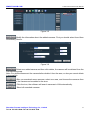
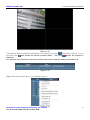
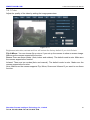
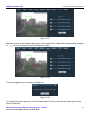
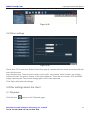
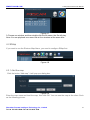
Figure 2.3
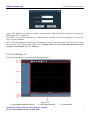
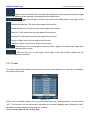
There are two modes: List and Group.
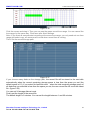
List: You can see all cameras that have added to the client and which area they belong to. Such
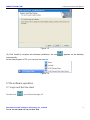
as the picture above, 192.168.132:2012 belongs to “a” area. Click
before the device IP, you
can see the device channel. And the tag changes to .
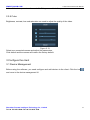
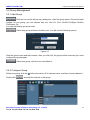
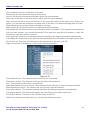
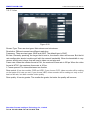
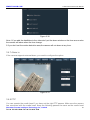
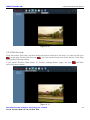
Figure 2.4
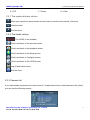
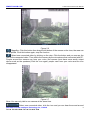
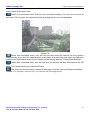
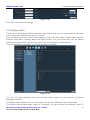
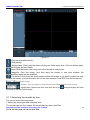
You can see a icon before the Channel. The icon has three statuses:
: This status shows that the device has connected successfully,
This status shows that the device has connected connect failed.
This status shows that the camera is alarming. Make sure you have set Alarm.
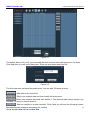
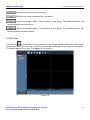
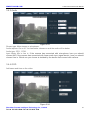
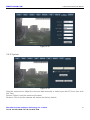
Current Screen: Displays the current connected devices, only under the list mode.
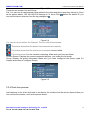
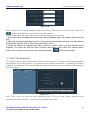
Group: Display the group information Make sure you have configured the Group (read 3.2
chapter about how to configure Group).
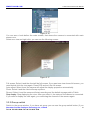
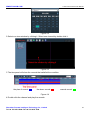
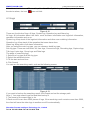
Figure 2.5
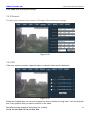
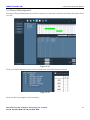
2.2.4 Real-time preview
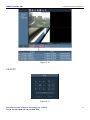
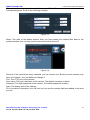
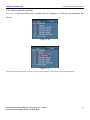
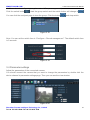
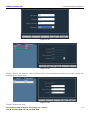
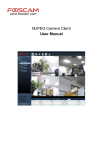
Add cameras to the client and back to the device list, double click the device channel then you
can monitor the camera, such as the picture below:
Shenzhen Foscam Intelligent Technology Co., Limited
Tel: 86 755 2674 5668 Fax: 86 755 2674 5168
8