1
MP-01/SB-L008KU
Network troubleshooting flow for problems
with LAN distribution Ver 1.0
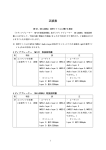
First, check the distribution window below.
Blue progressive bar does not appear.
Yes
Jump to (1) on next page.
No
Blue progressive bar appears, but a distribution error occurs.
Yes
Jump to (2) on next page.
No
Blue bar progresses to the right edge, and then normal end message is
displayed.
Yes
Distribution is completed successfully. Check a
new program by using the “Preview” function in
OSD of Media Player.
(1)
Note) Player: Media Player
Check the DHCP setting.
1) Check if the IP address of Player is set in "NETWORK" in OSD. If IP=0.0.0.0, it is not set. Check DHCP server setting.
DHCP
2) Check if the IP address of PC is set in the network setting of PC.
Player IP address is fixed?
Or it is set using DHCP?
3) Using a WEB browser, check if the media player name of the Player is set.
4) Check if the media player name in "panel property" on the "panel management" menu of Authoring software is the same
as that of the Player.
Fixed IP
OK
Check IP address and Netmask of both PC and Player.
1) Host address (the last number) needs to be unique, and Network address (first three
numbers) needs to be the same.
Ex.)
NG
OK: PC: 192.168.0.10, Player: 192.168.0.2
Set correct value.
NG: PC: 192.168.1.10, Player: 192.168.0.2
Try distribution again
2) Check the Netmask setting.
Ex.)
255,255,255,0
OK
NO
Ping test is checked?
(2)
Key-in the following from a command prompt: Ping “IP
address of Player”
NG
No connection between PC and Player.
Check the following.
Ex.) C:¥>Ping 192.168.0.2
1) LAN cable connection.
Refer to “Troubleshooting (Using Ping command to
conduct a LAN connection test)" in Player User's manual.
2) Network setting for Player and PC.
3) If the two IP addresses are overlapping.
4) If there is a hub or a router between PC and Player, remove
the PC and the Player from the LAN and connect them
directly with a LAN cable, and then try again.
yes
OK
Proxy used
Check Proxy server setting in Internet Explorer (IE).
IE ”tools”-->”Internet options”-->”Connections”-->“LAN settings” (Refer to appendix 1-A)
Disable Proxy* or set IP address of Player in
“Exceptions” for Proxy server (refer to appendix 1-B.
Try distribution again
* Remove check mark of “Proxy server”.
Proxy not used
Cannot be opened
Check if the WEB server in Player can be opened in IE of PC (refer to appendix 1-C).
Check the following.
1) Your security software such as a firewall blocks Http protocol or port 80.
-->Disable the security software and try distribution again.
2) Proxy server is set in IE.
-->Go back to the previous step.
Can be opened
3) Check if the Player IP address is overlapping with that of other device.
Disable your security software and try distribution again.
Your security software blocks the distribution of Authoring software.
One of the followings might cause this issue.
Distribution succeeds
Unsolved
Unsolved
Call support center.
1 FTP protocol or the FTP communication port might be blocked.
-->Change the setting of security software to unblock FTP communication.
2 Service program (SpSv.exe, SndSrv.exe) of Authoring software is blocked.
--> Change the setting of security software to unblock it (SpSv.exe, SndSrv.exe).
Appendix 1
A. How to check Proxy server setting of Internet Explorer (IE)
(1) Open “Tools” of IE --> “Internet options”
--> “Connections” --> “LAN settings”.
If it is checked and an address is set, Proxy server is enabled.
B. How to set “IP address exceptions” for Proxy server in IE
Click “Advanced” in “LAN setting” in IE.
Key-in IP address of Player in the Exceptions field.
C. How to connect to the WEB server in Player
User name, password screen
1) Startup the Internet Explorer on the computer, and input the Static IP address set in the
authoring software after the “http://” in the address bar.
2) If the user name and password screen are displayed, input the user name: default and
password: 0000.
3) Confirm that the setting screen is displayed.
NOTE:
The Media Player setting can be confirmed on the WEB setting screen.
CAUTION:
It may not be properly displayed on a browser other than Internet Explorer.
WEB setting screen
Appendix 2
<Reference>
<MP-01/SB-L008KU LAN specifications for Distribution>
(1)Protocol: HTTP for Player control and FTP passive mode for file distribution
(2) Port No.
Http protocol
Source (PC) port no.: arbitrary port number (1024 to 65535)
Destination (MP-01) port no.: 80H
FTP protocol
•For FTP Control
Source (PC) port no.: arbitrary port number (1024 to 65535)
Destination (MP-01) port no.: 21H
•For FTP data
Source (PC) port no.: arbitrary port number (1024 to 65535)
Destination (MP-01) port no.: arbitrary port number (1024 to 65535)
PC
MP-01/SB-L008KU
(port: 1024 to 65535)
Http
(port: 80)
Http server
Player control
(port: 1024 to 65535)
(port: 21)
FTP control
FTP server
FTP
FTP data
(port: 1024 to 65535)
(port: 1024 to 65535)




![STATUTORY INSTRUMENTS S.I. No.[ • ] of 20[ • ] SMALL PUBLIC](http://vs1.manualzilla.com/store/data/005664657_1-1d833bc83c9d446d3d2ea05d8407eb41-150x150.png)