1
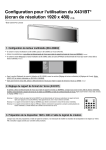
Configuration for Using the X431BT*
(1920 x 480 Resolution Display) (1/3)
* 43.1 inch LCD display
1. Configuring Media Player (SB-L008KU)
• Following the SB-L008KU User’s Manual, place the SB-L008KU on the display (X431BT).
• Switch on the power, and then use the display remote to set the display aspect ratio to [NORMAL]. Note 1
• Following the [Settings] section of the SB-L008KU User’s Manual, use the [OPTION] button of the display remote to open the Media Player OSD menu. Note 2
DATE/TIME
NETWORK
PREVIEW
TIMER
LANGUAGE
VIDEO OUT
MEMORY CARD
SLIDE SHOW
ADVANCED
• In the [Settings] section of the SB-L008KU User’s Manual, follow [Setting the Media Player] and [Display Settings] sections. Set the [VIDEO OUT] setting of
Media Player to [DVI1920×1080@60].
• After closing the OSD menu, use the display remote to set the display aspect ratio to [TRIM]. Note 1
2. Setting the Aspect Ratio of the Display (X431BT)
Generally, use the display remote to set the aspect ratio to [TRIM]. When opening the OSD menu of Media Player, temporarily change the aspect ratio to
[NORMAL] using the display remote. After closing the OSD menu, return the setting to [TRIM]. Note 1, 3
Note 1: Use the aspect ratio button [ASPECT] of the display remote to select the aspect ratio.
After pressing the [ASPECT] button, the status appears in the upper right area of the window.
Note 2: The aspect ratio must be set to [NORMAL] to correctly display the OSD menu of Media Player.
Note 3: The aspect ratio must be set to TRIM to correctly display the program display (including the preview display) of Media
Player. The bottom half of the window is black in those cases.
ASPECT
3. Preparing the 1920 x 480 Layout with the authoring software
When creating programs using the authoring software, it is necessary to change the layout resolution to 1920 x 480. See the next page for this procedure.
Configuration for Using the X431BT*
(1920 x 480 Resolution Display) (2/3)
Creating a 1920 x 480 layout using the authoring software (Supplement to Part (3) on the previous page)
① At the main window, click [Layout settings] -> [Layout], then select the layout to be used.
② Click [Start Editing] -> [Resolution], then select [1920×480] or [Undesignated (4:1)].
③ After editing the layout as necessary, click the [Quit Editing] button. From the dialog box below, click [Overwrite] or [Add].
④ Click [Finish] to confirm the layout settings and register the program.
Configuration for Using the X431BT*
(1920 x 480 Resolution Display) (3/3)
Troubleshooting
Problem
Condition
The lower half of the display area is black.
Cause and Remedy
Use the ASPECT button of the display remote
to set the aspect ratio of the display (X431BT)
to [TRIM].
Example of normal display
Example of incorrect display
ASPECT
The Media Player
program is not
displayed correctly on
the display (X431BT)
Example of incorrect display
The bottom half of the window is not displayed for the program display.
Example of normal display
The layout resolution setting for a program
created using the authoring software is
incorrect.
Set the layout resolution setting
of the program to [1920 x 480] or
[Undesignated(4:1)]
See page 2.
Example of incorrect display
The bottom half of the OSD menu is not displayed.
The OSD menu of
Media Player is not
displayed correctly on
the display (X431BT).
DATE/TIME
NETWORK
PREVIEW
TIMER
LANGUAGE
VIDEO OUT
MEMORY CARD
SLIDE SHOW
ADVANCED
Example of normal display
Example of incorrect display
DATE/TIME
NETWORK
PREVIEW
TIMER
LANGUAGE
VIDEO OUT
The bottom half of the start window is not displayed.
The start window of
Media Player is not
displayed correctly on
the display (X431BT).
Use the ASPECT button of the display remote
to change the aspect ratio of the display
(X431BT) to [NORMAL]. When the OSD menu
is closed, return the setting to [TRIM].
ASPECT
This problem occurs because the aspect ratio
of the display (X431BT) is set to [TRIM]. There
is no problem so continue as normal.