1
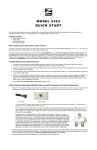
2 Connect the supplied Ethernet cable between any cable modem LAN jack and a computer’s Ethernet jack. We recommend that you do this even if you later plan to disconnect this computer. If connecting the Ethernet cable to a computer is difficult or impossible, you can make a wireless connection as discussed below in “Connecting Model 5352 wirelessly to some device.” 3 Connect the Zoom power cube between the Zoom cable modem and a live power jack. Make sure the cable modem’s Power Switch is ON. 4 What you do next depends on your cable modem company. Typically you can call your cable modem company’s support department and tell them your cable modem is hooked up. They’ll normally ask for the information mentioned above in “Before installing your cable modem please read this.” Some cable companies also let you just open the browser on a computer that’s connected to the Zoom cable modem. A setup page comes up automatically, and you follow the instructions. 5 Go to “Now that your cable modem is connected, do this.” below. Now that your cable modem is connected, do this. When your cable modem first connects to your cable service provider, allow 5 to 30 minutes for the cable modem to connect to the network. The cable modem uses this time to locate and connect to the appropriate channels for communication. You’ll see the DS (downstream), US (upstream), and Online modem lights flashing until the Online light stays steady green to signal success. (Blue US/DS LEDs indicate channel bonding.) To check that your cable modem is working, open your browser and go to a familiar Web site. If it works, congratulations! Installation is complete for a single PC. For Internet access using a smartphone, tablet, or other wireless device, see “Connecting Model 5352 wirelessly to some device.” If you want to connect additional computers or other devices using the modem/router’s Ethernet/LAN ports, please see “Read This Only if You Are Connecting additional computers and/or other devices to Model 5352’s Ethernet/LAN ports.” In the unlikely event that you want to configure advanced options, please refer to the User Manual on our website at www.zoomtel.com/5352manual Please note the following: • Do not block Model 5352’s vents in any way. • Model 5352 can be horizontal or vertical. To put the cable modem/router in a vertical orientation, use the swiveling “foot” at the bottom of the unit.