1
A percentage complete figure is displayed and updated in real time as each track is
synchronously read from the disc and encoded.
4.3.1.5 Group 5: Batch Status Window
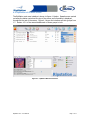
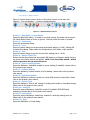
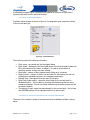
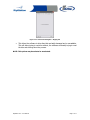
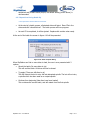
The batch status window as shown in figure 4.4 is designed to give a dynamic preview
of the current batch job.
Figure 4.4 – Batch Status Box
The window provides the following information:
•
•
•
•
•
•
•
Client name - as entered into the New Batch dialog
Discs ripped - displayed in the form N/NN where N is the total ripped to date and
NN is the total size of the batch. A wildcard * is used to denote when no
maximum number of discs has been entered.
Discs failed - number of discs rejected due to failing error correction
Missing Covers - number of discs in current batch for which album art was not
obtained from metadata services or the integrated web search.
Elapsed Time - time elapsed since the start of the batch.
Open Client Folder button - opens the client folder for the current batch in
Windows Explorer. This is useful for checking that folders and files are being
created as expected. This can be clicked safely during the batch process and will
not affect operation.
The settings for each codec that was selected for the current batch - the bit rate
and VBR/CBR settings will be highlighted within the active codec.
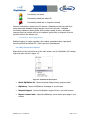
4.3.1.6 Group 6: Internet and metadata provider Connection Status Window
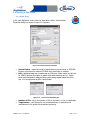
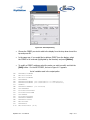
The key for the connection status of the internet and the metadata providers is shown
below.
RipStation v4.2 – User Manual
Page 21 of 42