1
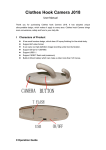
Home | Contact Us | Log In | Shopping Cart - 0 item(s) - 0Rs. | Checkout User Manual : THS keychain camera User Manual Thank you for purchasing our THS keychain camera. It has adopted unique ultra-portable design, which makes it apply to every area. I : Features of Product l Support AVI video format. l It can carry out high definition image recording under low illumination. l Support 30 fps for 640*480 l Support USB1.1 and USB2.0. l Support 16GB T-flash card.(maximum) l Build-in lithium battery which can make a video one hour, the standby time is up to 120 hours. II Operation Guide 1. Charge: The battery is built-in lithium rechargeable battery, so when you use it the first time, please charge firstly. The method for charging as following: 1.) Connect computer: use USB cable to connect the computer, then it can be charged. 2.) Use adaptor: connect charger plug with USB cable, then plug into electrical connector receptacle, it can be charged. When you charge it, yellow light will flash slowly, when it full charged ,the yellow light will stop flashing and keep yellow light on. Notice: when battery power is not enough, camera will enter into protection mode, so it cannot be turn on. Now, please charge for it. 2. Power on to video: Please confirm the TF card has already insert products! Press “ON/OFF” button , yellow indicator light begins to bright, now it enters into standby mode, Holding the “VIDEO/CAMERA” button, yellow indicator light flashing three times faster ,and put out immediately. At this time, it begins to make a video. press “ VIDEO/CAMERA” button yellow indicator light begins to bright , Pause and Save the record If you need to continue to video, please holding the “VIDEO/CAMERA” again. Notice: a. Please make sure T-Flash (Micro SD) card has been inserted, if not, yellow light will flashing fast and the camera will power off automatically after 15 seconds. b. The maximum capacity of T-flash card is 16GB. c. Saving file needs certain time, so please don’t press Operation button continuously in order to avoid saving unsmoothly and generating incomplete file. d. When you make a video, please focus on the object and keep 50cm under sufficient illumination. Then the video will be right, natural color, clear and stable. 3. Take Photo Press “ON/OFF” button, yellow indicator light begins to bright, now it enters into startup ready mode. which can enter into standby mode. Press “VIDEO/CAMERA” button. yellow indicator light flashing, represents a photo shoot. Repeated press, repeat photo. 4.Time set There is a file named “Setting time tools V2.0” . Please copy it to TF card. When connect Carkey camera with computer, whose time will be displayed with computer synchronously. The detail as following: 1.Connect with PC,the Mark of Removable Disk shows up. 2.To copy the Time-modify tool “Setting time tools V2.0” to your PC. 3.Perform update time tool and double click on the icon of program then starting to update. 4. While 5 sceonds pass the update progress will be completed and the time will synchronal with computer system time. 5.Power off In the halted state, Holding “ON/OFF” button, then release till indicator goes out. Then the machine is turned off. 6. Auto-power off function Carkey camera will save file and turn off automatically as following: a. When you shoot video without enough power, file will be saved automatically, then auto-power off. b. When disk space of camera is not enough, after indicator goes out immediately, file will be saved automatically then auto-power off. c. Under standby mode, without any operation in 45 seconds, it will be auto-power off. 7.Connecting to a computer It connects to computer under power off mode, standby mode or video mode, after that which can be used as U disk, who can copy, cut and paste, delete file. When you connect it with USB port, a portable disk mark will be seen after several seconds. Red indicator light always brights, yellow indicator light will be from flashed quickly to always brights. Notice: a. When you connect computer, if the machine cannot be identified, or not see the portable U disk mark in 30 seconds, please insert it again. b. It is better copy or cut video file into computer hardware then play. Video file which is saved in the machine is played directly will cause unsmooth play, the reason is that gigantic data cannot be transmitted synchronously. 8.Reset When machine works abnormal for illegal operation or other unknown reasons, it needs to be reset. The specific operation method as following: Use slim pole to press the Reset button, and then finish one reset operation. PS : the Reset button placed between USB port and TF card slot. 9. Notice Suitable using situation: Please follow State's law. Do not use it illegally. Software upgrade: In order to make products have more function, manufacturer will perfect product software continuously. There may have no information in advance. Work humidity: Please use it under agreeable human atmosphere humidity. Shooting illumination: Please use it under enough light sources; do not aim the camera at the sun. and other strong light sources in order not to damage optical parts of an apparatus. Cleaning requirements: Please not use the product under too large dust density atmosphere so as not to affect video effects for tainted lens and other parts. Waste treatment: Please pay attention to protect environment, not to throw the product optionally. In order to avoid explosion, please not throw product into fire. www.thehobbyshop.in Support email [email protected] Blog:www.blog.thehobbyshop.in Contact:+91-7276049868