1
Installation of myCable Linux Tool Chain and Running
Linux Images on the Fujitsu MB86R01 Starter Kit
User Manual
Introduction
Overall, the process of installing myCable Linux Tool Chain and
runing Linux images on the Fujitsu MB86R01 starter kit can be
divided into the following parts:
1. Setting up the Linux PC – the host
2. Building the Linux kernel and root file system images using the
myCable Linux tool chain
3. Setting up the host and target for image transfer
4. Transferring the built images to the MB86R01 Starterkit’s Flash
or RAM
5. Setting up the MB86R01 starter kit – the target – for Linux
kernel and root file system startup.
These are described in further detail in this document.
myCable Linex Tool Chain
Revision: 1.0 (Initial Release)
Last Updated: October 5, 2009
Document # GDC-UM-21372-10/2009
Copyright © 2009 Fujitsu Microelectronics America, Inc. All rights reserved. This file is protected by Federal Copyright Law, with all rights
reserved. No part of this file may be reproduced, stored in a retrieval system, translated, transcribed, or transmitted, in any form, or by any
means manual, electric, electronic, mechanical, electro-magnetic, chemical, optical, or otherwise, without prior explicit written permission
from Fujitsu Microelectronics America.
This document contains proprietary information, and except with written permission of Fujitsu Microelectronics America, such information
shall not be published, or disclosed to others, or used for any purpose, and the document shall not be duplicated in whole or in part.
The information contained herein may be preliminary and is subject to change.
-1
Fujitsu Microelectronics America, Inc.
User Manual
Setting up the Linux PC ........................................................................................................................................................ 1
Serial Console and uboot Configuration .................................................................................................................................. 1
TFTP server configuration on Linux Host ................................................................................................................................ 2
GDCV02L04 Driver and Application Building and Installing ..................................................................................................... 2
Linux BSP Building Using Make ............................................................................................................................................ 3
Linux Binary Files Loading into MB86R01 Starterkit ROM ...................................................................................................... 3
References ........................................................................................................................................................................... 4
Revision History ................................................................................................................................................................... 5
Fujitsu Microelectronics America, Inc.
0
myCable Linex Tool Chain
Setting up the Linux PC
Any Linux distribution for PCs can be used to set up the host system.
The one used in FMA’s setup is Ubuntu, which is available free from
http://www.ubuntu.com/getubuntu. The installation process is
quite straightforward.
After the Ubuntu installation is complete, the following additional
steps will be required. Using Ubuntu’s Synaptics Package Manager,
all the additional packages must be installed as described below.
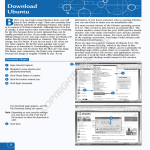
1. In Ubuntu, start Synaptics Package Manager using the menu
System → Administration → Synaptics Package Manager
2. Enter the root password.
3. Clock ‘Search’ and type the name of the package needed.
(Make sure that the package manager is configured to search in
the available online repositories.)
4. When found, click the box next to the package name and select
‘Mark for Installation.’
5. Repeat steps 3 and 4 for all the other required packages.
6. Click apply and follow instructions to complete the
installation process.
Note that this referenced document will be part of the download
package for the myCable Linux tool chain. An Internet connection is
needed for this part of the tool chain setup, as well as for ‘making’
the image later.
The myCable Linux tool chain can be downloaded from this
website:http://sourceforge.net/projects/xxsvideo/?abmode=1.
The tool chain is maintained directly by myCable, which owns this
reference design for MB86R01 – the MB86R01 Starterkit.
1
Fujitsu Microelectronics America, Inc.
Serial Console and uboot
Configuration
The MB86R01 starter kit is already flashed with uboot, a boot
loader that allows the OS components to be loaded onto the
on-board Flash or RAM. A serial console (such as Hyperterminal
for Windows) is required to communicate with uboot. Ubuntu
comes with built-in software called Minicom, which can be used for
this purpose. The process can be started by typing ‘minicom’ at the
terminal prompt. Once Minicom starts, it can be configured after
pressing Ctrl+A and then Z. The MB86R01 starter kit requires
settings of 115200 8N1 and no software or hardware flow control.
The Kernel and Root file image transfer from the host to the target
is actually executed through an Ethernet connection between the
two systems. Once the serial communication between the host and
target is established and the uboot prompt has appeared, uboot can
be configured to establish the Ethernet connection. The following
uboot parameters need to be set up for this purpose:
ethaddr: MB86R01 starter kit’s MAC address
ipaddr: MB86R01 starter kit’s Ethernet address
netmask: Net mask to be used
serverip: Host IP address
gatewayip: Gateway IP address for the network
After these parameters are set, the Ethernet connectivity with the
host can be checked from the target using the ‘ping’ command from
within the serial console.
A sample network configuration, used in FMA’s setup, is shown
below:
Target IP Address: 10.157.247.32 (static IP address)
Net Mask: 255.255.255.192 (same assigned on the host PC)
Server IP Address: 10.157.247.23 (dynamically assigned IP address)
Gateway IP Address: 10.157.247.1 (same assigned on the host PC)
User Manual
TFTP server configuration on Linux
Host
GDCV02L04 Driver and Application
Building and Installing
Before the image files can be transferred from the host to the target,
a TFTP server must be running on the host. The built-in tftp client
in uboot in the target system can then request these image files from
the host.
The GDCV02L04 driver package should be obtained directly from
Fujitsu’s local contact. Then follow these steps to generate
application binaries and install them in the respective tool chain
directories. Note that the driver package will already contain prebuilt driver binaries. They do not have to be built from the source.
There are various options as far as the TFTP server is concerned.
The one used in FMA’s setup is atftpd. The following steps1 can be
used for installing and configuring the server:
• The atftpd server can be installed on the Ubuntu host using
either the Synaptics Package Manager or the command:
sudo aptitude install atftpd,
• /etc/default/atftpd must be edited as follows so that the TFTP
server starts directly:
USE_INETD=true should be changed to USE_INETD=false
1. Editing and executing config file for GDC library:
Change to the folder lib/arm. Edit the config full so that the
INSTALL_PATH_CONFIG_TOOLCHAIN_DIR is properly
configured according to the system. Then execute the config
file using “. Config”. Note the space between “.” and “config”.
2. Installing GDC libraries into rootfs-user/lib folder:
This can be done by typing “make install” while in lib/arm
directory.
3. Making the Example Applications:
• The TFTP server needs to be started using the command:
sudo invoke-rc.d.atftpd start
• The last step will be to create a directory where the files for the
TFTP server will be placed. This can be done using the following commands:
Sudo mkdir /tftpboot
Sudo chmod –R 777 /tftpboot
Sudo chown –R nobody /tftpboot
• Lastly, the TFTP server can be restarted as follows:
Sudo /etc/init.d/atftpd restart
1.
Change into sample folder and type “make”. This will compile
all examples.
4. Editing and executing config file for Example Programs:
Just like in step 1, the config file in sample folder should be
edited so that the destination folder is set to the
rootfs-user/home folder in the toolchain.
5. Installing the Example programs into the rootfs-user/home
folder:
This can be done using the command “make install”.
Once Linux is running successfully on the target board, these
example programs can be executed by changing to the /home
directory and executing the file using ./<name_of_the_file>.
For example, the map demo can be executed using ./map.
How to Set up Advanced TFTP Server in Ubuntu: http://www.ubuntugeek.com/howto-setup-advanced-tftp-server-inubuntu.html
Fujitsu Microelectronics America, Inc.
2
myCable Linex Tool Chain
Linux BSP Building Using Make
Now we are ready to build the entire tool chain, which can be done
using the four simple commands below:
autoconf
./configure
make menuconfig (‡ exit)
make
1. Loading the Kernel image into ROM
Use the following commands to load the kernel image into
ROM.
xxsvideo> set autostart no
xxsvideo> tftpboot 0x40500000 uImage-xxsvideo-jadeevalkit-0.8.3.bin
xxsvideo> erase 0x10040000 0x1023ffff
xxsvideo> cp.b 0x40500000 0x10040000 $(filesize)
2. Loading the Root File System into ROM
As mentioned before, the Linux host needs to be connected to the
Internet while running the make command. Many source packages
are downloaded for different websites during that process.
Also note that the kernel can be individually configured by running
‘make menuconfig’ under sources/xxsvideo/linux-xxxx directory.
Linux Binary Files Loading into
MB86R01 Starterkit ROM
This process will consist of:
1. Loading Kernel image into ROM
2. Loading Root File System into ROM
3. Configuring uboot so that it correctly starts Linux each time
the board powers up
The steps are described in detail below. It is assumed that tool chain
version 0.8.3 is being used, the latest version at the time this
document was being written.
3
Fujitsu Microelectronics America, Inc.
Use the following commands:
xxsvideo> set autostart no
xxsvideo> tftpboot 0x40500000 rootfs-xxsvideo-jadeevalkit-0.8.3.bin
xxsvideo> erase 0x10240000 0x11ffffff
xxsvideo> cp.b 0x40500000 0x10240000 $(filesize)
3. Configuring uboot
xxsvideo> set bootdelay 2
xxsvideo> set autostart yes
xxsvideo> set bootargs console=ttyS0,115200 root=/dev/mtdblock3
stype=jffs2 mem=112MB
xxsvideo> set bootcmd bootm 0x10040000
xxsvideo> saveenv
rootf-
The board can now be reset. Linux will start running on MB86R01
and text output can be seen on the serial console as the boot process
occurs. After bootup, Linux will give a login prompt so that the
system can be put to a useful purpose.
User Manual
References
1. Software Manual XXSVideo (Jade Starterkit) Linux Tool chain setup, July 7, 2008
(This will be part of the package downloaded from the sourceforge website.)
2. MB86R01 ‘Jade’ Evaluation Board / Starterkit Demo Quickstart Rev 1.3:
http://www.fujitsu.com/downloads/MICRO/fme/displaycontrollers/bm-mb86r01-demo-quickstart-rev1-30.pdf
Fujitsu Microelectronics America, Inc.
4
Revision History
Date
Revision
October 5, 2009
V1.0
Updates
First Release
FUJITSU MICROELECTRONICS AMERICA, INC.
Corporate Headquarters
1250 East Arques Avenue, M/S 333, Sunnyvale, California 94085-5401
Tel: (800) 866-8608 Fax: (408) 737-5999
E-mail: [email protected] Web Site: http://us.fujitsu.com/micro
8
©2009 Fujitsu Microelectronics America, Inc. All rights reserved.
All company and product names are trademarks or registered trademarks
of their respective owners.
Printed in U.S.A. GDC-UM-21372-10/2009