Transcript
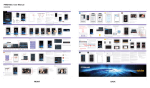
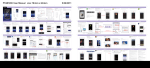
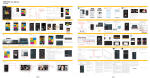
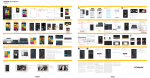
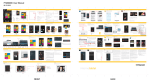
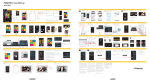
PTAB750: User Manual 02/07/2013 In the Box Location of Controls 6 7 7” Kids Tablet Parental Controls + 35 Premium Apps PTAB750 Display Lock Basic Operation Use the Display lock to prevent little ones from Interrupting videos or interactive books. Charging the battery: Slide the switch to the "On" position as shown below, the tablet's display and buttons (except for volume) will be disabled. Connect the tablet to a wall outlet using the included AC adapter. Bottom View app shop Parentall Controls The adapter is not a toy and should be connected to the wall outlet by an adult. Browser E-mail Clock Doodle Jump User Manual Drawing Pad Kids Cam Dr. Seuss’s ABC Camera Game Arcade Kids Vids Music Quick Start Guide 4 Customer Support: 1-877-768-8481 (Toll Free) [email protected] Kids Vids Pictures &Videos 5 Tablet Apps User Manual & Quick Start Guide Display lock 3 8 9 10 11 ON USB Cable AC Adapter Tablet Stand OFF Home Button Back Button Volume Up 7 Camera 10 Display lock 8 Headphone Jack 11 SD Card Slot The sleep timer will be disabled when the Display lock is on. 9 USB Port Volume Down Home screen 2 : Game widget (Main Home screen) Home screen 3 : Media widget button on the Apps screen, and create an account. Parental Controls 1. Make sure Safe Mode is OFF, and select “Parental Controls” App shop Kids Cam Browser Game Arcade Home screen 4 : Creativity widget Home screen 5 : Settings widget Camera Clock Kids Vids Music Player Calendar E-mail Calculator Settings Shape Builder Monkey & Banana Penguin’s Family TuneIn Radio Polar Bear Horizon Lock screen Battery Tips: • Turn off Wi-Fi when it’s not in use. • Lock the tablet (the display is off) to shorten charging time. • To optimize battery time and performance, adjust the "Brightness" and "Screen timeout" options in the Settings app. Startup screen Dr. Seuss’s ABC Woolly Mammoth Memory Match Appstore Cancel Settings OFF Safe Browser Connect the Dots Lock (standby) the tablet To lock or unlock the tablet, briefly press the (Lock the device to conserve the battery). Online Help What Was I Sca Kids Cam The Lorax Game Arcade The Cat in the Hat Drawing Pad Kids Vids Music Player Home screen 2 Game widget NOTE : Credit card is not required to download free apps. GO Doodle Jump Wallpaper Pictures &Videos Placing apps on the Home screen (Creating Shortcuts) Press & hold an app to place it on Home screen 1. Removing shortcuts Press and hold the app and slide it as shown below. It is possible to manage and transfer media files to the tablet by connecting it to your computer. It is strongly recommended to purchase and install an SD card before transferring or downloading media files. Camera Calendar Calculator App shop Kids Cam The Lorax Game Arcade The Cat in the Hat Drawing Pad Kids Vids Music Player SCAN Inserting an SD card Unmount & remove the SD card: The tablet supports SD cards (not included). Total space WIRELESS & NETWORKS To install an SD card into the tablet: 1. Insert the card face up into the card slot until it clicks and locks into place. Doodle Jump Triceratops Gets Lost Tyrannosaurus Safe Browser Monkey & Banana Penguin’s Family Wi-Fi Setup DEVICE Settings Lullaby Learn Shape Builder TuneIn Radio Monkey & Banana Cancel Memory Match Woolly Mammoth Green Eggs & Ham Polar Bear Horizon Memory Match Woolly Mammoth Green Eggs & Ham Dr. Seuss’s ABC Connect the Dots Safe Browser What Was I Sca Dr. Seuss’s ABC Connect the Dots Safe Browser What Was I Sca Apps screen Swipe the Apps screen left to access more apps. Tips: Transfer and store media files such as music, pictures and video on to an SD card and avoid placing these types of files in the internal memory of the tablet - this will conserve the internal memory, and allow you to download more apps. 1. Select “Parental Controls Settings”. 3. Select the apps you’d like to restrict, and select “Save”. The Apps Screen will appear, and you will be able to confirm that the apps you have selected have been restricted. 2. Select “Restricted Apps”. Tap here to restrict or unrestrict Browser Wi-Fi Setup Settings Password Calculator Restricted Apps The restricted apps will not appear on the Apps Screen Calendar OK Camera Download App Stores Face up Reset Password Parental Controls Settings E-mail File Manager TuneIn Radio Search Settings Nook TuneIn Nook 2. To access the SD card, select "File Manager" from the Apps screen. Unmount the SD card so you can safely remove it Press to proceed USBHOST1 Minimum system requirements: • Windows: 2000, XP, Vista, 7 • Mac OS X: 10.5 or later (with USB connection) • A card can only be inserted one way; do not use force when Accessibility Mount SD card inserting the card. Insert an SD card for mounting • Make sure to unmount the card before taking it out of the tablet. Developer options Enable media scanning on To view, open, copy or delete files on the internal memory of the tablet or inserted SD card, select "File Manager" on the Apps screen. These apps contain great content for children, but if desired, can also be restricted using parental controls. Go back to the previous folder TuneIn: On the main screen of the TuneIn app, select "Music" and then "Children's". Radio Disney,and many other options suitable for children willappear. Add these stations to the preset list by selecting the heart icon on the top right of the display when the station is open. Go to internal memory USB connected You have connected to your computer via USB. Touch the button below if you want to copy files between your computer and your Android’s SD card. SD Go to pictures Parental Controls screen 1 Safe Mode is a quick way to override your Parental Controls settings. 1. To set up Wi-Fi, select “Parental Controls”. 2. Enter the password. Safe Mode OFF Tyrannosaurus Nook Camera Music Player Triceratops Gets Lost Kids Cam Help Game Arcade Browser ON Safe Mode Clock Kids Vids Polar Bear Horizon Memory Match Penguin’s Family Woolly Mammoth TuneIn Radio Green Eggs & Ham Cancel Connect the Dots Safe Browser What Was I Sca 5 items -drw 4 items -drw Calendar E-mail Calculator Settings OFF 7 items -drw 1 items -drw 1 items -drw Settings 5 items -drw 4 items -drw -drw 1 items -drw 1 items -drw 5 items -drw 4 items -drw Hiking_pics_Feb_2012 SCAN -drw 0 items -drw 1 items -drw ON stics Data usage DCIM Secured with WPA2 More... -drw (*)hpsetup ON Settings SCAN ADD NETWORK Secured with WPA2 Display Briefly press to open Press & Hold for Options slacker 3. If you select “Copy” or “Move”, press and hold on a folder and select “Paste into folder” to copy the file there. Secured with WPA2 Wi-Fi ABCD_Network Data usage Apps gameloft -drw OK Rename Folder 1 items -drw Copy Folder 1 items -drw Safe Mode Polar Bear Horizon Monkey & Banana Memory Match TuneIn Radio Penguin’s Family Woolly Mammoth Green Eggs & Ham Settings Dr. Seuss’s ABC Connect the Dots Safe Browser Wi-Fi Setup Safe Mode Download App Stores Home Wi-Fi download Move (Cut) Folder LOST.DIR Paste into folder DCIM Extract here Excellent Security WEP Hold the Power button down until the screen shuts off. Wait 10 seconds and Power ON the tablet. If the problem persists it may be necessary to restore the tablet to the factory default settings: New software update available. Do you want to update? OK Cancel Password Show password Show advanced options When Safe Mode is "OFF" all the apps on the tablet will appear on the Apps Screen, and the tablet will default to the standard web browser. Home screen (Settings) EXIT Cancel Connect Select “Show password” to avoid mistakes. FRONT 7 items Rename Folder 1 items -drw Copy Folder 1 items -drw 5 items -drw 4 items -drw LOST.DIR 0 items -drw 1 items -drw DCIM Parental Controls Settings Note: It is important to install all available updates. Your tablet will automatically check for updates when it’s connected to Wi-Fi and prompt you to install the latest software. You can also manually check for updates, for instructions refer to “Software Update” on the reverse side of this user manual. SAFE 3. Select “Add more links to safe sites”. 4. Enter the desired URL and title. 5. Select OK. 1) Select "Settings" from the Apps screen. 2) Select "Backup & reset". 3) Select "Factory data reset" (this will erase data stored on the device so make sure to back up your data prior to using this option). Settings BACKUP & RESTORE WIRELESS & NETWORKS Wi-Fi ON Back up my data Data usage Back up app data. Wi-Fi passwords, and other settings to Google servers More... Back up my data Back up to debug-only private cache DEVICE Automatic restore Sound When reinstalling an app, restore backed up settings and data Display PERSONAL DATA Storage Battery CAUTION: Not recommended for children under 3 years of age. As with all electrical products, precautions should be observed during the handling and use to prevent electrical shock. Display: - 7" capacitive multi-touch screen - Display resolution: 800X480 (16:9) - 4 way auto rotation WARNING: Adapter cord could be a strangulation hazard. Network: Wi-Fi (802.11 b/g/n) FOR INDOOR / DRY-LOCATION USE ONLY. Memory - Internal Memory: 8GB* - External Memory: SD card slot Charging the tablet & built-in rechargeable battery The adapter is not a toy and should be connected to the wall outlet by an adult. It should be periodically examined for conditions that may result in a risk of fire, electrical shock, or injury to persons, such as damage to the cord, plug, blades, housing, or other parts, and in the event of such conditions, the adapter must not be used until the damage is repaired. Camera - 2MP rear camera *Actual internal memory may vary depending on the operating system of the device and the preloaded apps. Factory data reset Erases all data on tablet WARNING: TO REDUCE THE RISK OF FIRE OR ELECTRICAL SHOCK, DO NOT EXPOSE THIS PRODUCT TO RAIN OR MOISTURE. Apps PERSONAL WARNING Accounts & sync RISK OF ELECTRIC SHOCK DO NOT OPEN Location services Security Language & input Backup & reset SYSTEM Accessibility Developer options About device THE LIGHTNING FLASH WITH ARROWHEAD SYMBOL, WITHIN AN EQUILATERAL TRIANGLE, IS INTENDED TO ALERT THE USER TO THE PRESENCE OF UNINSULATED “DANGEROUS VOLTAGE” WITHIN THE PRODUCT’S ENCLOSURE THAT MAY BE OF SUFFICIENT MAGNITUDE TO CONSTITUTE A RISK OF ELECTRIC SHOCK TO PERSONS. WARNING: TO REDUCE THE RISK OF ELECTRIC SHOCK, DO NOT REMOVE COVER (OR BACK). NO USER SERVICEABLE PARTS INSIDE. REFER SERVICING TO QUALIFIED SERVICE PERSONNEL. THE EXCLAMATION POINT WITHIN THE EQUILATERAL TRIANGLE IS INTENDED TO ALERT THE USER TO THE PRESENCE OF IMPORTANT OPERATING AND MAINTENANCE (SERVICING) INSTRUCTIONS IN THE LITERATURE ACCOMPANYING THE PRODUCT. ∙ Only use the included power adapter to charge the tablet. ∙ The tablet’s power adapter may become warm during normal use. ∙ Allow adequate ventilation around the tablet’s power adapter. ∙ Do not connect or disconnect the tablet’s power adapter with wet hands. ∙ Do not charge/use the tablet in potentially explosive atmospheres. ∙ The built-in rechargeable battery in the tablet should be replaced only by an authorized service provider, call Customer Support for more info, 1-877-768-8481. Care & Safety Precautions ∙ Service should only be provided by an authorized service provider. ∙ Never attempt to disassemble, repair or modify the tablet yourself. ∙ Do not use the tablet in rain or other wet locations. ∙ Avoid spilling any liquid on the tablet. ∙ In case the tablet gets wet, unplug all cables and turn off the tablet. ∙ Do not attempt to dry the tablet with an external heat source. ∙ Unplug all cables and turn off the tablet before cleaning. ∙ Use a soft, lint-free cloth to clean the tablet and display. Settings DEVICE Sound EXIT Wi-Fi 5 items -drw 4 items -drw Data usage More... PERSONAL 0 items -drw 1 items -drw DEVICE Sound Language & input Display Backup & reset About device SYSTEM Storage Software update NOTE : “Settings” will only appear on the Apps screen if Safe Mode is OFF, or “Settings” is not restricted. Information Regarding Exposure to Radio Frequency Energy Your Device is designed and manufactured not to exceed the emission limits for exposure to RF energy set by the Federal Communications Commission of the United States (FCC). Information on your Device is on file with the FCC and can be found under the Display Grant section of www.fcc.gov/oet/ea/ after searching on the FCC ID for your Device, which can be found on the back of the Device. FCC Part 15:This equipment has been tested and found to comply with the requirements for a Class B digital device under Part 15 of the Federal Communications Commission (FCC) rules. These requirements are intended to provide reasonable protection against harmful interference in a residential installation. This equipment generates, uses and can radiate radio frequency energy and, if not installed and used in accordance with the instructions, may cause harmful interference to radio communications. However, there is no guarantee that interference will not occur in a particular installation. If this equipment does cause harmful interference to radio or television reception, which can be determined by turning the equipment off and on, the user is encouraged to try to correct the interference by one or more of the following measures: ● Re-orient or relocate the receiving antenna. ● Increase the separation between the equipment and receiver. ● Connect the equipment into an outlet on a circuit different from that to which the receiver is connected. ● Consult the dealer or an experienced radio/TV technician for help. Do not attempt to repair or modify this equipment. Warning: Changes or modifications to this equipment not expressly approved by the party responsible for compliance could void the user’s authority to operate the equipment. “This device complies with Part 15 of the FCC Rules. Operation is subject to the following two conditions: (1) this device may not cause harmful interference, and (2) this device must accept any interference received, including interference that may cause undesired operation.” BACK Battery Accessibility Sleep Never sleep Font size Large Accelerometer coordinate system Accelerometer uses the default coordinate system screen adaption Used to adjust size of some games display screen Developer options Apps NOTE : Safe Mode must be OFF to access Online Help. Settings screen Legal Information ∙ Avoid getting moisture in open ports. ∙ Do not use household cleaners, solvents, alcohol, or abrasives to clean the tablet. ∙ Routinely check the tablet for proper and safe conditions. If there is any damage, or broken parts, remove the tablet from use. ∙ If for any reason the screen (display) is fractured or cracked, immediately remove this product from use and contact Customer Support for replacement. ∙ It is rare but possible for seizures to be triggered by light flashes or patterns such as those on computer or TV screens. To reduce exposure to this potential hazard, play/watch in a well-lit room, sit an appropriate distance from the screen and take 10- to 15-minute breaks every hour. ∙ Cords could be a strangulation hazard. ∙ Keep out of reach of children under 3 years of age. ∙ Children pulling on the cord could cause the computer monitor or other equipment to which the device is connected to fall with possibility of property damage, serious injury, or death. Adult supervision required during play. ∙ Long-term exposure to loud sounds, at high volume, may result in permanent hearing loss. When using headphones or ear buds, it is recommended that the product is listened to at lower volumes for shorter periods of time. Set the volume while in a quiet environment; turn the volume down if you cannot hear the people speaking near you. Limit the listening time to 90 minutes, followed by a quiet period. The louder the volume, the less time required before your hearing may be affected. If you experience ringing in your ears or hear muffled speech, stop listening and have your hearing checked. Auto-rotate screen Accounts & sync Security Developer options ON Wallpaper Battery Location services Accessibility Brightness WIRELESS & NETWORKS Apps SYSTEM Zip Folder Extract here Auto update Backup & reset Move (Cut) Folder Paste into folder Check for updates Storage -drw 1. Open “Settings.” 2. Select “Display.” 3. Select “Accelerometer coordinate system.” 4. The default setting is “Default coordinate system.” This setting should work for most games. 5. In case your game is not functioning properly, select “Special coordinate system, to support some other games”. Update Display Language & input Delete Folder Option window 1. Select (Home screen 4, Creativity Widget). 2. Select the [+] icon on the bottom right of the screen, and create a password (We recommend using the same password used in Parenta Controls). Restore Download App Stores Settings screen Specifications: Operating System: Android 4.0 (Ice Cream Sandwich) Processor: ARM CORTEX-A8 Processor Speed: 1 GHz RAM: 512MB DDR3 Graphic accelerator: Mali400 (supports OpenGL ES 2.0) What Was I Sca “SAFE” icon appears Folder operations -drw In the event that the tablet freezes or does not function properly, try correcting the problem by resetting. After connecting to Wi-Fi, if there is a software update available this window will appear. Online Help Security QRReader Hiking_pics_Feb_2012 Zip Folder Completely control your child’s web environment using the Safe Browser. Update Signal strength gameloft download Specifications, Care & Safety Precautions Secured with WPA2 5. If required, enter the correct password and select “Connect”. Parental Controls slacker Sometimes, while playing games, the g-sensor on the tablet may not function correctly. This results in games not being controllable. To correct this problem, follow the steps below: More... PERSONAL Accounts & sync -drw Software update ON Games Check for updates automatically Online Help Battery /mnt/sdcard 7 items Settings WIRELESS & NETWORKS SD Delete Folder Reset & Restore stics Wi-Fi Setup Not in range Storage Folder operations Safe Browser Press and hold the button until the screen shuts off. Settings Berison MIFI4500L 4404 Sound Your tablet is capable of recieving OTA (over the air) updates. The tablet is set to automatically check for updates, and will notify you when there is an update available. Manually check for updates : (You must connect to Wi-Fi before checking for updates) 1. On the Apps screen, select “Settings” 2. Under the “System” tab, select “Software update” 3. Select “Update” to manually check for OTA updates Connected Wi-Fi Transfer media files to “Removable Disk” (SD card) ADD NETWORK Home Wi-Fi WIRELESS & NETWORKS LOST.DIR USB Connected screen Safe Browser • Technical support • Product registration Connected Hiking_pics_Feb_2012 Turn off USB storage 6. When the tablet is connected to a network, the Wi-Fi icon will appear on the Status Bar and “Connected”will appear under the selected network. Select “Online Help” DEVICE QRReader Power Shape Builder “Removable Disk” access the SD card Software Updates on the Parental Control Screen to access: Select and customize the options in “Settings” to increase battery performance, manage applications, setup Wi-Fi, change display options, set passwords and more. Hiking_pics_Feb_2012 1 items QRReader Parental Controls Settings When Safe Mode is "ON" the apps that have been restricted will not appear on the Apps screen, and the tablet will default to the Safe Browser. Online Help QRReader DCIM download Secured with WPA2 Online Help Dr. Seuss’s ABC -drw /mnt/sdcard 7 items Home Wi-Fi Music Player Power Monkey & Banana 1 items “Removable Disk” window appears if an SD card is inserted Location services gameloft 3. Select “Wi-Fi Setup”. Parental Controls Power Shape Builder -drw SD Restricted Apps screen Parental Controls Apps screen App shop Tips: Organize your media (pictures, videos and music) by creating folders such as “Pictures”, Videos” and “Music” on the SD card as shown below. SD card USB Connected screen download Folder actions Nook: On the Nook shop screen select "Books" and then "Kids"or browse the new Nook Comics section. (*)hpsetup Doodle Jump Previous to exit the USB connect screen /mnt/sdcard 4. Turn Wi-Fi on and select a network. Password Parental Controls 1 items Copy, move or delete a file or folder: 1. Press and hold a file or folder until the options window appears, then select an option from the options window. File Manager Parental Controls screen 2 Wi-Fi Setup Kids Vids -drw gameloft Settings Go to SD card Go to USB Downloads Back Safe Mode Drawing Pad slacker 7 items gameloft File Manager screen Game Arcade 4. Copy media files from your computer to the SD card. Conserve Internal Memory! Go to movies 1 items The Cat in the Hat slacker 0 items 0 items The Lorax SD /mnt/sdcard LOST.DIR DCIM Kids Cam SD /mnt/sdcard Hiking_pics_Feb_2012 LOST.DIR App shop 3. The "Autoplay" window appears on your computer's display - Select “INTERNAL” to view and manage files on the tablet, or if an SD card is inserted, select “Removable Disk” to manage files on the card. Settings app: 2. Select a file or folder. QRReader slacker EXIT Home screen Note: Polaroid and the manufacturer of this tablet are not affiliated with, connected to, or sponsored by Amazon or the Amazon app store. Turn on USB storage Settings download Search Apps screen What Was I vvv PC Enable media scanning on Backup & reset NOTE : “File manager” will only appear on the Apps screen if Safe Mode is OFF, or “File Manager” is not restricted. Music Home screen Safe Browser USB connected File Manager: USB Mass Storage E-mail Safe Mode ON Connect the Dots You have connected to your computer via USB. Touch the button below if you want to copy files between your computer and your Android’s SD card. SD Swipe left until the Settings screen appears Dr. Seuss’s ABC Install USB port Unmount SD card SD card Language & input 5. Select "Turn off USB storage" on the tablet to disconnect it from the computer. The following apps are restricted by default. Clock Power “Setup Password” screen Green Eggs & Ham 3.47GB Security NOTE : “File manager” will only appear on the Apps screen if Safe Mode is OFF, or ”File Manager” is not restricted. app shop Safe Mode Woolly Mammoth Media files on your computer USB Restricting Apps Enter New Password Free Play Memory Match Available About device Online Help Polar Bear Horizon The tablet supports many game apps - however we recommend always testing the free version (if available) before purchasing. 3.69GB Location services Press the Home button to return to the Home screen Set New Password Parental Controls TuneIn Radio Total space PERSONAL SAFE Downloads Cancel Penguin’s Family Apps Place an app shortcut on the empty Home screen Browser Help 2. The “USB connected” screen appears, select “Turn on USB storage”, then select “OK” Erases all data on the SD card, such as music and photos Accounts & sync Home screen (Settings) GO Monkey & Banana USB Mass Storage Browsing Files Password Shape Builder *Avoid apps that require GPS as these apps will not be supported by the tablet. EXTSD Parental Controls Arcade Settings Battery SD card Polar Bear Horizon Swipe the screen left or right to access other Home screens Home screen (default) Calculator Download App Stores Erase SD card SYSTEM The password can be 4-8 letters/numbers or both and is not case sensitive. Music Player 1.60GB Display TuneIn Radio Penguin’s Family Press & Hold Safe Mode SAFE Setup the Password Kids Vids Available Sound Status Bar To control the apps that your children have access to, use the tablet's built-in Parental Controls. Select “Parental Controls” and create a password. Clock Calendar Show all 1. Connect the included USB cable to the "USB port" of the tablet and USB port of the computer. 3.59MB ON SAFE Camera There are many apps available on the various app stores, but unfortunately not all will be compatible with the tablet. This is because some of the apps are designed for mobile phones and require functions or specifications that are not supported by the tablet. We recommend always searching for the free or "Lite" version of an app and testing it before purchasing the paid app. Power 1 Access Apps screen Game Arcade Devicecalls read device state and identity Connecting the tablet to a PC or Mac: Downloads Triceratops Gets Lost Nook ADD NETWORK 1. Open “Settings” 1.62GB Wi-Fi 2. Select “Storage”ON 3. Select “Unmount SD card” Apps Data usage 20.79MB from the tablet. 4. It is now safe to remove the card 5. To remove the card, gently push it in until it pops out. More... Storage Shape Builder App store NOTE : You can only access “Download App Stores” when Safe Mode is OFF. Make sure Safe Mode is OFF Draw Parental Controls Music Studio Nook Tyrannosaurus Kids Cam Transferring & Managing Files Conserve Internal Memory! App shop App shop Storage modify/delete SD card contents EXIT button After downloading the selected app store, it is possible to download and install apps directly to the tablet these apps will appear on the Apps screen. Note: Apps compatibility / games: Do you want to install this application? Safe Mode Free Play Wed, February 22 Books OK Newtork communication full Internet access Parental Controls Green Eggs & Ham Downloading and installing apps: Password GO Move & Release Apps 6. Select “Install” to install the app. app store options SAFE Apps screen Kids Cam Kids Vids 7. The app store appears on the Apps screen. Power Remove Arcade 5. Select “Downloads” on the apps screen, and select the app store download. 3. Select “Download App Stores”. Lock icon WARNING: Adapter cord could be a strangulation hazard. Please carefully read “Care & Safety Precautions” on the other side of the User Manual before charging / using this tablet. Access the Apps screen by selecting on the top right of the Home screen display, or on the media widget (Home screen 3) Access Apps screen 2 Select and follow the instructions to download free apps to the tablet. apps 4. Select an app store, and follow the instructions to download and install it on the tablet. 2. Enter the password. Arcade 1 SAFE Select To access more free/paid apps and games, we have provided links to several app stores that can be easily accessed by selecting the “Download App Stores” option in Parental Controls. Parental Controls Settings There are five Home screens that can be accessed by sliding left or right. SAFE Downloading other App Stores 6 Speaker Power Button Free Play A unique way to display all the free games available for download on the App shop using beautiful large icons. Wed, February 22 Apps Screen Home screen 1 : Empty Screen for App shortcuts The App shop is a place where children can safely browse & download carefully curated, kid-safe content. The tablet may also be charged by connecting it to a computer using the USB cable, however, it will take much longer to fully charge. SAFE User Manual Slide the ”Lock icon” to the right. Allow this application to: Wall outlet Books 1 2 3 4 5 Unlock (enter) the tablet Tablet (Bottom view) 2 Music Studio button until the startup screen appears, button until the shutdown screen Other App Stores Help 1 Kids Cam Press and hold the press and hold the appears. Free Play AC adapter Connect the Dots Wi-Fi Setup Power ON/OFF App Shop for Kids Limited Warranty Shielded USB cables must be used with this unit to ensure compliance with the Class B FCC limits. “PLR IP Holdings, LLC, its licensees and affiliates, fully support all electronic waste initiatives. As responsible stewards of the environment, and to avoid violating established laws, you should properly dispose of this product in compliance with all applicable regulations, directives or other governances in the area where you reside. Please check with local authorities or the retailer where you purchased this product to determine a location where you can appropriately dispose of the product. You may also go to www.polaroid.com and reference Social Responsibility http://www.polaroid.com/social-responsibility to learn more about the specific laws in your area and to locate a collection facility near your home. If your electronic device has internal memory on which personal or other confidential data may be stored, you may want to perform a data sanitization process before you dispose of your device to assure another party cannot access your personal data. Data sanitization varies by the type of product and its software, and you may want to research the best sanitization process for your device before disposal. You may also check with your local recycling facility to determine their data sanitization procedures during the recycling process.” © Palm Publishing and the Smithsonian Institution. © Dr. Seuss Enterprises, L.P. All rights reserved. © 2011 RealNetworks, Inc. and Lima Sky, LLC. all rights reserved. Android is a trademark of Google Inc. The Android robot is reproduced or modified from work created and shared by Google and used according to terms described in the Creative Commons 3.0 Attribution License. LIMITED WARRANTY TO ORIGINAL CONSUMER This Product (including any accessories included in the original packaging) as supplied and distributed new by an authorized retailer is warranted by AIT, Inc. (AIT) to the original consumer purchaser against defects in materials and workmanship (“Warranty”) as follows: Product Type : Tablet PC Parts Warranty : 1 Year Territory: United States / Canada Labor Warranty : 1 Year To obtain Warranty Service and Troubleshooting Information: 1) Visit our website at: www.polaroid.com. 2) Call us at: 1-877-768-8481. 3) Email us at: [email protected] To receive Warranty service, the original consumer purchaser must contact AIT, or an authorized service provider for problem determination and service procedures. Proof of purchase in the form of a bill of sale or receipted invoice, evidencing that the Product is within the applicable Warranty period(s), MUST be presented to Distributor, or an authorized service provider of the Distributor, in order to obtain the r This Warranty covers manufacturing defects in materials and workmanship encountered in the normal, noncommercial use of the Product, and does not cover consumer instruction, delivery, installation, software issues, set-up, adjustments, cosmetic damage or damage due to acts of nature, accident, misuse, abuse, negligence, commercial use or modification of, or to any part of the Product. In addition, this Warranty does not cover images “burnt” into the screen. This Warranty applies to the original consumer only and does not cover products sold AS IS or WITH ALL FAULTS, sold as Reconditioned, Refurbished or Remanufactured, or consumables (e.g., fuses, batteries, bulbs etc.). The Warranty is invalid if the factory-applied serial number has been altered or removed from the Product. This Warranty is valid only in the country where the consumer purchased the product, and only applies to products purchased and serviced in that country. NO WARRANTIES, WHETHER EXPRESS OR IMPLIED, INCLUDING, BUT NOT LIMITED TO, ANY IMPLIED WARRANTIES OF MERCHANTABILITY OR FITNESS FOR A PARTICULAR PURPOSE, OTHER THAN THOSE EXPRESSLY DESCRIBED ABOVE SHALL APPLY. DISTRIBUTOR FURTHER DISCLAIMS ALL WARRANTIES AFTER THE EXPRESS WARRANTY PERIOD STATED ABOVE. NO OTHER EXPRESS WARRANTY OR GUARANTY GIVEN BY ANY PERSON, FIRM OR ENTITY WITH RESPECT TO THE PRODUCT SHALL BE BINDING ON DISTRIBUTOR. REPAIR, REPLACEMENT, OR REFUND OF THE ORIGINAL PURCHASE PRICE - AT DISTRIBUTOR’S SOLE DISCRETION - ARE THE EXCLUSIVE REMEDIES OF THE CONSUMER. IN NO EVENT WILL DISTRIBUTOR, ITS MANUFACTURERS, OR PLR IP HOLDINGS, LLC BE LIABLE FOR ANY INCIDENTAL, DIRECT, INDIRECT, SPECIAL, PUNITIVE OR CONSEQUENTIAL DAMAGES (SUCH AS, BUT NOT LIMITED TO, DAMAGES FOR LOSS OF PROFITS, BUSINESS, SAVINGS, DATA OR RECORDS) CAUSED BY THE USE, MISUSE OR INABILITY TO USE THE PRODUCT. EXCEPT AS STATED HEREIN, NO OTHER WARRANTIES SHALL APPLY. NOTWITHSTANDING THE FOREGOING, CONSUMER’S RECOVERY AGAINST DISTRIBUTOR SHALL NOT EXCEED THE PURCHASE PRICE OF THE PRODUCT SOLD BY DISTRIBUTOR. THIS WARRANTY SHALL NOT EXTEND TO ANYONE OTHER THAN THE ORIGINAL CONSUMER WHO PURCHASED THE PRODUCT AND IS NOT TRANSFERABLE. Some countries, states or provinces do not allow the exclusion or limitation of incidental or consequential damages or allow limitations on warranties, so limitation or exclusions may not apply to you. This warranty gives you specific legal rights, and you may have other rights that vary from state to state or province to province. Contact your authorized retailer to determine if another warranty applies. Polaroid, Polaroid & Pixel, Polaroid Color Spectrum and Polaroid Classic Border Logo are trademarks of PLR IP Holdings, LLC, used under license. All other trademarks are the property of the respective owner, who has not sponsored, endorsed or approved this product. PLR IP Holdings, LLC does not manufacture this product or provide any Manufacturer's Warranty or support. © 2012 All Rights Reserved
![[PMID703C] User Manual [FINAL] 20121101](http://vs1.manualzilla.com/store/data/005666959_1-067077325a260bbbb3ca6efa56d2ba06-150x150.png)