1
Pull-down Menu
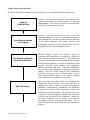
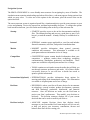
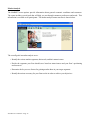
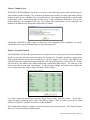
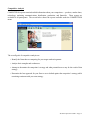
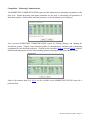
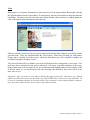
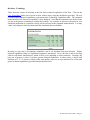
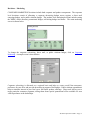
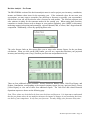
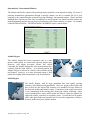
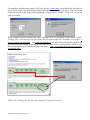
The main pull-down menu bar across the top of the screen consists of menus more focused on logistics
than content. For instance, FILE – PRINTER SETUP allows you to select a default printer. The FILE –
PRINT REPORTS option allows you to select an assortment of reports to print simultaneously. You
also have the option to output reports to a spreadsheet. Enter the report period in the "Report Period"
box. Click on a report link to display a brief description of the report. EDIT – COPY will copy the
currently displayed report to the clipboard that may then be pasted into a spreadsheet or word processing
program. SIMULATION – allows you quickly logout. OPTIONS – REFRESH DATA allows you to
refresh your screen; LOCK DECISIONS allows the team leader to lock all decisions from this location.
HELP – HELP GUIDE displays the operations guide from the student manual. (You will probably find
the context sensitive Help on the right-hand side of the screen easiest to use.)
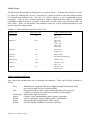
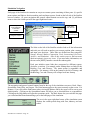
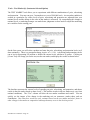
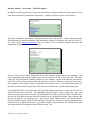
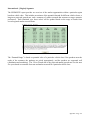
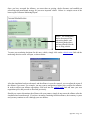
Control Buttons
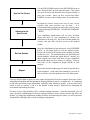
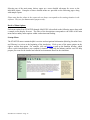
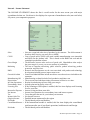
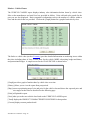
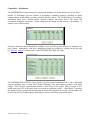
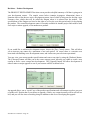
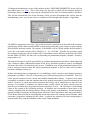
Control buttons on Report and Decisions forms perform specific actions. Control buttons are usually
found at the bottom or right-hand side of screens. Click on a button to perform the appropriate action.
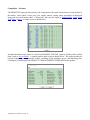
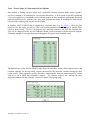
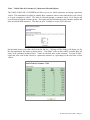
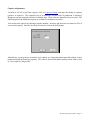
Two particularly useful and common control buttons are [Graph] and [History], both used to analyze
data trends. These are explained below.
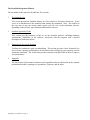
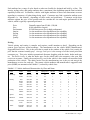
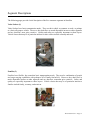
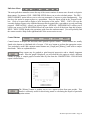
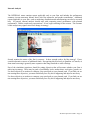
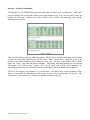
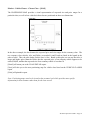
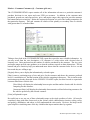
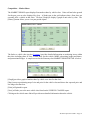
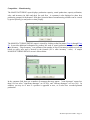
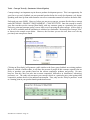
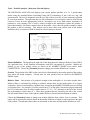
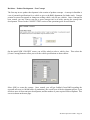
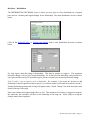
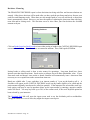
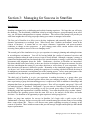
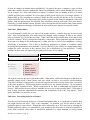
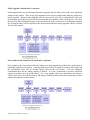
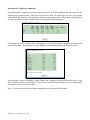
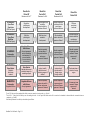
Many reports may be graphed to gain historical perspective and to identify important
trends. After the graph is displayed, you will often have the option to select a different
variable to graph. A sample graph of market share by firm from the COMPETITION - FINANCIALS
report is shown below.
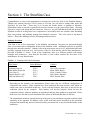
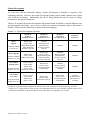
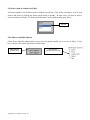
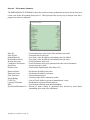
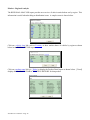
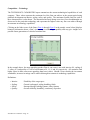
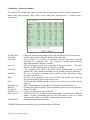
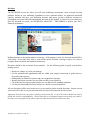
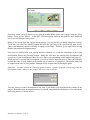
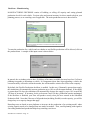
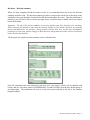
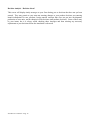
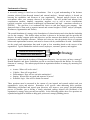
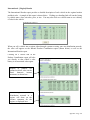
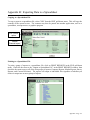
The [History] button is another way to see a report on data from past periods. This
feature is extremely useful for discovering trends or calculating the impact of particular
decisions or competitor actions.
StratSim Operations Guide—Page 29