1
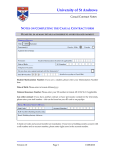
6. QCL Screen 1. Select an Item using the Drop Down menu to view the Quantity Control Ledger
for that item.
2. Click the “PRINT QCL SHEET” button to print the page. Use the Drop Down to
sort the QCL page by Pay-code, Date, Manifold Book & Page or All QCL sheets
sorted by pay-code.
3. A pop-up of the QCL Sheet should appear. Click the Printer icon to print sheet.
4. Revise item projections using the “OVERRIDE” window in the right corner – Don’t
Forget to SAVE ALL the changes! *This is the same as changing projections on
the Items screen* Pay special attention to the AE ID and Paycode!
5. Only the First 3 lines of Payslip text are shown to conserve paper.
6. Select the “VIEW” link to see the payslip.
7. Select the “EDIT” link to modify any UNPAID payslip.
8. The bottom row shows item totals & percentages paid by Pay-Code and a
summary of all item quantities paid.
9. Click the “PRINT QCL INDEX” button on the lower center of the screen to
prepare the QCL Table of Contents for Final Review.
REMINDER- When a contract is completed and prepared for final review, all
quantities paid under “Total Estimated Quantity” must equal “Total Final
Quantity”. Prior to starting a “Final Estimate”, all projections must be updated
to reflect anticipated final payment quantities.
Site Application Module (SAM) V 8.5
Page 16 of 28