1
Multiple Monitors supports two to six touchscreen displays for one system. PenMount drivers for Windows
2000, XP 32/64bit, and 2003 support Multiple Monitors. This function supports from two to six touchscreen
displays for one system. Each monitor requires its own PenMount touchscreen control board, either installed
inside the display
or in a central unit. The PenMount control boards must be connected to the computer COM ports via the
RS-232 interface. Driver installation procedures are the same as for a single monitor. Multiple Monitors
supports the following modes: Windows Extend Monitor Function Matrox DualHead Multi-Screen Function
nVidia nView unction
NOTE: The Multiple Monitors function is for the use with multiple displays only. Do not use this function if you
have only one touchscreen display. Please note once you turn on this function the Rotating function is
disabled.
Requirements
Before using the Multiple Monitors function you need the following:
* A display card that supports multiple monitors such as the Matrox, nVidia, ATI, etc.
* (Two or more display cards supported by Windows are also ok.)
* Two or more touchscreens
* Two or more Serial Ports or USB ports.
* Two or more PenMount 6000 control boards such as 6200x, 6202x,6300 or 6500.
* The PenMount Windows Universal Driver (for 2000/XP/2003/VISTA/7).
Before using Multiple Monitors you must have two or more monitors that are in extension mode. For display
cards that support multiple monitors, we suggest you consider Matrox, nVidia, or ATI cards and inquire about
operation
and usability issues.
Note: Before you can use multiple monitors you need to map each monitor.
Enable the Multiple Monitors
Enable the multiple display function as follows:
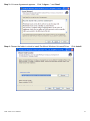
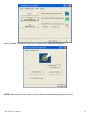
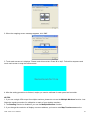
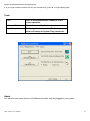
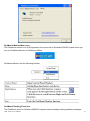
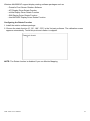
1. In PenMount Control Panel, under Multiple Monitors tag, check the “Multiple Monitor Support” box. Then
click “Map Touchscreens” to assign touch controllers to displays.
ADP-1XX5A User Manual
28