1
User Manual
Jan 2005
wireless
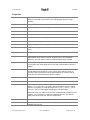
*Transparent
Specifies whether or not a cell is transparent. A transparent cell takes on
the color of the background when not selected and the color of the
highlight when selected.
*Picture
Each cell can contain a picture (bitmap or icon only).
*NextGrid
You can link a cell to another grid by specifying the file here. In this way
you can have links to grids of numbers and punctuation. Always
remember to have a link back to the main grid!
Editing the properties of a cell
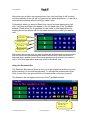
Properties beginning with an ‘*’ are specific to an individual cell and only effect
the selected cell. To edit the property of a cell, for example it’s key, click on the
cell in the main window, then click the property name called ‘key’ and edit it’s
content.
A special case is the column of word predictions. These cells have the same
properties. In other-words if you set the cell color for a word prediction cell it
effects all word prediction cells.
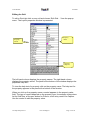
Editing the ‘general’ properties of the Grid
Properties which do not begin with a ‘*’ effect the general look and functionality of
the Grid. For example the GridSize is a general property.
Saving and Opening layout files
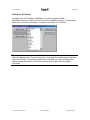
When you have finished editing properties you can save the Grid as a file on your
hard disk. The files are called ‘tlf’ files: ‘Typematic Layout File’. To save a Grid
click on the first property called ‘layout’. A File Open and File Save button appear
in the property value field. Click the File Save button to save your newly edited
Grid.
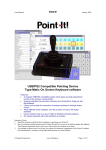
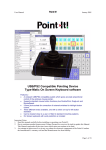
Typematic comes with a selection of files to illustrate different Grids. These files
are called small.tlf, standard.tlf and colorful.tlf and are located in the application
directory. To load a Grid click on the first property called ‘layout’ then click on the
File Open button, locate the desired file and choose OK.
Note: When you close the Layout properties window TypeMatic will remember
which Grid is in use and will load this Grid the next time it is run.
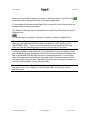
You can also open grids directly from the main TypeMatic window by right
clicking on any cell and choosing Open Grid from the popup menu.
©Unique Perspectives
www.click2go.ie
Page 21 of 30