1
Datacolor
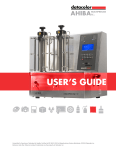
Datacolor ELREPHO
User’s Guide
Datacolor ELREPHO User’s Guide (August, 2005) Part No. 4230-0398M Rev 1
All efforts have been made to ensure the accuracy of the information presented in this format.
However, should any errors be detected, Datacolor appreciates your efforts to notify us of
these oversights.
Changes are periodically made to this information and are incorporated into forthcoming versions.
Datacolor reserves the right to make improvements and/or changes in the product(s) and/or program(s)
described in this material at any time.
Copyright © 2005 Datacolor. ALL RIGHTS RESERVED. This material may not be reproduced or
duplicated, in whole or in part, without the express written permission of Datacolor.
Microsoft®, MS-DOS®, and Microsoft Windows® are registered trademarks of Microsoft Corporation.
All other registered trademarks are the property of their respective owners.
Support Questions?
If you need help with a Datacolor product, please contact one of our top-rated technical support teams
located around the world for your convenience. You can find contact information below for the
Datacolor office in your area.
Americas
+1.609.895.7465
+1.800.982.6496 (toll-free)
+1.609.895.7404 (fax)
[email protected]
Europe
+41.44.835.3740
+41.44.835.3749 (fax)
[email protected]
Asia Pacific
+852.2420.8606
+852.2420.8320 (fax)
[email protected]
Or Contact Your Local Representative
Datacolor has representatives in over 60 countries. For a complete list, visit
www.datacolor.com/locations.
Manufactured by Datacolor
288 Shengpu Road, Suzhou Industrial Park, Suzhou, China
+86 512 625 80338
Contents
Datacolor ELREPHO ......................................................................................... 1
About the Datacolor ELREPHO....................................................................................1
Feature Summary .........................................................................................................2
Accessories ..................................................................................................................2
Calibration Tiles ....................................................................................................2
Aperture Plates .....................................................................................................3
Ultra-Violet (UV) Filters.................................................................................................3
Electrical/Environmental Requirements ........................................................................3
Cable Installation .............................................................................................. 5
Overview ......................................................................................................................5
Power Cable Installation ...............................................................................................5
Serial Cable Installation ................................................................................................6
USB Cable Installation..................................................................................................6
Cable Installation ...................................................................................................7
Driver Installation...................................................................................................7
Viewing/Changing System Port Assignment .........................................................9
Changing the COM Port Assignment in Datacolor Programs ..............................13
Installing Calibration Data ...................................................................................13
Controls and Indicators.................................................................................. 15
Identification of Controls/Indicators ............................................................................15
Status Panel ...............................................................................................................15
Powering Up ...............................................................................................................16
Instrument Calibration ................................................................................... 17
Overview ....................................................................................................................17
Installing Calibration Data ...................................................................................17
Reflectance Calibration ..............................................................................................18
Reflectance Calibration Procedure ......................................................................19
UV Filter Calibration ............................................................................................19
Sample Presentation/Measurement ............................................................... 21
About Sample Presentation/Management ..................................................................21
Sample Presentation ..................................................................................................22
Sample Viewing Port ..................................................................................................22
Changing Aperture Plates ..........................................................................................23
Tile Maintenance............................................................................................. 25
About Tile Maintenance ..............................................................................................25
Handling Tiles .............................................................................................................25
Cleaning Tiles .............................................................................................................25
Tile Storage ................................................................................................................26
Cleaning the Black Trap .............................................................................................26
Appendix ......................................................................................................... 27
Optical Block Diagram ................................................................................................27
Datacolor Elrepho Optical Block Diagram .................... Error! Bookmark not defined.
Instrument Specifications ...........................................................................................28
Miscellaneous Technical Information .........................................................................29
RS-232C Connector Pin Assignments ................................................................29
Compliance Statements .............................................................................................29
FCC Compliance Statement................................................................................29
Canadian Compliance Statement ........................................................................29
Index ............................................................................................................... 31
ELREPHO User's Guide
Contents • i
Datacolor ELREPHO
About the Datacolor ELREPHO
The Datacolor ELREPHO is a color-measuring instrument designed specifically for use by the paper
industry. It incorporates the state-of-the-art CMOS integrated circuit technology used in other Datacolor
instruments, and employs a vertical mount design. It is intended for use as a device for measuring,
specifying and evaluating color in both laboratory and production settings.
Below is a summary of the standard and optional features included with the Datacolor ELREPHO.
Standard features include the following:
• Pulsed xenon light source
• Multiple aperture sizes to accommodate samples of different sizes
• Automated zoom lens
• Automated, adjustable ultra-violet filter used to control the UV component in the light source
• Automated UV cut-off filters for three wavelengths
Please refer to Appendix, Instrument Specifications for complete instrument specifications.
ELREPHO User's Guide
Datacolor ELREPHO • 1
Feature Summary
The Datacolor ELREPHO employs state-of-the-art features including the spectrometer, integrating
sphere, light source, and optics. Below is a summary of those features:
FEATURE
DESCRIPTION
PURPOSE/BENEFIT
Integrating sphere
Barium coated sphere.
Industry standard.
Measurement
Geometry
Diffuse illumination, 0º
viewing
Conforms to the instrument specification
found in ISO 2469 standard.
SP2000 Spectral
Analyzer
Proprietary dualchannel holographic
grating. 256photodiode linear
arrays used for both
the reference and
sample channels.
Dual channel design provides continuous
monitoring of sample illumination and
compensates for changes. 256-photodiode
array enhances the precision of the
measurement.
Light source
Pulsed xenon flash
lamp
Filtered to provide D65 illumination
including UV component.
Effective Bandwidth
10nm
Reporting interval is 10nm. Maintains
consistency with reporting interval.
Accessories
The Datacolor ELREPHO comes with the following standard accessories:
Cables
Calibration Accessories
• Six foot power cable
• Serial cable with connectors on either end
• USB cable
• Black trap
• White tile
• Green tile
Calibration Tiles
A black trap, white tile and green tile are provided with the instrument:
• The black trap and white tile are used each time the instrument is calibrated.
• The green tile is used to perform an optional diagnostic test during instrument calibration
2 • Datacolor ELREPHO
ELREPHO User's Guide
Aperture Plates
Three aperture plates, with openings of different sizes, are included as standard accessories. The
identification is engraved on each plate.
Aperture Plates Designations
• Extra-Large Area View (XLAV)
• Small Area View (SAV)
• Ultra Small Area View (USAV)
Below are aperture plate specifications:
Aperture
Identification
Sample Area
Measured
Sample Area
Illuminated
XLAV
30mm
34.0 mm
SAV
5mm
9.0 mm
USAV
2.5mm
6.5 mm
NOTE
The area illuminated is always 4mm greater than the diameter measured, to reduce
translucency errors.
Tips for Aperture Selection
• Always use the largest possible aperture size.
• Small (SAV) and ultra-small (USAV) plates should only be used for measurements of samples
that do not completely cover the opening of the larger aperture plates.
Ultra-Violet (UV) Filters
The Datacolor ELREPHO is fitted with an adjustable UV filter to control the amount of ultra-violet light
present in the light source, and with UV cutoff filters used to cutoff specific wavelengths. Refer to the
Datacolor TOOLS User’s Guide Instrument Menu, UV Calibration and Advanced Options, UV
Calibration and Whiteness for detailed instructions on the calibration and use of these filters.
Electrical/Environmental Requirements
Power
85 to 264 VAC, 47 to 63 Hz, 80 VA peak, 35 VA typical
Absolute Operating Environment
5º to 40º C, 20-85% RH, non-condensing
Interfaces
Serial: RS232 9600/19200 baud
USB: 1.1
ELREPHO User's Guide
Datacolor ELREPHO • 3
NOTES
4 • Datacolor ELREPHO
ELREPHO User's Guide
Cable Installation
Overview
WARNING
Read “Electrical and Environmental Requirements” section before connecting your Datacolor
instrument.
The Datacolor ELREPHO requires the use of two cables, a power cable and a communications cable
(either serial or USB cable) to connect the instrument to the computer.
Power cable
Serial cable
USB cable
The connections for these cables are found on the back of the instrument.
Power Cable Installation
Power is supplied to the back of the unit via a 3-prong male connector. A six-foot power cable is
provided with the instrument.
To connect the cable:
1.
Plug the female end of the power cord into the power receptacle on the rear panel of the
instrument.
2.
Insert the plug into a standard AC outlet.
ELREPHO User's Guide
Cable Installation • 5
Serial Cable Installation
The serial cable is shown below:
1.
Connect the 9-pin male connector on the serial cable to the RS-232C female connector on the
rear panel of the instrument.
2.
Connect the female connector on the serial cable to a serial communications port on the back
of the computer.
3.
If there is more than one serial port on the computer, make a note of the port being used. You
may need to enter this information into the program.
4.
Tighten each connection securely to ensure proper signal.
See the Appendix for a description of the RS-232C connector pin assignments.
USB Cable Installation
Instruments manufactured by Datacolor can now be connected to a USB port on a desktop system.
See Appendix, System Requirements for USB Cable Installation before you attempt to connect to a
USB port.
Before You Begin
• Close all programs currently running on the system.
• You will need the accessories listed below to complete the installation:
6 • Cable Installation
−
USB cable (provided by Datacolor)
−
Datacolor CD ROM disk labeled USB Drivers and Documentation (Datacolor Part
#2052-0330).
−
Calibration diskette or CD included with the instrument (this is required only when
installing new instruments)
ELREPHO User's Guide
Three steps must be completed to enable the USB port for use with the instrument:
• Install the USB Driver.
• Identify the system assignment for the USB port. This is accessed through the Control Panel
included with the Windows operating system.
• Change the com port assignment in the Datacolor applications software.
Cable Installation
The USB cable provided with the system is shown below:
To Instrument
To Computer
One end of the cable connects to a USB port on the instrument. The other connects to a USB port on
the computer. Connect the USB cable to the instrument and to the USB port on the back of the
computer.
In order to activate the USB cable connection, you must also install a USB (software) driver.
Driver Installation
To prepare your computer and the Datacolor programs to communicate with your instrument using a
USB port, you must install software files onto the computer. When the instrument is connected to the
computer using a USB cable, a Wizard displays on your computer screen.
1.
Place the USB Drivers and Documentation CD into the CD-Rom drive.
2.
Connect the USB cable to both the instrument and the computer. The window below displays
automatically:
The New Hardware Wizard window will follow immediately:
ELREPHO User's Guide
Cable Installation • 7
3.
Click the Next button at the bottom of the window. The wizard steps you through the
installation of the USB software files. For most installations, you can accept the defaults
selected by the Wizard.
4.
Continue to click the Next button at the bottom of each window in the Wizard. The program will
notify you when the procedure is completed.
CAUTION
Do not remove the USB Driver CD from the drive. The Wizard will close and then
immediately reopen. You will have to repeat the procedure a second time to successfully copy
the file.
8 • Cable Installation
ELREPHO User's Guide
5.
When the “Welcome” screen appears again, click the Next button.
6.
Repeat the steps above a second time.
7.
When you reach the final wizard screen, click Finish. At this time, the Wizard closes and the
installation is complete.
Viewing/Changing System Port Assignment
As part of the USB driver installation, a port number is assigned to the USB port. The default selection
is the next available com port. Depending on the application you are running, you may need to know
this port assignment to configure the Datacolor applications program(s) to recognize the USB port.
NOTES
Some Datacolor programs automatically configure the USB port assignment. Others require
that you manually assign the port number. Refer to the program User’s Guide for information
to assign/edit the instrument port number.
If the computer has more than one USB port, the program will default to the first one available.
If you want to connect the instrument to a different USB port, you must assign the port
manually in the applications software.
The com port assignment is accessed through the Windows Control Panel as follows:
1.
Click the Start button at the bottom left of the screen.
The Start menu displays.
2.
Place the cursor on Settings so that the program submenu displays, and click Control Panel.
ELREPHO User's Guide
Cable Installation • 9
3.
When the Control Panel window displays, double-click on System.
The Systems Properties dialog box displays.
10 • Cable Installation
ELREPHO User's Guide
4.
Click the Hardware Tab. The dialog box below displays:
5.
Click the Device Manager button. The Device Manager window displays.
6.
Go to the Ports heading. Click on the plus (+) to display the port selections.
ELREPHO User's Guide
Cable Installation • 11
7.
Click USB Serial Port. The USB Serial Port (COM3) Properties dialog box displays.
8.
Click Port Settings. The dialog box below displays:
9.
Click the Advanced button. The Advanced Settings for COM3 dialog box displays.
12 • Cable Installation
ELREPHO User's Guide
The field labeled COM Port Number displays the current assignment for the USB port. To
change the port setting, click the drop-down list arrow. The list of COM ports is displayed.
10. Click on the port assignment to be used for the USB port.
11. When you have completed the changes, click OK.
Changing the COM Port Assignment in Datacolor Programs
To enable the USB port for color measurements, you may need to change the com port assignment in
the applications program. Refer to the program documentation for the specific Datacolor applications
program you are running, for instructions to configure the instrument.
Installing Calibration Data
For new instruments, you will need to install the white tile calibration data. See also Instrument
Calibration in this guide for instructions to install the data.
ELREPHO User's Guide
Cable Installation • 13
NOTES
14 • Cable Installation
ELREPHO User's Guide
Controls and Indicators
Identification of Controls/Indicators
Status panel
Power switch (not visible)
Sample viewer
Lever to open sample viewer
Sample holder
Aperture plate (not visible)
Status Panel
Below is the status panel for the Datacolor ELREPHO:
OPTION
DESCRIPTION
Power
Unit is connected to power supply, and power switch is on.
Ready
Instrument is ready for use.
ELREPHO User's Guide
Controls and Indicators • 15
Powering Up
Use this simple procedure to start using your Datacolor ELREPHO.
1.
Verify all cable connections. The AC power cord should be plugged into an outlet. The serial
cable should be attached to the instrument and host computer.
2.
Turn on the host computer.
3.
Turn on the power switch. This is located on the center right side, at the back of the
instrument.
Top of Instrument
Power Switch
When power is applied, all mechanisms are automatically reset. The lights on the status panel
will flash for several seconds. When the Ready light remains on, your instrument is ready to
use.
NOTE
If the instrument power is not turned on before a Datacolor program is launched, you
may receive an error message.
4.
Launch a Datacolor program.
5.
Prepare to calibrate the instrument. You will need the black trap and the white calibration tile.
NOTES
We recommend that you calibrate the instrument every 8 hours. Please refer to your
software documentation for specific calibration instructions.
Your program may be configured to include an additional diagnostic test as part of the
calibration procedure. The green tile is used to for this test. Refer to the program
User’s Guide for instructions to complete this test.
16 • Controls and Indicators
ELREPHO User's Guide
Instrument Calibration
Overview
The instrument must be calibrated regularly to ensure that the measurements are accurate. This
section provides instructions for performing the daily instrument calibration.
Installing Calibration Data
If this is a new instrument, or if you have received a new white tile, you will need to install the calibration
data. The calibration data can be found on a diskette or CD, both of which are included with the
calibration tiles.
NOTE
Depending on the program you are running, the screens shown below may not match those in
your program. See also the User’s Guide for the program you are running to obtain detailed
information on the instrument configuration options you will use to set up the instrument.
1.
Access the instrument setup or instrument calibration option, and make the appropriate
selections.
2.
When you complete the instrument configuration and select Save Setup, the program prompts
you to place the diskette or CD containing the calibration data in the appropriate drive. When
you do this, a screen similar to the one below will appear:
ELREPHO User's Guide
Instrument Calibration • 17
3.
The file you are looking for is called nnn whited0.dat. Highlight the file, and click Open. The
files will be transferred to the system.
NOTE
The calibration data is provided on a diskette and a CD. If you use the CD, you may have to
direct the system to the CD drive to find the folders containing the tile data.
4.
When the transfer is completed, the program will prompt you to calibrate the instrument. A
calibration screen similar to the one below displays:
5.
Click Calibrate to start the instrument calibration or Cancel to close the window.
Reflectance Calibration
The instrument should be calibrated every 8 hours to compensate for changes in the environment. A
black trap, white tile and green tile are provided with all instruments to complete the calibration:
The black trap and white tile are used each time the instrument is calibrated. The green tile is used to
perform an optional diagnostic test.
18 • Instrument Calibration
ELREPHO User's Guide
Reflectance Calibration Procedure
The software prompts for calibration vary from one program to another. All of the procedures include
two measurements:
•
The black trap
•
The white tile
Before you begin, verify that the aperture plate at the port matches the aperture selection in the
program you are running.
1.
Access the calibration procedure in the program you are running. Instrument calibration may
be accessed through a separate menu option or function button in the program window. The
User’s Guide for the program you are running contains detailed instructions to access the
calibration options.
2.
When you are prompted by the program, place the black trap at the instrument port.
3.
When you are prompted by the program, place the white tile at the instrument port.
4.
The program may prompt you for a diagnostic tile. If prompted, place the green tile at the
instrument port, and start the measurement.
5.
After these measurements are completed, the program will display a message that the
calibration is successful. You can now start measuring samples.
The Datacolor Users Guide for the program you are running (e.g., Datacolor Tools, etc.) provides stepby-step instructions regarding the (instrument) software setup and calibration procedure.
UV Filter Calibration
The procedure for calibrating the adjustable UV filter is a separate calibration procedure, and requires
the use of a fluorescent white tile, provided with the instrument. The Datacolor Tools User’s Guide
contains step-by-step instructions for calibrating the adjustable UV filter.
NOTES
This calibration procedure is critical to the accurate measurement of fluorescent samples.
If you are sharing reflectance data for fluorescent samples, the adjustable UV filter in each of
the instruments must be calibrated regularly.
ELREPHO User's Guide
Instrument Calibration • 19
NOTES
20 • Instrument Calibration
ELREPHO User's Guide
Sample Presentation/Measurement
About Sample Presentation/Management
You must pay close attention to the positioning of the sample to ensure an accurate measurement. The
sample must completely cover the aperture opening, and is held in place by a sample holder. This
sample holder is a spring-loaded, black cylinder located at the bottom of the instrument.
The instrument is also equipped with a sample viewer, referred to as a “peep scope.” By looking
through the sample viewer, you can confirm that the sample is properly positioned and completely
covers the aperture opening.
Sample viewer (peep scope)
Sample Holder
ELREPHO User's Guide
Sample Presentation/Measurement • 21
Sample Presentation
To position the sample for measurement, do the following:
1.
Grasp the sample holder and pull down. The sample holder can be secured in the “down”
position by turning it clockwise, ¼ turn.
2.
Position the sample on top of the sample holder, and then carefully allow the sample holder to
return to normal operating position. Do not allow the sample arm to spring back.
3.
If you have secured the sample holder in the down position, turn it counterclockwise ¼ turn to
disengage it. Be careful not to allow it spring back into position.
Sample Viewing Port
Before measuring samples, you should use the sample viewing port to check that the sample is properly
positioned.
To verify that the correct area of the sample is being measured:
1.
The sample should be positioned directly against the aperture plate.
22 • Sample Presentation/Measurement
ELREPHO User's Guide
2.
Push the black lever (to the right of the sample viewer), to the maximum right position. It is
mechanically designed to engage at the far-right position.
Sample Viewer
Lever for viewing sample.
Push to far right to view the
sample.
3.
Look into the sample viewer. You will be viewing the same area of the sample viewed by the
lens. Adjust the position of the sample as necessary to completely cover the opening.
Depending on the size of the sample, you may need to change the aperture plate used.
4.
Once the sample is properly positioned, return the lever to the far-left position. You are now
ready to make a measurement. Refer to your software documentation for instructions to start
the measurement.
Changing Aperture Plates
The aperture plate is located under the main housing of the instrument.
Aperture plate
Sample Holder
(secured in ‘down’ position)
Close-up of aperture plate
ELREPHO User's Guide
Sample Presentation/Measurement • 23
If the sample to be measured does not completely cover the aperture opening, you must use a smaller
aperture plate. Three aperture plates, each with openings of different sizes, are provided with the
instrument. Depending on the size of the sample being measured, you may need to change the
aperture plate used.
In the picture below, the aperture plate is removed. The housing containing the aperture plates is
slightly recessed, and the metal aperture plates are machined to engage the recess for the plates. The
plates are secured with magnets.
The aperture plate is not
attached.
To remove the aperture plate:
1.
Secure the sample holder in the ‘down’ position. To secure, turn holder counter-clockwise ¼
turn.
2.
Pull on the silver aperture plate using slight force. The plate should separate from the
instrument housing.
3.
Replace it with the aperture plate appropriate for the sample size being measured.
4.
Return the sample holder to the full, upright position.
NOTES
(1) When changing the aperture plate, you must also make a change to the lens
selection in the software setting for the instrument. The user makes this change
manually. See the program documentation for instructions to change this software
selection.
(2) Because of the presence of magnets, keep all magnetic media away from the port
opening.
24 • Sample Presentation/Measurement
ELREPHO User's Guide
Tile Maintenance
About Tile Maintenance
The sections that follow provide detailed instructions for maintaining the calibration tiles. These
instructions and tips will help to insure that the instrument continues to perform properly over its life.
Handling Tiles
• Handle calibration tiles with extreme care. Do not drop them, or scratch the glazed surface.
• Always grasp the tile using its edges.
Cleaning Tiles
• The calibration tiles should be cleaned before each use. Wiping it clean with a soft, lint-free cloth
can do this.
• A detergent, free of optical brighteners, fluorescent materials or photoactive dyes should be used
as needed to clear any oils, fingerprints, or other deposits. Liquid dish detergent is a suitable
detergent. The detergent/water solution should be prepared as follows:
1 part detergent : 250 parts water
• Use a few drops of the detergent solution to moisten a soft, lint-free cloth, and gently wipe the tile
surface. Rinse the detergent from the tile by wiping it with a cloth, moistened with clean water.
• NEVER use abrasive cleansers, razor blades, or other metal objects to remove dirt or foreign
substances from the calibration tiles. This will damage the tile surface.
• NEVER immerse the tiles in water.
• Tiles that have scratches, chips, abrasions or cracks must be replaced. Signs of wear on the tile
surface will affect the accuracy of the calibration.
ELREPHO User's Guide
Tile Maintenance • 25
Tile Storage
• Large temperature variations will affect the accuracy of your calibration, requiring more frequent
calibration. The calibration tiles should be stored in an environment that simulates the
temperature of the samples to be measured.
• Prolonged exposure to sunlight or other sources of ultra-violet radiation will cause the color of the
tiles to change. The tiles should always be stored in a protective case or container away from
direct sunlight and environmental contaminants.
Cleaning the Black Trap
• The black trap should be kept dust-free. Dust accumulating in the black trap should be blown out
with compressed air.
26 • Tile Maintenance
ELREPHO User's Guide
Appendix
Optical Block Diagram
ELREPHO User's Guide
Appendix • 27
Instrument Specifications
Specifications are subject to change without notice.
ITEM
DESCRIPTION
Instrument Type
Vertical mount, dual beam, barium-coated integrating sphere
with xenon flash lamp. Includes peephole sample viewer and
pedestal sample holder
Measuring Geometry
Diffuse illumination, 0º viewing in conformance with ISO 2469.
Illumination Source
Pulsed xenon, filtered to approximate D65.
Sphere Diameter
6.0 in/ 152 mm
Spectral Analyzer
Proprietary SP 2000 analyzer with dual 256-diode array and
high-resolution holographic grating.
Wavelength Range
360 – 700nm
Effective Bandwidth
10nm
Reporting Interval
10nm
Photometric Range
0 to 200%
Photometric Resolution
0.003%
Repeatability
0.02 CIEL*a*b*(max). 20 reads on white tile, 2 flashes each.
Inter-instrument
1 ,2
Agreement
0.40 (max) CIEL*a*b*
0.20 (avg) CIEL*a*b*
Lens
3-position, auto zoom
Aperture Configuration
X-Large Area View (XLAV)
34mm illuminated/ 30mm viewed
Small Area View (SAV)
9mm illuminated/ 5mm viewed
Ultra-Small Area View (USAV)
6.5mm illuminated/ 2.5mm viewed
Aperture Plates
3 standard: XLAV, SAV, USAV
Aperture Detection
No
Black Trap
High performance
Automated, adjustable UV
Calibration
Standard
UV Cutoff Filters
395nm, 420nm, 460nm
Power
85 to 264 VAC, 47 to 63 Hz, 80 VA peak, 35 VA typical
Absolute Operating
Environment
5º to 40º C, 5-85% RH, non-condensing
Interfaces
RS232
-
9600/19200 baud
Dimensions
English
-
USB
Metric
Height
25.0”
635 mm
Width
12.3”
312 mm
Depth
14.25”
362 mm
Weight
42 lbs.
19.05 kg
1 Environmental conditions apply
2 Sample translucency may affect inter-lens agreement
28 • Appendix
ELREPHO User's Guide
Miscellaneous Technical Information
RS-232C Connector Pin Assignments
Pin #
Purpose
Direction
2
Transmit data
Out (to host)
3
Receive data
In (from host)
7
Signal ground
CAUTIONS
(1) DO NOT WIRE to pins other than 2, 3, and 7.
(2) For all unused inputs, the default is active high.
Compliance Statements
FCC Compliance Statement
WARNING
Changes or modifications to this unit not expressly approved by the party responsible for
compliance could void the user’s authority to operate the equipment.
This equipment has been tested and found to comply with the limits for a Class A digital device,
pursuant to Part 15 of the FCC Rules. These limits are designed to provide reasonable protection
against harmful interference when the equipment is operated in a commercial environment. This
equipment generates, uses and can radiate radio frequency energy and, if not installed and used in
accordance with this User’s manual, may cause harmful interference to radio communications.
Operation of this equipment in a residential area is likely to cause harmful interference in which case the
user will be required to correct the interference at his or her own expense.
This device complies with Part 15 of the FCC Rules. Operation is subject to the following conditions: (1)
this device may not cause harmful interference, and (2) this device must accept any interference
received, including interference that may cause undesired operation.
Canadian Compliance Statement
English
This digital apparatus does not exceed the Class A limits for radio noise emissions from digital
apparatus set out in the Radio Interference Regulations of the Canadian Department of
Communications.
Francais
El present appareil numerique n’emet pas de bruits radioelectriques depassant les limites applicables
aux appareils numeriques de la class A prescrites dans le Reglement sur le brouillage radioelectrique
edicte par le ministere des Communications du Canada.
ELREPHO User's Guide
Appendix • 29
NOTES
30 • Appendix
ELREPHO User's Guide
Index
A
Absolute Operating Environment, 28
Accessories, 2
Aperture Configuration, 28
Aperture Detection, 28
Aperture Plates, 3, 28
Aperture Plate Sizes, 3
changing, 23
Automated, adjustable UV Calibration, 28
B
Black Trap, 19, 28
cleaning, 26
H
Handling Tiles, 25
I
Illumination Source, 28
Indicators, 15
Instrument
calibration, 17
calibration data, 17
Instrument Specifications, 28
Instrument Type, 28
Interfaces, 28
Inter-instrument Agreement, 28
C
Cable Installation, 5
Cables
power, 5
serial, 6
USB, 6
Calibration Data
installing, 13
Calibration Tiles, 2
Cleaning Tiles, 25
COM Port Assignment
changing, 13
Compliance Statements, 29
Controls, 15
D
Dimensions, 28
E
Effective Bandwidth, 28
Electrical Requirements, 3
Environmental Requirements, 3, 5
F
Features
Summary, 2
ELREPHO User's Guide
L
Lens, 28
M
Measuring Geometry, 28
O
Optical Block Diagram, 27
P
Photometric Range, 28
Photometric Resolution, 28
Power, 28
Power Cable Installation, 5
Powering Up, 16
R
Reflectance
calibration, 18
calibration procedure, 19
Repeatability, 28
Reporting Interval, 28
RS-232C Connector Pin Assignments, 29
Index • 31
S
Sample Presentation
procedure, 22
Sample Presentation/Management, 21
Sample Viewing Port, 22
Serial Cable Installation, 6
Spectral Analyzer, 28
Sphere Diameter, 28
Status Panel, 15
Power, 15
Ready, 15
System Port Assignment
changing, 9
viewing, 9
Tile Storage, 26
U
Ultra-Violet Filters, 3
USB
cable installation, 7
driver installation, 7
USB Cable Installation, 6
UV
filter calibration, 19
UV Cutoff Filters, 28
W
Wavelength Range, 28
T
Tile Maintenance, 25
32 • Appendix
ELREPHO User's Guide