1
Quick User Guide
ZN-C Series Network Camera
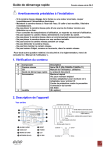
Warning before installation
-Power off the Network camera if it is found to be smoking or smells unusual.
-Keep the Network camera away from water. If the Network camera gets wet, power
off immediately.
-Do not place the Network camera near heat sources, such as a television or oven.
-Refer to your instruction manual for the operating temperature.
-Keep the Network camera away from direct sunlight.
-Do not place the Network camera in high humidity environments.
-Do not place the Network camera on unsteady surfaces.
-Do not touch the Network camera when there is lightning present.
-Do not disassemble the Network camera.
-Do not drop the Network camera.
-Do not insert any object into the Network camera, such as a screwdriver.
For other safety and regulation information, please refer to “User’s manual”.
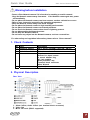
1. Check Contents
No.
1
2
3
4
5
Item
Network Camera
Software CD
Quick User Guide
Accessories
Lens
Description
ZN-C Series (ZN-C2M / ZN-C1M / ZN-C1)
User’s Manual, Utility software
This document
Tripod mount
Screws for tripod mount
C mount adapter ring
DC jack adapter
Dust protection cap,
Terminal block connector
Allen Wrench
(Optional)
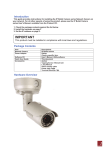
2. Physical Description
Rear View
1. Alarm In/Out, Audio In/Out (use terminal block connector)
2. Video Out
3. Micro SD card (SDHC supported)
1
Quick User Guide
4.
5.
6.
7.
8.
ZN-C Series Network Camera
Network (RJ-45 PoE supported)
Reset Button
Power (DC12V / AC24V)
Status LED
DC Iris
Front View
9. Flange back locking screw
3. Making Connection
1. If you have external devices such
as sensor or alarms, make connection
from terminal block connector.
3. Connect power cable to the camera.
When you use PoE function, you don’t
need to connect power.
2. Connect Ethernet cable to make connection
to the network hub.
2
Quick User Guide
ZN-C Series Network Camera
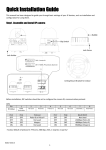
4. Assign IP address
The default setting of the camera is set to “DHCP” and “UPnP” function is
set to ON. If you have a DHCP server on your network and UPnP function is
enabled on your PC you can find the network camera in “My network”.
If a DHCP server is not available on your network, please assign IP address
by the following process.
1)
2)
3)
4)
5)
Execute ZR-DS Admintool.exe and click “Search” button.
After the camera is listed in camera list, select the camera.
Type in the all network information.
Click “Apply” button, the setting will be showed in the list.
Click “Setting” Button to set network information to the camera.
Then double click the camera in the list, Internet explorer will open
automatically.
5. Web browser connection
Note : The Network camera supports Internet Explorer 7 or above.
Please check version of your browser and update it if necessary.
When you first access the camera you need to download and install an
Active X control from the camera to display a Live image.
Default User and Password are set to “ADMIN” and “1234”.
the user ID and password to connect the network camera.
Please type in
3
Quick User Guide
ZN-C Series Network Camera
Note: By Default the cameras come with “Installation Mode” set to “ON” to
enable Analog output. You must turn installation mode off to use 720p
or 1080p streaming.
For further information for setup, please refer to User’s manual
in software CD.
4