1
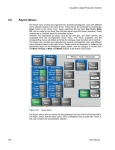
C. Click on a number to perform a cut in the PGM. As a PGM is automatically
selected MEDIA1 and set the FILL, BACKGROUND and Chroma key's settings. Now
use the handles on the right side of the application to set the key parameters. Fine
setting of parameter can be done using the mouse wheel over the parameter
slider. After that click SAVE KEY which will assign current key setting to desired
Chroma switch. Key setting is not assigned and saved automatically.
1
2
D. Follow the steps above to set up all necessary switches.
E. If you want to create a switch without a key, select as FILL and BACKGROUND
same input.
F. Cut can be performed either by clicking on the Chroma switch number or the
numeric keypad on your keyboard.
Or press 1, 2, 3 etc. on keyboard
4. Save and load
A. To save the current configuration, click on SAVE button on the right side
of header bar.
B. Alternatively, to load setting, click the LOAD button and select the file with a saved
configuration. In the FULL version of the application, it will automatically loads the
last configuration (autoload).