1
INSTALLATION SUPPORT MANUAL – HOW TO SOLVE COMMON ERRORS
Insert your cd in your cd/dvd rom
Wait for it to bring the auto play dialog box
Click on open files option
If the auto play dialog box does not open
Go to start button
Click on my computer
Follow the instructions given on the user manual for the program you have
COMPATIBILITY MODE INSTRUCTIONS
1. Insert the cd/dvd inside the computer cd/dvd rom
2. With the disc inserted, click Start (the Windows button in the lower-left
corner)
3. Click My Computer (or Computer)
4. Right-click on the CD-ROM drive
5. Click Open
6. Find AUTORU.EXE or AUTORUN application file (has a blue icon with a
person climbing staircase normally the first AUTORUN file)
7. Right click on the AUTORUN application file
8. Click on properties
9. Click compatibility tab on the dialog box that opens
10. Check the run this program in compatibility mode checkbox
11. Click on the dropdown arrow , select Windows XP (Service Pack 2) or
Windows XP (Service Pack 3)
12. Click apply then OK
NB: If the run this program in compatibility mode is disabled (greyed
out), click the “change setting for all users” option and follow the
instructions above
13. Double click the AUTORUN.EXE file in step 6
14. This will launch the program
ERRORS
-d3dx9-30.dll is missing
Find the Directx folder from the cd either from the support folder or setup
folder
Open the folder
Find the DXSETUP.exe file
Run the install
-SHFolder missing
1) If the error comes before or during installation, this means the computer is
highly infected and hence corrupting the setup application.
Install an antivirus on your computer and disinfect the computer then reinstall
the program
2) If the error comes after installation,
Find the SHFolder.exe from the setup folder and double click to install it
3) Try restoring the computer to an early point that worked correctly or
repairing the operating system
-component move failed
Run the program in compatibility mode
If not successful, then the cd should be replaced
-the install or launch setup failed to start/access denied error
Disable any running antivirus
Check user account control settings if you have permission
Check with your system administrator for any conflicting programs
Run a system restore
Checking Your System Configuration:
Problem: You are unsure if your system meets the minimum system
requirements.
Recommendation: Run DXDiag.exe to get a report of your system.
1. From your taskbar, Click on Start, and then Run.
2. In the „Open‟ box, type dxdiag.exe and click „OK‟.
3. The DX Diagnostic Tool Dialog Box with open with a detail of your system
configuration.
The main page of this dialog box will tell you the version of Windows you are
running, how much RAM (Memory) you have and what version of DirectX you
have. If your program requires DirectX and you do not have the required
version, you need to install it either by running the product‟s installer again
and selecting yes when prompted to Install DirectX, or go to Microsoft‟s
website and download the latest version.
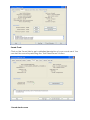
Video Card:
Click on the „Display‟ tab on the top to switch screens to the video. You will
see the following dialog box with the information on your system.
You can test the 3D capabilities by selecting the „Test Direct3D‟ button.
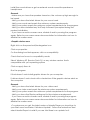
Sound Card:
Click on the Sound tab to get a detailed description of your sound card. You
can test the sound by selecting the „Test DirectSound‟ button.
-Sound device error
Install the sound drivers or get an external sound source like speakers or
headphones
General:
· Make sure you have the speakers turned on, the volume up high enough to
be heard.
· Verify you have the latest drivers for your sound card.
· Verify your sound card meets the minimum system requirements.
· Verify your system meets the minimum system requirements for the program.
· Verify you have installed any 3rd Party software if prompted during the
product installation.
· If you have an active screen saver, disable it and try running the program
again. Refer to your screen saver documentation for information on how to
disable the screen saver.
-Graphic device error
Right click on the preschool/kindergarten icon
Click on properties
On the dialog box that appears, click on compatibility
Check the box for run in compatibility mode
Select Windows XP (Service Pack 3) / or any window version that is
compatible with your operating system
Click on apply then ok
Run the program
If that doesn‟t work install graphic drivers for your computer.
If drivers doesn‟t work check with a technician if the graphic device exists on
the computer
General:
· Verify you have the latest drivers for your video card.
· Verify your video card meets the minimum system requirements.
· Verify your system meets the minimum system requirements for the program.
· Verify you have the Display settings set to the minimum requirement.
· If you have an active screen saver, disable it and try running the program
again. Refer to your screen saver documentation for information on how to
disable the screen saver.
• To make sure you get the latest version of Media Player you should go to
your Start menu and select „Windows Update‟. Follow the instructions and
select Media Player to install if you are told there is an update for it.
• Try reinstalling Media Player 9 or higher. You can find the Media Player 9
install on the CD in the Support\folder – the file name is “MPSetup.exe”.
-Video error while installing Kindergarten School Version with 2 disks
Go to local drive C
Open program files folder
Locate the jumpstart world of learning folder and open it
Delete the JSWorldK folder
Cody disk2 folder JSWoLKG on the computer
Insert disk1 and start the installation
When asked for disk 2, browse the location you saved the folder on the
computer
If it can‟t browse, the location for disk 2, type the path to the location
-Crash File [C:\....\...\....] is created error
Locate the setup.exe (application) file
Run in compatibility mode using the instructions for compatibility mode
above
-Incomplete installation with shortcut created but no program folder in C:
causing an error while running another installation
Insert the program cd
Click on start button
Go to all programs
1) KINDERGARTEN / PRESCHOOL
Find the Jumpstart World of learning folder
Open the folder
Open the Kindergarten/ preschool folder
Click on uninstall
It will bring you the file that the shortcut is referring to is missing
Click on browse
Browse the program cd to locate the uninstall file/application
Click on the file then click ok to allow uninstallation
Re-install the program
2) READING BLASTER/MATH BLASTER
Find the Blaster folder
Open the folder
Open the Reading Blaster/ Math Blaster folder
Click on uninstall
It will bring you the file that the shortcut is referring to is missing
Click on browse
Browse the program cd to locate the uninstall file/application
Click on the file then click ok to allow uninstallation
Re-install the program
-Complete installation with shortcut created as white text icon
Uninstall the program
If you can‟t find the program in control panel, go to local drive c, program
files and delete the program
Pause any antivirus that could be running in your system
Run the program in compatibility mode
Run the program as administrator
-Atlas Error runtime error
Right click the shortcut on the desktop
Select properties
Click on compatibility tab
Run the program in compatibility mode that is compatible with your
operating system
Check whether you have user rights to run the program on that computer
If this doesn‟t work
You may need to edit a file for the program to change some display settings.
Call Tech Support for assistance if you cannot follow these instructions:
1. Find the correct . ini file for your program. Go to programs file in your local
drive c.
For blasters, open the blaster folder then the folder of the blaster program
you intend to fix
For Jumpstart world programs, open the jumpstart or jumpstart world of
learning folder. Then open the folder for the jumpstart program you need to
fix.
2. You should see a .ini file with the same base filename as the exe of the
program. For example: JumpStart Advanced First Grade will have these files:
JAS1G.exe and JSA1G.ini. You will want to edit the JSA1G.ini file. You should
make a copy of this file before editing in case you run into any problems.
3. Open the .ini file using notepad.exe or similar text editor.
4. Search the file for these lines and add a semicolon „;‟ at the beginning of
these lines:
Before
DisplayDepth=16
DisplayWidth=800
DisplayHeight=600
DesiredDepth=16
DesiredWidth=800
DesiredHeight=600
After
;DisplayDepth=16
;DisplayWidth=800
;DisplayHeight=600
;DesiredDepth=16
;DesiredWidth=800
;DesiredHeight=600
5. Save the file, restart your system and run the program again.
Black Screen when playing the Jumpstart World programs
Run the program in compatibility
Change the resolution setting to 640 X 480
Advanced Computer User Solution (manual update):
1) Start your computer and log on as an administrator.
2) Click the Start button then select All Programs, Accessories, System Tools,
and then click System Restore.
3) In the new window, select "Restore my computer to an earlier time" option
and then click Next.
4) Select the most recent system restore point from the "On this list, click a
restore point" list, and then click Next.
5) Click Next on the confirmation window.
6) Restarts the computer when the restoration is finished.
Product Specific Problems:
JumpStart 5th Grade: Player cannot get past the dialogue in the museum:
Problem: Player cannot get out of museum. The toolbar at the bottom is not
activated, except for the exit button.
Solution: In order to get past the museum and activate the toolbar the player
will have to click on the correct responses to the dialogueWhen the Janitor tells Jo Hammet about his nephew, Have Jo Hammet
respond with:
What was your nephew doing with thugs like those?
Once the janitor answers, have Jo Hammet respond with:
What kind of animal communication?
When the Lab Rat (B.F Skinney) appears and speaks, have Jo Hammet
respond with:
Where did you come from?
After B.F. Skinney responds, have Jo Hammet respond with:
That's it, I'm calling an exterminator!
Windows XP:
General:
· Verify the product you are trying to run supports Windows XP. While most of
our products will run on XP some of the older ones may have problems.
· If the product does not list Windows XP as a supported OS, try running the
program in Compatibility Mode within XP. Refer to your Windows XP
documentation on how to do this or check this link
http://www.microsoft.com/windowsxp/using/helpandsupport/learnmore/ap
pcompat.mspx
· Verify every user that is to run the program have full rights to the installed
directory so they can create user data and/or records. The program may
freeze or have other problems if these files cannot be created during the
playing of the program. Refer to your Windows XP documentation on
Administrator rights and user rights.
Problem: In some JumpStart applications one of these errors may occur: "Not
enough virtual memory to run this application" or” Application requires at
least 3 MB of virtual memory to run."
Recommendation:
* Right-click on My Computer, then left-click on Properties.
* Left-click the Advanced tab at the top.
* Click the Settings button under the Performance heading.
* Click the Advanced tab at the top.
* Click the Change button to change the virtual memory.
* Write down the numbers that are currently set.
* Change the initial size to 512.
* Click the Set button.
* If you are asked to reboot, say Yes.
* If you're not asked to reboot, click OK on each window to get all the way
back to your desktop, and then reboot your machine.
* When the computer restarts, try the game.
If the game fails to run and gives you the same error, please follow the
instructions above and set the initial size to 256. Reboot the machine and try
the program again.
As a last resort set the virtual memory to a large number such as 4000 or more
and then try the program after rebooting. If this works you can drop the
virtual memory by small increments until the error reappears then re-set it to
the last good number.
The CD won’t install. It is spinning and getting ”stuck”.
During installation sometimes antivirus software or CD-ROM speed can get in
the way of files installing and cause the CD to spin and the install to appear
to stop or get ”stuck”. You can speed up the install by copying the entire
contents of the CD to a folder on your desktop, then running the install.exe
inside the folder on your hard drive.
When entering my child’s name I get a ”unique name” error message. What
does this mean?
You have entered the same name twice in the ”Child Name” area during
registration. Please make sure to enter unique names for each child you
register.
I'm getting the message ”Internet Connection Not Available” even though I
know my connection is fine.
This could be your firewall software. You will need to add JSK.exe, JS1.exe or
JS2.exe and Parent.exe to your Program Control in your Firewall options. For
more information on making changes to your firewall, check with your
Firewall software manufacturer.
How to Fix a Cyclic Redundancy Check Error
The setup is used to extract compressed files from the download of the
game.
A CRC error is a check to see if the size of the file that is compressed is the
correct size based on a check sum.
It means the file name listed is not of the correct size meaning it has become
corrupted and needs to be downloaded again to obtain the correct file size
as data is missing from the file.
If the check sum does not equal or match the file size of the file to be
uncompressed listed in setup does not match the .cab file then it says
corruption has occurred during download of the file or transfer from one
medium to another.
An integrity check of a data file or package.
It can be down to, bad memory in a pc also, or when a system is
overclocked.
Or a file stored on a hard drive that has known existing read write error
problems.
Leading to a corruption of the file in question.
ERRORS DURING ACTIVATION
FIXING PROGRAM HANGING AFTER ACTIVATION
1. Call the dschool support team for assistance
FIXING FINGER PRINT MISMATCH
1. Call the dschool support team for assistance
2. Send the code that is generated by the program
3. Wait for a code to clean the error
FIXING CLOCK ROLLBACK ERROR
1. Check time and date on your computer
2. If time and date are correct, call the dschool support team
3. Send the code generated by the program
4. Wait for a code to clear the error from dschool
FIXING UNDEFINED ERROR / UNKNOWN ERROR
1. Restart your computer
2. Ensure you are connected to the internet
3. Call dschool support team for assistance
FIXING FAILED TO LOCAL ACTIVATE ERROR
1. Restart your computer
2. Ensure you are connected to the internet
3. Call dschool support team for assistance
FIXING UNABLE TO CONNECT TO ACTIVATION SERVER ERROR
1. Restart your computer
2. Ensure you are connected to the internet
3. Call dschool support team for assistance
FIXING NO ACTIVATIONS REMAINING ERROR
Call dschool team for support
Macromedia Projector has stopped working Error
1) Restart the computer
2) Check the time and date on your computer
3) Click the "Start" button, right-click on "Computer," then select
"Properties" from the list.
Click "System protection." Click the "Advanced" tab and select the
"Settings" button in the performance section. Click the "Data Execution
Prevention" tab.
There should be two selections, and "Turn on DEP for all programs and
services except those I select" should be selected. Click the "Add"
button and navigate to the folder that your game/application is
installed (usually found in the program files folder). Click on the ".exe"
file in the folder that launches the application.
Run your application.
4) If all the above does not work, reinstall your program
5) If you still encounter this error, ask your IT technician to check the
operating system
DIB Error when opening a program
1) Right click the program icon on the desktop
2) Click PROPERTIES
3) Click SHORTCUT tab
4) On the target textbox replace the name AUTORUN.EXE with the
PROGRAM.EXE (e.g if Reading Blaster ages 4-6 replace AUTORUN.exe
with the RB4-6.EXE )
5) Click APPLY then OK
6) Then ply the program
Note: replace program.exe with the initials of the program. Below are
common initials for our programs.
Reading Blaster ages 4-6 - RB4-6.EXE
Math Blaster ages 6-8 – MB6-8.EXE
For any other blaster write us above and only change the ages accordingly
Jumpstart World Preschool - JSWorldPre.exe
Jumpstart World Kindergarten - JSWorldK.exe
Jumpstart World 1st grade - JSWorld1.exe
Jumpstart World 2nd grade - JSWorld2.exe
Jumpstart World 3rd grade - JS3G2001.EXE
Jumpstart World 4th grade – JS4G2001.EXE
Jumpstart World 5th grade – JS5G2001.EXE
Jumpstart World 6th grade – JS6G2001.EXE