1
Macromedia Projector has stopped working Error
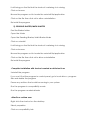
1) Restart the computer
2) Check the time and date on your computer
3) Click the "Start" button, right-click on "Computer," then select
"Properties" from the list.
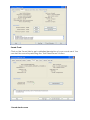
Click "System protection." Click the "Advanced" tab and select the
"Settings" button in the performance section. Click the "Data Execution
Prevention" tab.
There should be two selections, and "Turn on DEP for all programs and
services except those I select" should be selected. Click the "Add"
button and navigate to the folder that your game/application is
installed (usually found in the program files folder). Click on the ".exe"
file in the folder that launches the application.
Run your application.
4) If all the above does not work, reinstall your program
5) If you still encounter this error, ask your IT technician to check the
operating system
DIB Error when opening a program
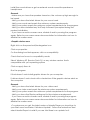
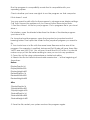
1) Right click the program icon on the desktop
2) Click PROPERTIES
3) Click SHORTCUT tab
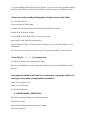
4) On the target textbox replace the name AUTORUN.EXE with the
PROGRAM.EXE (e.g if Reading Blaster ages 4-6 replace AUTORUN.exe
with the RB4-6.EXE )
5) Click APPLY then OK
6) Then ply the program
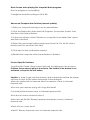
Note: replace program.exe with the initials of the program. Below are
common initials for our programs.
Reading Blaster ages 4-6 - RB4-6.EXE
Math Blaster ages 6-8 – MB6-8.EXE
For any other blaster write us above and only change the ages accordingly
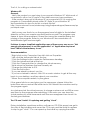
Jumpstart World Preschool - JSWorldPre.exe
Jumpstart World Kindergarten - JSWorldK.exe
Jumpstart World 1st grade - JSWorld1.exe
Jumpstart World 2nd grade - JSWorld2.exe
Jumpstart World 3rd grade - JS3G2001.EXE
Jumpstart World 4th grade – JS4G2001.EXE
Jumpstart World 5th grade – JS5G2001.EXE
Jumpstart World 6th grade – JS6G2001.EXE