1
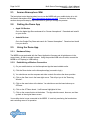
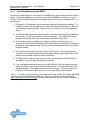
Page 8 of 36 2.1. Multi-Sensor Development Kit – User’s Manual Release Date 1/16/2015 Anaren Atmosphere Wiki The best place to start learning about how to use the MSDB with your mobile device is to visit the Anaren Atmosphere Wiki (https://atmosphere.anaren.com/wiki). However, the following sections also provide step by step instructions to guide you through the process. 2.2. Getting the Demo App Apple iOS Devices Go to the Apple App Store and search for "Anaren Atmosphere". Download and install it on your device. Android Devices Go to the Google Play Store and search for "Anaren Atmosphere". Download and install it on your device. 2.3. Using the Demo App 2.3.1. Hardware Setup The MSDB comes preloaded with the Demo Application firmware and all switches are in the correct state. All that is needed is power. Using the provided USB micro-B cable, connect the MSDB to a PC/laptop (or USB battery). 2.3.2. Establishing a Wireless Connection 1) On your mobile device, run the Atmosphere App that was installed earlier. 2) Click the Demo button on the Atmosphere App (no need to login). 3) You should now see the compass and other controls & monitors the demo provides. 4) Click on the Gear Icon in the lower right corner. This will put you in the "Scanning Window". 5) Click on the scan button at the bottom. You should now see the board show up as ATDemo. 6) Click on the AT Demo board. It will become highlighted in blue. 7) Click on the connect button at the bottom. The App should connect, discover, and then go back to the original demo screen. Your mobile device is now connected to the MSDB. It is actively monitoring the board status and controlling some of its operation.