1
CYFD
Directions to access Epics
User Manual for Food Program Sponsors/Monitors and Home Providers
Updated on 07/17/2013
Page 1
Steps to access Epics system on the Web:
(1) Food Program Sponsors/Monitors request access to Epics using the Form:
CYFD External User Request for EPICS CACFP. Contact Email : [email protected]
(2) Home Providers request access to Epics through the Food Program Sponsors.
(3) Once the users account is set up, they will be notified via email to activate their account.
(4) Once they activate their account, another email is sent with their username and password to
access Epics.
Following screen shots describe the above process:
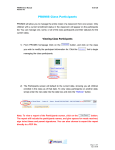
(1) You will receive the first email for activation of your account in Epics.
(2) Click on the link to verify your email address.
[Note: If you cannot click on the link, please copy and paste the link on the address bar of the browser
and press Enter.]
Updated on 07/17/2013
Page 2
(3) Click on the button:
to activate your account.
(4) You will be redirected to the following page with a message in Red to check your Email for username and password.
Updated on 07/17/2013
Page 3
(5)Check your email for the second email that contains your username and password for account access in Epics.
(6) Log into Epics using the username and password that was provided to you in the second email.
Updated on 07/17/2013
Page 4
(7) You must (a) Change the password after your first login and (b) read and accept the
to access Epics.
(8)Read the "Welcome to EPICS" information box for tips and notifications of changes, outages, etc. Then, click on Search to
begin.
Updated on 07/17/2013
Page 5
Notes:
(1) For issues related to logging into Epics contact [email protected]
(2) For reporting any errors in Epics;
(a) Home Providers contact Food Program Sponsors
(b) Food Program Sponsors contact CACFP through [email protected]
Please include the following details in your report:
(1) Date and time the error occurred. Ex: 7/16/2013, 1:30 pm.
(2) Describe the sequence of steps that was executed before encountering the error.
Example Scenario:
(i) Searched and selected Home Provider with ID# 100121
(ii) Updated the Home provider record for address change
(iii) Clicked on Save to save the changes made
(iv) Following error message pops-up: “Home Provider information could not be saved”.
(3) Include screen shots (MS-Paint, MS-Word, SnagIt, Snipping Tool)
Updated on 07/17/2013
Page 6