1
Industronics
Design, Application and Service of Electronics in Industry
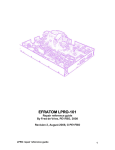
Monitron User Manual
For Version S 3.26E
12 September, 2010
27 Wanganui Road Kirrawee NSW Australia 2232
Phone: (02) 9545 6181 Fax: +61 2 9545 6181 Mobile: 0419 267 889
Email: [email protected] WWW: http://www.industronics.biz
A division of D.H. Enterprises Pty Limited A.B.N. 72 087 000 995
Industronics
Monitron User Manual.doc
Overview
The Monitron is an upgrade for either an Impresstik Monitor on Unitron Control Box. The entire front
panel and control board is replaced providing a more reliable and fully featured controller. If an older type
incandescent label gap sensor was used this must be upgraded to a 24 volt fork type sensor. Apart from
this, it is simply a matter of plugging the upgraded box into the old position and learning the new controls.
All of the adjustments are made with three pushbuttons on the front panel. There is a two line by twentycharacter LCD display for viewing the settings. Settings can also be adjusted via a serial port if this option
is installed. The firmware used is exactly the same as in the current Servotron controller. On a re-initialise
simply select Monitron. The menu structure below is lifted directly from the Servotron User Manual.
Other sections have changes to suit the different hardware. Starting from August 2010, Monitrons may be
converted to suit the newer Bergher Lahr Stepper motor that has the drive electronics integrated into the
motor. The firmware does not differ for this conversion but be sure to use the correct tables at the end of
this manual as significant hardware differences exist.
Menu Structure
If your Monitron has firmware later than S3.22C then use the Servotron Manual for the menu structure.
For all other details use this manual.
InStep 2 Ver S 3.22C
By Industronics
This is the opening screen. If Enter is pressed and held during this screen, the controller will display the
initialisation menu. Refer to the end of this section for details.
If Enter is not pressed the following menu is displayed after a ten second delay:
Level One Menus
Label Counter
0
The Label Counter is displayed here. This shows the total number of labels dispensed since the last count
reset. Pressing Enter will reset the label count. As at Version 3.18 if the counter memory option is
installed and enabled in Option2 menu the count will be retained through a power down otherwise it is
lost. Pressing the down arrow displays the following screen:
Label Position
0
The Label Position setting is displayed here. This sets the delay in steps between the product sensor
activation and the start of dispense effectively changing the position of the label on the product. Press
Enter to enter Edit Mode, a flashing arrow is displayed to the right of the value when in edit mode. Whilst
in edit mode the arrow keys can be used to adjust the value. When the correct value is displayed press
Enter to leave Edit Mode. Whilst not in edit mode pressing the arrow keys moves to another menu item.
Pressing the down arrow displays the following screen:
Label Advance
100
Or
Fixed Move Length
100
This is the second menu in level one. The Label Advance or the Fixed Move length setting is displayed
here. Which is displayed is determined by bit 0 in the Option 2 menu in level three. The label advance
menu sets the number of steps to move after the gap sensor has activated. If the deceleration is adjusted,
this value must be entered again to subtract the deceleration steps from the entered advance value. The
fixed move length menu sets the total length of the fixed move when that mode is selected. Both of these
menus use the same memory location for value storage, so changing one changes the other.
Other menus may appear here. These can be: “Two Label Spacing” together with “2 Label 1st Advance”
and/or “Jig Delay” together with “Jig Hold Delay” and/or “Spin Up Delay” and/or “Air Blast Time” in
this order. They appear here in the top level menu when they are enabled and down in the second level if
disabled. This allows the menus to self-customise to the application and prevents clutter of the top level
menu. Refer to the appropriate menus in the second level for further details.
Page 2 of 18
Industronics
Monitron User Manual.doc
Sync Ratio
128
If the sync ratio has been set to 255 to ignore the master encoder, the Set Speed menu will be shown here
otherwise the Sync Ratio setting is displayed here. This sets the sync ratio between the master encoder and
the output pulse rate, 0 is 50%, 239 is 800%. A value of 255 causes the master encoder to be ignored and
the set speed value to take effect. Always use 255 in a converted Monitor as no encoder connection is
present. Pressing the down arrow displays the following screen:
Labelling is
Enabled
Pressing Enter cycles between “Enabled” and “Disabled”. This menu is provided to allow for re-enabling
after an ignored fault of to disable so that the product sensor is ignored or the drive roller can be turned by
hand.
Other menus may appear here. This depends on the option card that has been fitted and which options
have been enabled. Refer to the appropriate option manual for further details. Otherwise pressing the
down arrow displays the following screen:
Level Two Menus
Pressing the down arrow rolls around to the “Label Counter” menu. Pressing Enter takes you to level two
menus and displays the following screen:
Level Two Menus
Manual Dispense
Press Enter to Start
Pressing Enter starts a labelling cycle. Pressing the down arrow displays the following screen:
Printer
Disabled
The Printer menu is shown here. Pressing Enter cycles between Disabled and Enabled. Use the “Option
Menu” to select the type of printer fitted and the “Option2 Menu” to select the type of printer fault signal.
Pressing the down arrow displays the following screen:
End of Reel Count
3
3
How the “end of reel count” functions is determined by a bit in the Option2 menu. With this bit on, the
setting here is the number of labels that can be dispensed in between operations of the ‘end of reel’ sensor.
The sensor detects the movement of the label reel. In this mode, the number set here is usually quite low.
With the bit off, it sets the number of labels that can be dispensed while the ‘end of reel’ sensor is on. The
sensor detects that the label reel is low in diameter. The setting is usually larger in order to allow the reel
to become very close to finished before the head stops. In both modes the setting depends on the label
length. The number on the left is the actual count. It is a ‘live’ value and is provided to assist in
establishing the correct setpoint. Pressing the down arrow displays the following screen:
Length Measure
Whilst this menu is displayed the actual dispensed label length in steps is displayed at the completion of
every cycle. Pressing Enter when there is a length displayed will calculate the missing label length and
load it into the next menu. Pressing the down arrow displays the following screen:
Page 3 of 18
Industronics
Monitron User Manual.doc
Missing Label Length
5
From version 3.06 to 3.19A the missing label function worked like this:
If a label dispense takes more than the number of steps set here the labeller will disable, show “Labeller
error” and turn on the Bussed Fault Output. A value of 0 allows infinite length, 1 = 256, 2 = 512, 3 =
1024, 4 = 2048, 5 = 4096, 6 = 8192, 7 = 16384 and 8 = 32768 steps.
From version 3.20 on it can work in either of two ways:
If the value entered here is less than 64 the missing label function works as above except that the number
of steps is set differently. The number of steps at which the labeller will stop is 256 times the value set
here. So a value of 16 gives the same as the old default value of 5 (256 x 16 = 4096). This gives a much
more precise way to set the trip point.
If the value is greater than 63 the “no gap skip” style of missing label is implemented. This allows the
labeller to skip past missing labels (or blocked label gaps) as if they never happened. It works by
simulating the label gaps presence at the number of counts specified here. So the number entered here
should be the label length minus the label advance setting. You can enter this manually or by pressing
Enter after the length is displayed in the previous menu. If the actual gap occurs after the gap is simulated,
the actual gap position will override the simulated one to maintain correct registration. If you change the
advance after setting this value you should redo this setting to cater for the new advance value. If the “gap
skip” is done four times consecutively the labeller will disable, show “Consec. Miss Regist.” and turn on
the Bussed Fault Output.
Pressing the down arrow displays the following screen:
Set Speed
0
If the sync ratio has been set to 255 to ignore the master encoder, the Sync Ratio menu will be shown here
otherwise the Set Speed setting is displayed here. This is the dispense speed when no master encoder is
used, i.e. Sync Ratio set to 255. Values less than 5000 give a very slow dispense speed, while values
approaching 9999 give a very fast speed. Pressing the down arrow displays the following screen:
(Note: the following six menus may not appear here but in the top level menu if they are enabled.
Two Label Spacing
0
The Two Label Spacing setting is displayed here. This setting sets the number of steps to pause between
the first and second label of a set. A value of 0 turns this function off. Pressing the down arrow displays
the following screen:
2 Label 1st Advance
0
The advance setting for the first label of a two label set is displayed here. When two label spacing is
turned on in the previous menu this setting controls the stopping position after the first label is dispensed.
The normal advance setting is used for the second label. Pressing the down arrow displays the following
screen:
Jig Delay
0
The Jig Delay setting is displayed here. This setting sets the number of steps between product sensor
activation and the activation of the jig solenoid. A value greater than zero enables “Jig Control Mode”. If
you select this mode you must select a mode in the “Spin Up Delay” as well! If Knife mode is selected in
the Option2 menu this value cannot be changed from off! Pressing the down arrow displays the following
screen:
Page 4 of 18
Industronics
Monitron User Manual.doc
Jig Hold Delay
0
The Jig Hold Delay setting is displayed here. This setting sets the number of steps between the completion
of the dispense and the deactivation of the jig solenoid. It is up to the operator to ensure correct product
spacing. You must ensure the product is released before the following product is detected by the product
sensor or that product will be ignored. This setting is only used when in Jig Control Mode which is
enabled by the menu above, so you can leave the value in here when it is disabled. Pressing the down
arrow displays the following screen:
Spin Up Delay
0
The Spin Up Delay setting is displayed here. This setting can enable one of two modes. In both modes the
sequence is started by the "Jig In" input. A value of 1 puts the InStep into "Jig Only Mode". In this mode,
the Jig In sensor simply triggers the normal cycle instead of the product sensor. When a larger value is
entered, the "Orient Jig Mode" is turned on. This command sets the number of steps to pause before the
registration scanner is enabled. This is to ensure the product is spinning in the jig at the correct speed. In
orient jig mode the cycle is initiated by a sensor connected to the "Jig In" input. This initiates the spin up
delay. When this is complete, the sensor connected to the "Colour Sensor" input is enabled. When the
colour sensor sees a leading edge the normal dispense sequence is started. A value of 0 turns both jig
modes off. Pressing the down arrow displays the following screen:
Knife Down Time
Air Blast Time
Or
0
0
The menu displayed here depends on whether Knife mode is selected in the Option2 menu. If Knife mode
is not set then the Air Blast Time is displayed, this sets the air blast time in milliseconds. The air blast is
for machines with an air box attachment. The air blast time occurs after the product delay and before the
label starts to move. If Knife mode is selected then the Knife Down Time is displayed, this sets the knife
down time in milliseconds. As soon as the dispense stops the air blast output is turned on for the set time
to bring the knife down. Pressing the down arrow displays the following screen:
Library Functions
Pressing the down arrow displays the “Level Three Menus” selection screen further below. Pressing Enter
takes you into the Library sub-menu and displays the following screen:
Save to Library No.
0
This is the first menu in the library sub-menu. Pressing Enter allows you to select the library
number to save to with the arrow keys. After selecting, pressing Enter saves all of the data
from the current data memory and displays the “Library Functions” menu. (There is no
library number zero, it is provided to allow a way to “escape” without saving.) Pressing the
down arrow displays the following screen:
Read from Lib No.
0
This is the second menu in the library sub-menu. Pressing Enter allows you to select the
library number to read from. After selecting, pressing Enter reads the library and saves it to
the current data memory. If after pressing Enter, the “Library Functions” menu is not
displayed, the data in the selected menu was invalid. Select another library number or select
0 to escape from this menu. Pressing the down arrow displays the “Library Functions”
menu.
Level Three Menus
Pressing Enter takes you to level three menus and displays the “Acceleration” menu. Pressing the down
arrow displays the following screen:
Page 5 of 18
Industronics
Monitron User Manual.doc
Level One Menus
Pressing Enter takes you to level one menus and displays the “Label Counter” menu. Pressing the down
arrow displays the Printer menu.
Level Three Menus
Acceleration
3
The Acceleration setting is displayed here. This menu selects one of six acceleration ramp profiles. A
value of 5 is the softest, 3 is normal. Pressing the down arrow displays the following screen:
Deceleration
10
This is the second menu in level three. The Deceleration setting is displayed here. This menu adjusts the
number of steps to decelerate for. This setting is read-only at present. Pressing the down arrow displays
the following screen:
Inputs:
PGDSPEJC
00000000
This is the third menu in level three. The input status is displayed here. A value of 1 indicates the input is
on, 0 is off. The letters above the value indicate what the input is used for.
P – Product Sensor
G – Gap Sensor
D – Disable Input (Fault In)
S – Servo OK
P – Printer OK
E – End of Reel Input
J – Jig In / Product Gate Input
C – Colour Sensor
The display is not live, pressing Enter updates the display.
Pressing the down arrow displays the following screen:
Outputs: XFABJSEC
00000000
The output status is displayed here. A value of 1 indicates the output is on, 0 is off. The letters above the
value indicate what the output is used for.
X – Spare
F – Fault Output
A – Air Assist Output
B – Air Blast Output
J – Jig Solenoid Output
S – Feedscrew Enable Output
E – Servo Enable / Stepper Boost Output
C – Coder (Printer) Output
The display is not live, pressing Enter updates the display. As of version 3.21 set/reset of outputs for
testing is allowed. This uses the new bit editing method introduced in this version. With this new version
pressing Enter takes you into edit mode as usual however the arrow keys move the cursor up and down
through the different bit positions. When the Enter key is pressed it alternatively set/resets the highlighted
bit. To exit edit mode you must move the cursor back to the arrow at the right of the value and press
Enter.
Pressing the down arrow displays the following screen:
Page 6 of 18
Industronics
Monitron User Manual.doc
Master Speed
0
The speed of the master encoder is displayed here. It is used to check the operation of the master encoder.
If the master encoder rate is too fast “fast” will be shown. Extremely slow encoder rates cause “Slow” to
be displayed. If a dispense has been attempted when the master encoder is stopped it will display
“Stopped!” The display is not live, you need to press Enter to update display. Pressing the down arrow
displays the following screen:
Options: GSGEC421
00000000
The option status is displayed here. A value of 1 indicates the option is on, 0 is off. The letters above the
value indicate what the input is used for.
G – Gate Signal Required
S – Servo Mode (Not Stepper). On for speed compensation and servo enable. Off for stepper drives.
G – SIG drive compensation. Must select servo mode above as well!
E – Enable at Power On
C – Moving Type Coder e.g. inkjet (0 = Stationary Type e.g. stamping hot foil)
421 – Serial Address Select (Set bits to total to desired address, all off = 8)
Pressing Enter takes you into bit edit mode. Refer to the output menu for details on ‘bit edit mode’.
Pressing the down arrow displays the following screen:
Option2: EMCKBSPF
00000000
The second option status menu is displayed here. A value of 1 indicates the option is on, 0 is off. The
letters above the value indicate what the input is used for.
E – End of Reel Mode. When on selects reel turning detection type and when off selects reel diameter low
or no web type detection. Set to 0 if no end of reel sensor is fitted. Refer to EOR menu.
M – 1000M Mode. When on changes the functions of the Printer OK and Fault In inputs. Print OK
changes to Safety Circuit Activated and Fault In changes to External Enable.
C – Counter Memory. If the counter memory option is installed it should be enabled here. Enabling this
function prevents serial communications from working! Was labelled M in V3.18.
K – Knife Mode. Changes the air blast function into a label cutter function. Normally used in a Reeltek
Protag application machine.
B – Stepper Boost. When on changes the servo enable output function to a stepper drive boost.
S – Servo OK input polarity. When on here the Servo OK input is off = OK. Can be used when no servo
ok signal is available. (i.e. in a Monitron)
P – Printer Fault polarity. When the printer is enabled in level 2 the Printer Fault input becomes active.
The level that causes labelling to be stopped is entered here. 0 = on, 1 = off.
F – Fixed Pull Mode. This is different from InStep I fixed pull mode, it is triggered by the product
scanner.
Pressing Enter takes you into bit edit mode. Refer to the output menu for details on ‘bit edit mode’.
Pressing the down arrow displays the following screen:
AnlgOut: ?GIO?VCF
Options: 00000000
The analogue output option status is displayed here. The settings are only relevant if the Analogue Output
Option Board has been fitted. A value of 1 indicates the option is on, 0 is off. The letters above the value
indicate what the input is used for.
G – Guarding closed input monitored. Not implemented!
I – Infeed Low Sensor monitored. Not implemented!
O – Outfeed High Sensor monitored.
? – Spare.
V – Vacuum Belt Speed Adjustment enabled.
C – Conveyor Speed Adjustment enabled.
F – Feedscrew Speed Adjustment enabled.
When the speed adjustments are disabled they are shutdown and the menu screens removed.
Refer to the Analogue Output Option Board manual for further details.
Pressing Enter takes you into bit edit mode. Refer to the output menu for details on ‘bit edit mode’.
Page 7 of 18
Industronics
Monitron User Manual.doc
Pressing the down arrow displays the following screen:
Level Two Menus
Pressing Enter takes you to level two menus and displays the “Manual Dispense” menu. Pressing the down
arrow displays the following screen:
Level One Menus
Pressing Enter takes you to level one menus and displays the “Label Counter” menu. Pressing the down
arrow rolls around and displays the Acceleration menu.
Fault Screens
The following screens appear when the fault occurs. If multiple faults occur only the first one is displayed.
If subsequent faults are still present when earlier ones are reset they will then be displayed. If the fault is
rectified the screen can be cleared and the labeller re-enabled by presssing Enter. If you would like to
review your settings without resetting, the first press of either arrow key will bring back the menu that was
present before the fault occurred. You can then move around the menus as usual. Afterwards, you can reenable the labelling by using the “Labelling Enable” menu in Level 1.
Labeller Error!
Press Enter to Reset
This screen indicates that the servomotor has moved further than that set by the missing label length. It is
usually caused by a wrongly setup gap sensor or slipping drive rollers. It can always be reset immediately.
Refer to the “Missing Label Length” menu in level two for adjustment.
Consec. Miss Regist.
Press Enter to Reset
This screen indicates that the labeller has had to simulate the gap sensor more than three times in a row. It
is usually caused by a wrongly setup gap sensor or slipping drive rollers. It can always be reset
immediately. Refer to the “Missing Label Length” menu in level two for adjustment.
Printer Error!
Press Enter to Reset
Whenever the printer is enabled (and the 1000M bit in Option2 menu is off) the printer fault signal is also
enabled. The sense of the input is controlled by a bit in option port 2 or by the ‘D’ command. If no printer
fault signal is available it should be set to off = OK (default). The fault signal must be removed before it
can be reset.
External Fault!
Press Enter to Reset
This screen appears when the Fault In input is activated (the 1000M bit in Option2 menu must be off).
This input is usually tied together with all of the other Fault In/Fault Outs on the machine so that a fault on
one label head will disable all heads.
Servodrive Error!
Press Enter to Reset
This screen appears when the connected servo drive has indicated a fault. You usually must power down
the servodrive to reset the fault. If the fault occurs often it will be necessary to open the enclosure to check
the fault code indicated on the front of the servodrive. Refer to the servodrive manual for the fault codes
meaning and its remedy. It is usually caused by a web jam up.
End of Label Reel!
Press Enter to Reset
This screen appears when the “End of Reel” has been detected. It can be reset straight away. Refer to
Option2 menu and End of Reel Count menu for correct type setup and count setting.
Page 8 of 18
Industronics
Monitron User Manual.doc
Orientation Error!
Press Enter to Reset
As of version 3.17C and when in Jig Control and Orient Mode, the product sensor is monitored while the
jig is closed and should it be activated again the jig opens and this fault is displayed. At the time of jig
closure the product sensor input is checked. If it is on (usually caused by large products in the jig) then
this failure checking is disabled as there is no way to check for subsequent products coming. Whether this
checking is disabled or not you can always release a jig stuck in due to failure of the colour sensor to
detect the mark by pushing any button!
Safety Circuit Open!
Press Enter to Reset
This screen appears when the “1000M” bit in Option2 is set and the ‘Print OK’ input is on. In this setup a
N.C. contact on a safety contactor is connected to what is usually the ‘Print OK’ input. You must reset the
safety circuit before you can re-enable.
Labelling Disabled
By External Input
When the “1000M” bit is set the ‘Fault In’ input becomes the External Disable Input. This message is
displayed when the input is on and automatically returns to the previous menu when turned off. In this
mode, this input can also be used to reset other faults!
Other fault screens may appear depending on the option card fitted and which functions are enabled.
Initialisation Menu
This menu can only be entered during power up. It will automatically appear if the controller detects
invalid data in the current data memory or it can be forced to appear if Enter is pressed and held during
the initial screen that displays the version number information. It will appear as either of the two following
screens:
Enter Pressed
Use ^ to make choice
or
EEPROM Data Invalid!
Use ^ to make choice
If the up arrow is pressed, the following screen will appear:
Enter Pressed
Erase Libraries
This is the first choice in the initialisation menus. Pressing Enter causes all of the Library data to be erased
then the first initialisation menu is shown again. Pressing the up arrow causes the next menu to be
displayed as follows:
Enter Pressed
Reinitialise?
This is the second choice in the initialisation menus. Pressing enter drops into the type selection submenu. The first menu is as follows:
Select Type
Use ^ to make choice
If the up arrow is pressed, the following screen will appear:
Select Type
Servotron
Pressing Enter causes all of the current data to be reset to default values and then display the
first menu in level one. Because of this, if you want to erase libraries and reinitialise you
must erase libraries first. Pressing the up arrow will cycle through the following selections:
“Servotron 2001”, “Model 500”, “Monitron”, etc, “Do Nothing” and back to “Servotron”.
Pressing the up arrow causes the next menu to be displayed as follows:
Enter Pressed
Do Nothing
Page 9 of 18
Industronics
Monitron User Manual.doc
This is the third choice in the initialisation menus. Pressing Enter simply displays the first menu in level
one and as the menu suggests, does nothing. If the entry into the initialisation menus was caused by invalid
data you can’t use this option, but must select reinitialise. Pressing the up arrow causes the first
initialisation menu to be redisplayed.
Inputs
All inputs signals that are available on a Servotron are present however only a few are wired
to the connectors on the rear. This is to maintain compatibility with the original Monitor.
The signals not brought out to the rear panel are available on the adapter board, In an exMonitor at TB1and in an ex-Unitron at T1 and T2. All inputs are selectable by jumpers on
the InStep II PCB for NPN (1 to 2) or PNP (2 to 3) input devices. The function of each
input follows.
Product Sensor
This input initiates the labelling sequence. It starts with a transition from off to on of this
input. See jumper J7 for input polarity selection. Terminal 1 on a Monitron.
Gap Sensor
This is the registration input. It is normally connected to a fork sensor that detects the gap
between the labels on the backing paper. The label advance starts counting with an off to on
transition of this input. See jumper J8 for input polarity selection. Terminal 2 on a
Monitron.
Master Encoder
This is where the encoder for the product speed is connected. The encoder is usually
coupled to the conveyor or vacuum belt of the machine. See jumper J12 and J13 for input
polarity selection and J11 for voltage. The pulses per rev of the encoder and its gearing to
the conveyor / belt should be selected so that the rate is the same as the step rate of the
motor. It is best to be on the low side of one to one if this cannot be achieved. The encoder
should have an open collector 5 or 24VDC output. The Monitor had no support for a master
encoder but the input is available on TB1/11. It is terminal 16 on an ex Unitron.
IN1 – Colour Sensor (Product Sensor 2)
This input only functions in Orientation Mode. It triggers the labelling cycle just as the
normal product scanner does but only after the orient part of the cycle is complete. See
jumper J1 for input polarity selection. TB1/4 on a Monitor adapter board. T1/1 on a Unitron
adapter board.
IN2 – Jig In Sensor/Product Gate
This input is usually a proximity detector mounted on the orientation jig to indicate when
the jig is closed. It initiates the spin up delay in orient jig mode. If the Gate Input is selected
on the option port this input becomes the product sensor gate input. In this mode this input
must be on before a product detection will start the dispense cycle. See jumper J2 for input
polarity selection. TB1/5 on a Monitor adapter board. T1/2 on a Unitron adapter board.
IN3 – End of Reel
This input is usually connected to a sensor that detects a low level of labels on the unwind
reel. Refer to the description of ‘End of Reel Count’ menu. See jumper J3 for input polarity
selection. TB1/6 on a Monitor adapter board. T1/3 on a Unitron adapter board.
IN4 – Printer OK/Safety Circuit Monitor
If the “1000M” bit in Option2 is off, this input is connected to the printer
OK/fault output of the printer controlled by the Monitron. When the printer is enabled by
the printer menu or the ‘D’ command with an odd value this input must be on otherwise
labelling is disabled and the “Printer Error” is displayed. If an even value is used in D the
Page 10 of 18
Industronics
Monitron User Manual.doc
input must be off for printer OK. The ‘P’ bit in Option Port 2 also controls the polarity. As
of V3.19A the printer fault input is only checked just after the label dispense is completed.
This allows it to possibly serve as an actual print confirmation input (from a contrast
scanner for instance) or just a simple printer fault signal monitor. If the “1000M” bit in
Option2 is set this input becomes the Safety Circuit Monitor. In his mode, if the input is on,
labelling is disabled and the “Safety Circuit Open” fault is displayed. See jumper J4 for
input polarity selection. Pin 2 of CON3 on a Monitor adapter board. T1/4 on a Unitron
adapter board.
IN5 – Drive OK
This input is normally connected to the drive fitted inside the Monitron. It disables labelling
and shows a fault screen when it is off. However, it is not wired in a Monitor or Unitron but
is still available on TB1/7 of the Monitor adapter board or T1/5 on a Unitron adapter board.
IN6 – Fault In(Bussed Fault In)/External Disable
If the “1000M” bit in Option2 is off, this input disables the labelling when on and displays
the “External Fault” message. If the “1000M” bit in Option2 is set this input becomes the
“External Disable” input. In this mode the “Labelling Disabled by External Input” message
is displayed and it automatically resets when the input is tuned off. See J6 for input polarity
selection. TB1/8 on a Monitor adapter board. T1/6 on a Unitron adapter board.
Outputs
All outputs signals that are available on a Servotron are present however only some are
wired to the connectors on the rear. This is to maintain compatibility with the original
Monitor. The signals not brought out to the rear panel are available on the adapter board.
They are selectable for NPN or PNP however they must all be one or the other. Selection is
made by changing IC9. For NPN use ULN2803A, for PNP use UDN2981A. Jumpers J9
and J10 must be set to suit. In a Monitron, the IC is PNP but the main outputs have slave
transistors on the adapter board that provide a NPN output.
STEP – Step Signal
This output is used to drive the pulse input of the stepper drive. Internally connected to the
drive in a Monitron.
OUT1 – Coder (Printer)
This output is the start trigger for a date coder etc. Option Menu selects whether the coder is
of the type that prints while the web is stationary (e.g. hot stamp) or moving (e.g. ink jet).
Terminal 6 on a Monitron.
OUT2 – Servo Enable/Stepper Boost
This output is connected internally to the stepper drive to control the boost function on the
D550.
OUT3 – Feedscrew Enable/Monitron OK Output
As of V3.08 this output is provided to enable the feedscrew. It is on whenever there are no
faults and no level pauses from the high outfeed and low infeed sensors. As of version
S3.14 this output becomes an OK output whenever the level control are not enabled in the
Analogue setup. It is on whenever there are no faults present. TB1/9 on a Monitor adapter
boards. T2/1 on a Unitron adapter board.
OUT4 – Jig Solenoid/Knife Up Solenoid
This output controls the solenoid that closes the orient jig. Implemented in V3.02. As of
version 3.18 this output can be used for a cutter knife up solenoid if Knife Mode is selected
in the Option2 menu. A Monitor did not support jig mode so this output is connected to the
Flap Adapter Output CON4 on the Monitor Adapter Board. It was very rarely used and is
not supported in this version of firmware. T2/2 on a Unitron adapter board.
Page 11 of 18
Industronics
Monitron User Manual.doc
OUT5 – Air Blast/Knife Down Solenoid
When an air blast time is entered in the menu or with the K command, this output is turned
on at the end of the product delay and before the servo starts to move. As of version 3.18
this output can be used for a cutter knife down solenoid if Knife Mode is selected in the
Option2 menu. Terminal 11 on a Monitron.
OUT6 – Air Assist
This output is turned on at the start of the servo moving and off at the beginning of
deceleration. Terminal 9 on a Monitron.
OUT7 – Bussed Fault Out
This output is turned on when there is a labeller fault, printer fault, servo fault, end of reel
or Fault In is on. It only goes off when the fault has been reset or labelling is re-enabled.
TB1/10 on a Monitor adapter board. T2/3 on a Unitron adapter board.
Rear Panel Connectors
Tuchel 16 way Rear Panel Connector
Connector
Pin Number
1
2
3
4
5
6
7
8
9
10
11
12
13
14
15
16
Signal
Product Scanner
Gap Scanner
Ground
No Connection
Ground
Printer
24 Volts
No Connection
Air Assist
24 Volts for above
Air Blast
24 Volts for above
No Connection
No Connection
No Connection
Master Encoder
Machine
Terminal
3
4
2
6
5
7
1
9
8
11
10
16
Comment
Must be new 24 volt type
5.5 volts for old gap scanner not supported
Use for scanner power
24 Volts in an ex Unitron
Special unregulated voltage in an ex Monitor
Special unregulated voltage in an ex Monitor
Only wired to adapter board in an ex Unitron
Page 12 of 18
Industronics
Monitron User Manual.doc
Stepper Motor Rear Panel Connector for original 5 phase motor
Connector
Pin Number
A
B
C
D
E
F
G
H
I
J
Signal
W2E
W4E
W1A
W3A
W5A
W1E
W3E
W5E
W2A
W4A
Stepper
Drive Pin
20c
22c
24c
26c
28c
20a
22a
24a
26a
28a
Comment
Winding 2 Start
Winding 4 Start
Winding 1 Finish
Winding 3 Finish
Winding 5 Finish
Winding 1 Start
Winding 3 Start
Winding 5 Start
Winding 2 Finish
Winding 4 Finish
Monitor Adapter Board Connectors
Monitor Adapter Board Terminal Strip CON1
Terminal Number
1
2
3
4
5
6
7
8
9
10
Signal
6V
N.C.
0V
0V
11V
11V
N.C.
24V
Ext 24V
Ext 24V
Description
6 volts from Power Supply. (Used for backlight)
0 volts from Power Supply
0 volts from Power Supply
11 volts from Power Supply. (Used for 5V)
11 volts from Power Supply
24 volts from Power Supply
9 and 10 should be bridged on rear of PCB
Monitor Adapter Board Terminal Strip CON2
Terminal Number
1
2
3
4
5
6
7
8
9
10
11
12
13
14
15
16
Signal
24V
Ext 24V
Ext 24V
0V
0V
GapSense
ProdSense
TFM+14V
StepOut
N.C.
0V
N.C.
AirAssist
AirBlast
Printer
BoostOut
Description
Label Gap Sensor Input
Product Sensor Input
Only used in DC Monitrons
Step Output to Stepper Drive
Air Assist Solenoid Output
Air Blast Solenoid Output
Printer Output
Boost Output to Stepper Drive
Page 13 of 18
Industronics
Monitron User Manual.doc
Monitor Adapter Board Terminal Strip TB1
Terminal Number
1
2
3
4
5
6
7
8
9
10
11
12
13
14
Signal
Spare 1
Spare 2
Spare 3
IN 1
IN 2
IN 3
IN 5
IN 6
OUT 3
OUT 7
ENC
Flap Adapt
+24Vdc
0V
Description
Depends on Option Board (RS-232 TxD)
Depends on Option Board (RS-232 RxD)
Depends on Option Board
Colour Sensor (Product Sensor 2)
Jig In Sensor / Product Gate
Fixed Pull
Servo OK
Disable
Missing Label
Fault
Master Encoder
Flap Adapter (Driven by OUT4)
Note: This terminal strip not normally fitted.
Unitron Adapter Board Connectors
Unitron Adapter Board Terminal Strip TB1
Terminal Number
1
2
3
4
5
6
7
8
Signal
GapSense
0V
ProdSense
Spare8
Enc
N.C.
0V
24V
Description
Label Gap Sensor Input
Product Sensor Input
Depends on Option Board fitted.
Master Encoder Input
Unitron Adapter Board Terminal Strip TB2
Terminal Number
1
2
3
4
5
6
7
8
9
10
Signal
AirBlast
AirAssist
Printer
StepOut
BoostOut
N.C.
24V
0V
24V
0V
Description
Air Blast Solenoid Output
Air Assist Solenoid Output
Printer Output
Step Output to Stepper Drive
Boost Output to Stepper Drive
Page 14 of 18
Industronics
Monitron User Manual.doc
Unitron Adapter Board Terminal Strip TB3
Terminal Number
1
2
3
4
5
6
7
8
Signal
24V
0V
5V
Gnd
+15V
0V
0V
-15V
Description
24 volts from Power Supply
0 volts from Power Supply
5 volts from Power Supply
5V Ground from Power Supply
+15 volts from Power Supply
0 volts from Power Supply
0 volts from Power Supply
-15 volts from Power Supply
Unitron Adapter Board Terminal Strip T1
Terminal Number
1
2
3
4
5
6
7
8
9
Signal
IN1
IN2
IN3
IN4
IN5
IN6
Spare1
Spare2
0V
Description
Colour Sensor Input (Product Sensor 2)
Jig In Sensor Input (Product Gate)
End of Reel Sensor Input
Printer OK Input
Drive OK Input
Fault Input
Depends on Option Board fitted.
Depends on Option Board fitted.
Unitron Adapter Board Terminal Strip T2
Terminal Number
1
2
3
4
5
6
7
8
9
Signal
OUT3
OUT4
OUT7
Spare3
Spare4
Spare5
Spare6
Spare7
0V
Description
Feedscrew Enable Output
Jig Solenoid Output
Bussed Fault Output
Depends on Option Board fitted.
Depends on Option Board fitted.
Depends on Option Board fitted.
Depends on Option Board fitted.
Depends on Option Board fitted.
Note: T1 and T2 are to duplicate the terminal strips on the Layson External I/O Board. Although T1 is
inputs and T2 is outputs the features they supported are not necessarily supported by the Monitron.
Configuration
InStep II PCB Jumper Descriptions
Jumper
J1 to J8
J9 and J10
J11
Description
These three point jumpers select the polarity of the signal required
to operate the inputs.
Jump 1 to 2 for sinking (NPN) type input devices.
Jump 2 to 3 for sourcing (PNP) type input devices.
J1 to J6 correspond to input 1 to 6 respectively.
J7 is for the product sensor input.
J8 is for the label sensor input.
These jumpers are set to match the type of output driver IC
installed in position IC9.
Jump both 1 to 2 for NPN type IC (ULN2803A)
Jump both 2 to 3 for PNP type IC (UDN2981A)
Note: jumpers must be set correctly or damage will result!
Install Jumper 11 when 5 volt encoder is used. J12/13 must be in
Page 15 of 18
Default
J1 to J7, 2 to 3
jumpered.
J8, 1 to 2 jumpered.
2 to 3 jumpered
Not fitted
Industronics
Monitron User Manual.doc
J12 and J13
J14 to J24
J25
J26
PNP configuration when this jumper is installed!
These jumpers are set to match the polarity of the output of the
master encoder connected to terminal 11.
Jumper J12 and J13 1 to 2 for NPN output encoders.
Jumper J13 2 to 3 and J12/1 to J13/1 for PNP output encoders.
These jumpers set the master encoder divisor. J14 is divide by
one, J15 is divide by 2 through to J24 which is divide by 1024.
Only one jumper in this set to be installed!
Selects the function on pin 28 on P1. Refer to option manual.
Selects whether to bypass the encoders optocoupler. 1 to 2 is to
use optocoupler, 2 to 3 is to bypass the optocoupler.
J12, 1 to 2 jumpered
J13, 1 to 2 jumpered
J18 installed
2 to 3 jumpered
1 to 2 jumpered
Monitor Adapter Board Jumpers
Jumper
A,B
CON3
CON4
CON5
Description
Jump A to provide NPN output on CON2 pin 16 for stepper boost
signal. Jump B to provide PNP 14 volt output on CON2 pin 16 for
TFM enable, 14 volts must be brought in on CON2 pin 8.
Only one jumper to be installed!
IN4. Provided to copy original PCB. Not sure what it was used
for. Possibly gap edge select, not supported in software. Is
actually the printer OK input in the current firmware.
OUT4. Flap Adapter Output. Has BD681 NPN driver. Flap
adapter not supported, is actually Jig Solenoid in current
firmware.
OUT6. Air Assist Output. Often used to drive label counter.
Default
A jumpered
N/A
N/A
N/A
Stepper Drive DIP Switch
Switch
1
2
3
4
Berger Lahr D550
Use
Description
Boost/PWM
Off = Boost Control
Current Reduction
Off = Current Reduction On
Direction
Off = Counter Clockwise
Step Angle
Off = Half Step (1000 step)
Use
Step Angle
Direction
Not Used
Not Used
Layson L550
Description
?? = Full Step (500 steps)
?? = Clockwise
Rotary switch on D550 set to F for maximum current.
LCD Contrast
Near the bottom corner of the InStep II PCB there is a small adjustment potentiometer to adjust the liquid
crystal displays contrast. The display contrast is directly affected by the ambient temperature and as such
may require adjustment in extreme temperature environments.
Monitron Version Update Summary
As the firmware installed in the current model stepper drive Monitrons is the same as the Servotron,
please refer to the Servotron User Manual.
Integrated Drive Stepper Motor Notes
When this type of motor is used there is a small adapter board fitted in place of the stepper drive in the
Monitron control box. This is wired across to a small board fitted onto the pin headers on the Monitron
adapter board on the floor of the box. On the adapter board there are two jumpers to set the direction of
the motor. They must BOTH either be set to the right or BOTH set to the left to select the appropriate
motor direction. The old motor cable is usually reused and wired into the new motor. The following table
shows the new usage and the entire connection from the old drive connector through to the new
connections inside the new motor. The switch settings inside the motor are shown here also.
Page 16 of 18
Industronics
Monitron User Manual.doc
Monitron Integrated Drive Stepper Motor Cable
This chart is used when wiring an integrated drive stepper motor to a Monitron controller
D550 Socket
Rear Panel Socket
Cable Wire Colour
Cable Wire Number
New BL Motor Signal
20c
A
Red
4
(-)
22c
B
Black
8
Step24c
C
Yellow
1
Step+
26c
D
Orange
5
Fault
28c
E
Brown
9
(+)
20a
F
White
2
(-)
22a
G
Green
6
Enable24a
H
Violet
Earth
Enable+
26a
I
Blue
3
Direction28a
J
Grey
7
Direction+
S1
1-Off
2-On
3-On
4-On
S4
F
S3
1-On
2-Off
3-Off
4-Off
S2
1-Off
2-On
3-On
4-On
CN1
0VDC
CN2
12
6
3
VDC
0VDC
S1 selects motor for 1000 pulses per revolution. The layout of the four switches in the table above represents the physical layout in the motor itself.
For CN1, Ov is the top of the ‘T’ and VDC is the “leg” of the ‘T’
For CN4, pin 1 is in the top left, then 1, 2, 3 across the 4 is next to 1. This makes 5 near the key.
For CN2, pin 1 is on the top right then count down. Start again at the top for pin 7. This makes 9 and 10 near the key
Page 17 of 18
CN4
10
4
11
5
Industronics
Monitron User Manual.doc
InStep Labelling Modes and Sequence Chart
Step No.
1
2
3
4
5
6
7
8
9
10
11
12
13
14
15
16
17
18
19
20
21
22
23
24
25
26
27
28
Step
Product Input On
Product Gate Input On1
Jig Delay
Jig Solenoid Output On
Jig In Input Off3,4 (Jig In)
Spin Up Delay5
Colour Sensor/Prod 2 Input6
Label Position Delay
Air Blast Output On
Air Blast Time
Air Blast Output Off
Air Assist Output On
Acceleration
Printer Output Off/On
Run in Sync or Set Speed
Gap Sensor Input On
Label Advance7
Air Assist Output Off
Two Label Spacing Delay
Back to step 9 on first pass
Deceleration
Knife Down On/Up Off
Knife Down Time
Knife Up On/Down Off
Jig Hold Delay
Jig Solenoid Output Off
Printer Output On/Off
Product Input Enabled
Comments
All modes except Jig Only/Orient and Man Dispense
Only if selected on option port (InStep I J31 or InStep II bit 7)
Jig Control Mode Only2 (Jig Delay > 0)
Jig Control Mode Only (Jig Delay > 0)
Jig modes only (Jig Only/Orient Mode starts here) (S U D > 0)
Orient jig mode only (Spin Up Delay > 1)
Orient jig mode only (Spin Up Delay > 1)
All modes except manual release
Air Blast Mode Only (Man Dispense starts here) (AB Time > 0)
Air Blast Mode Only (Air Blast Time > 0)
Air Blast Mode Only (Air Blast Time > 0)
All modes
All modes (Except 2nd label of two label set as of V3.07)
Only if Printer enabled (D > 1) (Off/On selected on option port)
All modes
All modes
All modes (Gets setting from t command on 1st label of 2 label)
All modes
Two Label Mode Only (Two Label Spacing > 0)
Two Label Mode Only (Two Label Spacing > 0)
All modes (Prior to V1.18C was done on 1st label of 2 label set)
Knife Mode Only (Option2 bit 4 on and Knife Down Time > 0)
Knife Mode Only (Option2 bit 4 on and Knife Down Time > 0)
Knife Mode Only (Option2 bit 4 on and Knife Down Time > 0)
Jig Control Mode Only (Jig Delay > 0)
Jig Control Mode Only (Jig Delay > 0)
Only if Printer enabled (D > 1) (Off/On selected on option port)
Only if labelling still enabled (E = 1)
1
If selected, the Gate Input must be on at the instant of the product sensor coming on or the sequence will
restart. Therefore, the timing is always controlled by the Product Sensor Input.
2
When using Jig Control Mode you must select either Jig Only or Orient Jig Mode as well. If not, the
sequence will stall after the Jig Solenoid is turned on.
3
The sense of the Jig In Sensor Input has been changed so that off = jig in. This was done to allow the use
of a more standard N.O. proximity sensor in the orient jig mechanism.
4
Because the Product Gate and Jig In share the same input, it is not practical to have both enabled at the
same time. However, this is not normally a limitation as gating is usually only used on a rotary type
machine where an orientation jig cannot be fitted
5
The Spin Up Delay is used to ensure the product is spinning smoothly in the jig before the Colour
Sensor/Prod 2 is enabled. This prevents false triggers from the Colour Sensor.
6
Sending anything over serial port or pressing any button while waiting for the colour sensor input to be
activated will cause the sequence to reset without dispensing. As of version S3.17C re-activation of
product scanner while the previous product is still in the jig will cause an ‘Orientation Error’.
7
In Fixed pull mode steps 15 and 16 are bypassed and the advance is loaded with the fixed pull length
minus the acceleration length. It is not intended that it be used in conjunction with the jig modes or two
label mode.
Page 18 of 18