1
Installation and User’s Guide
Installation and User’s Guide
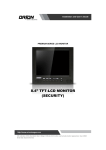
VALUE SERIES LCD MONITOR
15” TFT-LCD MONITOR
(SECURITY)
http://www.orionimages.com
All contents of this document may change without prior notice, and actual product appearance may differ
from that depicted herein
Installation and User’s Guide
http://www.orionimages.com
Warning Statements
* Follow this safety instruction to use the monitor properly and prevent the damages.
* This safety instruction has “ Warning” and “ Caution” as below.
WARNING:
If the user does not follow this instruction,
it may cause the serious damage to the user.
CAUTION:
If the user does not follow this instruction, it may cause the slight
damage to the user or cause some damages to the monitor.
* Keep this user’s guide book for later use.
2
Never remove the back over and touch
the inside of the monitor. If you need a
service, please contact the service center.
Keep away the monitor from the
direct sunlight and a heating appliance.
Never push objects of any kind into this
product as they may result in a risk of fire
or electric shock.
Connect the power code to the wall
outlet tightly. If the power code or plug are
defective and the wall outlet is not tight,
please do not use them.
7300 Bolsa Avenue, Westminster CA 92683 / Tel: 714-766-6300 / Fax: 714-766-6310
pg2
Installation and User’s Guide
http://www.orionimages.com
Warning Statements
Do not install this monitor on the outside
and near water. If may cause damage to
the product, electric shock and fire.
For cleaning do not use liquid cleaners.
Never touch the power plug with wethands.
When lightning and thundering, unplug
the monitor from the wall outlet and never
touch it.
Unplug this product from the wall outlet,
when It does not operate for a long time.
When smoking and noising from the
monitor, unplug the product from the wall
outlet and contact a service center.
How to fix
1.
2.
3.
4.
3
Do not open this product as it contains high voltage inside.
It may create an electric shock.
It the user disassembles and remove the back cover, it does not make sure
To make up for the damages and do a service and exchange the monitor..
7300 Bolsa Avenue, Westminster CA 92683 / Tel: 714-766-6300 / Fax: 714-766-6310
pg3
Installation and User’s Guide
http://www.orionimages.com
Cautions
Install this monitor some distance
From the wall and do not install unless
Proper ventilation is provided.
4
Place this product on a stable place.
If not, it may fall, causing serious
Damages to the monitor and people.
The openings must not be blocked by
curtain, rug or other similar surface.
When carrying this monitor, be careful
not to damage the panel and drop it
It may cause some trouble.
Before carrying the monitor, tum it off
and Unplug the signal cables and the
power code From the wall outlet.
Take the power plug out from the wall
outlet. Do not pull the cable. It may
snap the inner wires and cause
overheating and fire.
Install this monitor about 50cm far from
the eyes and an angle of 0~15 degrees
below eyes. Too close installation may
cause having weak sight.
Do not press the LCD panel with hands
or the sharpened material hardly.
For cleaning, unplug the monitor from
the Wall outlet. Do net use the liquid
cloth. Use the soft cloth.
Do not use the chemical liquid for
cleaning. It may cause fading and
breakage.
7300 Bolsa Avenue, Westminster CA 92683 / Tel: 714-766-6300 / Fax: 714-766-6310
pg4
Installation and User’s Guide
http://www.orionimages.com
TABLE OF CONTENTS
1. INSTALLATION
................................................................................................................. 6
1.1 Parts …….................................................................................................................... 6
1.2 How to Install ……......................................................................................................... 7
2. FEATURES
….................................................................................................................. 8
2.1 Specifications …….…….............................................................................................. 8
3. OSD SETTING
............................................................................................................ 9-10
4. CONTROL BUTTON
....................................................................................................... 11
5. INFORMATION TO THE USER ....................................................................................... 12
6. TROUBLESHOOTING
................................................................................................... 13
7. LIMITED LIFETIME WARRANTY
5
.................................................................................. 14
7300 Bolsa Avenue, Westminster CA 92683 / Tel: 714-766-6300 / Fax: 714-766-6310
pg5
Installation and User’s Guide
http://www.orionimages.com
INSTALLATION
1.1 Parts
Remove the package cover and place the product on a flat and secure surface or in the
installation location. Check whether all the following device and accessories are included with
the main system.
6
7300 Bolsa Avenue, Westminster CA 92683 / Tel: 714-766-6300 / Fax: 714-766-6310
pg6
http://www.orionimages.com
Installation and User’s Guide
INSTALLATION
1.2 How to Install
7
7300 Bolsa Avenue, Westminster CA 92683 / Tel: 714-766-6300 / Fax: 714-766-6310
pg7
Installation and User’s Guide
http://www.orionimages.com
FEATURES
2.1 Specifications (15 INCH)
VIDEO
Screen Size
15”
Pixel Type
Active Matrix TFT
Max. Resolution
1024 x 768 @ 60Hz (XGA)
Pixel Pitch
0.297 x 0.297mm
Brightness
250 cd/㎡
Contrast Ratio
450 : 1
Aspect Ratio
5:4
Viewing Angle (H/V)
130 / 110
Display Color
16.2 MILLION
Response Time
< 12ms
Video System
NTSC / PAL / SECAM
Frequency (H)
31 ~ 48KHz
Frequency (V)
55 ~ 75Hz
Panel Lamp Life
50,000hours
MECHANICAL
Packing Dimension
WxHxD
15.7” x 16.1” x 5.3”
Weight
6.21lbs
Power Consumption
35W
Power Source
DC12V adapter (Auto Switching) / 3A
NOTE : Technical specifications are subject to change without notice..
8
7300 Bolsa Avenue, Westminster CA 92683 / Tel: 714-766-6300 / Fax: 714-766-6310
pg8
Installation and User’s Guide
http://www.orionimages.com
OSD (On Screen Display) SETTING
3.1 OSD MENU Description
Menu Selection
1.
Press the MENU key to access the Main menu.
2.
Use the
3.
Press the INPUT/SELECT key to select an item.
4.
Use the
and
arrow key to highlight a selection.
5.
Use the
and
arrow key to adjust the setting on a selected item.
and
arrow key to highlight a selection
NOTE : If you don’t connect RGB port, RGB SETUP menu is not select.
A. Input Select
Inputs can be set to VIDEO, S-VIDEO and RGB mode.
Press the INPUT / SELECT key then you can change the input source.
B. Picture Menu
9
7300 Bolsa Avenue, Westminster CA 92683 / Tel: 714-766-6300 / Fax: 714-766-6310
pg9
http://www.orionimages.com
Installation and User’s Guide
OSD (On Screen Display) SETTING
1.
Press the MENU key and then ▼/◀ or ▲/▶ key to select the PICTURE menu.
2.
Press the INPUT / SELECT key and then ▼/◀ or ▲/▶ key to select the adjustment item you
need.
3.
Press the INPUT / SELECT key to active the item.
EX) If you select the BRIGHTNESS, then the picture below appears on the screen.
4.
Press the MENU key to move the previous menu..
NOTE : TINT item is NTSC input only.
C. Color Temp Menu
If you want to change of color value on RGB source,
1.
Select COLOR MODE on RGB MENU.
2.
Press the INPUT/SELECT key and then select COLOR TEMP.
3.
Change the USER and then ▼/◀ or ▲/▶ key to select the adjustment item you
need.
10
4.
Press the INPUT/SELECT key to active the item.
5.
Press the MENU key to move the previous menu.
7300 Bolsa Avenue, Westminster CA 92683 / Tel: 714-766-6300 / Fax: 714-766-6310
pg10
Installation and User’s Guide
http://www.orionimages.com
CONTROLL BUTTON
Menu:
Input / Select:
Activates and exits the OSD.
Select input source, and select the OSD menu.
▼/◀:
Move the OSD menu and auto adjustment of RGB source.
▲/▶:
Move the OSD menu.
Turns the power ON or OFF. There will be a few seconds delay
before the display appears.
The power LED(next to the power switch) lights with green when
the power is turned ON.
The power is turned off by pressing the power switch again and
the power LED goes Red.
11
7300 Bolsa Avenue, Westminster CA 92683 / Tel: 714-766-6300 / Fax: 714-766-6310
pg11
http://www.orionimages.com
Installation and User’s Guide
INFORMATION TO THE USER
This equipment has been tested and found to comply with the limits for a Class B digital
device, pursuant to part 15 of the FCC Rules. These limits are designed to provide reasonable
protection against harmful interference in a residential installation. This equipment generates,
uses and can radiate radio frequency energy and, if not installed and used in accordance with
the instructions, may cause harmful interference to radio communications. However, there is
no guarantee that interference will not occur in a particular installation. If this equipment does
cause harmful interference to radio or television reception, which can be determined by turning
the equipment off and on, the user is encouraged to try to correct the interference by one more
of the following measures:
z
Reorient or relocate the receiving antenna.
z
Increase the separation between the equipment and receiver.
z
Connect the equipment into an outlet on a circuit different from that to which
the receiver is connected.
z
Consult the dealer or an experienced radio / TV technician for help.
WARNING:
The manufacturer is not responsible for any Radio or TV interference caused by unauthorized
modifications to this equipment. Such modifications could void the user's authority to operate
the equipment."
12
7300 Bolsa Avenue, Westminster CA 92683 / Tel: 714-766-6300 / Fax: 714-766-6310
pg12
Installation and User’s Guide
http://www.orionimages.com
TROUBLESHOOTING
* When the following troubles are occurred, follow the trouble shooting. Before contacting a
service center.
Troubleshooting
Troubleshooting Tip
1. Make sure if the power supply is connected property
The screen doesn’t show up
2. Turn on the power.
3. Select the input signal right for the connected port.
13
The screen is too light or to dark
Control the BRIGHTNESS
The screen size is not fit for the PC
signal
Press the AUTO key among keys in the front.
(It is used only in the PC signal)
The screen color shows strange in
the PC signal
In the FUNCTION menu of OSD menu, perform the AUTOADJUST.
7300 Bolsa Avenue, Westminster CA 92683 / Tel: 714-766-6300 / Fax: 714-766-6310
pg13
http://www.orionimages.com
Installation and User’s Guide
2Year Limited Warranty
All Orion Images products carry a limited warranty from ship date against defects in materials
and workmanship. Orion Images is not liable for improper installation that results in damage to
mounts, adapters, display equipment or personal injury.
Contact Orion Images
In the event of missing and/or damage equipment, or technical questions, the
following information can help in the completion of the installation.
Address: 7300 Bolsa Avenue, Westminster, CA 92683
Tel: 714-766-6300 / Fax: 714-766-6310
Email: [email protected]
Website: http://www.orionimages.com
14
7300 Bolsa Avenue, Westminster CA 92683 / Tel: 714-766-6300 / Fax: 714-766-6310
pg14