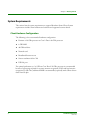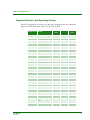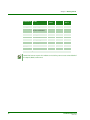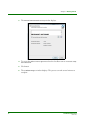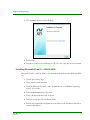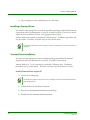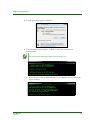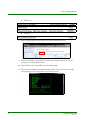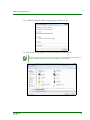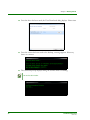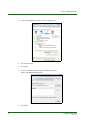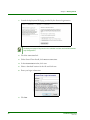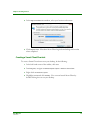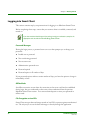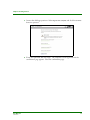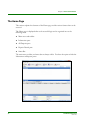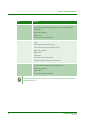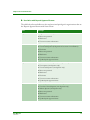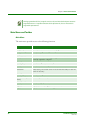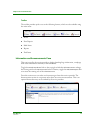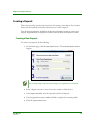
1
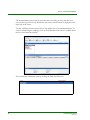
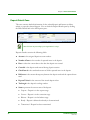
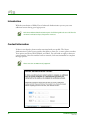
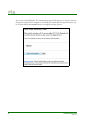
SendPoint Smart Client User Manual Release 14.1 11/11/14 Sendpoint Direct Suite Release 14.1 April 2014 First Edition If you have any comments about this document, please send them to the Manager of Training and Documentation at the following address or send e-mail to [email protected]. Oklahoma City Solutions Center FIS Image Solutions 1200 Sovereign Row Oklahoma City, OK 73108 United States of America Adobe® Acrobat® and Reader® are registered trademarks of Adobe Systems Incorporated in the United States and/or other countries. Microsoft®, Windows®, and Windows NT® are registered trademarks; and Windows Server™ and Windows Server System™ are trademarks of Microsoft Corporation in the United States and/or other countries. Other product and service names are used for identification purposes only and are the property of their respective owners. © 2014 Fidelity National Information Services, Inc. and its subsidiaries. All rights reserved worldwide. This document is protected as a trade secret and under the copyright laws as the property of Fidelity National Information Services, Inc. Copying, reproduction, or distribution to third parties is strictly prohibited. ii SendPoint Smart Client SSD1411404U SendPoint Smart Client User Manual Table of Contents Getting Started ................................................................. 7 System Requirements. . . . . . . . . . . . . . . . . . . . . . . . . . . . . . . . . . . . . . . . . . . . . . . . . . . . . . . . . . . . . . . . . . . . . . . . . . . . 8 Client Hardware Configuration . . . . . . . . . . . . . . . . . . . . . . . . . . . . . . . . . . . . . . . . . . . . . . . . . . . . . . . . . . . . . . . 8 Supported Scanners and Operating Systems . . . . . . . . . . . . . . . . . . . . . . . . . . . . . . . . . . . . . . . . . . . . . . . . . . 9 Smart Client Installation . . . . . . . . . . . . . . . . . . . . . . . . . . . . . . . . . . . . . . . . . . . . . . . . . . . . . . . . . . . . . . . . . . . . . . . 11 Microsoft .NET 4.0 Installation . . . . . . . . . . . . . . . . . . . . . . . . . . . . . . . . . . . . . . . . . . . . . . . . . . . . . . . . . . . . . . . 11 Installing Microsoft Visual C++ 2005 & 2008 . . . . . . . . . . . . . . . . . . . . . . . . . . . . . . . . . . . . . . . . . . . . . . . . . 13 Installing a Scanner Driver . . . . . . . . . . . . . . . . . . . . . . . . . . . . . . . . . . . . . . . . . . . . . . . . . . . . . . . . . . . . . . . . . . 14 Scanner Driver Installation . . . . . . . . . . . . . . . . . . . . . . . . . . . . . . . . . . . . . . . . . . . . . . . . . . . . . . . . . . . . . . . . . . 14 Install a Scanner Driver on your PC . . . . . . . . . . . . . . . . . . . . . . . . . . . . . . . . . . . . . . . . . . . . . . . . . . . . . . 14 Adding the External Web Server as a Trusted Web Site . . . . . . . . . . . . . . . . . . . . . . . . . . . . . . . . . . . . . . . 21 Add External Web Server to Trusted Site List . . . . . . . . . . . . . . . . . . . . . . . . . . . . . . . . . . . . . . . . . . . . . 21 Downloading Smart Client . . . . . . . . . . . . . . . . . . . . . . . . . . . . . . . . . . . . . . . . . . . . . . . . . . . . . . . . . . . . . . . . . . 23 Creating a Smart Client Shortcut . . . . . . . . . . . . . . . . . . . . . . . . . . . . . . . . . . . . . . . . . . . . . . . . . . . . . . . . . . . . 25 Logging into Smart Client . . . . . . . . . . . . . . . . . . . . . . . . . . . . . . . . . . . . . . . . . . . . . . . . . . . . . . . . . . . . . . . . . . . . . . 26 Password Messages . . . . . . . . . . . . . . . . . . . . . . . . . . . . . . . . . . . . . . . . . . . . . . . . . . . . . . . . . . . . . . . . . . . . 26 Offline Mode . . . . . . . . . . . . . . . . . . . . . . . . . . . . . . . . . . . . . . . . . . . . . . . . . . . . . . . . . . . . . . . . . . . . . . . . . . 26 File Encryption on Local PCs . . . . . . . . . . . . . . . . . . . . . . . . . . . . . . . . . . . . . . . . . . . . . . . . . . . . . . . . . . . . 26 Logging In . . . . . . . . . . . . . . . . . . . . . . . . . . . . . . . . . . . . . . . . . . . . . . . . . . . . . . . . . . . . . . . . . . . . . . . . . . . . . . . . . 27 Multi-Factor Authentication . . . . . . . . . . . . . . . . . . . . . . . . . . . . . . . . . . . . . . . . . . . . . . . . . . . . . . . . . . . . . . . . . . . . 28 Register Computer . . . . . . . . . . . . . . . . . . . . . . . . . . . . . . . . . . . . . . . . . . . . . . . . . . . . . . . . . . . . . . . . . . . . . 28 Forgotten Confirmation Answers and/or Password . . . . . . . . . . . . . . . . . . . . . . . . . . . . . . . . . . . . . . . 28 Enrolling in MFA . . . . . . . . . . . . . . . . . . . . . . . . . . . . . . . . . . . . . . . . . . . . . . . . . . . . . . . . . . . . . . . . . . . . . . . . . . . 29 Enroll in MFA . . . . . . . . . . . . . . . . . . . . . . . . . . . . . . . . . . . . . . . . . . . . . . . . . . . . . . . . . . . . . . . . . . . . . . . . . . 29 General Information . . . . . . . . . . . . . . . . . . . . . . . . . . . . . . . . . . . . . . . . . . . . . . . . . . . . . . . . . 35 The Home Page . . . . . . . . . . . . . . . . . . . . . . . . . . . . . . . . . . . . . . . . . . . . . . . . . . . . . . . . . . . . . . . . . . . . . . . . . . . . . . . 36 User Roles and Privileges . . . . . . . . . . . . . . . . . . . . . . . . . . . . . . . . . . . . . . . . . . . . . . . . . . . . . . . . . . . . . . . . . . . 37 Administrator Role . . . . . . . . . . . . . . . . . . . . . . . . . . . . . . . . . . . . . . . . . . . . . . . . . . . . . . . . . . . . . . . . . . . . . 37 Role Privileges . . . . . . . . . . . . . . . . . . . . . . . . . . . . . . . . . . . . . . . . . . . . . . . . . . . . . . . . . . . . . . . . . . . . . . . . . 37 Main Menu and Toolbar . . . . . . . . . . . . . . . . . . . . . . . . . . . . . . . . . . . . . . . . . . . . . . . . . . . . . . . . . . . . . . . . . . . . 40 Main Menu . . . . . . . . . . . . . . . . . . . . . . . . . . . . . . . . . . . . . . . . . . . . . . . . . . . . . . . . . . . . . . . . . . . . . . . . . . . . 40 Toolbar . . . . . . . . . . . . . . . . . . . . . . . . . . . . . . . . . . . . . . . . . . . . . . . . . . . . . . . . . . . . . . . . . . . . . . . . . . . . . . . 41 Information and Announcements Pane . . . . . . . . . . . . . . . . . . . . . . . . . . . . . . . . . . . . . . . . . . . . . . . . . . . . . . 41 User Manual SSD1411404U iii Table of Contents All Deposits Pane . . . . . . . . . . . . . . . . . . . . . . . . . . . . . . . . . . . . . . . . . . . . . . . . . . . . . . . . . . . . . . . . . . . . . . . . . . 43 Returning to an Open Deposit . . . . . . . . . . . . . . . . . . . . . . . . . . . . . . . . . . . . . . . . . . . . . . . . . . . . . . . . . . 43 Find Deposits . . . . . . . . . . . . . . . . . . . . . . . . . . . . . . . . . . . . . . . . . . . . . . . . . . . . . . . . . . . . . . . . . . . . . . . . . . 44 Deposit Details Pane . . . . . . . . . . . . . . . . . . . . . . . . . . . . . . . . . . . . . . . . . . . . . . . . . . . . . . . . . . . . . . . . . . . . . . . 46 Status Bar . . . . . . . . . . . . . . . . . . . . . . . . . . . . . . . . . . . . . . . . . . . . . . . . . . . . . . . . . . . . . . . . . . . . . . . . . . . . . . . . . 47 Security Status . . . . . . . . . . . . . . . . . . . . . . . . . . . . . . . . . . . . . . . . . . . . . . . . . . . . . . . . . . . . . . . . . . . . . . . . . 47 Scanner Status . . . . . . . . . . . . . . . . . . . . . . . . . . . . . . . . . . . . . . . . . . . . . . . . . . . . . . . . . . . . . . . . . . . . . . . . . 47 Connection Status . . . . . . . . . . . . . . . . . . . . . . . . . . . . . . . . . . . . . . . . . . . . . . . . . . . . . . . . . . . . . . . . . . . . . 47 Reports . . . . . . . . . . . . . . . . . . . . . . . . . . . . . . . . . . . . . . . . . . . . . . . . . . . . . . . . . . . . . . . . . . . . . . . . . . . . . . . . . . . . . . . 48 Generating Reports . . . . . . . . . . . . . . . . . . . . . . . . . . . . . . . . . . . . . . . . . . . . . . . . . . . . . . . . . . . . . . . . . . . . . . . . 48 Report Toolbar . . . . . . . . . . . . . . . . . . . . . . . . . . . . . . . . . . . . . . . . . . . . . . . . . . . . . . . . . . . . . . . . . . . . . . . . . . . . . 49 Deposit Detail Report . . . . . . . . . . . . . . . . . . . . . . . . . . . . . . . . . . . . . . . . . . . . . . . . . . . . . . . . . . . . . . . . . . . . . . 50 All Deposits Detail Report . . . . . . . . . . . . . . . . . . . . . . . . . . . . . . . . . . . . . . . . . . . . . . . . . . . . . . . . . . . . . . . . . . 50 Deposit Summary Report . . . . . . . . . . . . . . . . . . . . . . . . . . . . . . . . . . . . . . . . . . . . . . . . . . . . . . . . . . . . . . . . . . . 51 Deposit Image Report . . . . . . . . . . . . . . . . . . . . . . . . . . . . . . . . . . . . . . . . . . . . . . . . . . . . . . . . . . . . . . . . . . . . . . 51 Server Deposit Approval Report . . . . . . . . . . . . . . . . . . . . . . . . . . . . . . . . . . . . . . . . . . . . . . . . . . . . . . . . . . . . . 52 Item Detail Data Report . . . . . . . . . . . . . . . . . . . . . . . . . . . . . . . . . . . . . . . . . . . . . . . . . . . . . . . . . . . . . . . . . . . . 53 Export Data File by Layout . . . . . . . . . . . . . . . . . . . . . . . . . . . . . . . . . . . . . . . . . . . . . . . . . . . . . . . . . . . . . . . . . . 53 Pending and Rejected Deposits Summary Report . . . . . . . . . . . . . . . . . . . . . . . . . . . . . . . . . . . . . . . . . . . . 54 Mark Items . . . . . . . . . . . . . . . . . . . . . . . . . . . . . . . . . . . . . . . . . . . . . . . . . . . . . . . . . . . . . . . . . . . . . . . . . . . . . . . . . . . . 55 Marking Items . . . . . . . . . . . . . . . . . . . . . . . . . . . . . . . . . . . . . . . . . . . . . . . . . . . . . . . . . . . . . . . . . . . . . . . . . . . . . 55 Find Items . . . . . . . . . . . . . . . . . . . . . . . . . . . . . . . . . . . . . . . . . . . . . . . . . . . . . . . . . . . . . . . . . . . . . . . . . . . . . . . . . . . . 56 Finding Items . . . . . . . . . . . . . . . . . . . . . . . . . . . . . . . . . . . . . . . . . . . . . . . . . . . . . . . . . . . . . . . . . . . . . . . . . . . . . . 56 The Deposit Process . . . . . . . . . . . . . . . . . . . . . . . . . . . . . . . . . . . . . . . . . . . . . . . . . . . . . . . . . . 59 Introduction . . . . . . . . . . . . . . . . . . . . . . . . . . . . . . . . . . . . . . . . . . . . . . . . . . . . . . . . . . . . . . . . . . . . . . . . . . . . . . . . . . 60 The Deposit Wizard . . . . . . . . . . . . . . . . . . . . . . . . . . . . . . . . . . . . . . . . . . . . . . . . . . . . . . . . . . . . . . . . . . . . 60 Modifying Deposit Information . . . . . . . . . . . . . . . . . . . . . . . . . . . . . . . . . . . . . . . . . . . . . . . . . . . . . . . . . 61 Task Summary . . . . . . . . . . . . . . . . . . . . . . . . . . . . . . . . . . . . . . . . . . . . . . . . . . . . . . . . . . . . . . . . . . . . . . . . . . . . . 62 Creating a Deposit. . . . . . . . . . . . . . . . . . . . . . . . . . . . . . . . . . . . . . . . . . . . . . . . . . . . . . . . . . . . . . . . . . . . . . . . . . . . . 63 Creating a New Deposit . . . . . . . . . . . . . . . . . . . . . . . . . . . . . . . . . . . . . . . . . . . . . . . . . . . . . . . . . . . . . . . . . . . . 63 Capturing Items . . . . . . . . . . . . . . . . . . . . . . . . . . . . . . . . . . . . . . . . . . . . . . . . . . . . . . . . . . . . . . . . . . . . . . . . . . . . . . . 64 The Capture Page . . . . . . . . . . . . . . . . . . . . . . . . . . . . . . . . . . . . . . . . . . . . . . . . . . . . . . . . . . . . . . . . . . . . . . 64 Capturing Items . . . . . . . . . . . . . . . . . . . . . . . . . . . . . . . . . . . . . . . . . . . . . . . . . . . . . . . . . . . . . . . . . . . . . . . . . . . 64 Correcting Items . . . . . . . . . . . . . . . . . . . . . . . . . . . . . . . . . . . . . . . . . . . . . . . . . . . . . . . . . . . . . . . . . . . . . . . . . . . . . . 66 Exception Items . . . . . . . . . . . . . . . . . . . . . . . . . . . . . . . . . . . . . . . . . . . . . . . . . . . . . . . . . . . . . . . . . . . . . . . . 66 The Correction Page . . . . . . . . . . . . . . . . . . . . . . . . . . . . . . . . . . . . . . . . . . . . . . . . . . . . . . . . . . . . . . . . . . . 67 Repairing an Item . . . . . . . . . . . . . . . . . . . . . . . . . . . . . . . . . . . . . . . . . . . . . . . . . . . . . . . . . . . . . . . . . . . . . . . . . . 67 Removing an Item . . . . . . . . . . . . . . . . . . . . . . . . . . . . . . . . . . . . . . . . . . . . . . . . . . . . . . . . . . . . . . . . . . . . . . . . . 68 Replacing an Image . . . . . . . . . . . . . . . . . . . . . . . . . . . . . . . . . . . . . . . . . . . . . . . . . . . . . . . . . . . . . . . . . . . . . . . . 68 Balancing the Deposit . . . . . . . . . . . . . . . . . . . . . . . . . . . . . . . . . . . . . . . . . . . . . . . . . . . . . . . . . . . . . . . . . . . . . . . . . 69 The Balance Page . . . . . . . . . . . . . . . . . . . . . . . . . . . . . . . . . . . . . . . . . . . . . . . . . . . . . . . . . . . . . . . . . . . . . . 69 Balancing a Deposit . . . . . . . . . . . . . . . . . . . . . . . . . . . . . . . . . . . . . . . . . . . . . . . . . . . . . . . . . . . . . . . . . . . . . . . . 69 Update the Deposit Control Total . . . . . . . . . . . . . . . . . . . . . . . . . . . . . . . . . . . . . . . . . . . . . . . . . . . . . . . 70 iv SendPoint Smart Client SSD1411404U Table of Contents Edit Individual Items . . . . . . . . . . . . . . . . . . . . . . . . . . . . . . . . . . . . . . . . . . . . . . . . . . . . . . . . . . . . . . . . . . . 70 Remove Individual Items . . . . . . . . . . . . . . . . . . . . . . . . . . . . . . . . . . . . . . . . . . . . . . . . . . . . . . . . . . . . . . . 70 Finishing the Deposit . . . . . . . . . . . . . . . . . . . . . . . . . . . . . . . . . . . . . . . . . . . . . . . . . . . . . . . . . . . . . . . . . . . . . . . . . . 72 Finishing a Deposit . . . . . . . . . . . . . . . . . . . . . . . . . . . . . . . . . . . . . . . . . . . . . . . . . . . . . . . . . . . . . . . . . . . . . . . . . 72 Approvals . . . . . . . . . . . . . . . . . . . . . . . . . . . . . . . . . . . . . . . . . . . . . . . . . . . . . . . . . . . . . . . . . . . . . . . . . . . . . . . . . . . . . 73 User Role Impact . . . . . . . . . . . . . . . . . . . . . . . . . . . . . . . . . . . . . . . . . . . . . . . . . . . . . . . . . . . . . . . . . . . . . . . 73 Deposit Workflow Impact . . . . . . . . . . . . . . . . . . . . . . . . . . . . . . . . . . . . . . . . . . . . . . . . . . . . . . . . . . . . . . . 73 Multi-Factor Advanced Authentication . . . . . . . . . . . . . . . . . . . . . . . . . . . . . . 77 Introduction . . . . . . . . . . . . . . . . . . . . . . . . . . . . . . . . . . . . . . . . . . . . . . . . . . . . . . . . . . . . . . . . . . . . . . . . . . . . . . . . . . 78 Contact Information . . . . . . . . . . . . . . . . . . . . . . . . . . . . . . . . . . . . . . . . . . . . . . . . . . . . . . . . . . . . . . . . . . . . . . . . . . . 78 Step-Up Authentication. . . . . . . . . . . . . . . . . . . . . . . . . . . . . . . . . . . . . . . . . . . . . . . . . . . . . . . . . . . . . . . . . . . . . . . . 79 Index . . . . . . . . . . . . . . . . . . . . . . . . . . . . . . . . . . . . . . . . . . . . . . . . . . . . . . . . . . . . . . . . . . . . . . . . . . . . . . . . . . 81 User Manual SSD1411404U v Table of Contents vi SendPoint Smart Client SSD1411404U SendPoint Smart Client User Manual Chapter 1 Getting Started Topics User Manual SSD1411404U System Requirements Smart Client Installation Logging into Smart Client Multi-Factor Authentication 7 Chapter 1 Getting Started System Requirements This section lists the system requirements to support Merchant Smart Client. System requirements include client hardware and software and supported scanner drivers. Client Hardware Configuration The following is the recommended hardware configuration: Pentium 4 2.0 GHz processor or Core 2 Duo 1.86 GHz processor 1 GB RAM 40 GB hard drive Network card Broadband Internet access Screen resolution 1024 x 768 USB 2.0 port For optimal performance, a 3.0 GHz or Core Duo 2.33 GHz processor is recommended because of processing required for courtesy amount recognition (CAR) and legal amount recognition (LAR). Also, additional RAM is recommended, especially with scanner drivers faster than 30 dpm. 8 SendPoint Smart Client SSD1411404U Chapter 1 Getting Started Supported Scanners and Operating Systems Smart Client supports the scanner and operating configurations in the table below. Microsoft .NET Framework 4.0 also needs to be installed. Manufacturer Model Burroughs Windows 8/8.1 Yes Yes# No SmartSource Open Yes Yes# No SourceNDP Yes No No WebSourceNDP Yes No No CR-25 Yes# Yes# Yes# CR-50 Yes# Yes# Yes# CR-55 Yes# Yes# Yes# CR-80 Yes# Yes# Yes# CR-135 Yes# Yes# Yes# CR-180/180 II Yes# Yes# Yes# CR-190 Yes# Yes# Yes# LS-100 Yes# No No LS-515 Yes# No No CX-30 Yes# Yes# Yes# TS-215 Yes# Yes# Yes# TS-220/220e Yes# Yes# Yes# TS-230 Yes# Yes# Yes# TS-240 Yes# Yes# Yes# TS-300 Yes No No TS-350 Yes No No TS-400ES Yes No No TS-4120 Yes# Yes# Yes# Epson TM-S1000 (Capture One) Yes# No No Magtek Excella Yes# No No CTS Digital Check SSD1411404U Windows 7 SmartSource Elite Canon User Manual Windows Vista 9 Chapter 1 Getting Started Manufacturer Model Windows Vista Windows 7 Windows 8/8.1 Excella STX Yes# No No Panini/Unisys MyVisionX and MyVisionX ROHS Yes# Yes# Yes# Panini I:Deal Yes# Yes# Yes# VisionX Yes# Yes# Yes# VisionX 1F Yes# Yes# Yes# VisionX AGP Yes# Yes# Yes# VisionX P Yes# Yes# Yes# ec7000i Yes Yes# Yes# RDM/Unisys # Indicates 64-bit support Panini iDeal scanners require the SendPoint Service Delivery team to create a virtual bank of first deposit (BOFD) endorsement. NOTE 10 SendPoint Smart Client SSD1411404U Chapter 1 Getting Started Smart Client Installation This section contains step-by-step instructions for the tasks necessary to successfully install Smart Client. These include: Installing Microsoft .NET 4.0 Installing Microsoft Visual C++ 2005 and 2008 Installing a scanner driver Adding Smart Client’s external web server address as a trusted Internet Web site Downloading Smart Client and registering your scanner and workstation Steps for creating a Smart Client shortcut on your desktop are also included. Microsoft .NET 4.0 Installation Microsoft .NET Framework 4.0 is a free download obtained from the Microsoft Web site. To download and install Microsoft .NET 4.0 perform the following steps: 1. Open your Web browser and access the following Web page: http://www.microsoft.com/en-us/download/details.aspx?id=17718 2. Download and execute dotnetfx40_Full_x86_x64.exe. An Extracting Files window displays. User Manual SSD1411404U 11 Chapter 1 Getting Started 3. The Microsoft .NET Framework 4.0 Setup window displays. 4. To accept the End-User License Agreement select the checkbox next to I have read accept the license terms. 5. Click Install. 6. The Installation Progress window displays. This process can take several minutes to complete. 12 SendPoint Smart Client SSD1411404U Chapter 1 Getting Started 7. The Installation Complete window displays. 8. Select Finish. 9. In order to complete the installation of .NET 4.0, the computer must be restarted. Installing Microsoft Visual C++ 2005 & 2008 Microsoft Visual C++ 2005 & 2008 is a free download obtained from the Microsoft Web site. 1. Launch the Landing Page. 2. Hover over the Smart Client link. 3. Click the Microsoft Visual C++ 2005 & 2008 link for your Windows operating system, 32 or 64-bit. . 4. In the File Download window, click Save. 5. Select a download location and click Save. 6. Navigate to and open the installation folder. 7. Launch the Setup.exe file and follow the instructions in the Installation Wizard to complete installation. User Manual SSD1411404U 13 Chapter 1 Getting Started 8. Upon completion of the installation process, click Finish. Installing a Scanner Driver You must have the appropriate scanner driver installation package provided by the financial organization and be an administrator on your PC to install a scanner. For a list of scanners supported for use with Smart Client, see Logging into Smart Client. Internet Explorer is required to complete the following steps. Installation procedures will vary by scanner. Therefore, verify the steps for each scanner driver. If you have installed your scanner using the Scanner Installation Assistant, this step has been completed. NOTE Scanner Driver Installation You must have the appropriate scanner installation package provided by the financial organization and be an administrator on your PC to install a scanner driver. Internet Explorer 6, 7, or 8 is required to complete the following steps. Installation procedures vary by scanner driver. Therefore, verify the steps for each scanner driver. Install a Scanner Driver on your PC 1. Launch the Landing Page. The deployment page will vary based on the individual merchants and available hardware setup configurations. NOTE 1. Launch the Scanner Installation Assistant. 2. Save the ScannerInstallationAssistant.exe to the desktop. 3. Double click the ScannerInstallationAssistant.exe. 14 SendPoint Smart Client SSD1411404U Chapter 1 Getting Started 4. A security warning appears. Select Run. 5. The command prompt launches. It checks to see if your account is an Administrator. This screen may not appear depending on your operating system. NOTE a. User Manual SSD1411404U If your account is not an Administrator, an error displays and you will not be able to continue. 15 Chapter 1 Getting Started 6. The Add\Remove Programs window launches, displaying a list of installed Programs and Features. . 7. From here scroll through the list to find your system’s currently installed scanner drivers. Refer to the following list for scanners and their corresponding drivers. Disconnect the USB Cable prior to uninstalling the scanner drivers. NOTE 16 Canon CR-25/55 SendPoint Smart Client SSD1411404U Chapter 1 Getting Started User Manual SSD1411404U Canon CR-180 CTSLS100 Epson S1000 iDeal Magtek Excella Magtek Excella ST RDM Smart Source Source NDP 17 Chapter 1 Getting Started Teller Scan Vision X 8. Select the appropriate scanner driver and click the Uninstall button. 9. Follow the defaults to uninstall the scanner driver. Repeat this process for all components of an installed scanner. 10. Once all drivers are uninstalled, close the Control Panel. 11. The scanner installation command prompt displays. Enter the letter or number corresponding to the scanner drivers you need to install. 18 SendPoint Smart Client SSD1411404U Chapter 1 Getting Started 12. A Windows Internet Explorer dialog displays. Select Save As. 13. The Save As dialog displays. Save the scanner driver to the desktop. The scanner driver must be saved to teh same location as the ScannerDriverAssistant.exe. If saved to a different location the Scanner Installation Assistant will fail. NOTE User Manual SSD1411404U 19 Chapter 1 Getting Started 14. Once the driver has been saved, the View Downloads dialog displays. Select Close. . 15. Once the scanner has been saved to the desktop, a message appears. Select any button to continue. 16. The command prompt displays stating the scanner driver is installing. Do not close this window. NOTE 20 SendPoint Smart Client SSD1411404U Chapter 1 Getting Started 17. The scanner driver installation wizard displays. Select Next and follow the instructions to complete installation. Adding the External Web Server as a Trusted Web Site Merchant Smart Client’s external Web server needs to be added as a trusted Internet Web site. Additional domains may need to be added. NOTE Add External Web Server to Trusted Site List 1. Launch Internet Explorer. 2. Select Tools. 3. Select Internet Options. User Manual SSD1411404U 21 Chapter 1 Getting Started 4. In the Internet Options window, select the Security tab. 5. Click Trusted Sites. 6. Click Sites. 7. In the Trusted Sites window, type the following address, https://*.imagedepositgateway.com. 8. Click Add. 22 SendPoint Smart Client SSD1411404U Chapter 1 Getting Started 9. Click OK. 10. In the Internet Options window, click Custom level. 11. In the Security Settings window, under Miscellaneous, enable access to data sources across domains. 12. Click OK. Downloading Smart Client Before downloading Smart client and registering the workstation and scanner, ensure that your scanner driver is installed, connected, and turned on. NOTE User Manual SSD1411404U If you have already downloaded Smart Client and registered your workstation and scanner, use the login instructions in the Logging into Smart Client section to begin using Smart Client. 23 Chapter 1 Getting Started 1. Launch the deployment Web page provided by the financial organization. The deployment page will vary based on the individual merchants and available hardware setup configurations. NOTE 2. Click the Smart Client link. 3. Under Smart Client Install, click Merchant Smart Client. 4. In the File Download window, click Save. 5. Select a download location for the file and click Save. 6. Enter your login information. 7. Click OK. 24 SendPoint Smart Client SSD1411404U Chapter 1 Getting Started 8. In the Register Merchant Client window, select your location and scanner. 9. Click Register Client. Merchant Smart Client begins downloading and launches when completed. Creating a Smart Client Shortcut To create a Smart Client shortcut on your desktop, do the following. 1. In the left-hand corner of the toolbar, click Start. 2. In All Programs, navigate to Remote Deposit Capture > Merchant Smart Client. 3. Right-click on Merchant Capture. 4. Highlight Send To and click Desktop. You can now launch Smart Client by double-clicking the icon on your desktop. User Manual SSD1411404U 25 Chapter 1 Getting Started Logging into Smart Client This section contains step-by-step instructions for logging in to Merchant Smart Client. Before completing these steps, ensure that your scanner driver is installed, connected, and turned on. If you have not downloaded Smart Client and registered your workstation, complete the appropriate tasks described in Downloading Smart Client. NOTE Password Messages During the login process, a password event can occur that prompts you to change your password: Invalid user or password Non-conforming password New account reset Administrative password reset Password expired Password expires in X number of days If your password expires within a certain number of days, you have the option to change it immediately or later. Offline Mode An offline connection occurs when the connection to the server could not be established during login, but your credentials are the same as those authorized from the previous Merchant Smart Client session. You cannot submit deposits or reset your password in offline mode. File Encryption on Local PCs Smart Client encrypts data and images stored on local PCs to protect against unauthorized use. The only way to access the data and images is directly through the application. 26 SendPoint Smart Client SSD1411404U Chapter 1 Getting Started Logging In To log in to Smart Client, do the following: 1. Double-click the Smart Client shortcut on your desktop. 2. Enter your login information 3. Click OK. 4. Enter your multi-factor authentication login information. See the Multi-Factor Authentication section in this manual for more information. User Manual SSD1411404U 27 Chapter 1 Getting Started Multi-Factor Authentication Multi-factor authentication (MFA) can help prevent unauthorized access to Smart Client. MFA requires users to set up a picture, personal phrase, and confirmation questions to be associated with their user ID and password. If using Multi-Factor Advanced Authentication, refer to the Multi-Factor Advanced Authentication section (Appendix A) of this guide. Register Computer Registering a computer for MFA allows you to bypass the confirmation questions when you log in and is recommended if you commonly use the same computer to access Smart Client. If you are logging in to Smart Client and the computer is not registered, you must answer the confirmation questions before you can enter your password. When you answer the confirmation questions, you have the option to register the particular computer. Forgotten Confirmation Answers and/or Password Registered Computer If you forget your password, you can click the Forgot Password link on the Sign on to Merchant Capture page. You then have three attempts to answer all your confirmation questions correctly. If you answer the questions correctly, you will be prompted to create a new password. If you are not able to answer your confirmation questions, your account will be locked after three failed attempts. You then must contact the system administrator to unlock your account and then re-enroll in MFA. Unregistered Computer On an unregistered computer, you must answer your confirmation questions prior to entering your password. When you answer your confirmation questions correctly, you can click the Forgot Password link to create a new password. If you are not able to answer your confirmation questions, your account will be locked after three failed attempts. You then must contact the system administrator to unlock your account and then re-enroll in MFA. 28 SendPoint Smart Client SSD1411404U Chapter 1 Getting Started Enrolling in MFA MFA requires you to first enroll in MFA and then register the computer you commonly use to access Smart Client. Enroll in MFA 1. Launch Smart Client. The following message appears because MFA is attempting to initiate before you have actually enrolled. 2. In the message window, click the link to enroll in MFA. The Smart Client Login Page appears. 3. On the login page, enter your User ID and click the Login button. The Set Up Secure Authentication page appears. 4. Click the Begin Setup button. User Manual SSD1411404U 29 Chapter 1 Getting Started 5. Select a category and picture as part of your login information. 6. Enter your User ID and a personal phrase. The previously chosen picture can be changed on this screen. NOTE 30 SendPoint Smart Client SSD1411404U Chapter 1 Getting Started 7. Click the Continue Setup button. 8. Select four challenge questions and enter the answers. 9. Click the Continue Setup button. User Manual SSD1411404U 31 Chapter 1 Getting Started 10. Select Register this computer and click the Continue Setup button. You still need to complete additional steps to register the computer after you have completed MFA enrollment NOTE 11. Review the information and make any necessary changes. 12. Confirm your password and click Submit. The enrollment confirmation appears. Close the enrollment confirmation. Register the Computer The following steps show how to register a computer after enrolling in MFA. 1. Launch Smart Client. The login page appears. 2. Enter your UserID and click the Login button to continue. 32 SendPoint Smart Client SSD1411404U Chapter 1 Getting Started 3. Answer the challenge questions. Select Register this computer and click the Continue button to proceed. 4. Enter your password and click Login. The computer is now registered and the confirmation page appears. Close the confirmation page. User Manual SSD1411404U 33 Chapter 1 Getting Started 34 SendPoint Smart Client SSD1411404U SendPoint Smart Client User Manual Chapter 2 General Information Topics User Manual SSD1411404U The Home Page Reports Mark Items Find Items 35 Chapter 2 General Information The Home Page This section explains the elements of the Home page and the various features that can be accessed. The Home page is displayed after each successful login and is organized into to the following areas: Main menu and toolbar Information pane All Deposits pane Deposit Details pane Status Bar The main menu, toolbar, and status bar are always visible. You have the option to hide the Information and deposit panes. 36 SendPoint Smart Client SSD1411404U Chapter 2 General Information User Roles and Privileges The roles assigned to a user determine what that user can access and the tasks that can be performed in Smart Client. Administrator Role The administrator role can only be assigned by FIS at the request of the organization. The administrator role does not give that user the subsequent privileges of the other user roles. For full access, the user must be assigned all available user roles. In Smart Client, the administrator can do the following: Reset duplicate item history (if allowed by the financial organization) View and change own scanner information Mark items Reset passwords Role Privileges The Deposit Approval feature affects deposit tasks and deposit workflow for the user roles, but basic application tasks accessible from the Home page are minimally affected. Privileges associated with each user role are listed in the tables below as appropriate depending on whether Deposit Approval is enabled. For detailed information about how the Deposit Approval feature affects the deposit workflow, see the Approvals section of this guide. User Roles without Deposit Approval Feature The table below lists available user roles and associated privileges for organizations that do not use the Deposit Approval feature with Smart Client: User Manual SSD1411404U Role Privileges Supervisor Register merchant and scanner Reset own password Mark items View own scanner information 37 Chapter 2 General Information Role Privileges Reviewer View reports (all deposits and accounts on workstation) View closed deposits (all deposits and accounts on workstation) Find Items Reset own password Mark items View own scanner information Create, capture, correct, balance, and finish deposits (own deposits only) View reports (own deposits only) View closed deposits (own deposits only) Reset own password Mark items Find items View own scanner information Finish user deposits that have operator role Create, capture, correct, and balance deposits (own deposits only) View list of closed deposits (own deposits only) Reset own password Mark items View own scanner information Depositor Operator Privileges granted to all roles (except the reviewer role) are limited to the deposit accounts assigned to that user. NOTE 38 SendPoint Smart Client SSD1411404U Chapter 2 General Information User Roles with Deposit Approval Feature The table below lists available user roles and associated privileges for organizations that use the Deposit Approval feature with Smart Client: Role Privileges Supervisor Register merchant and password Reset own password Mark items View own scanner information View reports (all deposits and accounts on workstation) View closed deposits (all deposits and accounts on workstation) Find items Reset own password Mark items View own scanner information Update deposit approval status Transmit and finish deposits (own deposits only) View reports (own deposits only) View closed deposits (own deposits only) Reset own password Mark items Find items View own scanner information Update deposit approval status Create, capture, correct, and balance deposits View list of closed deposits (own deposits only) Submit deposits (own deposits only) Reset own password Mark items View own scanner information Update deposit approval status Reviewer Depositor Operator User Manual SSD1411404U 39 Chapter 2 General Information NOTE Privileges granted to all roles (except the reviewer role) are limited to the deposit accounts assigned to that user. To perform functions of the depositor role, the user must also be assigned the operator role. Main Menu and Toolbar Main Menu The main menu provides access to the following functions: Name Function File | Home Returns you to the Smart Client Home page. File | New Deposit Allows you to begin creating a new deposit. File | Exit Exits Smart Client. Tools | Mark Items Allows you to endorse a message stating that an item has been previously captured to a deposit. Tools | Reports Allows you to generate available reports. Tools | Find Items Allows you to search for captured items. Tools | Scanner Information Provides information about the registered scanner, such as name, brand, model, library, and current status. You also have the ability to reset the scanner if necessary. Tools | Register Allows you to register a new scanner. Tools | Reset Duplicate Resets all duplicate history. History 40 Tools | Reset Password Resets your login password. Help | Contents Displays the online user guide. Help | About Displays Merchant Smart Client application information. SendPoint Smart Client SSD1411404U Chapter 2 General Information Toolbar The toolbar provides quick access to the following features, which are also available using the main menu: Home New Deposit Mark Items Reports Find Items Information and Announcements Pane This area is used by the service provider to display branding/logo information, a webpage with useful information and links, or Announcements. Toggle the Hide/Show Info Pane link on the top right to hide the Information Pane to enlarge the viewing area for the Deposit List Pane below. Likewise, toggle the Hide/Show Deposits link to increase the viewing area of the Information Pane. From this section users can select and view messages from their service provider. The Announcement section is not present unless there are active announcements. This is an optional feature that may not be utilized by all service providers. User Manual SSD1411404U 41 Chapter 2 General Information The Announcements section lists the announcements according to date, with the most recent at the top of the list. By default the most recent announcement is displayed on the right side of the screen. To view a different announcement click on the subject line in the Announcement list. To view the standard logo or webpage, click on the Information link which is available above the list of announement subjects. You can hide the information pane by clicking the Hide Info Pane link. 42 SendPoint Smart Client SSD1411404U Chapter 2 General Information All Deposits Pane This area contains information for each deposit that has been created. This includes deposits that have been transmitted, are ready to be transmitted, or are currently active. You can use the Show field to apply the following filters to the deposit list: All Deposits — Displays all local deposits. Approval Pending — When the Deposit Approval feature is enabled, displays deposits that need to be reviewed by an approver. Approval Rejected — When the Deposit Approval feature is enabled, displays deposits that have been rejected by the approver. Open Deposit — Displays created deposits that are not ready for transmission. Ready — Displays corrected and balanced deposits that are ready for transmission. Transmitted — Displays successfully transmitted deposits. Returning to an Open Deposit You can return to an open deposit by double-clicking the deposit or using the deposit’s Arrow icon. You are then taken to the task in which the deposit was left. You can capture and correct items as needed before balancing the deposit. For more information about the tasks in the deposit process, see the The Deposit Process chapter in this manual. Modifying a deposit (such as adding or removing an item) after balancing but before transmitting causes the existing virtual credit to be deleted and the deposit to need re-balancing. A new virtual credit with accurate information is created when the deposit is re-balanced. If you are using virtual payee endorsements, you cannot modify deposit information. User Manual SSD1411404U 43 Chapter 2 General Information Additionally, you can use the X icon to delete a deposit. If you apply a filter, the header changes to reflect the applied filter. Data fields will vary according to your settings. NOTE Find Deposits You can search for a single deposit or subset of deposits using the Find Deposits button. When you perform a search, the header changes to Find Deposits Results and lists the deposits that met your search criteria. Use the Show field to return the display to All Deposits. Finding Deposits To search deposits, do the following: 44 SendPoint Smart Client SSD1411404U Chapter 2 General Information 1. Click Find Deposits. The Find Deposits window appears. 2. To specify your search, do the following: a. If you want to search a date range, click the appropriate box and specify the range. b. In the Status field, specify whether you want to include open, transmitted, or all deposits in your search. c. Specify any remaining criteria, including the check item total, number of items, custom fields, and so on. d. If your organization uses custom fields, those fields will appear in place of Additional Field1 and Additional Field2. 3. Click Search. User Manual SSD1411404U 45 Chapter 2 General Information Deposit Details Pane This area contains detailed information for the selected deposit and buttons to delete, submit, or open the selected deposit. You can hide the Deposit Details pane by clicking the Hide Details link in the All Deposits pane. Data fields can vary according to your organization’s settings. NOTE Deposits Details contains the following fields: 46 Account is the assigned deposit account number. Number of Items is the number of captured items in the deposit. Date is either the current date or the date the deposit was created. Control $ is the deposit total entered during deposit creation. Check Item $ is the combined amount of all the captured items in the deposit. Difference is the amount discrepancy between the deposit total and the captured item total. Deposit Ticket $ is the amount of the virtual deposit ticket. Tracking # is the deposit’s tracking number. Status represents the current state of the deposit. Capture - Deposit is in the capture stage. Correct - Deposit is in the correction stage. Balance - Deposit is in the balance stage. Ready - Deposit is balanced and ready to be transmitted. Transmitted - Deposit has been transmitted. SendPoint Smart Client SSD1411404U Chapter 2 General Information Status Bar The status bar indicates the security, scanner, and connection status. Security Status The security status can be either secured or unsecured. A secured connection means all data received and transmitted is encrypted. An unsecured connection means that all data received and transmitted is not encrypted, which can pose a security risk. Scanner Status The scanner status can either be ready or unknown. A ready status means that the scanner is fully operational and ready to capture items in a deposit. An unknown status means a complication with the scanner has occurred. Items cannot be captured when the scanner status is unknown. Connection Status The connection status can either be online or offline. An online connection means that the server is responding and that Merchant Smart Client can transmit deposits and receive configuration updates. An offline connection occurs when the connection to the server could not be established during login but your credentials are the same as those authorized from the previous Merchant Smart Client session. You cannot submit deposits or reset your password in offline mode. User Manual SSD1411404U 47 Chapter 2 General Information Reports Merchant Smart Client offers the following reports: Deposit Detail Report All Deposits Detail Report Deposit Summary Report Deposit Image Report Deposit Image Report (Front Only) Deposit Image Report (1x3) Server Deposit Approval Report Item Detail Data Report Export Data File by Layout Export Data File by Layout is only available if your organization has established data layouts. NOTE Pending and Rejected Deposits Summary Report The Pending and Rejected Deposits Summary Report is only available if your organization uses the Deposit Approval feature. NOTE Generating Reports You can generate reports by clicking the Reports icon in the toolbar. You then select the report you want and complete its associated criteria. Some reports have required, unique criteria and are described in the report descriptions below. 48 SendPoint Smart Client SSD1411404U Chapter 2 General Information For each report, you can specify a start date and end date. If you do not specify a date, the report information for the current day is displayed. When you have specified all the needed criteria for a report, click Generate Report to view it. Report Toolbar The report toolbar allows you to perform the following functions: User Manual SSD1411404U Function Description Flip Page Displays the next or previous page. Refresh Refreshes the active report page. Print Prints the report. Print Layout Displays a print preview of the report. Page Layout Allows you to adjust page options, such as size, margins, and so on. Export Allows you to output and save report data in CSV, PDF, or XLS format. Zoom In / Out Increases or decreases the display size of the report. Find Next Allows you to search for text within the report. 49 Chapter 2 General Information Deposit Detail Report This report contains detailed information for a selected deposit during a specified date range. If deposit and date ranges are not specified, the current day’s deposits are displayed. You also have the option to include custom fields, if applicable. All Deposits Detail Report This report provides a list of all deposits. You can display an individual deposit at a time to view its details. You also have the option to include custom fields, if applicable. 50 SendPoint Smart Client SSD1411404U Chapter 2 General Information Deposit Summary Report This report provides a detailed summary of an individual deposit. You must specify an account number for this report. You also have the option to include custom fields, if applicable. Deposit Image Report This report provides a detailed summary of an individual deposit and includes front and back images in a 2x3 layout. The Front Only option displays only front images. The 1x3 option displays only front images in a 1x3 layout, providing larger images per page. User Manual SSD1411404U 51 Chapter 2 General Information Server Deposit Approval Report This report contains approval status details for deposits in the specified date range and location. It is best a best practice to run the Update Status Approval prior to running this report. For more information, refer to the Approvals section. NOTE NOTE The Deposit Approval Report is only available if Merchant Deposit Approval is enable d and the current user has the Approver Role. If this report should be available but is not, contact the Service Provider. To run this report, perform the following: 1. Select the Deposit Approval Report. 2. Enter the Start Date and End Date, if required. 3. Select Generate Report. 52 SendPoint Smart Client SSD1411404U Chapter 2 General Information Item Detail Data Report This report provides all available field data for captured items within the specified date range. You also have the option to include custom fields, if applicable. You can export the report by clicking Export Report. Export Data File by Layout This feature creates a comma-separated value (CSV ) file based on a selected layout. This report is only available if export layouts have been defined for your organization. When exporting the report, you must designate a save location. User Manual SSD1411404U 53 Chapter 2 General Information Pending and Rejected Deposits Summary Report This report lists locally-generated deposits that have a status of pending or rejected. Rejected deposits are listed first. This report is only available if your organization uses the Deposit Approval feature. 54 SendPoint Smart Client SSD1411404U Chapter 2 General Information Mark Items This section provides step-by-step instructions to use your scanner driver to print message text on the front of physical items. This message alerts deposit handlers that these items have already been electronically processed and helps to prevent duplicate capture. All items that have been marked using Mark Items should be either temporarily stored or destroyed based on the instructions of the financial organization supplying Merchant Smart Client. Before completing these steps, ensure that your scanner driver is installed, connected, and turned on. Marking Items To mark items, do the following: 1. In the toolbar, click the Mark Items icon. 2. In the Mark Items window, edit the endorsement text if necessary. 3. Insert the items into the scanner facing backwards. 4. Click the Mark Items button. 5. When the items have been marked, click the Finish button. User Manual SSD1411404U 55 Chapter 2 General Information Find Items You can search deposit history for items according to criteria you specify. The results appear on the Find Items Results page. On the Find Items Results page, you can select an individual item to display its front and back images (in grayscale or black and white) and associated deposit information. You can also print the selected item’s information and the search results. Finding Items To find items, do the following: 1. In the toolbar, click the Find Items icon. The Find Items window appears. 2. Enter the criteria for your search: 56 SendPoint Smart Client SSD1411404U Chapter 2 General Information If you want to search a date range, select the Creation Date Range checkbox and specify the range. In the Item Type field, specify whether you want to include Items, Deposit Tickets, or both (All) in your search. Specify any remaining criteria, including the serial, account, transit routing, sequence number, custom fields, or the user that captured the item(s). If your organization uses item-level custom fields, those fields will appear in place of Additional Field1 and Additional Field2. Click Search. The Find Items Results page appears. 3. To print an individual item’s information, do the following: User Manual SSD1411404U On the Find Items Results page, select the item you want from the items list. Click the Print Selected Item button. In the Print Item window, click Print. 57 Chapter 2 General Information 58 SendPoint Smart Client SSD1411404U SendPoint Smart Client User Manual Chapter 3 The Deposit Process Topics: User Manual SSD1411404U Introduction Creating a Deposit Capturing Items Correcting Items Balancing the Deposit Finishing the Deposit Approvals 59 Chapter 3 The Deposit Process Introduction The deposit process includes the following tasks: Creating a new deposit Capturing items Correcting items Balancing the deposit Finishing the deposit The Deposit Wizard Capturing, correcting, and balancing occur within a Deposit Wizard. At any point during the wizard you can capture items by clicking Capture. You then may need to correct the additional items and re-balance the deposit. You can click the Home icon during the Deposit Wizard to exit the deposit. The deposit remains in its current status. You can then return to the deposit at a later time to complete any remaining tasks. 60 SendPoint Smart Client SSD1411404U Chapter 3 The Deposit Process Modifying Deposit Information During the Deposit Wizard, you can modify deposit information contained in the Deposit Details portion of the page by clicking Modify. Fields may vary by organization. NOTE User Manual SSD1411404U Existing virtual deposit tickets will not reflect a deposit account change; you will need to delete the existing virtual deposit ticket and create a new one. If virtual payee endorsement is allowed, you cannot change the deposit account for an active deposit. 61 Chapter 3 The Deposit Process Task Summary Following is a summary of the tasks involved in the deposit process. See the following sections for step-by-step instructions for each task. This represents the deposit process from start to finish. Depending on the status of the deposit and your workflow, you can repeat tasks two through four as needed. NOTE Task 1: Create a New Deposit Select a deposit account. Enter deposit information. Task 2: Capture Items Load Items into the scanner. Scan the items. Task 3: Correct Items Review each exception item. Repair and update the item or exclude it from the deposit. Note: If no exception items exist, this task is skipped. Task 4: Balance the Deposit Task 5: Finish the Deposit 62 Balance the deposit. Note: If the deposit is already balanced, this task is skipped. Submit the deposit for approval (if applicable). Finish and transmit the deposit. SendPoint Smart Client SSD1411404U Chapter 3 The Deposit Process Creating a Deposit This section provides step-by-step instructions for creating a new deposit. Your scanner driver must be installed, connected, and turned on to create a deposit. Your financial organization establishes the deposit information needed to create a new deposit. Required fields are displayed in yellow. Optional fields are displayed in white. Creating a New Deposit To create a new deposit, do the following: 1. On the Home page, click the New Deposit button. The Create New Deposit window appears: This is a sample image. Fields can vary according to your organization’s custom fields. NOTE 2. Select a deposit account or enter the account number to filter the list. 3. In the Deposit Total field, enter the expected total for the deposit. 4. If your organization requires additional fields, complete the remaining fields. 5. Click the Capture Items button. User Manual SSD1411404U 63 Chapter 3 The Deposit Process Capturing Items This section provides step-by-step instructions for capturing items. Ensure that your scanner is installed, connected, and turned on. The Capture Page The Capture page is the first page of the Deposit Wizard and is split into the following areas: Image display - Shows the front and back image of a selected item. You can rotate the image and adjust its display size. Item information - Contains detailed information about each captured item. Deposit Details - Contains detailed information about the current deposit. Capturing Items To capture items, do the following: 1. Load items into the scanner. The scanner begins scanning items automatically. 64 SendPoint Smart Client SSD1411404U Chapter 3 The Deposit Process 2. If necessary, click Stop Scanner to stop capturing items. The button then changes to Start Scanner to resume capturing items. 3. When all items have been captured, click Next. User Manual SSD1411404U 65 Chapter 3 The Deposit Process Correcting Items This section provides step-by-step instructions for correcting exception items. You can replace an item’s image, correct the item’s information, or remove the item from the deposit. Performing a corrective action automatically advances you to the next exception item. When the last item is corrected, the deposit can be balanced. Exception Items Exception items can be any of the following: Items with image quality errors Items missing an assigned amount Items considered as a reject Duplicate captured items Items requiring additional data entry The table below describes the circumstances that qualify an item as an exception: 66 Analysis Field Type Description Image Quality Exceptions Image quality and usability errors are associated with the item, such as a payor name or memo not being usable. Amount Recognition Failed Amount recognition for the item failed. Reject Item Exception An item is labeled as a reject, such as: The item is foreign (for example, an item drawn in Canada or Mexico). The scanner is unable to successfully read the MICR. The item routing number is not a valid U.S. number. Duplicate Item If a duplicate item is captured, you are presented the current and original images for verification. Item Data Entry Item data is incomplete. Fields highlighted in yellow are required. SendPoint Smart Client SSD1411404U Chapter 3 The Deposit Process The Correction Page The Correction page is split into the following areas: Image display — Shows the front and back image of a selected item and allows you to rotate the image and adjust its display size. You can also toggle between bitonal (black and white) and grayscale image displays. Analysis — Lists the reasons that caused the item to fail. Correction panel — Allows you to replace an item’s image, correct the item’s information, or remove the item. Deposit Details — Contains detail information about the current deposit. Repairing an Item To repair an exception item, do the following: 1. In the correction panel, update any field information that failed during capture. 2. Click Accept. 3. Click OK. User Manual SSD1411404U 67 Chapter 3 The Deposit Process Removing an Item To remove an exception item, do the following: 1. Click Remove. 2. Click Yes. NOTE Any item that is removed can be recaptured by returning to the Capture page of the Deposit Wizard. If the recaptured item continues to fail and you cannot accept it, the item must be deposited by traditional means (such as paper deposit). Replacing an Image To replace an image, do the following: Replacing an image does not delete or update the item’s details. NOTE 1. Click Replace Image. 2. On the confirmation page, click OK. 3. Load the item into the scanner. The item scans automatically. 68 SendPoint Smart Client SSD1411404U Chapter 3 The Deposit Process Balancing the Deposit This section provides step-by-step instructions for balancing a deposit. Ensure that your scanner is installed, connected, and turned on. The Balance Page The Balance page is split into the following areas: Image display — Shows the front image of a selected item. You can rotate the image and adjust its display size, as well as adjust the selected item’s amount or remove it from the deposit. Item information — Contains detailed information about each captured item, including the number and total amount of credits (deposit tickets) and debits (checks). Deposit Details — Contains detailed information about the current deposit. . Balancing a Deposit Deposits are unbalanced when the deposit control total does not equal the deposit items total. You can balance a deposit by doing the following: User Manual SSD1411404U Updating the deposit control total to match the deposit items total. 69 Chapter 3 The Deposit Process Editing the amount of individual items to resolve the discrepancy between the deposit control and deposit items totals. Removing an item to resolve the discrepancy between the deposit control and deposit items totals. When the deposit is balanced, you are prompted to submit or transmit the deposit. Update the Deposit Control Total To update the deposit control total, do the following: 1. Click the Balance button. 2. In the Balance Adjustment window, update the deposit control total to match the deposit items total. 3. Click Generate Deposit Ticket. Edit Individual Items To change the amount of individual items in a deposit, do the following: 1. Select the item in the items list. 2. Change the item amount in the Amount field below the item image or within the Amount column for the selected item. Remove Individual Items To remove individual items from a deposit, do the following: 1. Select the item in the items list. 70 SendPoint Smart Client SSD1411404U Chapter 3 The Deposit Process 2. Click Remove. 3. Click Yes to confirm. User Manual SSD1411404U 71 Chapter 3 The Deposit Process Finishing the Deposit This section provides step-by-step instructions for finishing a deposit. Ensure that your scanner is installed, connected, and turned on. Depending on your assigned role and whether the organization uses the Approval feature, you have the option to submit the deposit for approval or to transmit and finish the deposit. For more information, see Approvals. If you transmit the deposit using Smart Client, the transmission summary appears and you have the option to view the Deposit Detail Report. Finishing a Deposit To finish the deposit, do the following: 1. In the Deposit Ready window, click Submit Now to submit the deposit for Merchant Deposit or Financial Institution approval or Transmit Now to complete and transmit the deposit. The specific button that appears is determined by your assigned user roles. 2. Do one of the following: 72 If you submitted the deposit for approval and it was rejected, read the approver’s comments and repeat the deposit process as needed until the deposit is approved. SendPoint Smart Client SSD1411404U Chapter 3 The Deposit Process If you transmitted the deposit, you can close the Transmission Summary window. To view the Deposit Detail report, click View Deposit Receipt. Approvals The Merchant Deposit and Financial Institution Approval features change the deposit workflow and the behavior of user roles. Before enabling the feature, ensure all roles are assigned as appropriate. User Role Impact Associated privileges for user roles vary depending on whether the organization providing Smart Client uses the Merchant Deposit Approval feature. There are no associated Roles for the Financial Institution Approval workflow. NOTE Deposit Workflow Impact The process to finish the deposit (Task 5) is affected by whether your organization uses the Merchant Deposit or Financial Institution (FI) Approval features. User Manual SSD1411404U 73 Chapter 3 The Deposit Process Finish Deposit without Merchant Deposit Approval Feature If your organization does not use the Merchant Deposit Approval feature, users assigned the depositor role can finish the deposit and transmit it to the financial organization. Approvals are not required to finish a deposit. Finish Deposit with Merchant Deposit Approval Feature If your organization uses the Merchant Deposit Approval feature, users assigned the operator roles submit the deposit for approval. When you submit a deposit in Smart Client, the deposit appears on the Deposits page of Web Client, in the My Open Deposits section, with a status of pending until a Web Client approver approves or rejects the deposit. Pending deposits cannot be edited. If you have the operator and depositor user roles, the deposit does not need approval, and you can finish and transmit the deposit. NOTE If the Web Client approver rejects the deposit, the deposit returns to Smart Client with a rejected status and may include approver comments. The Smart Client user that submitted the deposit must then open the deposit, read the approver’s comments, and make the necessary corrections by repeating tasks 2 through 5 as necessary until the deposit is approved and transmitted. You can include comments when submitting the deposit for reapproval. Finish Deposit without Financial Institution Deposit Approval Feature If your organization does not use the Financial Institution Deposit Approval feature, users assigned the depositor role can finish the deposit and transmit it to the financial organization. Approvals are not required to finish a deposit. Finish Deposit with Financial Institution Deposit Approval Feature If your organization uses the Financial Institution Deposit Approval feature, users assigned the operator roles submit the deposit for approval. When you submit a deposit in Smart Client, the deposit is sent to the Financial Institution for approval. The deposit appears on the All Deposits Pane with a status of pending until an FI approver approves or rejects the deposit. Pending deposits cannot be edited. 74 SendPoint Smart Client SSD1411404U Chapter 3 The Deposit Process If the FI approver rejects the deposit, the deposit returns to Smart Client with a rejected status and may include approver comments. The Smart Client user that submitted the deposit must then open the deposit, read the approver’s comments, and make the necessary corrections by repeating tasks 2 through 5 as necessary until the deposit is approved and transmitted. You can include comments when submitting the deposit for reapproval. User Manual SSD1411404U 75 Chapter 3 The Deposit Process 76 SendPoint Smart Client SSD1411404U SendPoint Smart Client User Manual Appendix A Multi-Factor Advanced Authentication Topics User Manual SSD1411404U Introduction Contact Information Step-Up Authentication 77 Introduction With the introduction of Multi-Factor Advanced Authentication you may see some additional screens during your login process. Multi-Factor Advanced Authentication requires the following URL to be accessible from the merchant’s workstation: https://h-api.online-metrix.net. NOTE Contact Information If there is not already a phone number associated with your profile. The Secure Authentication Contact screen provides the ability to enter one, or more, phone numbers. Your options are Home, Work, Mobile, and Other. You will need to supply at least one contact number. Once this number has been entered, click Save and Continue to complete the login process. Phone extensions are not currently supported. NOTE 78 SendPoint Smart Client SSD1411404U Step-Up Authentication In the event your PC is not recognized by the system, you will be prompted with the following workflow to complete login. The One-time Security Code screen will display. Here you will select a phone number which was previously associated with your user profile, and click Continue. This will initiate a phone call to the selected number. User Manual SSD1411404U 79 A one-time code will display. The automated message will prompt you to key the code into the phone’s keypad. Once completed successfully, the automated message will instruct you to click the Phone Call Completed button to complete the login process. 80 SendPoint Smart Client SSD1411404U SendPoint Smart Client User Manual Index A H All Deposits Pane . . . . . . . . . . . . . . . . . . . . . . . . . . . . . . . .43 Announcements . . . . . . . . . . . . . . . . . . . . . . . . . . . . 41, 42 Approvals . . . . . . . . . . . . . . . . . . . . . . . . . . . . . . . . . . . . . . .73 Financial Institution . . . . . . . . . . . . . . . . . . 72, 73, 74 Merchant Deposit . . . . . . . . . . . . . . . . . . . . 72, 73, 74 Hardware Configuration . . . . . . . . . . . . . . . . . . . . . . . . . . 8 Home page . . . . . . . . . . . . . . . . . . . . . . . . . . . . . . . . . . . . .36 B Information Pane . . . . . . . . . . . . . . . . . . . . . . . . . . . . . . . .41 Installation . . . . . . . . . . . . . . . . . . . . . . . . . . . . . . . . . . . . . .11 IQA Tests . . . . . . . . . . . . . . . . . . . . . . . . . . . . . . . . . . . . . . . .78 Balancing . . . . . . . . . . . . . . . . . . . . . . . . . . . . . . . . . . . . . . .69 C Capturing Items . . . . . . . . . . . . . . . . . . . . . . . . . . . . . . . . .64 Correcting Items . . . . . . . . . . . . . . . . . . . . . . . . . . . . . . . .66 Creating a Deposit. . . . . . . . . . . . . . . . . . . . . . . . . . . . . . .63 D Deposit Details Pane. . . . . . . . . . . . . . . . . . . . . . . . . . . . .46 Deposit Wizard . . . . . . . . . . . . . . . . . . . . . . . . . . . . . . . . . .60 Downloading . . . . . . . . . . . . . . . . . . . . . . . . . . . . . . . . . . .23 E Edit Individual Items. . . . . . . . . . . . . . . . . . . . . . . . . . . . .70 Extracting Files . . . . . . . . . . . . . . . . . . . . . . . . . . . . . . . . . .11 F File Encryption on Local PCs . . . . . . . . . . . . . . . . . . . . .26 Find Deposits . . . . . . . . . . . . . . . . . . . . . . . . . . . . . . . . . . .44 Find Items. . . . . . . . . . . . . . . . . . . . . . . . . . . . . . . . . . . . . . .56 Finishing a Deposit . . . . . . . . . . . . . . . . . . . . . . . . . . . . . .72 I M Main Menu. . . . . . . . . . . . . . . . . . . . . . . . . . . . . . . . . . . . . .40 Mark Items . . . . . . . . . . . . . . . . . . . . . . . . . . . . . . . . . . . . . .55 Microsoft .NET 3.5 SP1 Windows 7 . . . . . . . . . . . . . . . . . . . . . . . . . . . . . . . . . .13 Microsoft Visual C++ 2005 . . . . . . . . . . . . . . . . . . . . . . .13 Modifying Deposit Information . . . . . . . . . . . . . . . . . .61 Multi-factor authentication . . . . . . . . . . . . . . . . . . . . . .28 Enrolling . . . . . . . . . . . . . . . . . . . . . . . . . . . . . . . . . . . .29 Forgotten Answers . . . . . . . . . . . . . . . . . . . . . . . . . .28 Forgotten Password . . . . . . . . . . . . . . . . . . . . . . . . .28 Register Computer . . . . . . . . . . . . . . . . . . . . . . . . . .28 Register the Computer . . . . . . . . . . . . . . . . . . . . . .32 O Offline Mode . . . . . . . . . . . . . . . . . . . . . . . . . . . . . . . . . . . .26 P Password Messages . . . . . . . . . . . . . . . . . . . . . . . . . . . . .26 R Removing an Item . . . . . . . . . . . . . . . . . . . . . . . . . . . . . . .68 Repairing an Item . . . . . . . . . . . . . . . . . . . . . . . . . . . . . . .67 User Manual SSD1411404U 81 Index Replacing an Image . . . . . . . . . . . . . . . . . . . . . . . . . . . . . 68 Reports . . . . . . . . . . . . . . . . . . . . . . . . . . . . . . . . . . . . . . . . . 48 All Deposits Detail Report . . . . . . . . . . . . . . . . . . . 50 Deposit Detail Report . . . . . . . . . . . . . . . . . . . . . . . 50 Deposit Image Report . . . . . . . . . . . . . . . . . . . . . . 51 Deposit Summary Report . . . . . . . . . . . . . . . . . . . 51 Export Data File by Layout . . . . . . . . . . . . . . . . . . 53 Generating Reports . . . . . . . . . . . . . . . . . . . . . . . . . 48 Item Detail Data Report . . . . . . . . . . . . . . . . . . . . . 53 PendingRejected Deposits Summary Report . 54 Toolbar . . . . . . . . . . . . . . . . . . . . . . . . . . . . . . . . . . . . . 49 Returning to an Open Deposit . . . . . . . . . . . . . . . . . . . 43 S Scanner Driver Installation . . . . . . . . . . . . . . . . . . . . . . . . . . . . . . . . . 14 Server Deposit Approval Report . . . . . . . . . . . . . . . . . 52 Shortcut . . . . . . . . . . . . . . . . . . . . . . . . . . . . . . . . . . . . . . . . 25 Status Bar. . . . . . . . . . . . . . . . . . . . . . . . . . . . . . . . . . . . . . . 47 Scanner Status. . . . . . . . . . . . . . . . . . . . . . . . . . . . . . 47 Supported Scanners . . . . . . . . . . . . . . . . . . . . . . . . . . . . . 9 system requirements . . . . . . . . . . . . . . . . . . . . . . . . . . . . . 8 T Task Summary . . . . . . . . . . . . . . . . . . . . . . . . . . . . . . . . . . 62 Toolbar . . . . . . . . . . . . . . . . . . . . . . . . . . . . . . . . . . . . . . . . . 41 Trusted Web Site . . . . . . . . . . . . . . . . . . . . . . . . . . . . . . . . 21 U Update the Deposit Control Total . . . . . . . . . . . . . . . . 70 User Roles and Privileges . . . . . . . . . . . . . . . . . . . . . . . . 37 Deposit Approval . . . . . . . . . . . . . . . . . . . . . . . . . . . 39 Role Privileges . . . . . . . . . . . . . . . . . . . . . . . . . . . . . . 37 82 SendPoint Smart Client SSD1411404U