1
User Manual for Exchange Visitor Program Sponsor Users (RO/ARO)
of SEVIS Version 6.0: Volume I Forms DS-3036 and DS-3037
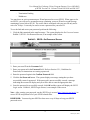
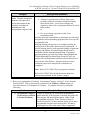
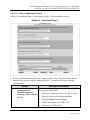
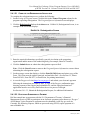
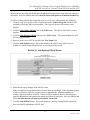
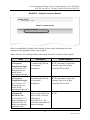
6. Click the Other check box and enter the caret (^) character in the box to the right of Other
(see Exhibit 29). If there are other delimiters checked (for example, Tab), click the box to
remove the check mark. Only the Other check box should be checked.
7. Click the Next button to display page 3 of the Convert Text to Columns Wizard.
8. Click the Finish button. The wizard closes and the report is formatted into columns.
2.8.5
Complete the Annual Report
Sponsors must submit an annual report to DoS. The report must be filed on an academic,
calendar, or fiscal year, as stipulated on the program’s designation or redesignation letter. The
annual reporting cycle is also listed on the Program Information screen. The due dates are:
• Academic Year ends: June 30
Report due to DoS: July 31
•
Calendar Year ends: December 31
Report due to DoS: January 31
•
Fiscal Year ends: September 30
Report due to DoS: October 31
See 22 CFR 62.15, Annual Reports, for details on what to include in the annual report.
SEVIS automatically displays an alert for 30 days prior to the annual report due date. The alert
will display for 30 days beginning on the second day of the month that the report is due to DoS.
The alert will display for the entire 30 days, even if the annual report has been submitted to DoS.
To complete the annual report, perform the following:
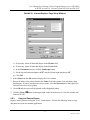
1. On the Listing of Programs screen, click the Reports link in the Commands column to
display the RO/ARO Reports screen, which contains the list of available reports for the
selected program.
Note: The RO/ARO Reports screen can also be accessed by clicking the Reports link on the
Lists/Reports menu on the Program Sponsor Information screen.
2. Select HTML as the output format.
3. Click the radio button next to Annual Report - J1 Exchange Visitor Program U.S.
Department of State.
4. Click the Submit button to display the Report Criteria screen.
5. Enter the date range for the report and click the Submit button to generate the Annual
Report.
6. In the text box provided, enter a brief narrative on program activity. (See 22 CFR 62.15,
Annual Reports, for details on what to include in the annual report.)
Note: The information entered into this text box cannot be saved with the report. You may
wish to type the text into a word processing application, save the file, and then copy and
paste the text into the text box provided when the report is generated in SEVIS.
69
February 20, 2009