1
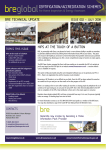
BRE Technical Update
Energy Efficiency Rating
Very energy efficient – lower running costs
92-100
81-91
69-80
55-68
39-54
21-38
0-20
A
B
C
Current Potential
D
60
E
45
F
G
Not energy efficient – Higher running costs
EU Directive
2002/91/EC
Know and follow the most up-to-date
version of the Quest User Manual and
the BRE EPC training manual – both are
in the Members’ Areas of our website.
issue 001 - june 2008
QSAP software and EPC lodgement procedures
guidance
1 Assessment good practice
• Assess instruction to determine if property/dwelling requires an EPC – see CLG guidance on HIP
exceptions (www.homeinformationpacks.gov.uk/industry/54_home.html) and the “Sale
of more than one dwelling” (www.breassessor.co.uk).
• Use of pre-printed site notes form(s), Quest or your own, if not using a hand-held electronic
device. Ensure your site notes form or field software is updated as the QSAP software is updated.
• Produce site based sketch layout plans of every level of the dwelling annotated with relevant
details (e.g. function of each room, presence of radiators, TRVs and/or secondary heating).
• Take and retain relevant external and internal colour photographs, sufficient for a third
party to understand the dwelling – see guidance on photographs in the members’ area
(www.breassessor.co.uk).
2 Software data entry
• Review your site notes, layout plans and photographs to ensure you have all the relevant
information and an accurate understanding of the dwelling.
• Know and follow the most up-to-date version of the Quest User Manual and the BRE EPC training
manual - both are in the Members’ Areas of our website.
• Transfer relevant information from site notes accurately or if using a hand-held device, check the
data has been uploaded correctly.
• Ensure you enter the ‘Inspection Date’ accurately, ensuring you have the correct month and year
as well as the day. Additional checks are now in place to validate this date field, but these are not
exhaustive.
• Complete the ‘Related party disclosure’ field when relevant. This should include any family,
business or financial relationships or ties. It would not normally be appropriate for a HI or DEA
to produce an EPC for a property they owned or that was owned by close family member or
business partner/associate.
• Under no circumstances should the ‘Date built’ field or the ‘Lowest occupied floor - Floor area
(m2)’ field, for the main and any relevant extension/addition(s), be left blank. The software will
assume that the whole part, including any upper floor(s), does not exist.
• Review the suggested improvement options, particularly if the property is listed or within a
conservation area, to ensure that options are appropriate (e.g. double glazing may not be allowed
on a listed property). Delete options as necessary.
• Ensure you enter the ‘Floor area (m2)’, ‘Room height (m)’ and ‘Heat loss perimeter (m)’ accurately,
(to 2 decimal places) and in the correct order for each relevant floor, for the main and any relevant
extension/addition(s). Double check that the decimal place is entered in the correct place and not
missed or mis-typed as a ‘0’.
3 Review of ‘draft’ PDF
• On completion of the data entry, select the ‘Calculate’ button at the top of the screen and review
any error messages.
• If the results pop-up box states ‘404 SAP OK’ then review the output in the ‘SAP Return’ and ‘SAP
Return 2’ sections within the software screens to ensure that the output is inline with your survey/
data input. You should have an expectation of the likely SAP score for this type of dwelling;
question any result you did not expect. Remember the average SAP rating for a dwelling in
England & Wales is E 46; do you expect this dwelling to be above or below average?
• Look at the draft PDF of the EPC before you lodge the report. Review the ‘Input Data Summary’
at the back of the draft PDF for any obvious data input errors or anomalies. Update the software
screens with any corrections and select ‘Calculate’ again – review output again until you are
confident to lodge the report.
• Finally, ensure that your site notes and annotated layout plans fully reflect your final input data.
Any revisions to your report must be fully reflected in your site notes and layout plans.
• Remember to consult the RdSAP FAQs or contact the RdSAP Technical Support
([email protected]), by email or telephone, to seek clarification, if you need additional
advice or need to report a potential fault with the software.
2
Certification/Accreditation Schemes for HIs & DEAs | June 2008