1
C2 Log in, main menu functions and analysis administration
C2.2.4
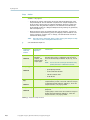
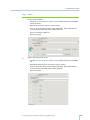
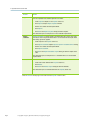
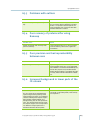
Recent Runs menu
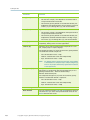
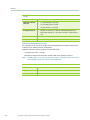
Step
Action
1.
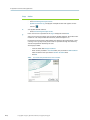
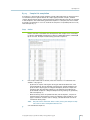
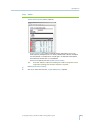
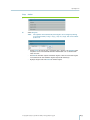
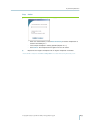
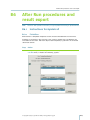
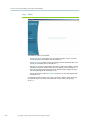
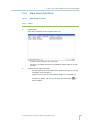
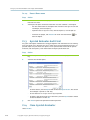
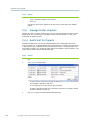
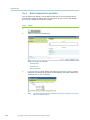
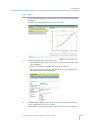
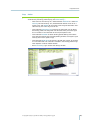
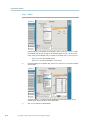
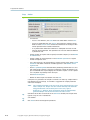
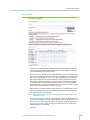
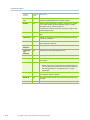
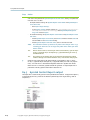
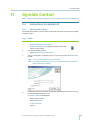
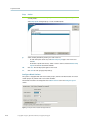
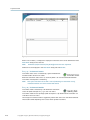
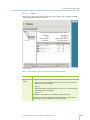
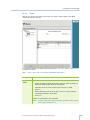
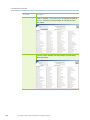
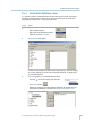
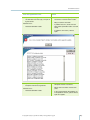
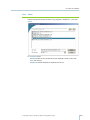
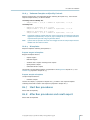
Click on one of the run names displayed below the Recent Runs headline in Gyrolab
Evaluator start view.
2.
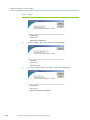
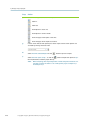
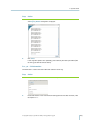
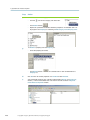
The Project view opens where the chosen Run has been added to a new Project.
C2.3
•
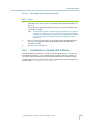
For more information on the Project view and how to manage and save the
new Project, refer to Chapter C3.
•
To perform data analysis on a Run, refer to Chapter C4.1 and Chapter C4.2
•
To discard the project, click File:Close or the or click Close button
close the Project.
to
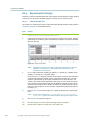
Gyrolab Evaluator Audit trail
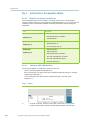
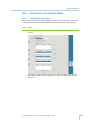
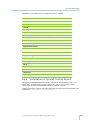
All system and Projects modifications are logged together with information on user identity,
time and version are in the Audit trail. This is done to ensure full traceability of results. It is
possible export and print Audit trail reports. This chapter describes Audit trail for Gyrolab
Evaluator, refer to Chapter C3.10 for information on Project-specific Audit trail.
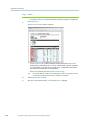
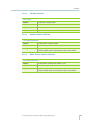
Step
Action
1.
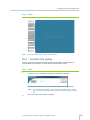
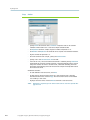
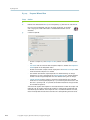
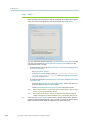
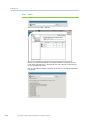
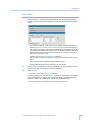
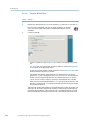
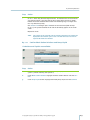
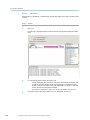
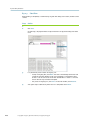
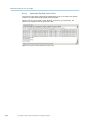
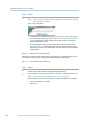
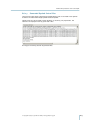
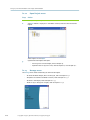
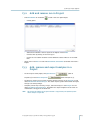
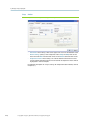
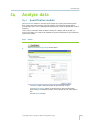
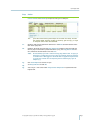
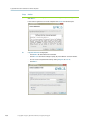
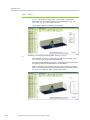
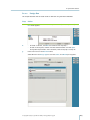
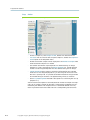
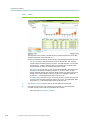
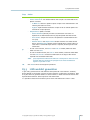
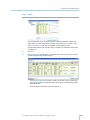
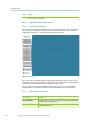
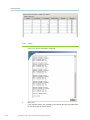
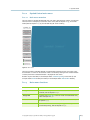
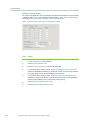
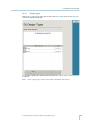
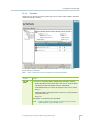
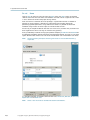
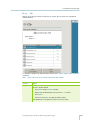
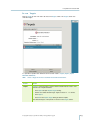
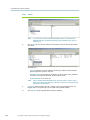
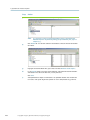
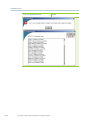
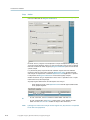
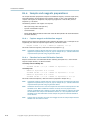
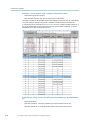
Select History:Audit trail in Gyrolab Evaluator main view to display the Audit trail
log.
2.
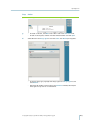
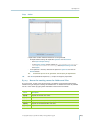
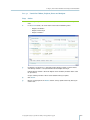
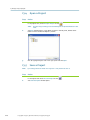
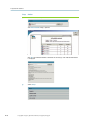
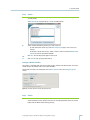
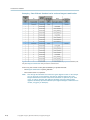
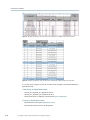
The Audit Trail window opens.
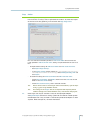
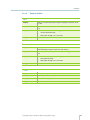
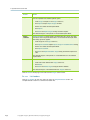
3.
C2.4
•
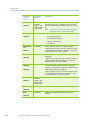
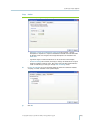
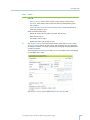
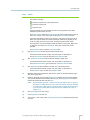
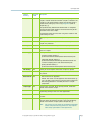
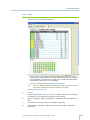
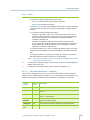
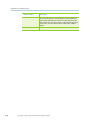
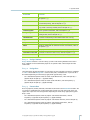
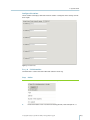
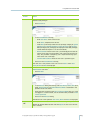
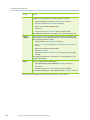
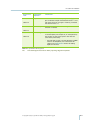
To review details, click the Open button for desired Project Version. That version
of the Project is opened as read-only.
•
To view details of an analysis click analysis expander.
•
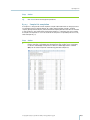
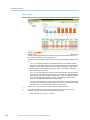
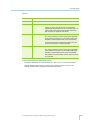
To export a copy of the Audit trail in text format, click the Export button. Browse
for desired location and click OK.
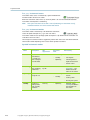
Click Close to go back to Gyrolab Evaluator Project view.
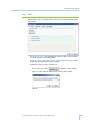
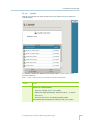
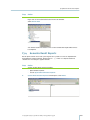
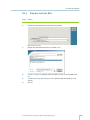
Close Gyrolab Evaluator
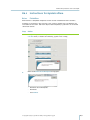
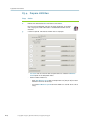
Select File:Exit.
C-16
© Copyright 2015 Gyros, Gyrolab User Guide, P0004354/H, D0023573/A