1
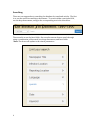
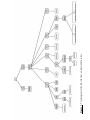
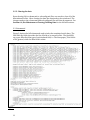
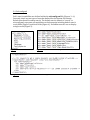
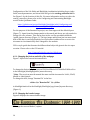
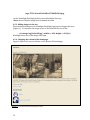
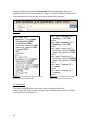
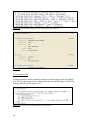
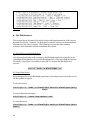
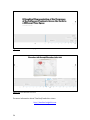
Configuration of the Solr fields and Blacklight visualization including facets, index fields, search parameters, and show fields will go in the catalog_controller.rb file. See Figure 1 for the location of this file. For more information on how to tailor the catalog_controller, please refer to the Configuring and Customizing Blacklight section in the Quickstart Guide: https://github.com/projectblacklight/blacklight/wiki/Configuring-‐and-‐ Customizing-‐Blacklight. For the purpose of the Russian Flu project, our client approved the default layout (Figure 7). Apart from the changes made to the search and facets, we only needed to change the color scheme. This can be done in the .css files provided within the /public/assets directory (Figure 1). The logo image and favicon (an icon associated with a URL that is variously displayed, as in a browser's address bar or next to the site name in a bookmark list) were changed for the website. CSS is a style guide that formats the different html object ids given in the site upon creation. Please refer to the CSS tutorial: http://www.w3schools.com/css/default.asp 4.2.1 Changing the favicon and title of the webpage Figure 7 depicts the current favicon and title. Figure 7. Current favicon and title. To change the favicon* replace favicon-‐82609ecd8ba4a1947d9a00bd11484cc8.ico in the blacklight/blacklight/public/assets directory. * Note: The new icon must be named the same and the size must be 16x16, 32x32, 48x48, or 64x64 pixels. To change the title, change “Russian Flu” in the line: <title><%= “Russian Flu” %></title> in blacklight.html.erb in the blacklight/blacklight/app/views/layouts directory (Figure 1). 4.2.2 Changing the header image Figure 8 displays the current header image. Figure 8. Russian Flu site logo. To change the current header*, replace 14