1
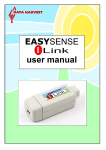
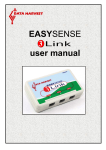
SmartSense ONE Link www.smartschoolsytems.com Product Number 5530 SMARTSENSE ONE Link DO228 (1) CONTENTS What is supplied? ...................................................................................................... 2 Using SMARTSENSE ONE Link for the first time ................................................... 3 Using SMARTSENSE ONE Link with the computer after initial setup ..................... 4 The SMARTSENSE software overview .................................................................... 4 Using Sensors............................................................................................................ 6 Technical information ............................................................................................... 8 Updating SMARTSENSE ONE Link’s firmware ...................................................... 9 Warranty ................................................................................................................. 10 Copyright: all rights reserved. This manual may be copied for use within the premises of the Licensee on condition that it is not loaned, sold or used outside the Licensee's premises. SmartSchool Systems' policy is to continually improve products and services, so we reserve the right to make changes without notice. It is acknowledged that there may be errors or omissions in this publication for which responsibility cannot be assumed. No liability will be accepted for loss or damage resulting from use of information contained in this manual or from uses as described. Document o: DO228 (Issue 1) What is supplied? SmartSense OE Link USB Cable SmartSense Software SmartSense Software Quick Start Guide SmartSchool Systems 2 SMARTSENSE ONE Link DO228 (1) What else is required? Sensors for capturing data. Please visit our website (www.smartschoolsystems.com) or us for an up-to-date list of Sensors. Using SMARTSESE OE Link for the first time SMARTSENSE ONE Link is used connected to the USB port on a computer. The data from any Sensor connected to SMARTSENSE ONE Link will be transmitted immediately to the computer and displayed on the computer’s screen using the applications in the SMARTSENSE software. ote: Do not connect SMARTSENSE ONE Link to the USB port until after the SMARTSENSE software has been installed. Step 1: Install the SMARTSENSE software, if it is not already on your computer. For details of how to install and operate this program, please refer to the instructions provided with the SMARTSENSE software. Make sure SMARTSENSE ONE Link is not connected to the USB port during this installation. SMARTSENSE ONE Link requires version 2.8 or above of the SMARTSENSE software. (The version number can be verified in About from the Help menu). Step 2: Install the SMARTSENSE ONE Link USB drivers. Connect the mini plug of the USB cable to the USB input on SMARTSENSE ONE Link. • Connect the ‘flat’ standard USB plug to a USB port on your computer. • Windows will automatically detect a new device and install the drivers. • Step 3: Connect the Sensor being used to SMARTSENSE ONE Link. See page 7. Step 4: Open the SMARTSENSE software program. The first time the SMARTSENSE program opens a ‘Select Program Level’ window will automatically open. Select a suitable user’s level. • Level 1 is aimed at ‘start’ level (e.g. up to 9 years old). • Level 2 is aimed at ‘mid’ level (e.g. 9 – 15 years old). SmartSchool Systems 3 SMARTSENSE ONE Link • DO228 (1) Level 3 is aimed at ‘exam’ level (e.g.15 years plus). ote: The program level can be altered at anytime using the Level icon once a logging option has been opened. Step 5: An Interface option window will open. 1. Select the Interface as SmartSense Range. 2. Select the method of connection as USB Port. 3. If you use different interfaces or methods of connection, tick the ‘Show at startup’ option so you can check your current selection and make any adjustments as necessary each time SMARTSENSE opens. 4. Click on OK. The program will save your selection so it will be automatically configured when next used. When a connection is established the Home page will open. Select one of the experiment modes i.e. EasyLog, Graph, Meters, Scope, Snapshot or Timing. Using SMARTSESE OE Link with the computer after initial setup • • • • Connect SMARTSENSE ONE Link to the computer using the USB cable. Connect the Sensor being used to the shaped socket. Open the SMARTSENSE software program. Select one of the recording modes e.g. EasyLog from the Home page. The sensor connected will automatically be recognised and calibrated. ote: It is best to connect ONE Link to the USB port on the computer (so it is powered) before connecting a sensor (especially when connecting high current sensors such as Motion or CO2). The SMARTSESE overview software Home is the main navigation page. On this page are the icons for all of SMARTSENSE ONE Link’s logging options. ote: Setup Remote and Retrieve Remote will not be available as ONE Link only operates while connected to the computer. EasyLog EasyLog will open pre-set to record sensor values continuously as a line graph until stopped. SmartSchool Systems 4 The Home page (Level 2 & 3) SMARTSENSE ONE Link DO228 (1) Click on the Start/Stop icon to begin recording. Recording will start with a time span of 30 seconds and when this has elapsed the time will double automatically. This will continue until the recording is stopped by clicking on the Start/Stop icon. Meters The Meters window gives an introduction to sensors and how they respond to change. Up to four section displays can be open at any one time. The program will open with live data from the sensor in a Numeric window. Click on the appropriate picture icon on the Menu bar to open other section displays i.e. Gauge, Colour Change or Bar. Click on the Start/Stop icon to stop recording. Snapshot Snapshot will open pre-set to record sensor values on demand (manual sampling) with a bar graph display. When the logging wizard opens click on Finish. Click on the Start/Stop icon to begin recording. Click in the graph area to record the sensor’s current value. Click on the Start/Stop icon to stop data being recorded. Graph Graph is pre-set to record sensor values against a chosen time span as a line graph display. The window opens with the real time logging wizard from which the time span, interval between samples, start condition and triggers for the recording can be chosen. (The options available will depend on the level you have selected to work at). When the selection has been made, click on Finish. ote: The fastest interval between samples is 20 µs (microseconds) [FAST log and Pre-trigger]. Click on the Start/Stop icon and the recording will start when the start condition you have selected is met e.g. if None was the selected trigger, then the recording will start as soon as the Start/Stop icon is clicked. The recording will stop when the selected time span has passed. If you want to stop a recording before it has run the full term, click on the Start/Stop icon. Scope Scope will open an oscilloscope type display. • When the logging wizard opens click on Finish. • In the panel on the right select a suitable time base. ote: The fastest interval between samples is 20 microseconds (µs). • Click on the Start/Stop icon to begin recording. If the interval is set to 20 ms or slower (roll mode) the graph trace will be redrawn continuously on the screen until you click on the Start/Stop icon when the trace will ‘freeze’. SmartSchool Systems 5 SMARTSENSE ONE Link DO228 (1) ote: Scope is not available when the User Level is set to Level 1. Timing Timing allows students to study Time, Velocity, Acceleration, Momentum and Kinetic Energy relationships using a switch-type (digital) sensor such as a Light gate. The recording wizard will open from which how the data ‘at A’ is recorded, the parameters of the experiment, units & decimal places for the calcuated results and the data columns to display can be chosen. (The options will depend on the user level selected). When the selection has been made, click on Finish. Click on the Start/Stop icon and a reading will be displayed when a change in signal is detected from the digital sensor. Click on the Start/Stop icon to stop data being recorded. Open File Used to load a previously saved .SSL or .sid file. Locate the correct file and click on open. Open Worksheet To select and open a worksheet and its accompanying experimental set up file. Open Setup (Level 2 and 3 only) To select and open an experimental set up file. This will pre-set the software for a specific operation. Using Sensors Sensors SmartSchool Systems manufactures a wide range of Sensors for use with the SMARTSENSE range of loggers. Each Sensor incorporates a microprocessor that stores the calibration and auto-identification data. This dramatically simplifies set up procedures and allows for greater flexibility when logging data. Sensors can be divided into two main types: 1. Analogue Sensors, which measure physical changes such as light level, temperature and sound. This physical value is converted into an electrical signal, which is measured by SMARTSENSE ONE Link and communicated to the computer. Sound sensor 2. Digital switch-type Sensors, which are capable of measuring ON/OFF conditions. Typical digital sensors include Light gates and Timing mats. SmartSchool Systems 6 Light gate SMARTSENSE ONE Link DO228 (1) ote: Sensors are available to purchase separately. Please visit our website (www.smartschoolsystems.com) for further information. Connecting The housing for most Sensors is fitted with a mini DIN socket. The sensor lead supplied is used to connect a Sensor to SMARTSENSE ONE Link (for specific instructions see the sensor’s user manual). Input socket Sensor cable with locating arrows facing upwards DA TA HA RV t ar Sm ES T TE CH NO LO Q GY label on top For the majority of Sensors: • Hold the sensor housing with the label showing on the top. • Push one end of the sensor cable into the shaped socket on the sensor housing with the locating arrow on the cable facing upwards. • Connect the other end of the cable to the shaped socket on SMARTSENSE ONE Link (with the locating arrow facing upwards). All sensors are automatically calibrated but some also have multiple ranges. If the sensor has more than one range and the currently selected range is not suitable for your investigation: • Start the SMARTSENSE program and select one of the logging modes from the Home page e.g. EasyLog, Meters, Graph or SnapShot. • Select Sensor Config from the Settings menu. • Select the sensor from the list and click on the Change Range button. • The current range will be highlighted. Select the required range and click on OK. • Close Sensor Config. Click on New and then Finish for the change in range to be detected. The range setting will be retained until changed by the user. SmartSchool Systems 7 SMARTSENSE ONE Link DO228 (1) Technical information Powering SMARTSENSE ONE Link is powered by the USB port whilst connected to the computer. ote: SMARTSENSE ONE Link can only be connected directly to a computer’s USB port or by using a powered USB hub. It will not work with an unpowered hub (SMARTSENSE ONE Link requires an output current of 500 mA). Specifications USB compatible communication V1.1 – full speed 12 bit sampling resolution Fastest sampling speed: 20 µs (50,000 samples per second) Digital timing: accurate to 4 µs Sensor inputs: 1 Operating range: 0 - 40°C and 0 to 95% RH (non-condensing). Care and maintenance • • • • • Clean with a damp cloth, do not immerse in water or detergent. SMARTSENSE ONE Link is suitable for use in an operating range of 0 - 40°C and 0 to 95% RH (non-condensing). Do not subject to extreme heat or cold or leave in a location where it will get wet. SMARTSENSE ONE Link is not waterproof. There are no user serviceable parts inside SMARTSENSE ONE Link. Trouble shooting If SMARTSENSE ONE Link fails to respond to the computer, disconnect the sensor and the USB cable. Re-connect the USB cable, then the sensor and try again. If the product still fails to respond, please contact the Technical Support department at SmartSchool Systems. Please provide details of: • • • The computer platform it is being used with The software and its version number A description of the problem being encountered If possible, telephone from a location where you can operate SMARTSENSE ONE Link with the computer. SmartSchool Systems 8 SMARTSENSE ONE Link DO228 (1) Updating SMARTSESE OE Link’s firmware Occasionally SmartSchool Systems may release updated firmware which will contain improvements or new features. Updates will be made available from the SmartSchool Systems website. To update the firmware of SMARTSENSE ONE Link: Step 1. Copy the English Firmware Update for 5530 SMARTSENSE ONE Link onto the hard disc of your computer and run the .exe. Step 2. Connect SMARTSENSE ONE Link to the computer using the USB cable. A progress bar will indicate SMARTSENSE ONE Link is being programmed. WARIG: Do not disconnect ONE Link during this re-programming stage or it may be seriously damaged. A tick will indicate if the process was successful. To repeat the process, connect another SMARTSENSE ONE Link and click on the update window. A cross will indicate that an error occurred. Click in the update window to try again. Step 3. Disconnect SMARTSENSE ONE Link and exit the program. SmartSchool Systems 9 SMARTSENSE ONE Link DO228 (1) Warranty SMARTSENSE ONE Link is warranted to be free from defects in materials and workmanship for a period of 12 months from the date of purchase provided it has been used in accordance with any instructions, under normal laboratory conditions. This warranty does not apply if SMARTSENSE ONE Link has been damaged by accident or misuse. In the event of a fault developing within the 12 month period, SMARTSENSE ONE Link must be returned to SmartSchool Systems for repair or replacement at no expense to the user other than postal charges. ote: SmartSchool Systems products are designed for educational use and are not intended for use in industrial, medical or commercial applications. WEEE (Waste Electrical and Electronic Equipment) Legislation SmartSchool Systems Ltd is fully compliant with WEEE legislation and is pleased to provide a disposal service for any of our products when their life expires. Simply return them to us clearly identified as ‘life expired’ and we will dispose of them for you. SmartSchool Systems, 2411 Fir Grove, Kingwood TX 77339 Tel: 1-866-722-2051, Fax: 1-866-215-2967 e-mail: [email protected] Website: www.smartschoolsystems.com SmartSchool Systems 10