1
Introduction
Basic Operations
Advanced Operations
Appendix
Non-EOS Cameras: Importing Images with CameraWindow
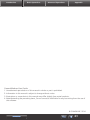
Connect your camera/camcorder to the computer and import images as follows:
• Instructions in this ImageBrowser EX User Guide apply when the program has been installed correctly. For installation instructions, refer to the camera/camcorder user guide.
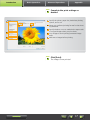
1
Connect your camera/camcorder to
the computer via the included interface cable.
2
Start CameraWindow.
Æ Turn the camera/camcorder on
and prepare it for communication
with the computer.
• After the first time you connect the camera/
camcorder to the computer via the included
interface cable, CameraWindow will start up
automatically.
Camera
Windows
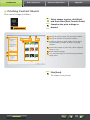
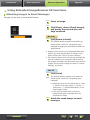
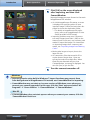
Follow these steps.
1. In the taskbar, click
.
2. When the screen on the left is displayed,
.
click ’Change program’ next to
3. Select ‘Downloads Images From Canon
Camera using Canon CameraWindow’,
and then click ‘OK’.
4. Double-click
.
• On the screen on the left, double-click
‘Change general settings’ and adjust the settings as desired. From now on, whenever the
camera/camcorder and computer are ready
for communication, your selected program
will start up automatically.
Windows 8
Select the screen for choosing what to
do with the device, and then choose
‘Downloads Images From Canon Camera
using Canon CameraWindow’.
Windows Vista
On the screen displayed, select ‘Downloads
Images From Canon Camera using Canon
CameraWindow’.
Cont
Co
nten
ten
entts
ts
11