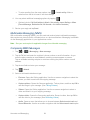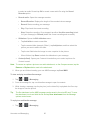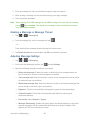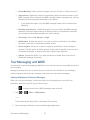
1
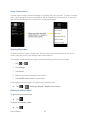
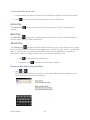
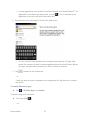
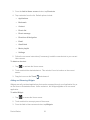
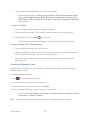
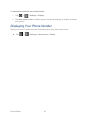
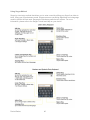
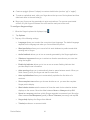
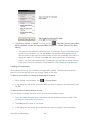
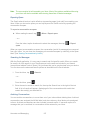
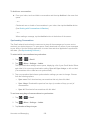
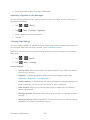
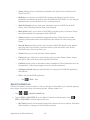
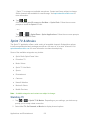
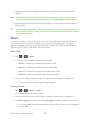
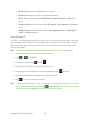
2. Select a category from the list that displays. A list of nearby businesses under that category will display. Using a Local Business Category The LG Marquee™ can also cross-reference your current location with local business and points of interest, such as Grocery Stores, Gas Stations, Wi-Fi Spots, Malls, Hospitals, etc. 1. Tap > > TeleNav GPS Navigator > Places. 2. Tap one of the available categories: Food/Coffee, Gas, ATM, WiFi, etc. – or – Enter a location into the search field to begin retrieving matches. Once you see a matching business name, touch the entry. 3. Tap Entries with more than one available category or subcategory) appear with an adjacent gray arrow. These entries can be expanded and then closed. to store your information and begin the search. 4. Tap a matching entry based on star ratings and distances. To search for the nearest gas station in your area: 1. Tap > > TeleNav GPS Navigator > Places > Gas. 2. Select Any, By Price (Regular), By Price (Plus), By Price (Premium), By Price (Diesel). 3. Tap an entry from the list to display a new route to the selected gas station. Sharing a Recent Location with Others Recently queried locations can be saved to you’re my Favorites list and also shared with other cellular devices. 1. Tap > > TeleNav GPS Navigator 2. Tap the Send To: field and then enter a mobile number or email address. 3. Tap Send Now to complete the delivery process. Configuring Your Navigation Preferences 1. Tap > > TeleNav GPS Navigator > 2. Touch an entry to change its current setting: Applications and Entertainment 131 > Settings.