1
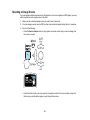
• Securely connected at both ends
• Not connected to an extension cable
• No longer than 10 feet (3 m) for VGA/PC cables or 24 feet (7.3 m) for HDMI cables
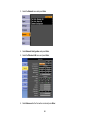
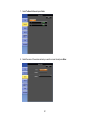
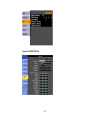
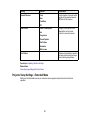
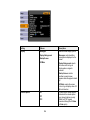
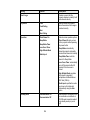
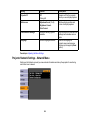
• Check the settings on the projector's Signal menu to make sure they match the video source. If
available for your video source, adjust the Progressive and Noise Reduction settings.
• Select a computer video resolution and refresh rate that are compatible with the projector.
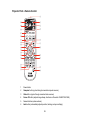
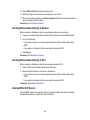
• If you are projecting from a computer, press the Auto button on the remote control to automatically
adjust the Tracking and Sync settings.
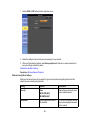
• If you adjusted the image shape using the projector controls, try decreasing the Sharpness setting to
improve image quality.
• If you connected an extension power cable, try projecting without it to see if it caused interference in
the signal.
Parent topic: Solving Image or Sound Problems
Related references
Input Signal Settings - Signal Menu
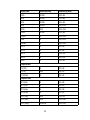
Supported Video Display Formats
Related tasks
Displaying From a PC Laptop
Displaying From a Mac Laptop
Solutions When the Image is Fuzzy or Blurry
If the projected image is fuzzy or blurry, try the following solutions:
• Adjust the image focus.
• Clean the projector lens.
Note: To avoid condensation on the lens after bringing the projector in from a cold environment, let the
projector warm up to room temperature before using it.
• Position the projector close enough to the screen.
• Position the projector so the keystone adjustment angle is not so wide that it distorts the image.
• Turn on automatic keystone adjustment in the projector's menus.
• Adjust the Sharpness setting to improve image quality.
166