1
Basic Features
Before using the TV, follow the steps below to learn how to
navigate the menu and select and adjust different functions.
Seeing Channels
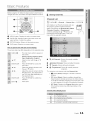
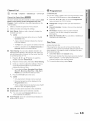
Channel List
[_
MENU iTr] _ Channel _ Channel List _ ENTERIZ_
Add, delete or set Favorite channels and use
CBLiST
the program guide for digital broadcasts,
Select a channel in the All Channels, Added
Channels, Favorite or Programmed
screen by pressing the A / T buttons, and
pressing the ENTER IZ_ button, Then you
can watch the selected channel.
O
MENU button: Displays the main on-screen menu,
ENTER _ / Direction button: Move the cursor and
select an item, Confirm the setting.
RETURN button: Returns to the previous menu.
O
EX)°I° button: Exits the on-screen menu,
How to Operate the OSD (On Screen Display)
The access step may differ depending on the selected menu.
MENU ml
The main menu options appear on
Picture, Sound, Channel, Setup,
the screen:
Input,
App,cation,
S°ppo
Select an icon with the A or _'
button.
EMTER _
Press ENTERIZ_ to access the
sub-menu,
Select the desired submenu with
the _, or T button,
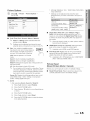
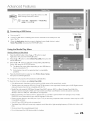
All Channels: Shows all currently available
channels,
ml
ml
Added Channels: Shows all added channels.
Favorite: Shows all favorite channels.
_
_
ml (_
Programmed: Shows all currently reserved
programs.
Adjust the value of an item with the
Using the color buttons with the Channel List
orselected
!_ button.
Thedepending
adjustment in
onthe
the
OSD
maymenu.
differ
" _ Green (Zoom): Enlarges or shrinks a channel
number,
Press EIt°I°ERI_
selection,
EXI"T -4_
ml _
Press
to confirm the
" tZ} Yellow (Select): Selects multiple channel lists,
Select desired channels and press the Yellow button
to set all the selected channels at the same time. The
EXR°.
_/ mark appears to the left of the selected channels.
" __ (Tools): Displays the Channel List option menu.
(The Options menus may differ depending on the
situation,)
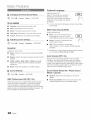
Channel Status Display Icons
,_
V
A channel selected.
I A channel set as a Favorite.
(_)
A reserved program.
c_
A program currently being broadcast,
English 1 1