1
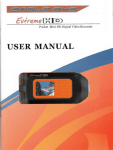
HD Action Camera
User Manual
Index
Product Introduction …………………………………………..
Safety Instruction…………………………………………………………..
Accessories………………………………………………………………..
Interface Function Instruction……………………………………………..
Charge the Battery…………………………………………………….
Install the Battery…………………………………………………………….
Insert /Take Out SD Card……………………………………………………….
Install Instruction……………………………………………………………….
Basic Operation………………………………………………………….
Menu Instruction…………………………………………………………….
Connecting Computer via USB Cable……………………………….
TV Output Operation…………………………………………….
Main Technical Specification………………………………………………….
Product introduction
This camera can take HD videos and pictures, and it can also capture pictures to
save your wonderful moment during video recording it can easily record and play back for a long
time. Besides, the camera is equipped with remote controller to help you to take video and picture
easily.
This camera can be operated and fixed easily; you can fix the camera on the
car, boat, helmet and other sport equipments with the accessories.
Safety instruction
Please keep the safety instruction. In order to avoid the danger of fire and electric shock, please
abide to these following instructions carefully.
If the plug does not match the power socket, please install a plug adapter which can match the
power socket.
Battery
If battery is used improperly, it could explode, cause the fire or burn the body. Please abide to the
following:
z Don’t disassemble.
z Keep the battery from pressing, beating, falling off or trampling etc.
z Don’t make the battery short circuit; don’t make any metal touch the battery end.
z Don’t keep the battery at the place of more than 60℃, such as in the sunshine or the car in
the sunshine.
z Don’t burn the battery or drop it into the fire.
z Don’t use the damaged battery or the battery with liquid out.
z Use the original charger to charge the battery
z Keep the battery at the place out of reach from children.
z Keep the battery dry.
Charger
When the charger connects to the power socket, even if the charging light is off, the charger is still
connected to the power socket. If something happen when the battery is being charged, please
remove the plug from the power socket immediately.
Memo: In order to ensure the product work normally, please use the original accessories, such as
battery, charger, USB cable, AV cable.
Accessories
Main accessories:
z Receiver
z Remote control
z Lens Emitter
Other accessories:
z Bag
z User manual
z AV cable
z USB cable
z Nylon strap
z Camera cover
z Rubber ring
z Bicycle pedestal
z Helmet Pedestal
z Camera pedestal
z Sponge mat
z Velcro strap / Hook Loop
z Binding lace
z Microphone
Optional accessories:
z Charger
z Car charger
z Charger pedestal
z Strap nip
z Battery
Interface function instruction
1
2
19
3
4
5
6
10
11
12
7
8
13
14
15
9
16
17
18
1. Power indicator 10.RF receive port
2. TFT Screen
11. MIC port
3. Record key
12. USB port
4. Up key
13. TV port
5. Left key
14. Mode key/ Screen icon clear key
6. OK key
15. Right key
7. Play back
16. Delete key
8. Down key
17. Speaker
9. SD card slot
18. Power
19. MIC
Charge the battery
There are two methods of charging.
1. When the battery is inside the receiver, connect the receiver to the charger, and then connect
the charger to the power socket.
When battery is charging, the red light in left up corner of receiver is on. When the battery is fully
charged, the red light will be off.
2. Take out the battery, put it into the charger pedestal according to "+", "-" poles, connect the
charger pedestal to the charger, and then connect the charger to the power socket.
When the battery is being charged, the light on the charger pedestal is red. When the battery is
fully charged, the light changes to green.
Memo:
z Even if there is some power in the battery, you can charge the battery.
z When the battery is fully charged, remove the plug from the power socket, and take out the
battery from the charger pedestal.
z Be sure to use the original battery and charger.
z Please confirm the AC power is turned on, othewise battery is discharged but not charged.
Install the battery
1. Open the battery cover 2. Install the battery according to "+", "-" poles 3. Close the battery
cover
Insert/Take out SD card
Insert SD card
1. Open the SD card slot cover.
2. Insert SD card according to the direction in the drawing on
SD card slot cover, press SD card in lightly until it is locked exactly.
3. Close the SD card slot cover.
Power on after inserting SD card,
the right up corner in screen will appear
SD card icon.
Memo: If SD card do not be inserted or
is inserted inexactly, the screen will not
appear the SD card icon.
Take out SD card
1. Open the SD card slot cover.
2. Press SD card in lightly, SD card will eject out automatically.
3. Take out SD card and close the SD card slot cover.
Install instruction
1. Install Lens emitter
According to the picture, put the camera into the camera pedestal, and then tie the rubber ring
to the camera pedestal to make the installation firmly fixed.
2. Install pedestal
According to the picture, put the helmet pedestal into the bottom of camera pedestal, and then
tighten the bolt.
3. Install bicycle pedestal
According to the picture, fix the bicycle pedestal into the bottom of camera pedestal, and then
tighten the bolt.
4. Other instruction
Nylon strap: You can pull it through the hole of the helmet pedestal, and tie it on the helmet or
other equipment as your request.
Sponge mat: You can use it to stick and fix the camera on the glazed surface like on glass, etc
Hook Loop: You can use it to help fastness the camera in different places.
Binding lace: You can use it to tie the camera firmly.
Basic Operation:
1. Power key
Press power key
on left side to turn on, The
LCD screen display welcome image with starting
sound and the green indicator light in top left corner
will light up.
Press power key
again to power off.
Gr een indicator light
Power key
2. Mode Key
When camera is powered on,Press "MODE"
key to select Camera/video mode.
z Video mode
Select video mode, a small video icon will display
on the left top corner of TFT screen.
Under the video mode, you could make either video
setting or recording, or switch to video browse.
z Camera mode
Select camera mode, a small video icon will display
on the left top corner of TFT screen.
Under the camera mode, you could make either picture
setting or shooting, or switch to picture browse.
Mo de Key
Video icon
Came ra icon
3. Video mode operation
z Recording
Aim at the target you want to shoot, press
REC key
key to start recording, a red flickering point will
appear on left top corner of TFT screen,
Meantime the recorded time will display on the
bottom of screen.
Press again
key again to stop recording,
and the recorded video will automatically save.
Audio can be recorded directly during the video
recording, and also can be recorded through the
Red flicking point
plug-in microphone to recorder the sound from one meter away.
z Screen icon clear
During Video recording, press the “MODE” key once to
Recorded time
clear all the icon display on screen (this can make a
clean image when output to TV at the same time for
live boardcasting)
After recording, TFT screen will display the rest
recording time in the bottom.
R es t rec o rdin g time
z Picture capture
During the process of recording, press
to capture the image from the video.
(Memo: When you capture picture, the video recording is still continuous working, only under the
Review/ Browse status can you browse the pictures you have just captured down)
z
Press
Focus Adjusting
/
key to adjust the focus.
Key
key
z Select video resolution
Under the video mode, press
key to select
video resolution of 720P/WVGA/1080,
The present selected resolution icon would be displayed on
left top corner of TFT screen.
Video resolution
z Lock key
To avoid the faulty operation caused by external pressing from
Lock key icon
other objects, there is a function to lock the key.
Under video mode, press
key to enter key for about
2 seconds to enter locked status, the lock key icon will be
displayed on TFT screen.
Long press
key for about 4 seconds to quit key locked status.
4.Camera Mode Operation
z Picture Shooting
Aim at the target you want to shoot.
Press
key to take shooting and it will auto save.
The rest pieces of picture available for shooting is displayed on
the bottom of TFT screen
Rest pieces of
picture shooti ng
picture pixels
z Select picture pixels
Under the camera mode, press
key to change
picture pixels of 8M/5M,
the present selected picture pixels will display on left top corner of TFT screen.
z
Press
Focus Adjusting
/
key to adjust the focus.
Key
key
z Picture browse
Press
key to review the picture you just shoot.
Press again
key to return to camera mode.
5. Browse mode
Press Browse key
z
to enter into browse mode,
Files browsing
press
left key /
right key to choose the
video or picture you want to play, press
key to
Browse key
preview the breviary file images, then press
/
/
/
key to select the file you
want to browse, press
z
key to browse.
Playback the video file
key to start playback, press OK key again to
When preview the breviary file images, press
pause.
During the video playback process, press
backward the playback, press
z
Review every frame
status, press left or right key
z
key to
key to pause, press again to continue.
to pause, press
During playback status press
Press
key to forward the playback, press the
/
key will enter every frame reviewing
to check every video frame.
key to quit every frame status, press
key again to continue video playback.
Delete key
When in browse mode, press delete
key to delete the browsed file, the TFT screen
will display “ALL/YES”, press the left key
or right key
to select
“ALL”-means to delete all the files, select “YES” to delete the current file,
key to confirm. If not to delete any files,
press
press once the
key to quit the delete mode.
Menu Setting
When the camera is powered on, long press the
key for 2-3 seconds to enter menu setting.
OK Key
z Camcorder setting:
Enter menu setting, the default mode is
under “CAMCORDER” mode, press
to enter submenu setting, press left key
right key
key
/or
to select the “CAMCORDER” submenu
you want to set.
z
FLICKER Setting
Select FLICKER, press
Press
/
key to select the setting wanted
(50Hz/60Hz) then press
Press
z
TV OUT Setting
/
key to enter submenu.
key to select the setting wanted
(PAL/NTSC), then press
Press
key to confirm.
key to quit “FLICKER” setting.
Select TV OUT, Press
Press
key to enter submenu.
key to confirm.
key to quit TV OUT setting.
z
Check System VERSION
Select VERSION, press
key to check
system version.
Press
z
key to quit VERSION setting.
Languages setting
Select LANGU,press
Press up
/
key to enter LANGU submenu,
down key to select the language options
(ENGLISH/FRENCH/DEUTSCH/ITALIANO/),Press
key
to confirm.
Press
z
Press up
Left key to quit LANGU setting.
White balance setting
/
down key to enter next page, select
WHITE B,press
right key to enter into WHITEB submenu;
Press up
down key
or/
to select the setting (AUTO/SUNNY/CLOUDY/TUNGSTEN/FLUORESC),
Press
Press
z
key to confirm.
Left key to quit WHITEB setting.
EV (Exposure) Setting
Select EV, press
Press up
/
right key to enter into EV submenu.
down key to select the setting
(0/0.3/0.7/1/1.3/1.7/2.0/-2/-1.7/-1.3/-1/-0.7/-0.3/),
Press
Press
key to confirm.
Left key to quit EV setting.
CONTRAST Setting
Select CONTRAS,Press
right key to enter
CONTRAST submenu
Press up
or/
down key to select the setting
(STANDARD/HARD/SOFT),Pree
Press
z
key to confirm.
Left key to quit CONTRAST setting.
Sharpness setting
Select SHARPNE,press
right key to enter
SHARPNESS submenu,
Press up
/
down key to select the setting
(STANDARD/HARD/SOFT),press
Press
z
Left key to quit SHARPNESS setting.
System setting
Enter menu setting, press
Press
Press
key to confirm.
key to select SYSTEM SETUP,
key to enter submenu setting.
/
key to select SYSTEM SETUP submenu
you want to change.
z
FORMAT Setting
Select FORMAT, Press
key to enter
FORMAT submenu.
Press
press
Press
/
key to select the setting (YES/NO),
key to confirm.
key to quit FORMAT setting.
Remark: It will automatically quit to main setting menu after memory formatting.
z
VOLUME Setting
Select VOLUME, press
key to enter
VOLUME submenu.
Press
/
key to adjust the volume needed
(0~64), press
Press
z
key to confirm.
key to quit VOLUME setting.
Time Setting
Select CLOCK,
Press
key to enter CLOCK submenu.
/
Press
press
option.
/
key to adjust the next time
key to confirm.
Press
Press
z
key to adjust the digit of time,
key to quit CLOCK setting.
RESET Setting
Select RESET, press
Press
/
key to enter RESET submenu.
key to select the options (YES/NO),
Select “YES” and press
Press
z
key will reset all the setting to default.
key to quit RESET setting.
Date Stamp setting
Select STAMP,Press
submenu, press
key to enter STAMP
/
key to select the setting
(OFF/ON),
Press
Perss
z
to confirm
to quit STAMP setting.
AUTO SCREEN SAVING SETTING
Select AUTO, press
Press
Press
Press
/
key to enter AUTO submenu.。
key to select the setting (OFF/30s/1min/3mins/5mins),
key to confirm.
key to quit AUTO setting
Memo: When the auto screen saving function is set on, screen will auto
turn off after the set time if there is no operation,
press any key to light up the screen again.
Remote controller instruction
1.Under video mode, press the “■” key to select
1080 / 720P / WVGA video resolution. Press“●” key once to begin to
take video, press again to stop recording.
2.Under the camera mode, press “■” key select picture pixels 5M/8M, press “●” key to take
picture shooting.
3.Every time press“●” key or “■” key,the red indicator will light up.
Connecting computer via USB cable
Turn on the power, connect the video camera to a PC via the USB cable, the camera LED will
display “USB CONNECT”, mean it has been connected to computer successfully, you can
playback the video & picture on computer.
Open “My computer”, there are two new removable disks, one is the built in memory disk, one is
the SD Card storage disk
Open the two disks you can check and playback the files either in memory or SD card storage.
(Remark: If the receiver device is deleted from computer, the receiver will power off automatically,
if to take video again please power on again.
TV output operation
When camera is powered on, connect camera to TV via AV cable, you can playback
the recorded videos and pictures on TV.
(Memo: The operation playback on TV is same as operation on camera.)
Main Technical Specification
Sensor
Image measurement
5 Mega CMOS sensor
5 Mega: 2592*1944,
Video format
MOV, resolution: 1080P = 1920*1080 (30fps)
720P = 1280*720 (30fps)
WVGA = 848*480 (60fps)
Screen
2.0’’ inch TFT LCD
Video output
NTSC/PAL
Digital Zoom:
4X
8 Mega: 3200*2400
Audio
Built in microphone &speaker
Storage
Built in 64M internal memory,
Support SD Card external storage (up to 32G)
Battery
High-capacity Lithium rechargeable battery (3.7V 1800mAH)
USB
USB 2.0
Trouble shooting
z The function operation totally invalid?
Restart the camera, or check the storage card, replace with a new card or
format the card.
z
Power automatically off during using?
Check if the battery is too low.
z Pictures or video images are blurry?
Check if the lens is dirty; clean the lens with special cloth before use.
z
Buttons are invalid?
Check if the camera is under LOCK-KEY status, long press the
key to quit
Lock- key status.
z It auto stops recording after a period of time?
1. Format the SD card and try again
2. Or replace with a new SD card.
z System halted/invalid after insert SD card
1. Format the SD card and try again.
2. Or replace with a new SD card (Kingston class 4, etc).
z Stripe exist during recording
Please replace the battery.
z System halted when connected to PC or can’t copy video to PC?
1. Check if the battery in camera is run out of power
2. Check if the computer is in too low configuration (it requires well-equipped system above
window2000, 1G memory, etc)
3.
SD card reader is recommended to use.
REMARK: THE CONTENTS OF THIS USER MANUAL ARE SUBJECT TO CHANGE
WITHOUT NOTICE.