1
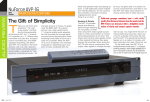
NuForce AVP-16
Preamp and Surround Processor
OWNER’S MANUAL
The NuForce AVP 16 is designed for simplicity and expandability with the focus on providing first-rate
audio performance. The 7.1-channel analog preamp inputs (8 total channels) can be used to support the
decoded output from future DVD players. By shutting off the video circuit (when CD input is selected) the
AVP-16 becomes a true audiophile quality preamp.
Those who listen to the AVP-16 are struck by its wide dynamic range, smooth lifelike midrange
presentation, and its natural, grain-free treble. The bass is deep and articulate, providing plenty of kick and
drive for both music and movie soundtracks.
We, at NuForce thank you for your purchase and are confident that the AVP-16 will enhance your home
theater and music-listening experience. Before using the AVP-16, please take a few moments to read this
instruction manual and familiarize yourself with its convenient features, settings, and adjustments.
FCC Notice “Declaration of Conformity Information”
This equipment has been tested and found to comply with the limits for a Class B digital device, pursuant
to part 15 of the FCC Rules. These limits are designed to provide reasonable protection against harmful
interference in a residential installation. This equipment generates, uses and can radiate radio frequency
energy and, if not installed and used in accordance with the instructions, may cause harmful interference to
radio communications.
WARNING: Only peripherals complying with the FCC class B limits may be attached to this equipment.
Changes or modifications made to this equipment, not expressly approved by us or parties authorized by us
could void the user’s authority to operate the equipment. This device complies with part 15 of the FCC
Rules. Operation is subject to the following two conditions: (1) This device may not cause harmful
interference, and (2) this device must accept any interference received, including interference that may
cause undesired operation.
SAFETY INSTRUCTIONS
There are two categories of Safety Instructions included in this manual:
• Product Warnings, (i.e., what must never be done to assure avoiding those hazards that could
cause bodily injury or property damage); and
• User Directions (i.e., what must always be done to assure the safe use of your device).
The Safety Instructions contained in this manual have been categorized in accordance with the seriousness
of the potential hazards through the use of Signal Words. Those Signal Words, and their intended
meanings, are as follows:
• DANGER: Indicates that a failure to observe the Safety Instructions could result in death or
catastrophic bodily injury.
• WARNING: Indicates that a failure to observe the Safety Instructions could result in serious
bodily injury.
• CAUTION: Indicates that a failure to observe the Safety Instructions could result in minor bodily
injury or property damage.
• NOTE: Designates important information that relates to activities and/or conditions that might
result in loss of data and/or damage to your device.
WARNING: Use only grounded AC power cords.
Always immediately disconnect the power to the equipment in the event the device emits an unusual odor
or sound or generates smoke.
WARNING: Never attempt to disassemble, repair or make any modification to your device. Disassembly,
modification or any attempt at repair could cause bodily injury or property damage, as well as damage to
the device itself.
WARNING: Your device is not a toy. Never allow children to play with your device. Misuse, rough or
improper handling of your device by children could result in serious bodily injury for any of the
enumerated safety warnings in this manual. In addition, always keep all accessories and components out of
the reach of small children as small parts might present a choking hazard. Seek immediate medical
attention if choking occurs or if any small part has been swallowed.
CAUTION: Never raise the sound volume level too high when using your device with earphones. An
excessive sound volume level could cause damage to your hearing.
WARNING: To reduce the risk of fire or electric shock, do not expose the unit to moisture or water.
Do not allow foreign objects to get into the enclosure. If the unit is exposed to moisture, or a foreign object
gets into the enclosure, immediately disconnect the power cord from the wall. Take the unit to a qualified
service person for inspection and necessary repairs.
Read all the instructions before connecting or operating the component.
Keep this manual so you can refer to these safety instructions.
Heed all warnings and safety information in these instructions and on the product itself. Follow all
operating instructions.
Do not use this unit near water.
You must allow a minimum 10 cm or 4 inches of unobstructed clearance around the unit. Do not place the
unit on a bed, sofa, rug, or similar surface that could block the ventilation openings. If the unit is placed in a
bookcase or cabinet, there must be ventilation of the cabinet to allow proper cooling. Keep the component
away from radiators, heat registers, stoves, or any other appliance that produces heat.
The unit must be connected to a power supply only of the type and voltage specified on the rear panel.
(USA: 115 V/60Hz, EC: 230V/50Hz)
Connect the component to the power outlet only with the supplied power supply cable or an exact
equivalent. Do not modify the supplied cable.
Do not route the power cord where it will be crushed, pinched, bent, exposed to heat, or damaged in any
way. Pay particular attention to the power cord at the plug and where the cord exits the back of the unit.
The power cord should be unplugged from the wall outlet during a lightning storm or if the unit is to be left
unused for a long period of time.
Immediately stop using the component and have it inspected and/or serviced by a qualified service agency
if:
• The power supply cord or plug has been damaged.
• Objects have fallen or liquid has been spilled into the unit.
• The unit has been exposed to rain.
• The unit shows signs of improper operation
• The unit has been dropped or damaged in any way
Quick Setup Guide
To start enjoying your AVP-16 here are some initial steps to follow:
Connections
Note: Make sure that the AVP-16 and all associated components are turned off
while plugging and unplugging connections!
1) Connect the digital optical or coaxial output of your DVD player to the optical or
coaxial DVD input on the rear panel of the AVP-16.
2) Connect the Composite, Component, or S-Video output from the DVD player to the
same type of input on the rear panel of the AVP-16.
3) Connect the corresponding Composite, Component, or S-Video output from the AVP16 to the same type of input on your TV monitor.
4) Connect the Composite, Component, or S-Video output from your digital satellite or
cable TV box to the same type of CABLE video input on the rear panel of the AVP16.
5) If the CABLE/Satellite video output (composite, component, or S-video) is a different
type than that used for the DVD player, then connect this second type of video output
to a different number video input on the TV monitor.
6) Connect the Left and Right analog audio outputs from your satellite or cable TV box
to the Left and Right Analog Inputs on the rear panel of the AVP-16.
7) Multi-channel analog outputs from a SACD or DVD-A player may be connected to
the corresponding 7.1CH INPUT(s) on the rear panel of the AVP-16.
8) Connect the 7.1CH OUTPUT(s) to the corresponding input channels of your external
amplifier(s). The XLR Balanced OUTPUT(s) for the Left and Right Main, Center,
and Subwoofer channels may be used INSTEAD of their respective RCA 7.1 CH
Outputs, when XLR Balanced amplifier inputs are available. A pair of Left and Right
stereo Line Level Outputs is provided for recording or to link to a 2-channel stereo
system. Make certain that all amplifiers are switched OFF while making or breaking
connections!
9) After all signal connections have been made and double checked, plug the provided
AC power cord into the IEC receptacle on the rear panel of the AVP-16, then plug the
male end into an AC power line conditioner or into an AC wall power outlet.
Getting Started
Now that the AVP-16 is connected simply push the front power switch in to begin your
journey to an exhilarating audio/video experience. The display will say “NUFORCE”,
then “AVP 16”, and will then display the default or last used input and volume setting.
Using the Remote Control is the quickest way to get acquainted with the navigation of
the MENU and the AVP-16’s many features and settings.
1) To start, Press the Volume down key to lower the initial volume. Point the remote
at the AVP-16 and press one of the 8 input keys (an input that is hooked up as
above, with the source component powered on).
2) Immediately press the “INPUT MODE” key to select the appropriate audio
connection. Continue pressing the Input Mode key to scroll through the input
options for the selected input, which may include Analog (“ANA”), Optical (“OPT”),
or Coaxial (“COA”).
3) Choose a processing mode by pressing the “DOLBY”, “DTS”, or “DSP” keys.
Continuing to press the selected processing key will scroll through all the processing
options for the selected mode.
4) If using a video source, make sure the TV monitor is turned on and the correct video
input is selected.
5) Choose the appropriate VIDEO OUTPUT for the selected INPUT. Set the Video
connection by pressing the Composite (“CVBS”), “S-VIDEO”, or Component
(“YPbPr”) key.
6) You can quickly adjust the Center channel and Subwoofer levels by pressing the
“CENTER” or “SUB” key and then pressing the Volume up or Volume down keys to
increase or decrease the relative volume levels of these critical channels. Set the
Master Volume to a comfortable listening level before making these individual
channel level adjustments.
You are now ready to listen to music or to watch a movie using the NuForce AVP-16
as your System Control Center. Please refer to the detailed directions below to finetune your audio and multi-channel settings for optimum performance.
1. Front Panel Controls
POWER: Power On/Off switch; it also activates the 12V trigger output for turning on
linked components.
FUNCTION: Push in to access the MENU; rotate to scroll between: Mode Select, Audio
Setup, Function, Return, and Input Select. Another push selects the function.
Rotating the Function knob chooses options or adjusts values for the selected
functions.
VOLUME: Volume control adjusts from 0dB to 80dB, in 0.5dB increments. Defaults to
last used setting at turn-on, or to a maximum of “60” if volume was last set to 60
or higher.
2. Remote Control
1) DIM: Turns the VFD display off or back on.
2) BYPASS: Provides a more direct signal path by bypassing non-essential functions to
preserve the highest quality audio performance.
3) DOLBY: Selects between 3CH、 PROLOGIC IIx、 DOLBY DIGITAL, or DOLBY
EX.
4) DTS: Selects between NEO:6, DTS, or DTS ES.
5) DSP: Selects and chooses between 8 DSP modes: Church, Hall, Theater, Rock, Pops,
Classic, Stadium, and Live.
6) INPUTS: 7.1CH, DVD, CD, Cable, VCR, Tape, Aux1, Aux2: Select the
corresponding input.
7) INPUT MODE: Selects the Audio Input mode. When input is DVD, CABLE,
AUX1, or AUX2, “Input Mode’ cycles through Analog, Coaxial, and Optical. If the
input is CD, either Coaxial or Analog is selected.
8) VIDEO OUTPUT SELECT: When input selection is DVD, EXT7.1CH、 CABLE or
AUX1, the output selection goes between CVBS (composite video), S-Video (Y/C,
or Super-VHS), and YPbPr (component video up to 1080i). If the input selection is
VCR, only CVBS or S-Video is available.
9) DISPLAY: Shows the input/volume status, processing mode, and bit-stream
information.
10) MUTE: Mutes and reactivates the sound.
11) MENU OPERATION KEYS: Press MENU to get into the main menu, and press
Menu again to exit. The ▲/▼ buttons move cursor up/down. OK/EXIT: Press Ok to
confirm selected function. Press Exit to return to your prior selection.
12) VOLUME: ▲/▼ Volume control raises and lowers audio level in 0.5dB steps.
13) CENTER: adjusts the center channel using VOLUME ▲/▼
14) SUB: adjusts the subwoofer channel using VOLUME ▲/▼
15) SETUP: Use in conjunction with On Screen Display (connect CVBS or S-video to a
TV/Projector). The video display will show adjustable parameters, use ▲/▼to
select, and hit “OK” to set, then hit ▲/▼ to change values. Press ‘EXIT’ to save and
exit the current setting.
3. On and Off
When first tuning on the AVP-16, the unit goes through an initialization routine, and
will display NuForce, AVP 16, then reverts to the previously selected input and
volume setting. Note: if the volume was set higher than 60 when turned off, on the
next power-on cycle the AVP-16 will ramp up to an initial volume level of 60.
4. Input Selection
Combinations Supported
Audio Input Mode
Input
Analog
Coaxial
Video Output Mode
Optical
CVBS
S-Video
YPbPr
DVD
CD
Cable
Aux1
Vcr
Tape
Aux2
7.1Ch
With Remote Control:
1) Select: “7.1CH,” “DVD,” “CD,” “CABLE,” “VCR,” “TAPE,” “AUX1,” or
“AUX2.”
2) Once the input is selected, pressing the INPUT MODE key scrolls through the
supported audio modes – Analog, Coaxial, or Optical.
Front Panel Control:
To Select an Input
1) Press FUNCTION knob in, and dial until the display shows“INPUT SELECT.”
2) Push FUNCTION to enter the “INPUT SELECT” sub-menu. You can rotate the
knob in either direction to scroll between all 8 inputs.
3) Once you have dialed to your chosen input, pressing the FUNCTION knob again
shows the audio input mode; then, each time the FUNCTION knob is pressed it
cycles through the available audio input modes (Analog, Coaxial, or Optical) for
the selected input.
4) Push FUNCTION in the RETURN position to return to the INPUT SELECT
menu. Then rotate the FUNCTION knob to scroll through the other sub-menus.
5) Rotating the Volume knob while in a sub-menu will return you to your last
selected input and volume setting.
BYPASS – minimal circuitry to preserve audio quality.
DOLBY
The AVP-16 supports DOLBY 3CH, PRO LOGIC IIx, DOLBY DIGITAL, and
DOLBY EX using the digital coaxial or optical inputs; Dolby 3CH and Pro Logic IIx
are also supported using the analog inputs.
DTS
DTS or DTS-ES on Coaxial, and DTS NEO:6 is supported using coax and analog
multi-channel inputs.
DSP
Analog audio signals from DVD, CD, CABLE, VCR, TAPE, AUX1, AUX2 or
digital inputs using PCM can be digitally processed to simulate 8 different acoustic
environments. Pressing DSP cycles through: Live, Stadium, Church, Hall, Theater,
Rock, Pops, and Classic DSP modes.
To Select Processing Mode
1) Press FUNCTION knob in, then rotate until the display shows“MODE SELECT.”
2) Press FUNCTION knob in to scroll through the sub-menu: “BYPASS”, “(Dolby)
3CH”, “(Dolby) IIx”, “(DTS) NEO 6”, or “DSP”.
3) Press FUNCTION knob in to choose a mode, then rotate the Function knob to see
additional options for each mode. Press the Function knob again to confirm
selection.
5. Settings
Main Volume
The Volume knob on the AVP-16 and the Volume control buttons on the remote
control adjust the main volume level of all speaker channels simultaneously.
On Screen Display: note that for the On Screen Display to function properly the
video input format (Composite, Component, or S-Video) must match the video
output format, and the correct input source (DVD, CABLE, VCR, or AUX1) must be
selected. Using the On Screen Display on a large screen TV monitor makes the
MENU options much easier to view and set.
AUDIO SETUP
Tone Controls
Push the FUNCTION knob in to go to the main MENU, then rotate the function
knob to “Audio Setup” and push the Function knob in again to enter the “ADJ
Treble” mode. Pushing the Function knob once more will then display “Treble 00”
and rotating the Function knob will increase or decrease the Treble +/- 10dB in 2dB
steps. Once set, pushing the Function knob returns to the “ADJ Treble” position
and rotating the Function knob clockwise will bring you to the “Adj Bass” mode.
Pushing the Function knob in will display “Bass 00,” and bass may be increased +/10dB by rotating the Function knob (clockwise for more bass or counter-clockwise
for less bass). Note that all functions are similarly accessed and adjusted by using
the Function knob. Since most users will be using the remote control to access the
MENU and set parameters, the AVP-16’s many features and settings are described
using remote control access below.
Remote Control:
The NuForce AVP-16 Remote control is designed to access and adjust all the
functions and settings of which the AVP-16 is capable. In addition to navigating
the main and sub-menus, there are many short-cut buttons (See Section 2: Remote
Control) on the remote that provide more direct access to the most often used
features and adjustments. These short-cut buttons allow direct access to audio and
video inputs, DSP, Dolby, and DTS processing as well as speaker level adjustments
for the center channel and subwoofer. These direct access buttons eliminate the
need to scroll through the main and sub-menus. The two included AAA batteries
may be installed by removing the two small screws in the bottom panel of the
remote and inserting them into the slide-out battery carrier while observing the
correct positive and negative polarity markings.
Using the remote control to access the MENU and make adjustments is simple.
Pressing the MENU button displays the main MENU, pressing the down or up
menu arrows allows scrolling through the sub-menu’s (just like rotating the
Function knob). Pressing the “OK” button to the right of the MENU button allows
you to select different inputs, modes, and functions, just as pressing in the Function
knob does. Using the down or up arrows allows you to change the values of the
settings. When a setting is finalized press “OK” to save the setting then press the
down or up arrows to scroll through other items on the sub-menu. Press the “Exit”
button to the left of the MENU button to return to the previous sub-menu. Pressing
the VOLUME buttons below the MENU keys will return you to your previously
selected INPUT and VOLUME settings at any time.
To adjust the tone controls using the remote, first press the MENU button and then
press the down arrow twice to scroll to the “AUDIO SETUP” sub-menu. Pressing
“OK” will bring up “ADJ Treble,” pressing “OK” again will show “Treble 00.”
Using the down or up arrows decreases or increases the treble +/-10dB, in 2dB
steps. To set, press “OK” to save the setting and then the down arrow to proceed to
the “ADJ Bass” mode. Once the tone controls are set, you may continue in the
Audio Setup sub-menu to make speaker level adjustments for each of the seven
speaker channels plus the subwoofer, or push the Volume buttons to return to your
last selected input and volume setting.
7.1 Channel Volume Adjustment
1. Pressing the remote control short-cut buttons for “CENTER,” or “SUB,” followed
by pressing the VOLUME keys will provide instant volume control for these two
critical audio channels. After about 10 seconds the display will return to the prior
input and volume settings.
2. Using the remote, press MENU and then press the down arrow twice to scroll to
the “AUDIO SETUP” sub-menu. Pressing “OK” will bring up “ADJ Treble.”
Keep pressing the arrow to go to “ADJ Bal-L,” which refers to the volume of the
left main speaker. Pressing “OK” shows “Bal-L 00.” Using the down or up
arrows decreases or increases the left main speaker volume +/-10dB, in 2dB
steps. Once set, press “OK” to save the setting and then the down arrow to
proceed to the “ADJ Bal-R” mode. This refers to the right main speaker and the
volume level is set the same way. After setting the left and right main speaker
levels the rest of the speaker channels can be adjusted the same way. This
includes “ADJ CENTER,” “ADJ SURR L,” “ADJ SURR R,” ADJ BACK L,”
“ADJ BACK R,” and “ADJ SUBWOOFER.”
Speaker Setup
The AVP-16 allows a number of parameters to be set in order to accommodate
different speaker configurations. For example, the audio signal going to each
speaker can be optimized based upon the specific speaker’s frequency range and
size. If you have large, full-range main speakers with substantial output below
60Hz, the speaker function should be set to “LARGE”. This sends more bass
energy to speakers capable of handling more extended bass. If the main speakers are
small and lack deep bass, the speaker function should be set to “SMALL”, so that
the speaker’s smaller woofers will not be sent deep bass, which could muddy the
sonic presentation. When the main speakers are set to “large,” the center and
surround speakers cannot be set to large – only to “small.”
Unused Speaker Channels: excepting the main front speakers, any unused speaker
channels should be turned off by selecting “NONE” for the unused channels. This
will serve to reintegrate the unused channel(s) information back into the active
speaker channels so that no audio information is lost.
Set Speaker Configuration
Press the MENU button on the remote, then use the down arrow to scroll to the
FUNCTION sub-menu. Press “OK,” and press the down arrow to scroll to “FUNC
SPEAKER.” Press “OK” to select and adjust each speaker channel. Pressing the
“OK” button will let you choose the correct setting (“Large,” “Small,” or “None”)
for the displayed speaker channel. Once you have toggled to the correct setting,
press the down arrow to scroll to the next speaker channel. Repeat this adjustment
procedure until you have completed the settings for all eight speaker channels.
Remember to select “None” for any unused channels. If you are using a subwoofer,
select “Yes;” if not, it is important to select “None”, since this will redirect low bass
information back to the front main speakers.
Adjust Crossover Frequency
Once you have finished setting the speaker configuration in the “FUNC SPEAKER”
sub-menu, pressing the down arrow will bring you to “CROSSOVER.“ Pressing
“OK” will display the current crossover setting, such as “CROSSOVER–100”. The
available values are 40Hz, 60Hz, 80Hz, 100Hz, and 150Hz. To make a selection,
use the down or up arrows to reach your target crossover frequency and then hit
“OK,” to set it.
To select an appropriate crossover frequency, find the lower frequency limit of your
front main speakers (most speaker manufacturers provide this on a “specs” page) and
set the crossover point about 20Hz higher than the low frequency roll-off point. If
you are using small, bass-challenged front speakers, then setting the crossover point
to 100Hz, or the maximum 150Hz position is recommended.
Speaker Distance/Time Delay
When using surround speakers, proper time-alignment between the front main
speakers and center channel, and also from the front channels to the rear surround
and back channels is important for establishing a coherent sound field. Since rooms
vary in size just as the distances from the speakers to the listener vary, the AVP-16
facilitates the adjustment of time delay, which corresponds to the distance from the
speaker to the listener. The distance between each speaker and the listening position
can be adjusted from 1–30ft. When making the speaker distance adjustments refer to
the distance from the particular speaker to the center-seated listener.
To adjust speaker distance, press the MENU key on the remote and scroll to the
FUNCTION sub-menu using the down arrow. Press “OK” to enter the menu, then
the down arrow to go to “FUNC DISTANCE”. Pressing “OK” shows “DIST
LEFT,” and pressing “OK” again shows the current distance setting, in feet, between
the left front speaker and the listener. Use the down or up arrows allows to set the
correct distance to the left speaker. Pressing “OK” confirms the setting and returns
to ”DIST LEFT” on the sub-menu. Then, pressing the down arrow goes to “DIST
RIGHT”. Repeat the preceding process for all remaining speaker channels until you
have set the correct distance to each speaker.
Speaker Level Test Tones
The relative volume levels of each speaker should be equal at the center listening
position. The AVP-16 incorporates a test-tone generator, which can help fine tune
the audio levels for each speaker channel. It will send a broad-band noise signal to
each channel that can be measured with a sound level meter or judged by ear from
the center listening position. The test starts in one channel and proceeds to the next
channel every two seconds. Begin by turning the main volume down. When using a
sound level meter you should raise the volume for an average level around 80dB.
Using the On Screen Display when playing the Test Tones provides a graphic
illustration that shows which speaker is being fed the tone. Testing proceeds through
the following sequence:
TEST L
TEST C
TEST R
TEST SR
TEST BR
TEST BL
TEST SL
TEST SW
Simply press the “TEST” key on the remote and the sequence of test tones will
automatically start and move from channel to channel. By using the down or up
arrows you can change each channel’s volume level +/- 10dB. Using the sound level
meter (or by ear) try to get all the channels as close to the same volume as possible in
the center listening position.
The Test Tones can also be accessed through the main MENU by scrolling to the
FUNCTION sub-menu and selecting “FUNC TEST”.
6. Other Functions
Dynamic Range Control
Access “FUNC DRC” from the FUNCTION sub-menu. “DRC OFF” provides full,
wide-range sound without compression. Selecting “DRC ON” provides moderate
dynamic compression for late-night listening or for times when explosive volume
swings are not desirable.
Blue Screen
Access “FUNC BLUE” from the FUNCTION sub-menu. Choosing “BLUE AUTO”,
the AVP-16 outputs a blue screen in the absence of video signal. “ BLUE OFF”
defeats the feature.
Factory Defaults
Access “FUNC RESET” from the FUNCTION sub-menu to reload the factory
default settings.
Specifications:
•
•
•
•
•
•
•
•
•
•
•
•
Supported formats:
• Dolby Digital
• Dolby-EX
• Dolby Pro-Logic IIX
• DTS Digital
• DTS-ES
• DTS NEO:6
PCM D/A conversion: 44.1K/16-bit to 192K/24-bit
S/N: 90 dB (A weighted)
THD+N:< 0.05%, typical 0.01%
Video connections: 2 composite video, 2 s-video, 3 component video
Component video support up to 1080i
Digital audio input: 2 coaxial/optical, *1 CD coaxial (*video circuit off when CD
input is selected)
Analog audio input: **1 set of 7.1 analog input for SACD/DVD-A, 5 analog
input, 1 analog record out. (**7.1 analog input act as 8-ch analog preamp)
7.1 RCA Outputs
4 XLR Outputs for L, R, C, SW
Dimension: 3.54" X 17" x 18" (H x W x L), 17.5 lb
Electrical: AC 120/240VAC, 20W