1
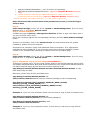
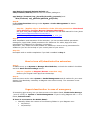
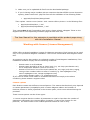
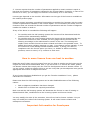
app/etc/modules/AdjustWare_*.xml (if exists in the package) app/code/local/Aitoc/Aitpagecache/etc/* (applies to Magento Booster extension only) Please make sure that the file magentobooster/use_cache.ser have full read/write/execute permissions. (applies to Magento Booster extension only) * Means all folders, sub-folders and files – i.e. ALL items in the folder Same folders should have the same write permissions in case you are moving to another host. Step 4: Flush Cache Storage (even if it’s off) at System > Cache Management. If you’re using Magento CE v. 1.3 or below, Refresh cache. Step 5. Module Activation: In Admin area go to System > Manage Aitoc Modules (Please re-login into admin area if you can’t find this menu item). Check the checkbox against the corresponding extension and click Save modules settings button. If there’s no checkbox, click on the Install License link and proceed with the guided installation. Please check the checkbox. Sometimes the extension might need additional folder permissions. If so, appropriate notifications will be displayed. If you encounter some issues during installation, please contact us for assistance by submitting a support ticket at the product page. Step 6. Flush Cache Storage (even if it’s off) at System > Cache Management. If you’re using Magento CE v. 1.3 or below, Refresh cache. Step 7. Mandatory only if you are using custom theme(s). This step is required only if you are using custom theme/s and module package has the files and folders described below. Note that some modules are only visible at the backend and do not patch frontend design layouts and will not have anything under app/design/frontend/default/default and skin/frontend/default/default. In this case simply skip this step. Otherwise, please copy all files and foldes from app/design/frontend/default/default and skin/frontend/default/default from the extension package to the corresponding app/design/frontend/[YOU_CUSTOM_PACKAGE_NAME (usually default)]/[YOUR_THEME_NAME] and skin/frontend/[YOU_RCUSTOM_PACKAGE_NAME(usually default)]/[YOUR_THEME_NAME] Example 1: if you are using a Modern theme You will need to copy all files and folders from app/design/frontend/default/default and skin/frontend/default/default from the module package to app/design/frontend/default/modern/ and skin/frontend/default/modern Example 2: if you are using Grayscale theme. In this case you will need to copy all files and folders from