1
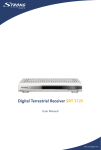
Picture similar
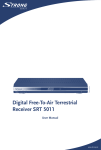
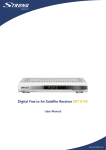
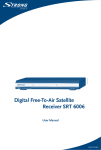
Digital Free-To-Air Satellite
Receiver SRT 6020
User Manual
Figure 1
1
3
2
3
4
5
8
4
9
10
11
COAXIAL
RS-232
S/PDIF
TO TV
ANT IN
ON
OFF
AC 90-240 V~
50/60 Hz Max. 20 W
SAT OUT
SAT IN
Figure 2
1
TV SCART
2
S-VIDEO
VCR SCART
5
6
7
Fixed
Satellite
Dish
TELEVISION
COAXIAL
RS-232
S/PDIF
TO TV
ANT IN
ON
OFF
AC 90-240 V~
50/60 Hz Max. 20 W
SAT OUT
SAT IN
TV SCART
VCR SCART
S-VIDEO
COAXIAL
RS-232
S/PDIF
TO TV
ANT IN
ON
OFF
AC 90-240 V~
50/60 Hz Max. 20 W
SAT OUT
SAT IN
TV SCART
Figure 6
S-VIDEO
VCR SCART
Fixed Satellite Dish 1
(ex. pointed at Astra)
Figure 3
Fixed Satellite
Dish 2
(ex. pointed at
HotBird)
TELEVISION
COAXIAL
RS-232
S/PDIF
TO TV
ANT IN
ON
OFF
AC 90-240 V~
50/60 Hz Max. 20 W
SAT OUT
SAT IN
TV SCART
VCR SCART
S-VIDEO
Figure 7
COAXIAL
RS-232
S/PDIF
TO TV
ANT IN
ON
Satellite Dish on
motorized Positioner
OFF
AC 90-240 V~
50/60 Hz Max. 20 W
SAT OUT
SAT IN
TV SCART
VCR SCART
S-VIDEO
COAXIAL
Optional
RS-232
S/PDIF
TO TV
ANT IN
ON
OFF
AC 90-240 V~
50/60 Hz Max. 20 W
SAT OUT
SAT IN
Figure 4
TV SCART
VCR SCART
S-VIDEO
Figure 8
COMPUTER
COAXIAL
COAXIAL
RS-232
S/PDIF
TO TV
ANT IN
ON
RS-232
S/PDIF
TO TV
ANT IN
OFF
ON
AC 90-240 V~
50/60 Hz Max. 20 W
SAT IN
SAT OUT
Figure 5
TV SCART
VCR SCART
S-VIDEO
OFF
AC 90-240 V~
50/60 Hz Max. 20 W
SAT IN
SAT OUT
Figure 9
TV SCART
VCR SCART
S-VIDEO
PART 1 • English
1.0 INTRODUCTION
1.1 Safety Instructions
1.2 Storage
1.3 Equipment Set-up
1.4 Features & Accessories
2
2
2
3
3
2.0 YOUR RECEIVER
2.1 Front Panel
2.2 Rear Panel
2.3 Remote Control Unit
4
4
4
5
3.0 CONNECTIONS
3.1 Connecting to TV & VCR
3.2 Connecting to Digital Audio Amplifier
3.3 Connecting to Satellite Dish
3.4 Connecting to serial cable for downloading software
6
6
6
6
7
4.0 STARTING UP
4.1 Language Selection
4.2 Select Satellite
4.3 Antenna mode
7
7
7
7
5.0 MAIN MENU
5.1 Channel Organiser
5.3 System setting
5.4 Timer
5.5 SD Card
8
8
10
13
14
6.0 WATCHING TV AND LISTENING TO THE RADIO
6.1 Program Information
6.2 MOSAIC (Nine picture view)
6.3 EPG (Electronic Program Guide)
6.4 Changing channel list mode between TV, Radio and Favourite
6.5 Selection Audio Language
6.5 TELETEXT function
6.6 Subtitles function
15
15
16
16
16
16
16
17
A.1 TROUBLESHOOTING
17
A.2 SPECIFICATIONS
18
A.3 GLOSSARY OF TERMS
19
1
English
TABLE OF CONTENTS
PART 1 • English
1.0 INTRODUCTION
1.1 Safety Instructions
DO NOT INSTALL YOUR RECEIVER:
n In a closed or poorly ventilated cabinet; directly on top of or under any another
equipment; on a surface which might obstruct the ventilation slots.
DO NOT EXPOSE THE RECEIVER OR ITS ACCESSORIES:
n To direct sunlight or near any other equipment that generates heat; to rain or intense
moisture; to intense vibration and to any shock which may cause permanent damage to
your receiver or to any magnetic objects, such as loudspeakers, transformers, etc.
n Do not use a damaged power cord. It may cause a fire or an electrical shock. Do not touch
a power cord with wet hands. It may cause an electric shock.
n Never open the cover. It is dangerous to touch the inside of the receiver due to high
voltage currents and possible electrical hazards. Your warranty will be void if the receiver
has been opened.
n When the receiver is not used for a long period of time, you should unplug the power cord
from the wall socket.
n Do not use alcohol or ammonia based liquids to clean the receiver. If you wish, you
may clean your receiver with a soft lint-free cloth slightly made damp with a mild soap
solution, only after disconnecting from the mains voltage supply. Make sure no foreign
objects fall through the ventilation slots because this could cause fire or an electric shock.
n Do not place any objects on top of the receiver because this might prevent proper cooling
of the components inside.
Safety Precautions
n Do not open the receiver cover, as you will be exposed to a shock hazard. It will also void
your warranty. Refer all maintenance or servicing to suitably qualified personnel
n When you are connecting the cables, be sure that the receiver is disconnected from the
mains supply voltage. Wait a few seconds after switching off the receiver before you move
the receiver or disconnect any equipment.
n It is a necessity that you only use an approved extension and compatible wiring that
is suitable for the electrical power consumption of the installed equipment. Please
ensure that the electrical power supply corresponds with the voltage on the electrical
identification plate at the back of the receiver.
If the receiver does not operate normally even after strictly following the instructions in this user
manual, it is recommended to consult your dealer.
1.2 Storage
Your receiver and its accessories are stored and delivered in a packaging designed to protect against
electric shocks and moisture. When unpacking it, make sure that all the parts are included and keep
the packaging away from children. When transporting the receiver from one place to another or if
you are returning it under warranty make sure to repack the receiver in its original packaging with its
accessories. Failing to comply with such packaging procedures could void your warranty.
2
PART 1 • English
1.3 Equipment Set-up
WARNING:
Indicates warning information.
TIPS
MENU
Move to
Indicates any other additional important or helpful information.
Represents a button on the remote control or the receiver (Bold Character)
Represents a menu item within a window. (Italic Character)
English
We recommend you consult a professional installer to set up your equipment. Otherwise, please
follow the instructions below:
n Refer to the user manual of your TV and your antenna.
n Make sure that the SCART cable and outdoor components are in a good condition and
the SCART connections are well shielded
This manual provides complete instructions for installing and using this receiver. The following
symbols will serve as follow.
1.4 Features & Accessories
For all digital Free-To-Air TV and Radio programmes via satellite
SD Card reader for watching your photo album or music files on your TV (supporting MP3
and JPG file format) and software update
n Display showing channel name or time
n Automatic clock change: summer/ winter time
n Timeshift with 15 seconds play back
n Digital sound through coaxial output (S/PDIF)
n Separate power switch
n Set-up support for first time installation
n Max. 4 800 channel memory capacity for 64 satellites
n Astra and Hotbird channels pre-programmed
n 4 Favourite lists for TV-and Radio programme
n Quick and easy installation & user-friendly menu
n Excellent Audio & Video quality
n Parental lock function for menu and selectable per channel
n Teletext via OSD & VBI
n Supports DiSEqC 1.0, DiSEqC 1.2 and GOTO X
n Electronic Programme Guide (EPG) for present/following event information and up to 7
days for on screen programme information
n Full multi-lingual DVB subtitling and audio track support
n Multi-lingual support on screen menu (OSD): English, German, French, Italian, Spanish,
Russian, Croatian, Romanian, Hungarian, Czech, Polish
n Edit functions for TV or Radio programme name and satellite name
n Future-proof: Software update via satellite (OTA)
n Signal strength bar for digital transponders
n Automatic, network and manual channel scan options
n Power on with last viewed channel
n
n
3
PART 1 • English
10 Timer for recording and/ or sleep-timer with 3 modes (daily, weekly, once)
User-friendly remote control with coloured function buttons
n Low power consumption
n Mosaic function: 9 TV Channel in overview
Accessories:
n User’s Manual
n 1 Remote control unit
n 2x Batteries (AAA type)
NOTE: The batteries should not be recharged, disassembled, electrically short-circuited or be mixed
or used with other types of batteries.
n
n
2.0 YOUR RECEIVER
2.1 Front Panel
Figure 1
1. Power On/Off button
2. Channel Up/Down buttons
3. Mode indicator
The RED light indicates that the receiver is in STAND-BY mode.
The GREEN light indicates that the receiver is in AWAKE mode.
4. VFD display
In STAND-BY mode this indicates current time
In AWAKE mode this indicates current channel name
5. SD card slot
Insert your SD card to this slot to watch your photos, play MP3 files.
2.2 Rear Panel
Figure 2
1. SAT IN
Connect the digital signal from your LNB on the satellite dish to this connector.
2. SAT OUT
Gives you the possibility to connect an extra receiver (analogue or digital).
3. ANT IN
To connect your aerial antenna or cable TV using coaxial cable.
4. TO TV
If you do not use a SCART cable to connect your receiver to your TV, or if you have
connected a cable to the ANT input, you will have to use this connector to connect the
receiver to your TV by using a coaxial cable.
5. TV SCART Connector
To connect your receiver to your TV set using a SCART cable.
6. VCR SCART Connector
To connect your receiver to your video recorder using a SCART cable. Your video signal
4
will now be looped through your receiver to your TV set.
7. S-Video Connector
To connect your receiver to your TV set using a S-Video cable.
8. S/PDIF Digital audio output
Use this coaxial output to connect your receiver to the input of your digital audio amplifier.
9. RS-232 Serial Port
This serial port can be used to connect your PC with your receiver, to download new
versions of software to your receiver.
10. Power ON/OFF Switch
11. Power Cord
Your receiver requires a current of 90~240V AC (Auto-selectable), 50~60Hz +/-5%. Make
sure to check the power specification before connecting your receiver to the wall outlet.
2.3 Remote Control Unit
AV
0~9
FAV
TV/R
MENU
INFO
EPG
EXIT
pq
tu
OK
V+ / VP+ / PMOSAIC
PAUSE
AUDIO
EDIT
REPLAY
TEXT
SUB
RECALL
Turns the receiver On/Off.
Mutes audio output of the receiver.
Toggle between TV and AV mode
Changes channel and controls numeric functions
Toggle Favorite mode ON / OFF.
Toggle between TV or RADIO mode
Shows the main menu and exits from any level of menu to view mode
Shows information of the current channel
Shows the EPG (Electronic Program Guide) only when menu is off.
Exits from the menu or sub-menu and cancels the progressing function if applicable.
Change the current program to the previous/next program when menu is off.
Moves the cursor upwards/downwards when menu is on.
Increases/decreases the volume level when menu is off. Change the setting values
in specific menu item when menu is on.
Activates the highlighted menu item. Displays a channel list according to TV /Radio Mode
To increase or decrease the receiver volume level.
Page up and down in menu list.
Shows pictures of 9 channels simultaneously on the screen
Freeze/Resume picture.
Shows the list of available audio languages for the channel you are watching. In
addition it sets the current channel audio to stereo ((n)), left-mono ((n or rightmono n)).
Program edit
Replay last 15 seconds of current channel
Shows current service’s Teletext on OSD
Show the list of subtitled languages the current channel supports.
Switches back to last channel viewed
5
English
PART 1 • English
PART 1 • English
3.0 CONNECTIONS
3.1 Connecting to TV & VCR
Basic connection with a Scart cable (Fig. 3)
1. Connect the satellite signal from the LNB to the LNB IN connector.
2. Connect the TV SCART connector at the back of the receiver to the SCART IN connector
on your TV set.
Advanced connection of the receiver to the TV set and VCR (Fig. 4)
1. Connect the satellite signal from the LNB to the LNB IN connector.
2. Connect the TV SCART connector at the back of the receiver to the SCART-in connector
on your TV set.
3. Connect the VCR SCART connector at the back of the receiver to the SCART-in connector
on your VCR.
Optional:
n Connect a UHF coaxial lead or cable antenna lead to the ANT IN input connector at the
back of the receiver.
n Connect a coaxial cable to the TO TV connector at the back of the receiver. Connect the
other end of this coaxial cable to the ANT IN connector of your VCR.
n Connect the TV OUT connector of your VCR to the ANT IN connector of your TV set with
a coaxial cable.
3.2 Connecting to Digital Audio Amplifier
The Digital Audio Amplifier is connected with the receiver from the S/PDIF connector. (FIGURE 5)
3.3 Connecting to Satellite Dish
Connecting a fixed satellite dish to your receiver (Fig. 6)
First choose a satellite you want to receive your signals from, and have your dealer aim your dish at
the requested satellite. Connect a coax cable to your LNB and the other end directly to the LNB IN
connector of your receiver.
Connecting multiple fixed dishes to your receiver using a DiSEqC 1.0 switch (Fig. 7)
If you want to watch programs from more than one satellite (For example from Astra and from
HotBird) it is advisable to use fixed dishes and a DiSEqC 1.0 switch. Have your Dealer aim the
dishes at the requested satellites and connect the LNB’s with coax cables to the IN connectors
of the DiSEqC 1.0 switch. Connect the OUT connector of the DiSEqC 1.0 switch to the LNB IN
connector at the back of your receiver.
Connecting a dish on a motorized positioner to your receiver (Fig. 8)
Another possibility for watching programs from multiple satellites is by mounting a dish to a
motorized DiSEqC 1.2 positioner. Have your dealer mount the dish to the positioner, set the correct
angle of the elevation and let him set the center point for your positioner. Connect the LNB with
a coax cable to the LNB IN connector of the positioner, and connect the OUT connector of the
positioner to the LNB IN connector at the back of your receiver.
6
PART 1 • English
3.4 Connecting to serial cable for downloading software
English
Connect the RS-232 connector on the back of your receiver to the Serial port of your computer
using a serial cable. Instructions how to download software can be found on our website www.
strongsat.com (support > download). However, this receiver can download new system software
automatically by satellite. (Fig. 9)
4.0 STARTING UP
Ensure that your satellite receiver is correctly connected to your television and dish, and that your
satellite signal is of good quality. (If you are not sure about this then ask your local strong dealer to
check your installation or satellite signal.)
Confirm that the power plug on the receiver is plugged into the wall outlet. Turn on the receiver. The
following picture is shown the first time you switch on the receiver.
It is recommended that you perform the first time installation following the Installation Wizard step
by step. It will help you to easily achieve system configuration and channel installation. If you are a
professional installer then you can skip wizard by pressing MENU button and set-up channels using
the Installation menu.
4.1 Language Selection
Press UP/DOWN to choose your language, press OK to confirm. The Select Satellite menu will
appear.
4.2 Select Satellite
Future installation steps are depending from satellite where your dish is aimed.
a) Your dish is aimed to Astra 1C, 1E, 1F or Hotbird satellite.
Press UP/DOWN to select the ASTRA or Hotbird satellite and press OK button on your
remote control.
Follow instruction written on screen. When you have fixed your dish at correct direction
choose NEXT and press the OK button. The Channel Setup menu will appear.
b) Your dish is aimed at another satellite
Select Other in Select satellite menu and press OK, more satellites will be listed. If you
select a satellite in the satellite list, the Configure Antenna menu will appear, please set
the LNB Type, LNB Low Freq, LNB High Freq, Band control, Polarisation control, DiSEqC
Switch and Antenna mode.
4.3 Antenna mode
a) Fixed dish
Set Antenna mode to Fixed, select NEXT and press the OK button. The Adjust antenna screen
appears, select transponder receivable at your location and adjust the antenna position for
maximum level for the signal strength and quality. When you have completed the adjustment,
choose NEXT and press the OK button. The Channel Setup menu will appear.
b) Dish mounted on DiSEqC 1.2 motor
Set Antenna mode to DiSEqC 1.2, choose NEXT and press the OK button. The menu
7
PART 1 • English
Adjust antenna will appear. Select transponder receivable at your location (choose
Transponder field and select transponder by pressing LEFT/RIGHT button). Then choose
field Move Dish and adjust position of the dish by pressing the LEFT/RIGHT button.
Once you adjust the dish position choose Store position, set number of the position by
pressing LEFT/RIGHT button. Then choose NEXT and press the OK button. The Channel
Setup menu will appear.
c) Dish mounted on GOTO X motor
Set Antenna mode to GOTO X, choose NEXT and press the OK button. The menu Adjust
antenna will appear. Select transponder receivable at your location (choose Transponder
field and select transponder by pressing LEFT/RIGHT buttons). Then choose field My
Longitude and using numeric buttons enter value of your longitude. Use LEFT/RIGHT
buttons to select hemisphere East or West. Then choose field My Latitude and using
numeric buttons enter value of your latitude. Use LEFT/RIGHT buttons to select
hemisphere Nord or South. Choose field Goto Position and press OK. Your dish will
be turned to the position of satellite. Then choose NEXT and press the OK button. The
Channel Setup menu will appear.
Choose NEXT and press the OK button to start the scan. When the scan is completed, the
receiver will save the services information automatically and exit to the normal play state.
5.0 MAIN MENU
All the important settings and features of your receiver can be operated in Main Menu. The Main
Menu consists of five sub-menus which are “Channel Organizer”, “Installation”, “System setting”,
“Timer” and “SD Card”.
Press the MENU key when the menu is off, The MAIN MENU screen will appear.
5.1 Channel Organiser
In the MAIN MENU screen, press UP/DOWN to move the cursor to Channel Organiser, and
then press OK to enter the Channel Organiser menu, which consists of two sub-menus; “Channel
Manager” and “Favourites Manager”.
5.1.1 Channel Manager
In this menu, you can change the order of the channels, move, delete and edit channels. To change
the satellite use the RED button,
n Sort (GREEN buton)
You can sort the channel order in the channel list by “Name a~z”, “Name z~a”, “Free-CA”,
“Fav – NO Fav” or “Default” type.
n Edit (YELLOW button)
Select the channel that you wish to edit, press the YELLOW (Edit) button to move into
the modify program menu. In this menu, you can modify the Program Name, Down
Frequency, Symbol rate, Video PID, Audio PID.
If you want to rename the channel, use the UP/DOWN keys to select “Program Name”
and press OK, the Program Name dialog will be shown.
8
Use the LEFT/RIGHT buttons to move the cursor to the character you wish to edit.
Use the UP/DOWN buttons to change character (scroll alphabet). If you wish to delete
character you have to replace it with “space” character. When editing is complete, press
the OK button.
n Move channel
Press the UP/DOWN keys to point the focus of the menu to the channel of your
selection. Press the LEFT/RIGHT keys to point the focus of the menu to the column
“Move”. When the focus is on column “Move”, press the OK button to confirm selection
of the channel, using the UP/DOWN buttons move the channel to its new location and
press the OK button to confirm the new location. Repeat this for every channel that you
want to move.
n Delete channel
Press the UP/DOWN keys to point the focus of the menu to the channel of your
selection. Press the LEFT/RIGHT keys to point the focus of the menu to the column
“Del”. When the focus is on column “Del”, press the OK button to mark the channel
as selected to be deleted from the list. To apply the changes press the EXIT button and
confirm the channel’s deletion.
n Delete all channels
To delete all channels from current satellite press BLUE button (Dell All). You will be
asked to confirm operation.
5.1.2 Favorites Manager
Press the UP/DOWN keys to select the channel. Press the LEFT/RIGHT keys to point the focus
to the favorite group. Press the OK button to add the selected channel to the Favorite group. To
remove the channel from the favorite group, repeat same operation.
5.2 Installation
The installation menu contains three sub-menus; “Antenna Installation”, “Auto Scan” and “Manual Scan”.
5.2.1 Antenna Installation
You can add a satellite, edit a satellite and delete a satellite in this menu.
n Add satellite
If you want to add a new satellite, press the RED key in this menu, a satellite list will
appear on the screen. Press LEFT/RIGHT to select the satellite. If the satellite does not
exist in the satellite list, please select “NEW SAT1”. After selection of a satellite from the
satellite list, the Configure Antenna menu will appear, please set the LNB Type, LNB Low
Freq, LNB High Freq, Band control, Polarisation control, DiSEqC Switch and Antenna
mode. Future steps of installation are described in 4.2.
n Edit satellite
If the parameters of the satellite were changed or the satellite is a new satellite, you must
set the parameters of the satellite, such as LNB type, LNB low Freq, LNB High Freq,
Transponder, LNB Power, 22k Tone, DiSEqC and Antenna Mode. Sequence of editing of
satellite parameters is same as sequence of “Add satellite” and described in 4.2
9
English
PART 1 • English
PART 1 • English
n
Delete satellite
If you want to delete a satellite, press the YELLOW key. Then a warning message will
appear. Select OK and press the OK button to confirm.
5.2.2 Auto Scan
Press the GREEN key to set the scan mode to Free or Free+Scrambled. If mode is Free only “Free
to Air” channels will be added to the channel list. If mode is Free+Scrambled all channels from
selected satellite will be added to the channel list.
Press the YELLOW Key to set the Blind Scan to ON or OFF. Blind scan function is useful to scan
new added satellite, but scan may take long time.
Press the BLUE Key to set the scan type to NIT OFF or NIT ON while Blind Scan is set to OFF and
to Quick Search or Detail Search while Blind Scan is set to ON.
When the set-up is completed, press the RED key to start the scan.
5.2.3 Manual Scan
In this menu, you can scan single transponder, add a new transponder, edit the transponder or
delete the transponder. You can switch between satellites with the RED button.
n Scan transponder:
Use UP/DOWN buttons to select the transponder. Press OK button to start the scan.
n Add Transponder:
In this menu, you can add a new transponder to the system. Press the GREEN button,
the Add Transponder sub-menu will appear on screen.
Frequency: input the frequency of the new transponder.
Symbol Rate:
input the symbol rate of the new transponder.
Polarity:
Select the Polarity of the new transponder.
n Edit Transponder:
In this menu, you can edit a transponder in the system. Press the YELLOW button, the Edit
Transponder sub-menu will appear on screen. This menu is similar to Add Transponder menu.
n Delete Transponder
Press the BLUE button to delete a transponder. You will need to confirm operation. Press
LEFT/RIGHT to select OK, press the OK button to confirm.
5.3 System setting
In this menu, you can configure the systems such as Language Setting, OSD Style, Parental Control,
TV Settings and Time Setting.
5.3.1 Preference
5.3.1.1 Language Setting
You can change the language of the OSD, preferred Audio and Subtitles. Use UP/DOWN to select
the OSD language, Audio language or Subtitles language. Press OK or Right to enter the language
list and Press UP/DOWN to select the language. Press OK to confirm.
10
5.3.1.2 TV settings
You can set the TV mode, Screen mode, Video output and Modulator setting.
n TV mode
In TV mode Screen press OK or RIGHT to select mode, press OK to confirm. If you don’t
know which standard your TV has, please select AUTO.
n Screen mode
In TV format Screen press OK or RIGHT to select 4:3 or 16:9, press OK to confirm.
n Video output
Press OK or RIGHT to select CVBS, RGB or S-Video, press OK to confirm.
WARNING:
if RGB is selected then S-Video output is OFF.
n Modulator setting
The modulator setting screen will appear. Use UP/DOWN to select RF Audio mode
or RF channel. Use LEFT/RIGHT to change the settings and press OK to confirm the
settings or EXIT to cancel.
5.3.1.3 Time Settings
If a broadcaster provides GMT, you can set the time using GMT, or set your own time by yourself. If
the GMT usage is ON then you have to set the Time Zone. If you set GMT Usage to OFF, Set Data
and Set Time item are displayed. To set the time value manually, move the cursor to the time item
and use the numeric buttons on the remote control.
5.3.1.4 Set Factory Default
Please be careful when using this function, because it will erase all the data and parameters you
may have set earlier to your receiver. Once you set the factory default you will have to re-install your
preferences and re-scan your channels. To reset your receiver to factory default, apply the following
steps:
Select Set Factory default and press OK. Confirm warning message with OK and press the OK key,
the receiver will return to its factory default state, and all user data will be deleted.
NOTE: Your PIN code will change back to the factory setting “0000”.
5.3.2 OSD Style
In this menu, you can set the Menu Colour, Transparency Level and Border Pattern.
5.3.3 Parental Control
In this menu, you can set channel lock status (ON or OFF), the menu lock status, parental setting and
change the PIN code.
The default PIN code is 0000.
n Channel Lock
Set the system channel lock to ON or OFF. If the channel lock is on, the user has to enter
the parental PIN code correctly before watching the locked channel.
n Menu Lock
Press OK to select whether you need the lock or not for the Menu, YES or NO, press OK
11
English
PART 1 • English
PART 1 • English
to confirm. If the menu lock is on, then for some operations such as search program and
set factory default, you need to enter your PIN.
n Parental Setting
Set some channels to lock status. If a channel is locked, the user has to enter the parental
PIN code correctly before watching the locked channel. Use the UP/DOWN keys to select
the channel you want to lock. Press the OK button to lock the channel.
n Change PIN
For modifying the PIN, you must enter the 4 digits PIN and confirm it again; the system
PIN will be changed to the new PIN.
5.3.4 System info
The system information displays information about your receiver such as software and User Interface version.
Compare the software version with the available in the internet in order to know if you have the latest version.
5.3.5 System Update
In this menu, you can select between “STB to STB” and “OAD”
n STB to STB software transfer.
a) First power off both STBs, connect them with cross RS-232.
b) Then power on master STB (master is STB from which you will copy software)
and keep slave STB off. Navigate in the menu of master STB and select
“System Update – STB to STB”.
c) When the status displays “detecting slave STB”, power on slave STB, after the master STB
detects the slave, the master starts transmission and burns.
d) While transmitting and burning, it is very important to avoid other operations such as
power off because this may cause destruction of the data in the FLASH memory and the
receiver will need to be repaired.
e) When update is complete, first power off both STBs, then disconnect the RS-232 line.
n Over Air Download (OAD)
Select this option in order to update your receiver with the latest software version. Software update
service is available from satellites Astra 1C, 1E, 1F at 19E and Hotbird 1, 2, 3, 4 at 13E.
If your antenna is primed to Astra 1C, 1E, 1F at 19E then enter following parameters:
Frequency: 12603; Polarity: H (Horizontal); Symbol rate: 22000
If your antenna is primed to Hotbird 1, 2, 3, 4 at 13E then enter following parameters:
Frequency: 12476; Polarity: H (Horizontal); Symbol rate: 27500
Move menu focus to OK and press OK button on remote control. The receiver will check availability
of the software update on air and load the latest software, if available. Do not switch power off and
do not disconnect the receiver from the aerial during update process. Availability of the software
update is subject of local broadcast condition and may not work in all countries. Contact your
vendor to find out more about this function.
n Update from SD card
First you need to store the file with extension *.crd to the root folder of the SD card. File with software
update can be downloaded from our web site www.strongsat.com. Insert the SD card with *.crd file to
the SD card slot of the receiver. Go to menu System Setting – System Update. Select SD Card Data and
12
press OK. On the left side of the screen you will see the list of folders, at the right side you will see the list
of files in root folder. Use UP/DOWN buttons to select file with software update and press OK. Confirm
the update. The message “Updating software from SD card. Please wait” will appear on screen. Receiver
will reboot automatically once the update is finished.
NOTE: Do not eject SD card during software update process.
n Update through PC to STB
Connect the computer to the receiver (receiver must be powered off) with a 9-pin cross cable (two
females). The computer will follow the steps below:
Start->Programs->Accessories->Communications->Hyper terminal
Then choose “COM1” or “COM2” according to the computer port you are using and port setting as
follows:
Bits per Second: 115200
Data bits:
8
Parity:
None
Stop bits:
1
Flow Control:
None
In Hyper Terminal menu select “Transfer” item and then press “Send file” item. Select the file with
the new software (*.UPD) you want to download and choose the protocol “1K Xmodem”. Finally
press OK and a download menu will appear in the computer screen. Power on the receiver, then the
download process will begin. After about 2.5 minutes, the message “OK, Reset” will appear on the
computer on Hyper Terminal window, which means the download has been completed successfully.
Power off the receiver and then unplug the RS-232 interface.
*NOTE: INCORRECT OPERATION MAY CAUSE UNREPAIRABLE DAMAGE TO THE RECEIVER.
1. DO NOT POWER OFF THE RECEIVER DURING THE PROCESS OF DOWNLOAD.
2. DO NOT PLUG IN OR UNPLUG THE RS-232 INTERFACE WHEN RECEIVER IS
POWERED ON
5.4 Timer
You can set the timer to make the receiver perform designated actions including timer based wake
up or sleep instructions to the receiver. Use the UP/DOWN buttons to select timer. Press the RED
key to activate/inactivate current timer. Press the OK button to enter your selected timer settings.
Action:
You can select the following functions:
“Power On”
The receiver powers on at the designated date and time within defined channel.
“Time interval” The receiver switches on at the designated date and time, displays the channel and
then switches off at the designated date and time (The value set at the end time).
“Power Off”
The receiver powers off at the designated date and time.
Cycle:
You can set the cycle of the action designated in the timer mode (One time, Daily or Weekly).
Start Date:
You can set the start date of the timer action.
Start Time:
You can set the start time of the timer action.
End Time:
You can set the end time of the channel viewing when the Timer mode is on Time Interval.
Channel Type:
Select between TV and Radio.
Channel name: Press the Right button to display the channel list and using the navigation buttons
select the channel to be shown when the receiver will power on by the timer.
13
English
PART 1 • English
PART 1 • English
5.5 SD Card
To watch you photos or play music from SD card enter to menu SD Card.
This menu consist two submenus: JPG Guide and MP3 Guide.
Please insert you SD card into SD card slot before entering to the menu.
5.5.1 JPG Guide
The receiver supports photos in JPEG format. Maximum supported resolution of the picture is
10 Mega pixels 24 bit colour depth.
While entering JPG Guide menu, the screen with Folder list and Picture list will appear.
n Navigation in folder list:
Use UP/DOWN buttons to select folder
Use OK to open folder
Use GREEN button to go to Upper folder
Use LEFT/RIGHT button to select folder list or file list (left or right panel)
n Navigation in the picture list:
Use UP/DOWN buttons to select
Use OK to watch picture
Use RED button to switch to full screen view
USE GREEN button to go to upper folder
User YELLOW button to start slide show
Use BLUE button to delete file current displayed file. Current displayed file is marked by
“finger” symbol. You will be asked to confirm operation.
n Watching pictures
To watch picture on screen select file with picture and press OK button. Picture will be
shown at background. Press List (RED) button to remove folder list from screen and
watch picture in full screen mode.
n In picture watching mode:
Use UP/DOWN buttons to go to next/previous picture
Use RED or Exit button to return to folder list
n Slide show
To start slide show press YELLOW button while menu focus is at Picture List.
Slide Show setup menu will appear.
Slide Delay: use LEFT/RIGHT to select how long you want to display each picture before it
will be changed to the next one.
Repeat All: use LEFT/RIGHT to select ON or OFF. If you selected ON then slide show will
be looped continuously, until interrupted. If you selected OFF then each picture will be
shown once.
After selection of slide show options select OK and press OK.
During Slide Show:
Use UP/DOWN buttons to force slide change to next/previous
Use PAUSE button to delay current slide on screen as long as you wish. To resume slide
show press PAUSE button again
Use EXIT button to stop Slide Show.
14
5.5.2 MP3 Guide
MP3 Guide allows you to play music in MP3 format from your SD card. Supported bit rates are up
to 320 kbit/s, variable bit rate is supported. While entering MP3 Guide menu, the screen with Folder
list and Playlist will appear.
n Navigation in folder list:
Use UP/DOWN buttons to select folder
Use OK to open folder
Use GREEN button to go to Upper folder
Use LEFT/RIGHT button to select folder list or file list (left or right panel)
n Navigation in the play list:
Use UP/DOWN buttons to select file
Use OK or RED to play file
USE GREEN button to go to upper folder
User YELLOW button to setup play list parameters
Use BLUE button to delete file current file. You will be asked to confirm operation.
n Playing a single file
Select file that you want to play and press OK or RED button.
Use UP/DOWN buttons to select previous/next file to play
Use LEFT/RIGHT button to adjust volume
Use OK or RED button to stop file play
Use GREEN button to pause file play
n Setup of Play List
Press YELLOW button to setup Play List
Play mode: use LEFT/RIGHT to select between Sequential and Intro. If mode is
Sequential then files will be played one after another. If mode is Intro then only first 10
seconds of each file will be played.
Repeat All: use LEFT/RIGHT to select ON or OFF. If you selected ON then playing will be
looped continuously, until interrupted. If you selected OFF then each file will be played once.
6.0 WATCHING TV AND LISTENING TO THE RADIO
6.1 Program Information
In normal operation status (no menu operation), press the INFO button. The program information
banner will be displayed at the bottom of screen. From program information banner you can read
channel number, channel name, current and next program name (if available from broadcast) and
current time.
To check technical information about channel press INFO button twice, the Program Information
menu will appear on screen as show on <Screen44>. In this menu, the user can view the current
program information such as the satellite name, program name, program number, local frequency,
polarity, 22K tone, DiSEqC, down frequency, symbol rate, video PID and audio PID. You also can
view the signal strength of the current program and its signal quality.
15
English
PART 1 • English
PART 1 • English
6.2 MOSAIC (Nine picture view)
In normal operation status (no menu operation), press the MOSAIC button, there are nine picture
being shown on screen.
6.3 EPG (Electronic Program Guide)
The EPG shows a program schedule of the channels.
NOTE: not all broadcasters provide program information. From normal view mode press the EPG
button. The EPG Menu will appear. Press UP/DOWN to choose the channel. Press RIGHT to
display programs schedule of the current channel.
1. In EPG program schedule menu: Press the UP/DOWN keys to choose the program items.
Press LEFT/RIGHT keys to get programs schedule for previous/next dates. Press EXIT to
return to EPG Menu. Press GREEN to display the details of the current program.
2. In program details: Press UP/DOWN to scroll information (next/previous page). Press
LEFT or EXIT to return to the EPG schedule Menu.
Programming Timer from EPG
You can set up the event timer by pressing RED button or OK button from the EPG
program schedule.
To set up a timer event: Press UP/DOWN to move the cursor to the program for which you
want to add a timer. Press RED button to add a timer. You can also use this screen to
modify each value. To save the settings, press OK. To quit event timer setup, press EXIT.
6.4 Changing channel list mode between TV, Radio and Favourite
To change between TV and Radio channel lists use TV/R button from normal operation mode or
from channel list mode.
To change channel list to favourite mode press FAV button from normal operational mode. Use
LEFT/RIGHT buttons to select favourite group. Press OK to confirm selection. Then select channel
of your choice and press OK to switch to full screen mode.
If you wish to select another favourite group of channels or exit from favourite channel list mode
– press FAV button. List of favourite channels will appear on screen. Press RED or FAV button to
move menu focus to selection of group. Use LEFT/RIGHT buttons to select group of your choice.
Select group “NO FAV” and press OK if you wish to exit from favourite channel list mode.
6.5 Selection Audio Language
Press the AUDIO button on the remote control to select the audio language. Select the Audio Channel
or Sound mode with UP/DOWN buttons. Select Audio channel number or Sound mode (Stereo, Left
or Right channel). Press OK to confirm your selection. Your selection will be memorized for current
channel. Receiver will play last selected audio track every time when you select this channel in future.
NOTE: Audio track with “(AC3)” sign can be listened only if receiver is connected to digital audio
amplifier and amplifier is ON.
6.5 TELETEXT function
From normal view mode press TEXT. In TEXT on OSD, press UP/DOWN to add / subtract
displayed page number. Press the Numeric keys to input the page directly.
16
PART 1 • English
6.6 Subtitles function
English
From normal view mode press SUB button. If channel has subtitle information the subtitles
language selection menu will appear. Use LEFT/RIGHT buttons to select between DVB and Teletext
subtitles. Use UP/DOWN to select subtitles language. Press OK to confirm your selection.
A.1 TROUBLESHOOTING
There may be various reasons for the abnormal operation of the receiver. Check the receiver
according to the procedures shown below. If the receiver does not work properly after checking it,
please contact the dealer. Don’t open the receiver cover. This may cause a dangerous situation.
Symptom
Cause
Remedy
The display on
front panel does
not light up.
The power cord is not plugged in.
Check that the power cord is plugged in
to the wall outlet.
No picture
sound
Wrong connection of the Audio/
Video output of the receiver to TV.
Connect the Audio/ Video output of the
receiver to TV correctly.
Audio muting.
Press the Mute button
TV power off.
Turn TV on.
The receiver can’t receive the
signal
Check the antenna cable, replace the
cable, or connect the cable to the
receiver tightly.
Incorrect values of some
tuner parameters
Set the values of the tuner parameters
correctly in the installation menu.
Wrong direction of the dish
Check the signal strength with a
spectrum analyzer and adjust your dish
correctly.
Receiver detected short cut in
your cable system
Disconnect receiver from main power
or
No picture
Message “Antenna
Power Overload”
displayed on TV
Check your cable system. Remove short
cut.
Replace LNB.
Restart receiver.
The remote control
does not work
The batteries of the remote
controller are not inserted or
exhausted
Check whether the batteries are inserted
correctly in your remote control. Check
the batteries, and if exhausted replace
the batteries in the remote control.
17
PART 1 • English
A.2 SPECIFICATIONS
Demodulator
Modulation:
QPSK
Input Symbol Rate:
2 ~ 45 Ms/s
SCPC & MCPC signals from C & KU-Band satellites
Video Decoder
Profile level:
Input Rate:
Video Resolution:
Aspect Ratio:
MPEG-2 MP@ML
Max. 60 Mbits/s
720 x 576 (PAL),
720 x 480 (NTSC) pixels
4:3, 16:9
Audio Decoder
ISO/IEC 11172 LAYER I&II
Sampling rate:
Audio modes:
32, 44.1, 48 kHz
Stereo, Joint stereo, Dual mono, Mono
Tuner
Front-End:
Input Frequency Range:
RF Input Level:
LNB Power:
DiSEqC Version:
DVB-S
950~2150 MHz
-25 ~ -65 dBm
13/18 V DC (+/- 5%) Max. 500 mA, Overload protected
1.0 & 1.2
System and Memory
Flash Memory:
SDRAM:
16 Mbits
64 Mbits
RF Modulator
Ouput channels:
TV Standard:
PLL CH 21~64
PAL-BG/I/DK
Connectors:
SAT IN, SAT OUT
ANT IN, TO TV
2 SCARTS TV (RGB, CVBS) / VCR (CVBS)
S/PDIF: coaxial output
S-VIDEO output
Data Interface – serial port: RS-232, 9-Pin D-Sub Male type
Separate power switch
SD Interface
18
PART 1 • English
90~240 V AC 50/60 Hz
max 25 W
<8W
+0 °C ~ 40 °C
-30 °C ~ 80 °C
10% - 85%, RH, Non-condensing
260 x 210 x 40
1,2 kg
English
General Data
Input Voltage Range:
Power consumption:
Stand-by Power consumption:
Operating Temperature:
Storage Temperature:
Operating Humidity Range:
Size (WxDxH) in mm:
Weight:
A.3 GLOSSARY OF TERMS
C-Band
DiSEqC
EPG
Fixed Dish
Free-To-Air broadcast
Ku-Band
LNB
MPEG
Network
PAL
Parental lock
PID
PIN Code
Polarization
RS-232
3.7 ~ 4.2 GHz Frequency.
Digital Satellite Equipment Control.
Electronic program guides that are transmitted by a broadcaster from a
particular satellite to display information guide about a program content.
A dish antenna that is aimed at one particular satellite.
Unscrambled broadcast which you can view for free
11 ~ 13GHz Frequency.
(Low-Noise Block down-converter). The LNB is an electronic unit
mounted on the satellite dish. It receives the signals reflected by the dish
and converts them to signals that can be used by Satellite receiver.
The Moving Picture Experts Group is founded by the ISO. MPEG is a
standard method for digital transmission of video and audio.
A network which is also known as a bouquet is a set of channels that is
offered by a single broadcaster.
Referring to the Phase Alternate Line colour system adopted by
European broadcasters.
This function gives you the possibility to ‘lock’ other several functions
of the receiver to prevent unauthorized users such as children to view
channels that are not suitable for them. A PIN code is required to use of
the parental lock.
The transmitted packages have identifiers (PID) that tells the receiver
what to do with the received information. Satellite receivers normally use
four types of PID, these are V-PID (video PID), A-PID (audio PID), P-PID
(Program PID) and data PID (EPG information).
Personal Identification NumberA four-digit code that is used for locking/
unlocking, e.g. with the parental control feature.
Allows several programmes to be fitted into the same frequency band.
The signals from a satellite are transmitter either with linear (vertical or
horizontal) polarization or circular (right or left) polarization.
Serial data port.
19
PART 1 • English
20