1
5. USE
5. USE
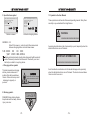
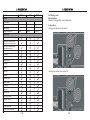
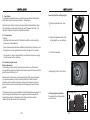
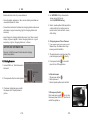
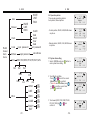
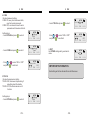
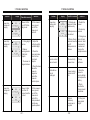
5.10 Working schedule setting
There are 7 options, MON, TUE, WED, THU,
FIR, SAT, SUN.
1. Select TIME from menu and press
enter working schedule setting.
2. Select TUE by press
or
press
.
(Take TUE for example)
to
and enter it by
12/14
13:31
- The arrow moves to Minute. Press
to scroll “10” and confirm it.
or
1 6°C
TUE
WED
12/ 1 4
08:10
FRI
10:__
13:3 8
1 6°C
TUE
WED
12/ 1 4
08:10
FRI
10:10
13:3 8
1 6°C
TUE
WED
12 / 1 4
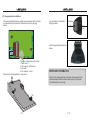
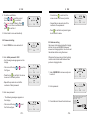
3. Display means.
Del: To delete working schedule which has
already set.
Esc: To Esc from working schedule setting.
Set: To set or working schedule setting.
1 6°C
TIME
OTHER
TUE
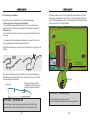
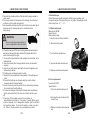
6. To set End time.
End = End Time
To set Hour and Minute.
(Take 10:10 for example)
- Press
or
to scroll “10” and press
to confirm it.
__:__
Start
FRI
__:__
End
13: 3 8
1 6°C
TUE
__:__
__:__
7. Press
Menu.
and select Esc to return back to
1 6°C
TUE
08:10
10:10
WED
Del / Esc / Set
8. The mower goes back for recharge after it
finishes cutting.
WED
Del / Esc / Set
IMPORTANT INFORMATION
It return back to menu automatically if there isn’t any operate
within 10 seconds.
4. Select Set and press
schedule setting.
to enter working
1 6°C
TUE
__:__
__:__
WED
Del / Esc / Set
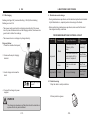
5. To set Start time.
Start = Start Time
To set Hour and Minute.
(Take 8:10 for example)
- Press
or
to scroll “08” and press
to confirm it.
- The arrow moves to Minute. Press
or
to scroll “10” and confirm it.
- P35-
1 6°C
TUE
WED
12 / 1 4
08:__
FRI
__:__
WED
12 / 1 4
08:10
FRI
2. Select TUE by press
or
press
.
(Take TUE for example)
12 /1 4
1 6°C
TIME
OTHER
TUE
TUE
08:10
10:10
WED
12/ 1 4
Start
FRI
End
13:4 6
TUE
08:10
to
and enter it by
1 3: 45
1 6°C
13: 3 8
1 6°C
1 6°C
TUE
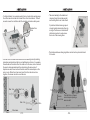
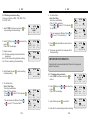
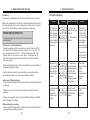
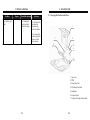
5.11 Delete working schedule
1. Select TIME from menu and press
enter it.
__:__
13: 3 8
3. Select Del and press
to confirm it.
10:10
WED
Del / Esc / Set
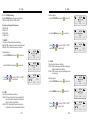
4. Select Esc to exit working schedule deleting.
- P36-