1
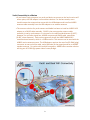
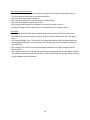
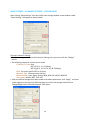
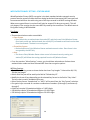
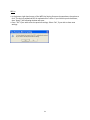
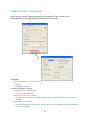
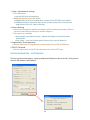
Current Network Information: • After double clicking on the chosen SSID, the network information will appear under the Current Network Information on the right‐hand side. • The channel number will be indicated. • The Type field indicates if in Infrastructure or Ad‐Hoc mode. • The TX rate indicates the transmission rate. • The Encrypt field indicates if the network is running encryption or none. • The More Settings button is described in more detail below in the next section. Link Status: • Information about the link status is shown on the bottom one‐third of the utility screen. • The BSSID of the associated access point or wireless router is displayed in the “Link Status” field. • The “Signal Strength” and “Link Quality” are displayed below the BSSID and described with percentages (link quality is a measurement of receiving and transmitting performance over the radio link). • The number of TX and RX Frames are displayed underneath the Signal Strength and Link Quality fields. • The number of TX Frames indicate the total amount of data going out of the adapter towards the network, whereas the the number of RX Frames indicate the total amount of data coming into the adapter from the network. 18