1
Version 1.0
27 November 2013
Logging In and Selecting Roles
The trial invitation sent to you by email contains a login identity for the roles of: Student, Trainer
(Assessor), and Administrator. Actors in the tutorial may have multiple roles, but we will only use them
in one role so please make sure you select the right role defined here.
1. Click the link in the Trial Invitation email that was sent to you and the BluegemEXPLORE 2013
home page will open in your default browser.
Accept Trial Terms and Conditions (Download)
Before we move on to the next step, please note: that by logging into the trial site you
indicate that you accept and agree to abide by our Trial Terms and Conditions. You can
access a copy via the link here or in your trial invitation email.
2. Depending on where you are in the tutorial you will be asked to login as one of your three user
roles. If you are already logged in as a different role you will need to “Logout” via the link in
the top-right corner of the page. Click the HOME page menu link to return to the login screen.
3. Login again and select the role specified in the tutorial.
Tutorial Steps
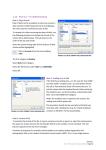
These are the expected actions we want you to perform. You’ll find them in a panel like this:
Tutorial Steps:
1.
2.
Do something here
Do something else here
Advanced Login Tips and Tricks
This step is optional, but it will speed up your evaluation process and is a good tip for the future.
Here’s another advantage of a web-based solution: Multiple browser support. Let’s say you want to be
able to quickly and easily flip between roles without having to repeatedly login and out. You could use
a different browser for each role. This is also a good way to evaluate ‘cross browser compatibility’,
making sure that your clients can access the site with the browser of their choice. NOTE: this only
works if you are using different browsers. There are very good security reasons why you would not be
able to do this using different tabs, or windows of the same browser. For example it will work if you
use Internet Explorer for your Student Role, Google Chrome for your Trainer Role, and Firefox for
your Admin Role. It will not work if you use a tab or new window in Internet Explorer for each role.
1. If you haven’t already done so – download and install Internet Explorer, Google Chrome, and
Firefox.
2. Assign one browser to each of the 3 roles and login as that role.
3. Now when you make changes in one role you should be able to see the impact in the other roles
simply by switching to the other browsers.
NOTE: You may be prompted to download and install Microsoft Silverlight and Adobe Flash plug-ins for
your browser. Just follow the prompts. These are perfectly safe and will not harm your computer.
© Bluegem Software 1991 to 2013
Page 2 of 14