1
55
A.2. PROJECT SETUP
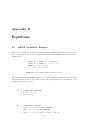
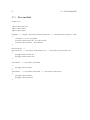
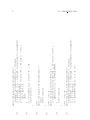
• An example project can also be downloaded from http://www.student.tue.nl/q/m.w.
manders/pico_project.jar. This project can be imported into you Eclipse workspace
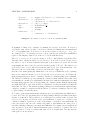
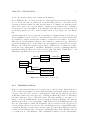
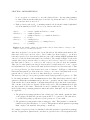
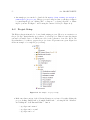
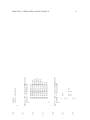
by extracting the project, clicking “File” → “Import...”, selecting “General” → “Existing Projects into Workspace” and locating the extracted folder (See Figure A.1).
A.2
Project Setup
The Eclipse plug-in is intended to be used with existing projects. There is one restriction on
the project type, that is that the project has to be a Java project. This is because the plug-in
generates executable Java code which is needed for the generation of models. Below, the
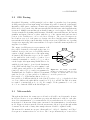
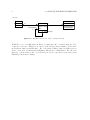
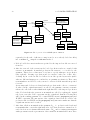
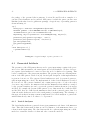
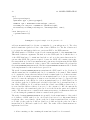
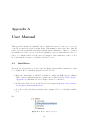
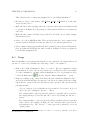
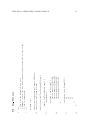
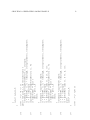
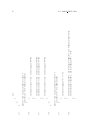
steps that have to be taken to prepare the project for model generation are given. Figure A.2
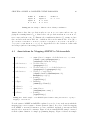
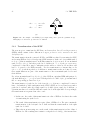
shows an example of a completed project setup.
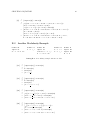
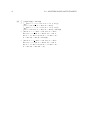
Figure A.2: An example of a project setup
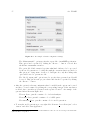
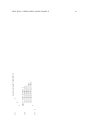
• Make sure that versions of the following libraries are referenced by right clicking the
project, clicking “Build Path”→“Configure Build Path...”, selecting the tab “Libraries”
and clicking the “Add External JARs...” button.
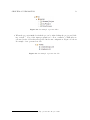
· “org.eclipse.emf.common”
· “org.eclipse.emf.ecore.xmi”
· “org.eclipse.emf.ecore”