1
Precautions
Please carefully read and observe the terms below:
Safe power on
Do not use your mobile phone where it is forbidden to
use or you might cause a disturbance or danger.
Safe transportation first
Please observe all related local laws and regulations.
Do not use your mobile phone while driving.
Safe transportation should be considered first when
driving.
Turn off when in the hospital
Please follow related limitations.
Please switch your mobile phone off when near a
medical instrument.
Turn off on an airplane
Please follow related limitations.
Do not use your mobile phone on an airplane.
Turn off when at a gasoline station
Do not use your mobile phone at a filling station or
around fuels or chemicals.
Turn off around exposure Area
Please observe related limitations and do not use
your mobile phone near an area where explosions
can occur.
Backup
Remember to make a backup or keep a written record
of all important information saved in your mobile
phone.
Use qualified after sales service
Only a qualified technician can install or repair your
mobile phone. Please contact the authorized service
center in case of phone failure.
Accessories and batteries
Only use the authorized accessories and batteries
and do not connect to incompatible manufacturers or
products.
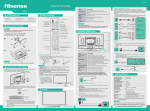
Your phone
Earphone
Jack
Receiver
Power Key
Long press
to switch
the phone
on and off
Press to
lock or
wake up
the touch
Menu Key
Open a list of options
available in the
current screen or
application
Charge/USB Connector
Connect a charger or a USB
data cable for data transfer
Front Camera
Volume Key
Adjust the
volume
Touch
Screen
Home Key
Back Key
Go back to the
Go to Home
previous screen
screen
Long press to
open recent Microphone
application list
Your phone
Back Camera
Speaker
Battery Cover & Battery
Removing the Battery Cover
1. Hold the device firmly and locate the cover release latch.
2. Place your fingernail in the opening and remove the cover
according to the arrow direction.
Installing the Battery
1. With the metallic contacts of the battery facing the metallic
contacts in the battery slot, press the battery down until it locks into
place
2. Ensure the battery is inserted in the phone. To charge the battery,
plug in the charger connector at your phone (USB interface) and
then plug the other end into an AC power socket.
The battery symbol indicates the charging status. While charging,
the charge indicators will scroll. When all the scroll bars are steady,
the battery is fully charged. Disconnect the charger from the phone.
Disconnect the charger from the AC power socket.
Note: If the battery is powerless, the battery icon will reappear after
a few minutes of charging.
SIM Card & microSD
Installing the SIM Card
Make sure that the clipped corner of the SIM card is facing the
correct direction and the metallic contacts are facing the correct
direction. Slide the SIM card into the card slot until it stops.
Installing the microSD Memory Card
Slide microSD card into the SD card slot with the metallic pins facing
downwards. Push the card until it locks into place.
Lock & Unlock Screen
Locking the Screen
To save your battery, prevent accidental touches or when you want
to wipe smudges off your touch screen, put the touch screen to
sleep by pressing the Power Key
Unlocking the Screen
To wake up the touch screen, just press the Power Key again, and
then drag the lock icon to the right on the screen to unlock according
to the clue on the screen.
Lock icon
Unlock icon
Home Screen
Status Bar and Notifications
The status bar at the top of the screen contains icons that tell you
about messages and phone status and shows what’s going on in
your phone. You can drag down the status bar to open the
Notification panel and get more information.
Touch to open the
toolkits panel
Toolkits
In the toolkits you can quickly start the common applications such as
Bluetooth, WLAN and so on.
Touch to open the
Notification panel
Touch to open the system settings
Home Screen
The Home screen is your gateway to the main
features in your phone.
Notifications
Drag down to open
the Notification panel
Status bar
Slide the Home
screen left or
right to view
more content in
other panels on
the Home
screen
The favorite tray
Touch the applications in the tray to
enter applications
Touch and hold the applications to
drag them in or out from the tray
Launcher
Touch to enter Main menu
Browse all the installed
applications
Customizing
The phone provides you with Options menus.
Touch the Menu Key to enter customizing:
Touch to select
a wallpaper,
and set it as the
wallpaper of
Home screen
Touch to enter
the Settings,
and set the
Touch to enter the
system
Apps, and manage
preferences
applications
Phone Function
Making a Call
Touch
to enter the Dial pad.
The phone offers you several ways of making a call.
You can make a call through the Phone, People, Messaging and
Call log.
Delete
Dial pad
Make a
video call
Touch to close or
open the dial pad
Touch to choose the
card, and then dial
the number
Connecting to WLAN
Connecting to WLAN
1. You can connect to the WLAN, and use it to surf the Internet at
high speed and download.
Touch Launcher → Settings → WLAN.
2. Turn on the switch to activate WLAN.
3. Touch WLAN.
4. Choose an available WLAN network to connect
5. Secured networks are indicated with a Lock icon. If the network is
secured, you are prompted to enter a password or other credentials
(Ask your network administrator for details)
6. Touch “Connect”.
Accessing the Internet
Using the Browser
Touch
to enter the Browser.
Touch to enter the Bookmarks
Touch to forward the
browser to the next
web page
Touch to go back
to the previous
page
Touch to look through the thumbnails
of all web page windows, and switch
the web pages
Accessing the Internet
When you are viewing the web page, touch the
Menu Key, the following options are available to
you:
Taking Pictures/Videos
Taking pictures and videos
Touch
to enter the Camera.
Flash
Switch to the
front camera
View taken
photos or
videos
Settings
Take pictures
Record videos
Playing Music
Music Player
Touch
to enter Music.
Categories
Select Genres,
Artists, Albums, and
Songs
Touch to open the
album, songs or
playlist
Previous song Play/Pause
Repeat: Touch to
repeat the all songs;
touch again to repeat
the current song
Next song
Shuffle
Troubleshooting
Frequently
Asked
Questions
Fail to turn
on
Fail to
connect
network
Poor quality
of calling
SIM Card
Error
Callers
cannot
contact you
Fail to set
some
functions
Cause and Solution
Press the Power Key for over 1 second.
Check if the battery is properly connected.
Please remove and install it again, retry to turn it
on;
Check if battery is appropriately charged.
Weak signal. Please try and move to a location
with strong signal and try connecting to the
network again;
Please ensure that you are not beyond the
network coverage of service providers;
Please ensure you have a valid SIM card.
Please contact your network provider for further
information;
Please check if the sound volume is tuned
improperly
In an area with poor receiving condition,
example: basement, the signal might be weak.
Try searching a location with stronger signal
reception and call again.
While using the mobile phone in the peak period
of communication, like commute time, you may
be unable to call because of line congestion.
Dirt on the metal surface of an SIM card. Use
clean cloth to wipe the metal touch point on an
SIM card.
The SIM card is not installed.
The SIM card is damaged. Please contact your
network service provider.
Please check if the mobile phone is on and
connected with the network.
Please check if the Call barring or call divert is
activated.
Please check if the SIM card is valid.
Wrong operation.
The network provider does not support the
function, or you have not applied for it.